You Need to Change Your WordPress SALT Keys After a Security Breach
MMishu··
9 min read
WordPress SALT keys work in the background. That’s why many site owners never need to think about them. The security keys help WordPress protect authentication cookies and other security checks. When the values change, existing authentication cookies become invalid and users need to sign in again.
The important part is knowing when to change them. Rotating the keys can help after a security incident or when the keys may have been exposed, but it also affects everyone currently signed in. That makes timing important for stores, membership sites, online courses, and other sites with active users.
This guide explains what WordPress SALT keys are, what they protect, when you should change them, when you can leave them alone, and how to manage them with Ultimate Security.
Table of Contents
What Are WordPress SALT Keys and What Do They Protect
SALT keys are eight long, random strings stored in your wp-config.php file. That file holds your main site settings and sits in your site’s root folder. You will also see them called salts or security keys. It all means the same set of eight values.
When you log in, WordPress saves a small cookie in your browser. That cookie is how the site remembers you from page to page. You don’t have to type your password every time. SALT keys help WordPress tell a real cookie from a fake one.
They can’t stop someone from using a cookie they stole while it still works. Changing the keys can, because every old cookie stops working at once. That one detail explains almost everything else in this post.
How WordPress Uses Them
WordPress checks your login cookie each time you load a page while signed in. It also uses these values for nonces. A nonce is a short-lived token that checks actions like saving a setting or sending a form. Change the keys, and old cookies and old nonces fail the check.
When to Change WordPress SALT Keys and When to Skip It
So when to change WordPress SALT keys comes down to one question. Could someone else have a copy of these keys?
Times You Should Change Them
Your site was hacked.
Your wp-config.php file was exposed, or a backup that includes it leaked.
Someone posted the file in a public code repository.
Your keys still say “put your unique phrase here.”
A developer or contractor who could see the file left.
You moved to a new host, and past admins had access to the old one.
A third party had access to your hosting files or wp-config.php, and that access is no longer needed.
Times You Can Skip It
If nothing was exposed and the site is healthy, skip it. Your time does more good on updates, backups, login protection, two-factor authentication, and malware scans.
What About a Fixed Schedule?
Advice on this varies a lot. Some say every 90 days, some say once a year, and some say never. We land in the middle. A schedule is a house rule, not a security must. It can make sense on a site where many people have been admins over the years. If you pick one, choose a quiet hour and block your busy times. We show how below.
When to Change WordPress SALT Keys on a Busy Site
A busy site is a store, a membership site, an online course, or a news site with signed-in readers. On a site like that, when to change WordPress SALT keys matters as much as why, because the change lands on real people.
What Happens to Shoppers, Members and Students
Changing the keys invalidates active WordPress authentication sessions, so users will need to sign in again. Depending on how your plugins handle sessions and security tokens, other active actions may also be interrupted. On a store, for example, test the cart and checkout flow after the change rather than assuming they will behave the same way on every site.
Pick a Quiet Hour and Skip Big Promotions
Check your analytics and find your slowest hour. Change the keys then. Your server clock may run on a different time zone than your visitors, so double-check that too. Never change them in the middle of a sale or a live event.
Warn Your Team and Your Users
Tell your team and regular contributors before you do it. If you run a store or membership site, a short notice to customers or members saves you a few support emails.
Watch Out on Multisite
WordPress Multisite uses a shared wp-config.php file for the network. Changing the security keys there can therefore affect active sessions across the network.
After a Hack, in What Order to Fix Things
If your site was compromised, don’t rotate the keys as the first cleanup step. Malware or an attacker with file access could read the new values after they are saved. First remove the malware, close the entry point, and secure compromised accounts.
Once the site is clean, regenerate the security keys to invalidate existing authentication sessions. This should be part of a broader recovery process, not a replacement for finding and fixing the original compromise.
Clean the Site First
If malware still has file access, it can read your new keys the moment you save them. If the attacker still has a working password, they simply log back in. Block the way in, scan the site, and remove the malware before anything else. Our guide on WordPress vulnerability scanning shows how to find the hole.
Remove Unknown Admins and Close the Entry Point
Delete any admin account you didn’t create. Then update every plugin, theme, and WordPress itself. SALT keys don’t fix stolen passwords or old, weak plugins.
Change the SALT Keys
Once the site is clean, replace all eight keys at once. Expect a logout for everyone, you included. Send password resets after this step, since reset links sent earlier stop working.
Check That the Attacker Is Really Gone
Sign in fresh and make sure the site works. Over the next few hours, watch for repeated failed logins and new admin accounts. Either one means the cleanup isn’t done. You can also limit failed login attempts to shut down guessing, and an activity log makes the checking faster.
How Ultimate Security Manages WordPress SALT Keys
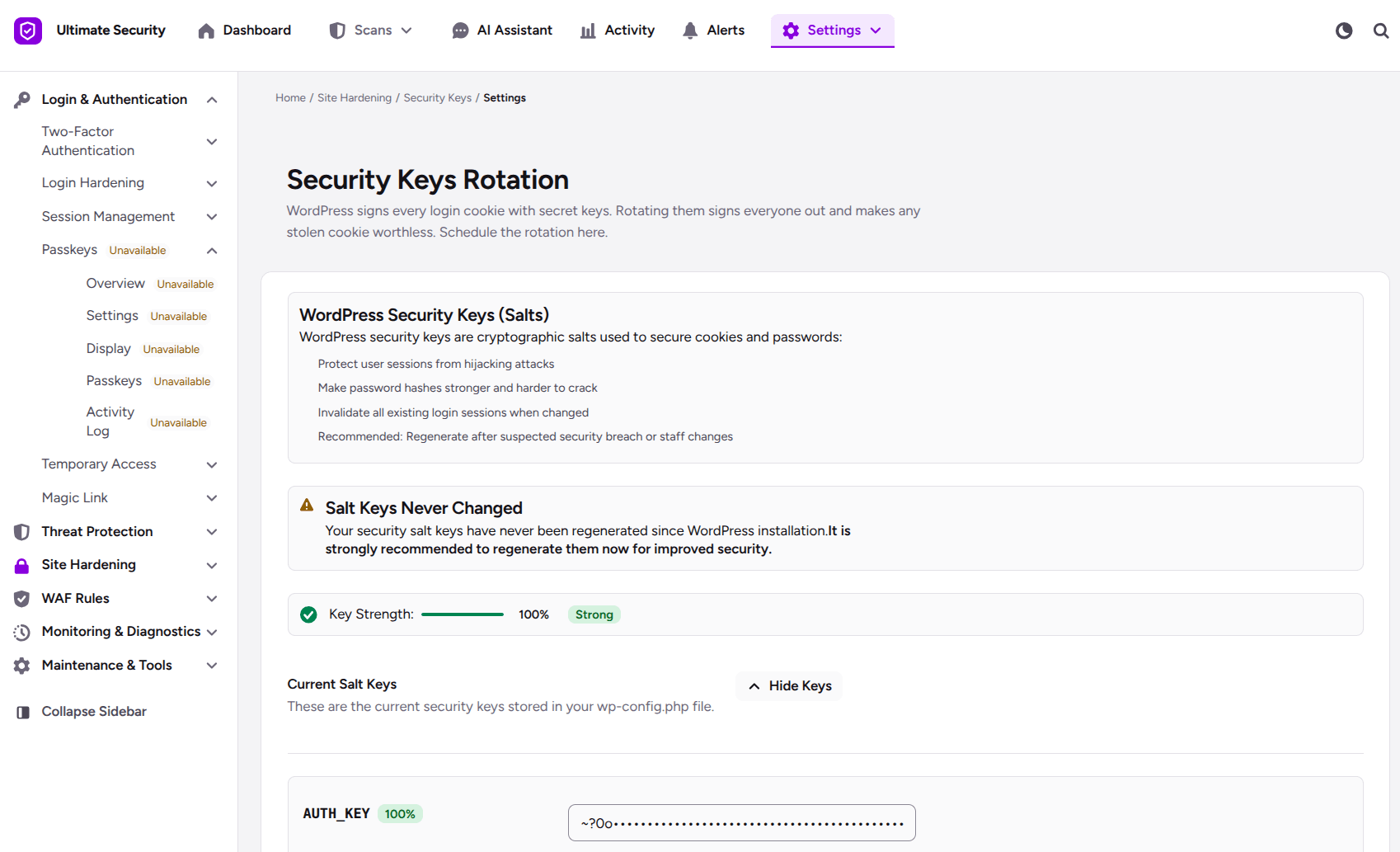
Ultimate Security provides security key settings for managing salts. It lets you view the current keys, regenerate them manually, set an optional rotation schedule, control when scheduled changes can run, receive notifications, and review past changes. Here is how each option works.
How to Regenerate Keys Right Away
Scroll to the Manual Controls section and click Regenerate Salt Keys. The plugin gets new keys from the WordPress API, which is WordPress’s own key service. If that isn’t available, it makes them itself. Then it updates wp-config.php and reloads the page. Everyone is logged out, you included, so sign back in and check that your site loads.
Choose When to Change WordPress SALT Keys Automatically
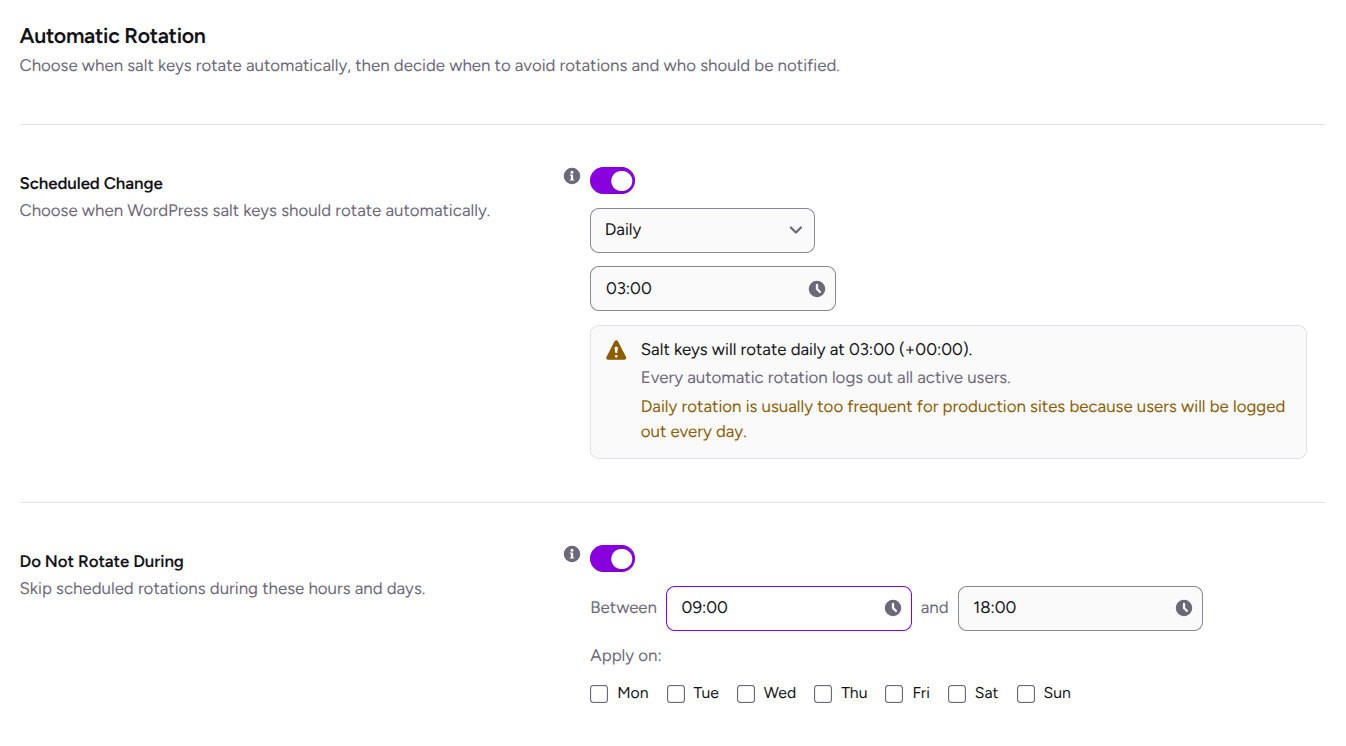
A schedule is optional, and we’d leave it off unless you have a reason. If you do want one, turn on Scheduled Change. Pick a frequency from the list: Daily, Weekly, Monthly, or Biannually.
Then set the exact time, and choose your quietest hour. To stop the schedule later, flip the same switch off.
Block Busy Hours with Do Not Rotate During
Turn on Do Not Rotate During. Set a start and end time, then tick the days it applies to. For example, block 09:00 to 18:00 from Monday to Friday. If a change is due inside that window, the plugin skips it, so your visitors stay signed in.
Get Notified Before and After
Three settings keep you in the loop:
Pre-Change Notification warns you before a scheduled change. You pick how early, for example 24 hours.
Notification After Change emails you when an automatic change goes through.
Manual Salt Key Reminder shows a notice on your dashboard when the keys haven’t changed in a while. You set the wait time with the Manual Reminder Interval, for example 7 days.
Pause or Skip a Change
Use Pause Schedule during maintenance, a migration, or a product launch. Pause Until holds automatic changes until you’re ready. Skip Next skips only the next date, and the schedule picks back up on its own.
Confirm It Ran with Salt Change History
Click View History to open the Salt Change History log. It lists every change, manual or automatic. You can check that your schedule runs on time, and you have a record of when the keys last changed. The Security Keys documentation covers every option in detail.
Frequently Asked Questions
When should I change my WordPress SALT keys?
Change them after a hack, an exposed wp-config.php file, a leaked backup, or when someone with access leaves. On a healthy site with nothing exposed, you can leave them alone. Every change logs out all users, so it should follow a real trust problem, not a habit.
Will changing SALT keys log everyone out?
Yes. Every user is logged out right away, administrators included, and signs in again with the same password. Choose a quiet hour for planned changes, warn your team first, and test forms and stored integrations afterward.
Do WordPress SALT keys need to be changed regularly?
Not necessarily. There is no universal requirement to change them on a fixed schedule. Scheduled changes can make sense for some sites, but security incidents or suspected exposure are more important reasons to rotate them.
What happens when WordPress SALT keys are changed?
Existing login cookies and certain security tokens become invalid. Users may be logged out, and actions relying on older tokens may need to be performed again
Can I manage WordPress SALT keys without editing wp-config.php?
Yes. Ultimate Security provides a Security Keys screen where you can back up, regenerate, schedule, pause, and review key changes without manually editing
Conclusion
WordPress SALT keys help protect authentication sessions, but they do not need to be changed on a fixed schedule. The main reasons to rotate them are suspected exposure, a security incident, or changes in access to your site files.
Changing the keys logs out active users, so plan the change during a low-traffic period. With Ultimate Security, you can manage, regenerate, schedule, and review WordPress SALT key changes from your dashboard.


Comments are moderated. Stay on topic: spam and link drops are removed.