

If your WordPress site ever faces a security breach, there’s an important extra step to take besides changing your password. Because active sessions stay logged in even after a password change, an attacker could still have access. To completely shut them out, the quickest fix is to rotate WordPress security keys, which instantly logs everyone out across the site.
This post covers what WordPress security keys are, why rotating them works, when you should actually do it, how to do it in a few clicks without touching any files, and how to make sure the door is properly locked once everyone has to log back in.
TL;DR
WordPress security keys encrypt the login cookies that keep users signed in to your site. When you rotate WordPress security keys, every active session across your site is destroyed instantly, including any session an attacker may still be holding. After that, the smart move is to enforce a strong password policy so no one logs back in with a weak password. This post shows you exactly how to do both, without editing any files.
Table of Contents
What Are WordPress Security Keys and Why Do They Matter
When you log in to your WordPress site. It creates a small file called a cookie and stores it in your browser. That cookie is what keeps you logged in as you move around your site. Every time you visit a new page, WordPress checks that cookie to confirm who you are and what you are allowed to do. The problem with cookies is that they sit in your browser, which means they can be stolen. If someone grabs your cookie, they can use it to access your site without ever knowing your password. WordPress security keys are what make that difficult.
Security keys are a set of eight long, random cryptographic strings stored in your site’s wp-config.php file. WordPress uses these keys to sign and verify every authentication cookie it creates. If someone steals a cookie from you, they cannot use it without also knowing your keys. And because keys are long, random, and unique to your site, they are extremely hard to guess.
The eight keys WordPress manages are AUTH_KEY, SECURE_AUTH_KEY, LOGGED_IN_KEY, NONCE_KEY, AUTH_SALT, SECURE_AUTH_SALT, LOGGED_IN_SALT, and NONCE_SALT.
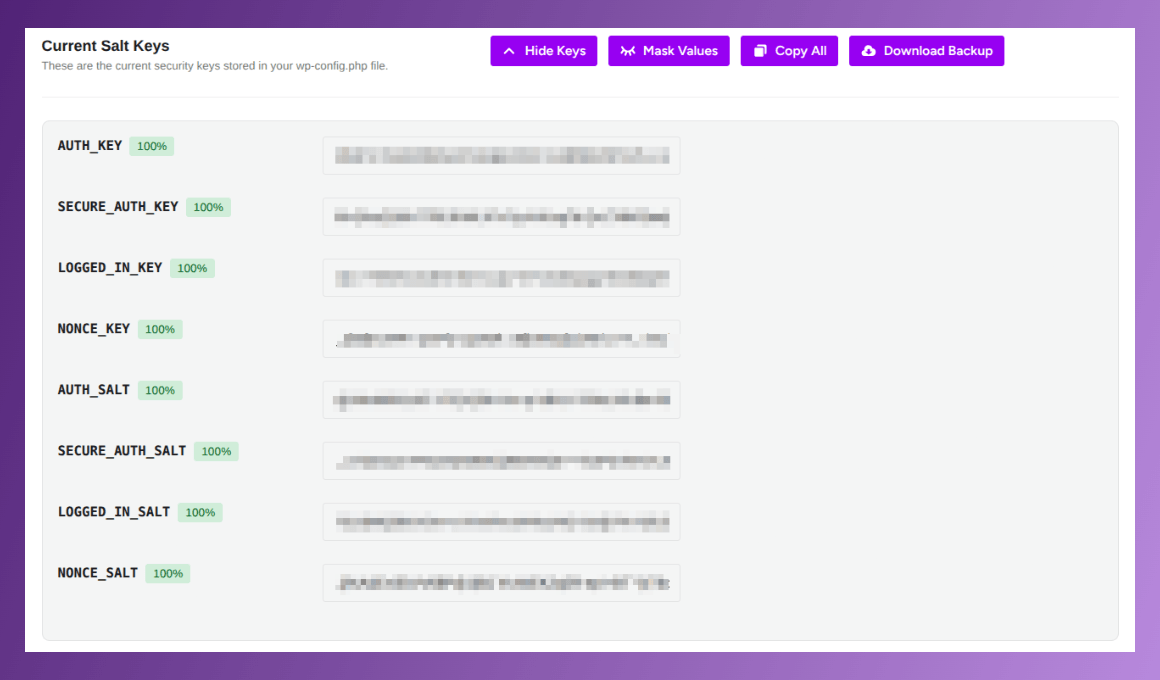
You do not need to memorize those names. What you need to understand is that all eight work together to protect every login session on your site, and the moment those keys change, every session built on the old keys becomes invalid immediately.
When Should You Rotate WordPress Security Keys
A lot of articles online will tell you to rotate your security keys on a strict weekly or monthly schedule no matter what. That is not always the best advice.
Rotating your keys logs out every user on your site at once, including admins, editors, customers, and members. If you run a busy store or a membership site, doing this without a clear reason creates unnecessary disruption. Some plugins also use WordPress salts to store their own encrypted settings. Rotating too aggressively without checking can, in some cases, cause those plugins to lose access to data they encrypted with the old keys.
So the smarter approach is to rotate when you have a real reason to. You should rotate WordPress security keys without hesitation in these situations:
Your site has been compromised, or you suspect it has been. A plugin, theme, or admin account you did not install appeared on your site. Your site was migrated to a new host and you want to clear any sessions tied to the old environment. Your wp-config.php file was ever exposed, shared accidentally, or included in a backup that is not fully private.
Outside those situations, rotating once or twice a year as a general maintenance habit is reasonable for most sites. The core rule is simple: rotate when trust is broken, not just because a schedule says so.
What Happens When You Rotate WordPress Security Keys
The moment you rotate WordPress security keys, WordPress stops recognizing every cookie it previously issued. It does not matter if a user logged in five minutes ago or five days ago. It does not matter if someone has a Remember Me session that was supposed to last for two weeks. Every single one of those cookies is now invalid because they were all signed with the old keys. The new keys do not match, so WordPress rejects them all.
This means every logged-in user across your entire site gets kicked out at the same time. Administrators, editors, subscribers, WooCommerce customers, membership users, everyone. And if an attacker had an active session through a stolen or hijacked cookie, their access ends at exactly the same moment.
This is what makes rotating security keys so powerful as an emergency response. You are not chasing individual accounts or trying to figure out which session was compromised. You wipe every session at once with a single action, and everyone, including the attacker, has to start over from the login page.
One thing to be clear about here: rotating your keys ends active sessions, but it does not clean your site. If malware still has access to your files, it can read the new keys as soon as they are written. This is why the order of steps matters, and the right sequence is covered later in this post.
How to Rotate WordPress Security Keys Using Ultimate Security
The traditional way to rotate WordPress security keys requires opening your wp-config.php file, generating new keys from an external tool, and carefully pasting them in to replace the old ones. One missed character or a formatting mistake can take your site down. That is a real risk, especially when you are already dealing with a security incident and need to act fast.
Ultimate Security removes that problem entirely. You can rotate WordPress security keys directly with Ultimate Security.
No file editing, no FTP access, and no technical knowledge required. Here is exactly how to do it.
View your current key health
Once Ultimate Security is installed, go to the Security Keys section in the plugin. The first thing you will see is the Current Salt Keys panel. This panel shows all eight keys currently active on your site, read directly from your wp-config.php file.
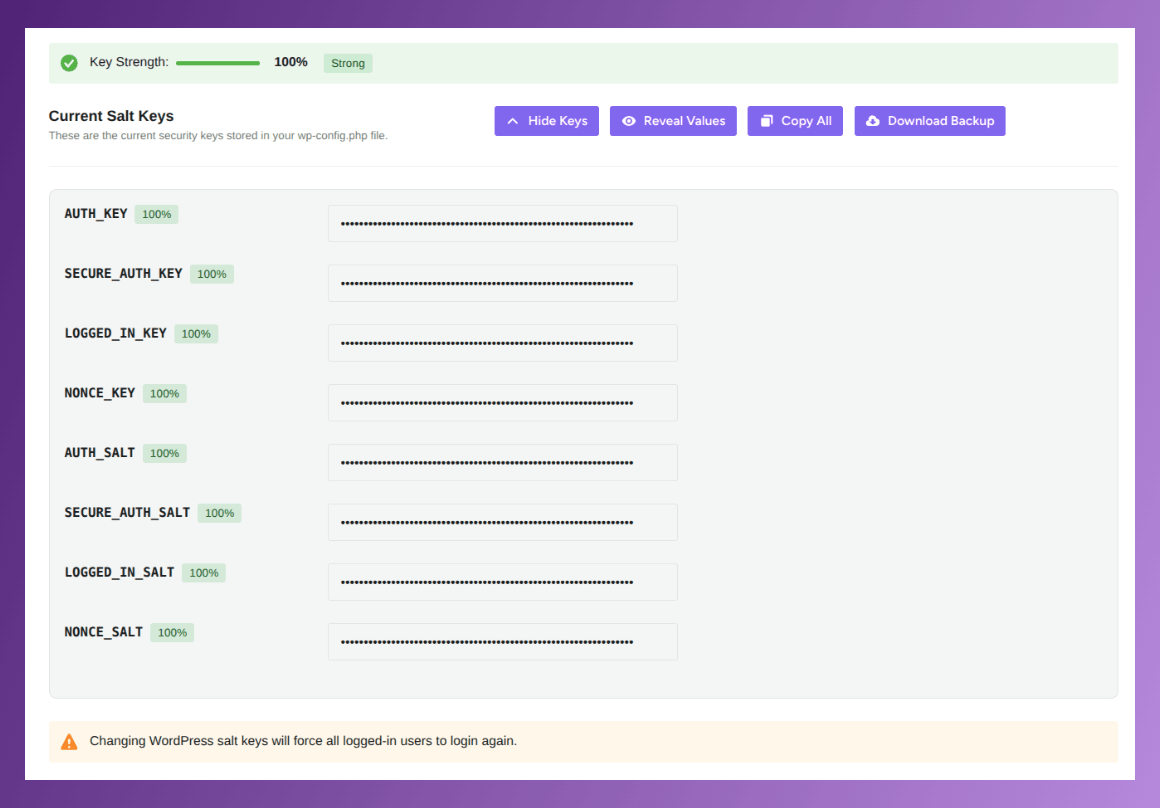
At the top right of the panel, there are four buttons to help you work safely with your keys. Hide/Show Keys toggles the raw key values on and off so you are not accidentally exposing them on screen. Mask Values replaces the middle of each key with dots, so you can verify the patterns without showing the full string to anyone nearby or in a screen recording. Copy All copies all eight keys to your clipboard at once. Download Backup saves a copy of your current keys so you have a recovery point before you make any changes. Always use Download Backup before you proceed.
Rotate your keys immediately
If your site has been compromised or you need to act right now, scroll to the Manual Controls section and click the Regenerate Salt Keys button.
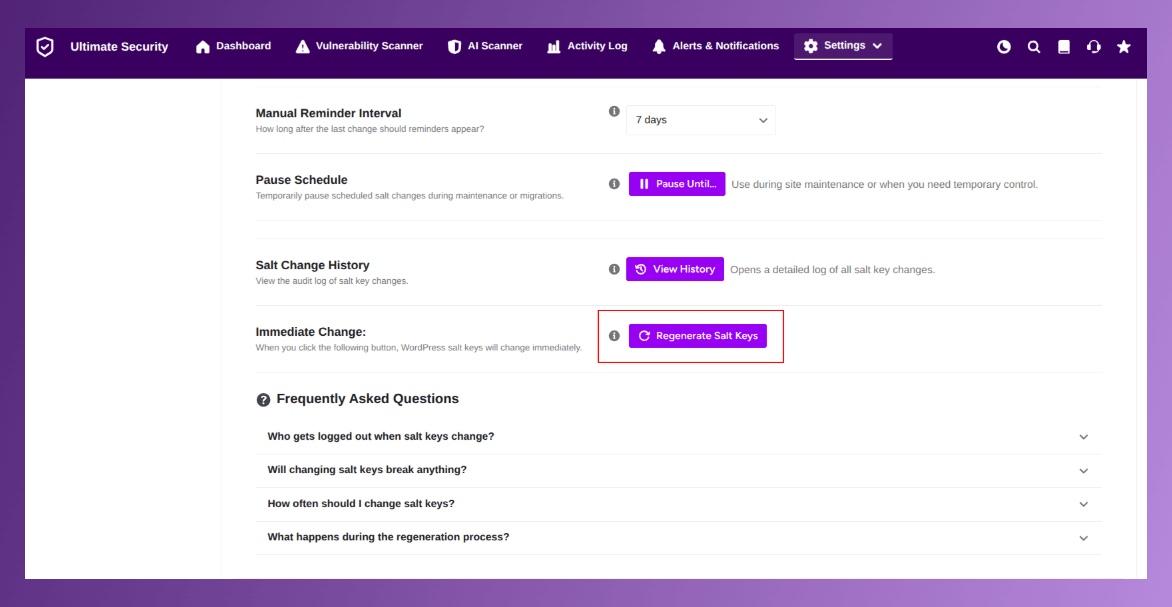
That is all. The plugin fetches fresh cryptographic strings from the WordPress API, updates your wp-config.php file safely in the background, and forces a page reload to apply the changes. Every active session across your site, including any an attacker may be holding, is killed the moment the process completes. You will be logged out too, so log back in with your credentials and confirm the site is loading correctly.
Set up automatic rotation for ongoing protection
If you want to build key rotation into your regular site maintenance without having to remember to do it manually, the Scheduled Change feature handles this automatically.
Toggle the Scheduled Change switch to enable it. Then choose how often you want the keys to change from the dropdown. After that, set the exact time you want the rotation to happen. Pick a time when your site gets the least amount of traffic so the forced logout causes the least disruption.
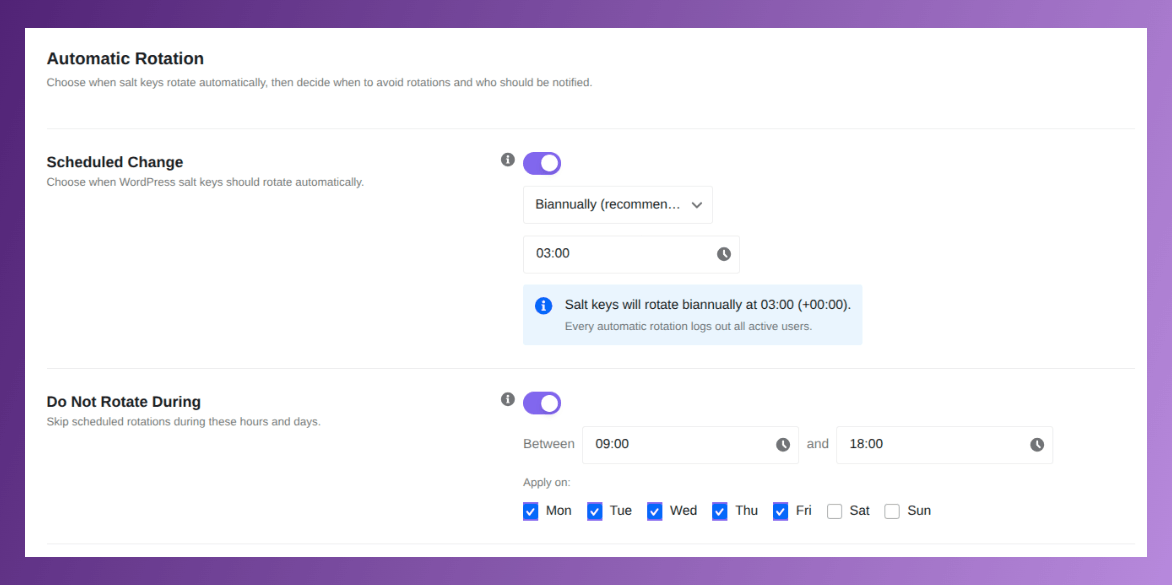
There is also a Do Not Rotate During option that lets you define a blackout window. You set the hours and days when the system should never rotate keys, for example between 9am and 6pm on weekdays. If a scheduled rotation falls inside that window, the system skips it automatically so your users are never logged out during your busiest hours.
Control notifications so you are never caught off guard
The Reminders and Notifications section gives you three options to stay informed. Manual Salt Key Reminder shows a notification on your WordPress dashboard if your keys have not been changed in a while.
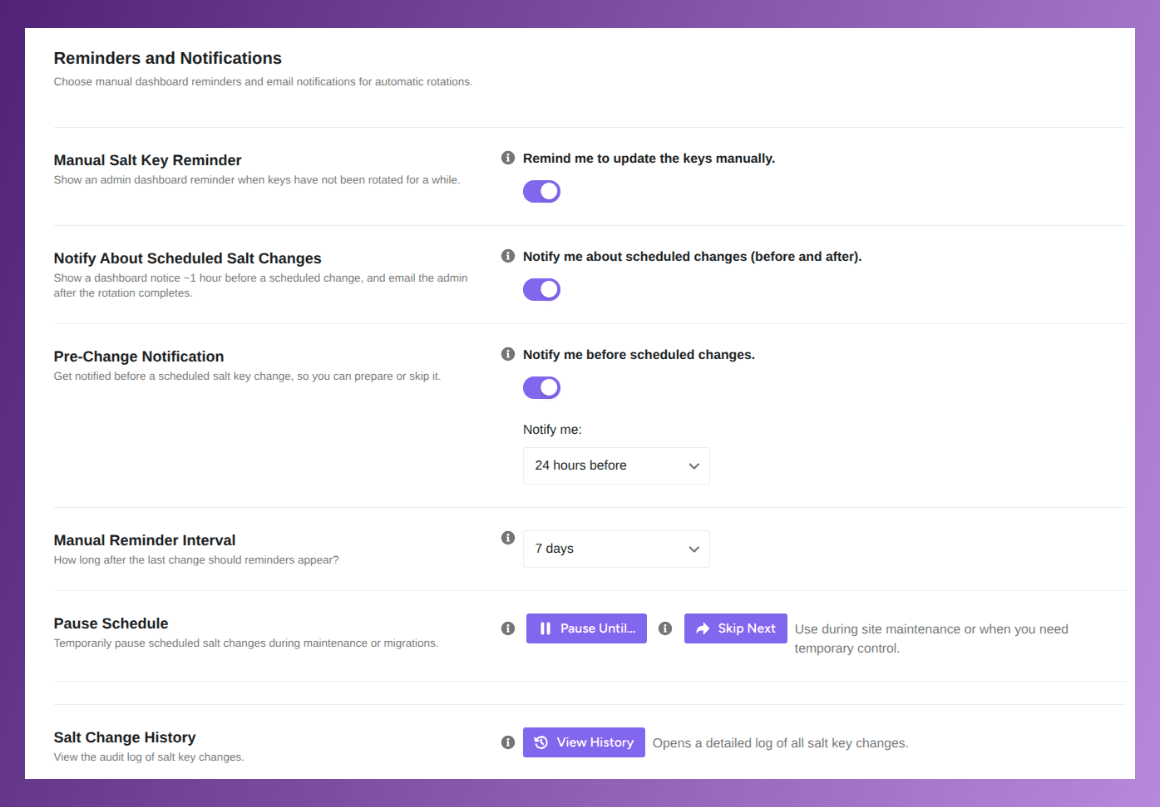
You can set the interval, for example every 7 days, using the Manual Reminder Interval dropdown. Notification After Change sends you an email the moment an automatic rotation completes successfully. Pre-Change Notification gives you an advance warning before a scheduled rotation happens, for example 24 hours before, so you have time to pause it if needed.
Manage your rotation history
The Salt Change History log shows you a record of every key rotation that has happened on your site, whether it was manual or automatic. Click the View History button to open it. This is useful for confirming that scheduled rotations are running correctly and for keeping a security audit trail of when your keys were last changed.
If you ever need to stop automatic rotations during a maintenance window or a site migration, use the Pause Schedule button to halt them temporarily. If you just need to skip a single upcoming rotation without stopping the whole schedule, use Skip Next instead. The automation resumes on its own after the skipped date passes.
For the full feature reference, see the WordPress Security Keys documentation.
The Right Order to Follow After a WordPress Compromise
Rotating your keys is one of the most important steps after a breach, but it works best as part of a sequence. Doing it out of order reduces how effective it is.
Step 1: Scan and clean your site first. Do not rotate keys while malware may still have file access. If a malicious script is still running on your server, it can read the new keys the moment they are written and the rotation achieves nothing. Clean the site before you change anything. If you need help identifying and removing malware (vulnerability), our guide on WordPress vulnerability scanning walks through the full process.
Step 2: Remove any admin accounts you did not create. If an attacker added a backdoor admin account, rotating keys will end their current session but will not stop them from simply logging back in with that account. Find and delete any unknown users before you proceed.
Step 3: Rotate WordPress security keys. Once the site is clean and unknown accounts are gone, this is the right moment. Click Regenerate Salt Keys in Ultimate Security. Every remaining session, including any the attacker was holding through a stolen cookie, is terminated immediately.
Step 4: Enforce strong passwords before anyone logs back in. This is the step most people skip, and it is a real gap. Rotating the keys logs everyone out, but if your users log back in with simple passwords, the vulnerability can return through a different door. The next section covers how to prevent that.
Step 5: Watch your activity logs. Keep an eye on what happens in the hours after the rotation. Repeated failed login attempts or new admin accounts appearing are signs the issue is not fully resolved. Catching that early is far better than discovering it days later.
Enforce Strong Password Rules Before Anyone Gets Back In
Key rotation gives you a forced re-login moment for every user on your site. That moment is your best opportunity to raise the password standard across the board, because every single user has to authenticate again anyway. Ultimate Security’s Password Requirements feature lets you set and enforce a password policy for all users from one screen inside the plugin.
You can set a minimum password length and require that every password contains uppercase letters, lowercase letters, numbers, and special characters. If you want to apply a preset rather than configure each option manually, there are three quick levels to choose from: Basic for simple sites, Strong for most setups, and Enterprise for high-security environments. Selecting a preset automatically fills in the recommended settings for that level.
Beyond the basics, the feature also checks every password against the Have I Been Pwned database in real time.
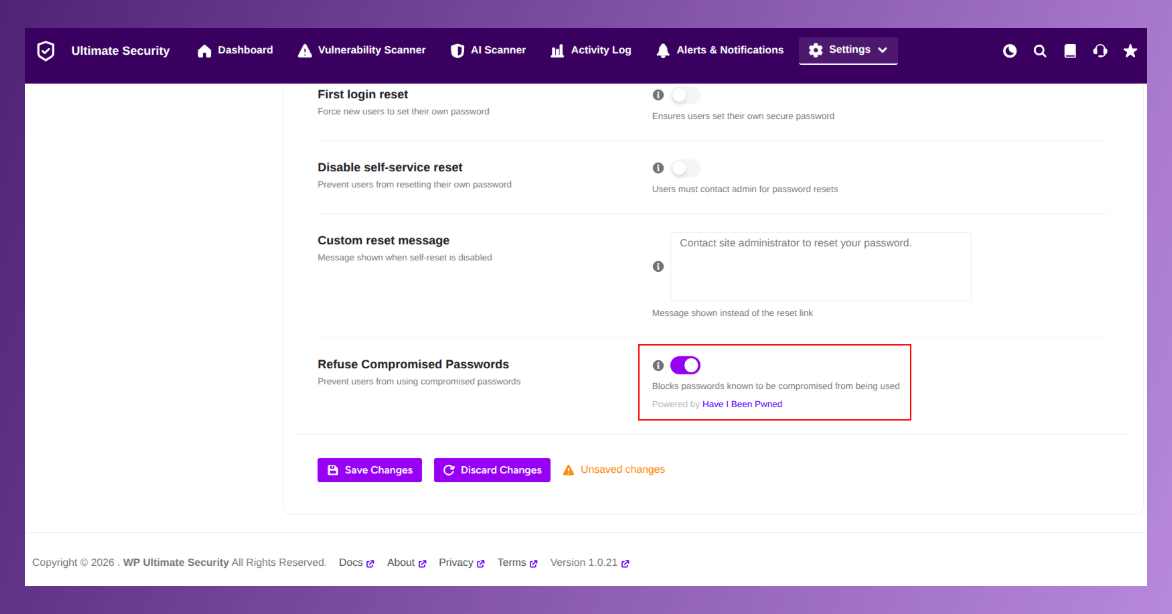
If a user tries to set a password that has appeared in a known data breach, the system blocks it immediately and tells the user exactly how many times that password has been exposed in past leaks. This stops people from reusing compromised credentials even if they genuinely think their password is fine.
Rotating the keys clears every active session. Enforcing strong passwords makes sure no one can walk back in through a weak credential once they get to the login screen.
Frequently Asked Questions
Does rotating WordPress security keys delete any content or settings?
No. Rotating the keys only invalidates authentication cookies. Your posts, pages, plugins, and all site settings remain completely untouched. The only result is that everyone is logged out and needs to sign in again.
Will rotating WordPress security keys log out all users including admins?
Yes, all users are logged out immediately when the keys change, including administrators. This is intentional. It ensures no session tied to the old keys stays active on any device or browser anywhere.
How often should I rotate WordPress security keys?
There is no single schedule that fits every site. The most important time to rotate is after a suspected breach or after your wp-config.php file has been exposed. As a general maintenance habit, once or twice a year is a reasonable approach for most sites.
Can I rotate WordPress security keys without editing wp-config.php?
Yes. Ultimate Security handles the entire process from your WordPress dashboard. You click Regenerate Salt Keys, and the plugin updates your wp-config.php safely in the background without you touching any files.
What is the difference between WordPress security keys and WordPress salts?
They are related and live in the same section of your wp-config.php file. The keys are the primary cryptographic secrets. The salts add additional randomness to the hashing process. In practice they are always managed together as a set of eight values, and rotating them means replacing all eight at once.
Does rotating security keys fix a hacked WordPress site on its own?
No. Rotating the keys ends active sessions, but it does not remove malware, close the vulnerability that allowed the breach, or undo any changes an attacker made. You need to scan and clean the site first, then rotate the keys as part of the recovery steps.
What happens to users with Remember Me enabled when keys are rotated?
Their persistent session is also invalidated. The Remember Me feature stores a long-term cookie that is signed with your security keys. When the keys change, that cookie no longer matches, so those users have to log back in just like everyone else.
Conclusion
Changing your password after a security scare feels like the right move, but it only closes one door. If an attacker got in through a stolen cookie or a hijacked session, they are still inside even after your password changes, because their access does not depend on your password at all.
When you rotate WordPress security keys, every session across your site is destroyed at the same moment. There is no hunting for individual compromised accounts and no waiting. One action clears everything. Pair that with a strong password policy through Ultimate Security, and you make sure the login screen becomes a proper barrier when everyone has to come back in.


Comments are moderated. Stay on topic: spam and link drops are removed.