
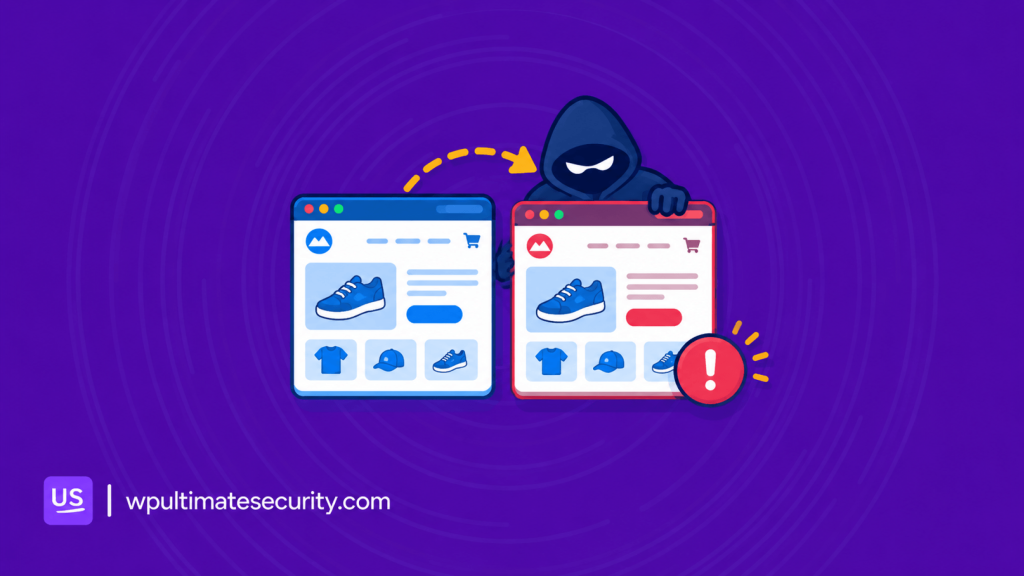
A lookalike website is a fake website developed to look like a legitimate and trusted business. Scammers use these sites to trick people into sharing passwords, payment details, or other personal information.
These fake websites can reach you through emails, text messages, social media, search results, and other links. Learning how to check a website before entering your information can help you avoid falling for these scams.
In this guide, we will explain how lookalike websites work, how to spot them, what to do if you enter your details, and how two-factor authentication can provide an extra layer of protection.
Table of Contents
What Is a Lookalike Website and Why Scammers Build Them
A lookalike website is a fake site made to look like a well-known business. It copies the logo, colors, layout, and wording of a trusted brand, so a quick glance shows nothing wrong. You may also hear them called fake websites, spoofed sites, or phishing websites.
Building one is cheap and fast. Scammers can copy a page’s design in minutes and register a web address that looks almost the same as the actual business website address. Swapping one letter or adding an extra word is enough. This trick is called typosquatting.
Most lookalike websites have one of three goals. Collect login credentials, collect payment card details, or collect personal data like phone numbers and home addresses. Login pages, checkout pages, and account recovery pages get copied the most, because that is where people type sensitive information.
Well-known brands are cloned most often because people already trust them. Banks, delivery services, online stores, hosting companies, and even WordPress login pages all make good bait. When people recognize a name, they tend to act faster and think less.
How Scammers Get You to the Fake Website
The fake site is only half of the scam. The other half is getting you to open it. Scammers use a few common routes, and knowing them helps you pause at the right moment.
Phishing Emails
Email is one of the most common routes. The message pretends to come from a bank, a store, a hosting provider, or another service you use. Typically, they use subjects like “account suspended,” “unpaid invoice,” “failed payment,” or “unusual sign-in.”
The email creates worry, then offers a button that leads to a fake login page. Scammers can make the sender name look right even when the real address behind it is different.
Text Messages and Messaging Apps
Short messages work well because they feel urgent and personal. A text about a missed delivery, a blocked card, or a refund usually comes with a short link. Short links hide the actual address, so you cannot see where they lead until you tap.
The same trick shows up on messaging apps. The message may even come from a friend whose account was taken over.
Social Media Messages and Comments
Scammers set up fake support accounts that reply to people who complain about a brand in public. They also send direct messages about giveaways, prizes, or account problems.
The link in the message leads to a copy of the brand’s login or claim page. A legitimate support team rarely asks you to log in through a link sent in a private message.
Fake Search Ads and Search Results
Not every fake site arrives by message. Some scammers pay for ads that appear above the true result when you search for a brand name. The ad may look normal while the link goes somewhere else.
Fake pages can also be built to show up in search results for words like login or customer support. That is why checking the web address matters even when you found the site yourself.
One Site Redirects on Too Many Sites
Phishing links also appear in forum posts, blog comments, pop-ups, fake download buttons, and QR codes on posters or stickers. A hacked website can even show a fake login page to its own visitors.
QR codes are tricky because you cannot read the address before you scan. Check the address your phone shows before you open the page.
How a Lookalike Website Steals Your Sensitive Information
A lookalike website does not need to hack anything. It just needs to convince you to enter your sensitive information on the wrong page. That simple setup is exactly what makes these scams so effective.
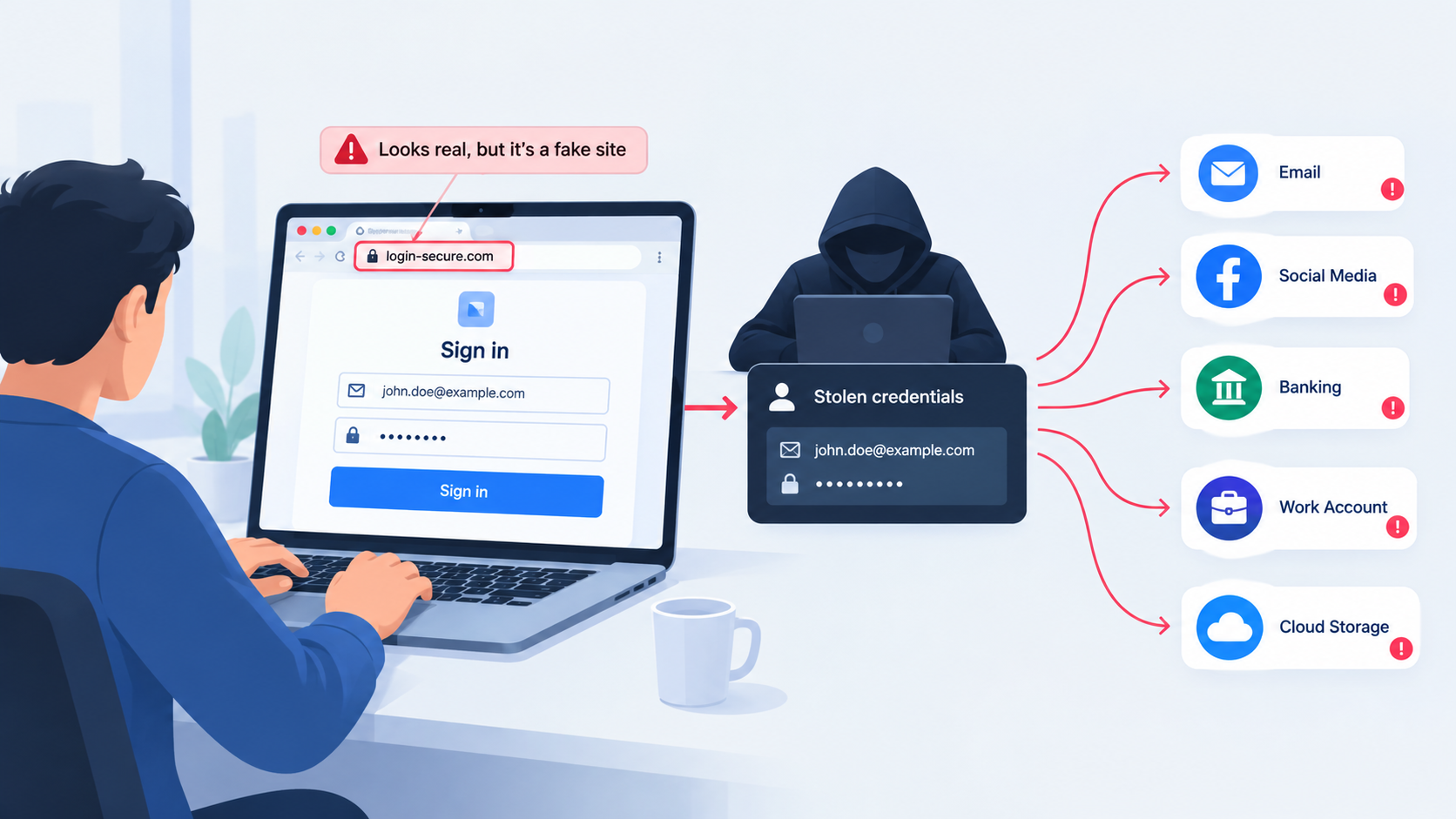
- You open a link and see a page that looks like the real login.
- You type your email or username and your password.
- The fake site sends those details to the scammer. Some fake pages then show an error or send you to the real site, so you think you mistyped something.
- The scammer tries your login on the real site and often on other popular sites too.
The last step matters because many people reuse the same password. One fake login page can put more than one account at risk. This is also why a strong password does not help against phishing. You are the one who types it into the page.
How to Spot a Lookalike Website
No single sign proves a site is fake, so look for more than one. Spend a few seconds on each of these checks before you enter anything. Good fakes can look perfect, which is why the checks work best together.
Read the Web Address Carefully
The web address is the most reliable clue. Look for these patterns:
- Swapped, missing, or extra letters, such as examp1e.com instead of example.com
- Added words, such as example-login.com or example-support.com
- Extra hyphens or unusual endings, such as .xyz or .top where you would expect .com
- The brand name placed at the start of a longer address, such as example.fakesite.com
For the last one, read the address from right to left. The real domain is the part just before the first single slash. In example.fakesite.com, the real domain is fakesite.com, not example.com.
Do Not Always Trust the HTTPS Request
The padlock means the connection between you and the site is encrypted. It does not mean the site is honest. Scammers can get the same kind of certificate for a fake website, so a padlock can appear on a phishing page too.
Use the padlock as one small check, not as proof.
Be Careful With Urgent Messages
Scammers want you to act before you think. Messages that say your account will close in 24 hours, a payment failed, or someone logged in from another country are built to create panic.
Real companies sometimes send urgent notices too, so urgency alone is not proof. But when a message pushes you to click quickly, slow down and check through another route.
Recheck How You Arrived on the Website
How you reached a page tells you a lot. If you came from an email, text, or social media message, do not log in through that link.
Type the address yourself, use a bookmark, or open the company’s app instead. If the issue is valid, you will see it after you log in the normal way.
Notice Small Design and Content Problems
Look for blurry logos, spelling mistakes, strange wording, links that do nothing, or missing pages like a privacy policy or contact page. Be careful with pages that ask for more than a normal login, such as your full card number just to sign in.
Also be careful with shops that accept only gift cards, crypto, or bank transfers. These signs are not always present, so treat them as extra clues next to the web address.
What to Do If You Entered Your Details on a Fake Site
It happens to careful people too, and acting fast helps. Follow these steps in order:
- Go to the real site by typing the address yourself, and change your password right away.
- Change the same password on any other account where you used it.
- Turn on two-factor authentication on that account if it is available.
- Check recent activity, such as sign-ins, orders, and changed settings.
- Contact the real company if you shared payment or banking details.
- Report the fake page, either to the company it copied or through the phishing report option in your browser or search engine.
If someone clones your own website, the steps are a little different. Contact the hosting company and the domain registrar of the fake site. Since a domain lookup often shows who runs it. Report the page to Google, and warn your customers through your real website and social accounts so they know what to look for.
Or, if you run a business, it’s also worth thinking about the potential cost of a security incident.
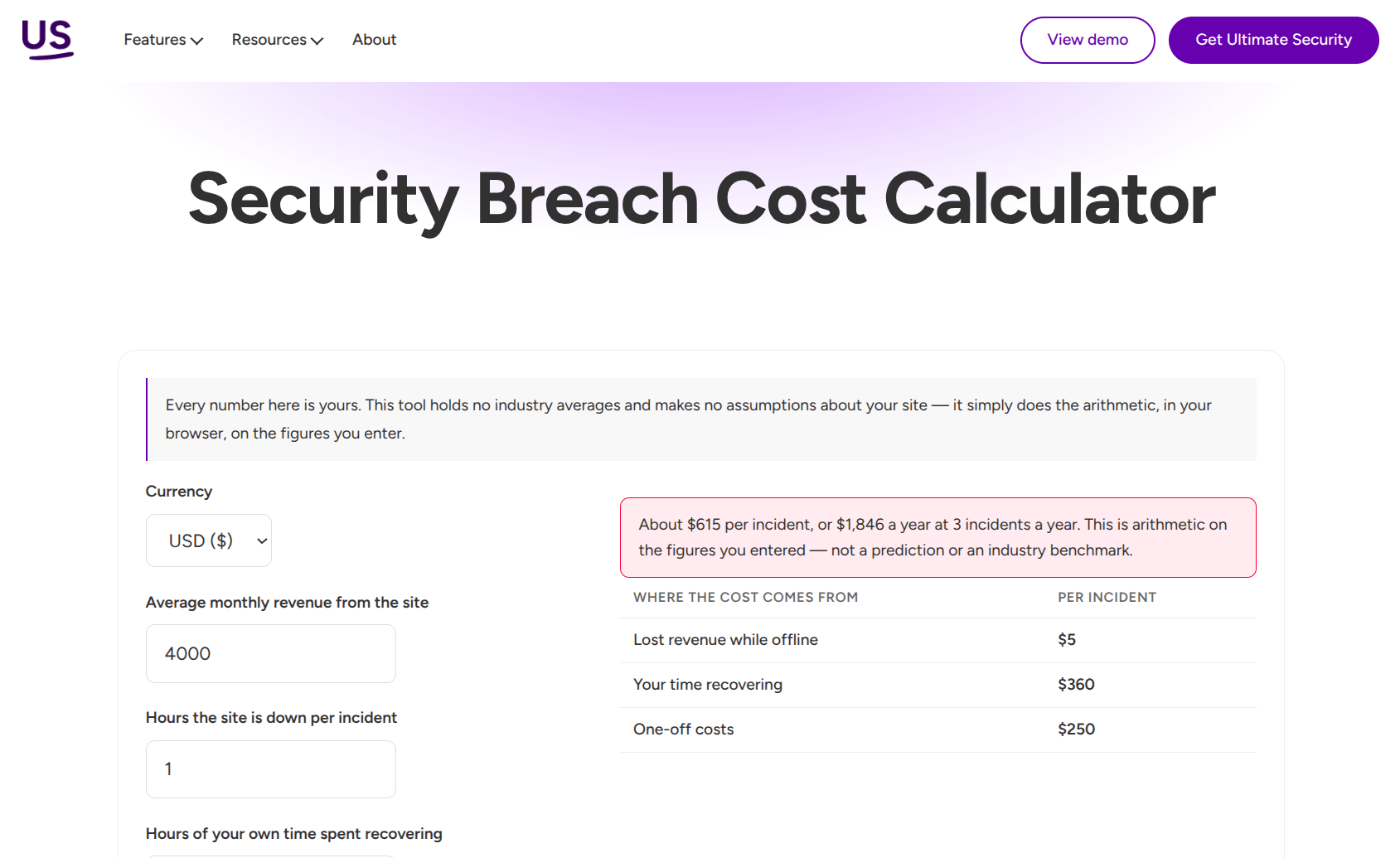
The Security Breach Cost Calculator can help you estimate the potential impact based on downtime, recovery time, and lost revenue.
Why a Stolen Password Can Put Your Accounts at Risk
A password is one secret. Once you type it into a fake page, it is no longer a secret. Phishing works because it goes around the password instead of breaking it.
Passwords can also leak in other ways, such as data breaches or reuse across sites. You cannot control all of those risks, but you can add a second step that a stolen password alone cannot pass.
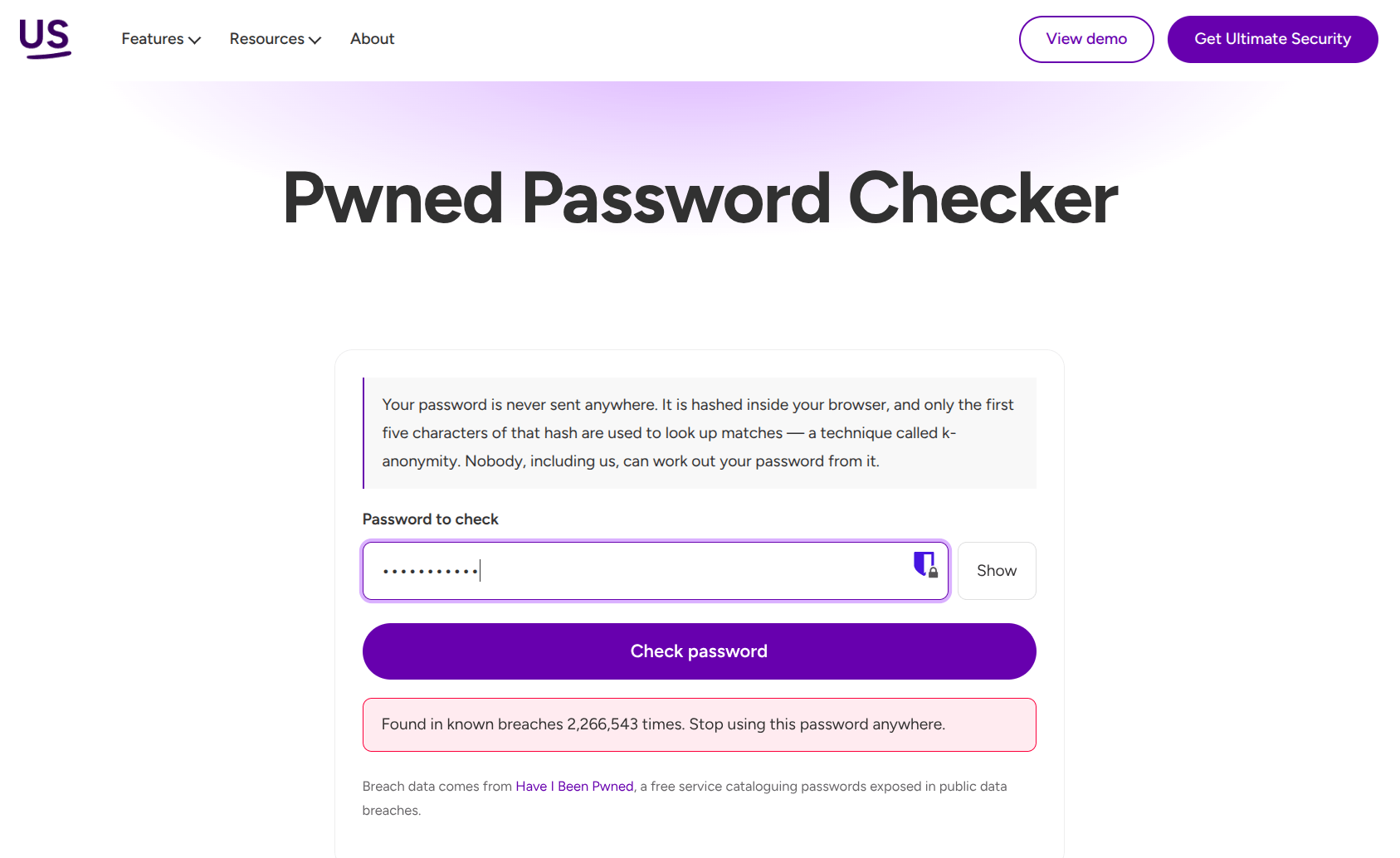
Check whether your password has appeared in a data breach. Use the free Pwned Password Checker to see whether a password has been exposed in known breaches. If it has, stop using it and change it right away.
How Two-Factor Authentication Helps Stop Account Takeovers
Two-factor authentication, often called 2FA, asks for a second proof of identity after your password. That proof is usually a one-time password, a short code that works once and expires fast. The code may arrive by email or come from an authenticator app on your phone.
If a scammer gets only your password from a fake login page, the second step should stop them from getting in. That is the main value of 2FA.
It is not a guarantee, though. Some advanced fake pages ask for the code too and pass it to the real site right away. 2FA also cannot stop you from being tricked into visiting a fake page in the first place. It works best together with the habits above. If you ever receive a login code you did not ask for, treat it as a warning that someone may have your password, and change it.
One more point about scope. 2FA on your WordPress site protects logins to that site. It does not protect your accounts on other services, so turn it on there too wherever it is offered.
Setting Up Two-Factor Authentication With Ultimate Security
WordPress does not include two-factor authentication by default. If you run a WordPress site, a security plugin can add it to your login. Ultimate Security includes Email OTP and Authenticator App as free methods, so you can add a second step to your site’s login at no cost. Additional methods are available in the Pro version.
Both methods follow the same pattern. The site owner turns the method on and chooses which user roles must use it. Then each user connects their own account from their WordPress profile. For a wider walkthrough, see our guide on how to set up two-factor authentication for your WordPress login.
Email OTP
Email OTP sends a one-time code to the user’s email address every time they log in. It needs no extra app, which makes it the quickest way to get started.
To turn it on as the site owner:
- Open the Email OTP page in the two-factor authentication settings of Ultimate Security.
- Enable the Verification toggle.
- Under Enable for Roles, choose which user roles can use email 2FA.
- Click Save Changes.
Each user then connects their account:
- Go to Users → Profile in the WordPress dashboard.
- Scroll down to the Ultimate Security section.
- Select Email as the 2FA method.
- Click Send OTP and enter the code from your email.
- Once the Verified mark appears, click Save Settings, then click Update Profile at the bottom of the page to start 2FA.
If you want to start over, the Reset 2FA Settings option clears the current setup.
Keep these points in mind:
- Your site needs an SMTP email service to send the codes.
- Email delivery is not always instant, so a code can expire before the user finds it.
- Codes sometimes land in the spam or junk folder.
- If an attacker already has the password to a user’s email account, they can read the code. This makes email protection important too.
Authenticator App
An authenticator app creates a new login code on your phone every 30 seconds without internet or phone signal. Before you start, install one of the authenticator apps like Google Authenticator, Microsoft Authenticator, or 2FAS Authenticator.
To turn it on as the site owner:
- Open the Authentication Apps page in the two-factor authentication settings of Ultimate Security.
- Turn on the switch that enables two-factor authentication.
- Under Enable for Roles, select which user roles can use the Authenticator App.
- In Advanced Settings, choose the algorithm. TOTP creates a new code every 30 seconds and works with virtually all authenticator apps. HOTP creates codes based on a counter that changes with each login attempt.
Two more settings are worth reading before you decide:
- XML-RPC decides whether 2FA is required when external services and mobile apps connect to your site. The default does not require it. Turn it on only if your external apps support 2FA, or if you do not use any.
- Encrypt Keys in Database hides your security keys inside the database, so they are harder to steal even if someone gets into it. Once you enable it, you cannot disable it, though the docs say it is completely safe to keep on.
Each user then connects their account:
- Go to Users → Profile in the WordPress dashboard.
- Scroll down to the Ultimate Security section.
- Select the Authenticator Application method and click Setup.
- Scan the QR code with your authenticator app to finish the connection.
If you cannot scan the QR code, copy the private key shown on the page and add it to your app by choosing the manual entry option. If you think the key was shared or exposed, the Reset Private Key button creates a new one and immediately invalidates the old one. You then reconnect your app with the new QR code or key.
After setup, the login has one extra step. You enter your username and password as usual, then a second screen asks for a 6-digit code. Open your authenticator app, enter the code for your site, and click Verify. The code refreshes every 30 seconds, so enter it before it expires.
Other Ways to Protect Your Accounts
Spotting a fake website is only one part of protecting your accounts. The same stolen password can put other accounts at risk, especially if you reuse it. A few simple habits can make phishing and account takeovers much harder.
Use a Different Password for Every Account
Password reuse is one of the biggest problems after a phishing attack. If someone gets your password from one fake website, they may try the same password on your email, social media, shopping accounts, and other services.
Use a unique password for every account and store them in a password manager. You don’t need to memorize dozens of different passwords.
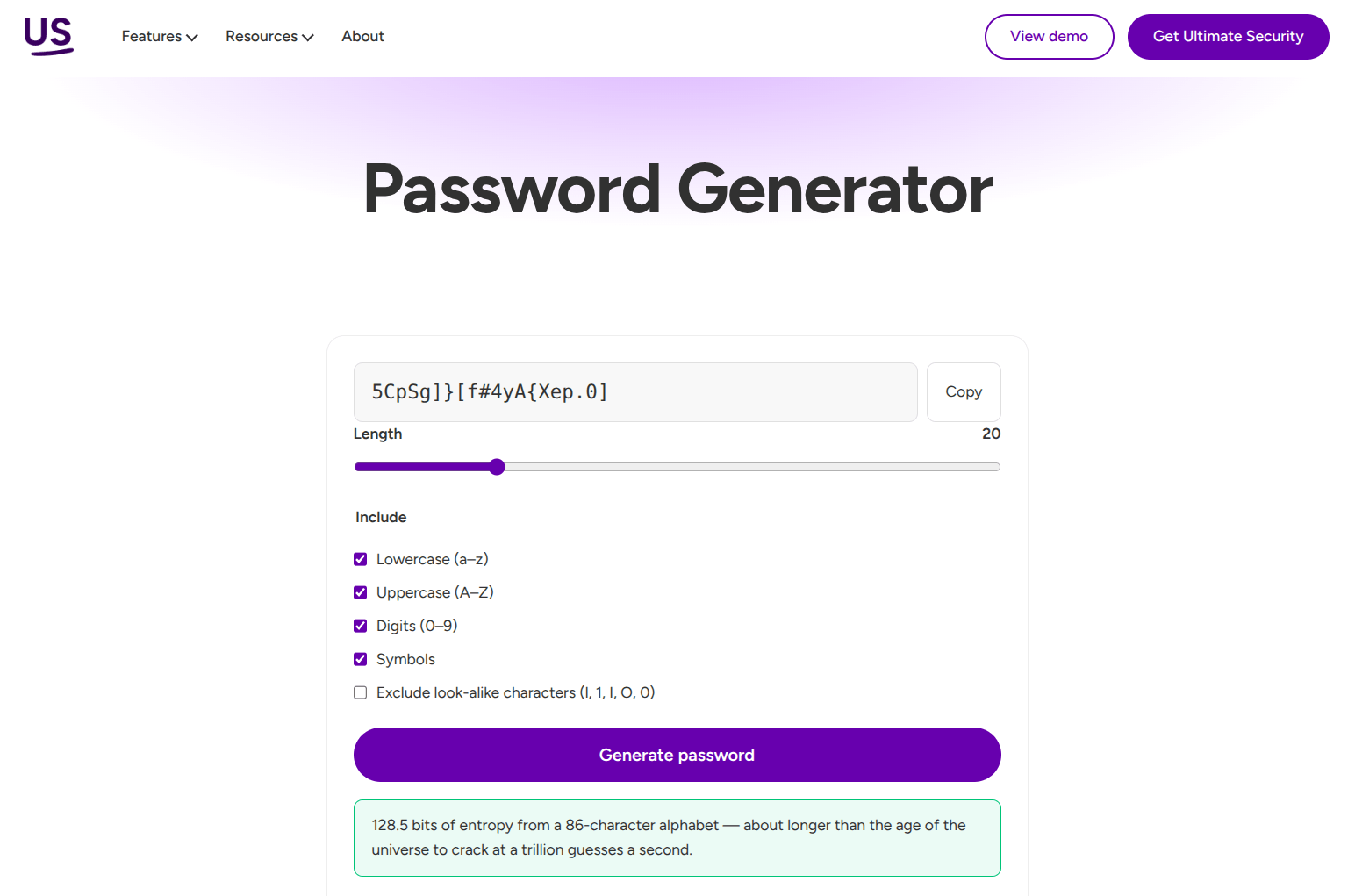
If you need a new password, the Password Generator can create a strong, random one for you. Save the generated password in your password manager instead of reusing an old password.
Check How Strong Your Passwords Are
A unique password is useful, but it should also be difficult to guess or crack. Longer and more complex passwords generally give attackers more work to do.
The Password Crack Time Calculator lets you estimate how long it could take to crack a password under different password requirements. You can use it to understand how changes to password length and complexity affect password security.
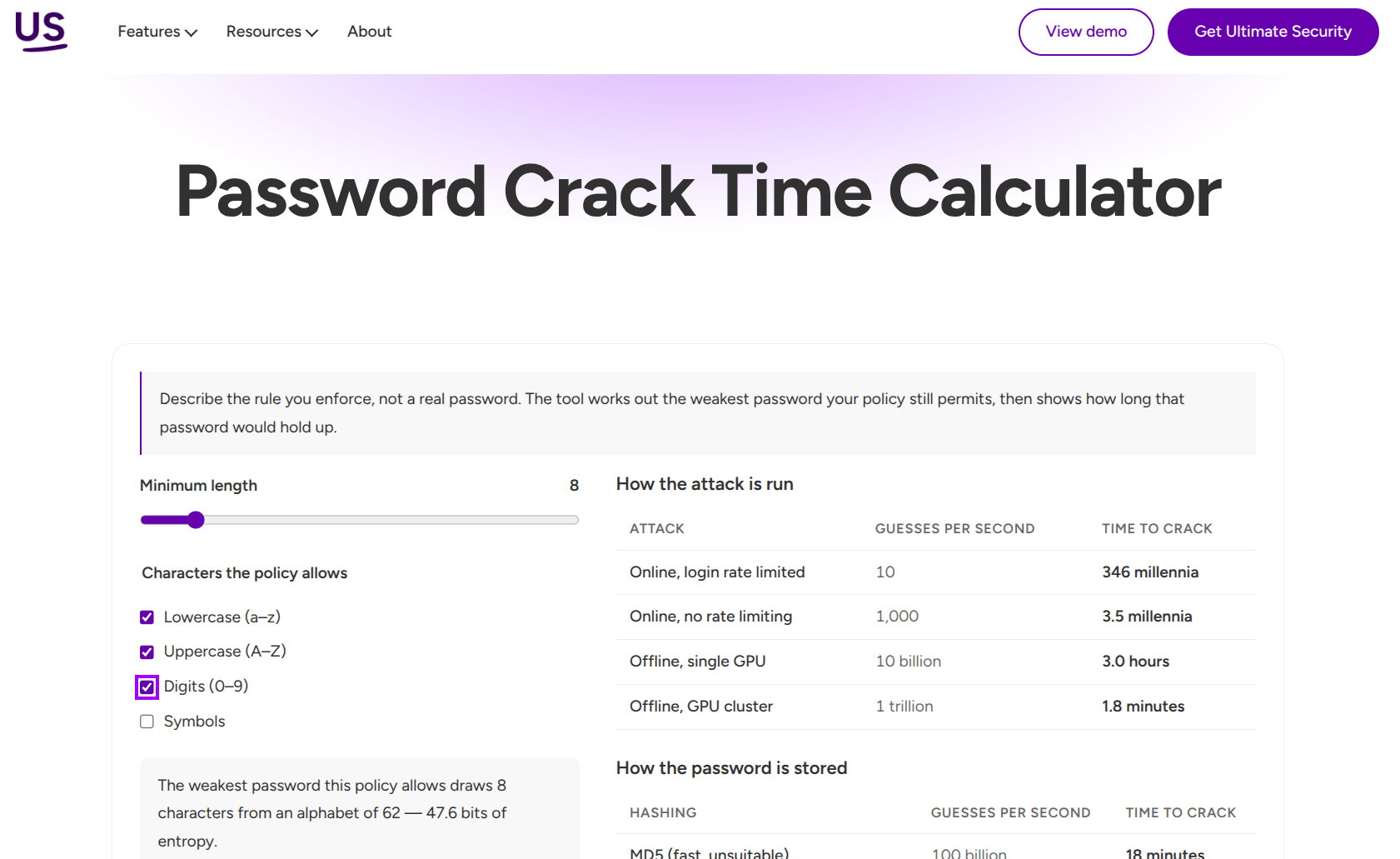
Don’t use the calculator as a reason to keep a weak password just because it shows a long estimated crack time. A password should still be unique, and you shouldn’t enter a real password into an online tool unless you trust how it handles that information.
Keep Your Accounts and Software Updated
Security doesn’t stop with your password. Keep your operating system, browser, apps, and other software updated so known security weaknesses are less likely to be exploited.
For accounts you use regularly, bookmark the official website and use that bookmark when you need to log in. This is safer than following login links from emails, text messages, or social media messages.
Add More Protection to Your Accounts
2FA is one useful layer, but you can add other protections where they’re available. Login attempt limits, security alerts, and notifications for new sign-ins can help you spot or slow down suspicious activity.
If you run a WordPress website, our guide on login security features that stop brute-force attacks covers additional ways to protect your login.
Frequently Asked Questions
What is a lookalike website?
A lookalike website is a fake site that copies the look of an established brand, usually to steal logins, payment details, or personal data. It is also called a fake website or phishing website.
Can a website with a padlock still be fake?
Yes. The padlock only shows the connection is encrypted. Scammers can get the same certificates for fake sites, so a padlock does not prove a site is real.
How can I check if a link is safe?
Read the web address carefully, and do not log in through links sent by email, text, or social media. Type the address yourself or use a bookmark. When in doubt, contact the company through its official website or app.
What should I do if I clicked a phishing link?
Clicking alone does not always cause harm. If you only opened the page and entered nothing, close it. If you typed any details, change your password on the real site right away and follow the steps above.
Does two-factor authentication stop phishing completely?
No. It adds a second step that a stolen password alone cannot pass, but it does not stop every attack. Some fake pages try to capture the code as well, so careful habits still matter.
Is Email OTP or an authenticator app better for WordPress?
Neither is better in every case. Email OTP is simple and needs no extra app, while an authenticator app does not depend on email delivery. Both are free in Ultimate Security.
Staying Ahead of Lookalike Websites
Lookalike websites work because they look normal and arrive when you are busy. The best defense is a short pause. Check the web address, avoid logging in through message links, and go to the site yourself.
If a password does get exposed, two-factor authentication gives you a second barrier. It will not cover every case, but together with good habits it makes a stolen password much harder to use.
Comments are moderated. Stay on topic: spam and link drops are removed.