
Someone is using your images. Maybe a competitor lifted your product photos. Maybe a scraper republished your whole gallery. Maybe a forum embedded one of your shots directly, and now your server pays the bandwidth bill every time that thread loads.
These feel like one problem. They’re three, they have different fixes, and the fix for one does nothing for the others. This guide separates them, then shows you what to actually turn on.
Table of Contents
What Is Hotlinking, and How Is It Different From Image Theft?
Hotlinking is when another website displays your image by linking directly to the file on your server. The image appears on their page, but your server delivers it and you pay the bandwidth. Nothing is copied. The file never leaves your site, which is exactly why it costs you money every time their page loads.
That makes it different from image theft, where someone downloads your file and re-uploads it somewhere else. Different mechanism, different fix. Here are the three you’ll actually run into.
- Casual copying. A visitor right-clicks and saves your image. Low sophistication, high volume.
- Hotlinking. Another site embeds your image using your URL. Your bandwidth, their page. This is a cost problem before it’s a theft problem.
- Systematic scraping. A bot walks your site and downloads everything. Ignores right-click blocks completely, because it never renders a page.
Worth saying plainly up front, because a lot of articles on this topic won’t: nothing stops a determined person from taking an image you’ve published. If a browser can display it, the bytes reached the visitor’s machine. Anyone can take a picture of it with their phone. What you can realistically do is raise the effort for casual copying, stop other sites from spending your bandwidth, and make bulk automated collection difficult. That’s a real and worthwhile outcome. It just isn’t the same as making images uncopyable, and anyone promising that is selling something.
How to Stop People Right-Clicking and Saving Your Images
This is the browser-behavior layer. It won’t stop anyone from being technical, and it isn’t meant to. It’s a fence, not a vault. The point is that most people who casually grab an image aren’t determined. They’re just doing the easiest available thing, and a fence changes the easiest available thing.
Ultimate Security groups these under Site Hardening, in Content Protection. The Content Protection module is part of Ultimate Security Pro.
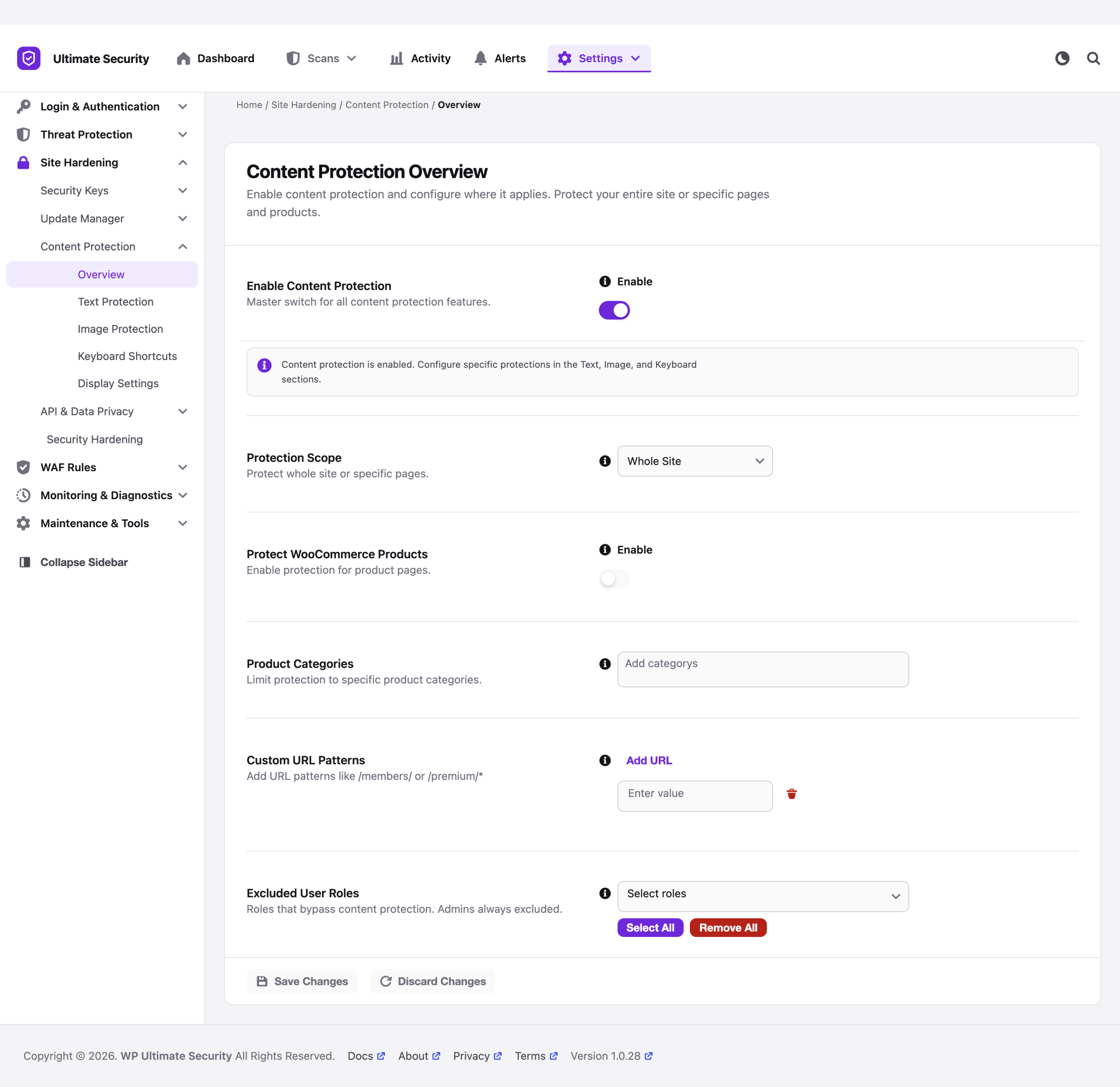
The Image Protection screen. The first three toggles cover casual copying. The fourth one is a different mechanism entirely, covered below.
- Disable Image Right-Click. Removes the obvious Save Image As path.
- Disable Image Dragging. Closes the drag-to-desktop shortcut.
- Image Overlay Protection. Places a transparent layer over the image, so a right-click lands on the overlay rather than the file.
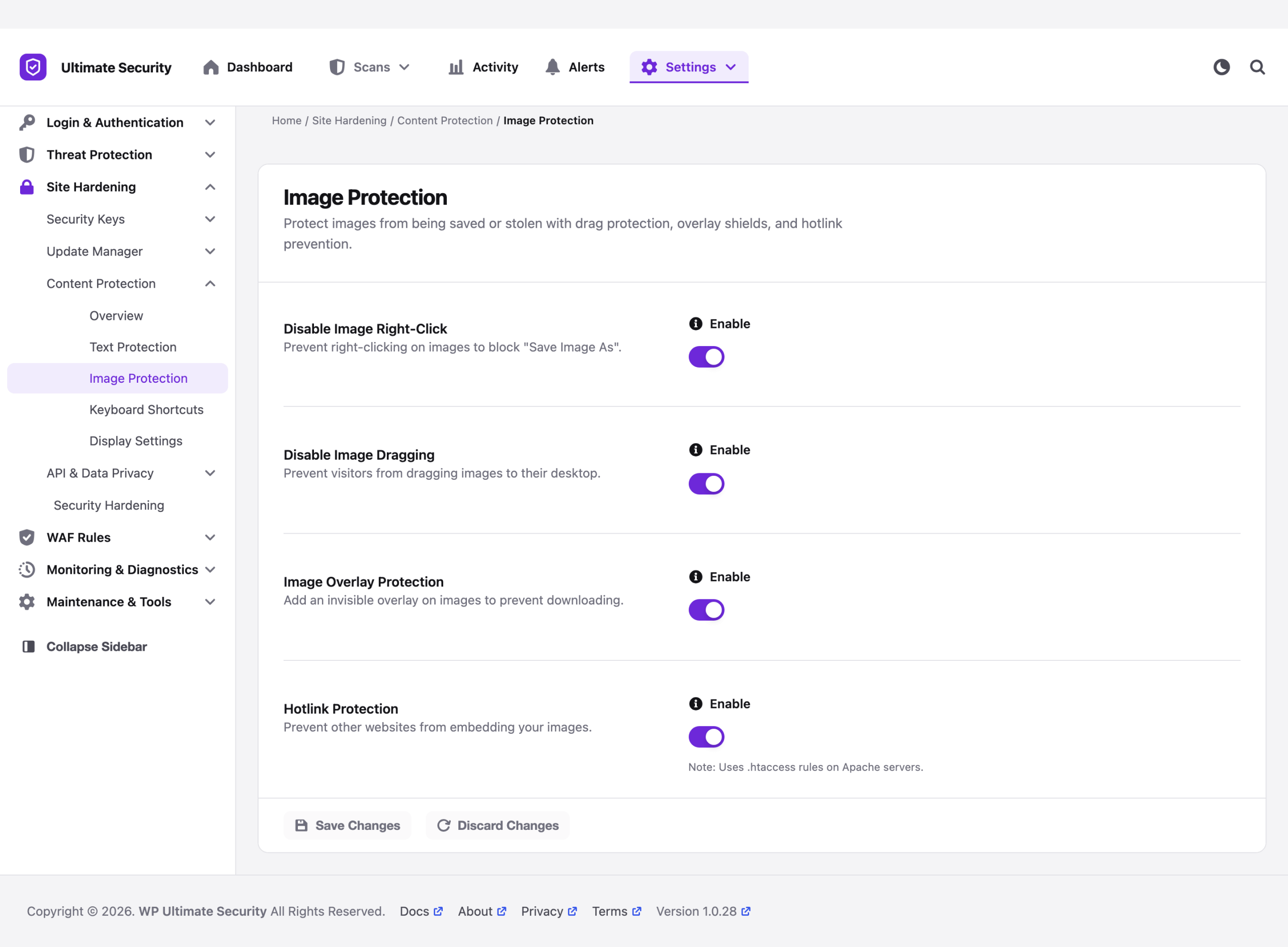
One setup note that trips people up. Content Protection has a master switch on its Overview screen, and the individual toggles do nothing until that master switch is on. If you enable Image Protection and see no change on the front end, that’s almost always why.
Read More on how to set up content protection in WordPress
Turn on the master switch first, then set your scope. Whole site is the usual answer, but you can limit it to specific pages.
Set your Protection Scope while you’re here. Whole Site suits a portfolio. A store might protect product pages and leave the blog alone. There’s also an exclusion list for user roles, which matters more than it sounds: without it you’ll block your own team from doing normal work.
How Hotlink Protection Stops Bandwidth Theft
Hotlinking is the one with a number attached. When another site embeds your image with your URL, every visitor they get pulls that file from your server. You pay for the transfer and get nothing.
The fix works differently from the toggles above. Those are browser behavior. Hotlink protection is a server rule: when a request arrives for an image, the server checks which site the request came from and refuses if it isn’t yours. That’s why it works against automated requests that ignore everything JavaScript does.
Ultimate Security’s Hotlink Protection toggle sits on the same Image Protection screen and writes those rules for you. Note the line under it: it uses .htaccess rules on Apache servers. That detail decides whether this works for you at all, which brings us to the part most guides get wrong.
Why Your Hotlink Protection Might Not Be Working
Before you trust any hotlink rule, answer one question. Load a page on your site, right-click an image, and copy its address. What hostname is it?
If it’s your own domain, your web server is handing out that file, and a server-level rule governs it. That’s the straightforward case and the toggle does what you expect. If it’s a different hostname, a CDN domain or a cloud storage bucket, then your web server is not involved in serving that image at all, and a rule is written into your site’s .htaccess will never see the request. The rule is enabled. It’s just not in the path.
The rule has to live where the file lives. Think of it like a bouncer. A bouncer at your front door can’t check anyone at a venue across town. If your images moved to a CDN, the door they come through moved too, and protection has to be applied at that door instead.
This catches people out, because offloading media is normal now and the two changes usually get made months apart by different people. Someone offloads the media library in spring for performance reasons. Someone else enables hotlink protection in autumn after a copyright issue. Nobody connects the two.
What Ultimate Security’s Hotlink Protection Covers
Ultimate Security’s Hotlink Protection works at the Apache origin. It is where the rule lives. We checked it on a real install rather than taking it on trust. A request carrying a referrer from another domain gets a 403 Forbidden. A request from the site’s own pages gets the image. The rule covers jpg, jpeg, png, gif, webp, and svg.
So if your images are served from your own domain by your own server, turn it on and you’re covered. That’s the common setup and it’s the one this handles.
If a CDN sits in front of your site, the picture changes, and not because anything is misconfigured. Once the edge has a cached copy of an image, it answers requests for that image itself. Your origin is never asked, so an origin rule has nothing to act on. CDN-level hotlink support is on the Ultimate Security roadmap.
Two ways the obvious test lies to you. Pasting the image URL into a fresh browser tab sends no referrer at all, and the rule deliberately allows empty referrers so bookmarks and direct links keep working. You’ll see the image and wrongly conclude the protection is broken. Requesting the plain URL can also hand you a cached copy from the edge, which looks the same. Test with a fake foreign referrer and a unique query string to defeat the cache.
From a terminal, that’s one line. Swap in your own image URL.
curl -I “https://yoursite.com/wp-content/uploads/2026/01/photo.jpg?x=123” \
-H “Referer: https://example-thief.com/”
A 403 means the rule is doing its job. A 200 means that file is reachable by anyone who wants to embed it, and you need the control applied wherever the file is actually being served from.
Will Hotlink Protection Hurt Your SEO?
This is the question people ask after they’ve already turned it on, which is the wrong order. Worth settling before you flip the switch.
Hotlink protection doesn’t stop search engines crawling or indexing your pages. Your rankings are not at risk. But a referrer rule blocks any domain that isn’t yours, and Google Images and Pinterest are other domains. Block them and your images stop displaying there, which quietly closes a discovery channel that matters a lot for stores, portfolios, and recipe sites.
So allowlist the ones you want. Any decent implementation lets you list permitted referrers alongside your own domain. Add Google, Bing, and Pinterest if image search sends you traffic worth having. If you genuinely don’t want your images surfacing anywhere but your own site, block everything and accept the trade knowingly rather than discovering it in three months when your image traffic has quietly gone.
How to Stop Bots and Scrapers Stealing Your Images
Scrapers are the serious version of this problem. A bot doesn’t right-click. It requests URLs directly and saves what comes back, so every browser-side control in layer one is irrelevant to it.
What works here is blocking the requester rather than protecting the file. Ultimate Security’s WAF Rules cover this ground, and they’re organized as a checklist you work down: allow the good bots first, then block aggressive crawlers and sensitive WordPress paths, block data center and TOR traffic, challenge cloud providers and VPNs, and apply virtual patches for known core vulnerabilities.
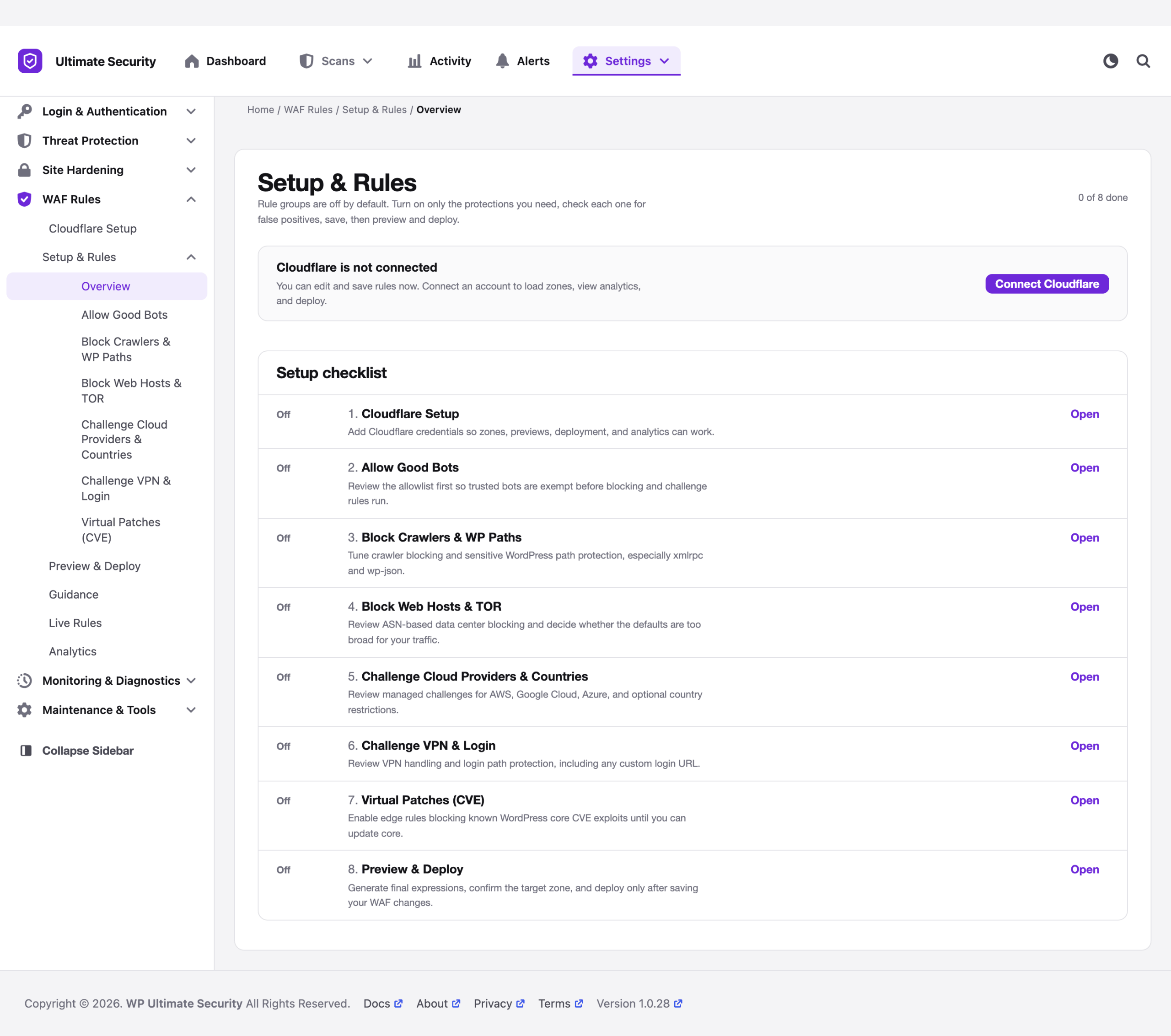
Rule groups are off by default. Enable only what you need, review each one, then preview and deploy.
One prerequisite to know before you plan around this layer. These rules deploy through Cloudflare, so an active Cloudflare account is required for zone loading, deployment, and analytics. You can review and save your settings without one, but nothing goes live until Cloudflare is connected. If you aren’t on Cloudflare, this layer isn’t available to you yet, and your practical options are the referrer controls above plus whatever bot filtering your host provides.
Two cautions worth taking seriously. Broad user-agent rules cause false positives, and the plugin says so on the screen. Blocking anything containing bot will eventually catch something you wanted. Preview your rules before deploying and watch your logs afterward.
Second, do not block search engines. Googlebot fetching your images is how image search works. If you sell anything, image search is a customer acquisition channel, and there’s a real version of this mistake where someone blocks scrapers on Monday and loses their image traffic by Friday.
How Image Protection Affects WordPress Site Speed
There’s a version of image protection that costs you more than it saves. Overlay protection adds an element over every image. Right-click blocking adds a JavaScript listener. On a page with a handful of photos, nobody notices. On a gallery with two hundred, it’s measurable, and it lands on exactly the image-heavy pages you were trying to protect.
Do the Bandwidth Math Before You Blame Hotlinkers
Here’s a check worth running before you spend an afternoon on any of this. Hotlinking costs you the file size of an image every time someone else’s page loads it. Real cost, worth stopping. But so does every image you serve to your own visitors, and there are usually far more of those.
Put numbers on it. If a product photo is 1.3 MB and a hotlinker sends a thousand views a month, that’s about 1.3 GB. If your own site serves that same photo to fifty thousand visitors, that’s 65 GB, from the same file, on the same bill. The hotlinker is the visible problem. Your own unoptimized images are usually the expensive one.
This is why the two jobs belong in the same afternoon. Blocking the hotlinker stops a leak. Shrinking the file fixes the leak and everything flowing through the main pipe.
Shrinking the File Fixes Both Problems at Once
The single biggest win on an image-heavy site is serving smaller files in modern formats. That’s a delivery concern rather than a plugin concern, which is why a security plugin is the wrong place to look for it.
Infinite Uploads handles that side, moving your media off your server and converting images to AVIF or WebP as they leave the CDN. Some numbers from their own published testing, at the balanced quality setting: a 12 megapixel phone photo went from 1.29 MB to 55 KB. A 4.29 MB PNG graphic came back at 177 KB. A photo WordPress had already scaled down still dropped by about two thirds, 460 KB to 151 KB. One full page they tested went from 88.5 MB to 3.7 MB.
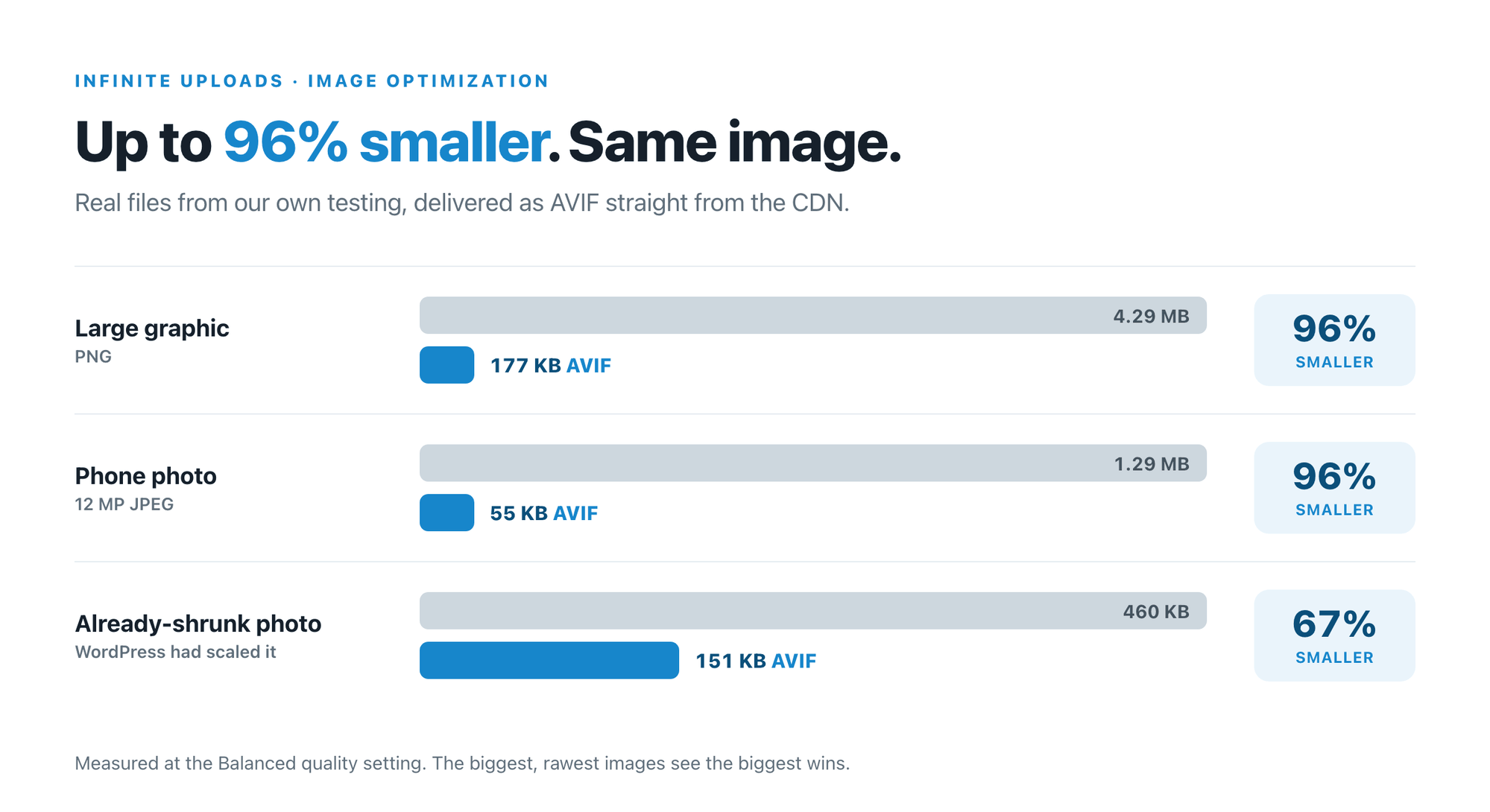
Two details worth understanding, because they’re what separate this from the compression plugins you may already run. First, it happens at delivery rather than on upload, so it covers the entire library you’ve already built instead of only what you add from today. Second, your originals are never modified and no extra copies are stored, so you aren’t trading bandwidth savings for storage growth. If an optimized version can’t be built for any reason, the original is served instead, so a page never breaks. It’s included in their Business plan.
Note how that interacts with everything above. Moving media to a CDN is a performance decision, and it relocates where your files are served from, which is precisely the thing that determines where hotlink rules have to live. Make both decisions together and you avoid the mismatch. Make them six months apart and you get the setting that reads as ON while protecting nothing.
Your WordPress Image Protection Checklist
- Check your image hostname first. Everything else depends on the answer.
- Turn on the Content Protection master switch, then the image toggles, then set your scope and role exclusions.
- Enable Hotlink Protection if your images come from your own server. If they come from a CDN, apply the equivalent control there for now.
- Add WAF rules for crawlers, preview before deploying, and leave the search engines alone.
- Test with a real request from outside your site rather than trusting the toggle.
- Watermark anything you genuinely cannot afford to lose. It’s the only measure on this page that survives a screenshot.
- Check what your own images weigh. If they’re heavy, that’s costing you more bandwidth than the hotlinkers are.
Layered properly, this stops the bandwidth theft, frustrates the casual copying, and makes bulk collection more trouble than it’s worth. What it won’t do is make your images uncopyable, and a plan built on knowing that difference is the one that holds up.
WordPress Image Protection FAQs
What is image hotlinking, and why is it bad?
Image hotlinking happens when another website displays an image using the file URL on your WordPress site. Your server or CDN still delivers the file, so their traffic uses your bandwidth. This is different from someone downloading the image and uploading a separate copy
Can disabling right-click prevent image theft in WordPress?
No. Disabling right-click, dragging, or adding an overlay can deter casual copying, but it cannot stop screenshots, direct file requests, or automated scrapers. Use those controls as one layer alongside hotlink protection, bot filtering, and watermarks when appropriate.
Will hotlink protection block Google Images or hurt SEO?
It can affect image visibility if the rule blocks search engines or social platforms as external referrers. Allowlist services you want, such as Google Images, Bing, and Pinterest. Regular page rankings are not inherently harmed, but blocked image crawlers can reduce image-search exposure.
Does WordPress hotlink protection work with a CDN?
Only if the protection is applied where the image is actually served. When a CDN delivers the cached image, an .htaccess rule on the WordPress origin may never see the request. Configure hotlink protection or referrer rules at the CDN level.
How do I test whether WordPress hotlink protection is working?
Send a request with a fake outside referrer and add a unique query string to avoid a cached response. A 403 response means the request was blocked, while a 200 means the image can still be embedded. Simply opening the image URL in a new tab is not a reliable test because it usually sends no referrer.

Comments are moderated. Stay on topic: spam and link drops are removed.