
WordPress auto updates help keep your site secure, but the timing matters. An update that runs during a busy sales period can cause compatibility issues, interrupt checkout, or affect other important features. A WordPress auto update schedule lets you decide when updates run and how long to wait after a new release.
In this guide, you will learn why update scheduling matters, how to create a schedule for your WordPress site, and how to configure each setting using the free Update Manager in Ultimate Security. You will also learn what to check after updates run and how to handle failed updates.
Table of Contents
Why WordPress Updates Matter for Security
Updates fix bugs, add features, and close security holes. The security part is the one you should never ignore. When a developer finds a flaw in WordPress, a plugin, or a theme, they release a fix. Once that fix is public, the flaw is no longer a secret. Attackers know which version is weak, and they look for sites that still run it. An old version works like an unlocked door. Updating locks it. Here is what you gain and what you risk.
What You Gain From Updating
Regular updates help keep your WordPress site secure, stable, and compatible with newer software. The main benefits of keeping WordPress, plugins, and themes up to date are
- Security fixes close known holes before attackers can use them.
- Bug fixes keep your site stable and your pages loading.
- New versions of plugins and themes stay compatible with newer versions of WordPress.
- Some updates bring speed improvements and new features.
What Can Go Wrong When You Update
Updates are important, but they can sometimes introduce unexpected problems, especially on sites with multiple plugins, custom code, or important features. Some common issues to keep in mind
- A new version can clash with another plugin or with your theme.
- A faulty update can break a page, a form, or a checkout.
- An update can overwrite custom code you added to a plugin or theme.
- An update that runs at a busy hour can slow down the site or interrupt visitors.
- Early releases sometimes carry bugs that the developer fixes a few days later.
For most sites, skipping updates is the bigger risk. The better answer is to update with a plan, and that is what a schedule gives you.
How WordPress Handles Auto Updates by Default
WordPress updates small core releases on its own. These minor releases carry security and maintenance fixes. Major core releases, plugins, and themes need your action, unless you turn on auto updates for them.
For plugins and themes, you can switch on WordPress auto updates one item at a time. That works, but it leaves out the timing. WordPress does not let you choose the hours, wait a few days after a release, skip busy days, or pause updates during a sale. An update lands when WordPress decides, and that is the gap a schedule fills.
How to Set a WordPress Auto Update Schedule With Ultimate Security
Ultimate Security includes a free Update Manager that lets you configure your WordPress auto update schedule. The following steps walk you through each setting, from choosing update behavior to setting update windows, freeze periods, and email notifications. Everything in this section is free.
Core, Plugin, and Theme Update Behavior
The first settings decide what gets updated at all. The Enable switch turns the whole Update Manager on or off. When it is off, all update features stop working. WordPress Core Update Behavior has five options:
- “Disable updates” turns off all core updates.
- “Disable auto updates” stops core from updating on its own, so you update by hand.
- “Allow minor auto updates” installs small security and maintenance releases automatically. This is the recommended option.
- “Allow major auto updates” installs new major versions automatically. This can occasionally break compatibility with older plugins.
- “Allow development auto updates” installs testing versions. Use it only if you are a developer.
Plugin Update Behavior and Theme Update Behavior each have three options: manual updates, enable auto updates, and disable updates. Manual means you click update yourself. Enable auto updates installs new versions in the background. Disable updates blocks them completely.
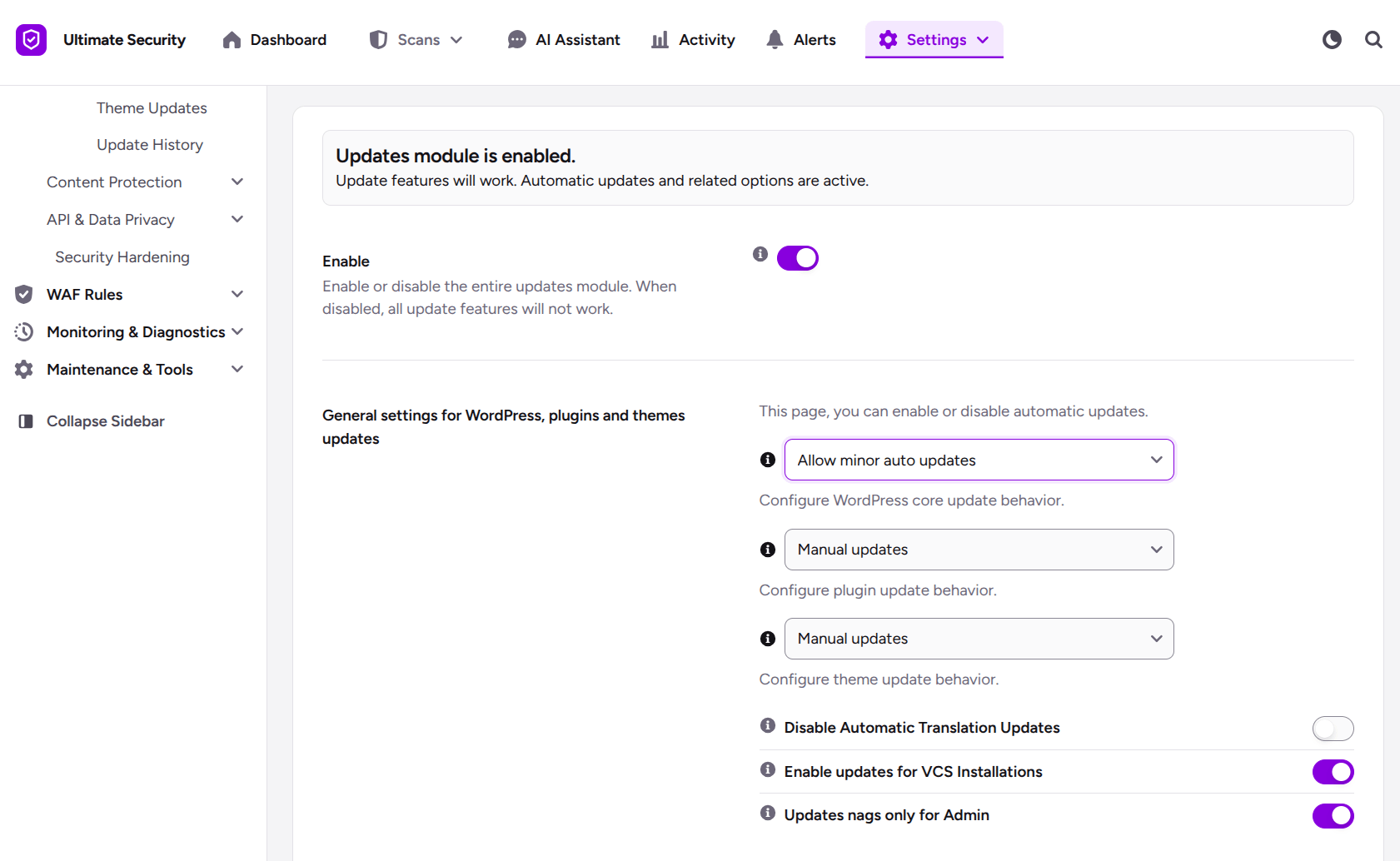
Three more switches sit in this group:
- Disable Automatic Translation Updates stops WordPress from downloading language pack updates in the background. It saves bandwidth and protects custom translations.
- Enable Updates for VCS Installations overrides the block WordPress puts on updates when it detects version control, such as Git or SVN.
- Updates tags only for Admin hides update notices from regular users and shows them to administrators only.
Update Schedule Window, Auto-Update Delay, and Maintenance Mode
These settings sit in the Auto-Update Schedule section. They are the heart of your schedule.
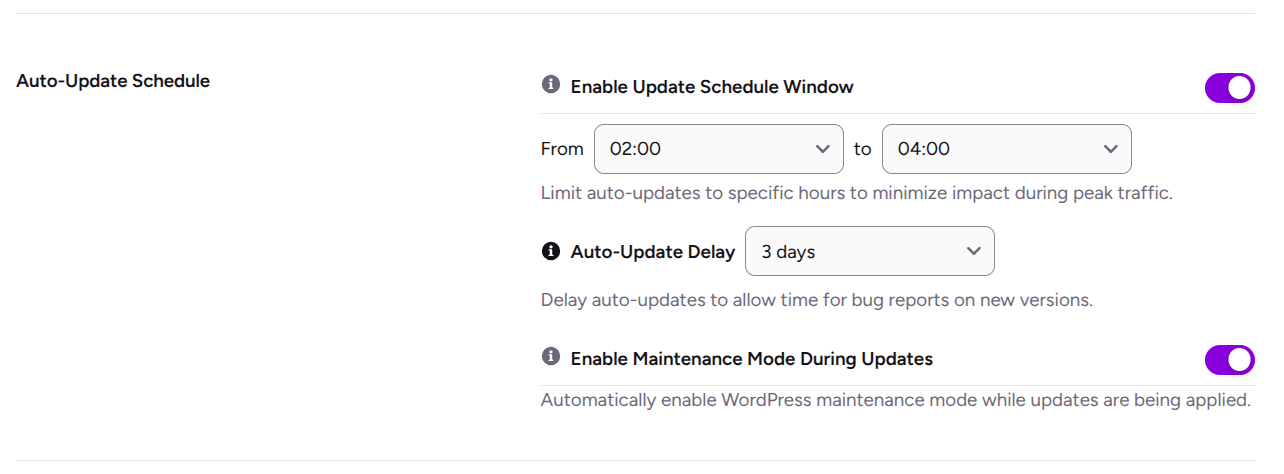
- Turn on Enable Update Schedule Window. Then set the From and To times, for example 02:00 to 04:00. Background updates stay inside that window.
- Set Auto-Update Delay to the number of days WordPress should wait after a release before it installs the update.
- Turn on Enable Maintenance Mode During Updates. Your site shows an “Under Maintenance” notice while updates are applied.
Day-of-Week Scheduling and Freeze Periods
Turn on Enable Day-of-Week Scheduling and pick the exact days when auto updates may run. A store can skip its busiest days. A small team can skip the days when nobody is online.
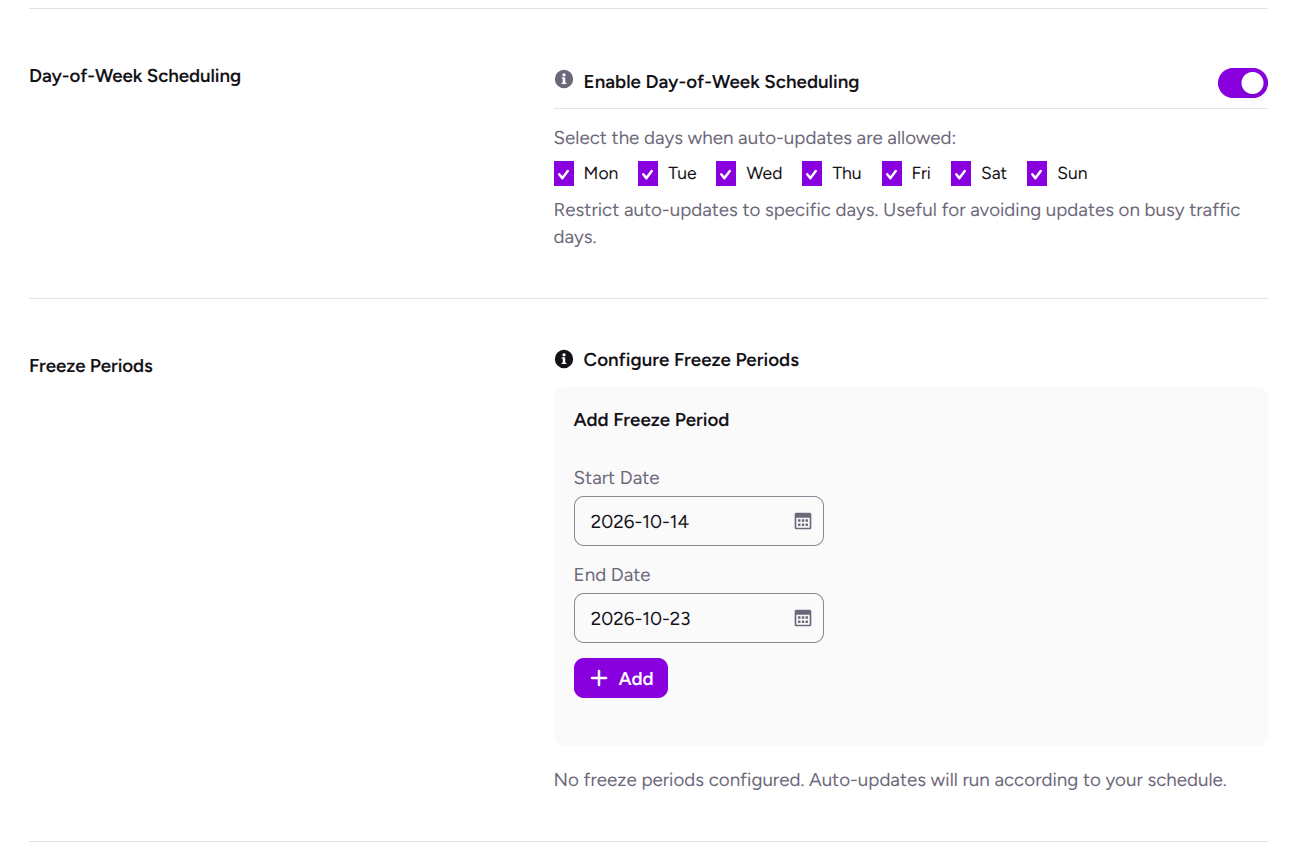
Then use Configure Freeze Periods for your critical dates. Pick a Start Date and an End Date, and all auto updates pause between them. Set one before each sale, launch, or holiday.
Email Notifications and Force Automatic Updates
Turn on Email Notifications to get daily summary emails about your updates. Choose which administrator receives the report. Then select the notification types you want in the daily email.
One detail matters here. The Default WordPress Core Email Notification setting controls whether WordPress sends its standard core update emails. WordPress handles those emails itself, so changing the email address in Ultimate Security does not turn them off.
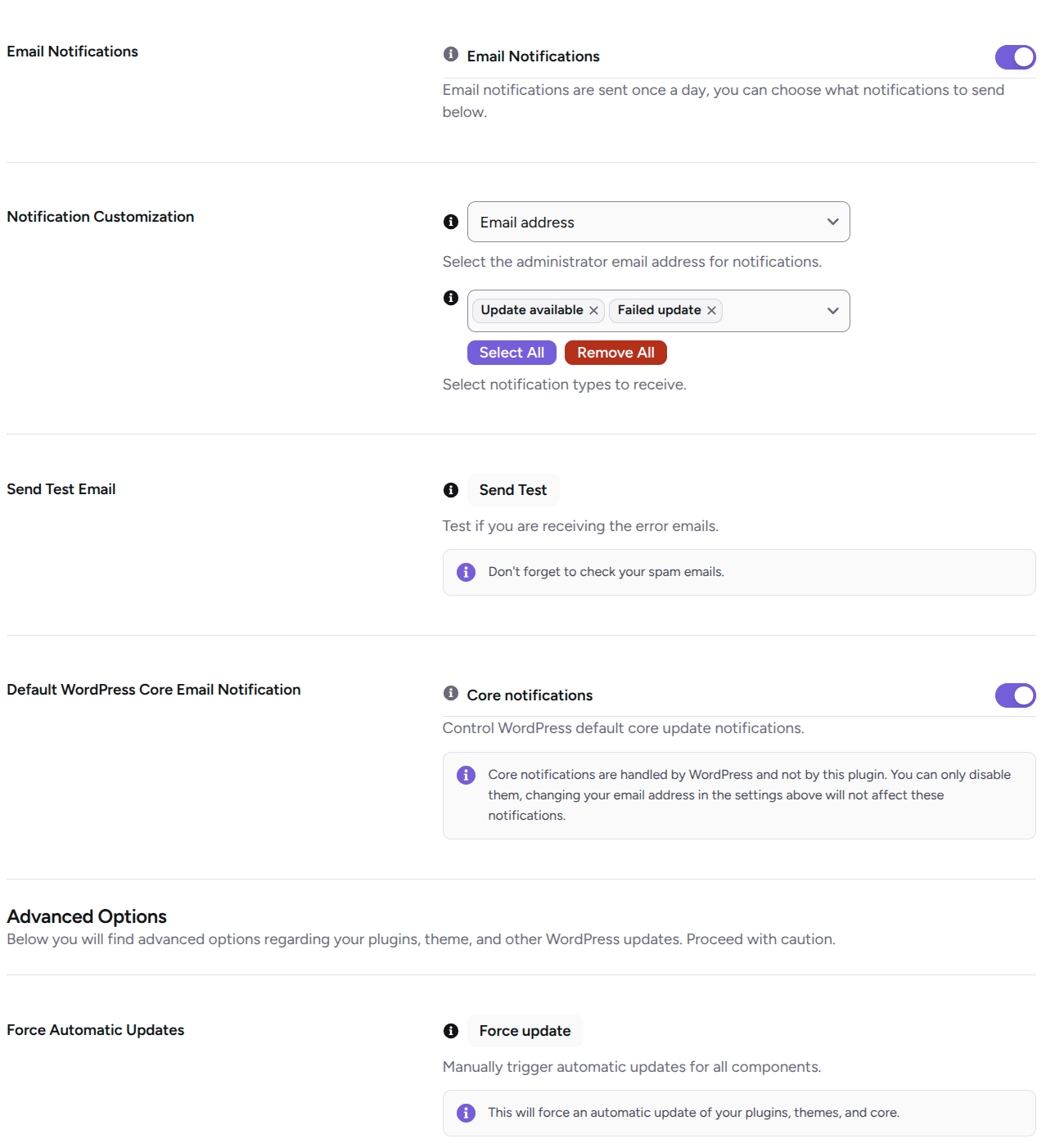
The Advanced Options section has a Force Automatic Updates button. It forces an update check and runs updates for all plugins, themes, and core right away. Use it with caution, and only when you are ready to check your site afterward.
Plugin, Theme, and Update History Controls
The Update Manager settings apply to your whole site. Sometimes you need control over one plugin or one theme, or you want a record of what changed. Plugin Updates, Theme Updates, and Update History are in the Pro version.
Plugin Updates
The Plugin Updates page lists every installed plugin with its version, file path, and compatibility details, such as whether it is tested up to your WordPress version. A search bar, a Refresh button, and filter tabs help you find plugins fast. The tabs are All, Active, Inactive, Update Available, and Abandoned.
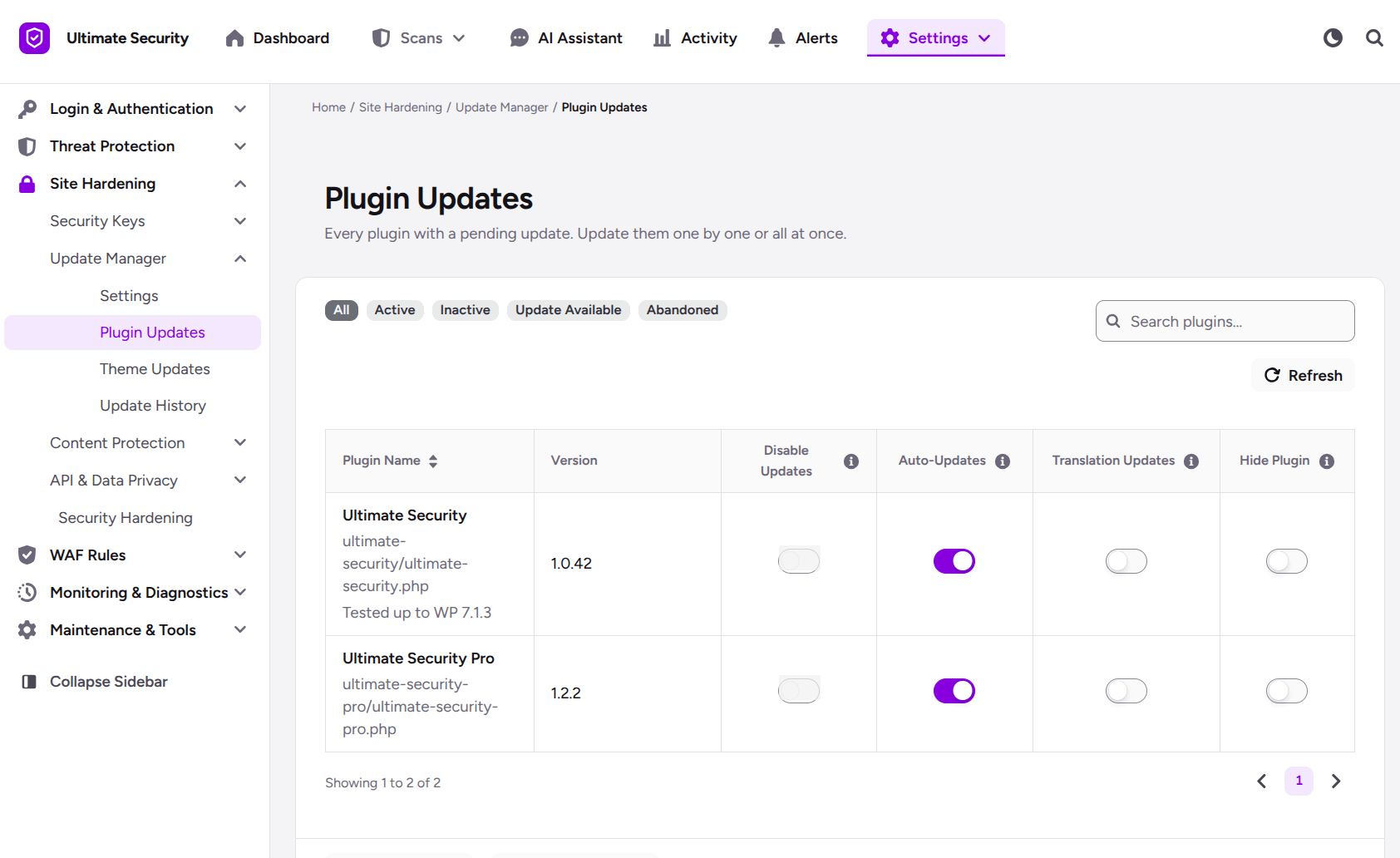
Each plugin has four toggles:
- “Disable Updates” stops WordPress from checking for updates for that plugin.
- “Auto-Updates” lets the plugin update itself in the background.
- “Translation Updates” controls whether the plugin’s language files update automatically. Use it if your site runs in a language other than English.
- “Hide Plugin” hides the plugin from the plugin list in your dashboard.
Theme Updates
The Theme Updates page works in a similar way for themes. You can search, refresh, and filter by All, Active, Inactive, and Update Available.
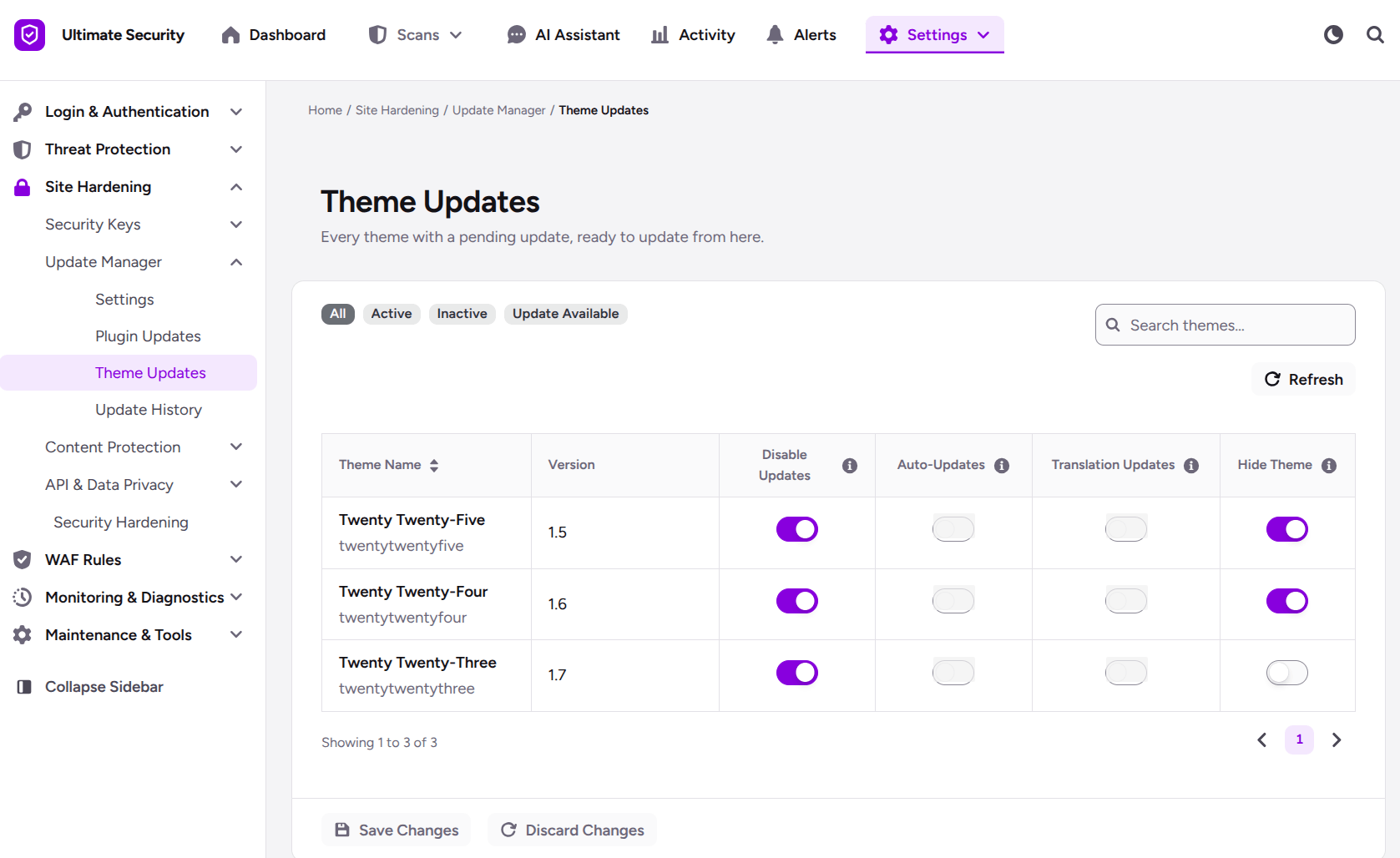
Each theme has controls for Disable Updates, Auto-Updates, Translation Updates, and Hide Theme.
Update History
Update History keeps a record of the updates made on your site. At the top, five numbers cover the last 30 days: total updates, successful, failed, auto updates, and manual updates. Three dropdown filters let you sort by type (plugins, themes, or core), by status, and by auto or manual updates.
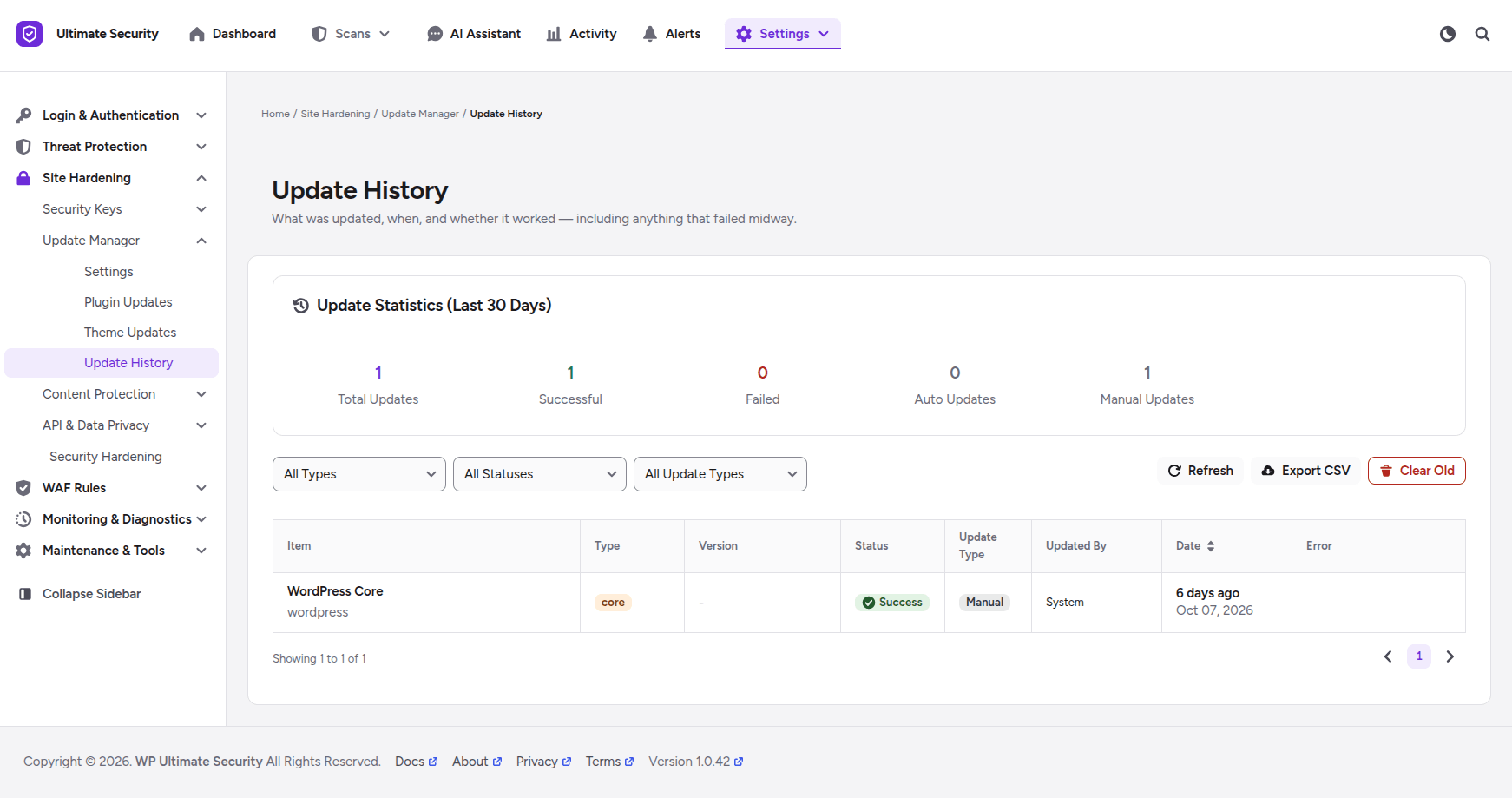
Click Refresh to load the latest data, or Export CSV to download it as a spreadsheet. Clear Old removes old update records, so use it carefully. When a problem appears, this list shows what changed and when.
What to Check After an Auto Update Runs
A schedule decides when updates run. You still need to confirm that the site works afterward. A short check after the update window helps you catch problems early.
- Open the homepage and one or two inner pages.
- Log in to your dashboard.
- Test your contact form, checkout, or any feature that brings you leads or sales.
- Read the daily update email to see what changed.
- If you use Pro, open Update History and look for failed updates.
- Run a vulnerability scan to confirm that no known flaws remain in your plugins and themes.
If something broke, restore your latest backup first. Then find the update that caused the problem and keep that item on manual updates until the developer fixes it.
Frequently Asked Questions
What is a WordPress auto update schedule?
A WordPress auto update schedule is a set of rules that controls when automatic updates run. It can include a quiet time window, a delay after release, allowed days of the week, and freeze dates. It gives you control over timing, so updates do not land during your busiest hours.
How long should I delay WordPress updates?
Delay them by a few days, not weeks. Developers sometimes fix early bugs in a quick follow-up release, and a short wait can help you skip the faulty version. The longer you wait, the longer a known security flaw stays open. In Ultimate Security, you set the number of days in Auto-Update Delay.
How do I stop WordPress updates during a sale?
Use Configure Freeze Periods in the Update Manager. Pick a Start Date and an End Date, and all automatic updates pause between them. Set one before each sale, launch, or holiday, when a problem would cost you the most.
What should I do if an auto update breaks my site?
Restore your latest backup first, so your site works again. Then find the update that caused the problem and keep that item on manual updates until the developer fixes it. With Pro, Update History shows how many updates failed and lets you filter by status.
Can I stop updates for one plugin only?
Yes, with Pro. The Plugin Updates page has a Disable Updates toggle for each plugin. It stops WordPress from checking for or installing updates for that plugin. This is useful when you run a customized version and do not want an update to overwrite your code.
Does an update schedule replace backups?
No. A schedule lowers the chance of a bad update at a bad time, but it cannot undo one. Keep recent backups, and make sure you can restore them.
Conclusion
A WordPress auto update schedule comes down to four choices. Pick a quiet window, add a short delay, limit updates to safe days, and freeze them before your big dates. Add a daily email so you always know what changed.
Updates will keep arriving, and the security fixes are worth installing. The difference is that you choose the moment. Start with minor core updates on and a window at your quietest hours, then add the other settings one at a time.

Comments are moderated. Stay on topic: spam and link drops are removed.