

WordPress sites face constant threats from hackers. Every day, attackers try to break in, inject bad code, or take over sites for their own gain. If you run a website, you have probably wondered what kind of security you really need. Two big security options for WordPress Vulnerability Scanner or Cloudflare WAF come up.
A vulnerability scanner checks your site for problems that have already happened. Cloudflare WAF stop attacks before they succeed. Both sound useful, but which one should you focus on? In this post, we will look at both sides in simple terms. We will also see how a plugin like Ultimate Security brings them together so you get better protection without making things too complicated. By the end, you will have a clearer idea of what actually works for most site owners in 2026.
Table of Contents
What is a Vulnerability Scanner in WordPress?
A vulnerability scanner is like a regular health check for your website. It goes through your WordPress files, plugins and themes to look for known security vulnerabilities.
Think of it this way. Hackers often sneak bad code into old or abandoned plugins. A good scanner finds these issues so you can fix them before they cause trouble. It compares your files to clean versions from WordPress.org and flags anything that looks wrong.
How Vulnerability Scanners Work and Their Key Benefits
A vulnerability scanner checks for outdated plugins, weak spots, and known vulnerabilities. Many scanners now use AI to go deeper. Instead of only matching known bad patterns, they can understand context and catch tricky new threats that older tools might miss.
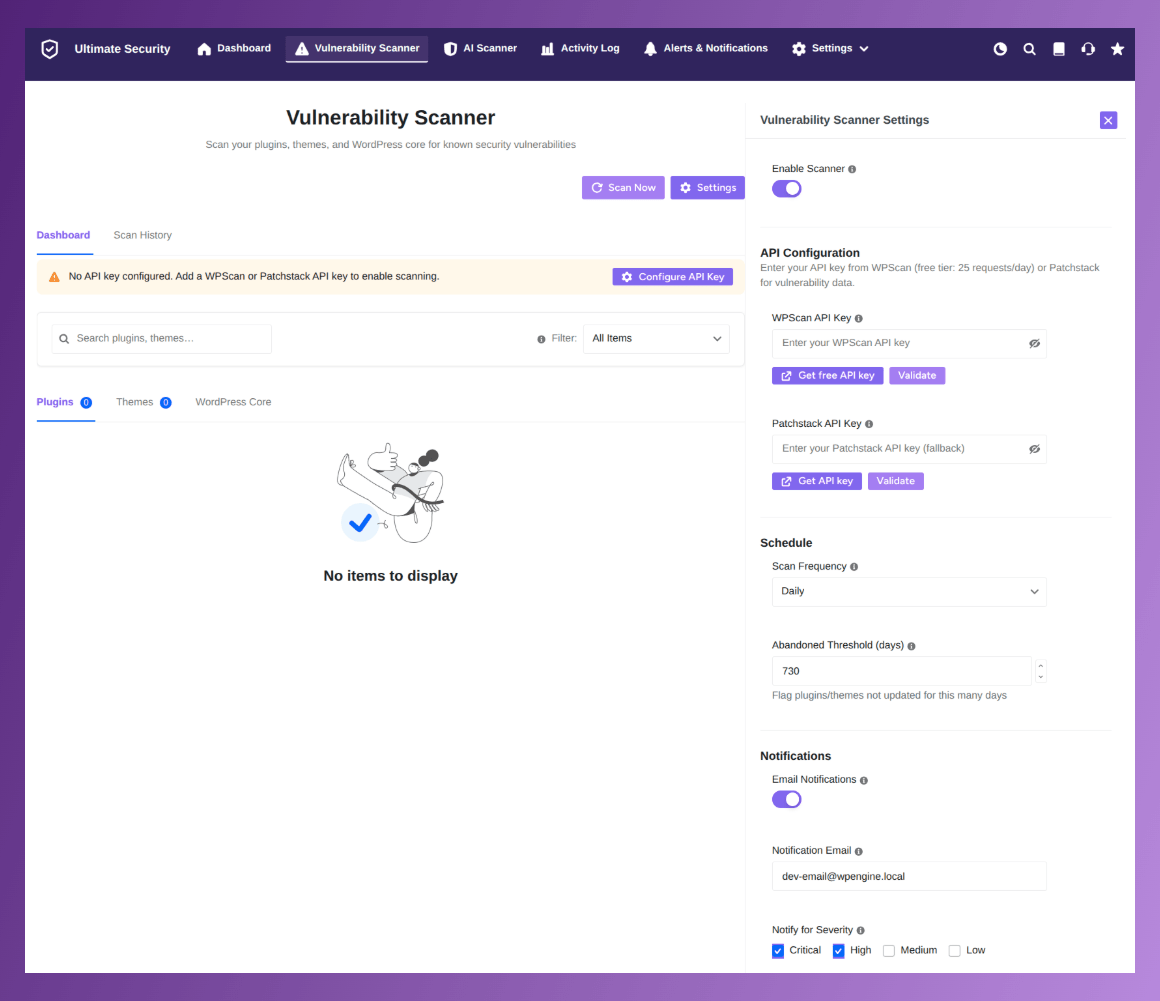
You can run scans on a schedule, get email alerts when something shows up, and often fix problems with just a few clicks. For busy site owners, this means you do not have to check everything manually.
Limitations of Relying Only on Vulnerability Scanner
Vulnerability scanning is very helpful, but it has some downsides. It usually works after the fact. By the time the scanner finds vulnerability, the damage might already be done. Your site could have been sending spam, showing bad ads to visitors, or leaking user data for days or weeks.
Another issue is server load. Running deep scans on your own hosting can slow down your site, especially if you have a lot of content. And some malicious threats hide well enough to slip past basic scans until signature files get updated.
What is WAF for WordPress?
A Web Application Firewall, or WAF, is one of the main tools for WordPress It sits between your visitors and your site and filters out harmful activity. Instead of waiting to find vulnerability or threats later, it watches incoming traffic and blocks bad requests right away.
How Cloudflare WAF Blocks Threats Before They Hit
Real-time tools like Cloudflare WAF look at patterns in traffic. They can stop thousands of automatic login guesses, block known bad IP addresses, and challenge suspicious visitors with extra checks. This approach cuts down the chance of an attack succeeding in the first place.
Many site owners notice fewer hack attempts once WAF protection is active. It gives you a strong defense.
Cloudflare WAF Rules for WordPress: Proactive Defense Explained
Cloudflare is popular because it works at the edge of the internet, before traffic even reaches your server. This means less load on your hosting and faster protection.
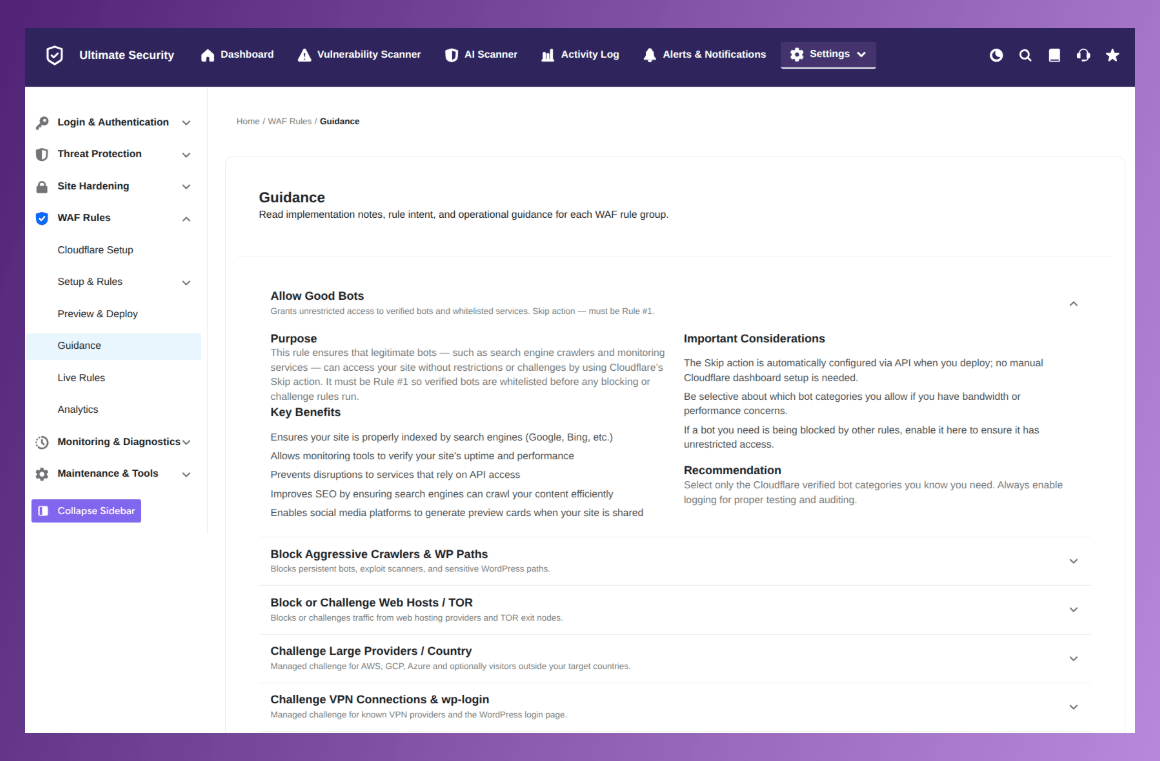
You can set rules to block countries, stop bad bots, or protect login pages. With a plugin like Ultimate Security, you can manage and deploy these rules straight from your WordPress dashboard.
WordPress Vulnerability Scanner or Cloudflare WAF: Comparison
Both features play important roles, but they work differently. Here is a simple side-by-side look to help you decide.
| Things They Do | Vulnerability Scanner | Cloudflare WAF |
|---|---|---|
| When it works | After a threat is present or detectable | Before the threat reaches your site |
| What it catches | Vulnerable plugins, themes and file changes | Injection attacks, bots, brute force login attempts |
| Response time | Scheduled or on-demand | Instant, continuous |
| Best against | Missed updates, unknown infections, file tampering | Active attacks, bot traffic, credential attacks |
| Weakness | Cannot stop live attacks in progress | Cannot detect existing vulnerability already on site |
In practice, we recommend using both. Scanning handles cleanup and discovery while WAF keeps the bad guys out. This layered approach, often called defense in depth, works well for WordPress sites of all sizes in 2026.
Why You Need Both Vulnerability Scanner and Cloudflare WAF in One Plugin
Most site owners start by thinking they only need one type of protection. But after seeing how attacks actually happen, it becomes clear that combining both gives much better results. Vulnerability Scanner finds problems that have already slipped through, while WAF stops many attacks from ever succeeding. Together they cover the gaps that each one has on its own. Having multiple security plugins for WordPress security can create more problems than protecting. Running two different plugins means your server processes more loads.
Defense-in-Depth: Combining WordPress Vulnerability Scanner and WAF
Think of your website like a house. Cloudflare WAF is like having strong locks on the doors and windows. It keeps intruders out in the first place. But if someone still manages to get inside through a small opening, the vulnerability scanner acts like a smoke detector and alarm system. It finds the problem quickly so you can fix it right away.
This layered approach is what security experts call defense in depth. One tool watches the traffic coming in, and the other checks what is already on your site. When you have both, you reduce the chances of a successful attack and also make recovery much faster if something does happen. Many WordPress sites get hit through outdated plugins or clever tricks that bypass basic checks. Having both features working together makes your site much stronger overall.
Ultimate Security Plugin: Vulnerability Scanner + Cloudflare WAF
If you want both WordPress Vulnerability Scanner and Cloudflare WAF in one place, Ultimate Security brings them together in a way that is easy to use. The plugin does not force you to choose between detection and prevention.
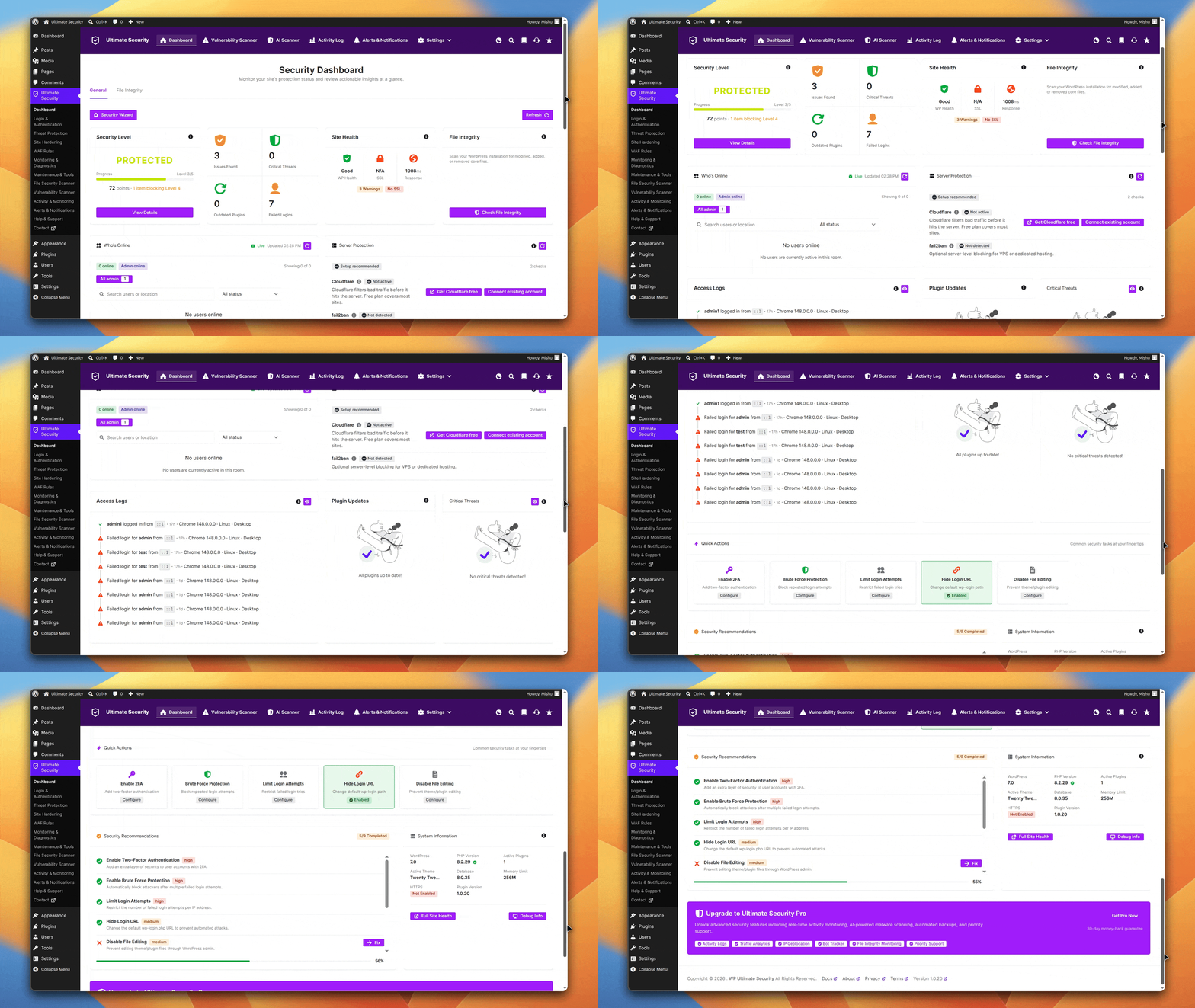
Instead, it gives you practical tools for both so you can build solid protection step by step.
Exploring the Vulnerability Scanner Features
The vulnerability scanner in Ultimate Security goes well beyond basic checks. It scans your plugins, themes, and WordPress core files for known issues and hidden problems. What sets this apart is that it fetches thorough vulnerability data from both the Patchstack and WPScan databases. This helps it understand code context and spot suspicious patterns that regular scanners might overlook.
You can run scans anytime with the “Scan Now” button or set them to run automatically on a schedule. The dashboard shows clear summaries like how many vulnerabilities were found, which ones are critical, and which plugins or themes need updates. It even highlights abandoned plugins that are no longer maintained. You get email notifications so you do not have to remember to check yourself.
Learn more about all the options here: Vulnerability Scanner documentation.
Deploying WAF Rules to Cloudflare with Ultimate Security
Setting up WAF rules becomes much simpler with this plugin. It lets you manage Cloudflare WAF rules directly from your WordPress dashboard. You can choose from ready rule groups such as blocking bad bots, protecting sensitive paths like WordPress login, or challenging traffic from certain countries and VPNs.
The process uses a simple preview and deploy workflow. You review the rules, make small changes if needed, and push them live to Cloudflare. This means you get powerful protection at the edge of the internet without needing to be a server expert.
You can read the full guide here: WAF Rules documentation.
Real User Benefits and Low Server Load Advantages
Site owners who use Ultimate Security often mention two things they like most. First, everything stays in one plugin instead of managing several different tools. Second, the Cloudflare integration keeps server load very low. Your site stays fast even when you turn on full protection.
The combination of AI scanning for deep checks and cloud-based WAF for instant blocking gives practical, everyday security that actually fits busy schedules. You spend less time worrying about hacks and more time growing your site.
Step-by-Step Guide: Setting Up Vulnerability Scanner and WAF in Ultimate Security
Getting started does not have to be complicated. Here is a simple way to set up both features.
Before you start make sure Ultimate Security is installed on your WordPress site. For installation guidance read the documentation or go to your WordPress dashboard, select Add Plugins, and search for “wpultimatesecurity” in the search bar.
How to Run Your First Vulnerability Scan
Ultimate Security’s vulnerability scanner will check plugins, themes, and WordPress core for known vulnerabilities.
- Go to the Ultimate Security dashboard in your WordPress admin area.
- Find the Vulnerability Scanner section and set the API from either WPscan or Patch Stack and click “Scan Now.”
- Wait for the scan to finish. It will show results with clear categories for plugins, themes, and core.
- Review any issues and decide what to update or fix.
- Set your preferred scan schedule and turn on email alerts so you stay informed.
How to Deploy Cloudflare WAF Rules from the Plugin
Ultimate Security makes Cloudflare WAF rules easier to deploy. Here are the steps you can follow:
- Make sure your Cloudflare account is connected in the plugin settings.
- Go to the WAF Rules area and review the available rule groups.
- Choose the ones that fit your site. For example, enable protection for login pages and block known bad traffic sources.
- Preview the rules to see what they will block.
- Click deploy to push them live to Cloudflare.
- Check your site to make sure normal visitors are not affected.
This setup usually takes less than 15 minutes and gives you immediate protection. You can always adjust the rules later as your site grows.
Best Practices for WordPress Security in 2026
Keeping your site safe does not stop after installing a security plugin. The best results come when you combine good tools with smart habits. Here are some practical steps that most site owners can follow without getting overwhelmed.
First, always keep everything updated. Outdated plugins and themes are one of the easiest ways hackers get in. Turn on automatic updates for WordPress core whenever possible, and check your vulnerability scanner reports regularly for items that need attention.
Second, use strong passwords and limit who can log in. Combine this with brute force protection so even if someone guesses wrong a few times, they get locked out.
Third, make regular backups a habit. Store them offsite so you can restore your site quickly if something goes wrong. Many people only realize how important backups are after an attack.
Fourth, pay attention to traffic patterns. With real-time tools like Cloudflare WAF, review the logs once in a while to see what is being blocked. This helps you spot new threats early.
Finally, choose a plugin that gives you both WordPress Vulnerability Scanner and Cloudflare WAF without slowing down your site.
Following these WordPress best security practices along with a solid plugin helps you stay ahead of most common attacks in 2026.
Frequently Asked Questions (FAQ)
What is better for WordPress Vulnerability Scanner and Cloudflare WAF?
Both are important, but Cloudflare WAF often matters more for prevention because it stops attacks before they cause damage. A vulnerability scanner is still essential for finding and cleaning up any issues that slip through. The smartest approach is to use both together.
Does running a Cloudflare WAF slow down my WordPress site?
No, it actually tends to do the opposite. Because Cloudflare operates at the edge, it filters traffic before it reaches your server. Your server only processes legitimate requests. Combined with Cloudflare’s CDN capabilities, many sites see improved load times after setting up Cloudflare, not worse ones.
How does Cloudflare WAF work with WordPress?
Cloudflare WAF filters bad traffic before it reaches your site. You can manage and deploy WAF rules through Ultimate Security plugin, which makes it simple even if you are not a technical expert.
How often should I run a WordPress vulnerability scan?
For most sites, a daily scan is a good baseline. Sites with frequent plugin or theme updates, or sites that handle sensitive user data, may want to run scans more frequently. The key is consistency. A scan you forget to run manually is not protecting you, so scheduled automatic scanning is almost always better than manual-only scanning.
What is the difference between a WAF and a WordPress security plugin?
A WAF (Web Application Firewall) is a component that filters incoming traffic and blocks malicious requests before they reach your site. A WordPress security plugin is a broader tool that can include a WAF, a vulnerability scanner, brute force protection, login security features, and more. The best security plugins combine all of these rather than relying on just one.
Conclusion
WordPress Vulnerability Scanner or Cloudflare WAF each plays a valuable role in keeping your site safe. Scanning helps you find and fix existing problems, while WAF and login protection stop many threats right at the start. Relying on just one leaves gaps, but using both creates much stronger security.
If you want an easy way to get both features without complicated setup, give Ultimate Security a try. Its vulnerability scanner and Cloudflare WAF integration make it a practical choice for regular site owners who want solid protection without the headache.


Comments are moderated. Stay on topic: spam and link drops are removed.