
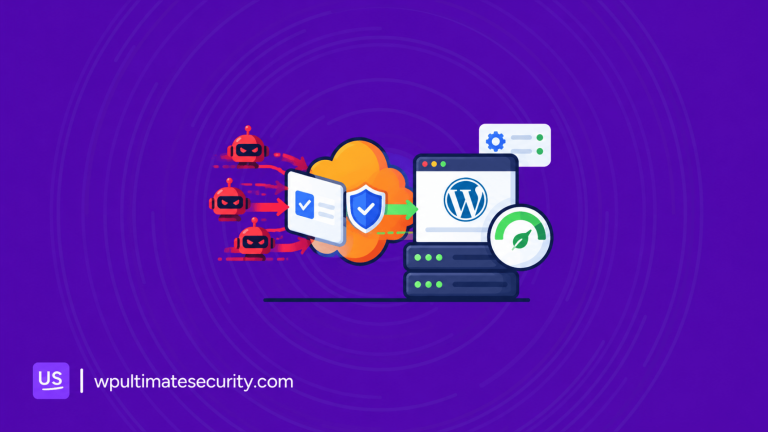
Your WordPress site shares information in more places than you may realize. Visitors and bots can request data through the REST API, while WordPress can send information about your site when it communicates with outside services.
Some of this information is useful, but some details may not need to be public or shared with third parties. Usernames, plugin and theme names, WordPress version, server details, and other site information can reveal more about your website than you expect.
In this guide, we will look at what WordPress shares, where that information goes, and how to control it with the API & Data Privacy feature in Ultimate Security.
Table of Contents
What Are WordPress API and Data Privacy?
These settings control what information your WordPress site exposes through its APIs and sends to external services. An API is a way for one program to request information from another. Your site answers requests and sends requests all day, and both directions can share more than you expect.
Two Ways Your Site Shares Information
The first direction is visitors and bots asking your site for data. WordPress answers through its REST API, a public address on your site that returns information in a format machines read easily. It is switched on by default.
The second direction is your site asking outside servers for data. When WordPress checks for updates, it sends a request to WordPress.org, and that request carries details about your site. The first direction is easier to notice. The second one runs quietly in the background.
Why This Matters Even When You Keep Everything Updated
Updates fix known problems inside your site. They do not change what your site shares. A username in an API response stays visible on a fully updated site, and a plugin list sent to an outside server stays in that server’s logs. So there are two separate jobs. Updates protect what is inside your site, and privacy settings control what leaves it.
What WordPress Exposes Through the REST API
The WordPress REST API allows other applications, plugins, and services to access information from your website. It is enabled by default and is used by many parts of WordPress. Some information is meant to be public, like published posts and pages. Other information may give outsiders more insight into your site, including user accounts, usernames, and user IDs.
That does not mean the site is immediately vulnerable. A username alone is not enough to access an account. However, exposing usernames can give attackers useful information when they are trying to guess passwords or target specific accounts.
Usernames in the REST API
By default, WordPress lists its users at (yoursite.com/wp-json/wp/v2/users). Anyone can open that address without logging in. Each entry can include a username, a user ID, and a slug. A single user can also be pulled up at (/wp-json/wp/v2/users/1), where 1 is the user ID.
Knowing a username does not hack a site by itself. But a login needs two things, a username and a password. If an attacker already has the usernames, only the password is left to guess. That is why exposed usernames often lead to brute force login attempts. We cover that side in our guide on login security features that stop brute force attacks.
How to Check Your Own Site
Open a private browser window so you are logged out. Go to yoursite.com/wp-json/wp/v2/users, then read the result.
- A block of text with names, IDs, and slugs. Your user list is public, and anyone can copy it.
- An error such as “Sorry, you are not allowed to list users.” The list is hidden from logged-out visitors.
You can test a single user too, by adding an ID, like /wp-json/wp/v2/users/1.
Use the private window on purpose. Admins who are logged in can list users even when visitors cannot, so a normal window can give you a wrong result.
What Your WordPress Site Tells Outside Servers
Your site does not only answer requests. It also makes them. WordPress contacts WordPress.org when it checks for core, plugin, and theme updates, and every request carries some details about your site. The server that receives a request also sees the IP address it came from. That ties the details to a real place on the internet. Here is what goes out, item by item.
Your Site Address and WordPress Version in the User-Agent
Every web request includes a line called the User-Agent, which says who is asking. By default, WordPress fills it with your WordPress version and your site address. This applies to requests to WordPress.org and to other services your site contacts.
Put the address and the IP together, and the receiving server can tell which site made the request, and often who hosts it. The version number also ends up in that server’s logs.
Your Plugin and Theme Lists
When WordPress checks for plugin and theme updates, it sends details about the plugins and themes installed on your site. A developer who studied these requests found that this includes private plugins and themes, and ones that are not hosted on WordPress.org.
So the name of a private plugin or a custom theme can end up in a log you do not control. If your theme was built for your business, that is worth knowing.
Details Sent During Update Checks
A core update check sends more than a version number. The list includes your WordPress version, language, PHP version, MySQL version, whether multisite is on, the number of sites, and the number of users.
Some privacy-focused developers point out that a store, for example, would be sharing its user count with a third party. Whether that needs consent depends on where you and your users are, so it is a question for a legal professional.
The wp_blog and wp_install Headers
WordPress also sends headers named wp_blog and wp_install with API requests. They hold your site’s unique identifiers and its installation time.
Because these values identify your installation, an outside service can use them to recognize your site again and build a lasting profile of it.
How to Control WordPress API and Data Privacy Settings With Ultimate Security
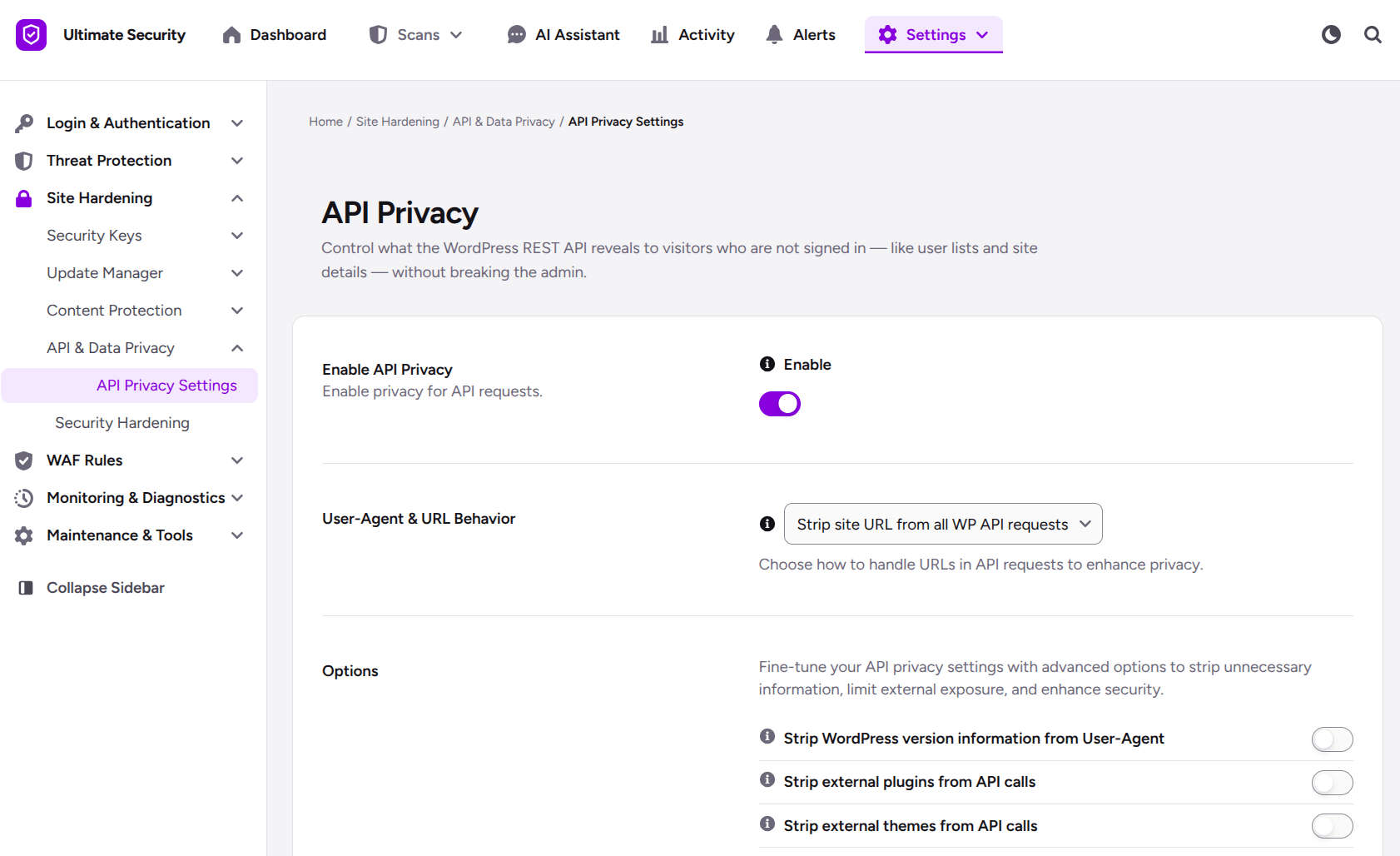
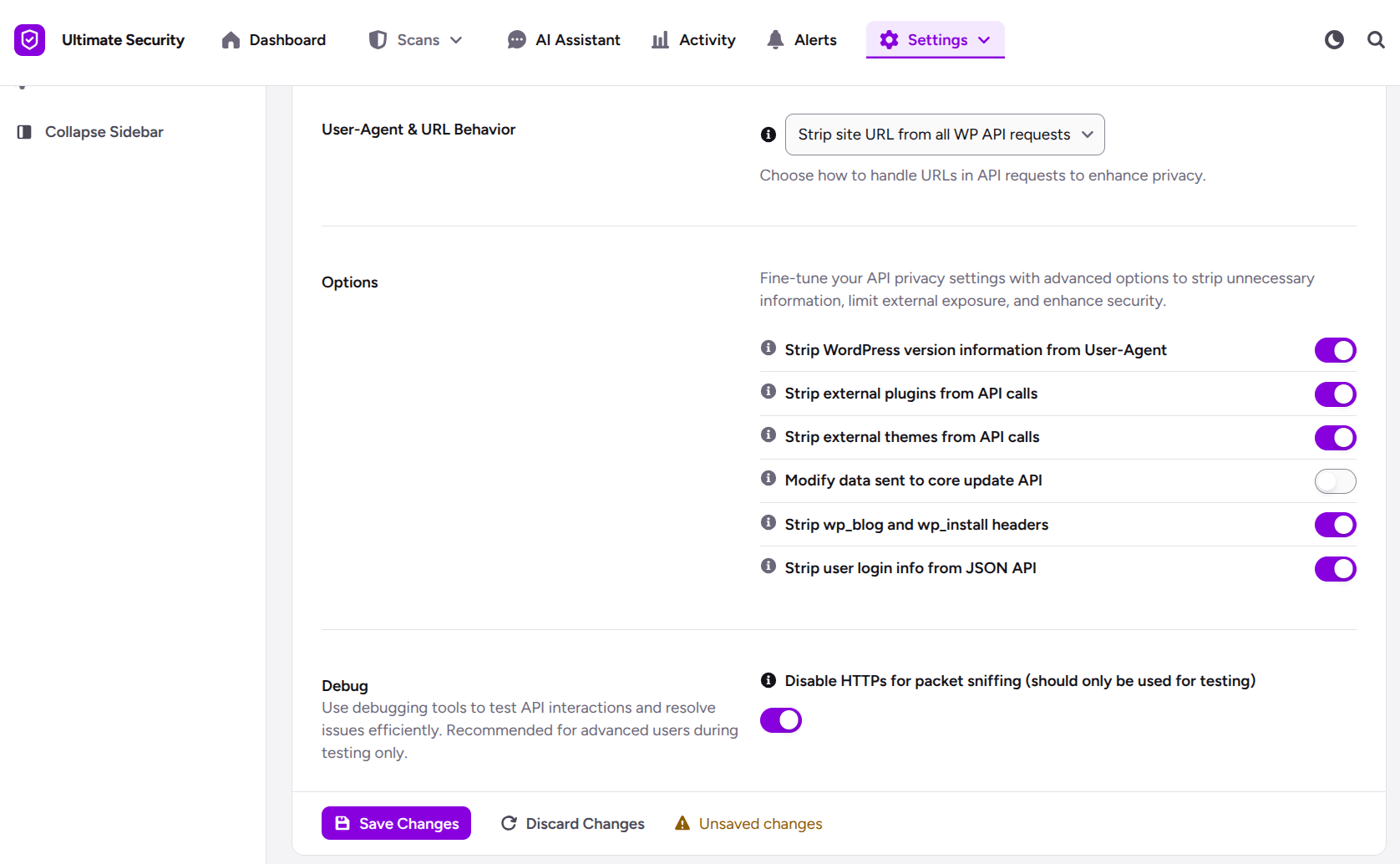
Ultimate Security puts these WordPress API and data privacy settings in one feature called API & Data Privacy. It is part of the Pro version. The feature starts with one switch, Enable API Privacy. Under the switch you get one dropdown for URL behavior, six separate privacy options, and one debug setting.
You can read the full reference in our API & Data Privacy documentation. The sections below explain what each control does and what it means for your site.
User-Agent and URL Behavior
This dropdown controls how your site address is handled in API requests. That address matters because, next to your IP, it tells a receiving server exactly which site is asking. The dropdown reads No changes when you first see it, and it has four other choices:
- Strip site URL from all WP API requests
- Strip site URL from all requests
- Replace URL with a unique hash for all WP API requests
- Replace URL with a unique hash for all requests
The options either strip the site URL or replace it with a unique hash. Each one applies either to WP API requests only or to all requests. The two “all requests” choices are the wider ones, since WordPress adds the address to requests for other services too, not only WordPress.org.
The Six Privacy Options
Each option is a separate checkbox, so you can turn on only what you need. Here is what each one does, what it changes, and what it leaves alone.
Strip WordPress Version Information From User-Agent
This removes your WordPress version number from the User-Agent header in HTTP requests, so it does not show up in external API calls or server logs. Without it, the version travels in every outgoing request along with your site address. Attackers cannot use it to pick out known problems in your exact version. The tooltip recommends it for all sites, especially those running older versions.
Strip External Plugins From API Calls
By default, update checks send details about the plugins on your site, including private plugins and ones hosted outside WordPress.org. This option stops your installed plugin list from being sent to WordPress.org and other services, so it is not recorded in outside logs or used for fingerprinting. It does not affect how your plugins work on your site. It only changes the data sent out.
Strip External Themes From API Calls
Themes work the same way. Your active theme and your other installed themes are part of what update checks send, and this option keeps them out of external requests and outside logs. The tooltip calls it particularly important for premium or custom themes.
Modify Data Sent to Core Update API
A core update check can send your WordPress version, language, PHP version, MySQL version, multisite status, number of sites, and number of users. This option limits what your site sends during that check, and you still get update notifications. The tooltip notes one trade-off. It may slightly affect how well update compatibility is detected.
Strip wp_blog and wp_install Headers
These two headers hold your site’s unique identifiers and installation time. Since they identify your installation, an outside service can use them to recognize your site again and build a lasting profile. Removing them makes that harder. The tooltip recommends this option for privacy-conscious sites and multisite networks.
Strip User Login Info From JSON API
This removes usernames and slugs from REST API responses. By default, WordPress exposes them at /wp-json/wp/v2/users, and attackers can use them for brute force attempts, since a login needs both a username and a password. The tooltip calls it highly recommended for public-facing sites. It covers the REST API only, so author URLs are a separate item.
The Debug Setting
Disable HTTPS for packet sniffing temporarily turns off secure connections. Packet sniffing means capturing network traffic to inspect it, which is a testing task some advanced users need. The documentation says it should only be used by advanced users during testing.
Does Hiding This Information Make Your Site Safer?
It helps, but it has limits. These settings reduce what outsiders can learn about your site, such as your version, plugins, theme, and usernames. They do not repair a weakness. An outdated plugin stays outdated whether or not anyone can see its version, and attackers have other ways to identify your software, like your file structure or your plugins and themes.
So updating stays your first job. WordPress API and data privacy settings work best as one layer next to updates, strong passwords, and two-factor authentication. What you gain is fewer details in outside logs and a user list that is no longer a public starting point for login attacks.
Frequently Asked Questions
How do I check if my WordPress site is exposing usernames?
Open a private browser window and go to yoursite.com/wp-json/wp/v2/users. If names and IDs appear, the list is public. An error such as “Sorry, you are not allowed to list users” means it is hidden.
Does hiding my WordPress version stop hackers?
No. It removes one piece of information they could use, but it does not fix any weakness. Keep WordPress, plugins, and themes updated, and treat hiding as an extra layer.
What does WordPress send to WordPress.org?
During update checks, WordPress sends your version, language, PHP and MySQL versions, whether multisite is on, and the number of sites and users. Requests can also carry your site address and details about your installed plugins and themes.
Can I hide the WordPress users list without breaking my site?
Yes, if you limit only the user list and leave the rest of the REST API working. Ultimate Security’s Strip user login info from JSON API option removes usernames and slugs from REST API responses, and the API Privacy screen says its settings work without breaking the admin. The feature is part of the Pro version.
Should I disable the WordPress REST API?
Usually, no. Disabling the entire REST API can affect the block editor and plugins that depend on it. A better approach is to keep the API available while limiting sensitive information, such as user login details, where appropriate.
What is the WordPress REST API used for?
The WordPress REST API allows applications, plugins, and other services to access and work with data from your WordPress site. WordPress features such as the block editor use the REST API, and many plugins rely on it as well.
Final
WordPress API and data privacy settings give you more control over the information your site exposes and sends to outside services. Hiding usernames, limiting update data, removing site identifiers, and reducing other unnecessary details can help reduce your site’s information exposure. These settings are not a replacement for updates, strong passwords, two-factor authentication, or other security measures. They work as another layer of protection alongside them. With Ultimate Security, you can manage these API and data privacy options from one place without manually changing WordPress files.
Comments are moderated. Stay on topic: spam and link drops are removed.