
WordPress attacks often start with simple things, like finding usernames, checking your WordPress version, or using features you no longer need. WordPress security hardening helps close these gaps by hiding sensitive details, turning off unused features, and blocking unwanted access.
The challenge is knowing which settings are safe to enable and which ones could break your site. In this guide, we explain the security hardening settings, what each one does, and which ones to test first.
Table of Contents
What is WordPress security hardening
WordPress security hardening is the process of reducing your site’s attack surface. Simply, you switch off what you do not use, hide what attackers do not need to see, and block what should never be reachable.
Hardening works earlier by making common attacks harder to start. That is why it belongs at the top of any WordPress security checklist.
Why default WordPress settings leave gaps
WordPress favors compatibility. Older features stay available so older plugins and tools keep working. That helps flexibility, but it can leave gaps. Out of the box, a site can reveal:
- Valid usernames (attackers can find them through author pages and the REST API)
- Your WordPress version number (it shows up in the page source and feeds)
- Server details (these often appear in the response headers)
- Sensitive files (like wp-config.php if the server allows direct access)
Many attacks are automated. Bots scan the web for sites that show this information, then guess logins, try known weaknesses, or abuse features like XML-RPC.
The five areas of WordPress security hardening
Every setting falls into one of five areas. Below, we explain all 30 settings, what each one helps prevent, and where it can cause trouble. The settings come from the Security Hardening module in Ultimate Security, where each one is a toggle.
Settings tagged Recommended are safe for most sites. Settings tagged Caution can break features, so test them first. A few settings carry no tag. They depend on how your site works, and we explain each one.
Access and identity
This area protects logins and account creation. It is your first line of defense against username guessing and brute force attacks. It has four settings.
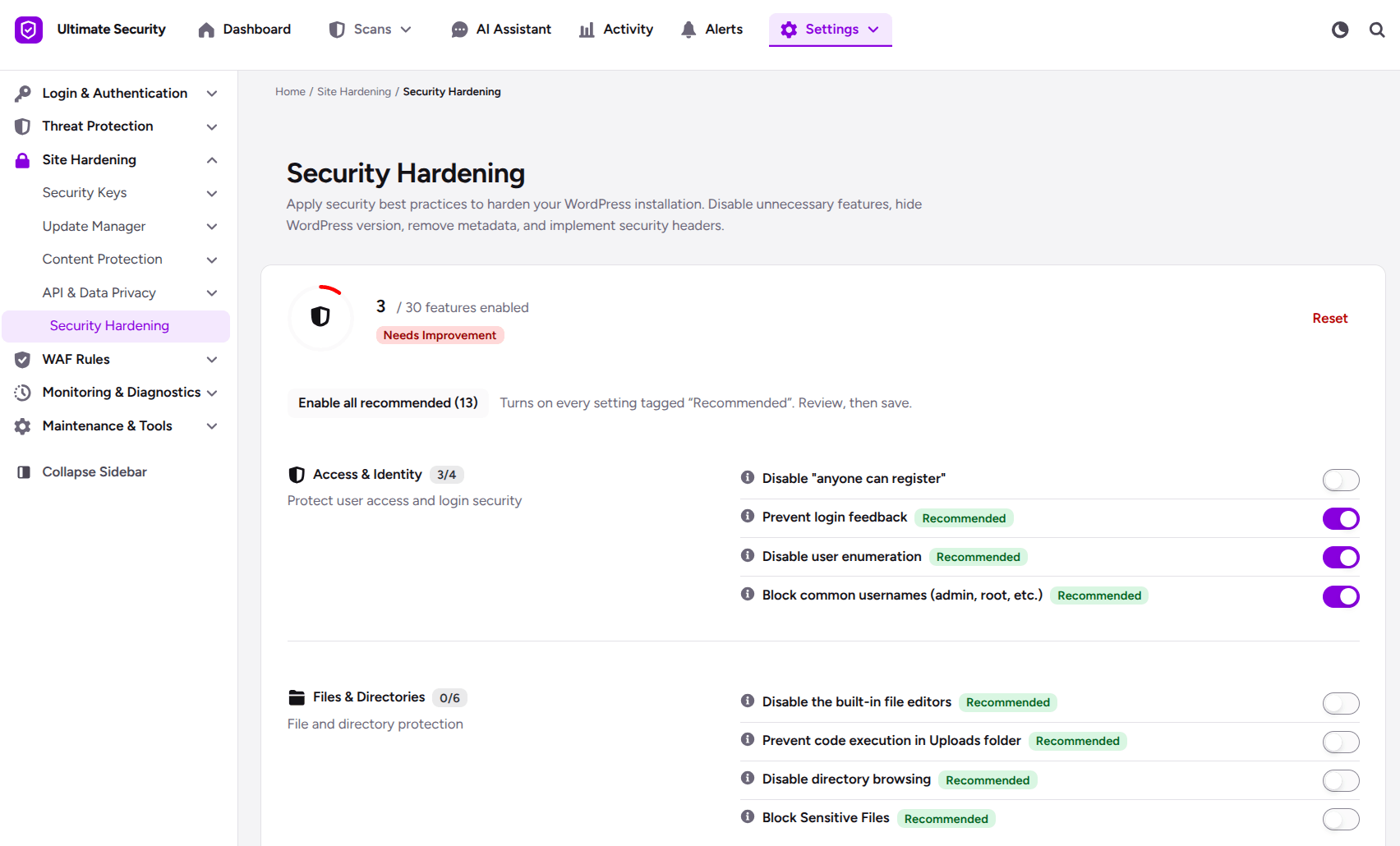
- Disable “anyone can register.” This turns off the WordPress option that lets anyone create an account. If your site does not need public signups, it stops spam registrations and unwanted accounts. Leave it off if you run a membership site, a community, or a store that needs customer accounts.
- Prevent login feedback (Recommended). WordPress normally tells a visitor whether the username or the password was wrong. That helps attackers confirm which usernames exist. This setting replaces both messages with one generic message, “Invalid login credentials.”
- Disable user enumeration (Recommended). User enumeration is when someone finds your usernames by visiting
/?author=1or reading the REST API at/wp-json/wp/v2/users. Once they have a username, they only need to guess the password. This setting closes those paths and makes brute force attacks harder. This setting blocks those methods so your existing usernames stay hidden. - Block common usernames (Recommended). This stops new accounts from using names like admin, root, administrator, and test. Those are the first names attackers try. If you already have an account with one of these names, rename it too.
Files and directories
This area stops attackers from changing your code, running uploaded files, or reading files that should stay private. It has four settings.
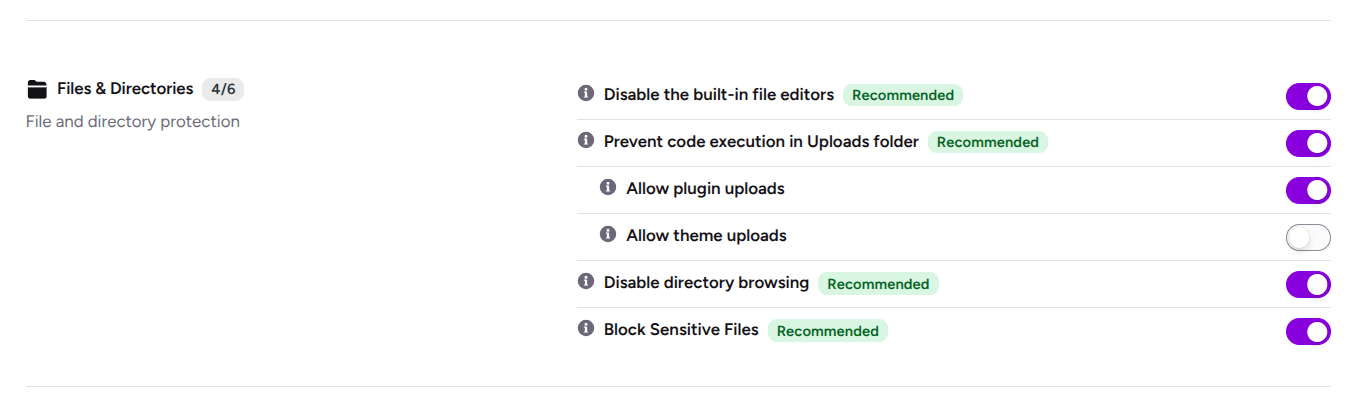
- Disable the built-in file editors (Recommended). This turns off Appearance → Theme File Editor and Plugins → Plugin File Editor. With the editors off, an attacker who reaches an admin account cannot edit PHP files from the dashboard. If you edit code in the dashboard today, move to SFTP or a code repository and a staging site instead.
- Prevent code execution in the uploads folder (Recommended). This adds rules so PHP files in the uploads directory cannot run. A common attack is uploading a malicious file that looks like media. When you enable this, two extra options appear:
- Allow plugin uploads: Lets you install a plugin by uploading a ZIP file while uploads protection is on.
- Allow theme uploads: Lets you install a theme by uploading a ZIP file while uploads protection is on.
- Disable directory browsing (Recommended). If a folder has no index file, some servers show a list of everything inside it. This setting stops that. Without it, visitors could browse your folders and learn how your site is built.
- Block sensitive files (Recommended). This blocks direct access to files such as wp-config.php, .htaccess, .env, readme.html, and license.txt. The wp-config.php file holds your database credentials, and readme.html can reveal your WordPress version. None of these should be public.
Headers and fingerprinting
Fingerprinting is how attackers find out what software you run so they can pick matching attacks. This area hides that information and adds browser protections. It has two settings.

- Hide your WordPress version (Recommended). This removes the version number from your site’s meta tags and feeds. When a flaw is announced for a specific version, attackers look for sites running it. Hiding the version does not fix an outdated site, so keep updating.
- Prevent code execution in the upload: This sends browser security headers (X-Frame-Options, X-Content-Type-Options, X-XSS-Protection) with every response. It helps protect against clickjacking and MIME-sniffing attacks
APIs and remote access
This area controls how outside tools talk to your site. It has one setting.
- Disable XML-RPC (Caution). XML-RPC, the xmlrpc.php file, is an old remote publishing system. Attackers abuse it for brute force attacks, DDoS amplification, and credential stuffing. This setting turns it off completely.

The catch is that it may break some mobile apps and remote publishing tools. If you use none of them, disabling XML-RPC is a common choice. If you use any, test first.
Advanced hardening
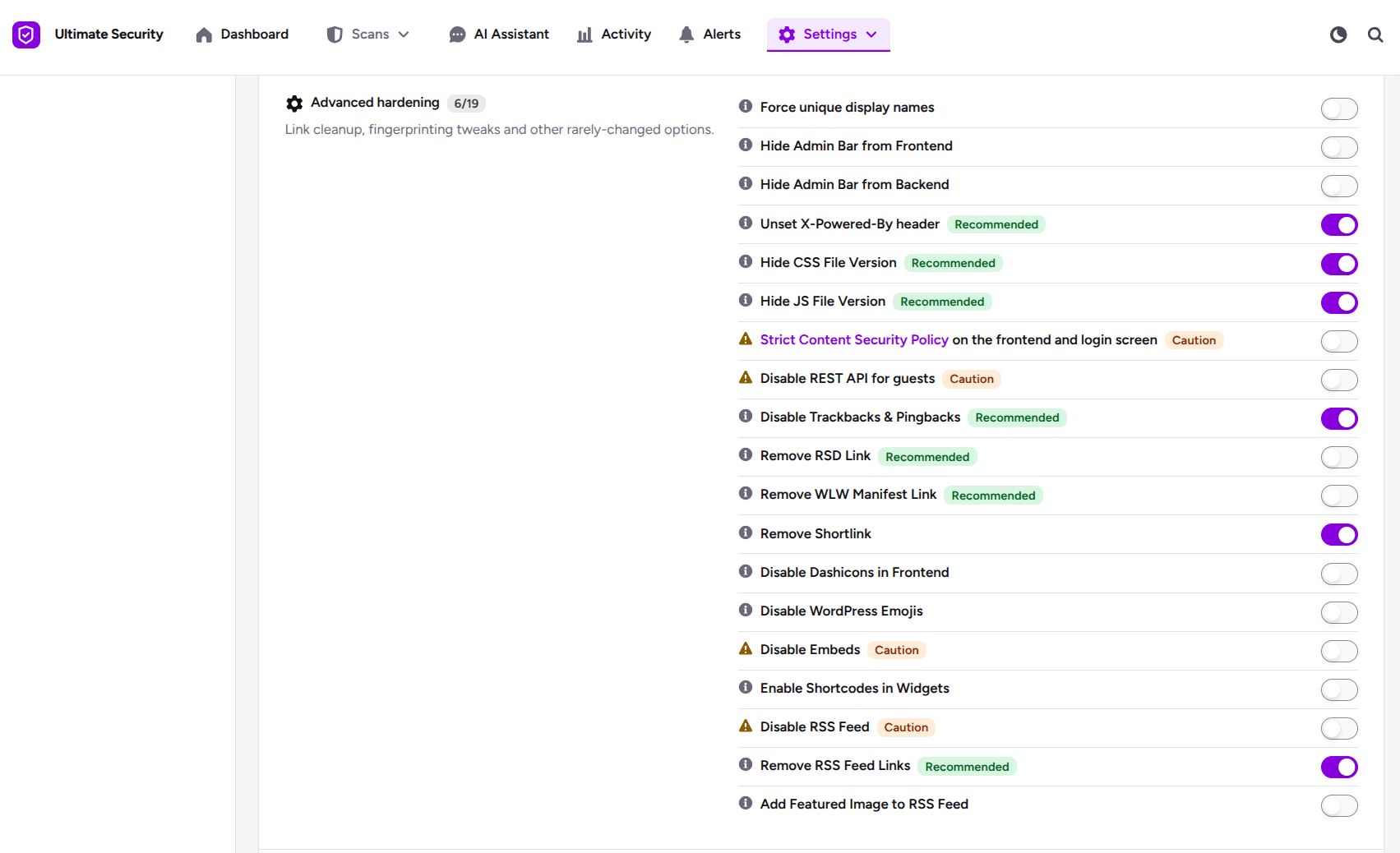
These are extra settings that clean up leftover traces, turn off old features, and remove things most sites no longer need. They are useful but not always necessary.
Hide details about your site
These six settings stop your site from showing small technical details that attackers can use.
- Unset X-Powered-By header (Recommended). Your server can tell visitors which software it runs, such as the PHP version. This setting removes that message.
- Hide CSS file version (Recommended). WordPress adds version numbers to your CSS file links, such as
?ver=6.x.x. This setting removes them, so your page source shows less. Clear your cache after theme or plugin updates. - Hide JS file version (Recommended). This does the same for JavaScript file links. The same cache tip applies.
- Remove RSD link (Recommended). This removes a hidden link in your page header that helps outside blog editors find your site. Most sites do not need it.
- Remove WLW manifest link (Recommended). This removes a leftover link for Windows Live Writer, a blog editor discontinued in 2012. You only need it if you still use that old program.
- Remove shortlink. This removes the short web address WordPress adds to your page header. It keeps your page source a little cleaner. This one is optional.
Two strong settings to test first
These two settings give strong protection, and both can break things. Test them before you turn them on.
- Strict Content Security Policy on the frontend and login screen (Caution). This tells the browser exactly which scripts and styles it may load, which makes XSS attacks much harder. The downside is that it can break themes, plugins, Google Analytics, ads, and anything that uses inline JavaScript or CSS. Test it on a staging site first.
- Disable REST API for guests (Caution). The REST API lets software read data from your site at
/wp-json/. This setting blocks logged-out visitors from using it. Many plugins and themes need it, including WooCommerce, page builders, and membership plugins, so test your public features first.
Features you can switch off
These settings switch off a few WordPress features. Check what your site uses before you turn each one on.
- Disable trackbacks and pingbacks (Recommended). These are an old way for sites to notify each other about links. Attackers often abuse them for spam and DDoS attacks. You will no longer get link notices from other sites.
- Disable embeds (Caution). Normally, pasting a YouTube, Twitter, or Vimeo link turns it into an embedded video or post. This setting turns that off and cuts external requests. Skip it if your posts use embeds.
- Disable RSS feed (Caution). This turns off all RSS and Atom feeds. It can limit feed-based scraping, but it will not stop scrapers that read your pages directly. It also breaks feed readers and any tool that uses your feed. Use it only if you do not need RSS.
- Remove RSS feed links (Recommended). This hides your feed links from your page header, so apps and bots cannot find them automatically. Your feeds still work. It is a gentler choice than turning the feed off.
- Add featured image to RSS feed. This puts each post’s featured image at the top of its feed item, so your feed looks better in readers. It is not a security setting, and it only matters if your feed stays on. This one is optional.
Account and admin bar options
These three settings change how accounts and the toolbar appear.
- Force unique display names. Your login name can show up publicly as your display name on posts and comments. This setting makes the two different, so you do not give away half of a login. It has no tag, but it is a useful privacy step.
- Hide admin bar from frontend. The black toolbar at the top of your site shows for logged-in users. This setting hides it. It is cosmetic and optional.
- Hide admin bar from backend. This hides the same toolbar inside the WordPress dashboard. It helps with custom admin screens or a cleaner look. It is cosmetic and optional.
Speed and cleanup options
These three settings are not about attacks. They trim extra code so pages load a little lighter.
- Disable Dashicons in frontend. Dashicons is an icon font WordPress mainly needs in the admin area. This stops it from loading on public pages, which means fewer requests. If your theme or plugin uses it for icons, check your pages afterward. This one is optional.
- Disable WordPress emojis. WordPress loads a small script and styles for emojis on every page. This setting removes them, along with related DNS prefetch requests. Most modern browsers show emojis without them. This one is optional.
- Enable shortcodes in widgets. WordPress does not process shortcodes in Text widgets by default. This setting turns that on. Use it only if you need it.
Not every hardening setting is about security
A few options, such as hiding the admin bar, disabling emojis, and adding featured images to RSS, are convenience or speed changes. They are fine to use, but they will not stop an attack. Do not count them as security wins when you measure how hardened your site is.
How to enable WordPress security hardening settings without locking yourself out
Hardening is safe when you change one thing at a time. Follow these steps.
- Back up your site and database. If something goes wrong, you can restore it quickly.
- Use a staging site if you have one. This matters most for Content Security Policy and REST API changes.
- Enable settings in small groups. Start with the Recommended group, then add Caution settings one at a time.
- Test key actions after each change. Check login, contact forms, checkout, the post editor, embeds, feeds, analytics, and any mobile app or remote publishing tool.
- Roll back what breaks. If something stops working, switch off the last setting you changed and test again.
- Re-check after big updates. A major plugin or theme update can change how a setting behaves.
Frequently asked questions
What is WordPress security hardening?
WordPress security hardening means changing settings so attackers have less to find, guess, or abuse. You switch off features you do not use, hide technical details, and block access to files that should stay private.
Which WordPress security hardening settings should I turn on first?
Start with the settings tagged Recommended. Good first picks are disabling the built-in file editors, blocking PHP execution in the uploads folder, disabling user enumeration, and blocking sensitive files.
How do I stop people from finding my WordPress usernames?
Combine a few settings. Disable user enumeration, prevent login feedback, force unique display names, and block common usernames like admin for new accounts. Together they close the usual ways attackers find out who can log in.
Is it safe to disable XML-RPC?
It is safe if you do not use Jetpack, mobile apps, or remote publishing tools. Those tools may stop working, so test first. If you use none of them, turning it off removes a path attackers use for brute force and DDoS attacks.
Should I disable the REST API in WordPress?
Not completely. The setting only blocks logged-out visitors, but many plugins and themes still need the REST API, including WooCommerce, page builders, and membership plugins. Test your public pages and forms after you turn it on.
Does hiding the WordPress version make my site safer?
It helps a little. Attackers can no longer read your exact version from your page source or feeds, which makes targeting harder. It does not fix any flaw, so keep WordPress, plugins, and themes updated.
Why should I disable the file editor in WordPress?
With the editors off, an attacker who gets into an admin account cannot change your theme or plugin code from the dashboard. You can still edit files through SFTP or a code repository.
What are security headers and do I need them?
Security headers are instructions your site sends to browsers. X-Frame-Options helps stop clickjacking, and X-Content-Type-Options stops MIME sniffing. X-XSS-Protection is older and most modern browsers ignore it, so do not rely on it.
How do I know if a hardening setting broke something?
Test after every change. Log in, submit a form, check your checkout, and open key pages. If anything fails, switch off the last setting you changed and test again.
Is WordPress security hardening enough on its own?
No. Hardening reduces what attackers can use, but you still need updates, strong passwords or two-factor authentication, backups, and monitoring. Think of it as one layer in a bigger setup.
Final thoughts
WordPress security hardening is about choosing the right settings for your site, not turning everything off. Start with the recommended settings, test the ones that could affect your site’s features, and disable only what you don’t need.
The Security Hardening module in Ultimate Security makes it easier to manage all 30 settings in one place. Whatever tools you use, keep WordPress, plugins, and themes updated, and maintain regular backups to help keep your site secure.
Comments are moderated. Stay on topic: spam and link drops are removed.