
Automated bots test your WordPress login page for weak and leak passwords. They also request paths like xmlrpc.php and are looking for a way in. Cloudflare’s Web Application Firewall (WAF) can help block this traffic before it reaches your hosting server.
This guide shows you how to set up Cloudflare WAF for WordPress directly from your site. With the free Ultimate Security plugin, you can connect your Cloudflare account, choose which types of traffic to allow, block, or challenge, and deploy the rules with a few clicks. The WAF integration works with Cloudflare’s Free plan, so you can get started completely free.
Table of Contents
What Cloudflare WAF Does for a WordPress Site
A web application firewall (WAF) is a filter that checks each request to your site and decides whether to allow it, block it, or ask the visitor to prove they are human. Cloudflare WAF does this on Cloudflare’s network, so a bad request can be stopped before it reaches your hosting server.
For a WordPress site, that means less junk traffic hitting your server and fewer attempts on your login page. Your site also does not have to load WordPress just to turn a bot away.
Why Writing Cloudflare Rules by Hand Gets in the Way
Cloudflare reads every rule as an expression. It is a line of code that describes the requests to match. A rule that blocks a bad crawler needs the right field names, operators, and punctuation. A typo can make Cloudflare reject the rule, and a rule that matches too much can block real visitors.
Order matters too. The rule that allows good bots has to come first, so verified bots pass before any blocking or challenge rule runs. Get that wrong and you can block the search engines you want to keep. The setup below turns each rule into a toggle and writes the expressions for you.
What You Need Before You Start
You need three things in place before you open the plugin settings.
- A Cloudflare account with your website added to it.
- The free Ultimate Security plugin installed and active.
- A Cloudflare API token. The next section shows you how to create one.
The WAF feature is free, so you do not need a Pro license for any step here. It also works on Cloudflare’s Free plan. For what Cloudflare includes in each of its plans, check Cloudflare’s own plan page.
How to Set Up Cloudflare WAF for WordPress Step by Step
To set up Cloudflare WAF for WordPress, you need to connect Cloudflare with the Ultimate Security plugin. Then switch on five rule groups and deploy them to your Cloudflare zone. Every step happens in the plugin settings, so you never need Cloudflare’s rule editor. The only time you visit Cloudflare is to create the credentials that connect the two.
The Rule groups only ship switched on, but none of them protect your site until you save and deploy them.
Enable WAF Rules and Connect Cloudflare
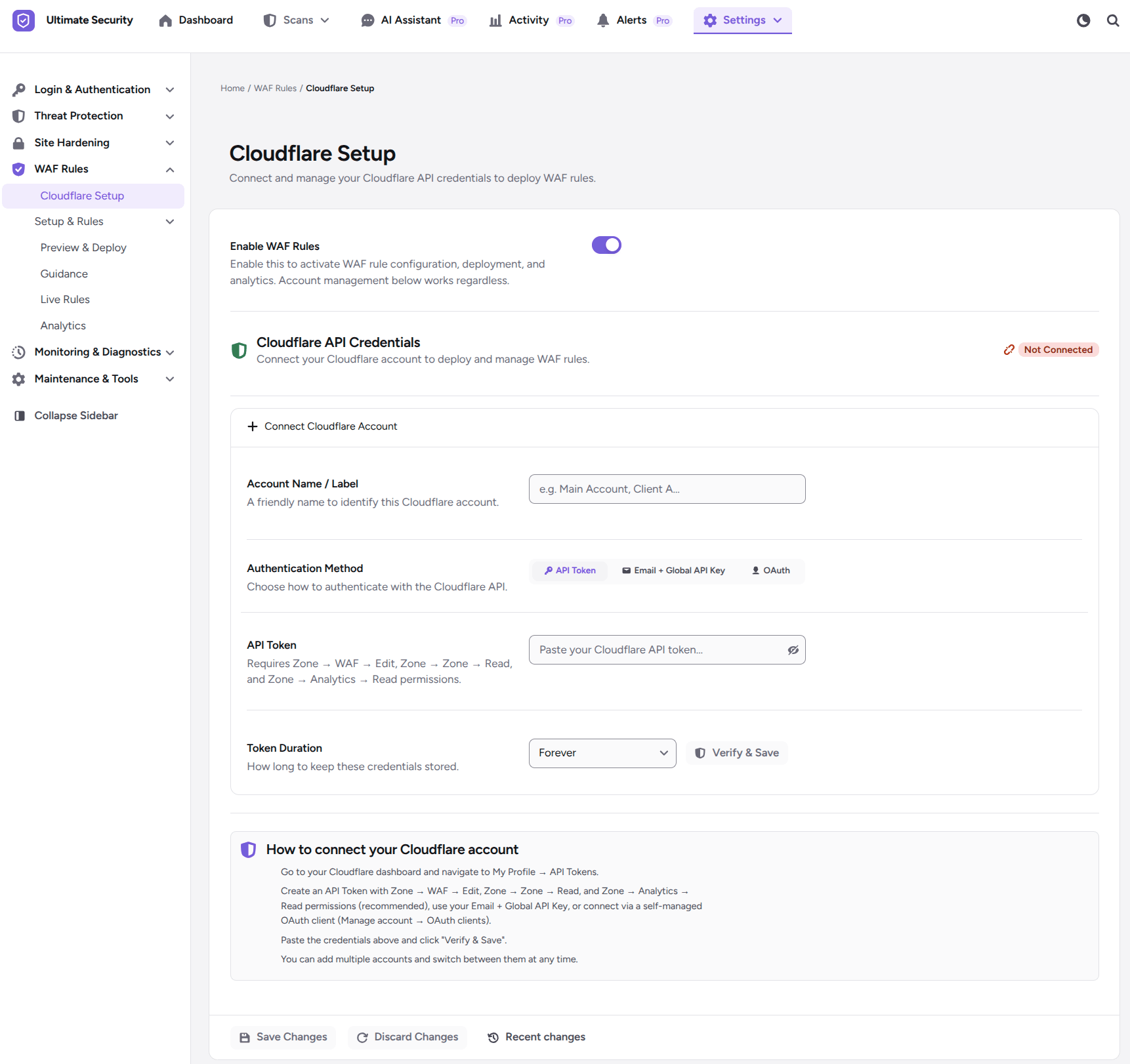
In your WordPress dashboard, go to Ultimate Security, then WAF Rules, then Cloudflare Setup. Turn on the Enable WAF Rules toggle first. It switches on the engine that handles rule deployment, configuration, and traffic analytics.
Next, find the Connect Cloudflare Account section. Type a name into the Account Name / Label field, so you can tell accounts apart later. Then choose one of three authentication methods.
| Method | What it uses | Access it gives |
|---|---|---|
| API Token | A token you create in Cloudflare | Only the permissions you give it |
| Email + Global API Key | Your Cloudflare email and master key | Full administrative access to your whole Cloudflare profile |
| OAuth | A self-managed OAuth application | A scoped connection with no passwords or master keys shared |
Connect With an API Token
An API token is a key you create in Cloudflare that carries only the permissions you pick. Create one with the right Cloudflare API token permissions for the WAF, then paste it into WordPress.
- Log in to the Cloudflare dashboard.
- Go to My Profile, then API Tokens, and create a custom token.
- Give it two permissions:
Zone > WAF > EditandZone > Zone > Read. - Copy the token.
- In WordPress, set Authentication Method to API Token and paste the token into the API Token field.
- Pick a Token Duration from the dropdown, such as 1 hour, 8 hours, or 1 day. This sets how long the plugin keeps your credentials stored.
- Click Verify & Save.
Connect With Email and Global API Key
This method uses your master Cloudflare credentials, so treat it with care. A Global API Key gives full administrative access to your entire Cloudflare profile, and a scoped API token is the safer choice.
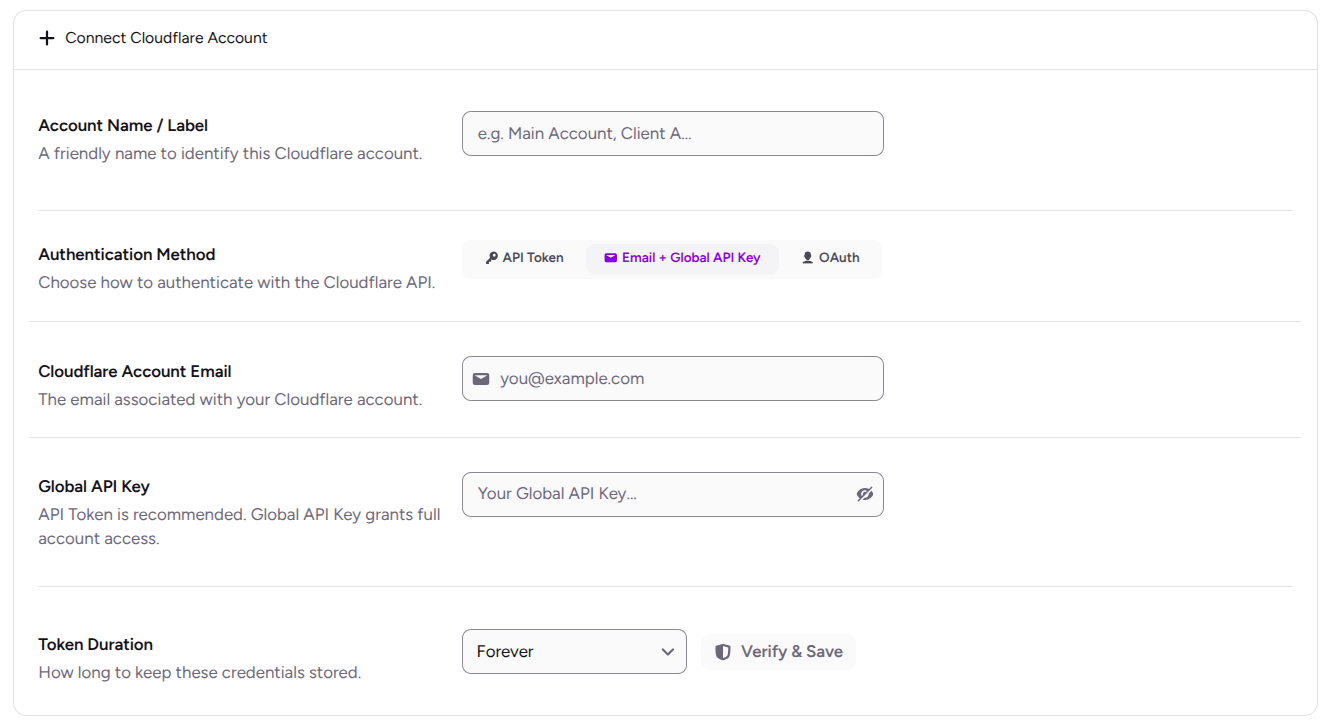
If you still want to use it, set Authentication Method to Email + Global API Key. Enter your Cloudflare Account Email and the Global API Key, choose a Token Duration, and click Verify & Save.
Connect With OAuth
OAuth connects through an application you manage yourself in Cloudflare. It works without sharing account passwords or master keys. Set Authentication Method to OAuth and fill in these fields.
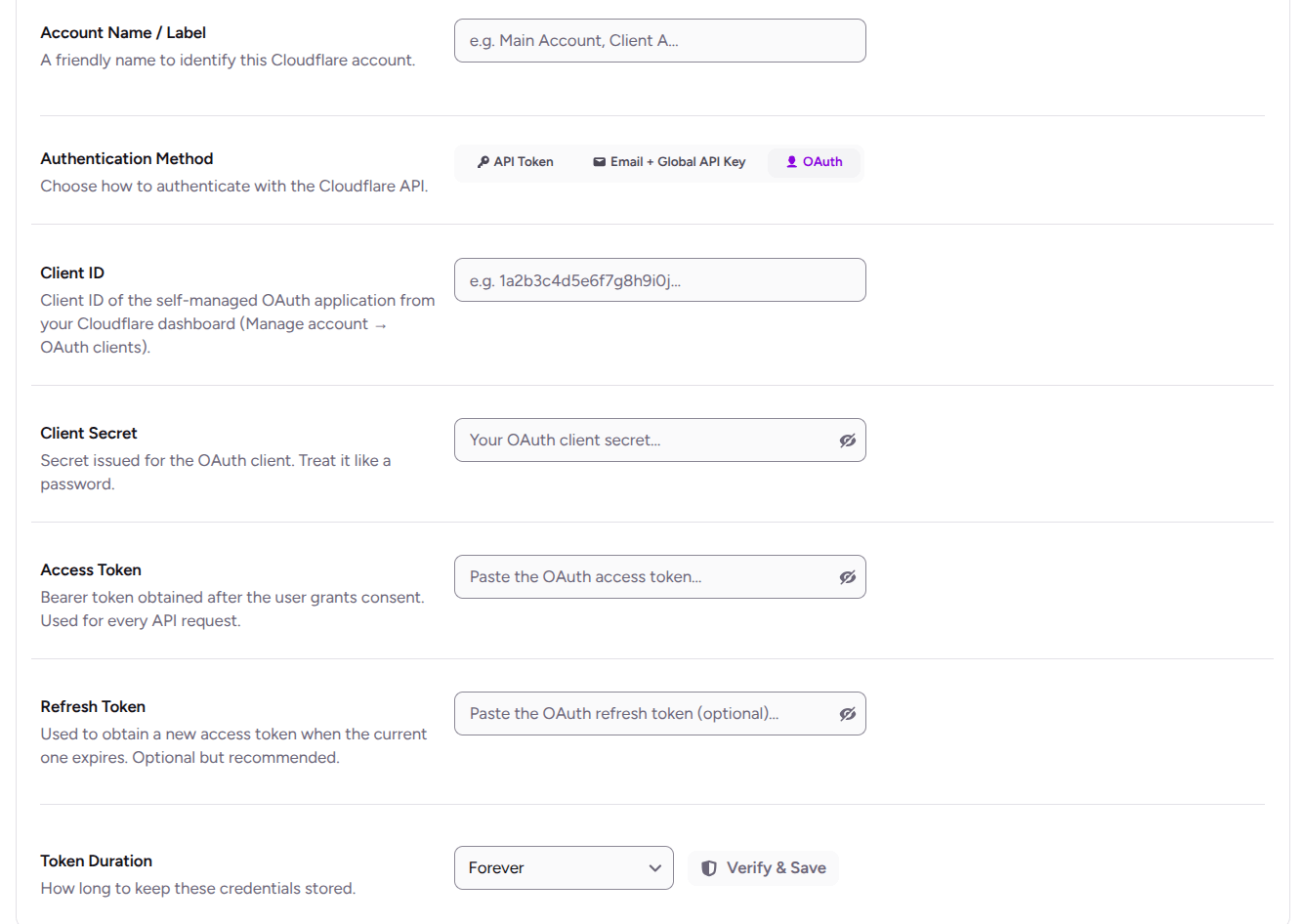
- Client ID. Find it in Cloudflare under Manage Account, then OAuth Clients.
- Client Secret. Treat it like a password.
- Access Token. This is the bearer token created after you authorize the application.
- Refresh Token (optional). Add it so the plugin can get a new access token when the current one expires.
Choose a Token Duration and click Verify & Save.
For detailed instructions on connecting your Cloudflare account see our Cloudflare Setup documentation.
Learn the Three Actions
Every rule group in this setup ends in one of three actions. Knowing them makes the next step easier to follow.
| Cloudflare WAF Action | What it does | Where you will see it |
|---|---|---|
| Skip | Let the request pass without running the blocking and challenge rules | Allow Good Bots |
| Block | Stops the request | Block Crawlers & WP Paths, and Block Web Hosts & TOR |
| Managed Challenge | Asks the visitor to pass a quick check that real people can complete | Challenge Cloud Providers & Countries, Challenge VPN & Login, and optionally Block Web Hosts & TOR |
Switch On the Cloudflare WAF Rules for WordPress
In the same WAF Rules menu, open Setup & Rules. You will see a checklist with an “Open” button beside each rule group. Click Open to configure a group.
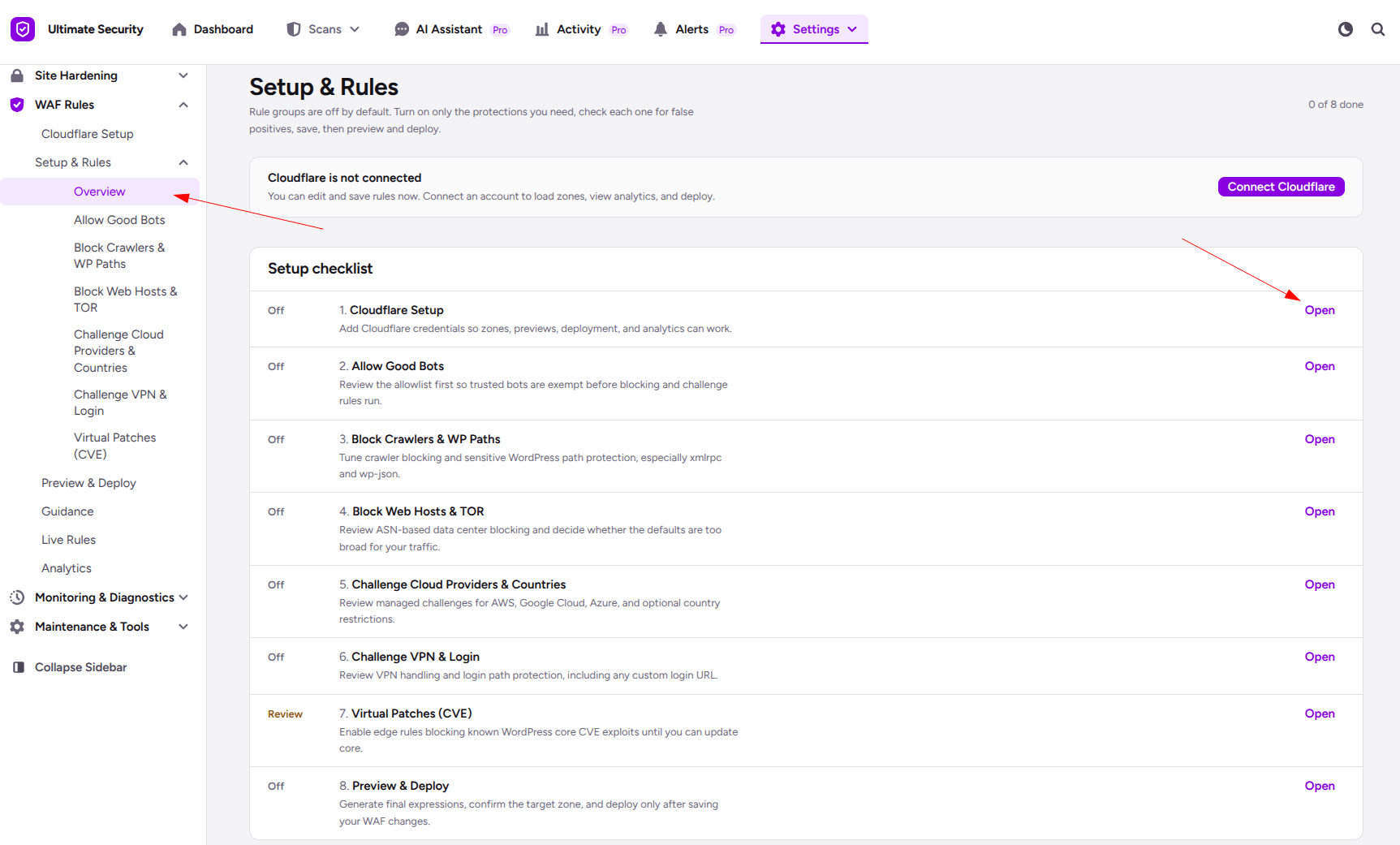
If a ‘Cloudflare not connected’ warning shows at the top, go back to the setup page. The rules cannot protect your site until Cloudflare is connected.
Here are the five groups at a glance.
| Rule group | Action | What it covers |
| Allow Good Bots | Skip | Verified bots, backup services, uptime monitors, and similar tools |
| Block Crawlers & WP Paths | Block | Aggressive crawlers, exploit scanners, sensitive WordPress paths, and common attack patterns |
| Block Web Hosts & TOR | Block or Managed Challenge | Hosting-provider networks and TOR exit nodes |
| Challenge Cloud Providers & Countries | Managed Challenge | AWS, Google Cloud, and Azure traffic, plus visitors outside the countries you pick |
| Challenge VPN & Login | Managed Challenge | VPN traffic that reaches wp-login.php or your custom login URL |
Allow Good Bots
This rule has to come first. It uses Cloudflare’s Skip action so that the verified bots you want, such as search engine crawlers, uptime monitors, and backup services, pass before any blocking or challenge rule runs. It also covers image optimizers, SEO crawlers, social preview bots, and WordPress management tools.
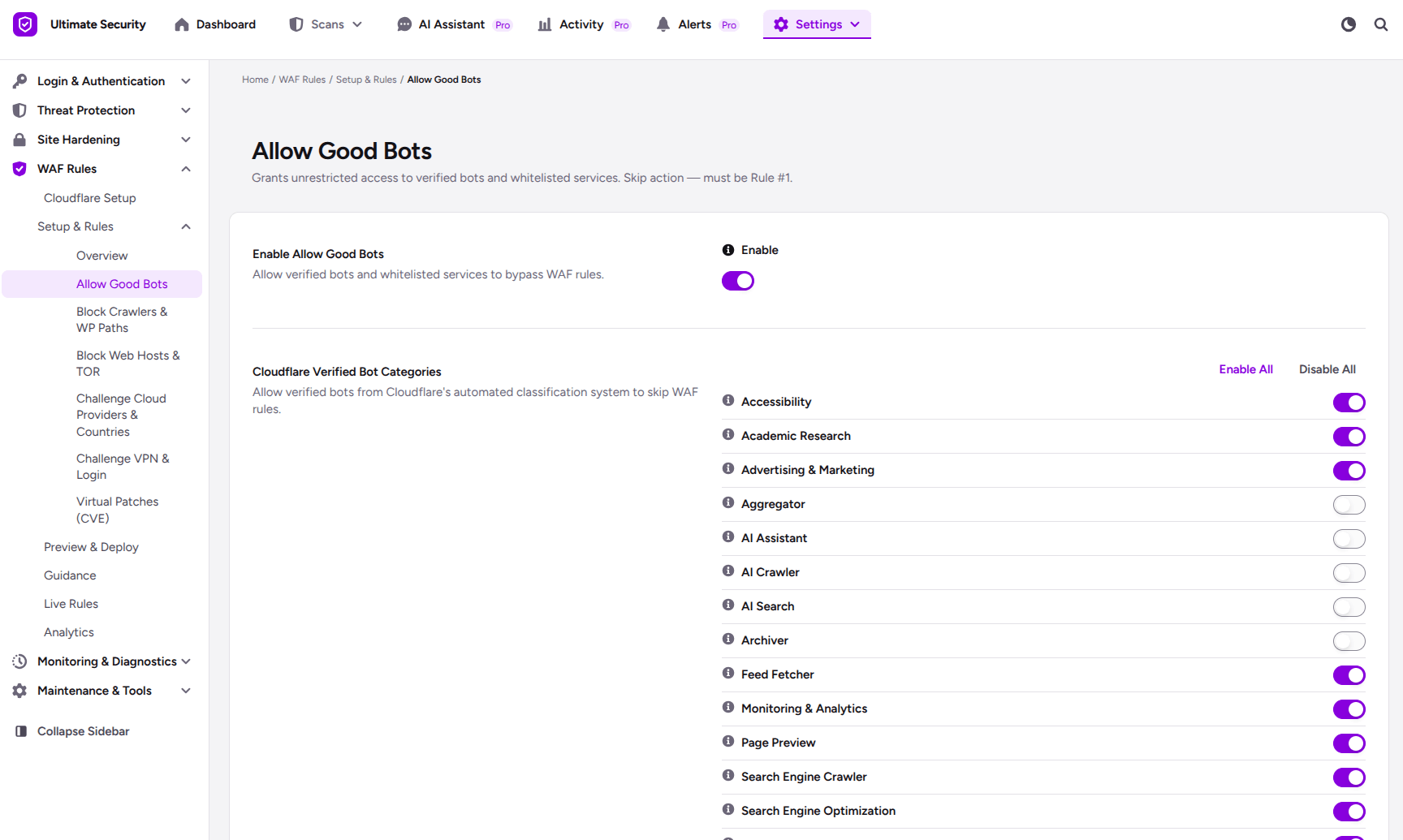
Select only the bot categories you know you need, especially if bandwidth or performance matters to you. You do not have to set up the Skip action in Cloudflare yourself, because the plugin sets it through the API when you deploy.
Block Crawlers and WP Paths
This rule blocks bots that eat server resources and protects sensitive WordPress paths. It matches aggressive crawlers, generic bot and spider user agents, exploit scanners such as Nikto, SQLMap, Masscan, and Nmap, and attack patterns like blind SQL injection and encoded path traversal. It also blocks paths such as xmlrpc.php, wp-config, wp-json, install.php, wlwmanifest.xml, readme.html, and license.txt. Blocking readme.html and license.txt also hides your WordPress version information.
Start with blocking generic unverified crawlers and bots. Turn on xmlrpc and wlwmanifest blocking by default. Enable wp-json blocking only if you do not use the REST API.
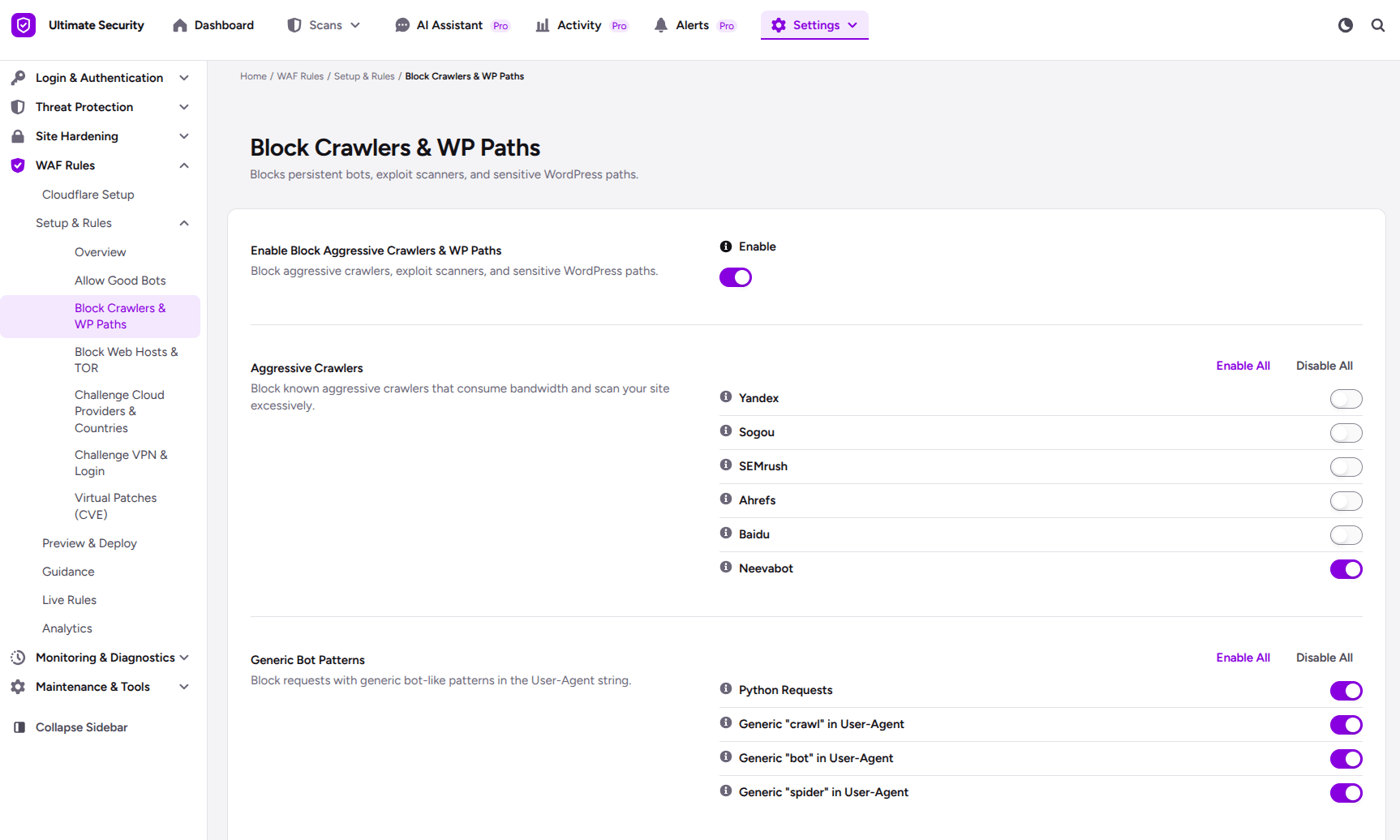
Some plugins and mobile apps need XML-RPC, so test them after you deploy. If you use SEO tools, allow them in Allow Good Bots first. Check your event logs after deploying, because a legitimate bot can get caught.
Block Web Hosts and TOR
Real visitors usually reach your site through a home or mobile internet provider. Automated attack scripts often run from hosting providers, which are data centers, or from the TOR network. This rule matches hosting providers by ASN, a number that identifies a network, and it matches TOR exit nodes.
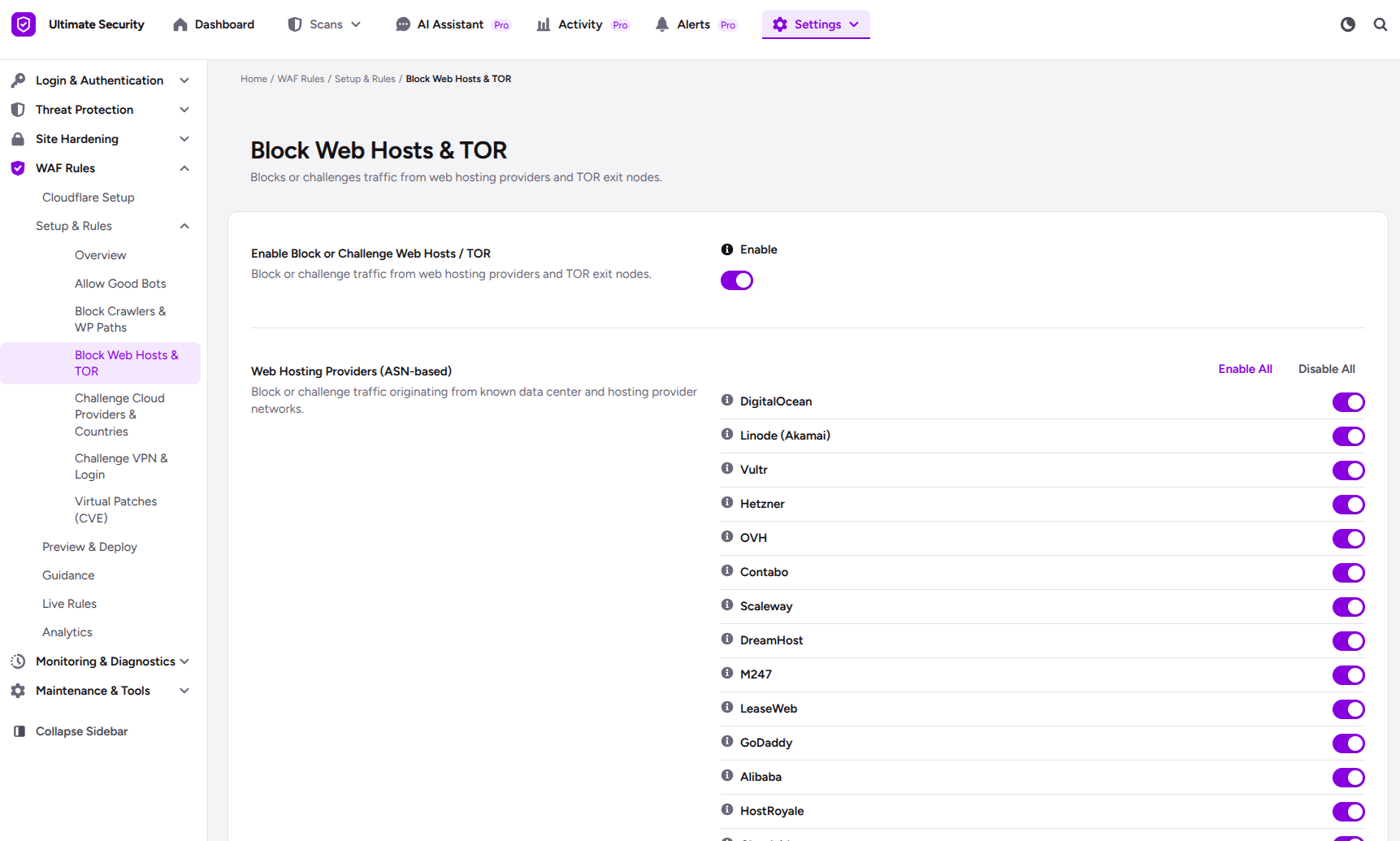
You can set the action to Block or Managed Challenge. Start with Block. If you see false positives, or you need to let legitimate proxy users in, switch to Managed Challenge. It still stops automated attacks, and real people can pass after a quick check.
Some real visitors use TOR for privacy, and some corporate traffic routes through cloud providers. If a service you rely on runs on a blocked network, allow it in Allow Good Bots.
Challenge Cloud Providers and Countries
Even a bot that is not aggressive can run on a cloud provider. This rule puts a Managed Challenge in front of traffic from AWS, Google Cloud, and Azure. It can also challenge visitors from outside the countries you choose.
Check all the cloud provider options to start. Turn on the country option only if your site serves a specific region. A country picker appears below the rule card once you enable it. If your audience spans many countries, leave the country option unchecked.
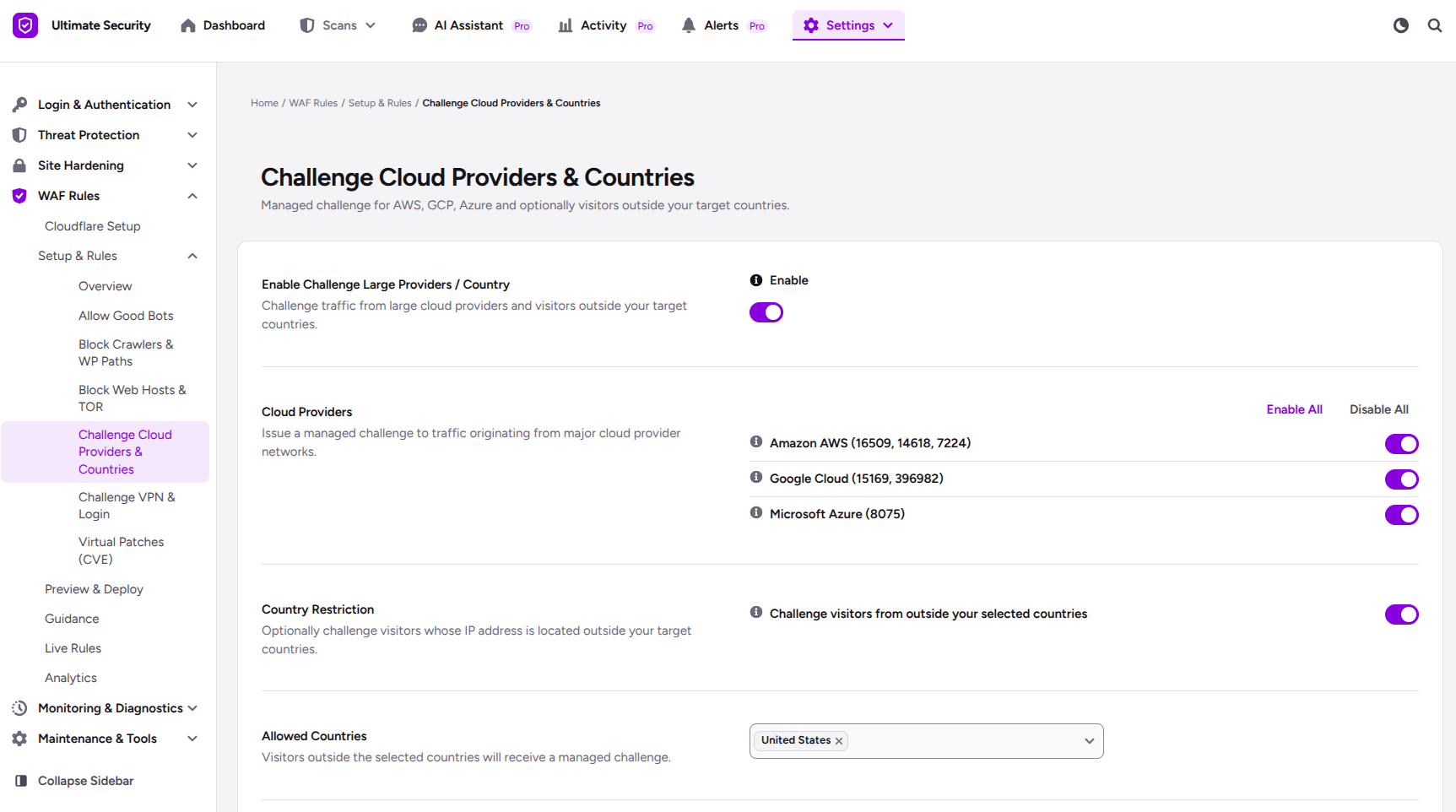
Remote workers and corporate networks sometimes route through cloud providers, and integrations with outside services can be affected, so watch for both.
Challenge VPN Connections and wp-login
The login page, wp-login.php, is one of the most targeted pages on a WordPress site, and attackers often use VPN services to hide where they come from. This rule puts a Managed Challenge in front of visitors who use known VPN providers when they reach wp-login.php. It also covers your custom login URL if you renamed the login page with the plugin.
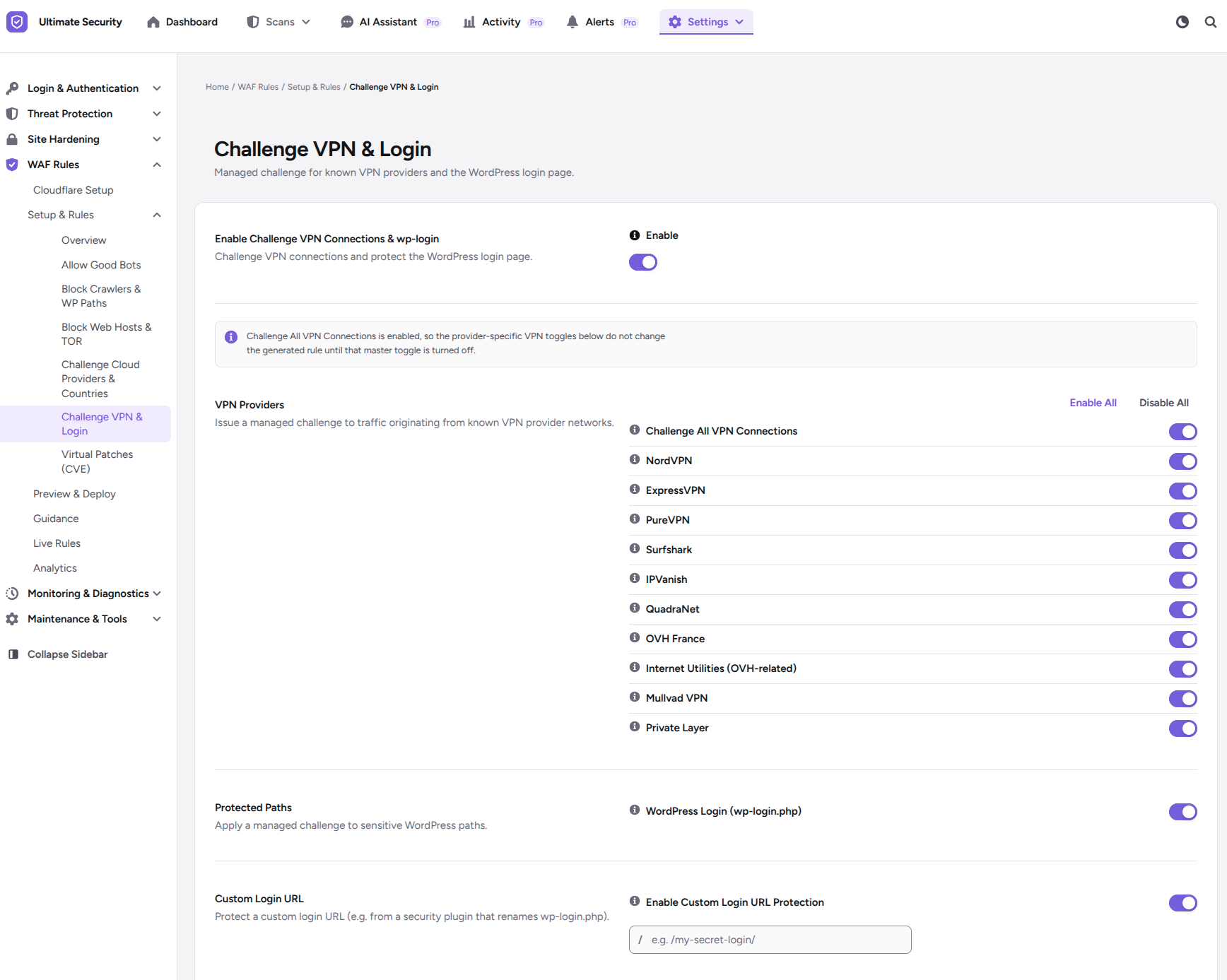
You can challenge all VPN providers or pick specific ones. We suggest turning on wp-login.php protection and selecting all of them. Real people use VPNs too, so after you deploy, check your traffic and security data to see whether legitimate visitors are being challenged.
Preview and Deploy to Cloudflare
This screen shows what your toggles will become before anything reaches Cloudflare. The plugin converts your toggles into Wirefilter expressions, which are the code Cloudflare reads to filter traffic. You never type them.
Open Preview & Deploy from the same WAF Rules menu. You will see one box for each rule group, labeled [CF WAF] Allow Good Bots, [CF WAF] Block Aggressive Crawlers & WP Paths, and so on. Each box shows its action and a summary of what it covers.
You cannot edit the code on this screen. To change a rule, go back to its own screen, then click Refresh Expressions to load the latest version. Each box also has a Copy button, which helps if you contact support or want to check a rule in Cloudflare.
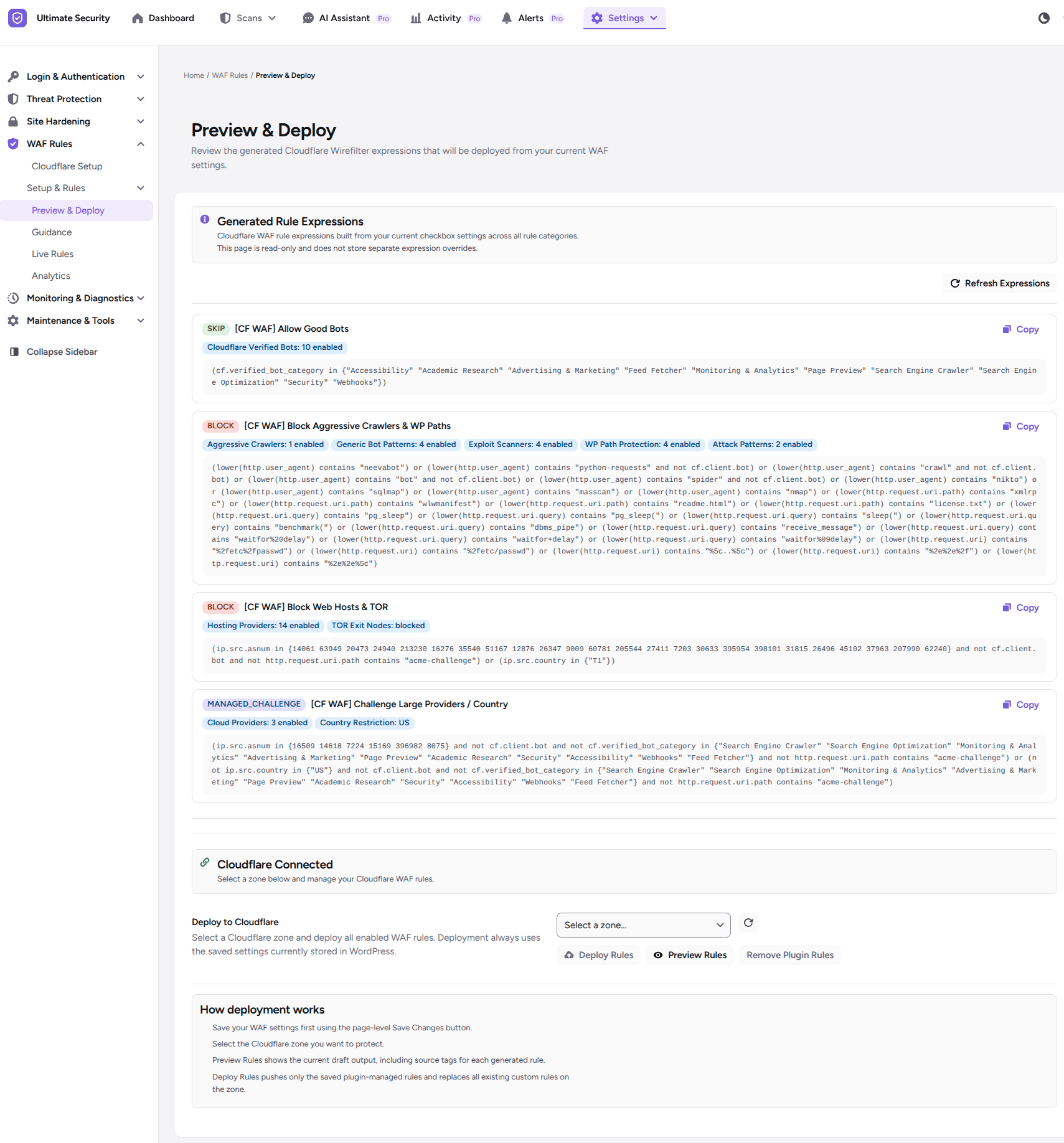
To deploy your rules, follow these steps.
- Choose your domain in the Zone Selector.
- Click Preview Rules to see the exact expressions that will be generated.
- Click Deploy Rules to push your saved settings to Cloudflare and make them live.
Check What Is Running in Live Rules
The Live Rules screen shows the WAF rules that are active on your site at Cloudflare. Other screens show what you plan to deploy. This one shows what Cloudflare is actually running.
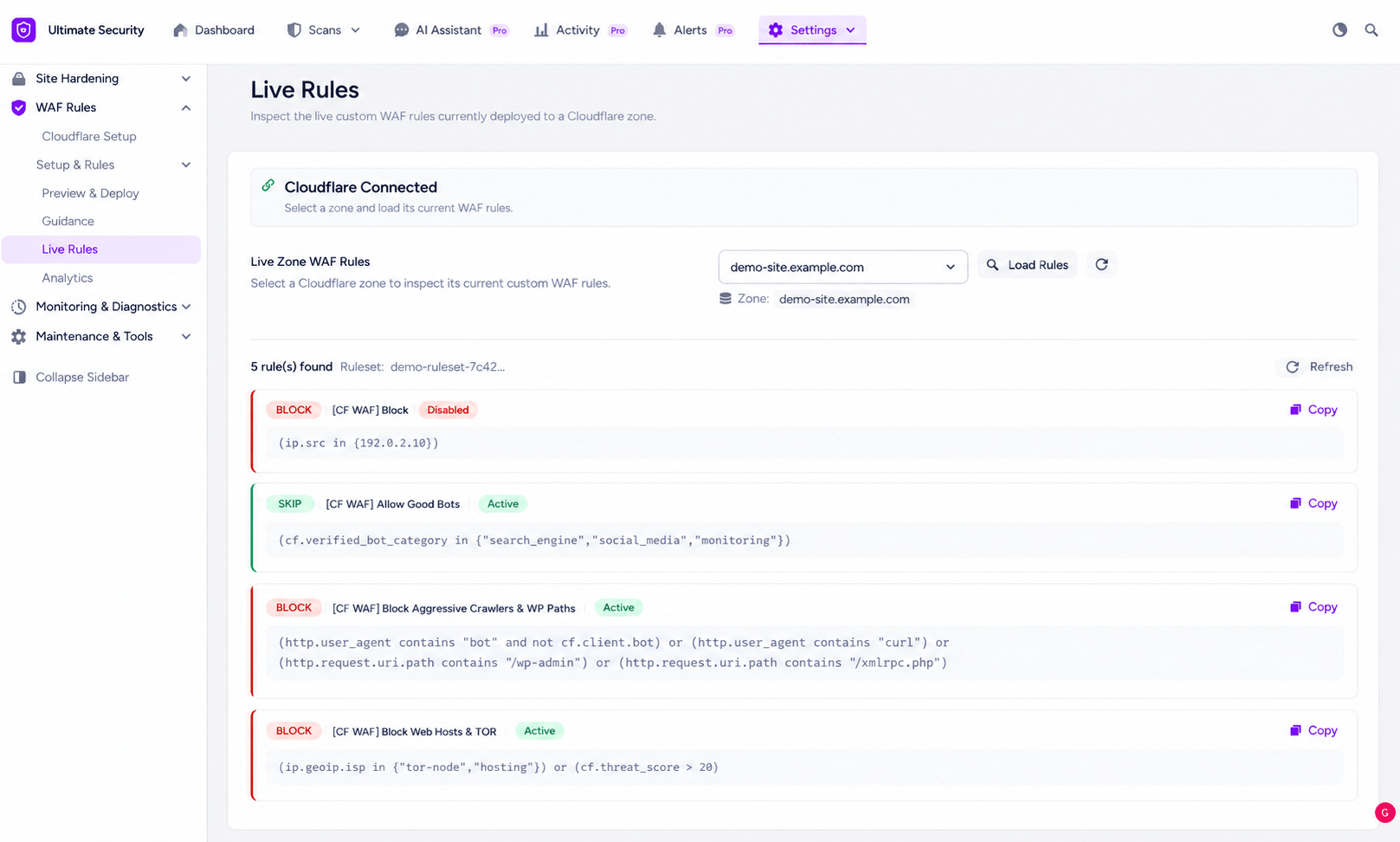
- Open Live Rules from the WAF Rules menu.
- Look for the green Cloudflare Connection Status bar. It means your site is talking to Cloudflare, and you need that connection to load rules.
- Choose your domain from the Select a zone to inspect dropdown. One Cloudflare account can manage several sites, so you pick the one you want to check.
- Click the purple Load Rules button.
The plugin fetches the live data from Cloudflare and shows the active rules, including the code running on Cloudflare’s servers, in the window below. If a rule you deployed is missing, check that you picked the right zone, then repeat Step 4.
Review Traffic and Threats in Analytics
The Analytics screen gives you a view of how your site performs and how Cloudflare protects it. It covers traffic volume, security threats, and server efficiency. The analytics data comes from cloudflare directly.
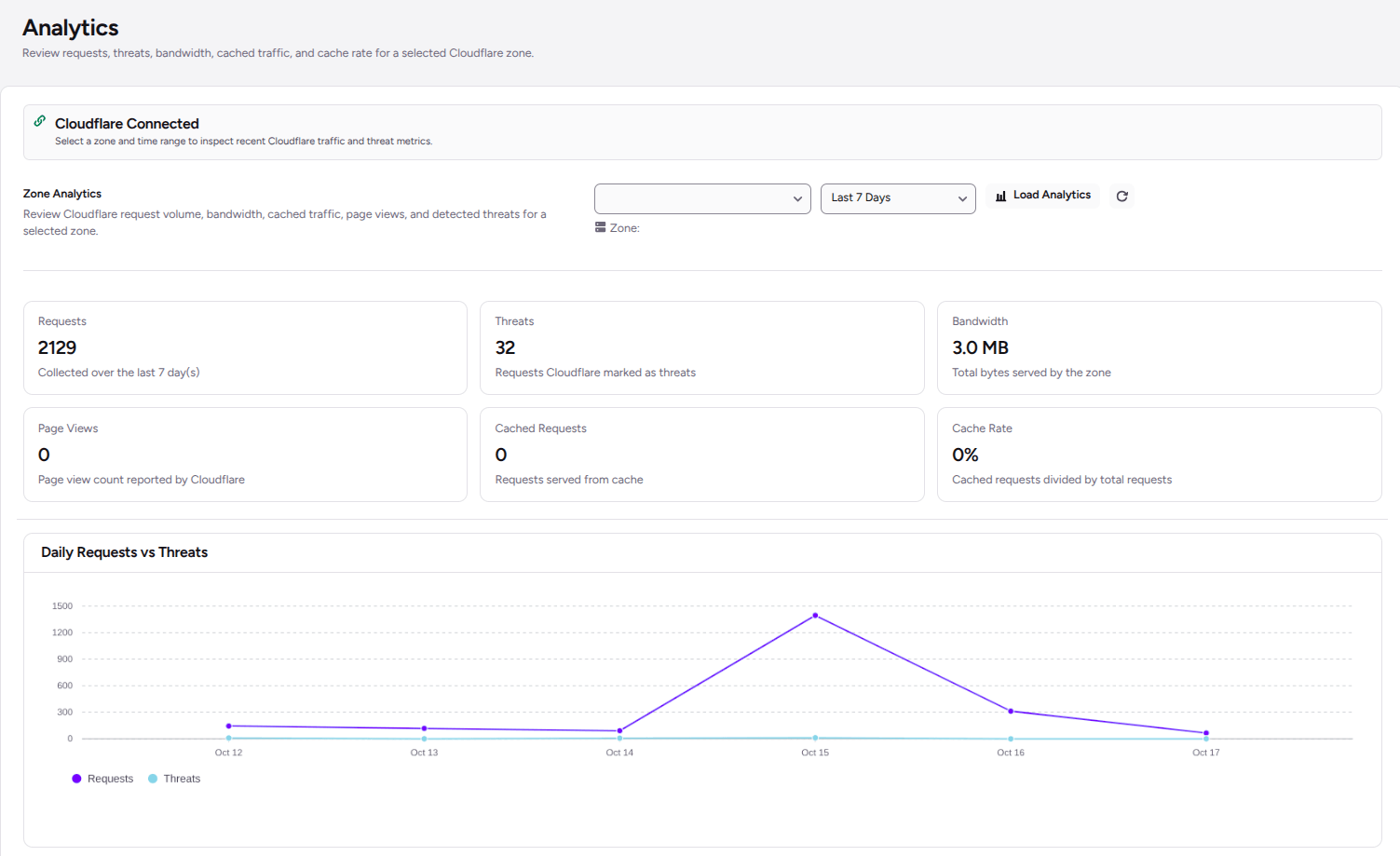
- Open Analytics from the WAF Rules menu.
- Make sure the green status bar is showing. It confirms your API credentials are active and ready to fetch data.
- Choose your domain from the Select a zone dropdown.
- Pick a period: Last 24 Hours, Last 7 Days, or Last 30 Days.
The 24-hour view works well right after you deploy. The 30-day view shows longer trends, which helps when you decide whether to change a rule.
Add Virtual Patches for Known WordPress Vulnerabilities
The five rule groups handle bad traffic in general. The plugin also has a separate Known CVE Patches setting for specific WordPress core flaws. A virtual patch is a firewall rule that blocks the traffic an exploit depends on, at Cloudflare, before it reaches your server. It works as a stopgap while you schedule the real core update.
| Patch | CVE | What it does |
|---|---|---|
| Core SQL Injection Protection | CVE-2026-60137 | Checks URL query strings at the Cloudflare edge and blocks common SQL injection payloads |
| REST Batch Endpoint RCE Protection | CVE-2026-63030 | Blocks unauthenticated requests to the /wp-json/batch/v1 endpoint, including access through ?rest_route=, to prevent remote code execution |
The REST batch patch exempts logged-in users, so wp-admin and your editors’ workflows keep working.
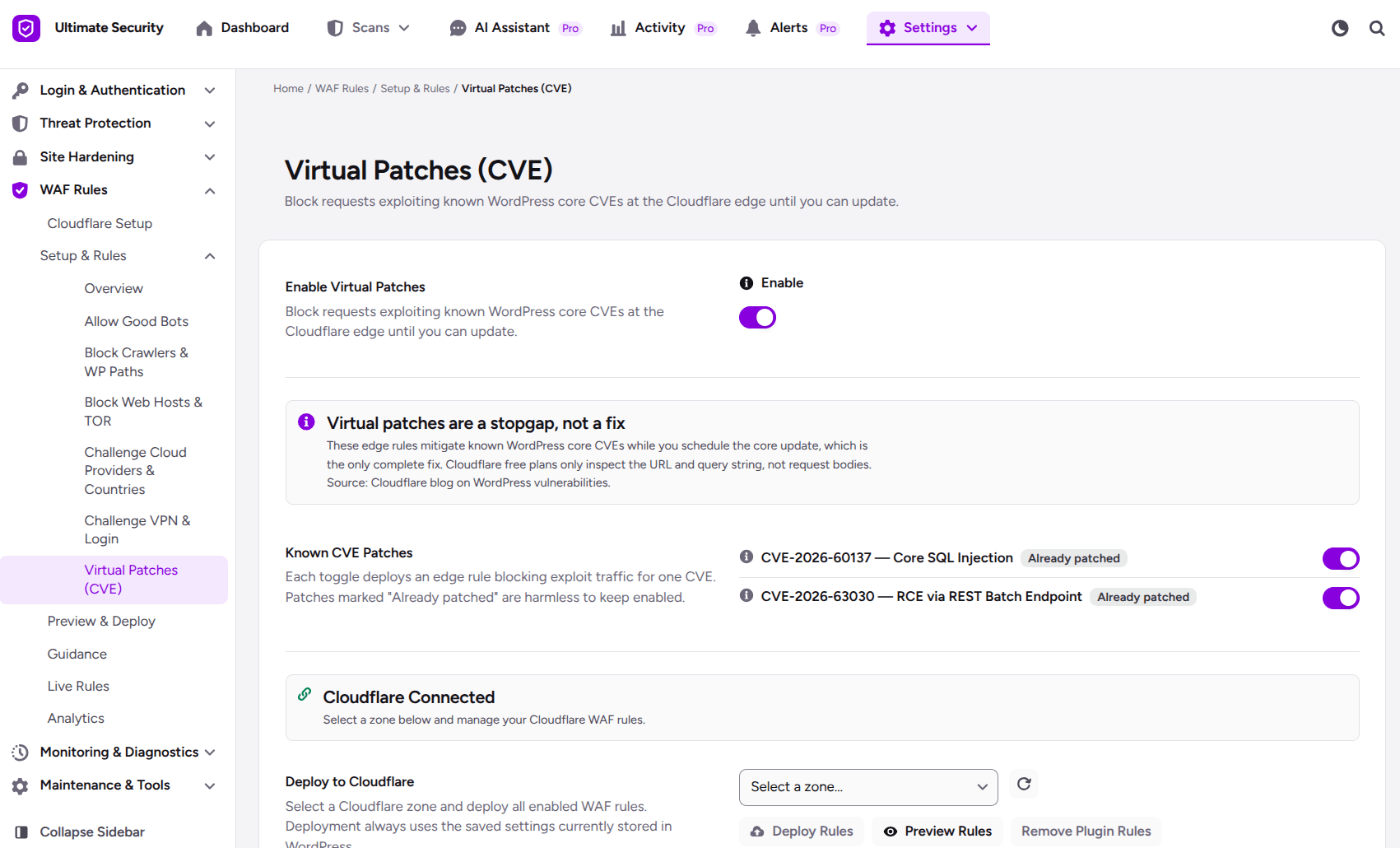
The SQL injection patch has a limit you should know about. Cloudflare Free plans only inspect URLs and query strings, not HTTP POST request bodies, so updating WordPress core remains necessary for complete coverage. Treat a virtual patch as a stopgap, not a fix.
You set these patches in your WordPress dashboard, and Cloudflare enforces them at the edge. Both the Cloudflare integration and Edge WAF Rules need to be enabled for them to protect anything. You can switch the toggles on and save them before you connect Cloudflare, so deployment goes smoothly once you connect.
Frequently Asked Questions
Is Cloudflare WAF free for WordPress?
Yes. The WAF feature included in the Ultimate Security plugin is entirely free and works directly on Cloudflare’s Free plan. You do not need to upgrade to a paid Cloudflare Pro license to use any step or feature described in this guide.
Does WordPress have a built-in firewall?
No. WordPress core does not ship with a built-in web application firewall. Protection must be provided externally by your hosting provider, a security plugin, or a DNS-level network service like Cloudflare that sits in front of your site.
Which Cloudflare API token permissions does the WAF feature need?
It needs two: Zone > WAF > Edit and Zone > Zone > Read. Create a custom token with those two permissions in Cloudflare under My Profile, then API Tokens.
What is a WAF virtual patch?
A virtual patch is a firewall rule that blocks the traffic a known vulnerability depends on, so the flaw is harder to exploit while you wait to update. The plugin’s Known CVE Patches setting covers two WordPress core vulnerabilities at Cloudflare. A virtual patch does not replace updating WordPress.
Do I still need a security plugin if I use Cloudflare WAF?
Yes, because they do different jobs. Cloudflare filters and blocks malicious edge traffic before it reaches your hosting server, whereas a security plugin manages internal WordPress configurations, application-level logins, file integrity, and site hardening. They complement each other rather than replace one another.
Will Cloudflare WAF block Google?
No, provided you have the Allow Good Bots rule group enabled and placed first. This rule utilizes Cloudflare’s Skip action so that verified search engine crawlers, uptime monitors, and SEO tools pass cleanly through before any blocking or challenge rules are evaluated.
Will the plugin overwrite my own Cloudflare rules?
No. The plugin is designed exclusively to manage its own generated rule sets. It will not delete, alter, or overwrite any custom firewall rules you have manually created inside your Cloudflare dashboard
Conclusion
Setting up Cloudflare WAF for WordPress does not have to involve writing code or building firewall rules from scratch. With the free Ultimate Security plugin, you can connect your Cloudflare account, choose the traffic you want to allow, block, or challenge, and deploy your rules without writing the expressions yourself.
Remember that a firewall is only one part of WordPress security. Keep WordPress, your plugins, and your themes updated, and test your website after changing your WAF settings.


Comments are moderated. Stay on topic: spam and link drops are removed.