
If you are looking into WordPress bot protection with reCAPTCHA and Turnstile, you already know the two names that keep coming up. What usually is not clear is how they actually work, why WordPress does not support either one natively, and how to set them up on your own forms without breaking anything. This post covers all three, plus a few settings most guides skip over.
Table of Contents
Why Bots Are a Real Problem for WordPress Sites
Bots try to log in using leaked username and password combinations, over and over. They fill out your registration form to create fake accounts, sometimes to spam your user list, and sometimes to test stolen credit cards through your checkout. They post comment spam full of links to sketchy websites. And if you run a store, some of them are testing stolen card numbers against your checkout page, one small transaction at a time, to see which cards still work.
None of this needs a human sitting at a keyboard. It is automated, it runs all day, and it does not care how small your site is. Small sites are actually easier targets, since fewer of them have any protection at all. The fix is not complicated. You need something that can tell the difference between a person filling out a form and a script doing the same thing thousands of times a minute. That is exactly what reCAPTCHA and Turnstile are built for.
The Two Tools That Work Well for WordPress
When people talk about stopping bots on forms, the two names that come up are Google reCAPTCHA and Cloudflare Turnstile.
- Google reCAPTCHA has been around the longest. Version 2 is the checkbox you have clicked a hundred times, the one that sometimes asks you to pick out traffic lights in a photo grid. Version 3 works quietly in the background instead. It watches how a visitor moves and clicks, then gives that visit a score between 0.1 and 1.0. A low score means the visitor looks like a bot, a high score means they look human. Site owners decide what score counts as a pass.
- Cloudflare Turnstile is newer and takes a different approach. Instead of asking visitors to prove they are human, it runs a set of quiet browser checks in the background, and most people never see a checkbox at all. It runs on Cloudflare’s own network. It already handles a huge share of global web traffic, so it has a lot of data to work with.
Neither one is a gimmick. Both are used on millions of sites, and both do a solid job when set up correctly. The real question for most WordPress owners is not which one is technically better. It is how to actually get either one running on their site without editing code.
WordPress Does Not Come With Either One
Here is the part people run into after they decide to use reCAPTCHA or Turnstile. WordPress natively has neither settings for Google reCAPTCHA nor Cloudflare Turnstile. There is no settings page waiting for you. If you want to add one to your login form, your comment section, or your WooCommerce checkout, you either code it or install a security plugin that already has it.
Hand coding it works, but it means editing template files every time you want to add protection to a new form, and it breaks the moment you update your theme. A single-purpose plugin handles one form and stops there. If you want both providers, or you want protection across your login page, registration, password reset, comments, and your entire WooCommerce checkout flow, you end up running several plugins just to cover the basics. This is where a plugin that already bundles both services under one settings screen saves a lot of time.
Setting Up WordPress Bot Protection With reCAPTCHA and Turnstile in One Place
Ultimate Security keeps both Google reCAPTCHA and Cloudflare Turnstile under one screen, so you are not stuck picking one provider and hoping it covers everything you need. Head to Threat Protection > Bot Protection to get started.
Pick Which Forms to Protect
Both providers cover the same list on the WordPress side: Login, Register, Reset Password, and Comments. If you run WooCommerce, you also get Login, Register, Lost Password, and Checkout for that. Every form has its own toggle, plus one master switch if you want everything protected at once.
Connect Your Keys
Each provider needs a site key and a secret key before it does anything.
- Get your reCAPTCHA keys free from the Google admin, and your Turnstile keys free from your Cloudflare dashboard.
- Paste the Site Key and Secret Key into their matching fields inside Ultimate Security.
- Click Verify & Save Keys and wait for the green “Verified” badge to appear.
Adjust How It Looks and Behaves
Each provider has its own general settings for theme, language, and whether the submit button stays locked until verification passes. reCAPTCHA also lets you pick a version and, for v3, set the score threshold. Google recommends starting at 0.5 and adjusting from there once you see real activity in the logs.
Running Both Bot Protection Without Conflicts
This is the part most guides never mention. Turn on reCAPTCHA and Turnstile on the same form, and you can end up loading two verification scripts at once. That sometimes makes the form misbehave or refuse to submit altogether.
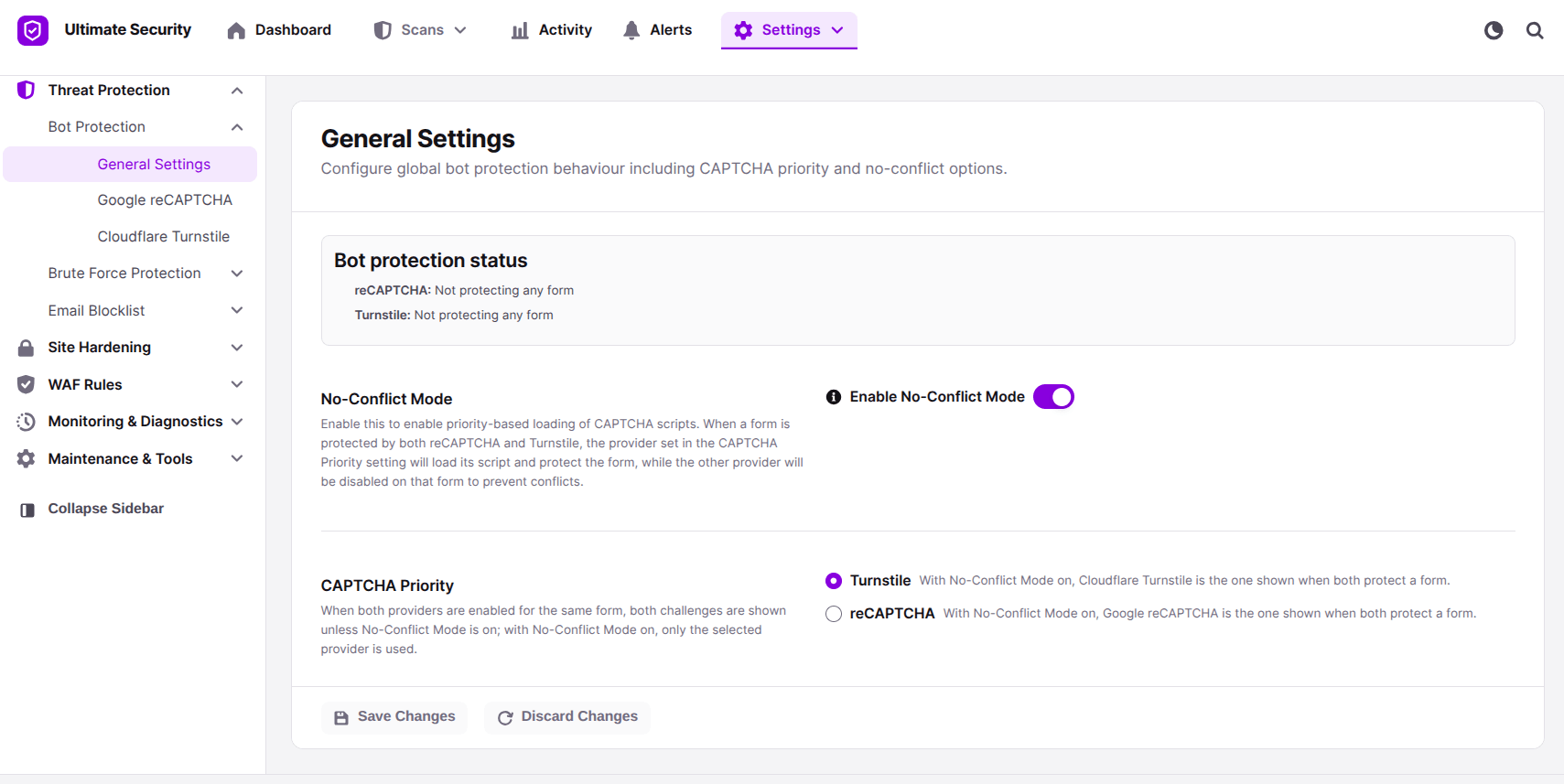
No-Conflict Mode exists for exactly this. Turn it on, then pick a CAPTCHA priority. Whichever provider you choose loads and protects the form, while the other one steps back. Both stay connected and ready. They just do not fight each other on the same page.
The full setup steps for each provider, screenshots included, are in the documentation at Ultimate Security docs, if you want to follow along while you configure it.
Making Sure It’s Actually Working
Once you save your settings, do not just assume it is live. Open your site in a private or incognito browser window, since you are already logged in as an admin and might not see the check yourself. Go to your login page and look for the reCAPTCHA box or the Turnstile check.
Then try to actually test it. Type in a random username and password, skip the verification step if you can, and hit submit. Your site should stop you with a message like “please complete the verification” instead of letting the login attempt through. If that happens, your protection is working the way it should.
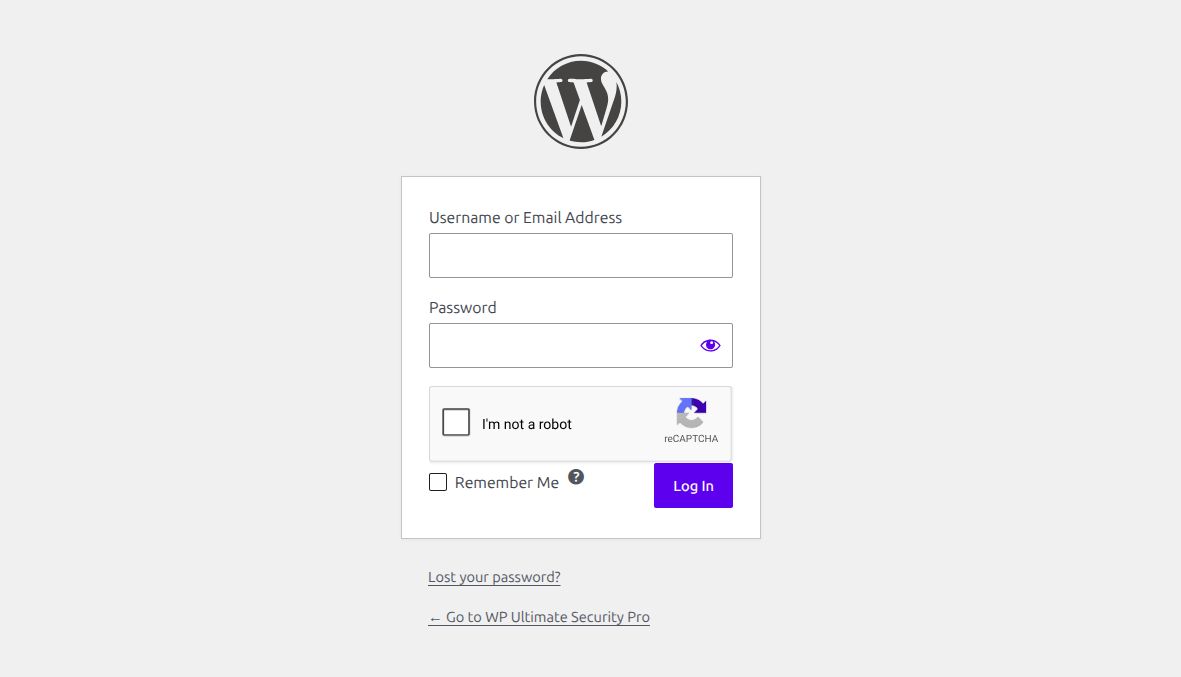
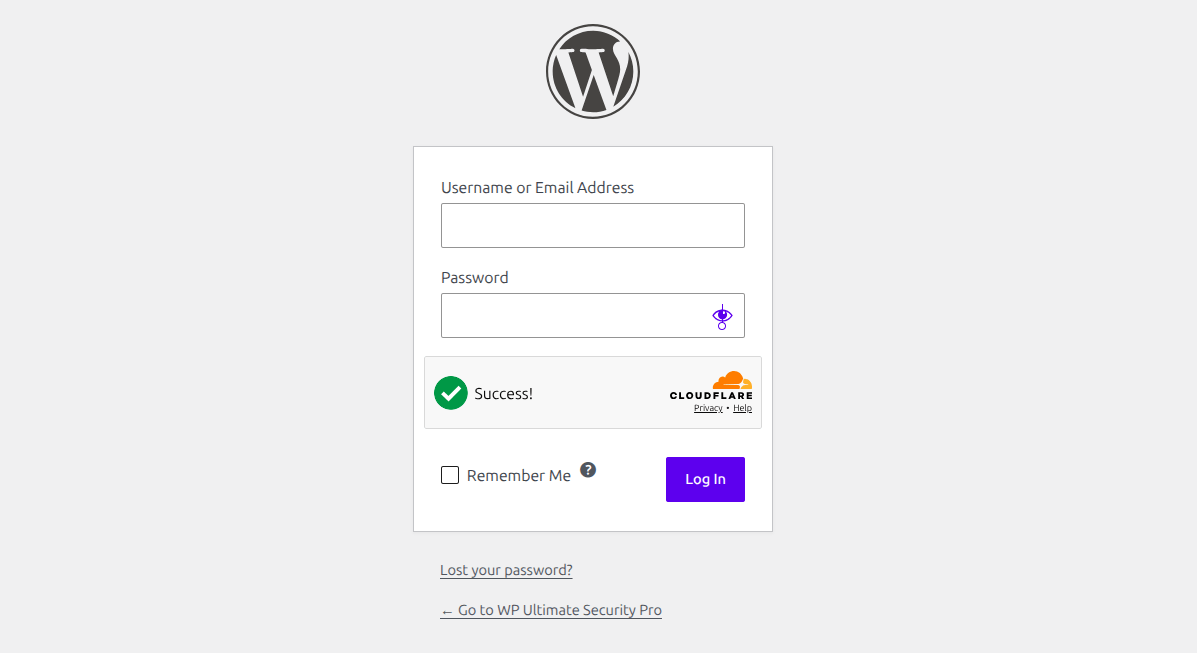
Both providers also keep logs, so you can check reCAPTCHA Logs or Turnstile Logs later on to see real verification attempts instead of guessing whether the setup is holding up over time.
Keeping an Eye on Things With the Verification Logs
Turning on protection is not the end of the job. Both reCAPTCHA and Turnstile include their own logging screen, and they work the same way, an Enable Logs toggle at the top, a short line explaining what the log tracks, and a Recent Activity panel below it with a Refresh button. Once visitors start hitting your protected forms, this is where you can see actual attempts come through instead of guessing whether anything is working.
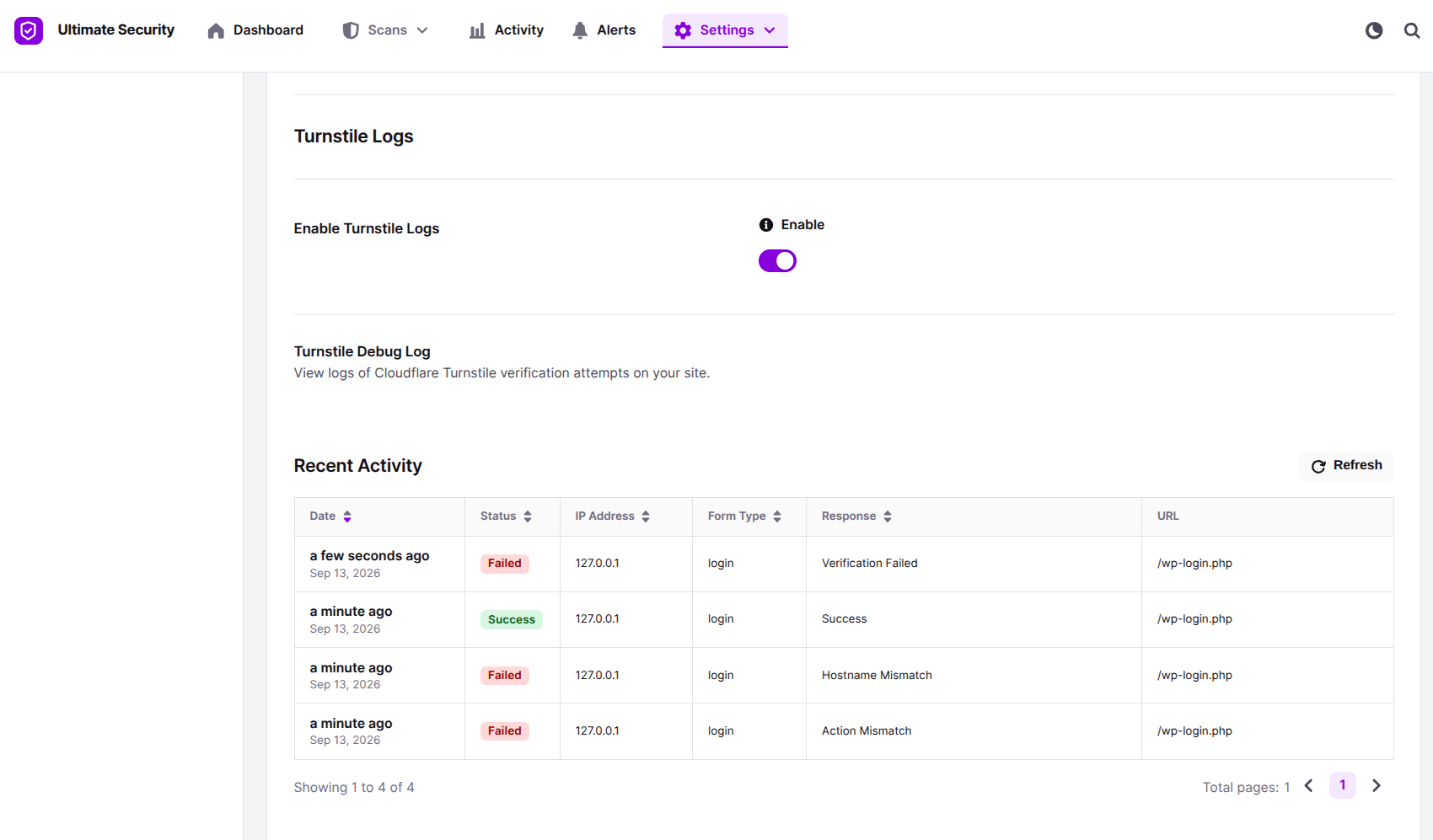
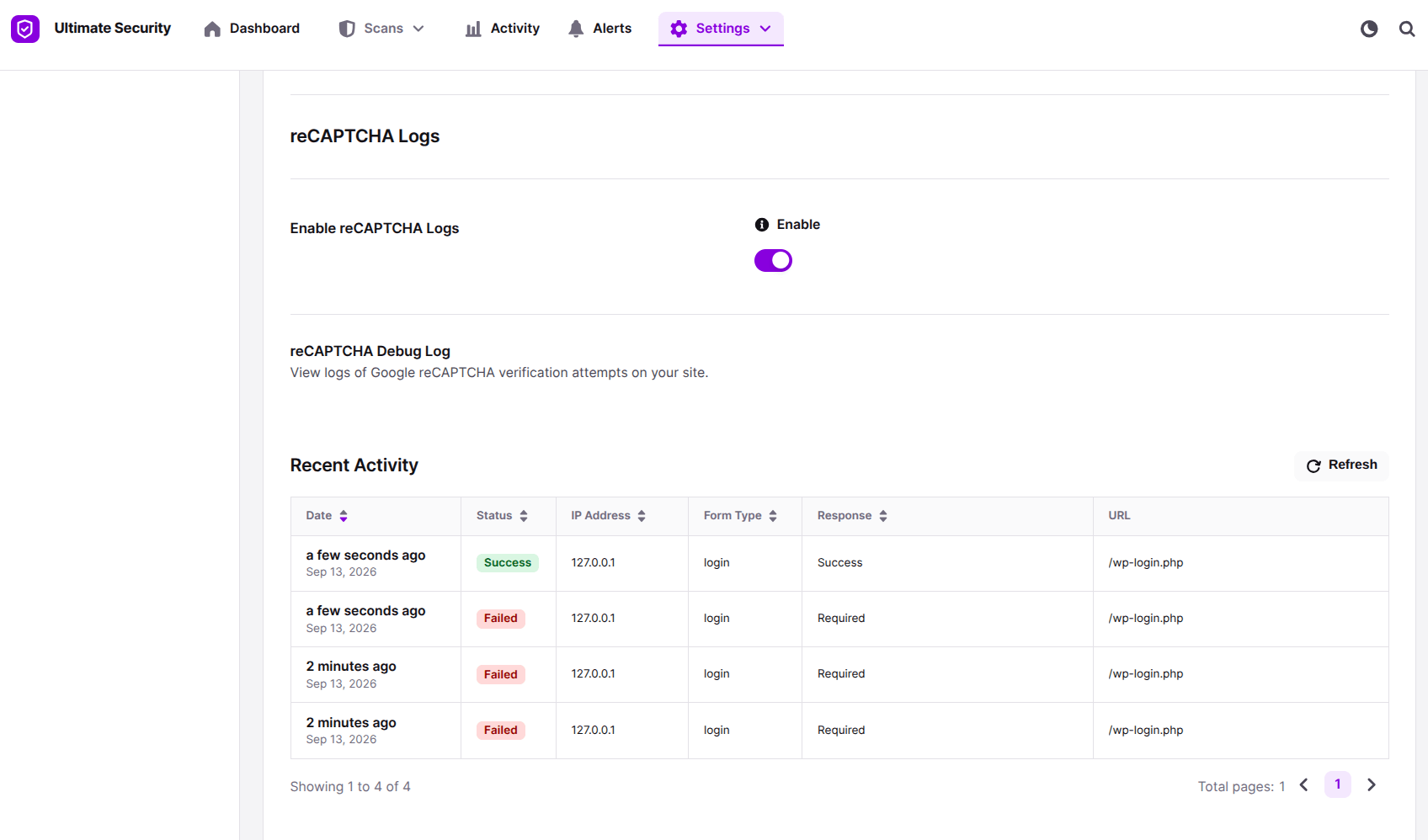
You can check here and see whether verification actually blocked them or something else went wrong. Hit Refresh to pull the latest activity without reloading the whole dashboard. It is the difference between assuming your bot protection works and actually knowing it does.
Frequently Asked Questions
Will adding bot protection slow my site down?
Not in any way visitors would notice. Both scripts are small and load quickly, and Turnstile in particular was built to stay light.
Does this work with WooCommerce out of the box?
Yes, both providers include a separate section for WooCommerce forms, covering login, registration, lost password, and checkout
What happens if I lose my API keys?
You can generate new ones any time from the Google reCAPTCHA site or your Cloudflare dashboard, then paste them back into the plugin and verify again.
Is reCAPTCHA or Turnstile free to use?
Yes, both are free. You just need to create a free account with Google or Cloudflare to generate your keys.
Which one should I pick if I can only choose one?
That depends on your priorities around user experience, scoring depth, and setup preference, and it is worth comparing the two properly before deciding.
Conclusion
Bot protection on WordPress does not have to mean juggling five plugins or editing theme files every time you add a new form. WordPress bot protection with reCAPTCHA and Turnstile really comes down to picking a provider, getting the keys connected, and making sure the settings match how your site actually works. Once that part is done, it mostly runs quietly in the background and you can stop thinking about it.


Comments are moderated. Stay on topic: spam and link drops are removed.