
Spam registrations and fake sign-ups are a known problem on WordPress sites. Spammers use temporary and disposable email addresses to create fake WordPress accounts, flood comment forms with junk, and submit fraudulent WooCommerce orders. This happens because most WordPress forms accept any text that looks like an email address, without checking whether it is real or safe to accept.
You can block temporary and disposable on WordPress using two settings. A manual blocklist for emails and domains you already know about, and verification that checks new emails as they are submitted.
Table of Contents
Why Blocking Email at Signup Is More Effective Than Cleaning Up Later
Site owners deal with spam after it happens. An admin reviews the list every few weeks and deletes them that look fake. This approach works, but it is slow, and the damage is already done by the time it is caught. Fake accounts sit in the comment section, fraudulent orders sit in the order list next to real customers, and the email list fills up with addresses that do not lead anywhere.
Checking emails at the point of signup prevents this instead of reacting to it. The rules run automatically, without requiring manual review afterward. Ultimate Security handles this with two settings, Email Blocklist and Email Verification. They are available in the pro version and can be used separately or together.
Blocking Specific Emails and Domains
Email Blocklist stops specific emails or domains from registering, commenting, checking out, or logging in. This list is built manually. You add the emails or domains you want blocked, and the plugin rejects them going forward.
Enabling the Blocklist and Adding Entries
The feature is controlled by a single Enable toggle. Once turned on, entries are added through the Add Emails button. You can add one exact email address or block an entire domain using a wildcard format such as (*@spam-domain.com).
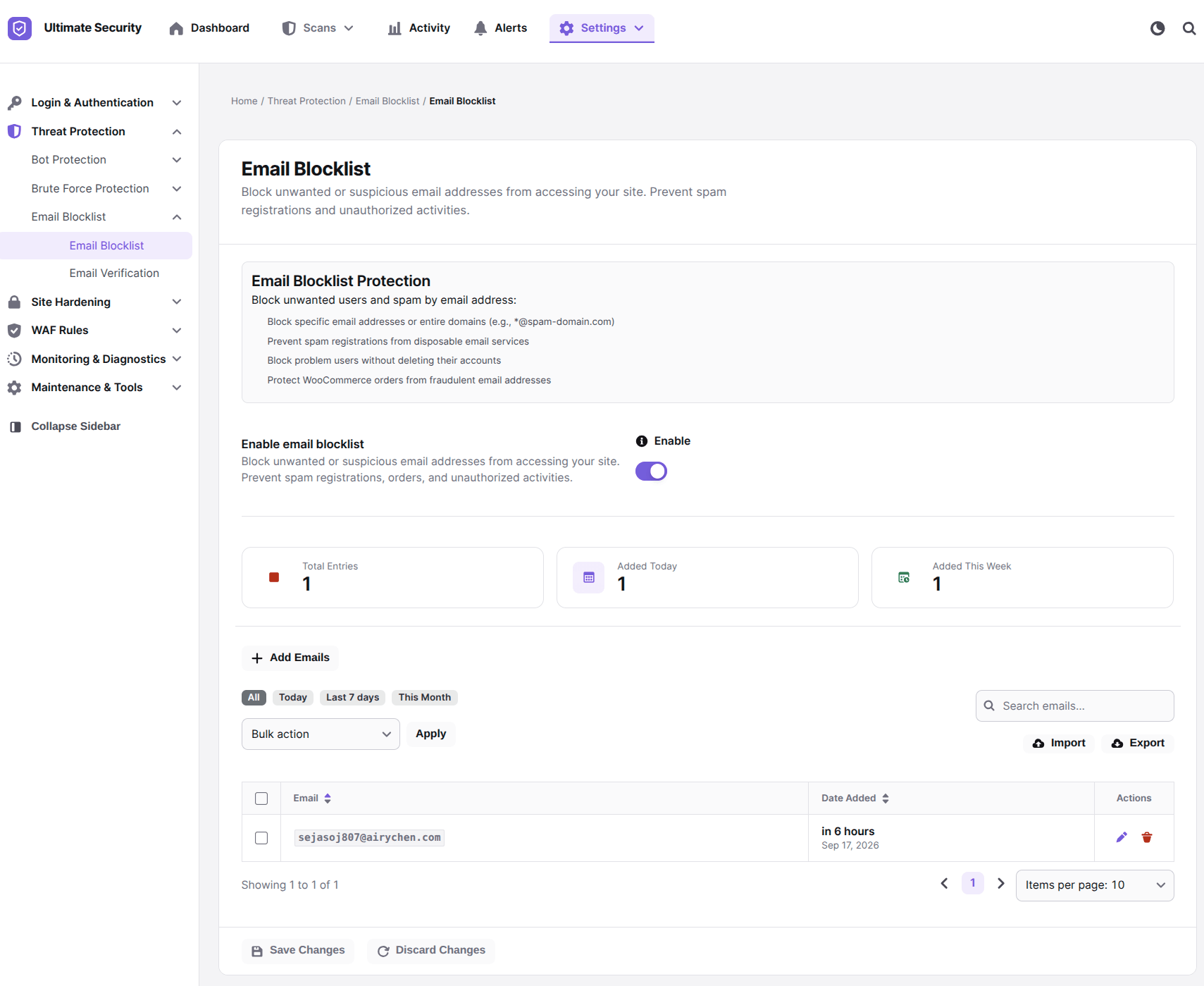
Blocking a domain stops every address from that domain, which is useful since spam is often sent from many addresses on the same throwaway domain rather than one repeated address. This list also applies to WooCommerce orders. An order placed with a blocked email is rejected the same way a registration would be.
Filtering, Searching, and Bulk Actions
The blocklist table can be filtered by All, Today, Last 7 Days, or This Month, and searched directly by email address. Each row shows the email, the date it was added, and available actions for that entry. A bulk action option lets you select multiple entries and apply an action to all of them at once, rather than one at a time.
Tracking Blocked Activity
The settings page shows three counters: Total Entries, Added Today, and Added This Week. These numbers reflect how many emails are on the list and how recently entries were added, which makes it possible to notice an increase in blocked attempts without checking the full log.
Importing and Exporting Lists
The Import and Export option lets you move a blocklist in or out of the plugin. This is used to bring in an existing list of blocked emails from another source or to back up the current list.
Block Temporary and Disposable Email Addresses on WordPress Before They Are Submitted
Email Blocklist only stops emails that have already been added to the list. Email verification checks new emails automatically, at the moment they are submitted, based on a set of conditions rather than a manual list.
Block Conditions: Syntax, Mail Servers, and Disposable Providers
The email verification checks three conditions, and each option has its own toggle. All three options can be managed individually. For the full breakdown of how each check works, read our email verification documentation.
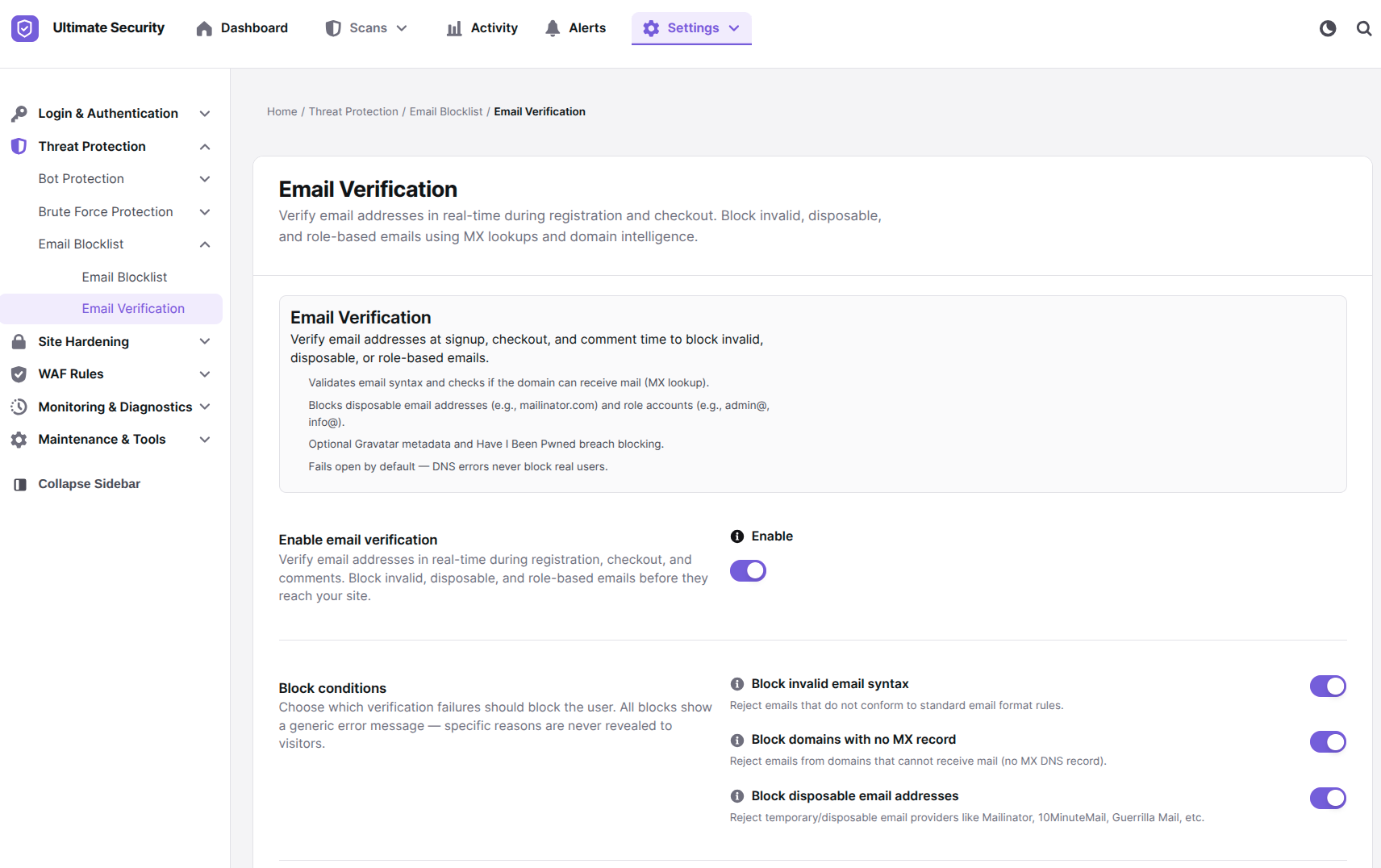
- Invalid email syntax. It rejects addresses that do not follow standard email formatting
- Domains with no MX record. This one rejects addresses whose domain has no mail server set up to receive email, meaning the address cannot actually receive mail.
- Disposable email addresses. It rejects addresses from known temporary email providers.
When an email fails one of these checks, the person sees a generic error message. The specific reason for the rejection is not shown to the visitor, only recorded internally in the log.
Choosing Where You Want to Run Email Verification
Email verification can be enforced on three separate areas: WordPress Registration, Comments, and WooCommerce Checkout.
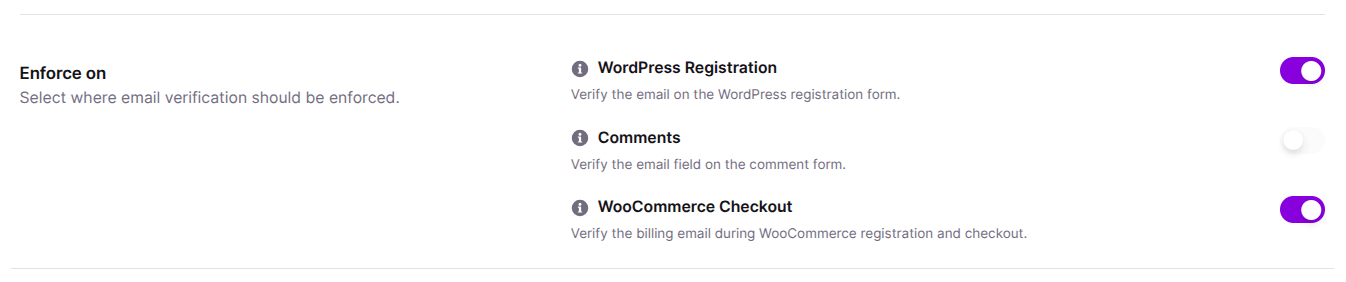
Each has its own toggle, so verification can be applied only where it is needed. WooCommerce Checkout verification checks the billing email during registration and checkout.
Advanced Options: Role-Based Addresses and Metadata Checks
A separate group of settings covers role-based blocking, metadata checks, and fail-open behavior:
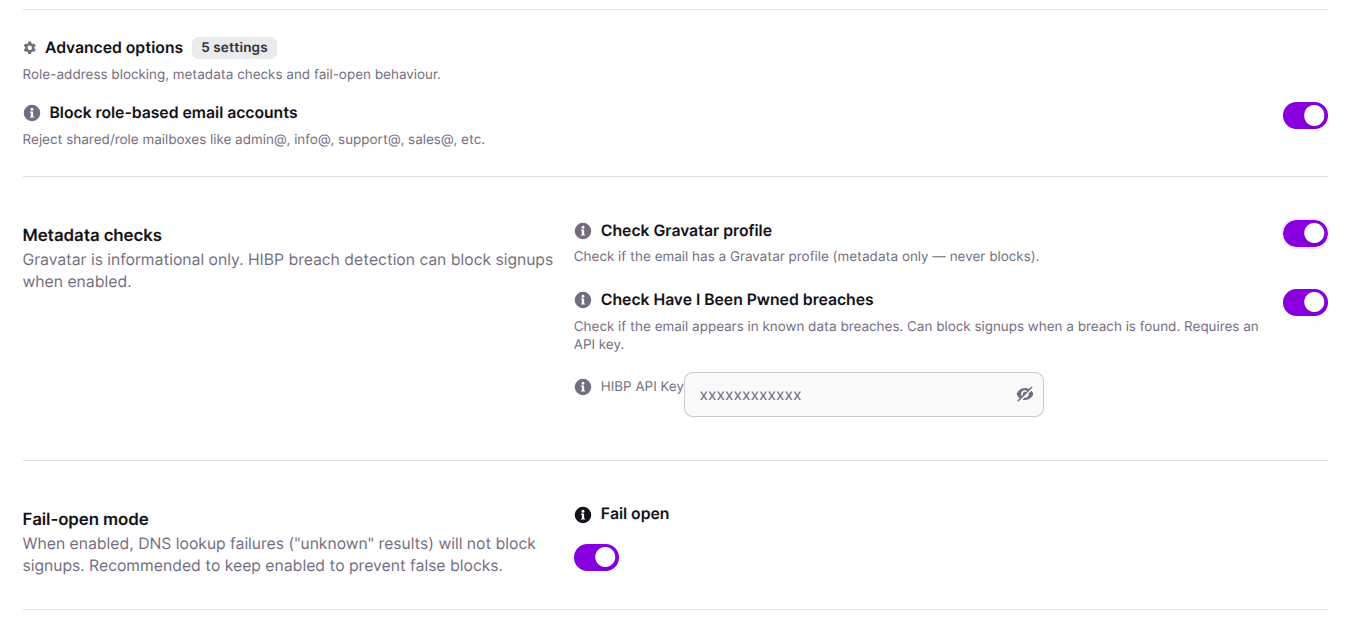
- Block role-based email accounts. This rejects shared mailbox addresses such as admin@, info@, or support@.
- Check Gravatar profile. This one checks whether the email has a public Gravatar profile; this is informational only and does not block anyone on its own
- Check Have I Been Pwned breaches. It checks whether the email has appeared in a known data breach and can optionally block the signup if it has. But this requires an API key
- Fail open. When a DNS lookup returns an unclear result, this setting allows the signup to proceed instead of blocking it
Fail open is enabled by default. Disabling it means an unclear or failed DNS lookup will block the user, which can affect real signups during a temporary DNS issue rather than only blocking genuine spam.
Testing an Email Address
The settings page has a place to test an email address before turning the settings on for real visitors. Type in any email, and it shows you exactly what would happen to that email if someone used it to sign up.
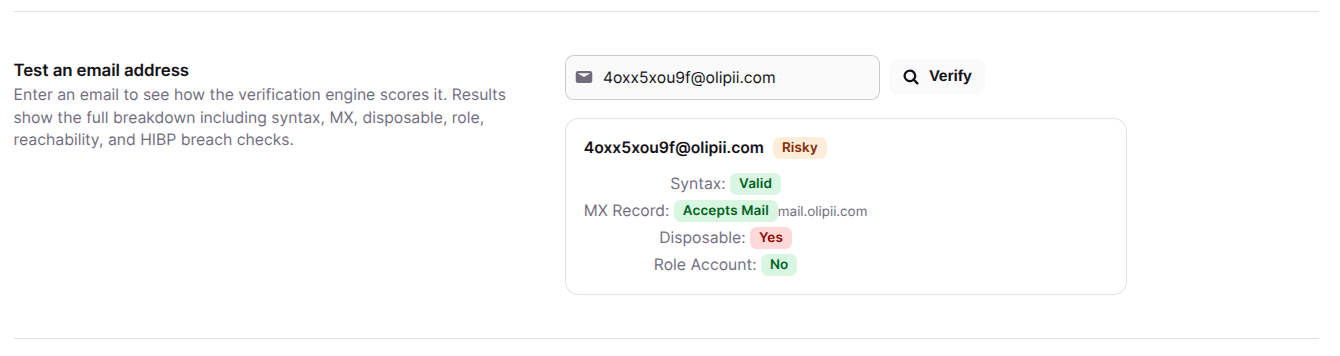
This can be used to confirm the current settings behave as expected before they apply to live traffic.
Reviewing the Blocked Email Logs
Every rejected email is recorded in the Blocked Email Logs. Each entry shows the email address, its reachability status, the reason it was blocked, the context (registration, comment, or checkout), and the date.
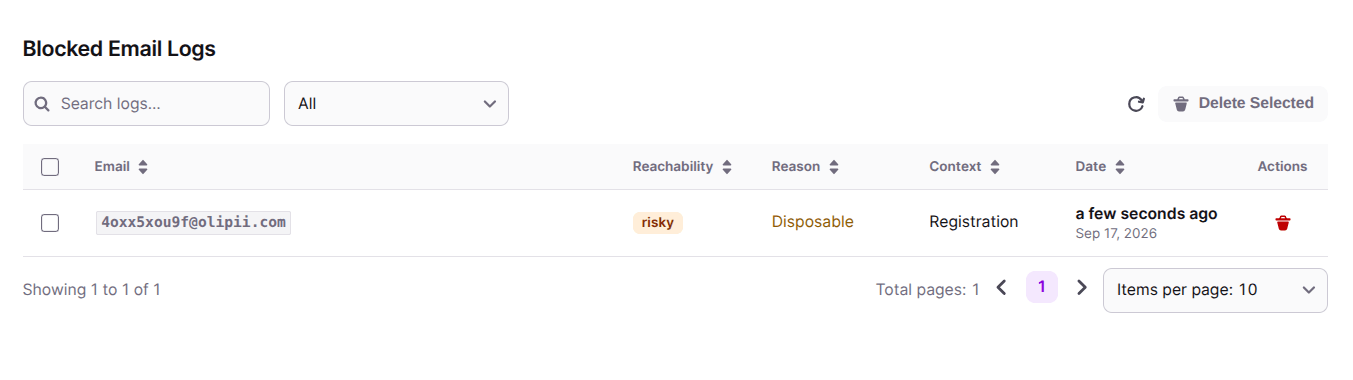
The log can be searched and filtered, and entries can be deleted individually or in bulk. This log is the place to check which rule is rejecting the most emails or to look up why a specific email was blocked.
Which One Should You Use, Blocklist or Verification
Honestly, most sites end up using both, because they solve different problems. Email Blocklist is reactive. You add an entry because you have already seen a problem with that specific email or domain. Email Verification is proactive.
It catches issues in addresses you have never encountered before, based on patterns like disposable domains or broken MX records. Running them together is really the full answer to how you block spam email registrations on WordPress, since known troublemakers get stopped immediately and new ones get caught before they even finish signing up.
Blocking Spam Traffic at the Edge with Cloudflare WAF
Email Blocklist and Email Verification both act after a request has already reached WordPress. Cloudflare WAF acts earlier, at the edge, before the request reaches the server at all. This matters because a large share of automated spam traffic, the kind of traffic submitting registrations or fake orders in bulk, comes from hosting provider IP ranges, VPNs, or bot networks rather than from an individual sitting at a browser.
Ultimate Security connects to Cloudflare through an API token and applies a set of rule categories. If you haven’t set up Cloudflare WAF yet, our guide on Cloudflare bot protection walks through the setup.
- Allow Good Bots whitelisted verified bots so legitimate crawlers and services are not affected.
- Block Crawlers & WP Paths blocks aggressive crawlers and known attack patterns targeting WordPress specific paths.
- Block Web Hosts & TOR blocks traffic coming from hosting provider ASNs and TOR exit nodes. This is where a large amount of automated signup traffic originates.
- Challenge Cloud Providers & Countries and Challenge VPN & Login apply a managed challenge to traffic from major cloud platforms, VPN providers, and login attempts, rather than blocking it outright.
None of these rules check the email address being submitted. They act on where the request is coming from. This means a large portion of spam traffic never reaches the point where an email address is even submitted, and whatever does get through is still checked on arrival.
Setting This Up
Turning on every setting at once makes it hard to tell which one is responsible if something goes wrong, like a real signup getting rejected. Working through the settings in order, and checking the results before moving to the next one, makes it easier to catch that kind of issue early. The following order is a reasonable starting point:
- Enable fail open mode. This prevents a temporary DNS issue from blocking real users.
- Enable disposable email blocking. This condition catches a large share of spam addresses with minimal effect on real users.
- Choose where verification should run. Registration and checkout are common starting points. Comments can be added later if comment spam becomes a separate issue.
- Review role-based blocking against your own team’s email use. If any team member registers using a shared inbox such as info@, that address will also be rejected once this is enabled.
- Test a few email addresses before going live. Use the test tool to confirm syntax, MX record, and disposable checks are behaving as expected.
- Import an existing blocklist, if you have one. Bringing in a list of already known problem emails means the email blocklist starts working immediately, rather than building up from new entries only.
- Check the Blocked Email Logs after the first week. Review what has been blocked and adjust the settings based on the actual results.
- Set up Cloudflare WAF first. Blocking known bot sources and hosting provider traffic at the edge reduces the load on every setting that follows.
Frequently Asked Questions
Does this fully block spam email registrations on WordPress?
No single setting stops everything, but combining a blocklist with email verification removes the large majority of automated and low-effort spam signups. Determined spammers using real, working email addresses can still slip through, though that is a much smaller group.
How do I block a specific email domain from registering?
Add the domain using a wildcard in Email Blocklist, for example (*@domain.com). This blocks every address from that domain rather than one at a time.
Will blocking disposable emails affect real customers?
It should not. Disposable providers are temporary by design, and legitimate customers rarely use them for anything beyond a one-time signup. If you are worried, check the Blocked Email Logs after a week to confirm nothing unexpected is getting rejected.
What does blocking role based email addresses actually prevent?
It stops shared inbox addresses like admin@ or support@ from registering as individual user accounts, which usually points to either a mistake or an attempt to create an account that is not tied to one real person.
Do I need an API key for any of this?
only for the optional Have I Been Pwned breach check. Syntax checking, MX lookups, disposable detection, and role blocking all work without one.
Is there a way to see which emails have been blocked?
Yes. Both features keep their own record. Email Blocklist shows total and recent entries, and Email Verification keeps a full log with the reason each email was rejected.
Conclusion
Spam signups are never fully solved by one setting. A bot on a hosting provider’s network can be blocked before it ever loads the page. A real-looking email can still get through and needs to be checked. And a sender you have already dealt with before just needs to stay blocked. What actually works is layering these.
Cloudflare WAF stops a lot of the traffic before it reaches the form at all. Email verification checks whatever gets through by looking at the address itself. Email Blocklist keeps out senders you already know about. None of this needs constant attention once it’s set up. Check the logs regularly, adjust a setting if something looks off, and let the rest run on its own.


Comments are moderated. Stay on topic: spam and link drops are removed.