

Every WordPress security checklist we’ve come across follows the same pattern. Long lists. Lots of screenshots. Steps numbered up to 30 or 40. And buried somewhere in the middle, the two or three things that actually matter, surrounded by filler that hasn’t been relevant since 2012.
Quick answer: This WordPress security checklist comes down to three non-negotiable steps: enable two-factor authentication on every admin account, turn on auto-updates for minor WordPress core and plugin releases, and store your backups somewhere outside your hosting account. Those three steps block the majority of attacks that hit WordPress sites every day. Many steps you will find on standard checklists changing your database table prefix, hiding your WordPress version number, renaming wp-login.php do not stop real attacks. They just look thorough on a list.
Most of these checklists treat “rename the admin username” and “enable 2FA” as if they carry the same weight. They don’t. One of those stops attacks in 2026. The other stopped attacks from a different era, and listing it today is just padding.
What follows is the stripped-down version of a WordPress security checklist that actually holds up. Fifteen steps that genuinely reduce your risk on a real WordPress site. Then twelve popular ones I’m pulling off the list with the reason why each one doesn’t hold up.
Table of Contents
WordPress Security Checklist: The 15 That Actually Matters
Start with these in order. The first three alone will block most of what hits WordPress sites today.
1. Enable 2FA on Every Admin Account
This is the single most effective thing you can do. Credential-stuffing attacks where attackers use leaked username and password combinations from other breaches to break into WordPress sites compromise thousands of sites every week.
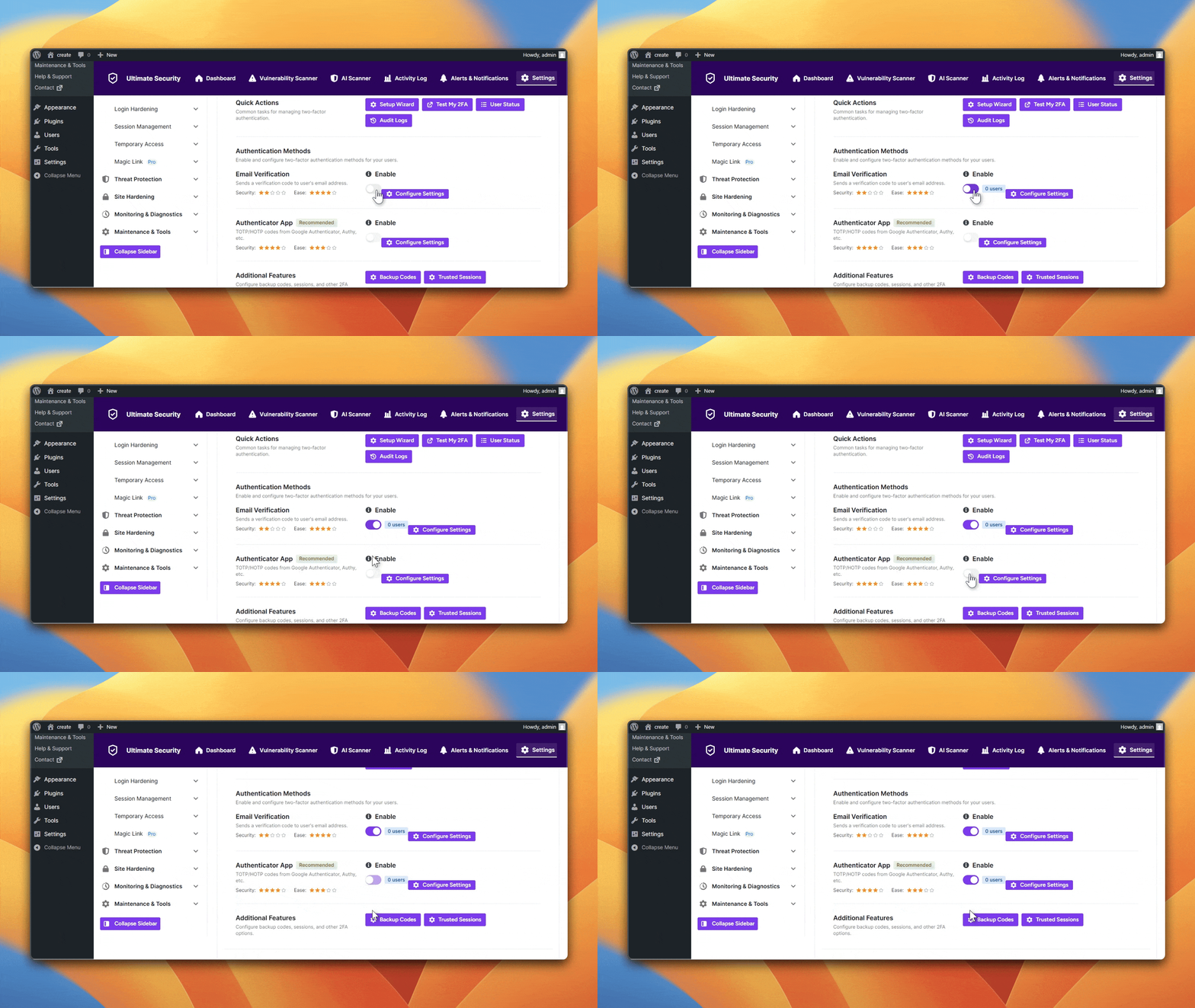
Two-factor authentication stops every single one of them, because even a correct password is not enough to get in.
Use an authenticator app. An authenticator app generates codes locally on the device and is significantly harder to compromise.
If you want a straightforward way to set this up, Ultimate Security handles both authenticator app 2FA and email OTP for every user role on your site, not just the admin account.
2. Use Long, Unique Passwords on Every Admin Account
Even with 2FA enabled, the password still matters. Account recovery flows can sometimes bypass 2FA, which means a weak password is still a liability.
Use a plugin that enfore strong password something 20 characters or longer, and make sure it is never reused on any other service.
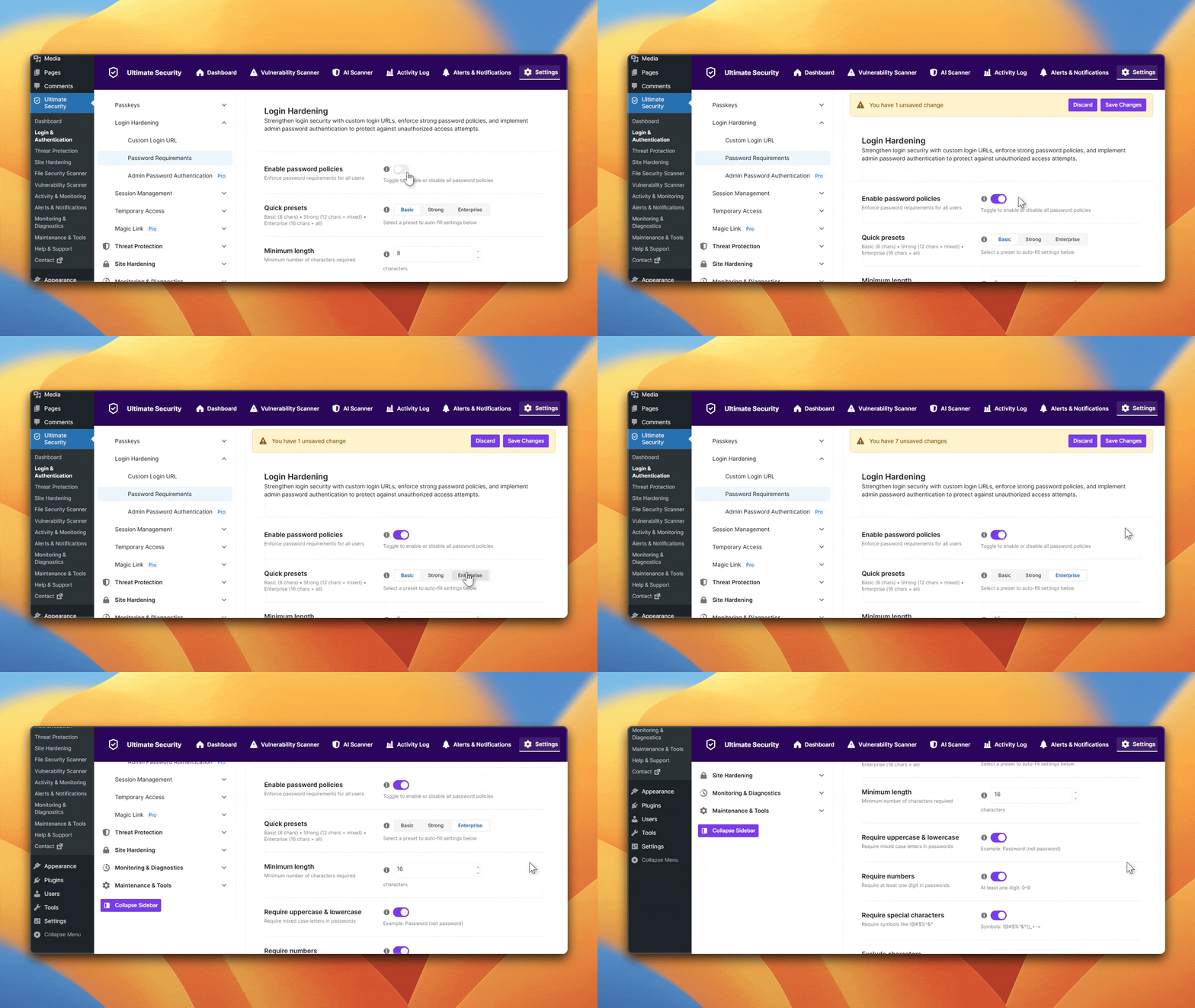
The password is your second wall. It should hold even if 2FA somehow fails.
3. Update WordPress Core of Any Minor Release
Minor releases the ones that go from 6.7 to 6.7.1, for example are almost always security patches. The moment a patch ships, the vulnerability it fixes becomes public knowledge. Attackers know what to look for. Staying on the old version for even two weeks puts you at real risk.
Enable auto-updates for minor versions. It takes thirty seconds to turn on and removes the delay entirely.
4. Update a Plugin’s Patch Release
Most WordPress compromises in recent years trace back to an unpatched plugin, not the WordPress core itself. The gap between a security patch being released and attackers actively exploiting the vulnerability is shrinking. Waiting for your monthly maintenance window is not fast enough.
If a plugin you use releases a security update, apply it after discussing with the community members.
5. Delete Every Plugin You Are Not Actively Using
This one gets misunderstood constantly. Deactivated is not the same as deleted. A deactivated plugin still sits on your server, still contains its code, and still shows up when automated scanners probe your site for known vulnerabilities. If you are not using a plugin, delete it entirely. Not deactivate. Delete.
6. Delete Every Theme Except the One You Are Using
Same logic as plugins. Default WordPress theme (Twenty Twenty-Five) sitting unused in your themes directory are attack surface with no benefit. Keep your active theme. Delete the rest.
7. Choose a Host That Isolates Accounts
On shared hosting without proper account isolation, one infected site on the same server can spread malware to neighboring accounts through shared server resources. It happens, and most users never know the attack came from a neighbor rather than their own site.
Managed WordPress hosts with container-based isolation prevent this. Look specifically for that isolation guarantee before choosing a host.
8. Disable File Editing in the WordPress Admin
WordPress has a built-in code editor that lets any admin-level user edit theme and plugin files directly from the dashboard. If an admin account is ever compromised, an attacker can use that editor to insert malicious code without needing server or FTP access.
Turning it off takes one line in wp-config.php:
define(‘DISALLOW_FILE_EDIT’, true);
Add it. There is no good reason to leave that editor open.
9. Limit Login Attempts But Do It Properly
Limiting login attempts is a standard recommendation, but most implementations only track failed attempts by IP address.
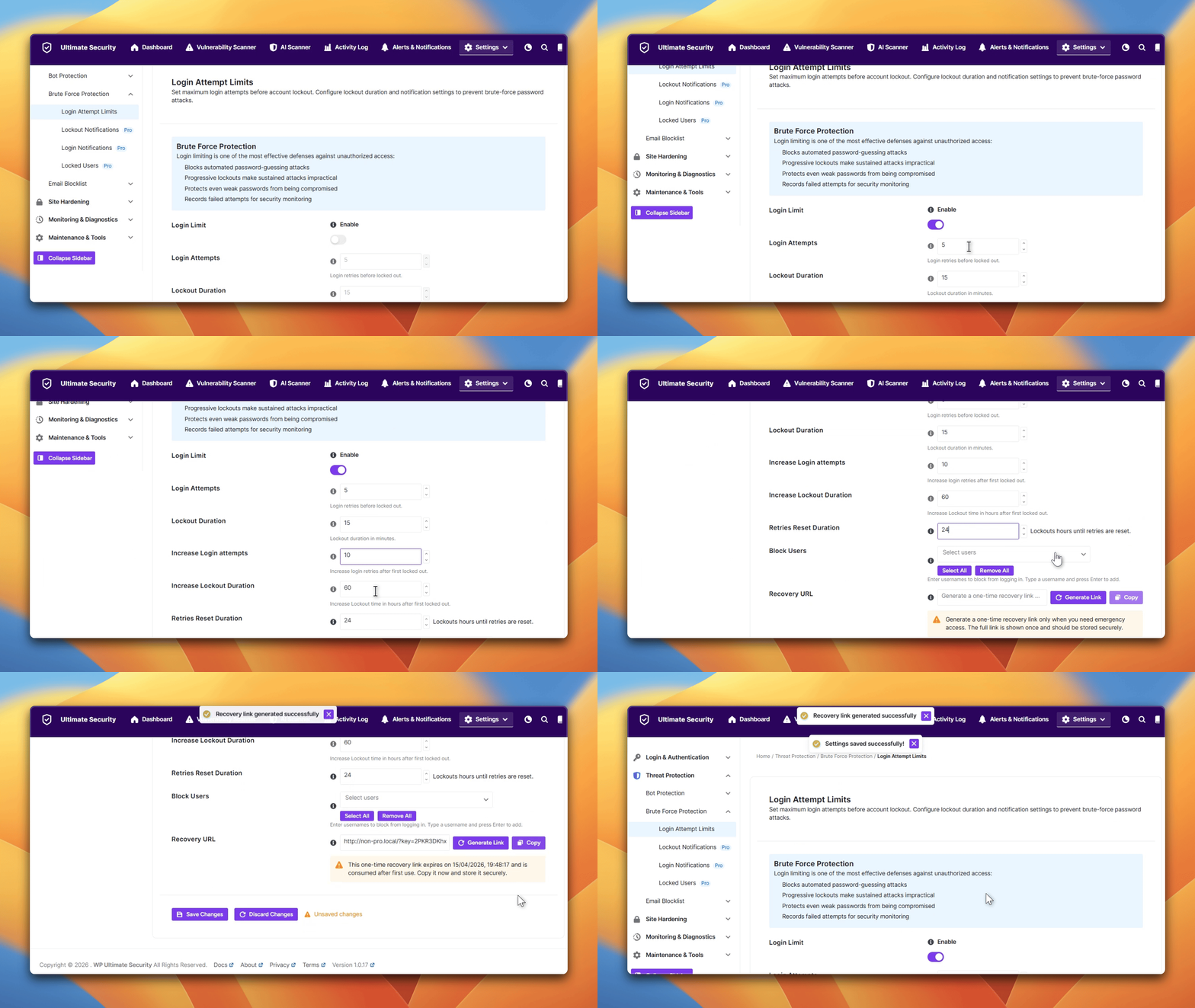
The problem is that attackers use rotating proxy networks with hundreds or thousands of different IPs, which makes IP-only tracking easy to bypass.
10. Protect wp-config.php
Your wp-config.php file contains your database credentials, authentication keys, and other critical configuration. The default WordPress installation places it in a location that can become readable if PHP execution breaks which happens during plugin conflicts, server migrations, and PHP version upgrades.
Move it above the webroot if your hosting setup allows it, or restrict access to it using your .htaccess file. Either approach keeps it out of reach.
11. Force HTTPS and Enable HSTS
The reason to do this is not the Google ranking benefit, even though that matters. The real reason is that HTTP admin sessions send your login cookies in plain text across the network. Anyone on the same Wi-Fi a coffee shop, a shared office, a hotel network can intercept your session without knowing your password at all.
We recommend Cloudflare SSL certificate, You can get it free from Cloudflare for most users.
12. Store Backups Outside Your Hosting Account
If your hosting account gets compromised and your backups live in that same account, the attacker can delete or corrupt them too. Backups stored on the same server as your site are not real backups. They are a false sense of security.
13. Run Malware Scans That Include File Integrity Checks
There are two types of malware scanning. Pattern matching compares your files against a database of known malware signatures.
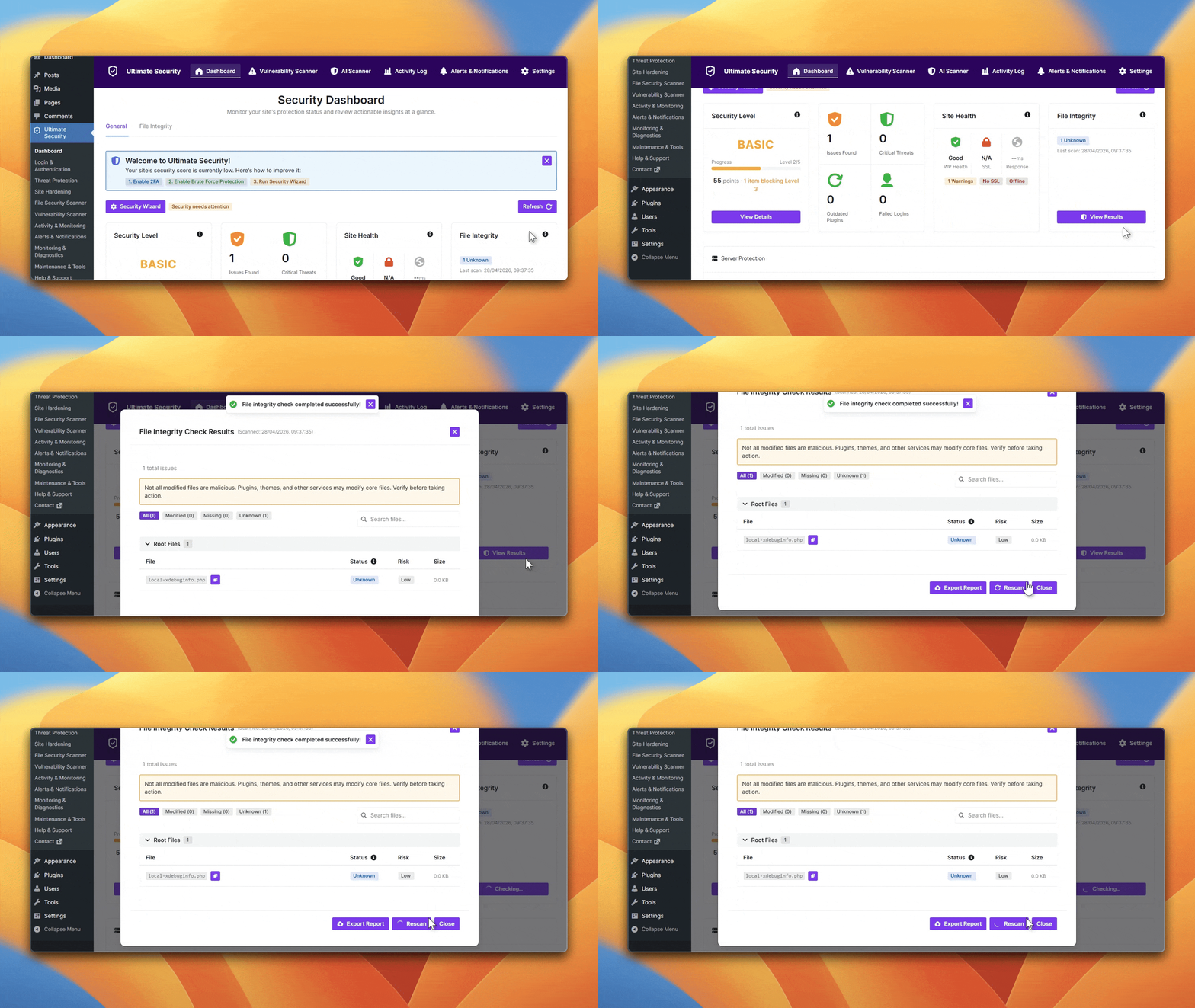
File integrity checking compares your actual files against the official, known good versions from the WordPress and plugin repositories.
Pattern matching misses anything new or custom. Integrity checking catches it because any modification, no matter how novel, shows up as a difference from the clean version. You want both, not just one.
14. Set Up Alerts for New Admin Users
After gaining access to a site, attackers often create a new admin account before doing anything else. It is how they maintain access even after the initial breach gets cleaned up. If no one monitors for new admin accounts, this backdoor goes unnoticed for weeks.
Most security plugins can send an email alert any time a new admin-level account is created. Turn that on. An unexpected admin account notification is a serious signal that something is wrong.
15. Disable XML-RPC If You Don’t Use It
XML-RPC is a legacy protocol that WordPress uses for its mobile app. If you don’t use any of those, the xmlrpc. php file is just an open endpoint that attackers can hammer with amplification attacks sending thousands of requests using a single connection.
Block it at the server level, not via a plugin. A plugin-level block still loads WordPress to process every request, which wastes server resources on attacks. A server-level block drops the requests before WordPress ever sees them.
Complete all fifteen and you are ahead of the overwhelming majority of WordPress sites on the internet.
12 Items on Every WordPress Security Checklist That Adds Extra Defense
These appear on almost every WordPress security checklist. These are the less important but yet most effective when you focus on these checklists as well
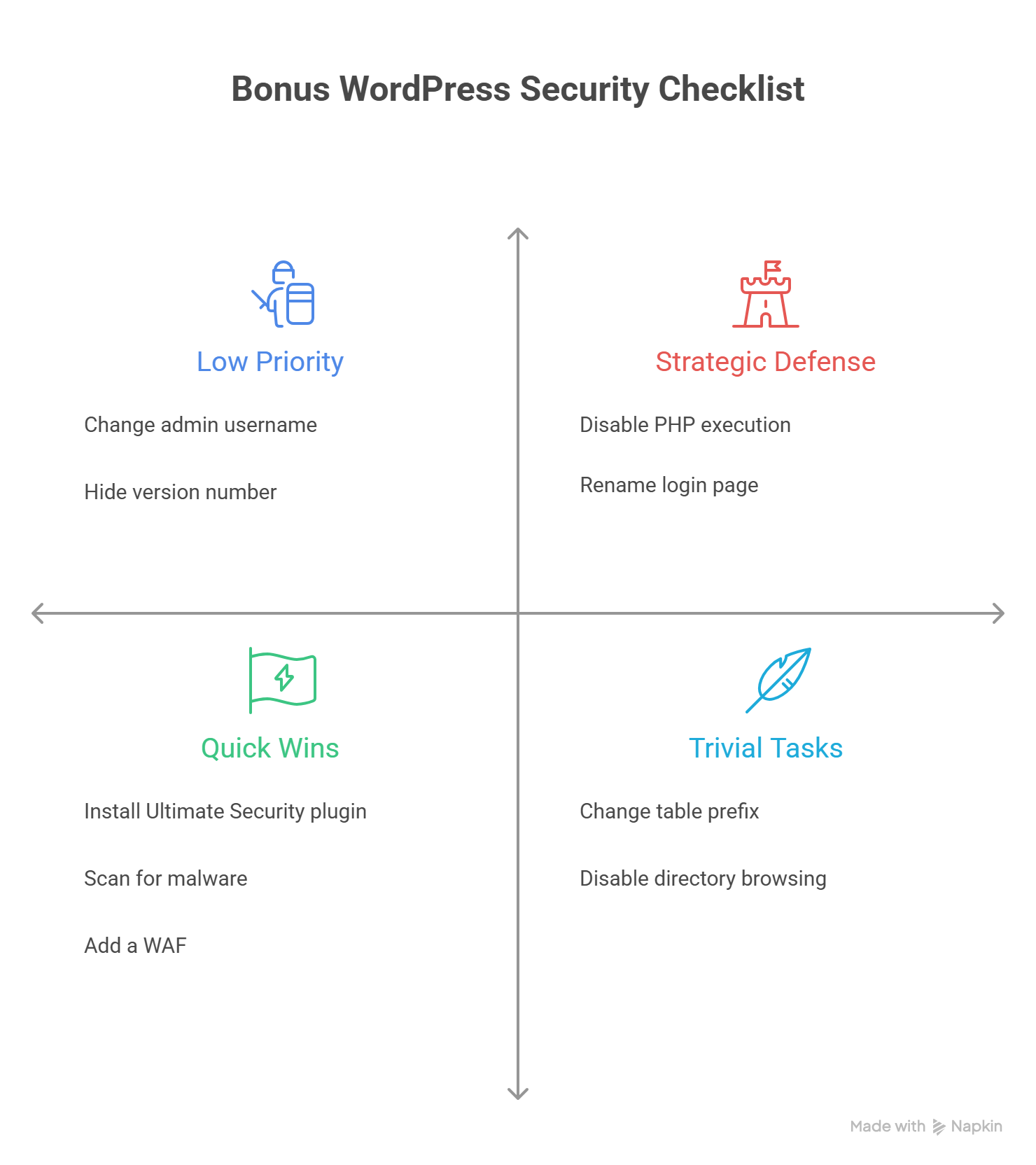
“Change the admin username from ‘admin’.” WordPress has not used “admin” as the default username since 2010. This is security-through-obscurity where there’s no obscurity to begin with.
“Change the database table prefix from wp_.” The idea is that a custom prefix makes SQL injection harder. It doesn’t. Any SQL injection capable of reading your database can also query which tables exist and what they are named. The prefix does not add any delay to the attack. It does break plugin compatibility and cause headaches during updates.
“Hide your WordPress version number.” Attackers don’t read your meta generator tag to decide whether to target you. They probe directly for vulnerable plugin behaviors and known file signatures. Hiding the version from your page source changes nothing about what an automated scanner can detect.
“Rename wp-login.php to a custom URL.” You can move your login page to a secret URL. A determined attacker will find it through linked pages, sitemaps, or any of more than a dozen WordPress-specific fingerprints that standard scanning tools use. It filters out bulk automated bots, not targeted attacks. Rate-limiting your login attempts achieves the same thing more reliably without the operational risk of locking yourself out.
“Disable directory browsing.” Fine to do, but no attack in 2026 depends on being able to browse your directory listings. Attackers use vulnerability databases and plugin-specific scanners, not filesystem walks.
“Restrict wp-admin access by IP address.” This sounds solid until your ISP rotates your IP, you work from a different location, or a team member needs access from somewhere new. The failure mode locking yourself out of your own admin at the worst possible moment happens far more often than this control prevents an actual attack. 2FA provides better protection without the operational cost.
“Disable PHP execution in the uploads directory.” Worth doing as a secondary measure, but if an attacker has already written a PHP file into your uploads directory, they already bypassed something far more critical a plugin vulnerability, a file upload exploit, or a compromised admin account. This is a safety net, not a front-line defense. Treat it that way.
“Install multiple security plugins.” One quality security plugin and one malware scanner is enough. Stacking five or seven security plugins on top of each other creates plugin conflicts, slows your site, and generates overlapping or contradictory alerts. More plugins means more code on your site, and more code means a larger attack surface. The opposite of what you want.
“Block traffic from GEO location .” Attack infrastructure does not come from any single country. The IPs hitting your login page run through Amazon Web Services, DigitalOcean, OVH, and residential proxy networks spread across dozens of countries. A geo-block will not stop the volume. It will cut off real visitors and potential customers from those regions.
“Scan for malware every day.” Daily full scans consume server resources and produce inboxes full of alerts, most of which are false positives. Weekly scans are sufficient for most sites. Continuous file-change monitoring is a better approach it catches a modification within minutes of it happening rather than waiting for the next scheduled scan window.
“Disable the REST API for non-authenticated users.” This gets recommended often and breaks things almost every time. The Gutenberg editor, WooCommerce, many caching plugins, and numerous other tools rely on REST API access. Blanket disabling it causes functionality failures across your site. The correct approach is to audit which specific endpoints are exposed and whether any of them leak data that shouldn’t be public.
“Add a WAF.” A WAF filters malicious traffic before it ever reaches your WordPress site. It blocks brute force attacks, bad bots, SQL injection, and XSS at the network level.
We recommend Cloudflare, server-level brute force protection. The free plan covers DDoS protection, bot filtering, and basic WAF rules.
Run Cloudflare on top of security plugins. They handle different threats. You need both.
The Real Priority Order
If you can only act on three things today, do these in this order: enable 2FA on all admin accounts, turn on auto-updates for minor WordPress core and plugin releases, store your backups outside your hosting account.
Those three address the actual mechanics of how most WordPress sites get compromised. Everything else on the list of fifteen handles specific edge cases. Everything on the list of twelve is good but a distraction.
The real problem with most WordPress security checklists is not that they give wrong advice on any individual item. It is that they treat every item as equally urgent. When a checklist has forty checkboxes and no priority order, readers either give up or spend time on the wrong things. You end up spending an hour on your database table prefix and skipping 2FA because the list looked overwhelming. Three real defenses beat forty checkboxes that nobody finishes.
Ultimate Security covers the critical items from this list including strong password enforcement, login protection, bad bot blocking, and Turnstile spam filtering without needing a stack of separate plugins.
Frequently Asked Questions
What is the most important WordPress security step for beginners?
Enable two-factor authentication on every admin account. It stops credential-stuffing attacks entirely, which account for a large share of successful WordPress breaches. It takes under ten minutes to set up and works even if a password is already compromised.
Is renaming wp-login.php actually useful?
It filters out bulk automated bots, but any attacker specifically targeting your site will find the new URL through page links, sitemaps, or fingerprinting tools. Rate-limiting login attempts gives you the same protection against bulk scanners without the risk of accidentally locking yourself out.
Do I need a security plugin if my host already has security features?
Yes, for different reasons. Host-level security protects the server environment. A security plugin protects the WordPress application layer things like login attempts, file integrity, user monitoring, and admin alerts. Both layers address different threats and neither replaces the other.
How often should I update my WordPress plugins?
Apply security patch updates within seven days of release. For feature updates, test on a staging environment first if your site has complex functionality. Waiting longer than a week on security patches is when known vulnerabilities get actively exploited.
Can deactivated plugins get my site hacked?
Yes. A deactivated plugin still exists on your server and still contains its code. Automated scanners look for files associated with vulnerable plugin versions regardless of whether the plugin is active. Deactivating is not the same as deleting.
Is blocking traffic from specific countries an effective security measure?
No, not for preventing attacks. Attack infrastructure uses servers and proxy networks spread across many countries. A geo-block affects your real visitors more than it affects attackers. Rate-limiting and 2FA are far more effective at stopping the same threats.
What should I do if my WordPress site gets hacked?
Take the site offline or into maintenance mode immediately. Contact your hosting provider many have a security response process. Restore from a clean backup stored outside your hosting account. If no clean backup exists, use a professional malware removal service. After the site is clean, change every password associated with the site. WordPress, hosting, FTP, and database then go through the fifteen steps above before bringing the site back online. Sites that skip the hardening step after cleanup get reinfected quickly.
Final Thoughts
WordPress security is not complicated when you know what actually matters. Most of the noise comes from guides that prioritize appearing thorough over being useful. The fifteen steps above cover your real attack surface. Everything else is optional at best.
Comments are moderated. Stay on topic: spam and link drops are removed.