
When something goes wrong with a WordPress site, you need to know how it’s configured before you can troubleshoot the problem. But finding that information can take time. Your PHP version is in your hosting panel, database details are in a configuration file, and file permissions may require access to your server. Your themes and plugins are listed elsewhere.
A WordPress site health check brings these details together so you can review them in one place. The Site Health feature in Ultimate Security shows your WordPress, server, database, filesystem, theme, plugin, and Must-Use plugin information in a single dashboard.
In this guide, you’ll learn how to access the feature, what each of its seven tabs shows, and how to use that information for routine maintenance and troubleshooting.
Table of Contents
What Is WordPress Site Health?
WordPress Site Health gives you a view of your site’s technical setup, including its WordPress version, server environment, database configuration, filesystem, themes, and plugins.
It’s important to distinguish between inspecting site information and scanning for security problems. Site Health helps you review how your site is configured. It does not automatically detect malware, identify vulnerable plugins, or fix configuration issues.
Ultimate Security brings this information together in seven tabs, making it easier to find the technical details you need when maintaining your site or investigating a problem.
How to Access WordPress Site Health Information
To open Site Health, go to your WordPress dashboard and open Ultimate Security → Settings → Monitoring & Diagnostics → Site Health. For more details on the available information and controls, see the WordPress Site Health documentation. The page opens with the seven tabs across the top. Each tab covers one part of your setup:
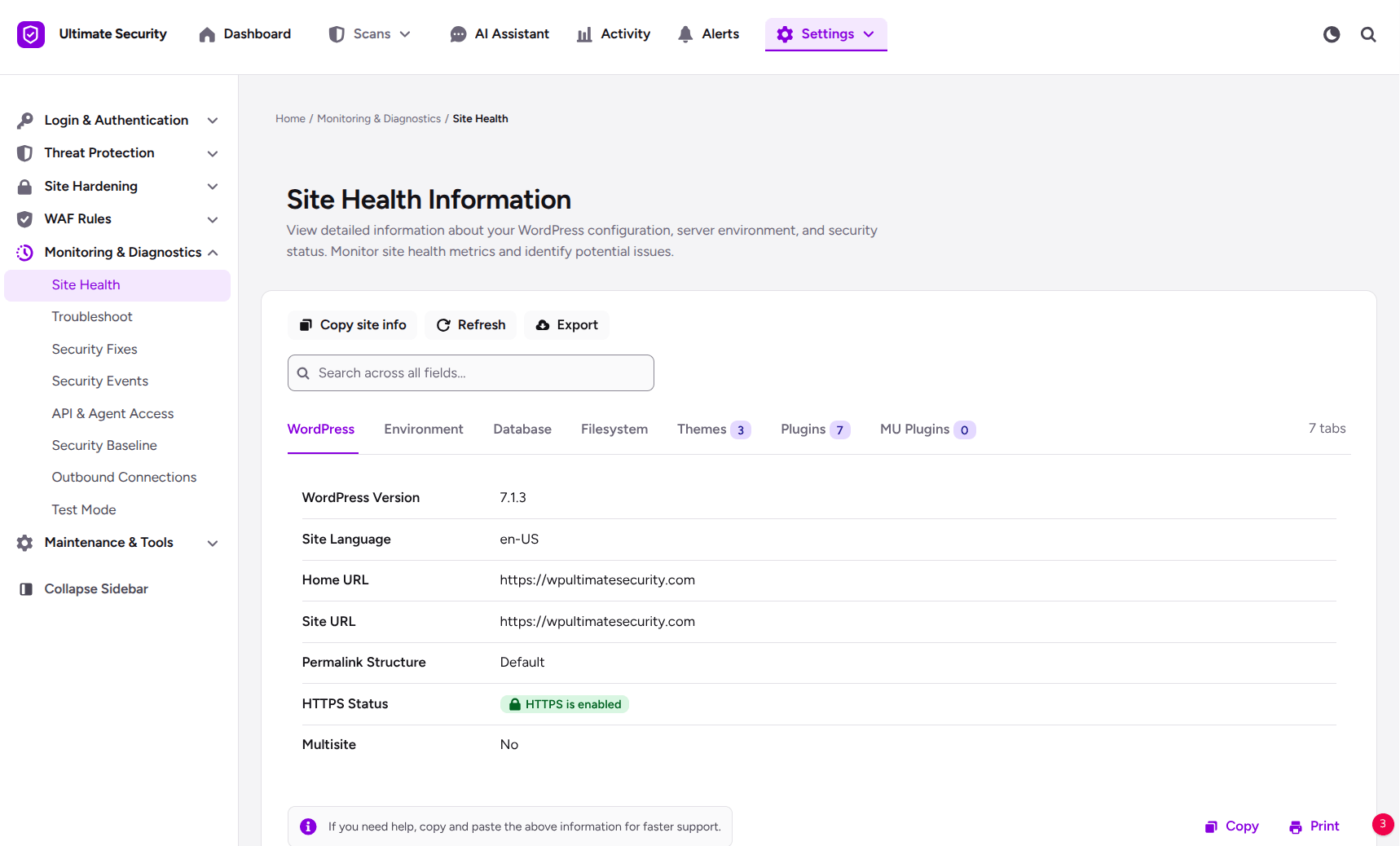
- WordPress shows the core version and site address settings.
- Environment shows PHP, MySQL, the web server, and WordPress constants.
- Database shows the database connection details and schema versions.
- Filesystem shows directory paths, permissions, and sizes.
- Themes lists every installed theme.
- Plugins lists every installed plugin.
- MU Plugins shows any Must-Use plugins.
The sections below follow the same order, so you can work through the tabs one by one.
Check Your WordPress Version and Basic Settings
The WordPress tab gives you a quick overview of your site’s setup. It shows details such as:
- WordPress version. This is the exact core version running on your site. When a vulnerability is announced for a specific release, this is the first place to check whether you are affected.
- Site language. The language package your dashboard and front end use.
- Home URL and Site URL. The Home URL is the address visitors type in. The Site URL is where your WordPress core files live. On most sites they match, but they can differ on purpose.
- Permalink structure. This shows whether your site uses the default URL format or pretty permalinks, such as post names.
- HTTPS status. This shows whether your site is using SSL/TLS encryption.
- Multisite. This tells you whether the site is a single installation or part of a WordPress Multisite network.
When would you need these? A few common cases:
- A plugin asks which WordPress version you run.
- A page redirects to the wrong address, and you want to see whether the Home URL and Site URL disagree.
- You moved to HTTPS and want to confirm the site reports it.
- A developer asks whether the site is single or Multisite before they start work.
If your Home URL starts with http:// while the rest of your setup uses https://, that mismatch is worth a closer look.
Inspect WordPress Server and Environment Settings
The Environment tab shows your server software, PHP and MySQL versions, PHP limits, and WordPress configuration constants. Start with the software versions:
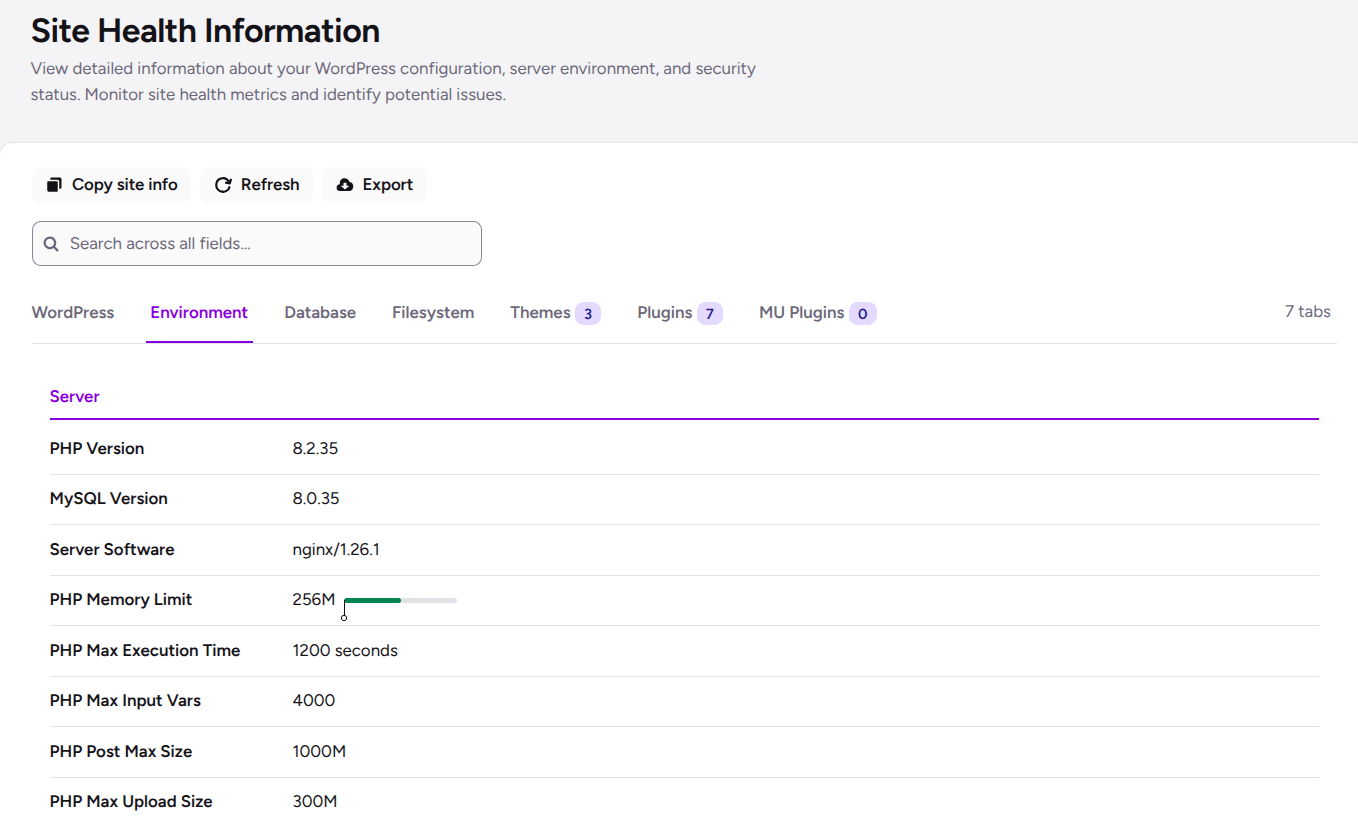
- PHP version. This is the runtime that executes your WordPress code. A WordPress PHP version check matters because older PHP versions eventually stop receiving security patches. Compare your version against the supported versions list on php.net.
- MySQL version. This is the database engine behind your site. Plugins sometimes require a minimum version.
- Server software. This is the web server handling requests, such as nginx or Apache.
- PHP memory limit. The most memory a single script can use. Heavy tasks like imports and backups can fail when this is too low.
- PHP max execution time. How long a script can run before PHP stops it. Long tasks such as scans or large imports need enough time.
- PHP max input vars. The number of input variables PHP accepts in one request. It also works as a safeguard against a type of denial-of-service attack. Pages with very large forms or menus can hit this limit.
- PHP post max size. The largest HTTP POST request the server accepts.
- PHP max upload size. The largest file you can upload directly.
Your host usually controls these values. If a limit looks too low for what you are doing, your hosting support can often raise it.
Review Your WordPress Configuration Constants
Below the server settings, the Environment tab lists WordPress configuration constants. These are settings defined in your configuration files, and they change how WordPress behaves. The debug constants deserve the most attention:
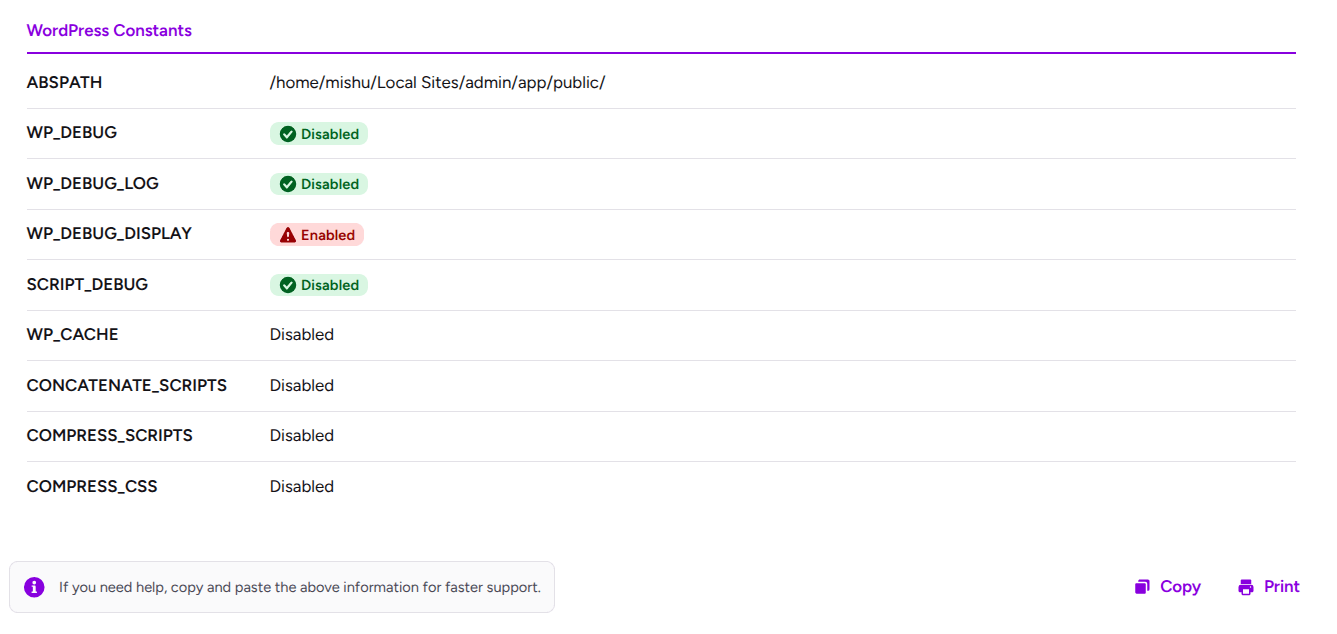
WP_DEBUG: Turns debugging on or off to help identify problems with your WordPress site.WP_DEBUG_LOG: Saves error messages to adebug.logfile so you can review them later.WP_DEBUG_DISPLAY:Controls whether error messages appear on your website’s pages. Turning this off helps prevent errors from being shown to visitors.SCRIPT_DEBUG: Tells WordPress to load full versions of its JavaScript and CSS files instead of smaller, compressed versions. This can help when troubleshooting display or script issues.
The list also shows performance-related constants: WP_CACHE, CONCATENATE_SCRIPTS, COMPRESS_SCRIPTS, and COMPRESS_CSS. These tell you whether caching and script compression are switched on.
Debug settings are the part that connects to security. When PHP errors display on a live site, they can show file paths and system details to anyone who visits. That is useful information for someone looking for a way in.
So check your WordPress debug settings on any production site. Debugging is a tool for development and troubleshooting. On a live site, it should normally stay off, and errors should go to a log file instead of the screen. If you turn debugging on to fix a problem, turn it back off when you finish.
Review WordPress Database Configuration
The Database tab shows how WordPress connects to its data. Here is what you will find:
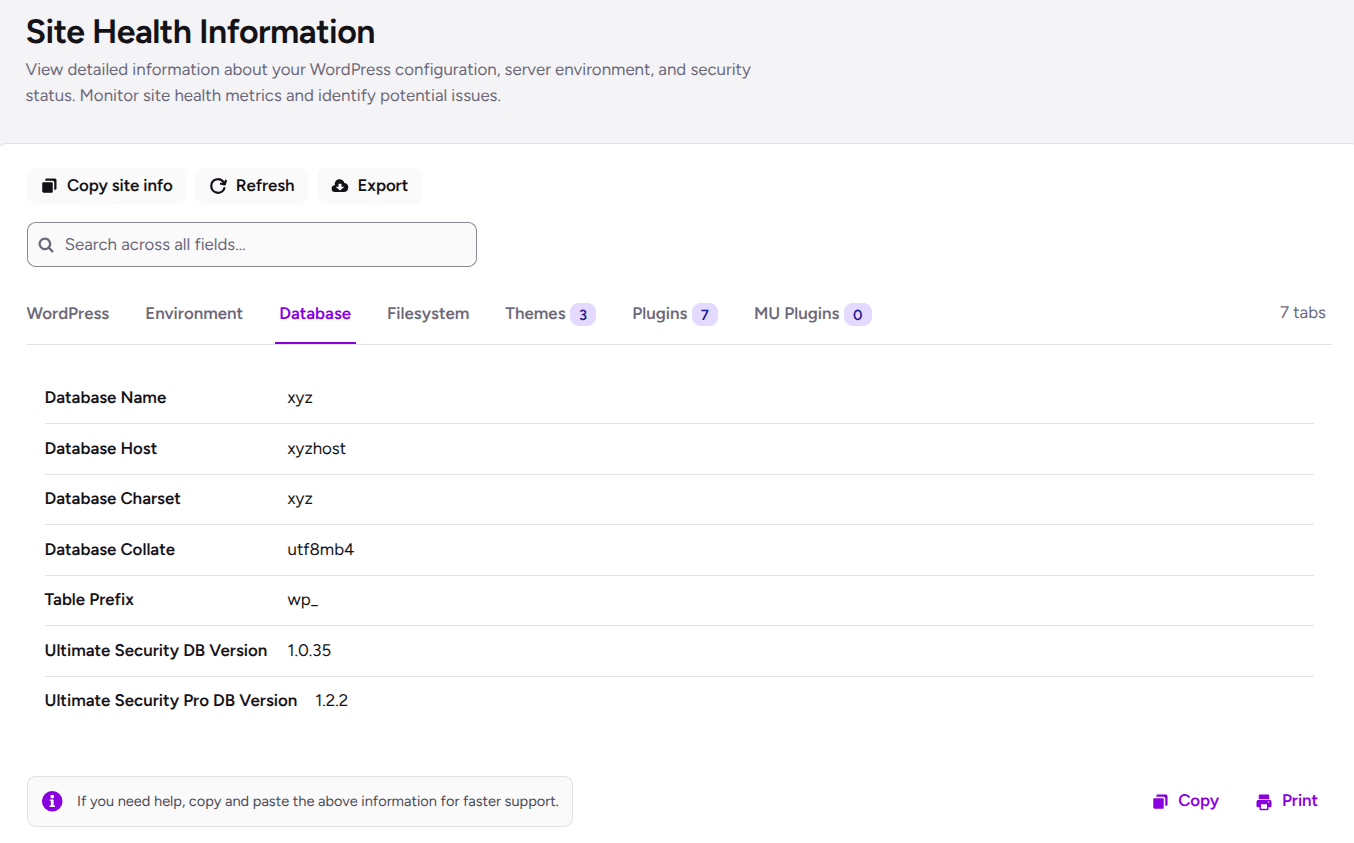
- Database name: The name of the database WordPress uses to store your site’s information. A single hosting account may have multiple databases. That’s why this helps identify the one connected to your site.
- Database host: The server address WordPress uses to connect to the database. It is often
localhost, meaning the database runs on the same server, but some hosting providers use a separate server. - Database charset: Defines how text is stored in the database. WordPress commonly uses
utf8mb4. It supports a wide range of characters, including symbols and emojis. - Database collation: Defines how the database compares and sorts text. These rules can affect things like alphabetical order and text searches.
- Table prefix: A short string added to the beginning of WordPress database table names. The default is
wp_, but it can be different. WordPress uses this prefix to identify the tables that belong to your site. - Ultimate Security database version: Identifies the database structure version used by the free plugin. This helps the plugin determine whether its database structure needs an update.
- Ultimate Security Pro database version: Identifies the database structure version used by the Pro plugin, helping it track whether its database setup is up to date.
These WordPress database settings help in a few situations.
- A migration shows garbled characters. You can check the charset and collation first.
- A support team asks which database a site uses. You can read the name and host straight from the screen.
- A plugin issue seems linked to stored data. The schema versions show which database version each of our modules is running.
On the table prefix, you will often read advice to change wp_ to something custom. A custom prefix is a small extra step. It does not replace real protection like a firewall, strong logins, and regular updates. Treat it as optional.
One more point. This tab shows configuration details. It does not repair database problems on its own.
Check WordPress Filesystem Permissions and Directory Sizes
The Filesystem tab shows the main folders in your WordPress installation, along with their paths, permissions, and sizes. This information helps you see where your site stores its files, check folder access settings, and identify directories that use a lot of space. It covers these directories:
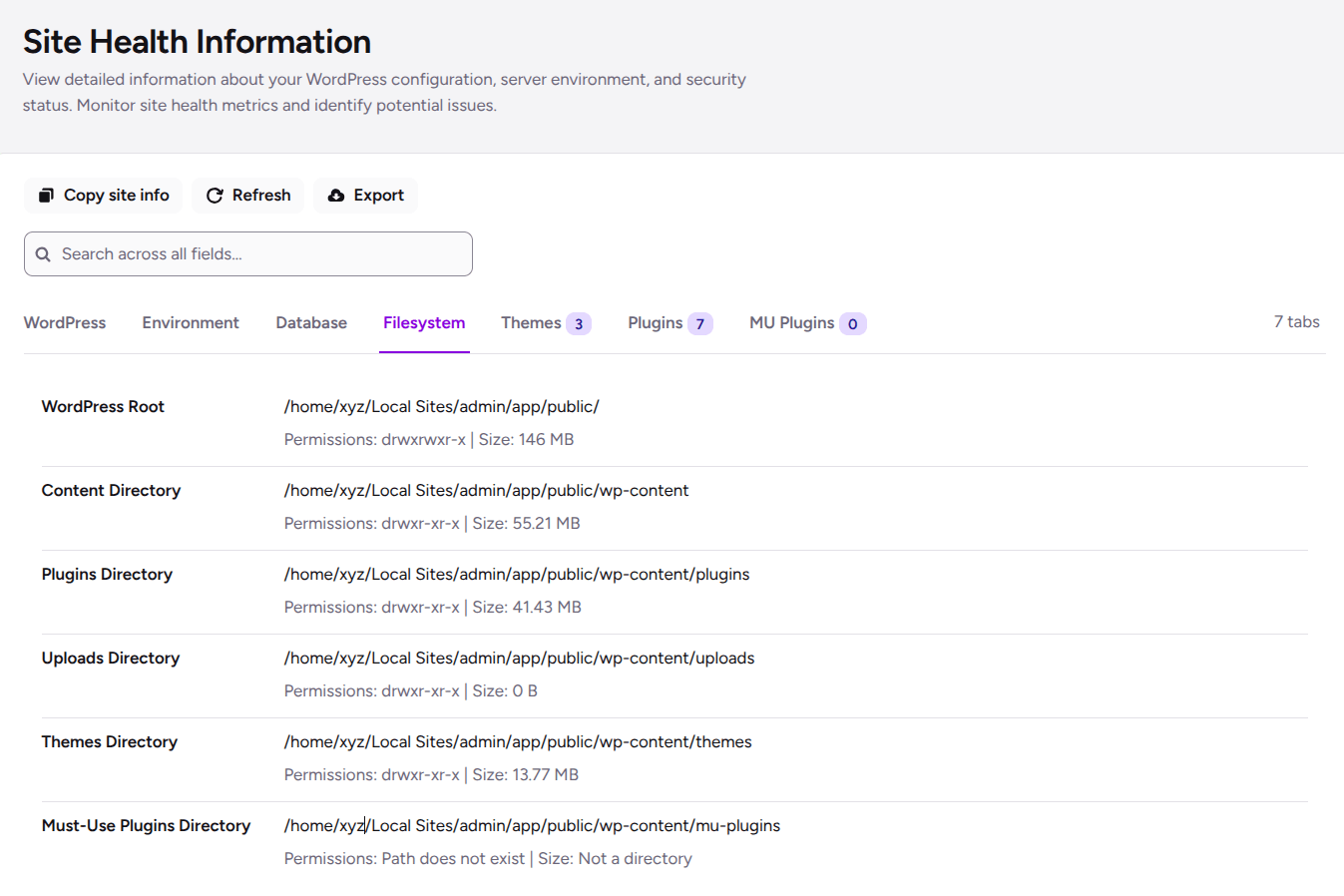
- WordPress root directory: The main folder containing WordPress core files, such as
wp-config.phpandwp-load.php. wp-content: Stores your site’s themes, plugins, uploads, and other content.- Plugins directory: Contains the plugins installed on your site.
- Uploads directory: Stores media files, such as images, videos, and documents uploaded to WordPress.
- Themes directory: Contains the themes installed on your site, including active and inactive themes.
- Must-Use plugins directory: Stores plugins that WordPress loads automatically, usually from
wp-content/mu-plugins.
Permissions appear as a string like drwxr-xr-x. Here is how to read it:
- The first letter
dmeans it is a directory. - The next three characters are the owner’s permissions: read, write, execute.
- The next three are the group’s permissions.
- The last three are everyone else’s permissions.
So drwxr-xr-x means the owner can read, write, and open the folder, while the group and everyone else can only read and open it. That is the same as the number 755, a very common setting for directories.
If one folder shows more access than the others, such as drwxrwxr-x where the group can also write, that is not automatically a problem. Some hosting setups need it. It is simply a detail to know about.
The size column helps too. Directory sizes show how much space your uploads, plugins, and themes take. If the uploads folder grows faster than you expect, you can start asking why.
Finally, check the Must-Use plugins directory. If it shows “Path does not exist,” that is normal. Most sites do not have this folder.
A word of caution. Do not change permissions just because a value looks different from another one. The right setting depends on your host and how your server runs PHP. If you are unsure, ask your hosting support first.
Review Installed WordPress Themes
The Themes tab lists every installed theme with its name, version, author, and status. The status shows whether a theme is active or inactive. This gives you a clear picture of your WordPress installed themes. Checking this list during routine maintenance helps you.
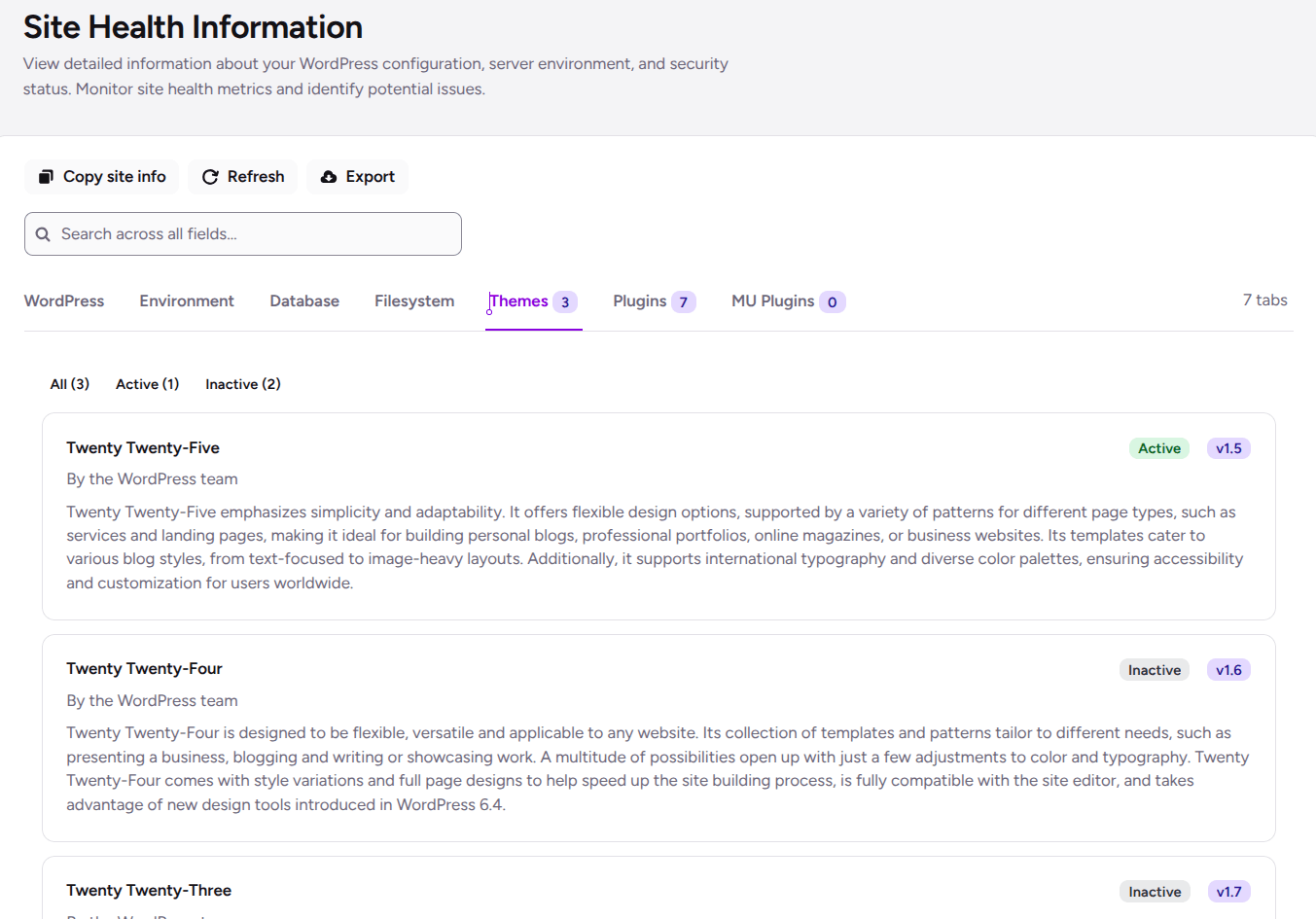
Inactive themes still sit in your themes directory. Many administrators remove the ones they do not use and keep a default theme as a fallback.
Keep one limit in mind. This list is an inventory. It does not tell you whether a theme is outdated or vulnerable. For that, you need a dedicated update check or vulnerability scan alongside it.
Inspect Installed WordPress Plugins
The Plugins tab works the same way for your extensions. It shows each plugin’s name, version, author, and activation status, so you get a full WordPress installed plugins list in one place.
This list helps when you troubleshoot. Suppose your site starts throwing errors after an update. You can check the plugin versions, see which plugins are active, and narrow down the cause faster than clicking through the standard plugins screen.
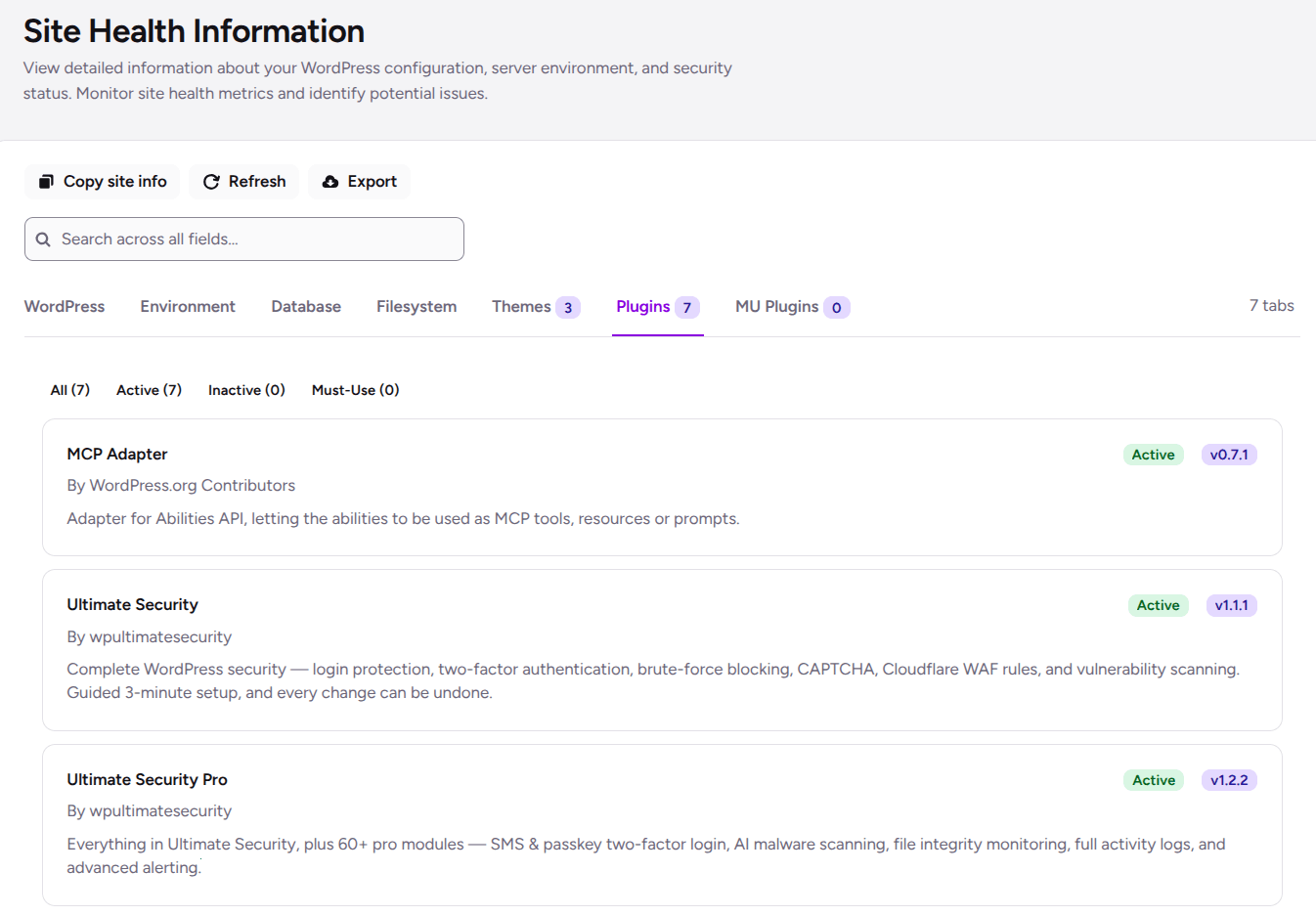
It also helps with routine maintenance. You can see every active and inactive plugin side by side and decide what still earns its place on the site.
As with themes, this tab does not flag vulnerable plugins by itself. Use it together with your update notices and a dedicated vulnerability check.
Check WordPress Must-Use Plugins
Must-Use plugins, often called MU plugins, are a special kind of plugin. WordPress loads them automatically from the wp-content/mu-plugins folder. They do not need activation, and you cannot switch them off from the regular Plugins screen.
Hosts and developers use them for things that must always run, such as custom code or caching tools.
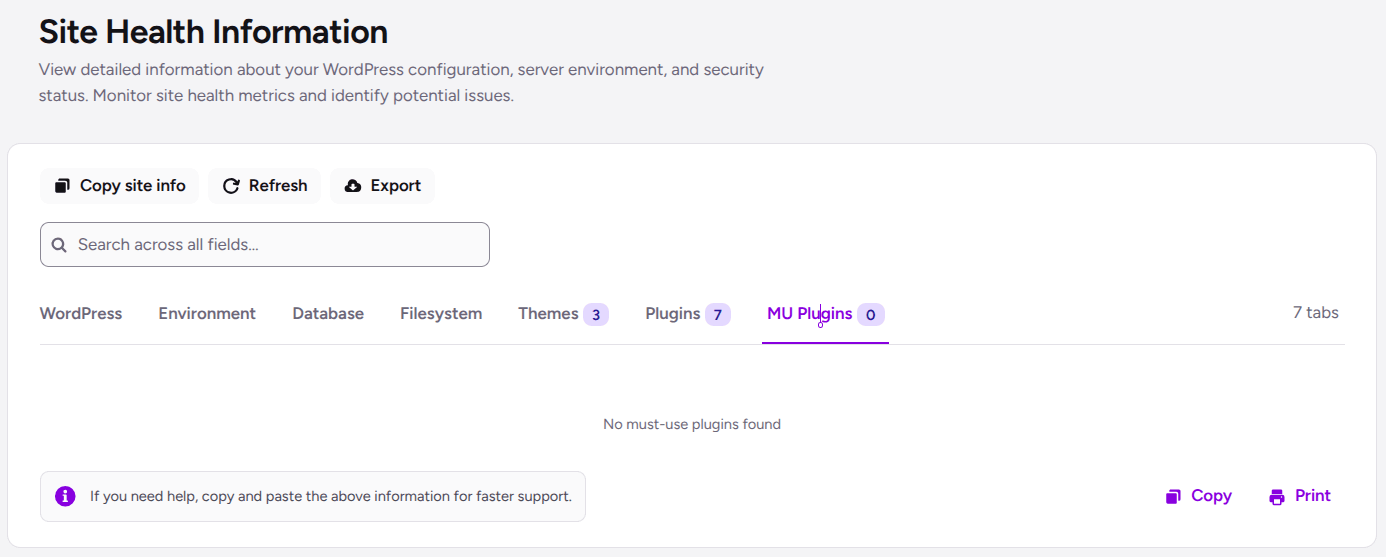
The MU Plugins tab shows which ones are installed. It is worth knowing about them because they run without appearing in your normal plugin list. If you ever wonder why some behavior exists that you cannot find in your plugins, this tab is a good place to look.
If the tab says no must-use plugins were found, nothing is loading from that folder. For most sites, that is the expected result.
How a WordPress Site Health Check Helps With Maintenance and Troubleshooting
Site Health gives you a central place to review your WordPress setup. Instead of searching through different screens or configuration files, you can check important details in one dashboard. It can help you:
- Find your WordPress, PHP, and database versions when investigating an issue.
- Review debug settings and PHP limits.
- Check directory permissions and sizes.
- Confirm which themes and plugins are installed.
Site Health displays information; it does not automatically fix problems or scan components for vulnerabilities. Use what you find to decide what needs further investigation.
When Should You Check Your WordPress Site Health?
You don’t need to check Site Health every day, but reviewing it at the right time can help you find useful information when maintaining your website or investigating a problem.
- When troubleshooting an error: Check your WordPress version, PHP settings, and database details to help narrow down possible causes.
- When changing hosting providers: Review your server environment and filesystem paths to check your new setup.
- Before or after a major update: Review your WordPress version, installed plugins, themes, and server settings to understand your site’s current setup.
- During routine maintenance: Check installed components, directory sizes, and file permissions to spot anything that may need attention.
- When contacting technical support: Use Site Health information to share relevant details with your developer or hosting provider, making it easier for them to investigate the issue.
Note: Site Health displays technical information but doesn’t automatically fix issues or identify every security problem. Review any unusual settings or errors before making changes.
Before sharing a report, review it for sensitive details such as database information and server paths. Send only what the person helping you needs, and avoid posting the full report publicly.
Frequently Asked Questions
What information does a WordPress site health check show?
A WordPress site health check with the Site Health feature shows details about your WordPress installation, server environment, database configuration, filesystem permissions, installed themes, and plugins. You can use this information to review your setup and investigate technical issues.
How do I check my WordPress PHP version?
You can check your WordPress PHP version by opening Ultimate Security → Settings → Monitoring & Diagnostics → Site Health in your WordPress dashboard. Select the Environment tab to see the PHP version your website is currently using.
You can also find it in WordPress by going to Tools → Site Health → Info → Server. Look for the PHP version under the server details.
Can I check WordPress file permissions from the dashboard?
Yes. Open the Filesystem tab in Site Health to view the paths, permissions, and sizes of important WordPress directories, including wp-content, plugins, uploads, and themes. Review the displayed permissions before making changes, as the appropriate settings depend on your hosting environment.
Can Site Health help me troubleshoot WordPress errors?
Yes. It provides technical details that can help you investigate configuration problems, such as PHP limits, WordPress settings, database information, and installed plugin versions. However, it does not automatically identify or fix every problem, so you may need additional troubleshooting.
Does the Site Health feature scan plugins for vulnerabilities?
No. The Plugins tab lists installed plugins, their versions, authors, and activation statuses. To check whether a plugin has known vulnerabilities, use a dedicated vulnerability scanner alongside this information.
Why should I check WP_DEBUG_DISPLAY on a live WordPress site?
When WP_DEBUG_DISPLAY is enabled, PHP errors may appear on your website. These errors can reveal file paths and other technical details. Review this setting on production sites and avoid displaying errors to visitors.
Is it safe to share WordPress site health information with support?
You can share relevant details with a trusted developer or hosting support team when troubleshooting an issue. However, the information may include filesystem paths, database details, and your installed plugin list. Share only what is needed and avoid posting sensitive information publicly.
Conclusion
A WordPress site health check helps you understand how your website is configured, from its WordPress version and server environment to its database, filesystem, themes, and plugins.
With Site Health in Ultimate Security, you can review these details in one place instead of searching through multiple settings and configuration files. This makes it easier to gather information during troubleshooting and routine maintenance.
Remember, reviewing your site’s configuration is only the first step. If you find an unusual setting or a possible issue, investigate it before making changes, especially on a live website.

Comments are moderated. Stay on topic: spam and link drops are removed.