

If you have a WordPress site, hackers are probably already trying to break into it. One of the easiest and most effective ways to stop them is to limit login attempts for WordPress. This single setting can protect your site from the most common type of attack, and it takes less than five minutes to set up.
In this guide, you will learn exactly what brute force attacks are, why WordPress is vulnerable by default, and how to configure login attempt limits the right way, even if you have never touched a security setting before.
Table of Contents
What is a brute force attack?
In WordPress, bad bots try hundreds or thousands of username and password combinations on your login page until they find the right one. If your password is weak or even moderately common they will eventually get in.
Once a hacker gets into your WordPress admin, they can:
- Install malware on your site
- Steal customer data or payment information
- Redirect your visitors to spam websites
- Delete your content entirely
- Use your server to attack other websites
The good news is that limit login attempts for WordPress makes brute force attacks practically impossible.
Why WordPress does not protect you by default
Out of the box, there is no built-in system that limit login attempt for WordPress. A bot can hammer your login page all day, and WordPress will just keep accepting those requests.
This vulnerability is a known weakness. WordPress was built to be flexible, not locked down. But security is something you have to add yourself, which is why a good security plugin is essential.
How does limiting login attempts actually work
When you set a login attempt limit, here is what happens:
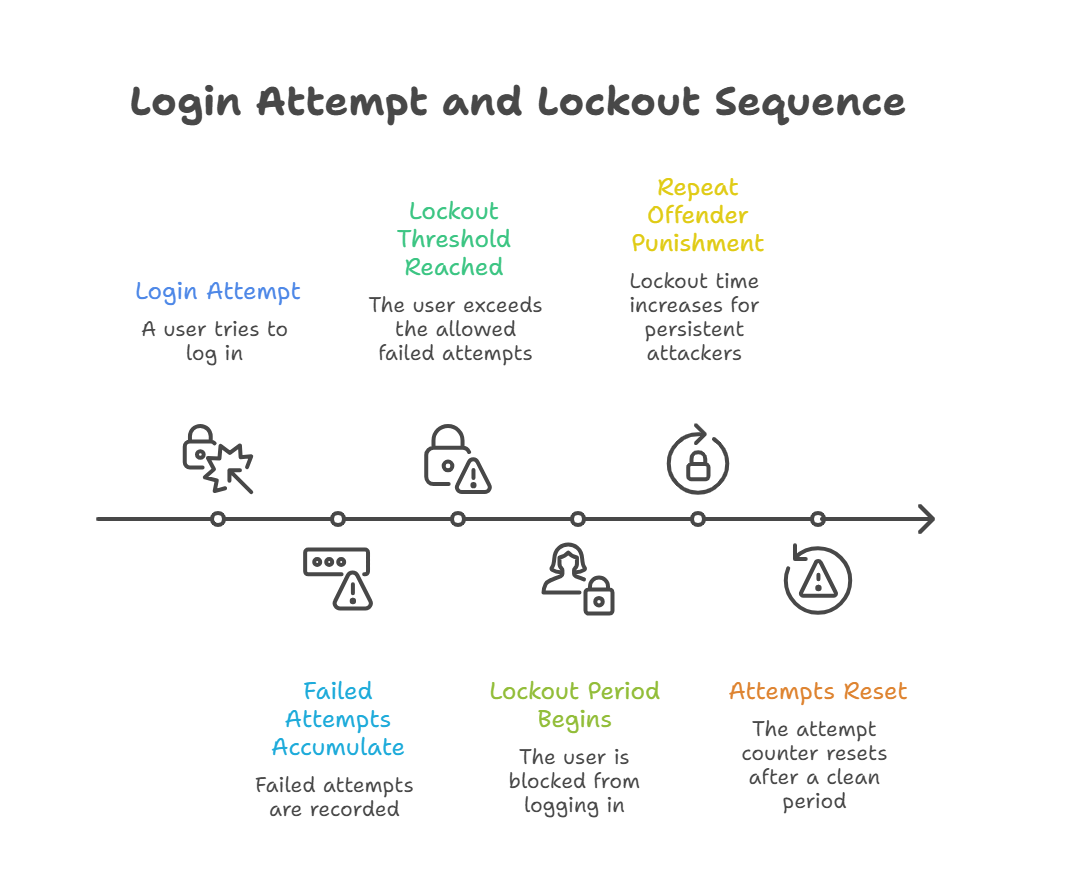
- Someone tries to log in: Every login attempt, successful or not, gets counted and recorded.
- They fail too many times: After hitting your limit (say, 5 failed attempts)
- Lockout kicks in: The blocked user cannot try again until the lockout duration expires. (usually 15 minutes).
- Repeat offenders are punished harder: Plugins increase the lockout time for anyone who keeps trying after being unblocked. This escalating system stops persistent attackers completely.
- Attempts reset after a clean period: If someone behaves normally for 24 hours, their attempt counter resets. This prevents false lockouts for real users who mistype once or twice over time.
The right limit login attempts for WordPress to use
Not all login limit settings are equal. You set them too loose, meaning attackers still have room to work. Setting them too tight means you risk locking out real users, including yourself.
Here are the recommended settings used in WordPress Ultimate Security and the reasoning behind each one:
| Setting | Recommended Value |
|---|---|
| Login Attempts | 5 |
| Lockout Duration | 15 minutes |
| Increase Login Attempts | 10 |
| Increase Lockout Duration | 60 hours |
| Retries Reset Duration | 24 hours |
The progressive lockout system is particularly important. Most basic plugins just lock someone out for 15 minutes every single time. A patient bot can work around that by spacing out its attacks. With escalating lockouts, someone who keeps trying after being unblocked gets hit with a 60-hour ban. That ends the attack.
How to set up login attempt limits in WordPress
The fastest way to protect your site is with a security plugin that handles everything in one place. WordPress Ultimate Security includes a full brute force protection system with all the settings covered above.
- Install Ultimate Security: Go to your WordPress dashboard, click Plugins, then Add New. Search for wpultimatesecurity and install it.
- Go to Threat Protection: In your dashboard, find the Ultimate Security menu. Click Threat Protection, then Brute Force Protection.
- Open Login Attempt Limits: Click the Login Attempt Limits section. You will see the toggle to enable the feature at the top.
- Enable Login Limit: Toggle the Login Limit switch to ON. This activates protection immediately.
Configure Basic Settings
For most beginners, we recommend these safe default settings so, you can configure login limits peoperly and match every value.
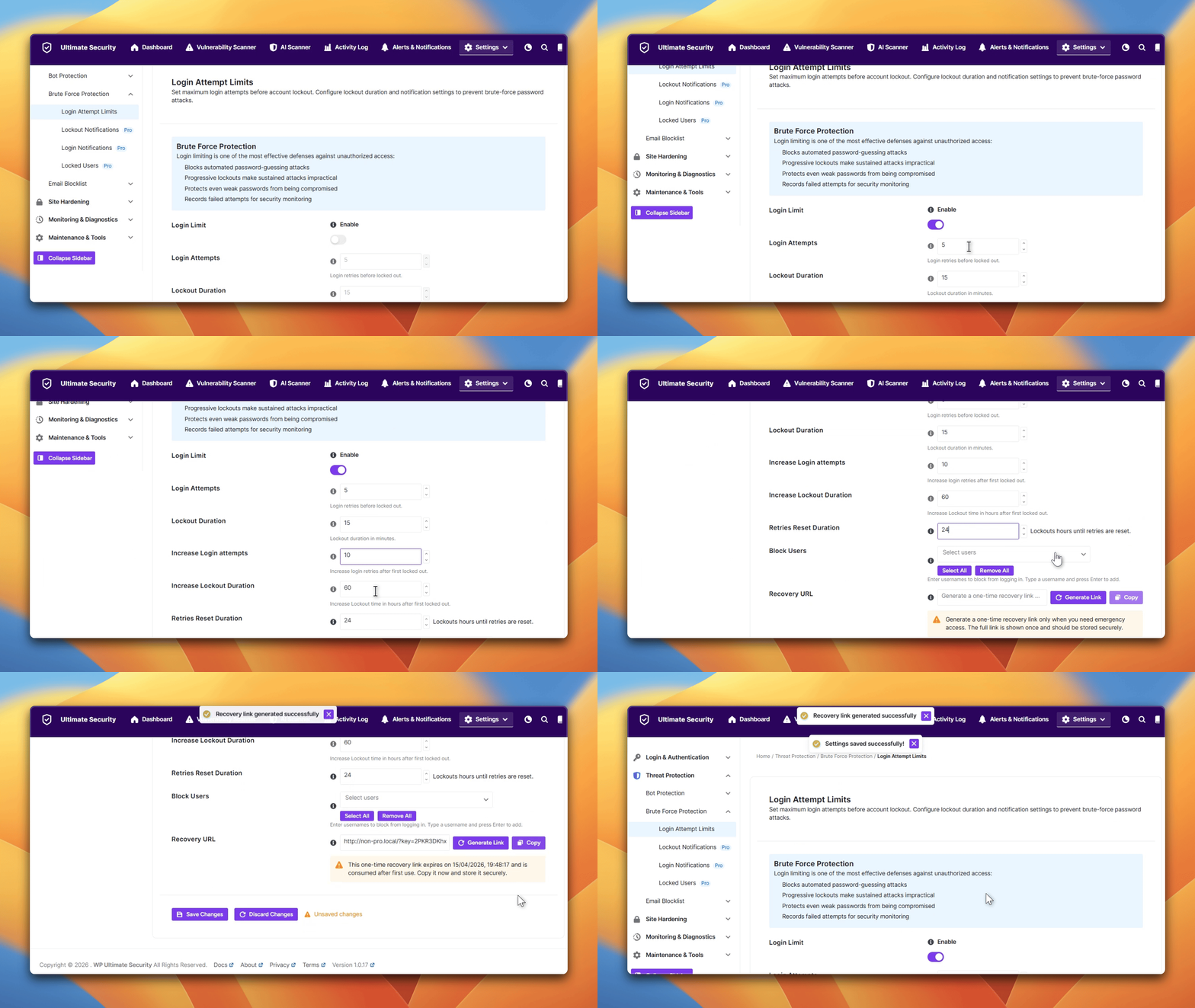
Simply type these values into the corresponding fields. Click Save Changes. Your site is now protected from brute force attacks.
| Setting | Why |
|---|---|
| Login Attempts | Balance of security vs. convenience |
| Lockout Duration | Deters bots without frustrating users |
| Increase Login Attempts | Allows second chances |
| Increase Lockout Duration | Stops persistent attackers |
| Retries Reset Duration | Fresh start window |
Before you save, scroll down and copy your Recovery URL. This is a one-time link that lets you back into your site if you accidentally lock yourself out. Store it somewhere safe.
Should you also block specific users?
Yes, and this is a feature most beginners overlook. Ultimate Security lets you block specific usernames from ever logging in. This is useful for a few reasons:
- If you have a former employee or team member whose account is no longer needed, blocking their username adds an extra layer of safety
- Bots almost always try common usernames like admin, administrator, or user. So, you can block compromised accounts or remove access for terminated users without deleting their accounts.
To use this, scroll down to the Block Users section on the same settings page. Type a username and press Enter. You can add as many as you need.
Beyond limit login attempts for WordPress – Advanced Security
Configuring login attempt limits is your foundation, but comprehensive brute force defense requires additional layers. Here are a few strategies we recommend for high security.
Unique username and strong password
Attackers often succeed because they guess the username correctly (typically “admin”) and only need to crack the password.
- Never use “admin” as a username
- Always use strong passwords
- Create non-obvious admin usernames:
siteops2024,james_admin_ops,primary_contact - Consider changing the default login URL from
/wp-login. phpto custom slug (e.g.,/secret-door-2024)
Two-Factor Authentication (2FA)
Even if attackers guess the correct credentials, 2FA requires a second verification factor. We recommend implementing 2FA for ALL administrator accounts. Ultimate Security integrates with popular 2FA solutions.
Frequently asked questions
Will limiting login attempts slow down my WordPress site?
No. The plugin simply tracks failed attempts when the limit is hit. It uses minimal server resources and does not affect your page load speed.
What happens if I lock myself out of my own WordPress site?
This is exactly why the Recovery URL feature exists in Ultimate Security. Before saving your settings, generate and copy this link. If you ever get locked out, open that URL to regain access instantly. You can also access your site directly through your hosting control panel if needed.
Can bots bypass login attempt limits by using different IP addresses?
Some advanced botnets do use rotating IP addresses to work around basic lockouts. This is one reason why a full security plugin matters more than a single feature. WP Ultimate Security combines login limits with bot detection, user blocking, and activity monitoring to cover these scenarios.
Is limiting login attempts enough to fully secure my WordPress site?
It is one of the most important steps, but not the only one. A secure WordPress site also needs a strong password policy, two-factor authentication, regular file scanning, vulnerability monitoring, and up-to-date plugins and themes. Think of login limits as your first line of defense, but not the whole site
What happens to logged-in users during lockouts?
Login limiting only affects authentication attempts, not active sessions. Already-logged-in users continue working normally. Only users trying to log in (or re-authenticate after session expiry) encounter restrictions.
Conclusion
Brute force attacks happen every single day against WordPress sites. Hackers use automated bots that scan thousands of sites simultaneously. Setting up login attempt limits for WordPress takes five minutes, and Ultimate Security makes this simple.
Comments are moderated. Stay on topic: spam and link drops are removed.