

Thousands of WordPress sites get probed by automated bots looking for the same things: weak passwords, exposed login pages, outdated plugins, and unpatched vulnerabilities. Good WordPress security features don’t just react to threats. It closes the gaps before anything gets through. But with dozens of plugins competing for your install, knowing what features actually matter is half the battle.
This post covers the 10 features that separate a real WordPress security plugin from one that just looks the part. These aren’t nice-to-haves. They’re the baseline every protected site should have in place.
Table of Contents
1. Security Dashboard That Shows You What’s Actually Wrong
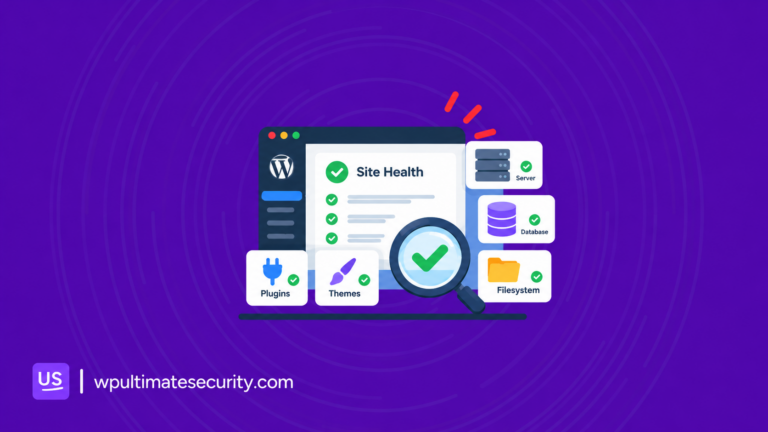
A proper security dashboard tells you what’s broken, what’s at risk, and what to fix first. When evaluating a security plugin, look for a central dashboard that gives you a real-time read on your site’s protection status. Not a settings page. Not a list of toggles. A live overview that surfaces problems ranked by severity so you know what to act on and in what order.
The right dashboard should show you:
- A security score or protection level: A single, clear indicator of how well-protected your site currently is
- Issue counters: critical threats, recommendations, outdated plugins, and recent failed logins, separated by urgency
- Site health signals: SSL status, PHP version health, and server response
- Failed login tracking: How many attempts hit your login page recently and from where
- File integrity status: Whether any core WordPress files have been modified or replaced
- Who’s currently logged in: Real-time visibility into active admin sessions
Without this kind of consolidated view, you’re managing security reactively. You find out something is wrong when damage has already been done.
2. Two-Factor Authentication (2FA)
A password alone is not a reliable security boundary. Credentials get reused across sites. Phishing attacks capture them. Data breaches expose them in bulk. Once a password is compromised, a single login attempt is all it takes to get in.
Two-factor authentication adds a second verification step that secures the WordPress login page, making it impossible for an attacker to replicate, even with a valid password. A one-time code, an authenticator app prompt, or a biometric confirmation is something the account owner has physically, not just knows.
Look for a security plugin that supports multiple 2FA methods, because different users have different setups, and a one-size approach creates friction that leads to bypass requests:
- Email OTP: a time-limited code delivered to the account’s registered email
- Authenticator apps: Google Authenticator, Authy, or Microsoft Authenticator via TOTP/HOTP standards
Also, look for a 2FA management dashboard that shows you the adoption status across all user accounts. On multi-author or membership sites, you need to know which accounts have it enabled and which are still running on a password alone.
3. Custom Login URL
WordPress installs the login page at /wp-login.php by default. This address is public knowledge. Every automated scanner, every credential-stuffing script, and every brute force tool starts there. Changing the login URL to something non-standard removes the site from the path of most automated attacks before a single password guess is attempted.
A good security plugin should let you:
- Set a custom login path of your choosing
- Redirect anyone hitting the old default URL to a 404 or a page of your choice
- Display a custom consent or access message on the login form
- Emergency deactivation for the plugin itself
Changing the login URL removes that predictability entirely. When the default address no longer leads anywhere useful, the vast majority of automated attacks simply miss. There’s no page to probe, no form to submit credentials to, and no foothold to start from.
4. Password Policy
A custom login URL stops attackers from finding the front door. A strong password policy makes sure the lock itself can’t be picked. WordPress has no built-in password enforcement by default. It can suggest a strong password, but it won’t stop a user from setting “123456” and moving on. On multi-author or membership sites, that single weak credential can compromise the entire installation.
Password rules fundamentals:
- Minimum length is at least 12
- Require uppercase and lowercase
- Require numbers
- Require special characters symbols like !, @, #, or $ become mandatory
- Exclude specific characters if certain symbols cause technical issues or break your forms. You can blacklist them individually so users can’t set passwords containing them
Password policy enforcement makes strong password security a requirement rather than a recommendation.
5. Bot Protection with CAPTCHA
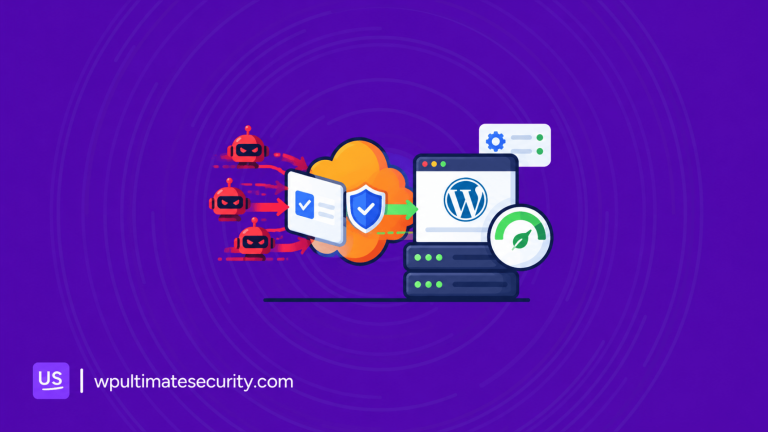
Bots don’t limit themselves to login pages. They submit comment spam at scale, create fake registrations, abuse contact forms, and hammer WooCommerce checkout flows. Any publicly accessible form on a WordPress site is a potential target.
The right bot protection gives you coverage across all of those surfaces, not just the login page. It should also give you a choice of CAPTCHA providers, because different sites have different privacy requirements and user experience standards.
Two methods are currently the standard:
- Google reCAPTCHA v2/v3: v2 presents the familiar checkbox challenge; v3 runs invisibly in the background and assigns a risk score without interrupting the user
- Cloudflare Turnstile: a privacy-respecting alternative that verifies visitors without behavioral tracking or Google’s data infrastructure
The ability to apply different protection to different forms is what separates a flexible implementation from a blunt one. Your login page might need a different approach than your comment section. Your registration form might need tighter controls than your contact form.
6. Brute Force Protection and Login Attempt Controls
Brute force attacks are automated and volume-based. A script will fire thousands of password combinations at your login page without pausing, running around the clock until something works or it gets blocked. The entire strategy depends on unlimited attempts. Remove that, and the attack has nowhere to go.
A security plugin should detect the pattern of repeated failures and respond progressively:
- Login attempt limit: block an account after a defined number of wrong passwords (4 to 5 is a common starting point)
- Lockout duration: how long the account or IP stays blocked after triggering the limit
- Escalating lockout: if the same account or IP gets locked out repeatedly within a short window, the lockout duration increases automatically, treating persistent offenders more aggressively than one-off mistakes
- Retries reset : a window of inactivity after which previous failed attempts are cleared, so a real user who forgot their password and waited a few hours doesn’t stay penalized
- User blocklist: the ability to permanently block specific usernames from logging in, regardless of the password used
- Recovery URL: a private emergency link that bypasses lockout rules, generated by the admin and stored offline. This is the escape hatch if the admin triggers their own lockout rules and needs to recover access
Beyond the lockout mechanics, the login attempt log is a practical investigation tool. It should record every attempt, successful and failed, with the username used, the IP address it came from, the timestamp, and the browser details.
7. Session Management
Login protection doesn’t end the moment a user successfully authenticates. What happens after that how long sessions persist, how many can run simultaneously, and how session data is stored in the browser is just as important as what happens at the gate.
Session hijacking is a real attack vector. Stolen session cookies let attackers impersonate logged-in users without ever needing a password. Concurrent session abuse lets one set of compromised credentials be used across multiple locations at once. Idle sessions left open on unattended devices become silent access points.
A security plugin with real session management should cover:
Cookie Hardening Browser cookies carry session tokens. If those tokens are stolen, the attacker walks in. Three settings protect them:
- HttpOnly flag: prevents JavaScript from reading the cookie, blocking XSS-based token theft
- Secure flag: forces the cookie to transmit only over HTTPS, blocking interception on unsecured networks
- SameSite attribute: controls whether cookies travel with cross-site requests, blocking CSRF attacks. The Lax setting is the recommended default for most WordPress sites
Session Binding Ties an active session to the fingerprint of the device and browser that created it. If a stolen token is used from a different machine, the mismatch is detected, and the session is terminated immediately. Sessions can also be bound to IP address, though this should be disabled for users on mobile data or VPNs where the address shifts frequently.
Concurrent session limits cap how many simultaneous logins a single account can hold. When the limit is reached, the plugin either blocks the new login or drops the oldest active session. A limit of 2 to 3 is practical for most accounts. Administrators can be exempted to prevent self-lockout.
Idle Timeout: Automatically logs out a session that has been inactive for a defined period. 1800 seconds (30 minutes) is a reasonable default. Set it to 0 to disable the timeout entirely.
8. File Integrity Monitoring (Checksum)
When a WordPress site gets compromised, the attacker rarely leaves immediately. The more common pattern is to leave something behind: a backdoor file that allows re-entry, a modified core file with injected code, or an unknown script sitting in an unexpected directory. The site appears to function normally. The malicious code runs silently underneath.
File integrity monitoring detects this by comparing your current WordPress installation against what should be there. Any file that has been modified, removed, or added without a legitimate explanation gets flagged.
Not all modified files are malicious. Plugins and themes legitimately modify files during updates. The monitoring tool should make it easy to distinguish between expected changes and unexpected ones.
9. Vulnerability Scanner
Plugins, themes, and WordPress core accumulate known security vulnerabilities over time. When a researcher discovers a flaw, and it gets published in a vulnerability database, every site still running that unpatched version becomes a documented target. Attackers scan for them systematically.
Staying ahead of this requires more than keeping plugins updated manually. You need a tool that checks your entire installation against current vulnerability databases and alerts you when something is at risk.
A proper vulnerability scanner should:
- Scan plugins, themes, and WordPress core in a single pass
- Pull from multiple vulnerability databases for better coverage
- Identify abandoned components, plugins, or themes that no longer receive security updates, regardless of version
- Surface critical and high-severity findings separately from lower-priority ones
- Run on a configurable schedule with email alerts when new issues are found
- Keep a history of past scans so you can track whether issues were resolved and when new ones appeared
10. Security Hardening, Backup, and Test Mod
The features covered so far protect against active threats. Hardening addresses the underlying configuration of your site the things that make it easier or harder to attack in the first place. Backup and test tools make sure that configuring your security doesn’t accidentally break anything.
Security Keys Rotation
WordPress uses cryptographic salts stored in wp-config.php to secure session cookies and authentication tokens.
If these keys are exposed through a server breach, a leaked config file, or a compromised hosting environment, all active sessions become vulnerable. Rotating the keys immediately invalidates existing sessions and forces a clean re-authentication. Most site owners never rotate these manually. Automation closes that gap.
Test Mode
Before applying new security rules to a live site, Test Mode lets you preview their effect without actually enforcing them.
A misconfigured lockout rule, an overly aggressive CAPTCHA setting, or a session timeout that breaks a checkout flow. These are the kinds of unintended consequences. Test Mode catches them before they affect real visitors.
Settings Backup and Restore
A full configuration export means you can replicate a working security setup across multiple sites without starting from scratch each time.
It also serves as a recovery point if a change causes problems, restores the previous configuration, and returns the site to a known working state.
All 10 Features. One Plugin. Zero Cost.
Most WordPress sites run with the bare minimum in place, maybe a login attempt limit and an SSL certificate, and assume that’s enough. It rarely is. Real protection requires layered coverage: a dashboard that surfaces problems, authentication that doesn’t rely on passwords alone, session controls that survive credential theft, and monitoring that catches what the other layers miss.
Every feature covered in this post, the security dashboard, 2FA, custom login URL and password policy, session management, brute force protection, login activity monitoring, bot protection, file integrity monitoring, vulnerability scanning, and security hardening, is built into Ultimate Security.
It’s a single free plugin, available from the WordPress.org repository. No premium tier required to unlock the features that matter. No bloated feature set running on every page load. Modular by design, so you enable what you need and nothing you don’t.
If your current security setup has gaps, and most do, the Ultimate Security walks you through the baseline configuration in under ten minutes.
Do I need technical knowledge to set up these features?
No. Ultimate Security includes a setup wizard that applies sensible defaults after activation. Each feature section has its own settings page with clear labels and in-plugin guidance. For anything more detailed, the documentation covers every setting with practical explanations.
Will running a security plugin slow down my WordPress site?
Ultimate Security is built to be lightweight and modular. Features you don’t enable don’t load. The plugin adds minimal overhead on its own, and Test Mode lets you evaluate the performance impact of any new rule before it goes live.
Can Ultimate Security protect a WooCommerce store?
Yes. Bot protection via reCAPTCHA and Cloudflare Turnstile can be applied specifically to WooCommerce forms. Session management, login protection, and brute force controls all apply site-wide, regardless of what other plugins are installed.
What if I accidentally lock myself out after configuring the plugin?
The brute force protection module generates a private recovery URL that bypasses lockout rules. Store it somewhere offline during setup. Administrators can also be exempted from session limits and idle timeouts to prevent accidental lockout from that side.
Is Ultimate Security really free?
Yes. It’s a free, open-source plugin hosted on the official WordPress.org repository. Every feature described in this post is available with a paid plan. There are plenty of pro features available, and you’re never forced to buy them.
Final Words
Security isn’t a one-time setup task. It’s an ongoing practice. But having the right plugin in place means most of the heavy lifting happens automatically, without you needing to think about it daily. Ultimate Security covers every feature category covered here with a single, free install. If you haven’t set it up yet, the Security Wizard makes the initial configuration straightforward enough to complete in one sitting.
Comments are moderated. Stay on topic: spam and link drops are removed.