
You spent hours writing a blog post. You took your own photos. You built something real. Then someone right-clicks, copies it, and publishes your work on their site as if it was theirs all along.
It happens all the time, and plenty of owners have no content protection in WordPress at all. WordPress has no built-in way to stop this, so this guide uses the Ultimate Security plugin to set it up. You will learn what content protection is, who needs it, and how to configure it step by step.
Table of Contents
What Is Content Protection in WordPress?
Content protection in WordPress is a set of controls that stop visitors from copying your text, saving your images, or pulling your content out of the browser. It blocks the actions people use to copy, such as right-clicking, selecting text, pressing Ctrl+C, and opening developer tools.
It does not lock your content away. Visitors can still read your pages and see your images. The protection only removes the easy ways to take them. WordPress does not include this out of the box, so you add it through a plugin.
Why WordPress Content Is So Easy to Steal
WordPress does not come with any built-in content protection. By default, any visitor can right-click and save your images, highlight your text, copy it with Ctrl+C, or open your source code with F12. These are the most common ways people take content from WordPress sites.
- Right-clicking images. A visitor right-clicks and picks “Save Image As,” and your photo is on their device in seconds.
- Selecting and copying text. Highlighting a paragraph and pressing Ctrl+C copies your writing with no effort at all.
- Dragging images off the page. Browsers let people drag an image straight to their desktop, which skips the right-click menu entirely.
- Opening the source code. Shortcuts like Ctrl+U and F12 show your page’s code, where text and image details are easy to find.
- Hotlinking your images. Another site displays your image by pointing to your server, so your image appears on their page and your server does the work.
People copy content for simple reasons. Some want to rank for your keywords without doing the research. Others want free images for their own products. So the goal is not to build a wall nobody can climb. It is to remove the easy options so most people give up.
How to Enable Content Protection in Ultimate Security
The Content Protection module is part of the Ultimate Security Pro plan. Once the plugin is installed and activated, open the Content Protection page from the settings, then Site Hardening → Content Protection. The first tab is the Overview. This is where you switch protection on and decide what it covers.
Read: How to install the Ultimate Security plugin.
Turn On the Main Toggle
At first you need to turn on the Enable Content Protection toggle. This one toggle controls the whole feature, so nothing else in the module works until it is on. Once it is active, visitors can no longer copy your text, images, and other content the way you block in the next tabs.
Choose the Protection Scope
Under Protection Scope, you pick how much of your site is covered. You have two options.
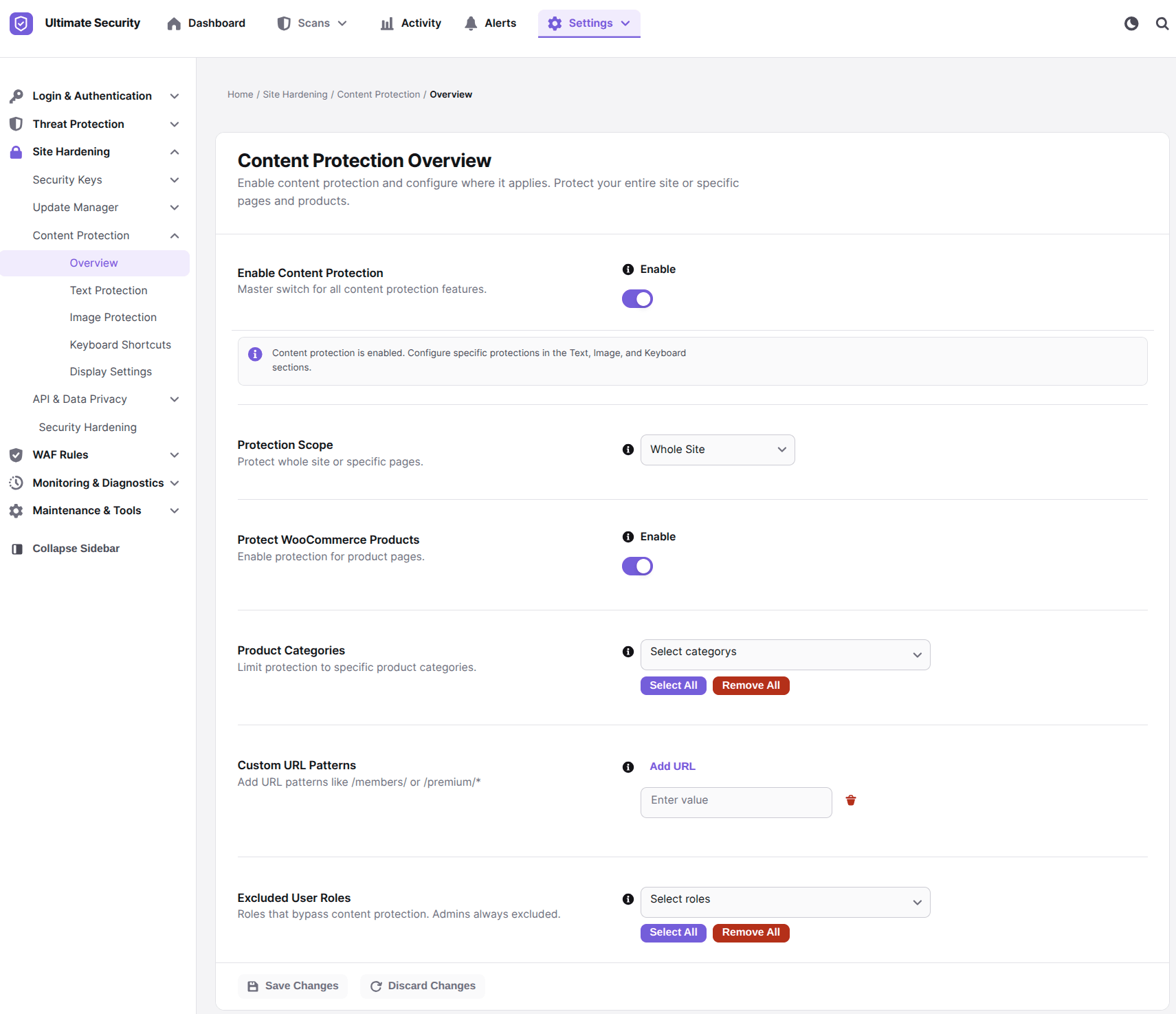
- Whole Site applies protection to every page and post. This suits most site owners, because it leaves no gaps.
- Specific Pages lets you protect only the pages you choose. This works well when only some content needs guarding, such as a portfolio page or a paid resource, and the rest of your site can stay open.
Protect WooCommerce Products
If you run a WooCommerce store, use the Protect WooCommerce Product toggle. It protects your store’s product pages, where your descriptions, layouts, and product images live. You can also add categories to protect only specific product categories, which helps if some product lines matter more than others.
Add Custom URL Patterns
Some parts of a site sit outside the normal page structure, and the other options may not reach them. Custom URL Patterns let you add your own URL patterns so protection covers those sections too. Use this when you have a section of your site you want protected that the other settings do not cover.
Exclude User Roles
Administrators are always excluded from content protection. You can also choose other user roles that should bypass it, such as editors or authors. This lets your team work normally while visitors get the full protection.
When you are happy with your choices, click Save. If you change your mind, click Discard, and your changes will not be applied.
Disable Right-Click and Protect Your Text
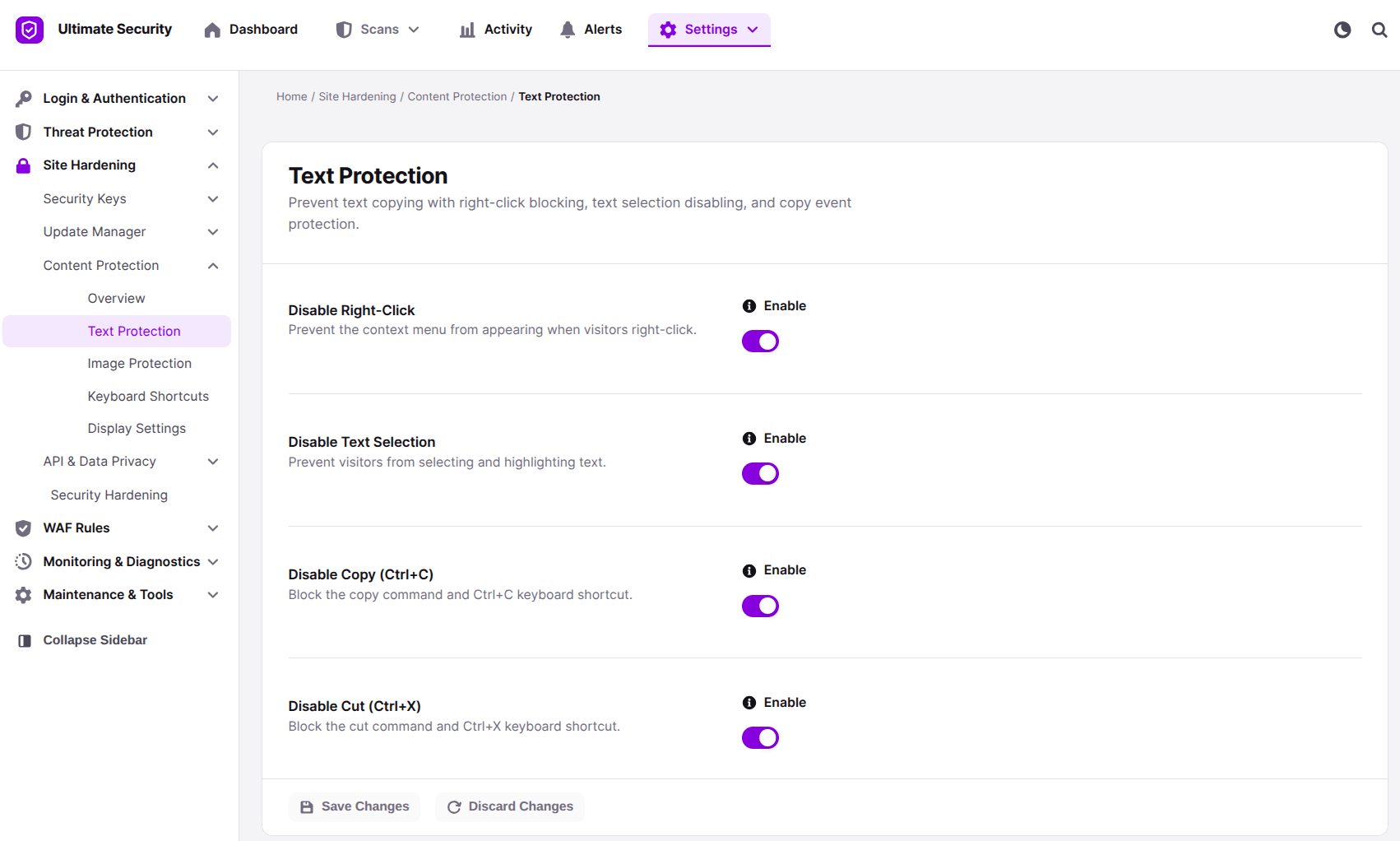
The Text Protection tab controls how visitors handle the written content on your pages. It has four settings, and each one blocks a different step in the copying process. Together they cover the most common way people take text from a site.
Disable Right-Click
This is the most basic layer of protection. When it is on, visitors who right-click on your site do not get the usual menu, so they lose options like copy and save image. It does not stop every method of copying, but it removes the most obvious one.
Disable Text Selection
With this on, visitors cannot highlight your text. If they cannot select it, they cannot copy it the normal way. This helps most on sites with high-value writing, such as courses, guides, and research-heavy posts.
Disable Copy (Ctrl+C)
Some visitors will find a way to select text anyway. This setting blocks the copy shortcut they would use next. It covers Ctrl+C on Windows and Command+C on Mac.
Disable Cut (Ctrl+X)
This setting blocks the cut shortcut, which is Ctrl+X on Windows and Command+X on Mac. Cut is used less often than copy, but blocking it closes one more gap. It takes one toggle, so it is easy to leave on.
You do not have to turn everything on at once. For a typical blog, disabling right-click and text selection is usually enough to stop casual copying. Click Save when you are done.
Protect Your Images in WordPress
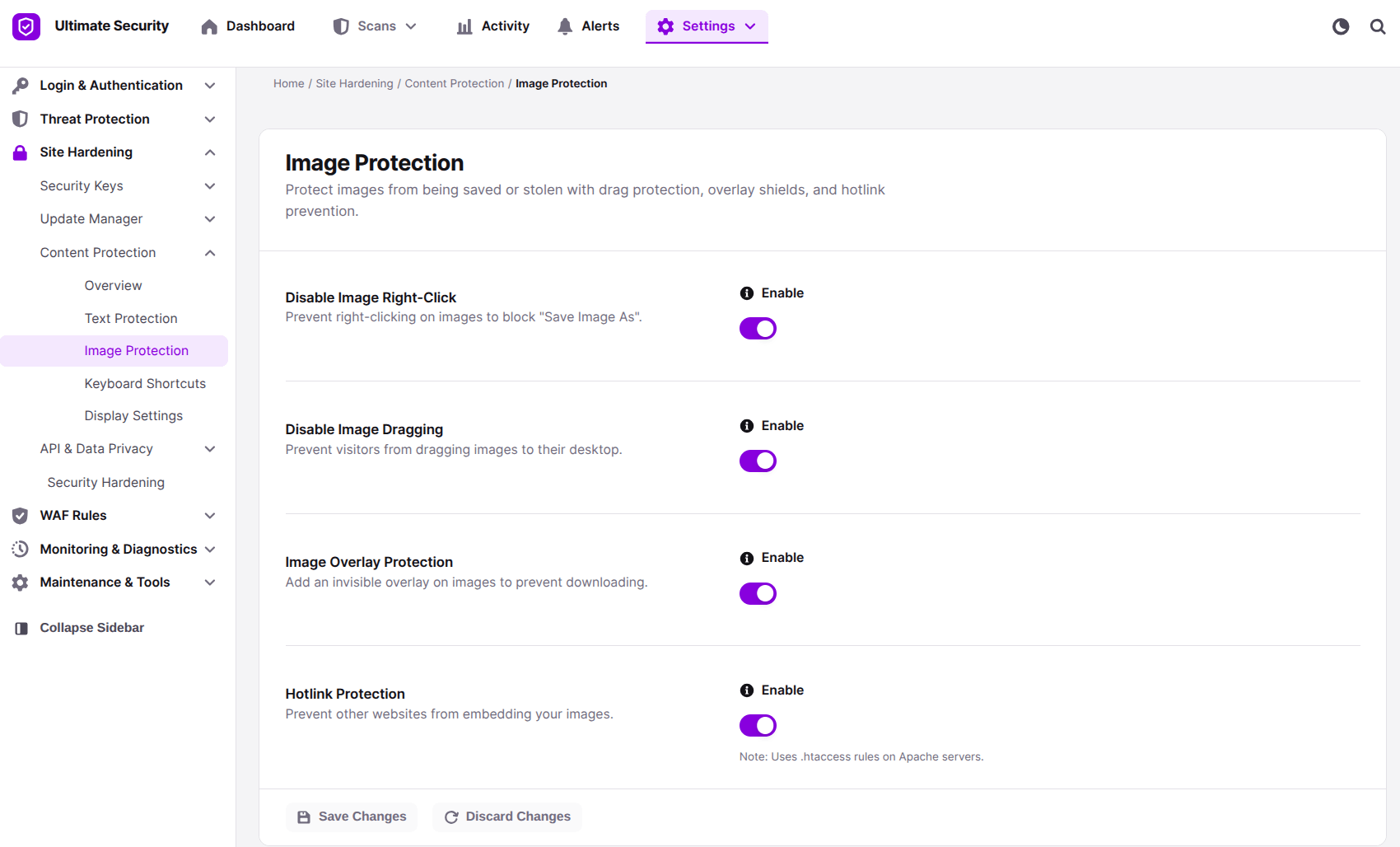
Images are some of the most valuable things on a WordPress site, especially on photography portfolios, product pages, and creative blogs. The Image Protection tab makes it much harder for visitors to save your original work to their devices. It covers four ways people take images.
Disable Image Right-Click
This stops visitors from right-clicking your images, so they never see the “Save Image As” option. It is the first line of defense for images, and it takes one toggle to turn on.
Disable Image Dragging
Browsers let people drag an image from the page straight to their desktop or another tab. This setting stops that. Visitors can no longer save your pictures just by pulling them off the page.
Image Overlay Protection
This setting adds an invisible shield over your photos. If someone finds another way to download an image, they end up with a blank photo instead of your work. For photographers and anyone whose business depends on images, this is worth turning on.
Hotlink Protection
Hotlinking happens when another website displays your images by linking directly to your server. The image shows on their site, but it loads from yours. Hotlink Protection blocks other sites from using your images this way.
This setting is different from Disable Image Right-Click. Right-click blocking stops visitors from saving your images from the browser menu. Hotlink Protection stops other websites from displaying them. Both work better together.
Block Keyboard Shortcuts That Expose Your Content
Site owners often skip keyboard shortcuts when they think about content protection. But shortcuts are one of the easiest ways around a right-click block. The Keyboard Shortcut tab blocks the ones that open developer tools or save your content.
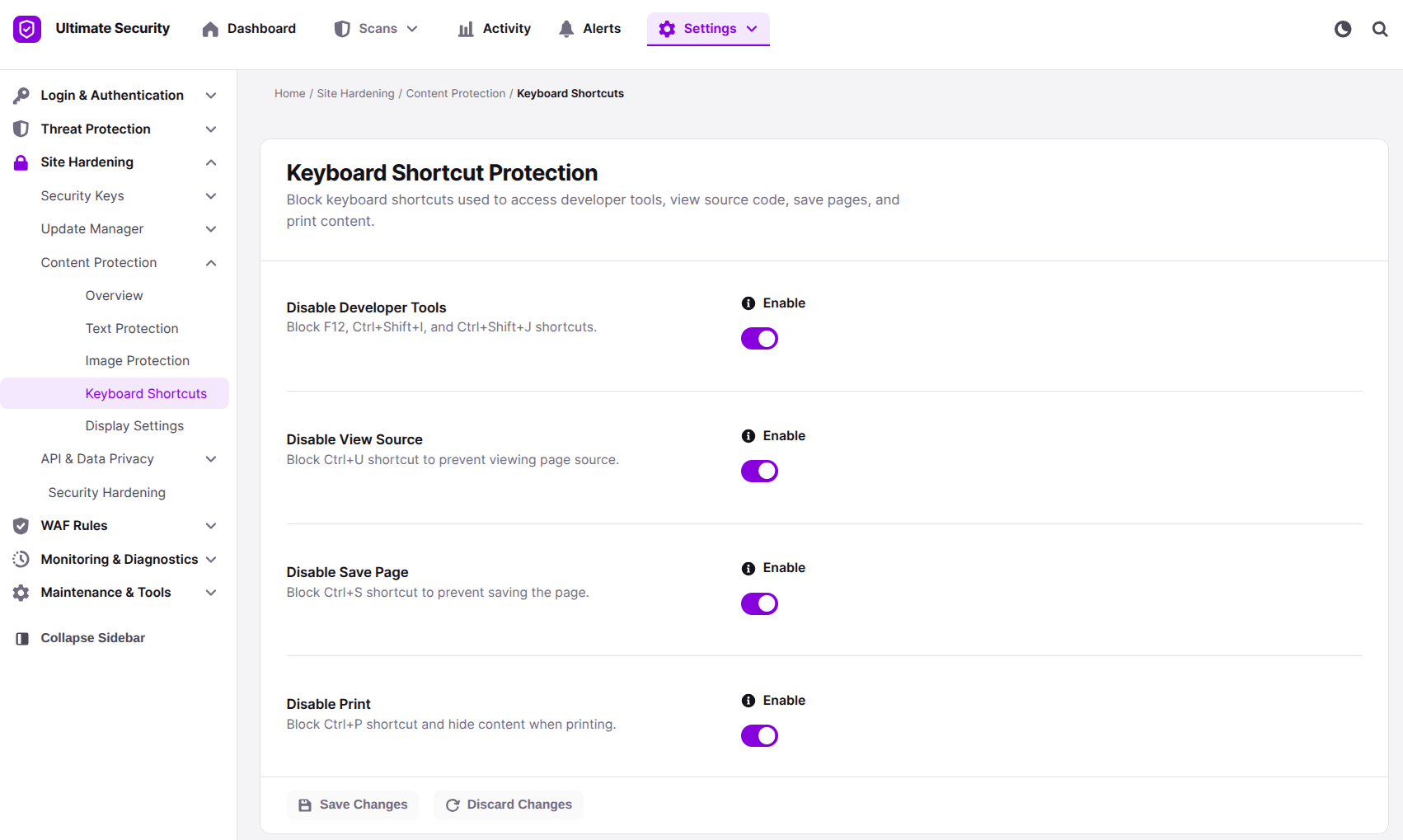
Disable Developer Tools
This setting blocks F12, Ctrl+Shift+I, and Ctrl+Shift+J, the shortcuts people use to open browser developer tools. Without them, visitors cannot easily inspect your site’s code. It matters most if you publish code snippets, tutorials, or any content where the HTML itself has value.
Disable View Source
This blocks the Ctrl+U shortcut, which opens the raw HTML of your page. From there, anyone can read your content without design or formatting in the way. Turning this on closes that route.
Disable Save Page
This blocks the Ctrl+S shortcut, which lets visitors save your entire webpage. Saving a page gives someone your full content in one step, so it is worth blocking on pages you care about.
Disable Print
This blocks the Ctrl+P shortcut and hides the print option, so visitors cannot print your website content. Think about your audience before you turn it on. A recipe blog may want visitors to print pages. A portfolio or course site probably does not.
Click Save after you choose your settings.
Customize What Visitors See When Protection Kicks In
Blocking an action without any explanation can confuse visitors who mean no harm. Someone who right-clicks to open a link in a new tab should get a friendly note, not a blank response. The Display Settings tab lets you control that message and set up protection for mobile visitors.
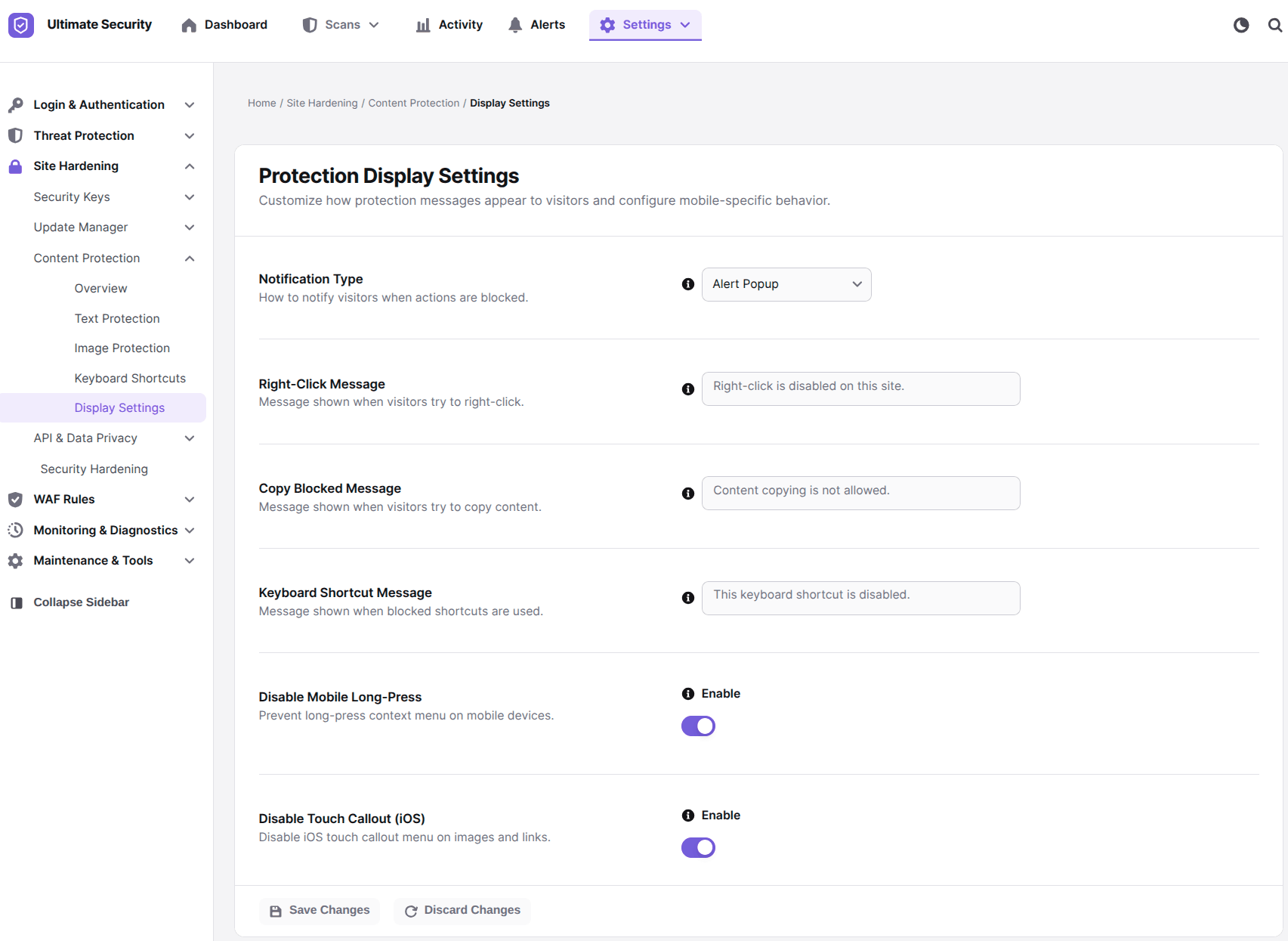
Notification Type
Notification Type sets how visitors learn that an action was blocked. You choose from a dropdown menu.
- Alert Popup shows a browser popup message right away. It is hard to miss, but it can feel pushy.
- Toast shows a small, subtle notification at the bottom of the screen. It tells visitors what happened without interrupting them, which makes it the friendliest choice for most sites.
- Silent blocks the action with no message at all. Use it if you do not want to draw attention to the protection.
Custom Messages
You can write your own message for three types of blocked actions. If you leave the fields blank, it will show the default message.
- Right-Click Message. This shows when a visitor right-clicks.
- Copy Blocked Message. This shows visitors when they try to copy on your site.
- Keyboard Shortcut Message. This shows when a blocked shortcut, such as F12 or Ctrl+U, is used.
Keep the messages short and polite. You are not trying to shame anyone, and a calm tone keeps innocent visitors from feeling accused.
Mobile Protection
Two settings cover mobile visitors.
- Disable Mobile Long-Press. On a phone, pressing and holding on content opens a long-press menu. This setting prevents that menu from appearing.
- Disable Touch Callout (iOS). This turns off the iOS touch callout menu that appears on images and links when you hold your finger on them.
If a good share of your visitors use phones, and for most sites they do, turn both on. Without them, the protection you set up for desktop leaves mobile open.
How to Test That Your Content Protection Is Actually Working
After setting up protection and assuming it works is a mistake a lot of beginners make. Taking two minutes to verify it is actually doing its job is worth it. Here is a simple way to test everything after you save your settings in Ultimate Security.
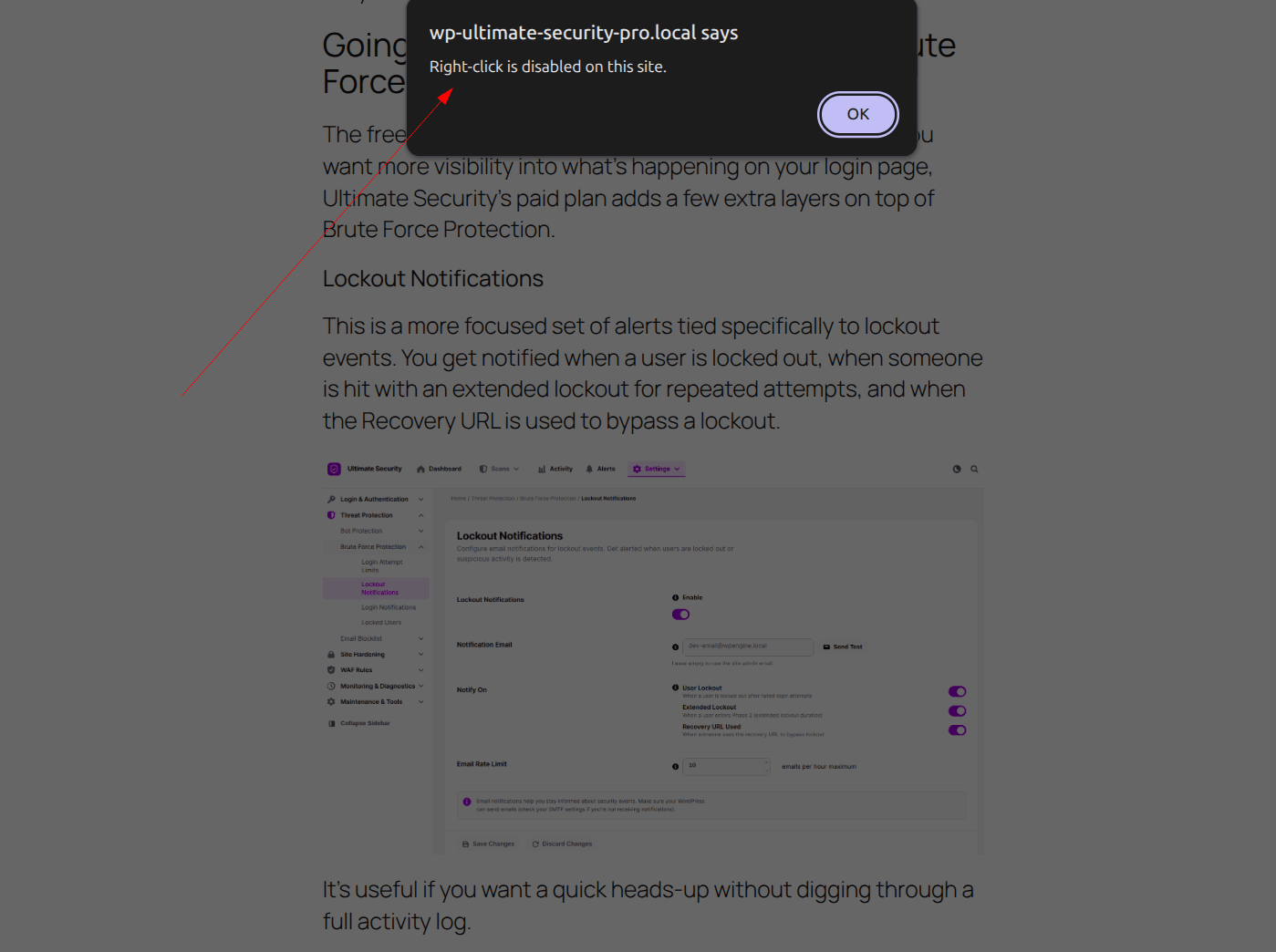
- Open a new browser window. The plugin excludes administrators, so you will not see any protection while logged in as an admin. A private or incognito window shows your site the way a regular visitor sees it.
- Try right-clicking. Click somewhere on your page content. If protection is working, you will see no menu, along with your custom message, unless you chose the Silent notification type.
- Try selecting and copying text. Click and drag across a paragraph. If Disable Text Selection is on, nothing will highlight. If only copy is blocked, pressing Ctrl+C (or Command+C on Mac) should do nothing or show your message.
- Try the keyboard shortcuts. Press F12 or Ctrl+Shift+I, then Ctrl+U, Ctrl+S, and Ctrl+P. Each one should be blocked if you turned on the matching setting.
- Test on your phone. Open the page on a mobile device and press and hold on an image or a block of text. If the mobile settings are on, the usual menu should not appear.
If something does not work, go back to the Content Protection settings and confirm the toggle is on and saved. Also make sure you are testing as a logged-out visitor and not as an admin.
Read the full Content Protection Documentation.
What Content Protection Cannot Do
No plugin can give you 100 percent protection, and it is better to know that up front. A determined person can still take a screenshot or retype your text by hand. A person with enough knowledge can find a way around most browser-based protections.
What content protection in WordPress does well is raise the effort needed to copy your work. Most people who take content want an easy target. When your site takes real effort to copy from, most of them move on. For stronger protection, combine the plugin settings with a few extra habits.
- Add a visible copyright notice in your footer. It tells visitors your work is owned, and it helps if you ever need to prove it.
- Put watermarks on important images. A watermark stays on the image even if someone gets a copy.
- Check for duplicates with a tool. It finds copies of your content elsewhere on the web, so you can act on them early.
Frequently Asked Questions
Does disabling right-click affect SEO?
No. Search engine bots crawl your HTML source code directly from the server. They do not interact with your page the way a browser visitor does. Disabling right-click or keyboard shortcuts has no impact on how Google indexes your content.
Will content protection slow down my WordPress site?
No, Ultimate Security’s content protection works with lightweight JavaScript. It does not add heavy scripts or external requests that would noticeably affect your page speed.
What happens if I block right-click? Will it frustrate my regular visitors?
It can, depending on your audience. People often right-click for innocent reasons, like opening links in a new tab. The Toast notification style and a polite custom message help soften this. You can also exclude logged-in users from protection if your audience is mostly registered members.
Is hotlink protection the same as disabling right-click on images?
No, they are different. Disabling right-click prevents visitors from saving images through the browser menu. Hotlink protection prevents other websites from loading your images directly from your server using your image URL. Both are useful and work better together.
Does content protection work on mobile devices?
Yes. The Display Settings tab includes specific options for mobile, including disabling long-press menus and iOS touch callouts.
Can I exclude admins and editors from content protection?
Yes. The plugin automatically excludes administrators. You can also manually exclude other user roles in the Protection Scope settings.
Can I protect only certain pages, not the entire site?
Yes. In the Content Protection Overview settings of Ultimate Security, you can choose “Specific Pages” instead of “Whole Site.” You can also add custom URL patterns to target specific sections.
Conclusion
Content theft is frustrating, but most of it is easy to prevent. The people copying your work are usually opportunists, and they pick the sites that make it simple.
If you run a blog, start with Disable Right-Click and Disable Text Selection. If images are your business, add the Image Protection settings, especially Image Overlay Protection and Hotlink Protection. Then run the five-step test in a private window, and adjust your notification message until it feels friendly.
Comments are moderated. Stay on topic: spam and link drops are removed.