How to Use Security Test Mode in WordPress Without Blocking Legimate Users
MMishu··
10 min read
When you enable a new security rule on your WordPress site, how do you know it will not affect legitimate users? A login restriction or authentication requirement might work as expected for one user but cause problems for another. If you discover the issue after applying the rule, you may need to troubleshoot it while your site is running.
Security Test Mode in WordPress lets you test security settings before applying their rules on the users. Instead of applying the restrictions, it simulates the security actions and records what would have happened.
In this guide, we will explain how Security Test Mode works in Ultimate Security, how to configure its settings, and how to review simulation results.
Table of Contents
What Is Security Test Mode in WordPress?
Security Test Mode is a safe environment for your security rules. When it is on, the plugin does not block anyone. It runs your rules in the background and logs what each one would have blocked. It records simulated events so you can review what would have happened if the rules had been enforced. The feature helps you:
Test security rules: See which supported rules would trigger restrictions without immediately enforcing those restrictions.
Choose user roles: Select which WordPress user roles should have their security rules simulated.
Review simulated events: Check which security module was involved, what action was tested, and why the event occurred.
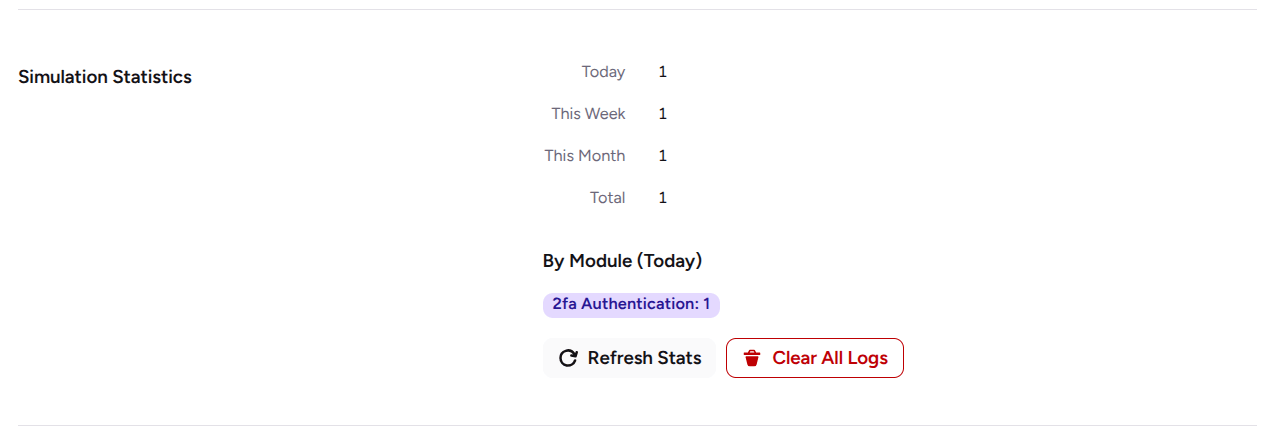
Track security activity: View simulation counts for today, this week, this month, and the total recorded period.
These details help you evaluate your security settings before enforcing them.
Test Mode does not disable every security restriction. Login rate limits for visitors who are not signed in remain enforced while Test Mode is active.
Why Test WordPress Security Settings Before Enforcing Them?
Security rules help protect your website, but a new setting can sometimes affect legitimate users. This matters when several people manage your site or when users need access to specific features to complete their work.
For example, suppose that you manage a WordPress site with several editors and authors. You enable a new security rule, but it interferes with an editor’s normal workflow. You might not discover the problem until that person tries to access the dashboard or perform a task.
Similar issues can happen when you change login protection or other security settings. A rule might be triggered by an action you didn’t expect, making it difficult to tell whether the configuration needs adjustment.
Testing your settings first helps you identify potential issues before enforcing the rules. You can review the recorded events, investigate unexpected results, and make changes where needed.
How to Enable Security Test Mode in WordPress
Ultimate Security includes Security Test Mode settings that let you control how security rules are simulated. Once you enable the feature, you can review simulated events and decide whether your configuration needs any changes. Follow these steps to get started.
Open the Test Mode settings
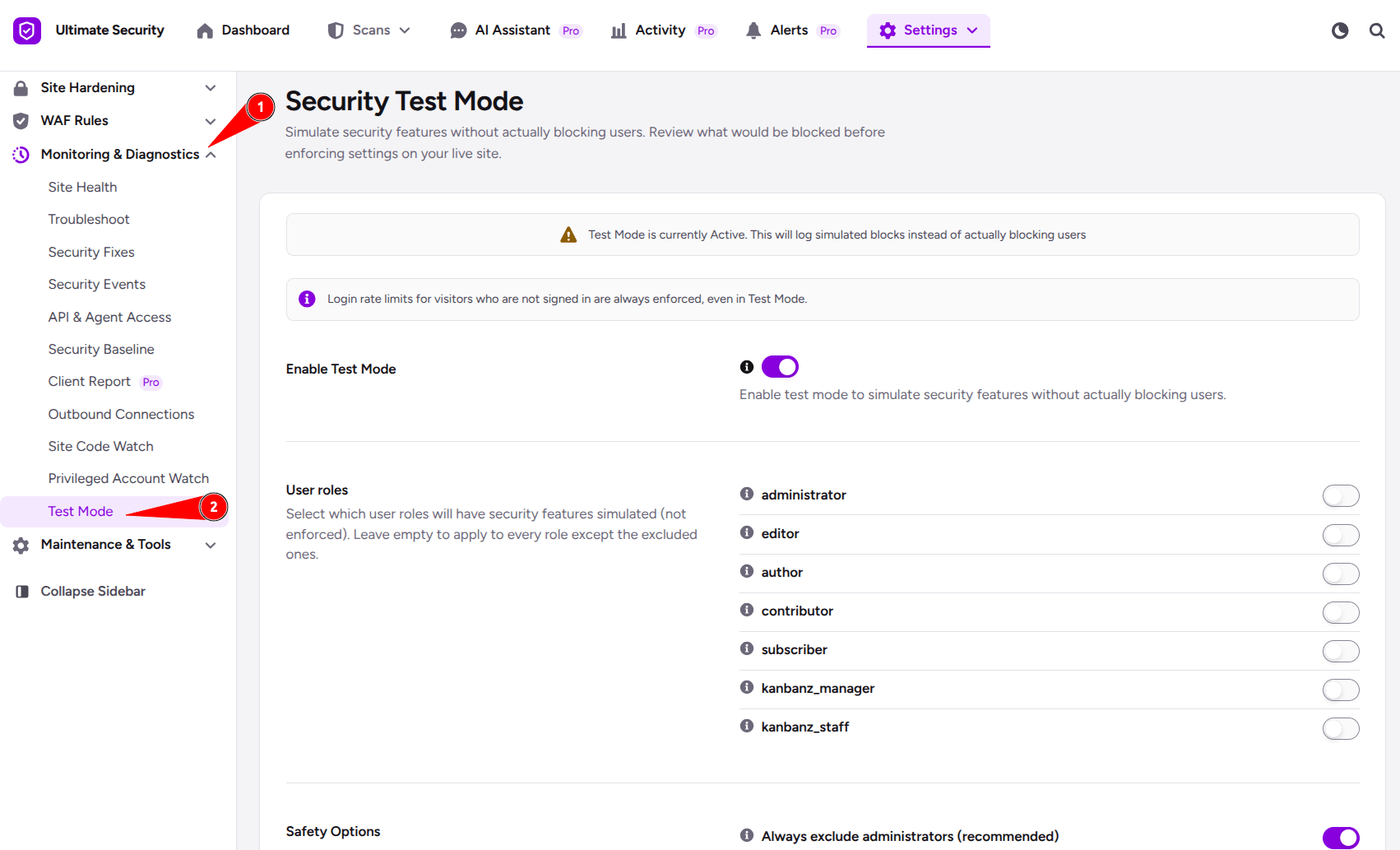
Log in to your WordPress dashboard and open the Ultimate Security settings. Find the Test Mode section from Settings → Monitoring & Diagnostics → Test Mode
Enable Test Mode
Turn on the Enable Test Mode switch. When Test Mode is active, a notice indicates that security blocks are being simulated instead of enforced. This helps you recognize that the feature is running.
Review the available settings
Choose which user roles to test and review the safety options. You can also enable activity logging to keep a record of simulated security events. These settings help you manage the testing process and review the results.
Save your changes
Click Save Changes to store your settings. If you want to undo changes you haven’t saved, click Discard Changes. Once Test Mode is active, allow relevant security events to occur and review the simulation results. If no events have been recorded yet, the Recent Simulations table may remain empty until a relevant event occurs.
Choose Which WordPress User Roles to Test
Different users have different responsibilities on a WordPress site. An administrator manages site settings, while an editor may focus on publishing and managing content. A security rule can affect these users differently depending on their roles and activities.
The User Roles setting lets you choose which roles should have their security rules simulated rather than strictly enforced. You will see the user list depending on the users you have on your site. You can choose from these roles:
Administrator
Editor
Author
Contributor
Subscriber
Select the roles you want to include in your testing. If you leave the selection empty, test mode applies to every role except those excluded by the safety settings.
For example, if several editors and authors work on your site, you can pay close attention to simulated events involving those roles. This helps you identify rules that might affect their normal activities.
Choose roles based on how your website operates. A site with multiple content contributors may need a different testing approach from one managed by a single administrator.
Configure the Security Test Mode Safety Options
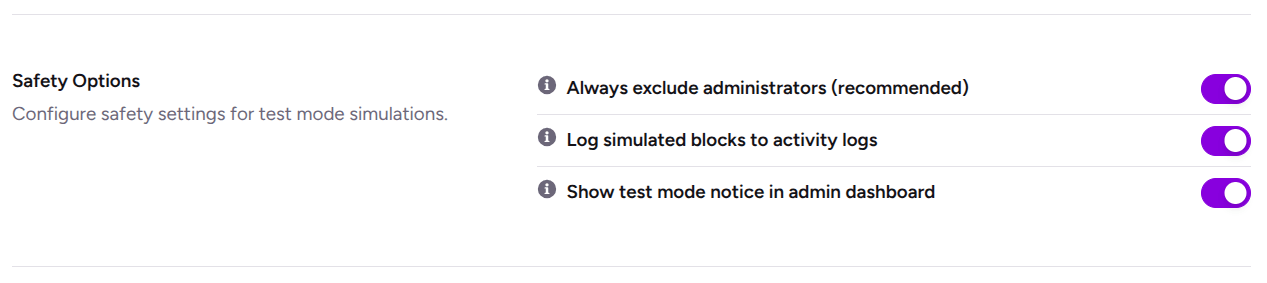
Testing security rules is more useful when you can review the results without losing track of your settings. The feature has safety options to help you manage simulated events and remind your team that Test Mode is active. Review these options before continuing.
Always Exclude Administrators
The Always exclude administrators option is recommended because it helps protect administrators from simulated blocks.
Administrators need access to the dashboard to review settings and investigate security events. Keeping this option enabled helps reduce the risk of disrupting administrative access during testing.
Log Simulated Blocks to Activity Logs
The Log simulated blocks to activity logs option records simulated rule violations in your system activity logs.
These records help you investigate security events and review how the rules behave. If you notice an unexpected event, the logs can help you identify the security module and action involved. Enable this option when you want a record of simulated events to review during testing.
Show Test Mode Notice in the Admin Dashboard
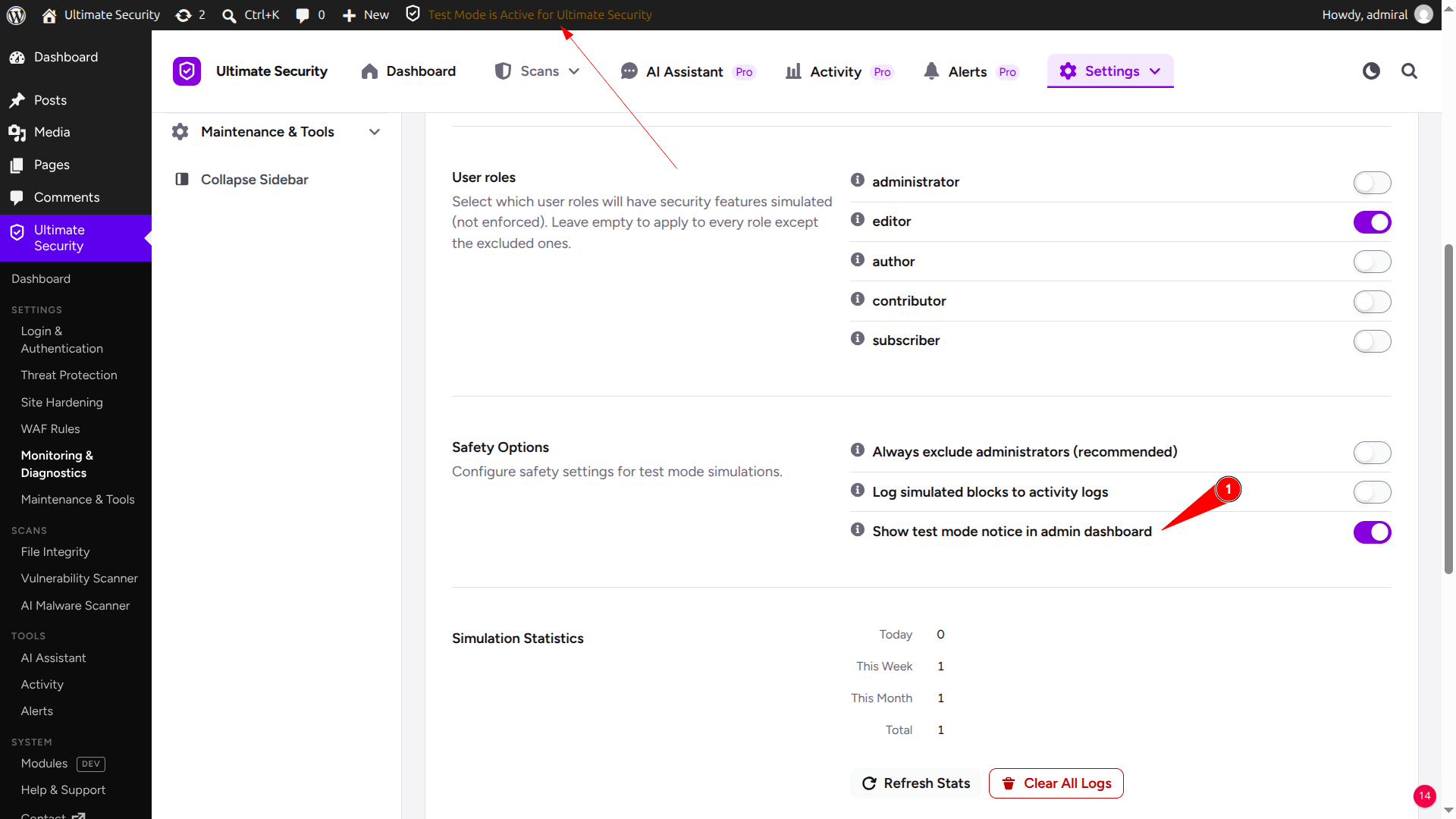
The “Show test mode notice” in the admin dashboard option displays a reminder across your WordPress dashboard while Test Mode is active.
This is useful when several people manage your site. Team members can see that security rules are being simulated rather than fully enforced, which helps avoid confusion when reviewing the site’s security behavior.
After configuring these options, click Save Changes to store your preferences.
How to Review Security Test Mode Statistics
Once Test Mode starts recording simulated events, the Simulation Statistics section gives you an overview of how often security rules would have triggered restrictions. You can review the following statistics:
Statistic
What it shows
Today
The number of simulated events recorded today.
This Week
The number of simulated events recorded this week.
This Month
The number of simulated events recorded this month.
Total
The total number of recorded simulated events.
Module breakdown
The number of simulated events associated with each security module.
These statistics help you see which security modules are generating simulated events.
For example, if the module breakdown shows repeated events related to 2FA Authentication, you can review the individual records to understand which authentication requirements were triggered.
A high count alone doesn’t mean the settings are wrong. You need to examine the events to determine whether they reflect expected behavior.
You can also use two controls to manage the results:
Refresh Stats: Fetches the latest simulation counts so you can review recent activity.
Clear All Logs: Clears the recorded simulation logs so you can start a fresh review. Check any records you still need before clearing them.
Remember that statistics show recorded events, not every possible problem with your security settings. If the relevant activity hasn’t occurred during testing, it won’t necessarily appear in the results.
Check Recent Simulations Before You Go Live
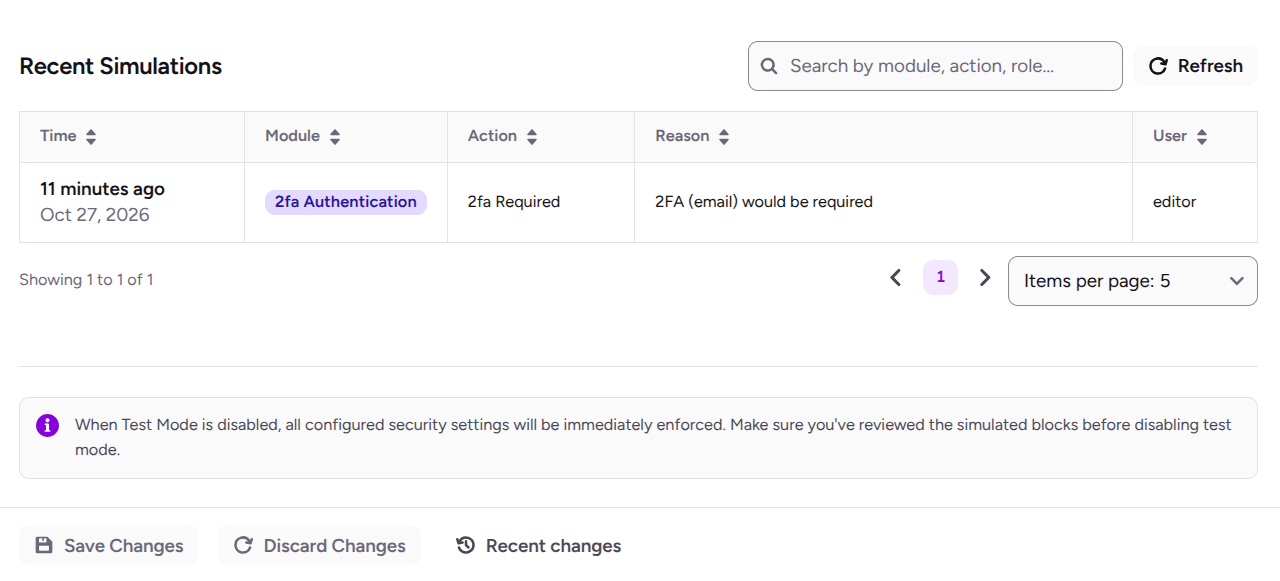
The Recent Simulations table lists every test event as it happens. Each row gives you five details:
Time shows when the event took place.
Module shows which security tool triggered the check.
Action shows which security requirement was being tested.
Reason gives a simple explanation of what would have happened.
Prevent code execution in the uploads folder (Recommended). This adds rules so PHP files in the uploads directory cannot run. A common attack is uploading a malicious file that looks like media. With this setting, the file may land in the folder, but it cannot execute.
You can search the table, change how many entries show per page, and use the pagination controls to read older entries.
Check the User column first. If a real Editor or Author shows up again and again for a rule you did not mean to aim at them, that rule would have locked them out. The Reason column tells you what would have happened, so you know what to change.
If you only see the accounts you wanted the rule to catch, the rule is ready.
When Should You Turn Off Security Test Mode?
After reviewing the simulation results, you need to decide whether your security settings are ready for enforcement. Turning off Test Mode ends the simulation behavior, allowing the applicable security rules to enforce their restrictions as configured. Before turning it off, work through these checks.
Review the simulated events.
Check the Recent Simulations table and investigate events involving legitimate users or normal site activities. Make sure you understand why the relevant rules were triggered.
Investigate unexpected results.
If an event suggests that a rule could affect a legitimate user, review its action and reason. Determine whether the behavior is expected or whether you need to adjust the relevant setting.
Update the configuration if necessary.
Change the relevant security settings if you find a potential problem. Save your changes and continue testing so you can review how the updated configuration behaves.
Review the results again.
Check the new simulation records and see whether the unexpected events continue. Review the available evidence before deciding that a setting is ready for enforcement.
Turn off Test Mode when you’re ready.
Once you have reviewed the results and addressed the issues you have identified, turn off Test Mode to enforce the applicable rules.
Don’t rely on an empty log or a low event count alone. Your site may not have generated the relevant security events during testing, so the available records may not show how the rules behave in every situation.
Testing helps you make a more informed decision, but it cannot guarantee that every possible issue has been identified.
Frequently Asked Question
What is Security Test Mode in WordPress?
Security Test Mode in WordPress lets you simulate supported security rules without enforcing their restrictions on affected users. It records simulated events so you can review the results before enforcing the rules.
Does Security Test Mode block users?
Test Mode simulates supported security restrictions instead of enforcing them. However, login rate limits for visitors who are not signed in remain enforced while Test Mode is active.
Can I test WordPress security settings without affecting legitimate users?
Yes. Test Mode lets you evaluate supported security rules and review simulated events before enforcing those rules. This helps you identify potential issues that could affect legitimate users. Keep in mind that login rate limits for visitors who are not signed in remain enforced.
Can I test specific WordPress user roles?
Yes. You can choose from the Administrator, Editor, Author, Contributor, and Subscriber roles. If you leave the role selection empty, Test Mode applies to every role except those excluded by your safety settings.
How do I know when my WordPress security settings are ready to enforce?
Review the simulation statistics and recent events. Investigate unexpected activity, check whether legitimate users could be affected, and adjust your settings if necessary. Test again after making changes, then turn off Test Mode when you’ve reviewed the available results and addressed the issues you’ve identified.
Conclusion
Security Test Mode in WordPress gives you a way to evaluate supported security rules before enforcing them on your site. You can choose which user roles to test, configure safety options, and review simulation statistics and event details to understand how your settings behave.
Use the recorded events to investigate unexpected activity and adjust your configuration where needed. When you’ve reviewed the available results and are ready to enforce your rules, turn off Test Mode and apply the configuration

Comments are moderated. Stay on topic: spam and link drops are removed.