
You can use AI to build a WordPress site in an afternoon now. Give a builder a short brief, and it lays out the pages and writes the copy. Ask a coding agent, and it will write you a custom plugin for the contact form, too.
What neither will do unprompted is check whether that plugin lets any logged-in user rewrite your settings. We build Ultimate Security, a free WordPress security plugin, so this guide leans toward that second half. It still starts with the build, because most of a site’s security gets decided while it’s being built.
The short version: build on a copy of the site, never the live one. Read every form handler the AI writes. Turn on two-factor login and login limits before launch. If an AI agent keeps access after that, give it its own account with the smallest role that does the job.
Table of Contents
Why AI-built sites need more checking
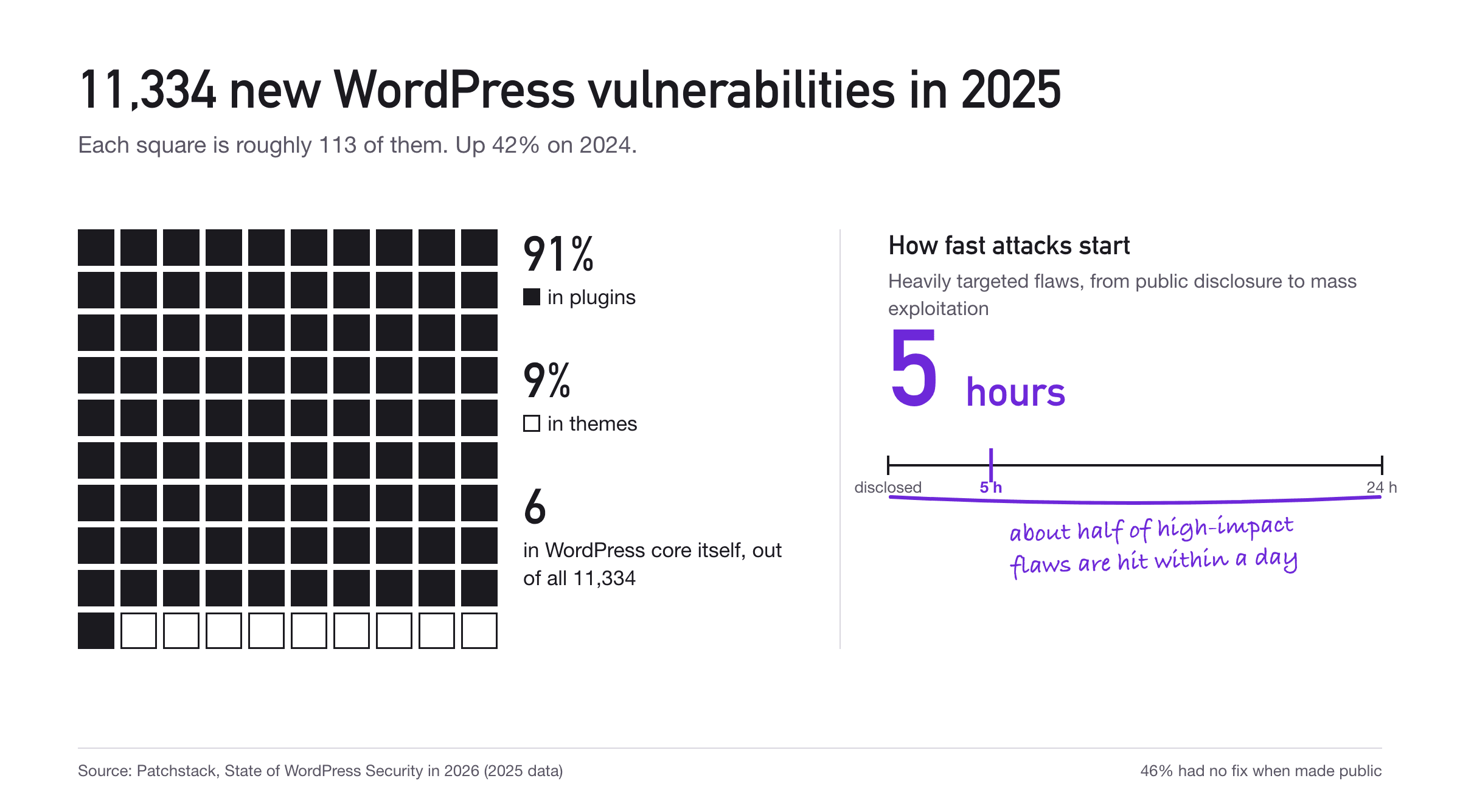
WordPress core is rarely how sites get broken into. Plugins are. Patchstack’s State of WordPress Security in 2026 report counted the 2025 numbers:
| Metric (2025) | Figure |
|---|---|
| New vulnerabilities in the WordPress ecosystem | 11,334 (up 42% on 2024) |
| Found in plugins | 91% |
| Found in themes | 9% |
| Found in WordPress core | 6 vulnerabilities |
| High severity, likely to be used in mass attacks | About 17% |
| No fix available when made public | 46% |
| Median time to mass exploitation, heavily targeted flaws | 5 hours |
AI adds to this in one specific way. It makes custom plugin code close to free. A plugin only your site runs is a plugin nobody else reports bugs in, and nobody else will patch. If the AI skipped a check, you’re the only one who can find out.
What changed in WordPress this year
WordPress 7.0 came out on May 20, 2026 with an AI Client in core. It’s one PHP interface that plugins use to talk to OpenAI, Anthropic, Google and other providers. You add your provider keys once, on a new Connectors screen, and every plugin that supports it uses them. Core itself makes no AI calls until you set a provider up.
Two other pieces matter more for security. The Abilities API lets a plugin describe what it can do in a format machines can read. The MCP Adapter, a separate plugin, then offers those abilities to outside agents like Claude Code, Cursor or Codex over the Model Context Protocol. That’s useful. It’s also a new way in, and it deserves the same care as a login.
Patchstack’s report has a line about the wider shift: “Vibe coding is here to stay, and it’s rapidly merging with WordPress.” Agencies generate small plugins on demand. Site owners paste AI snippets into functions.php. Most of that code runs fine. Some of it skips checks you only notice after someone abuses them.
The workflow
This guide follows five steps. Security work happens in all of them, though most of it lands in steps 3 and 4.

Choosing your AI tools
Most people end up mixing tools. Here’s how the main types compare. Higher is better for speed and control; higher is worse for lock-in and security risk.
| Tool type | Examples | Speed | Control | Lock-in risk | Security risk |
|---|---|---|---|---|---|
| Hosted AI site builders | WordPress.com and host-bundled builders | 5 | 2 | 3 | 2 (the host manages most of it) |
| Page-builder AI | Elementor AI and Angie, Divi AI | 4 | 3 | 4 (tied to the builder) | 3 |
| Coding agents | Claude Code, Cursor, GitHub Copilot, Codex | 3 | 5 | 1 | 4 (writes real code) |
| In-dashboard AI via Connectors | Plugins using the WordPress 7 AI Client | 4 | 3 | 1 | 3 (your API key, your bill) |
Security risk here means how much new, unreviewed code or access the tool adds. A hosted builder that arranges blocks adds little. A coding agent that writes you a plugin adds a lot.
Which AI tool should you build with?
If you’re comfortable in a terminal and can read PHP, use a coding agent on a local copy. If not, and you want to rearrange layouts by hand later, use page-builder AI. If you’d rather not touch layouts at all, a hosted AI builder is the simplest route.
Page-builder AI has one catch: the output looks great in a demo and can be awkward to edit by hand. Try changing one generated section yourself before you build a whole site on it.
Step 1: Plan with AI to Build a Secure WordPress Site
AI is most useful here, and nothing you do at this stage can break a live site. Ask for structure rather than design. A good planning prompt names the business, who visits, and the one thing you want visitors to do. Fill in the brackets:
I run [what the business does] in [city]. Most visitors are [who they
are] and they come to [the one thing you want them to do].
Plan a WordPress site:

1. A sitemap of no more than 8 pages
2. The goal of each page and its call to action
3. Which pages need forms, and what each form collects
4. Custom post types or fields I actually need (say "none" if none)
5. Plugins required for each feature, keeping the list short
Points 3 and 5 look like planning questions, but they’re security decisions:
| Planning choice | What it costs you later | What to ask the AI |
|---|---|---|
| Each new form | Input to validate, spam to block | “Can one form do this job?” |
| Each new plugin | Updates for as long as the site exists | “Can core WordPress or the theme do this already?” |
| Each custom post type or field | More custom code to review | “What breaks if we skip this?” |
| User registration | Accounts that attackers can create too | “Do visitors really need accounts?” |
If the AI suggests twelve plugins, push back. Save the final plan, because you’ll check the finished site against it in step 3.
Step 2: Build it
Once the plan is ready, it’s time to turn it into a working WordPress site. Choose the approach that matches your skills and keep the build separate from your live site so you can review changes before they reach visitors.
Route A: No code
If you don’t want to write code, AI-powered site builders can help you create pages, layouts, and content from your plan. You still need to review the results, limit the number of plugins, and check that everything works as expected before launch.
- Start on a staging site. Most hosts create one in a click.
- Generate the layout from your step 1 plan with your host’s AI builder or a page builder’s AI.
- Rewrite the generated copy yourself. AI copy for an accountant in one city reads exactly like AI copy for an accountant anywhere.
- Install only the plugins on your shortlist. On wordpress.org, check when each one was last updated, how many sites use it, and whether support questions get answers.
Route B: A coding agent and WP-CLI
A coding agent can do far more than a builder. Run it against a local or staging copy, never production.
# Local site, then let the agent work against it
wp core download
wp config create --dbname=site --dbuser=root --dbpass=secret
wp core install --url=http://localhost:8080 --title="Test Site" \
  --admin_user=dev [email protected]
Give the agent small, specific jobs, such as “Create a block theme with these five templates” or “Write a plugin that registers a service post type with these fields.” Small jobs produce code you can actually read.
Keep everything in Git so every change the agent makes is a diff you can see and undo. And don’t give the agent production credentials. It doesn’t need them to build a theme.
Step 3: Review what the AI wrote
Most people skip this step, and it’s where AI-built sites get hurt. AI models write code that works. They’re less reliable at the routine checks WordPress expects, and the same ones go missing again and again:
| Missing check | What it stops | WordPress function |
|---|---|---|
| Nonce | A crafted link tricking a logged-in admin into submitting a form (CSRF) | wp_nonce_field(), check_admin_referer(), wp_verify_nonce() |
| Capability check | A subscriber running an admin-only action | current_user_can() |
| Sanitising input | Junk or attack strings being saved | sanitize_text_field(), absint(), sanitize_email() |
| Escaping output | Stored scripts running in visitors’ browsers (XSS) | esc_html(), esc_attr(), esc_url() |
| Prepared SQL | SQL injection | $wpdb->prepare() |
A typical AI form handler, before and after
A form handler shows why working code isn’t always secure code. The first example below saves an email address without checking the user’s permissions or validating the request, while the revised version adds the checks needed to protect the setting.
Review an AI-written form handler
What the AI wrote. It works, and anyone logged in, at any role, can change where your quote requests go:
add_action( 'admin_post_save_quote_email', function () {
    update_option( 'quote_email', $_POST['email'] );
    wp_redirect( admin_url( 'options-general.php?page=quotes' ) );
    exit;
} );
With the checks added (capability check, nonce, sanitising, validation and a safe redirect):
add_action( 'admin_post_save_quote_email', function () {
    if ( ! current_user_can( 'manage_options' ) ) {
        wp_die( 'Not allowed.', 403 );
    }
    check_admin_referer( 'save_quote_email' );

    $email = sanitize_email( wp_unslash( $_POST['email'] ?? '' ) );
    if ( ! is_email( $email ) ) {
        wp_die( 'Invalid email.', 400 );
    }

    update_option( 'quote_email', $email );
    wp_safe_redirect( admin_url( 'options-general.php?page=quotes' ) );
    exit;
} );
And in the form: wp_nonce_field( 'save_quote_email' );
How to review it
First, ask the agent to review its own code. Ask for a list of gaps before any fixes, or it will quietly rewrite things you didn’t ask about:

Review this plugin as a WordPress security reviewer. For every form
handler, AJAX action and REST route, list:
- the nonce check (or "missing")
- the capability check (or "missing")
- how each input is sanitised
- how each output is escaped
- any SQL that isn't using $wpdb->prepare()
Don't fix anything yet. Just list the gaps.
Then run a real checker. PHPCS with the WordPress Coding Standards flags missing nonces, unescaped output and unprepared SQL. The Plugin Check plugin does similar work from inside wp-admin.
Between them, the AI review and the checker catch most of the usual gaps. Anything that handles money, logins or personal data still needs a person to read it.
Step 4: Lock the site down
Every WordPress site needs the same basics before launch, however it was built:
| Priority | Task | Why |
|---|---|---|
| Must | Automatic updates for minor core releases and trusted plugins | Heavily targeted flaws are mass-exploited a median of 5 hours after disclosure |
| Must | Two-factor login for admins and editors | A stolen password on its own stops being enough |
| Must | Lockouts after repeated failed logins | Password-guessing bots give up |
| Must | Backups stored off the server, plus one test restore | Your way back if anything else on this list fails |
| Should | CAPTCHA on login, registration, reset, comment and checkout forms | Fewer bot sign-ups and less spam |
| Should | Password rules that reject breached passwords | Attackers try those first |
| Should | Scheduled vulnerability scans of plugins and themes | You hear about known flaws in what you run |
| Should | Delete unused plugins and themes | Deactivated code can still be attacked if its files are reachable |
You can cover this with a few separate plugins, or partly through your host. Here’s how it maps to the plugin we build.
Using Ultimate Security
Ultimate Security is free on wordpress.org and needs WordPress 5.6+ and PHP 7.1+.
| Checklist item | Ultimate Security feature |
|---|---|
| Two-factor login | Email code or authenticator app, set per role. Works on the WordPress, WooCommerce and Ultimate Member login forms |
| Login limits | Lockouts that get longer for repeat offenders, permanent IP blocking, custom login URL |
| Password rules | Length and character rules, reuse prevention, forced resets, a breached-password check through Have I Been Pwned (only part of a hash leaves your server) |
| CAPTCHA | Google reCAPTCHA or Cloudflare Turnstile on login, registration, reset, comment and WooCommerce forms. If the CAPTCHA service goes down, the forms keep working |
| Vulnerability scans | Scheduled scans of core, plugins and themes. The free WPVulnerability database needs no key; WPScan and Patchstack keys are optional. It also flags plugins that haven’t been maintained in a long time and compares core files with the official copies |
| Updates | Automatic update scheduling with update windows, quiet periods and short delays, plus email notices |
| Sessions | Session limits per account, logout after inactivity, and a list of active sessions you can end |
Three other parts of the plugin are useful on an AI-built site. Security Fixes lists problems in plain language, with a fix you can preview before applying it. Troubleshoot adds the plugin’s own checks to Site Health, with fixes you can copy. Security Baseline records how the site is set up today and tells you when that changes, which helps when an agent or a colleague changed something you didn’t expect.
If you’re not sure how strict to be, the setup wizard suggests settings and shows the changes before applying them, with undo. Test Mode logs what would have been blocked without blocking anyone, and switches itself off after seven days. On a busy site, run it for a few days before turning protection on for real.
Whichever plugin you pick, install only one that handles login protection. Two plugins that both run lockouts or 2FA can fight each other, and the person they lock out is usually you.
Step 5: Decide what an AI agent may do
With the build done, there’s a newer question: should an AI agent keep access to the live site, to write posts, run updates or fix problems?
It can save real time. It also means software is signing in as a real user, with that user’s permissions, and acting on instructions you didn’t write word for word.
How agents get in
AI agents need a way to communicate with your WordPress site before they can perform tasks. Common options include application passwords, the MCP Adapter, and WP-CLI over SSH, but each method provides a different level of access and requires its own safeguards.
| Access method | How it works | What the agent can do | How to limit it |
|---|---|---|---|
| Application passwords | A REST API key tied to a user, in core since WordPress 5.6 | Anything that user’s role allows | Give the agent its own low-role user; review and revoke keys |
| MCP Adapter | Offers registered abilities to agents over MCP | Whatever abilities your plugins registered | Install it only if you need it, and check which abilities exist |
| WP-CLI over SSH | The server’s command line | Almost anything, bypassing WordPress permissions | Don’t give an agent SSH on a live site |

Which role to give it
The role you assign to an AI agent determines what it can read or change on your site. Giving it more permissions than necessary increases the risk of accidental or unwanted changes, so start with the lowest level of access that supports its task.
Which WordPress role should your AI agent get?
Start with the lowest role and move up only when a job needs it.
| Role | Good for | Risk if the agent goes wrong |
|---|---|---|
| Read-only (no write abilities) | Security reports, content audits | Low: it can only look |
| Contributor | Drafting posts for you to review | Low: nothing goes live without you |
| Author or Editor | Publishing and editing content | Medium: public pages can change |
| Administrator | Avoid for agents | High: plugins, users and settings |
Rules we follow
A separate account and a limited role are good starting points, but they aren’t enough on their own. Follow these rules to control what an agent can access, review its actions, and reduce the risk of it making changes without your approval.
- Give the agent its own user account. Never let it use yours.
- Start read-only. Let it report on the site for a while before it changes anything.
- Keep a person on risky actions. Installing plugins, adding admins and changing security settings should wait for someone to confirm.
- Log what it does, with which key, and when.
- Treat your own content as untrusted. A comment, a user bio or a guest post can contain text written for an AI to read (“ignore your previous instructions and…”). That’s prompt injection. An agent that reads your content and can also change your site is the combination to avoid; keep those jobs apart where you can.
- Check what’s exposed before connecting anything. Plugins register REST routes, AJAX actions and abilities you never asked for.
- Set a spending limit with your AI provider. Don’t count on WordPress to cap what the AI Client spends.
Where Ultimate Security fits
If you use AI agents on your WordPress site, you need a way to review their access and monitor security-related changes. Ultimate Security includes features that help you manage application passwords, inspect API access, and require confirmation for risky actions.
| Feature | What it does | Default |
|---|---|---|
| Application Passwords page | Lists every app password on the site, lets you remove ones you don’t recognise, and turns them off per site or per role. Users with 2FA can’t use app passwords unless you allow it, so a leaked key can’t skip the second factor | Always available |
| Confirm Risky Actions | Asks for a password before plugin installs, new admins and similar changes, including changes made through the API, so an agent can’t quietly promote itself | Off |
| API & Agent Access | Shows which apps and AI tools can reach the site, and which plugin opened each route | Always available |
| Outbound Connections | Shows which outside services your plugins contact. It only watches; nothing is blocked | Off |
| Security Events | A log of recent sign-ins and security changes | Always available |
| Optional AI tool access | A connected AI tool can read your security summary and suggest fixes, but can’t make changes | Off |
We built that last one read-only on purpose, and it’s a good default for any tool: let the AI find and explain problems, and leave the “apply” button with a person.
Two example setups
The right setup depends on how you build and maintain your site. These two examples show how a solo site owner and a freelancer or small agency can apply the same security principles while working with different tools and levels of technical control.
| Solo site owner, no code | Freelancer or small agency | |
|---|---|---|
| Build with | Host AI builder or page-builder AI | A coding agent on local or staging, everything in Git |
| Plugins | Five to eight, each one justified | A shortlist per client, reviewed at handover |
| Code review | Avoid custom code | AI self-review, PHPCS, and a person reading the risky parts |
| Security | One security plugin with 2FA, login limits, CAPTCHA and scans | The same, with Test Mode on during launch week |
| Updates and backups | Automatic updates, backups off the server | The same, plus a tested restore for each client |
| AI agents on the live site | None with write access | Their own low-role users, read-only first |
| Every month | Read the scan results | Review app passwords and remove unused keys |
Launch-day checklist
Before making your AI-built site public, check that the code, security settings, backups, and AI access controls are ready. Use this checklist to review the essentials and catch common problems before visitors start using the site.
Build
First, check the site itself and review any custom code generated by AI. Confirm that the site has been tested on staging, security checks have been completed, and unused plugins and themes have been removed.
- Site built and tested on staging, not live
- Every form, AJAX action and REST route has a nonce and a capability check
- PHPCS or Plugin Check run on custom code, and the warnings fixed
- Unused plugins and themes deleted
Lock down
Next, enable the security measures that protect your site against common attacks. Check automatic updates, two-factor authentication, login limits, CAPTCHA, vulnerability scans, and off-site backups.
- Automatic updates on
- 2FA on for every admin and editor
- Login lockouts and CAPTCHA on
- Vulnerability scan run, with nothing critical left open
- Off-server backup taken and one restore tested
AI agents
Finally, review any AI agents that will continue working with your site after launch. Make sure each agent has its own limited-access account, remove unused application passwords, and set a spending limit with your AI provider.
- AI agents have their own low-role users, and unknown app passwords are removed
- Spending limit set with your AI provider
Frequently Asked Question
Can AI build a complete WordPress site?
For most small business and brochure sites, yes. Hosted builders and page-builder AI produce pages, layouts and copy from a short brief. You’ll still want to rewrite the copy, cut plugins you don’t need, and set up security yourself.
Is AI-generated WordPress code safe?
It usually runs, but running isn’t the same as safe. AI tools often leave out nonces, capability checks, input sanitising and output escaping. Review every form handler, AJAX action and REST route, and run PHPCS with the WordPress Coding Standards before the code goes live.
Does WordPress 7.0 have AI built in?
WordPress 7.0, released May 20, 2026, added an AI Client and a Connectors screen for AI provider keys. Core makes no AI calls until you configure a provider. The MCP Adapter, which lets outside agents use plugin abilities, is a separate plugin.
Should I give an AI agent admin access to my WordPress site?
No. Create a separate user for the agent with the lowest role that does the job, start it read-only, and make risky actions such as installing plugins or adding admins wait for a person to confirm.
What is prompt injection on a WordPress site?
Text in your content, such as a comment, a user bio or a guest post, written to give instructions to an AI that reads it. If that AI can also change your site, the text can steer it. Keep reading and changing as separate jobs, and confirm risky actions by hand.
What’s the best free security plugin for an AI-built WordPress site?
Pick one that covers 2FA, login limits, CAPTCHA and vulnerability scanning, and don’t stack several. Ultimate Security is a free option on wordpress.org that covers those and adds application password controls and an API & Agent Access view for sites that use AI tools. We make it, so weigh our view accordingly.
How many security plugins should I use?
One with login protection. Two plugins that both handle lockouts or 2FA can conflict and lock out real users.
Conclusion
Almost everything here is old advice: review the code, keep plugins few and updated, turn on 2FA, limit logins, keep backups somewhere else. AI didn’t change any of that. It just makes it easier to skip, because the site looks finished so early.
The new part is the agents. If you let one keep a key to your site, decide in advance what it may do, give it a role to match, and read its log now and then.
Comments are moderated. Stay on topic: spam and link drops are removed.