

If you are fixing a slow WooCommerce store and you have already tried caching plugins, image compression, and CDN setups without much result, the real problem is probably sitting deeper. Most WooCommerce performance issues come from wrong server defaults and background processes that run on every page load without you knowing. Every single one is something that causes real slowdowns in production stores.
One important note before you start: Most of these tips require access to your server configuration files like php.ini, nginx.conf, my.cnf, and Redis settings. That means you need a VPS or dedicated server. If you are on shared hosting, many of these will not apply to you.
Database and MySQL
In our point of view most WordPress performance problems start here. Wrong defaults, bloated tables, missing indexes. These show up in nearly every store audit.
Your Autoloaded Options Are Probably Way Too Large
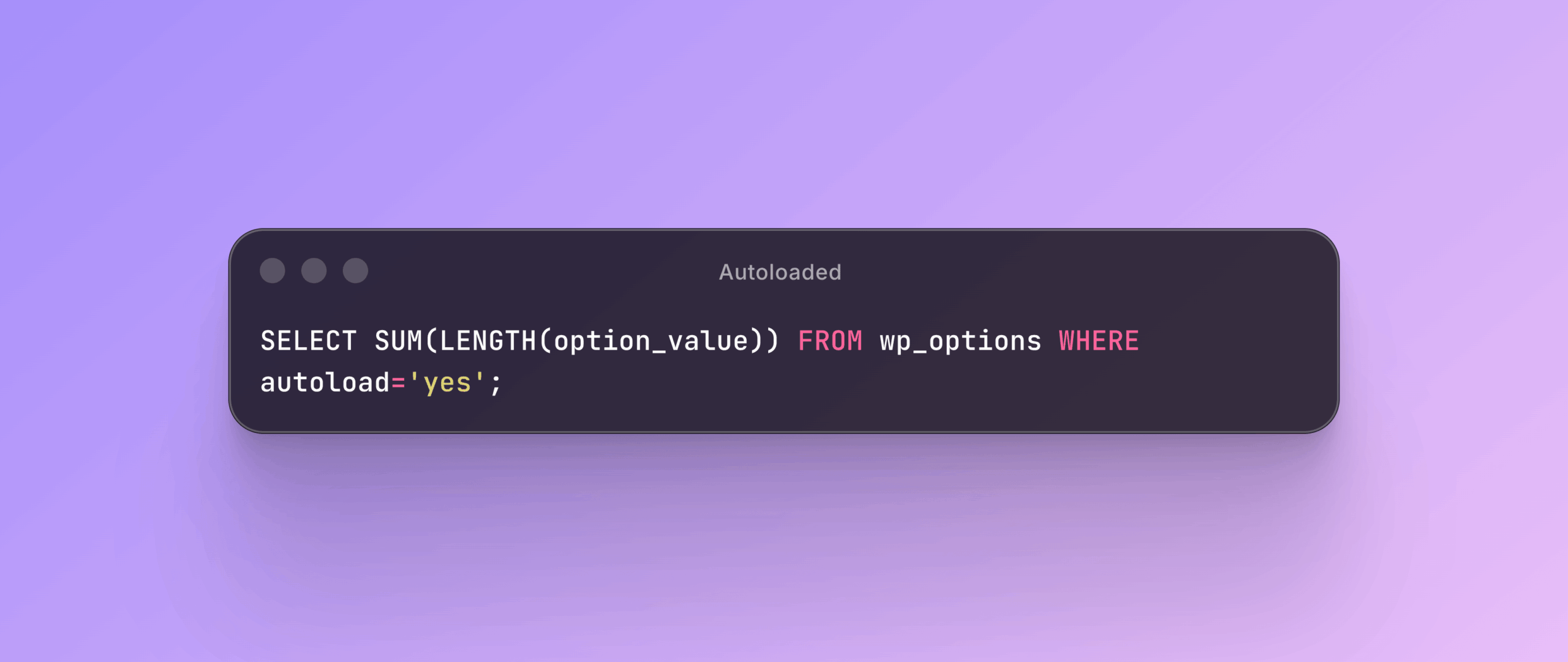
Run this query right:
Snippet:
SELECT SUM(LENGTH(option_value)) FROM wp_options WHERE autoload='yes';If the result is above 1MB, every single page load is pulling that entire dataset into memory. WordPress loads all autoloaded options on every request with no exceptions.
The usual culprits are settings left behind by plugins you deleted years ago, WooCommerce transients that were incorrectly marked as autoload, and old theme options from previous redesigns. I have seen stores with 8MB of autoloaded data where the owner was blaming their hosting company for slow speeds.
MySQL Query Cache Is Making Things Worse
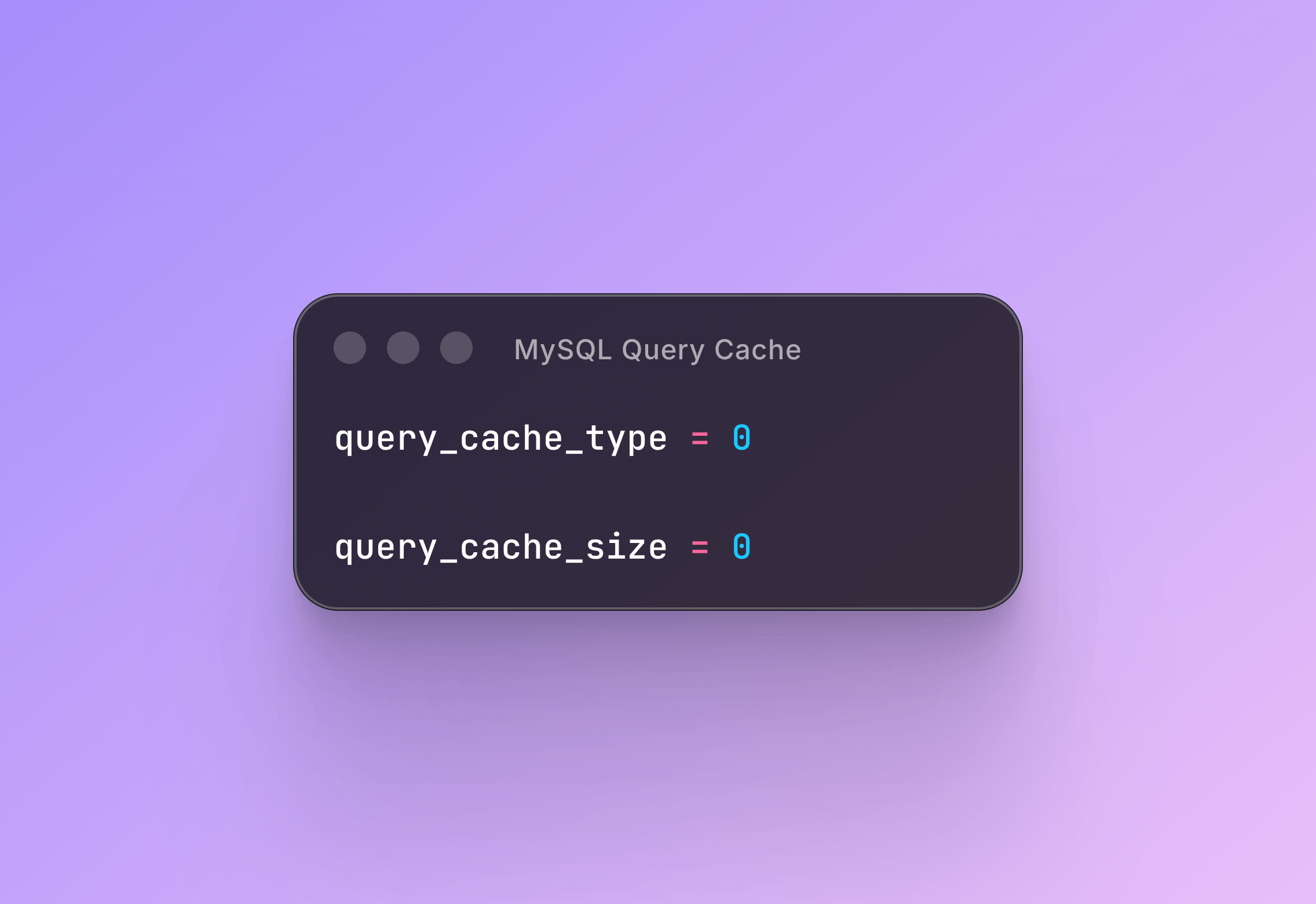
If you are running MySQL with query_cache enabled, turn it off now. MySQL deprecated it in version 5.7 and removed it in 8.0 for a good reason.
Every time something writes to the database, which in WooCommerce means every order, every cart update, and every stock change, the query cache acquires a global mutex lock. Every other query has to wait while the cache invalidates. One order can trash hundreds of cached queries at once.
What was supposed to be a cache becomes a bottleneck.
Snippet:
query_cache_type = 0
query_cache_size = 0
If you are on MariaDB and think you are not affected, you have the same problem with the same mutex lock.
MySQL Is Reading From Disk on Every Product Page
MySQL’s default innodb_buffer_pool_size is 128MB. That is barely enough for a fresh WordPress install with no content. Once your WooCommerce database grows past 500MB (and with a real product catalog and order history, it will), MySQL starts reading from disk on every query. The difference between memory access and disk access is the difference between a 2ms query and a 200ms one.
Set innodb_buffer_pool_size to 70 to 80 percent of available RAM if your database runs on its own server. If your app and database share the same machine, aim for around 40 percent.
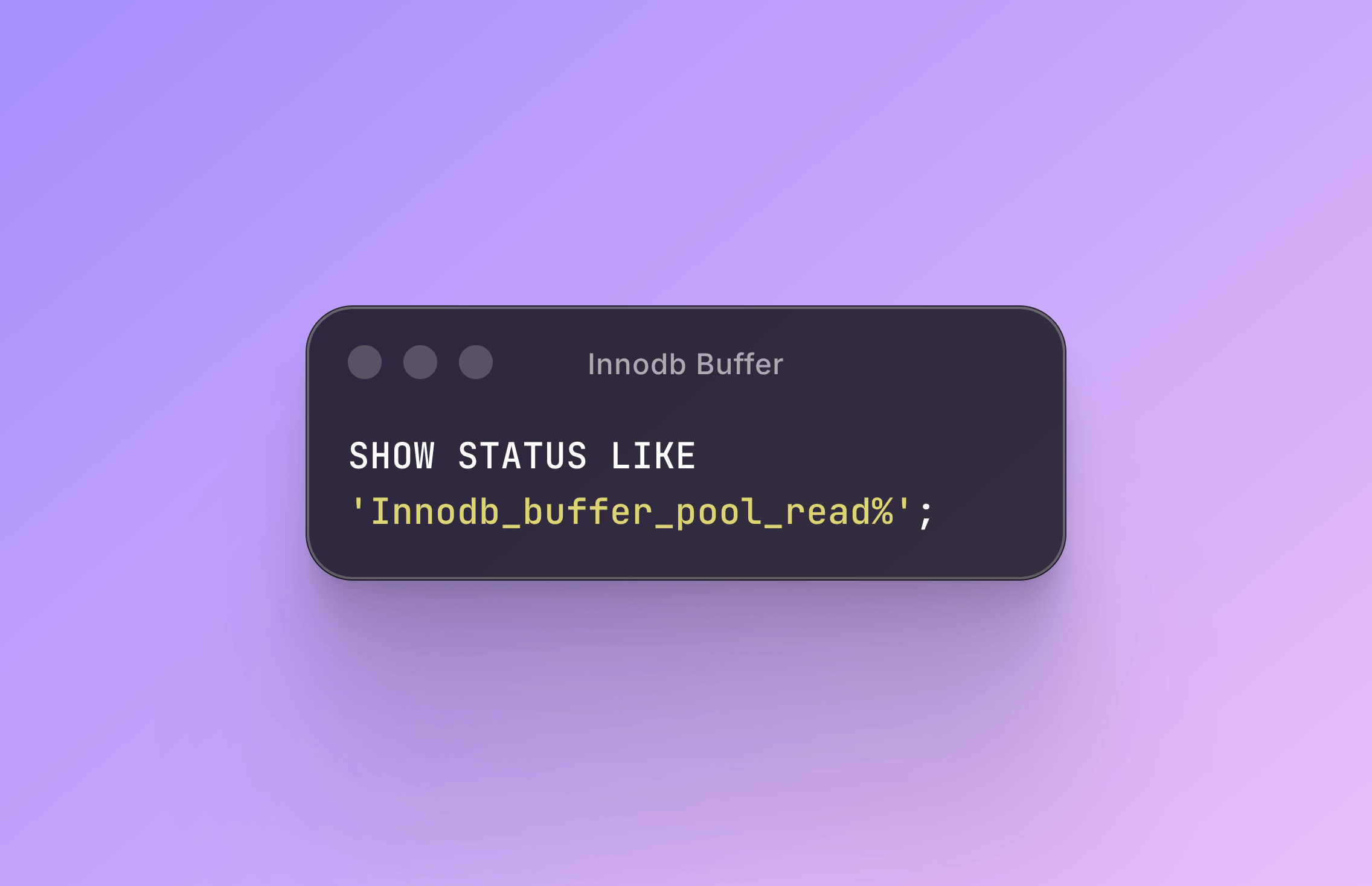
Check your current hit ratio:
Snippet:
SHOW STATUS LIKE 'Innodb_buffer_pool_read%';If Innodb_buffer_pool_reads is more than 1 percent of Innodb_buffer_pool_read_requests, you are hitting disk too often. This is probably the single biggest performance gain available at the database level, and most hosts leave it at the default.
Payment Gateways Are Quietly Bloating Your Database
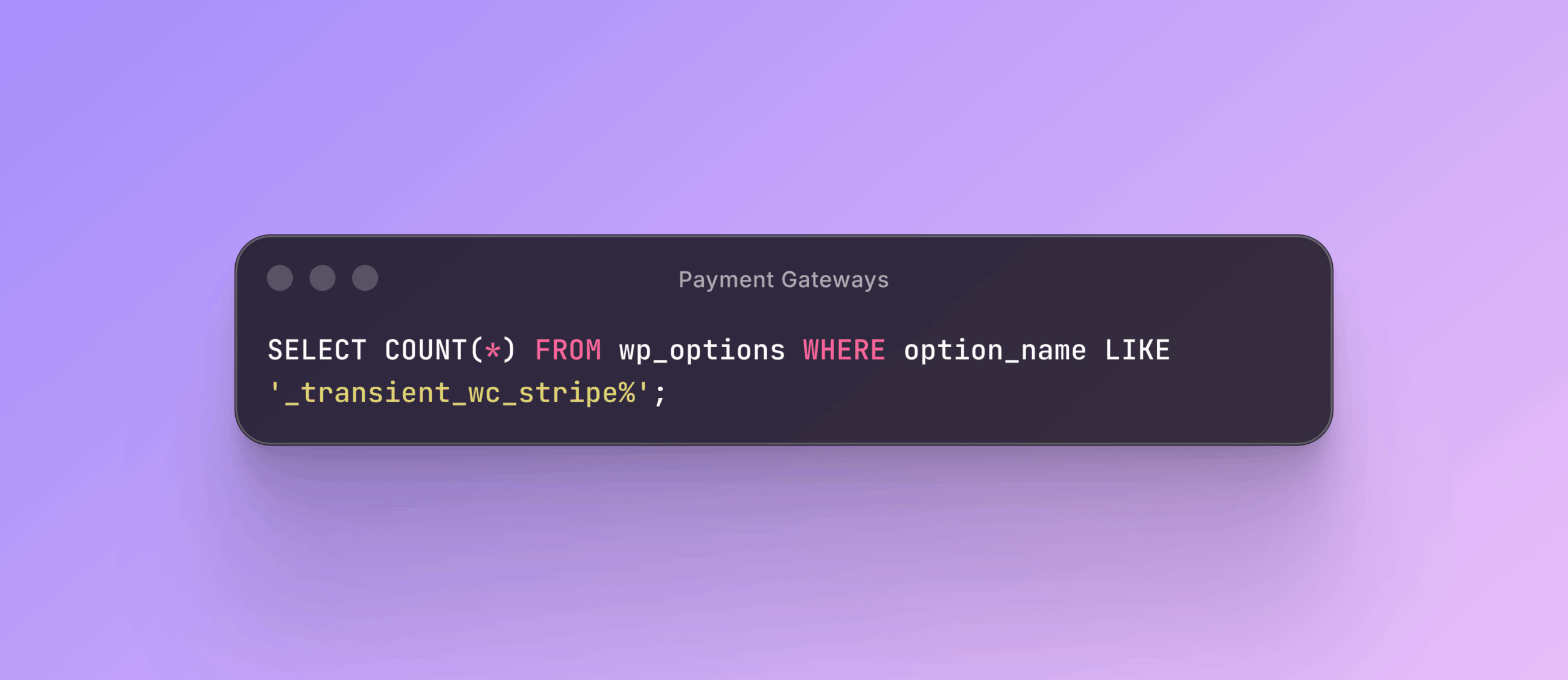
Check how many leftover rows your payment gateway has created:
Snippet:
SELECT COUNT(*) FROM wp_options WHERE option_name LIKE '_transient_wc_stripe%';Stripe, PayPal, Square, and others all cache API responses as individual transient rows in wp_options. Thousands of them. They are set with autoload=no, so they do not load on every page. But they still increase the physical size of the table on disk. A bigger table means slower queries for everything else, including the autoloaded options that do load on every page.
Clean them out, then figure out why your cron job is not doing it automatically.
The WooCommerce Sessions Table Grows Forever
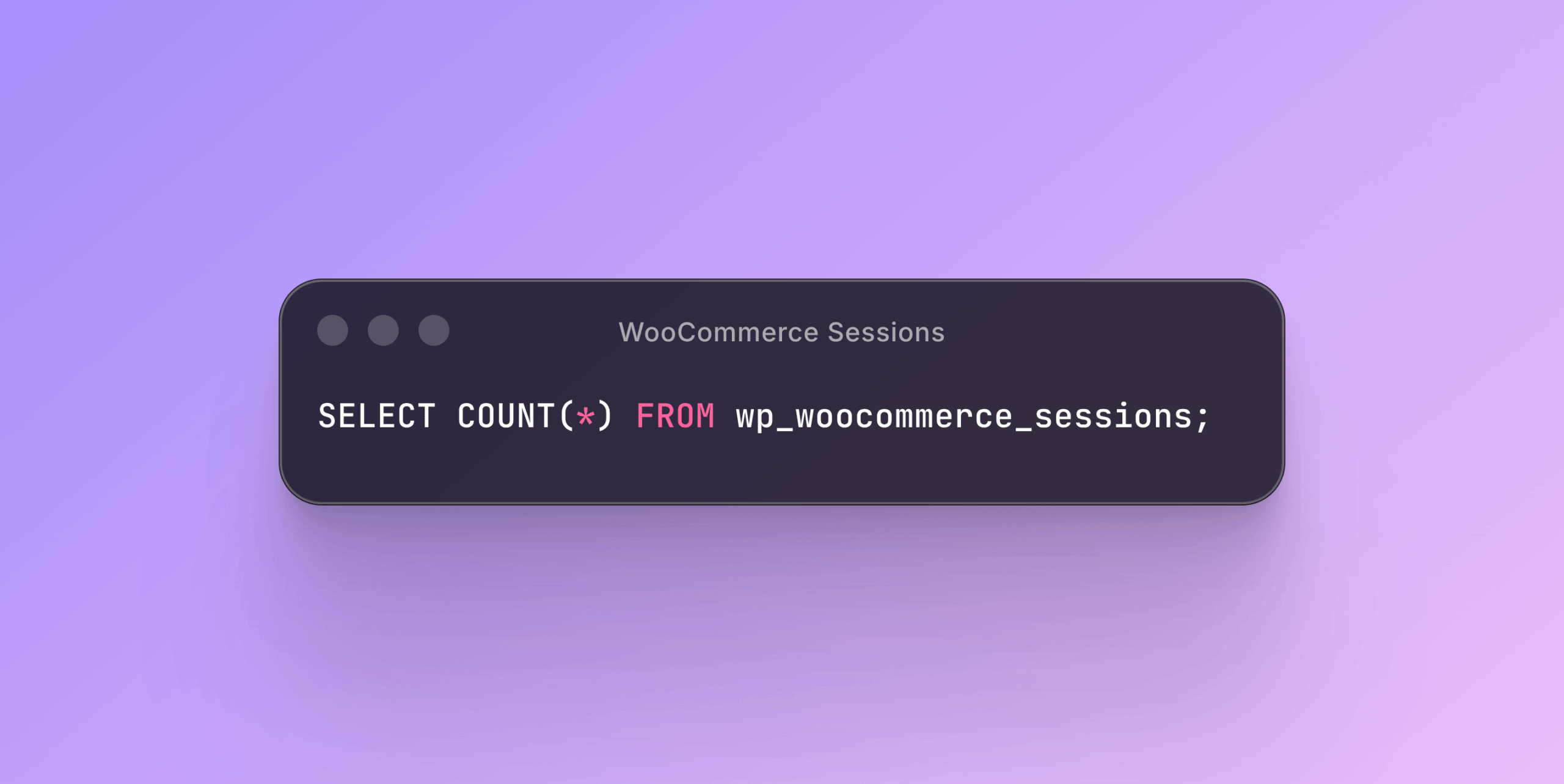
Run this:
Snippet:
SELECT COUNT(*) FROM wp_woocommerce_sessions;WooCommerce stores cart and customer data as serialized blobs for every visitor. The built-in cleanup cron deletes only 1,000 expired sessions every 48 hours. On a store getting 10,000 visitors a day, you are adding dead sessions far faster than you are removing them. I have found stores with over 500,000 rows in this table.
It gets worse because the session data is serialized PHP, so some rows are quite large. The table fragments over time, queries slow down, and eventually checkout starts timing out. Clean it manually, then either lower your session expiry time or run the cleanup cron more frequently.
Action Scheduler Can Grow to Millions of Rows
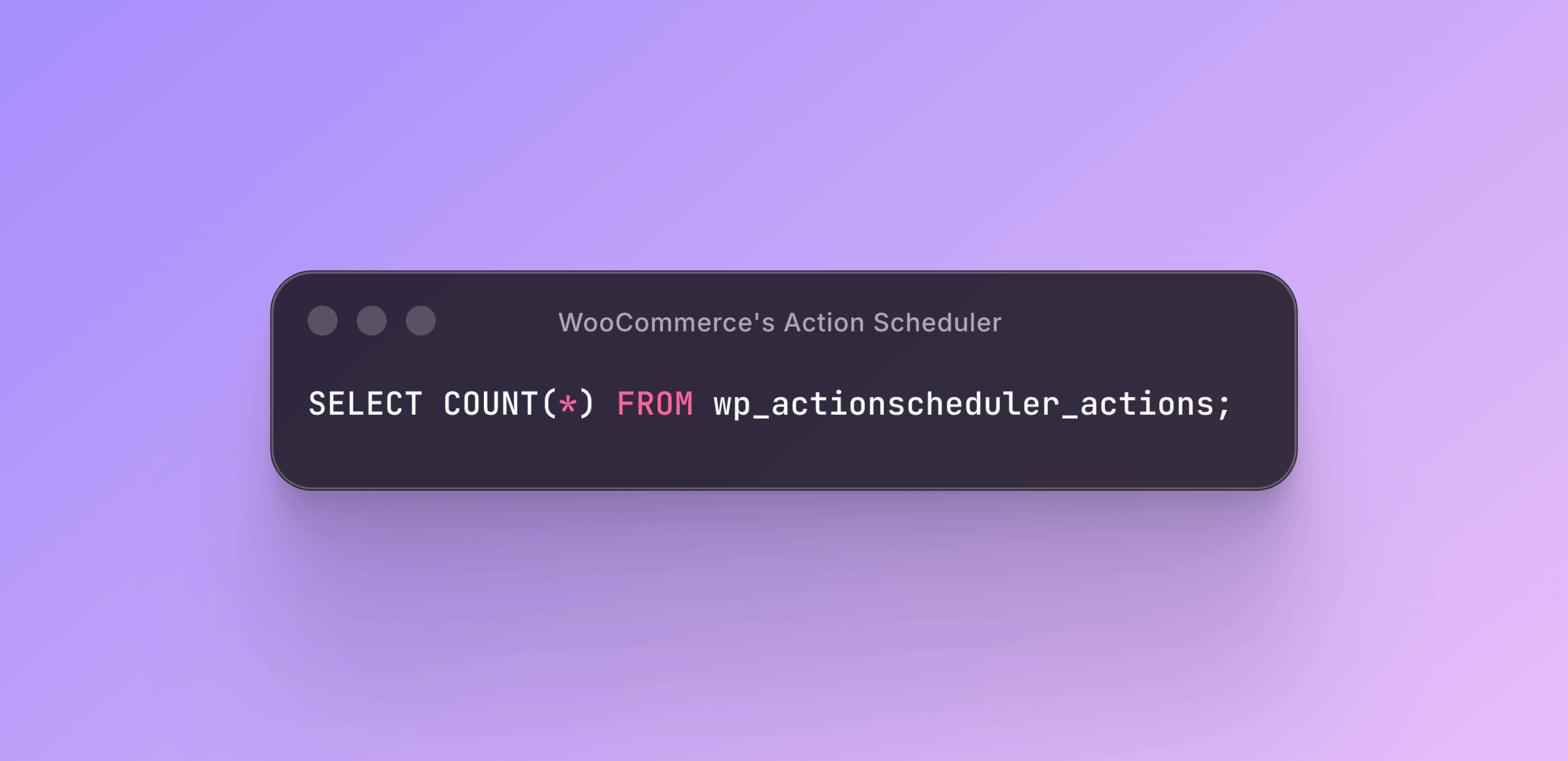
WooCommerce’s Action Scheduler keeps completed actions for 30 days by default. That sounds reasonable until you check the actual table:
Snippet:
SELECT COUNT(*) FROM wp_actionscheduler_actions;On a busy store that processes orders, sends emails, and syncs inventory all day, this table can reach millions of rows. Indexes bloat, other queries slow down, and the Scheduled Actions admin page becomes completely unusable.
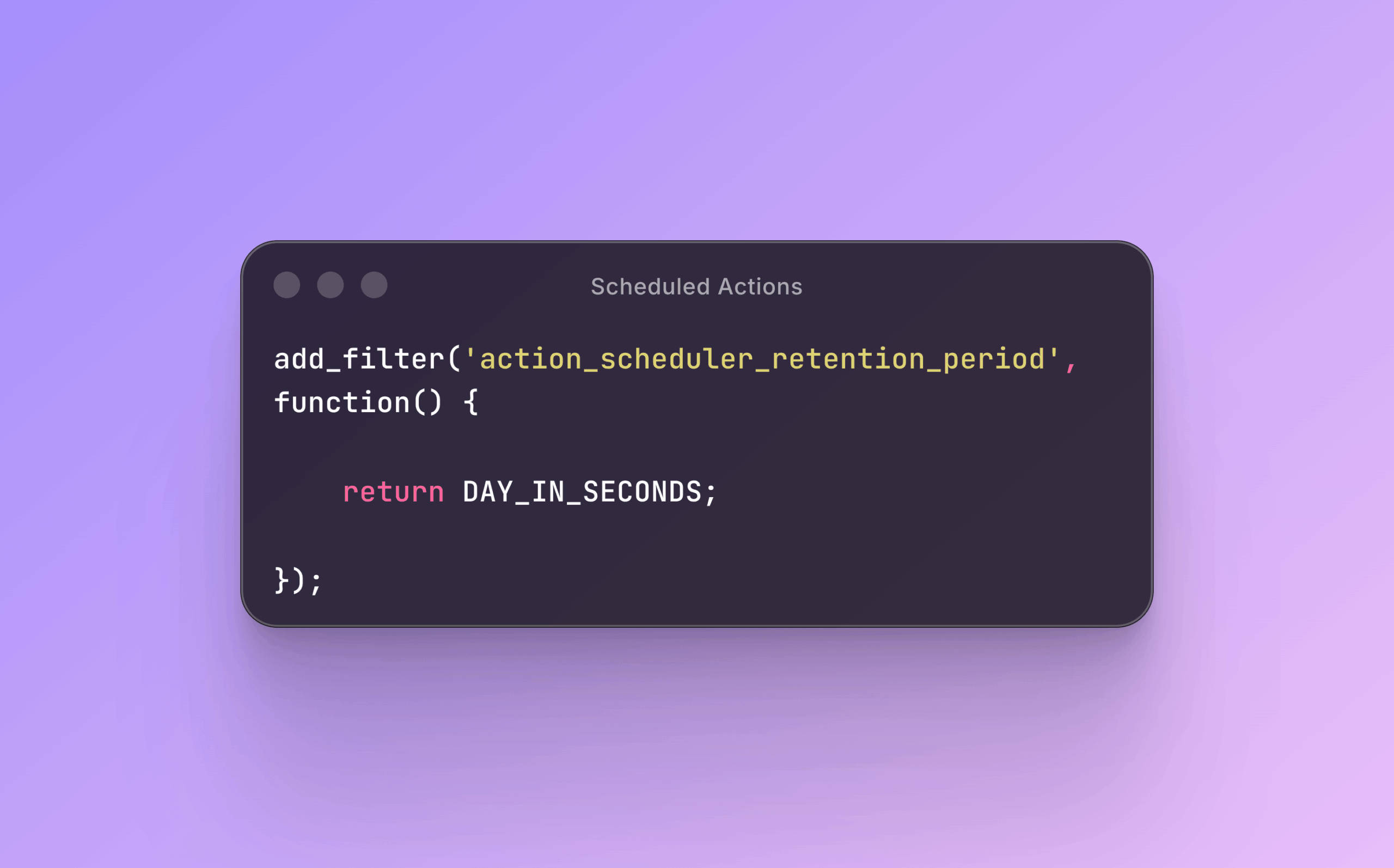
One filter in your functions. php fixes it:
Snippet:
add_filter('action_scheduler_retention_period', function() {
    return DAY_IN_SECONDS;
});
Keep completed actions for one day instead of thirty. You do not need a month of records telling you that an email was sent successfully.
WordPress Has No Index on wp_postmeta.meta_value
Every WooCommerce query that filters by price, SKU, stock status, or any custom field runs a full table scan on wp_postmeta because WordPress does not add an index on the meta_value column. On a store with hundreds of thousands of rows in that table, a single product search can take two full seconds.
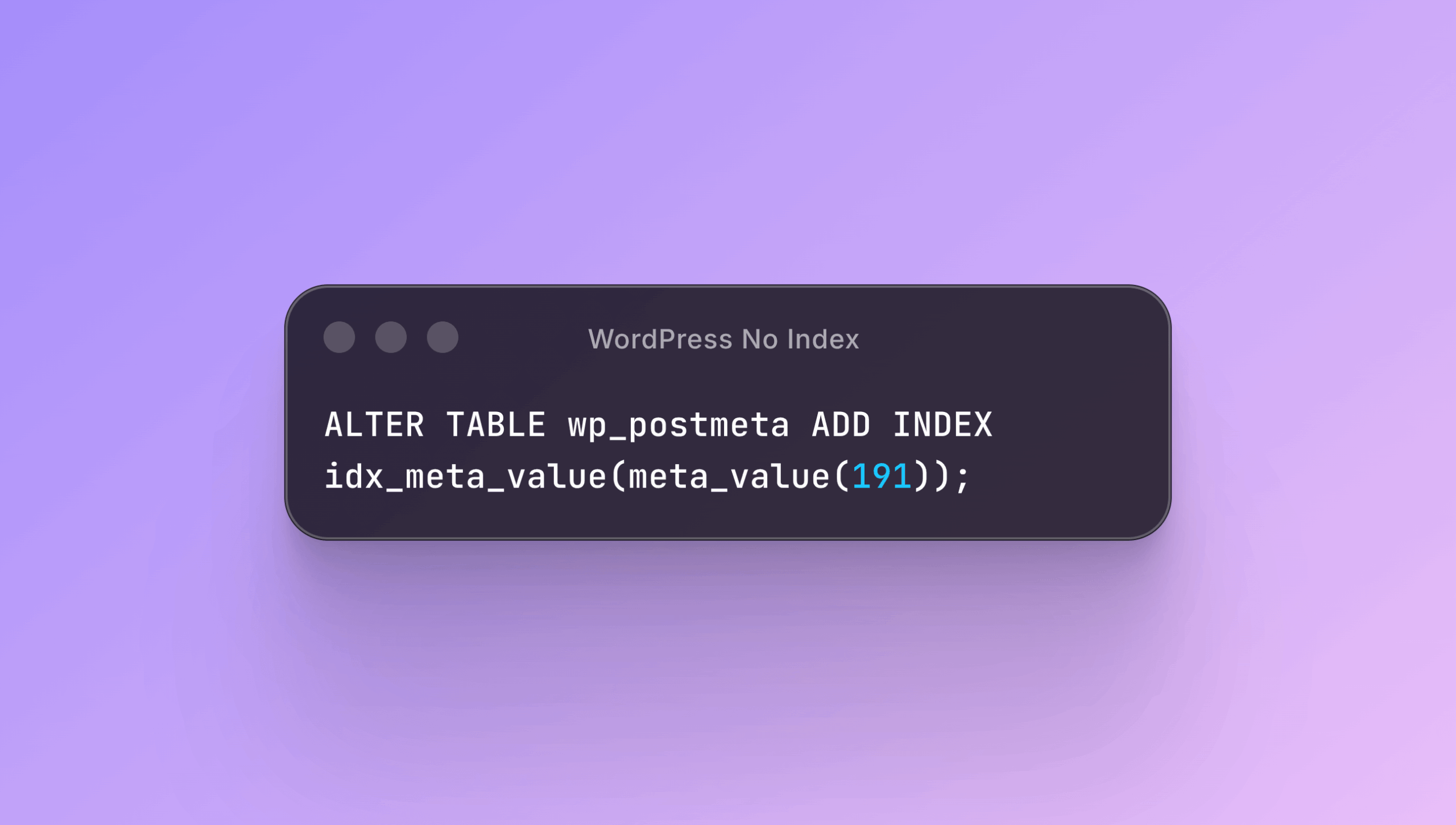
One query fixes it:
Snippet:
ALTER TABLE wp_postmeta ADD INDEX idx_meta_value(meta_value(191));The 191 is the maximum prefix length for a utf8mb4 index in InnoDB. After this index is in place, that same product search typically drops to under 20ms. This is a known issue that has existed in WordPress core for years.
Small tmp_table_size Is Killing Your WooCommerce Reports
If your WooCommerce Analytics pages are very slow, the bottleneck is probably not PHP. It is MySQL creating temporary tables on disk. WooCommerce Analytics runs GROUP BY queries across all your orders, and when the result set does not fit in memory, MySQL writes it to disk as a temporary table. The default tmp_table_size is 16MB, which is not enough for any store with serious order volume.
Check if this is happening:
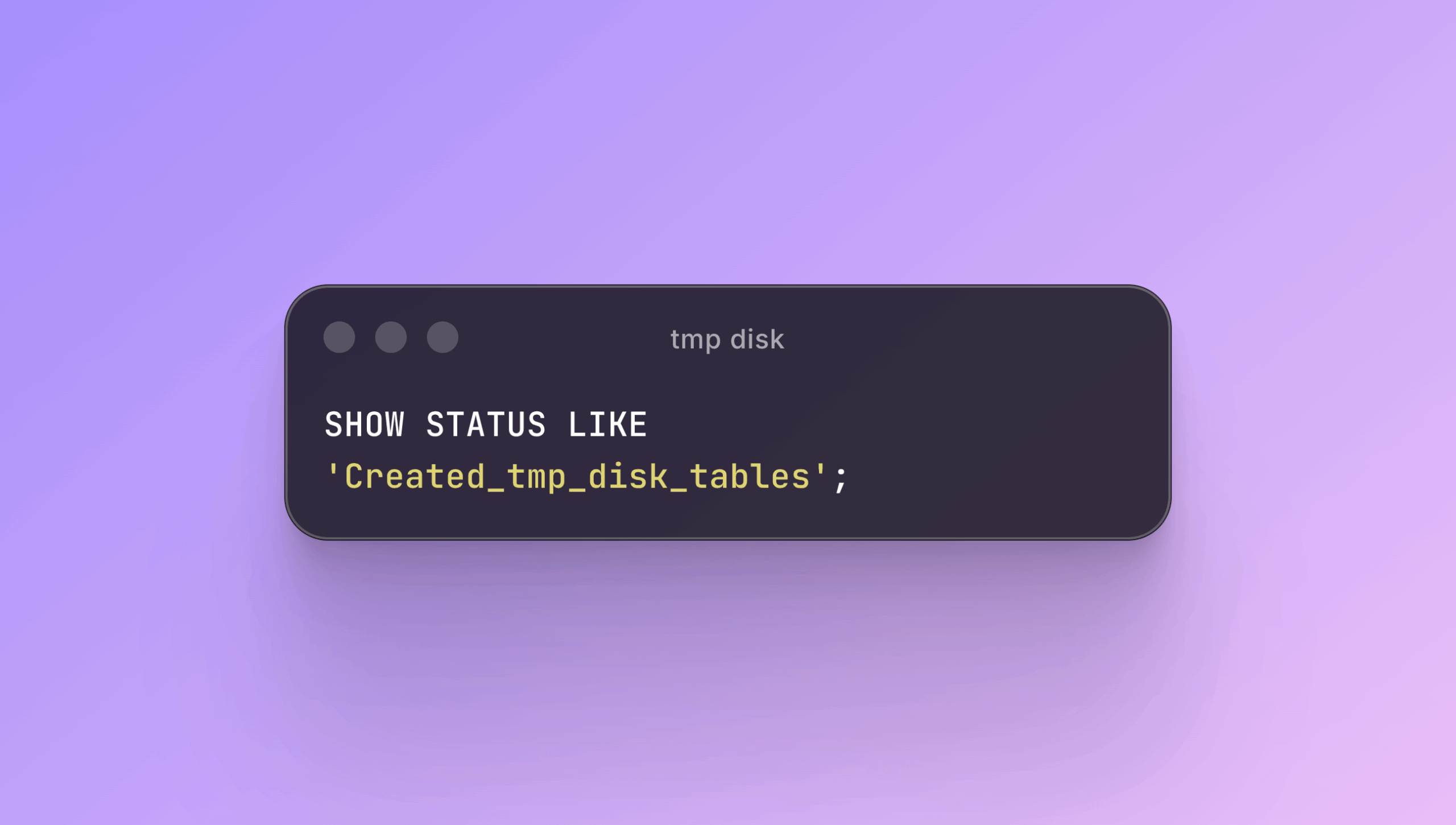
Snippet:
SHOW STATUS LIKE 'Created_tmp_disk_tables';If that number keeps climbing, set both of these values and make sure they match:
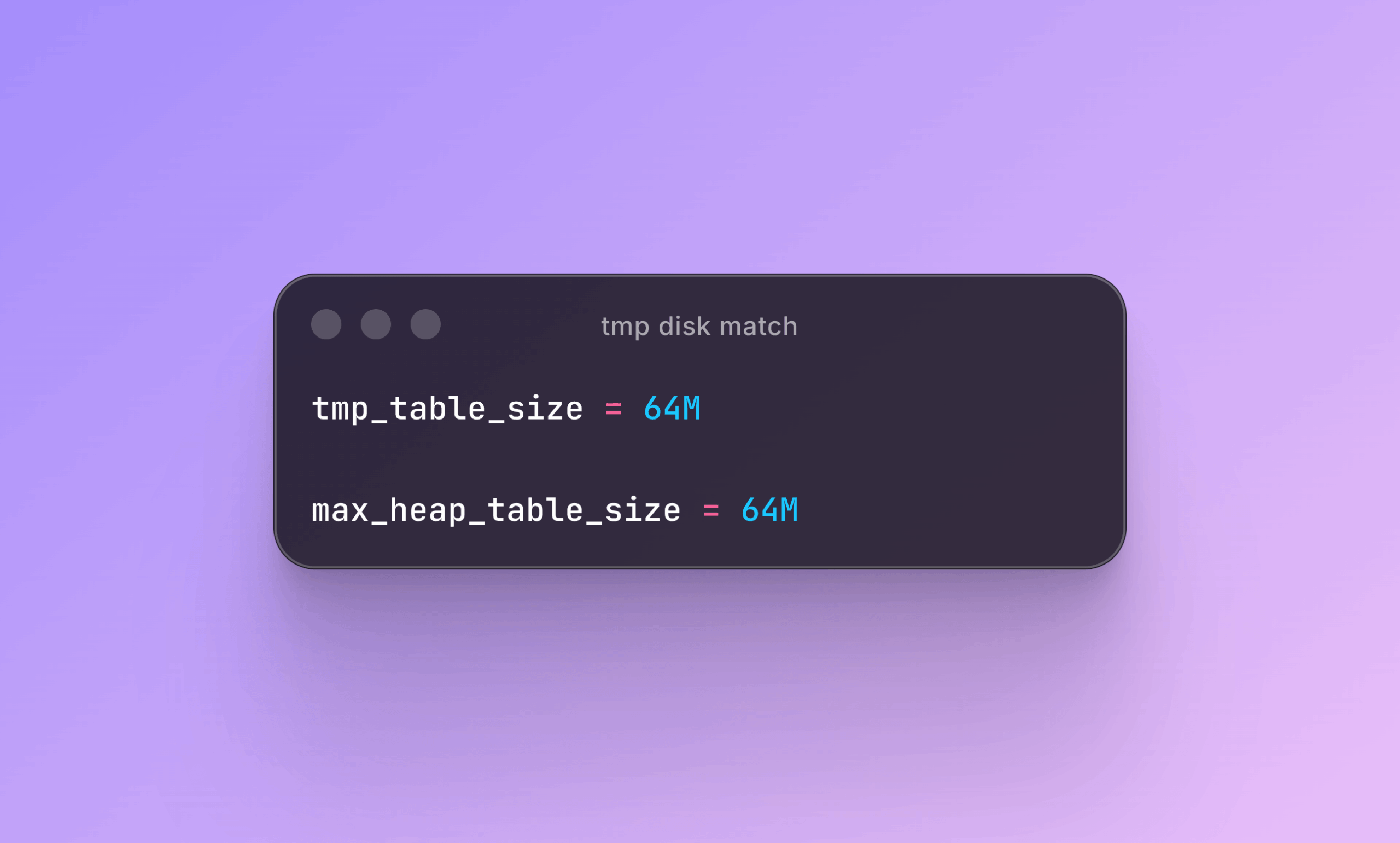
Snippet:
tmp_table_size = 64M
max_heap_table_size = 64M
MySQL uses whichever value is lower, so both need to be set. After this change, analytics queries stay in memory instead of grinding your disk.
Must-Fixes
You do not need any plugin to fix them. You just need to know they exist.
Cart Fragments Fire on Every Single Page Load
Every page on your WooCommerce store sends a hidden AJAX request called wc-ajax=get_refreshed_fragments. Its only job is to update the cart icon count in your header. But to do that, it boots the entire WordPress and WooCommerce stack on every page load.
This is a full PHP execution that does not show up in most performance tests. Your users feel it though. If you do not use a mini-cart widget, one line removes it entirely:
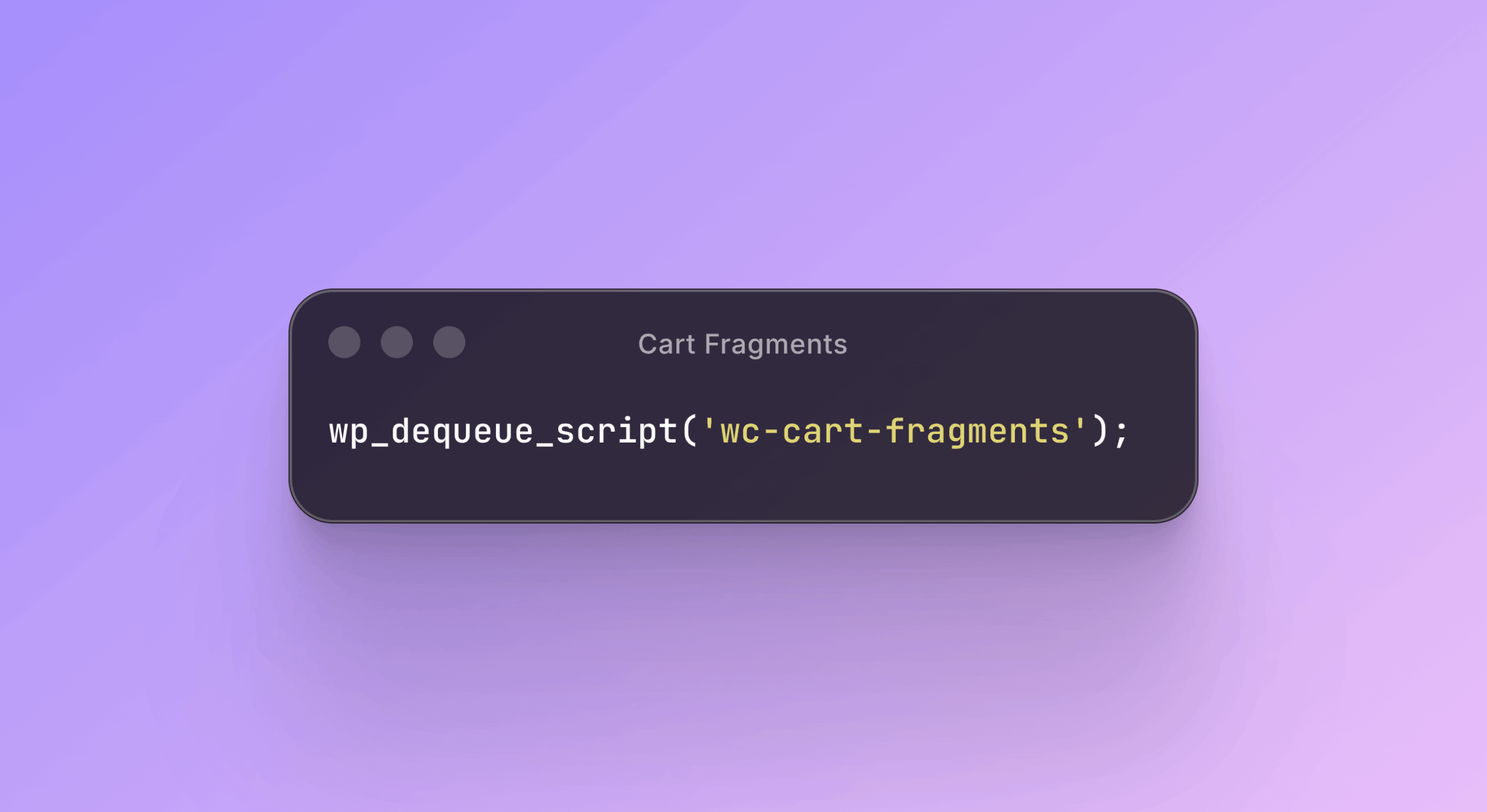
Snippet:
wp_dequeue_script('wc-cart-fragments');If you do use a mini-cart, at least restrict this request to shop pages only. There is no reason for it to fire on your blog posts or landing pages. On stores with decent traffic, removing or limiting this one request can cut server load by around 30%.
Redis Is Quietly Deleting Your Customers’ Carts
If you use Redis for object caching, check your maxmemory-policy setting. The default is usually allkeys-lru. This means when Redis runs out of memory, it starts evicting any key it wants, including active WooCommerce cart sessions.
A customer fills a cart, browses for a few minutes, then goes to checkout and finds it empty. Redis deleted their session silently during a traffic spike. They have no idea why. You have no idea either.
The fix is simple:
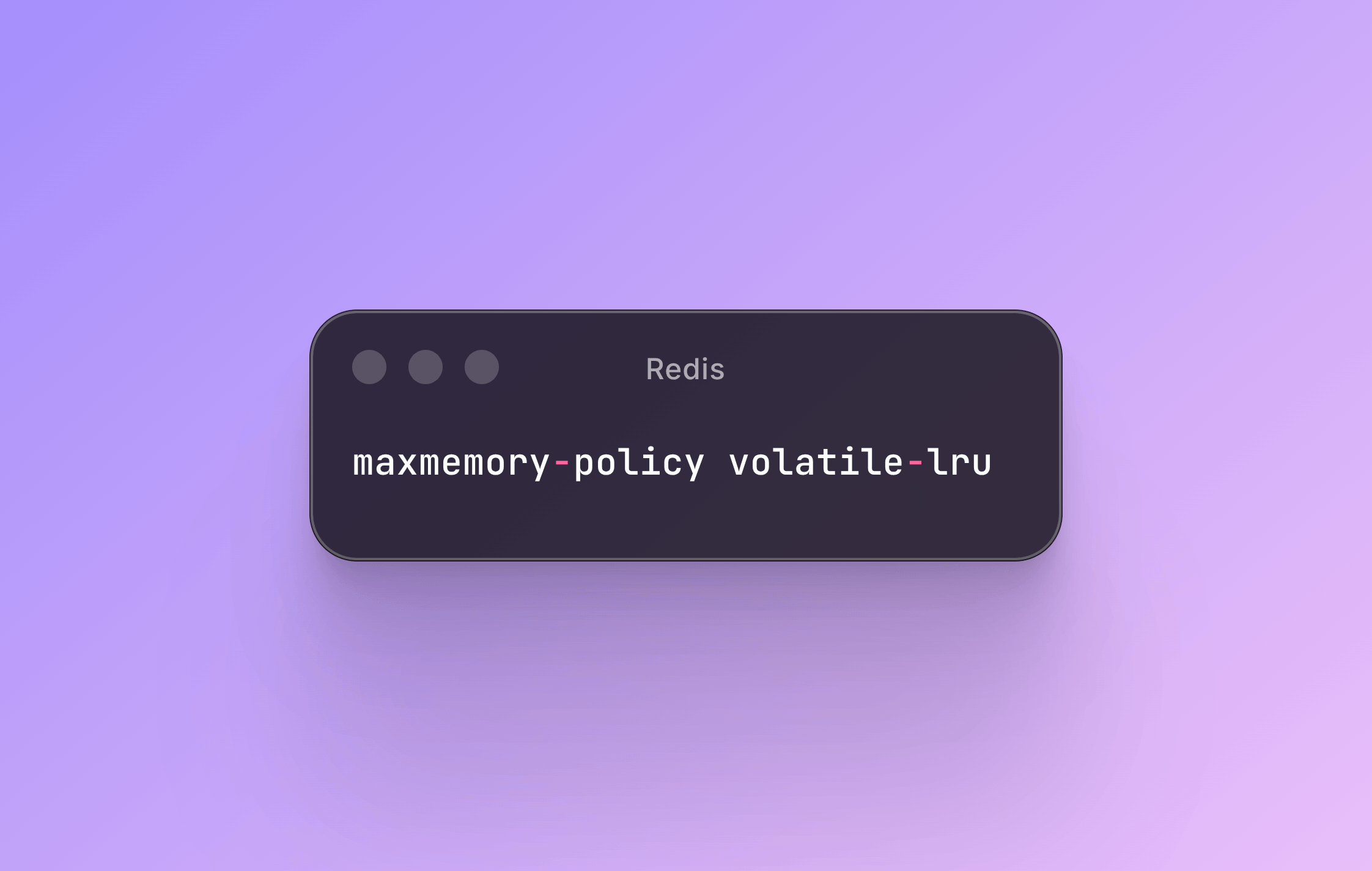
Snippet:
maxmemory-policy volatile-lruThis tells Redis to only evict keys that have an expiry time set. Your persistent cache keys stay safe. Sessions that expire naturally get cleaned up on their own schedule.
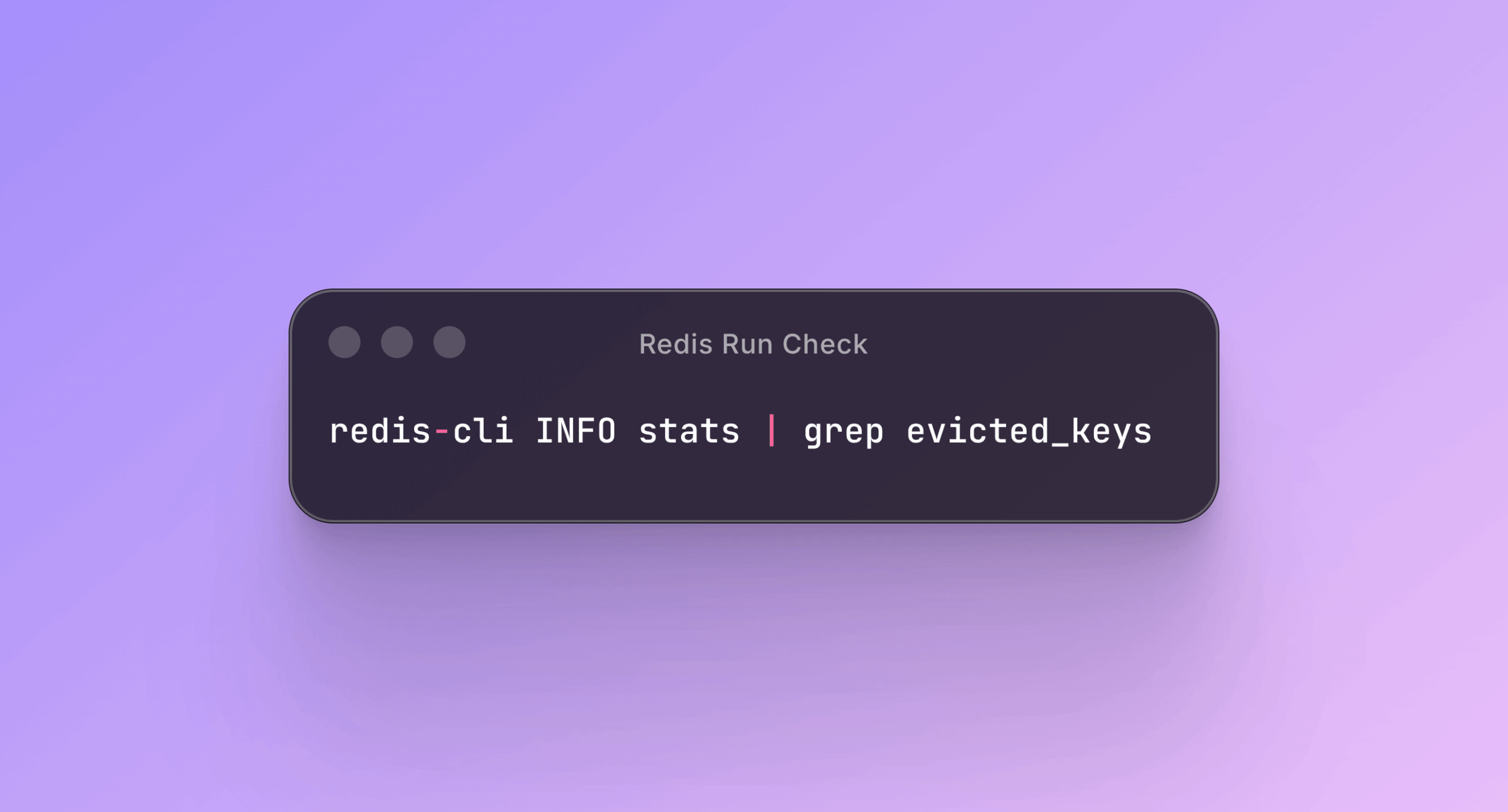
Also run this to check if the problem is already happening:
Snippet:
redis-cli INFO stats | grep evicted_keysIf that number keeps going up, you either need more Redis memory or you are caching too many things.
HPOS with Sync Enabled Doubles Every Order Write
WooCommerce’s High Performance Order Storage (HPOS) moves orders out of the slow wp_posts and wp_postmeta tables and into dedicated order tables. That is a real improvement.
The problem is that by default it runs in compatibility mode with sync turned on. Every order write goes to both the old tables and the new ones at the same time. You are not reducing database load at all. You are doubling it.
Once you have confirmed that HPOS works and your plugins are compatible with it, turn off sync: go to WooCommerce > Settings > Advanced > Features. Order-related database writes will be cut in half immediately.
Product Lookup Tables Go Stale Without Warning
WooCommerce keeps a denormalized table called wp_wc_product_meta_lookup. It stores product prices, stock status, and ratings so queries run faster. The issue is that WooCommerce only updates this table through its own internal hooks.
If you import products via CSV, use a bulk editor, or sync from an ERP, the lookup table does not update automatically. Your actual data in wp_postmeta is correct, but the lookup table shows old information. Product sorting breaks. Filters show wrong stock. Sale products disappear from sale queries.
Fix it by going to WooCommerce > Status > Tools > Regenerate product lookup tables. If your store does any kind of external data sync, make this part of your regular maintenance routine.
WooCommerce Writes to the Database More Than You Think
WooCommerce regularly updates internal option values like woocommerce_tracker_last_send and various transients. Each one is a write to the wp_options table on an autoloaded row, and each write invalidates the entire alloptions cache (more on that in tip 24).
Even if you have opted out of WooCommerce usage tracking, some of these writes still happen. On their own they seem small, but on a high-traffic store they add up to constant cache invalidation throughout the day. Enabling SAVEQUERIES will surface all of them.
PHP and PHP-FPM
PHP-FPM defaults are designed for low resource usage, not for running WooCommerce under real traffic. Most of the PHP-level performance you are missing comes from a few config changes.
PHP-FPM Has a Free Profiler That Nobody Uses
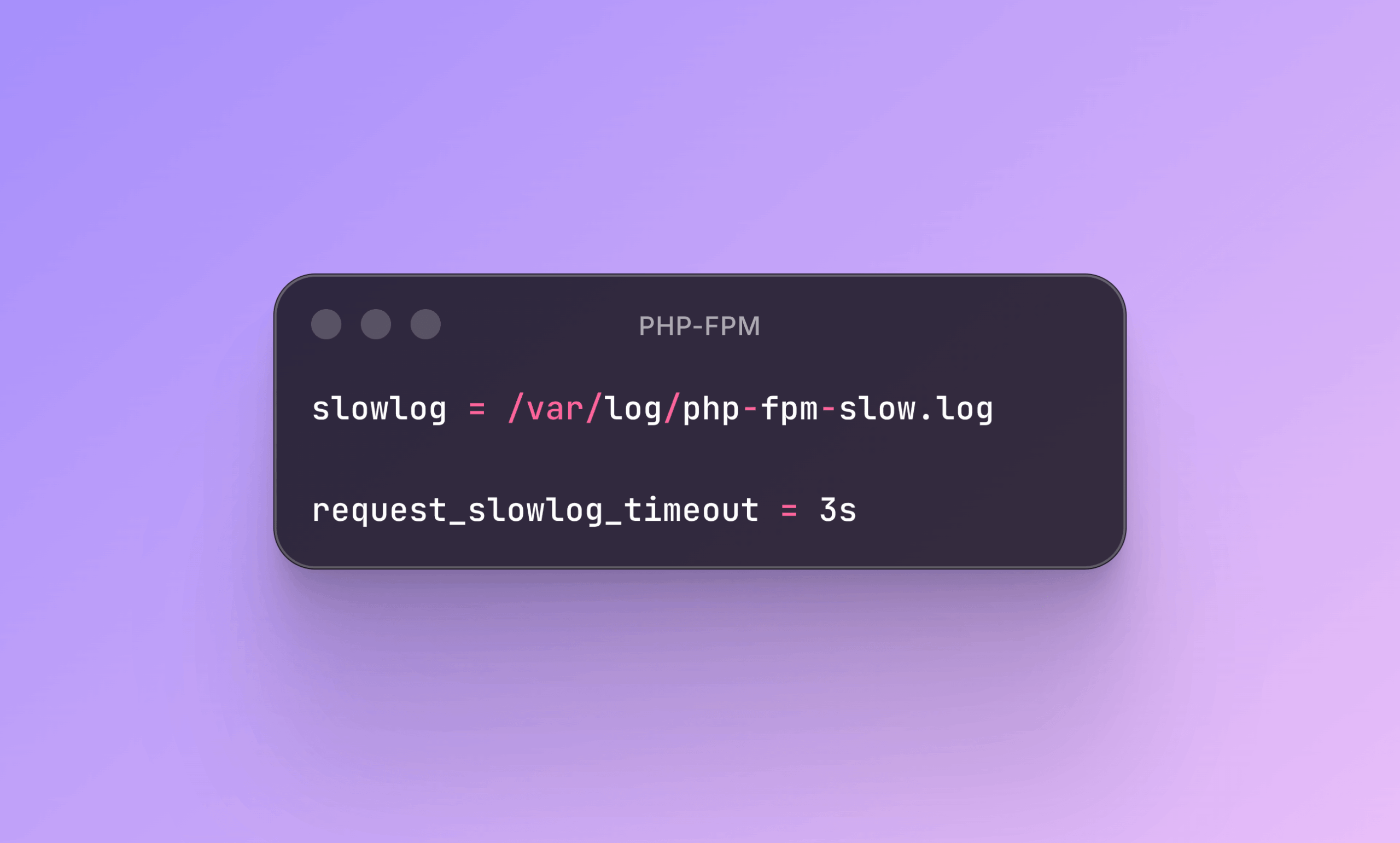
There is a built-in profiling tool sitting in your server config that most teams never turn on. In your PHP-FPM pool configuration file, add:
Snippet:
slowlog = /var/log/php-fpm-slow.log
request_slowlog_timeout = 3s
Every request that takes longer than 3 seconds now writes a full stack trace to that log file. You can see exactly which function, which plugin, and which WooCommerce hook is blocking execution. No external tools, no paid services, no code changes required. It has been available the whole time.
This is the first thing I enable on any slow WooCommerce site.
OPcache Interned Strings Buffer Is Too Small by Default
PHP’s OPcache has a setting called opcache.interned_strings_buffer. The default is 8MB. WordPress plus WooCommerce plus a typical plugin set needs 32 to 64MB.
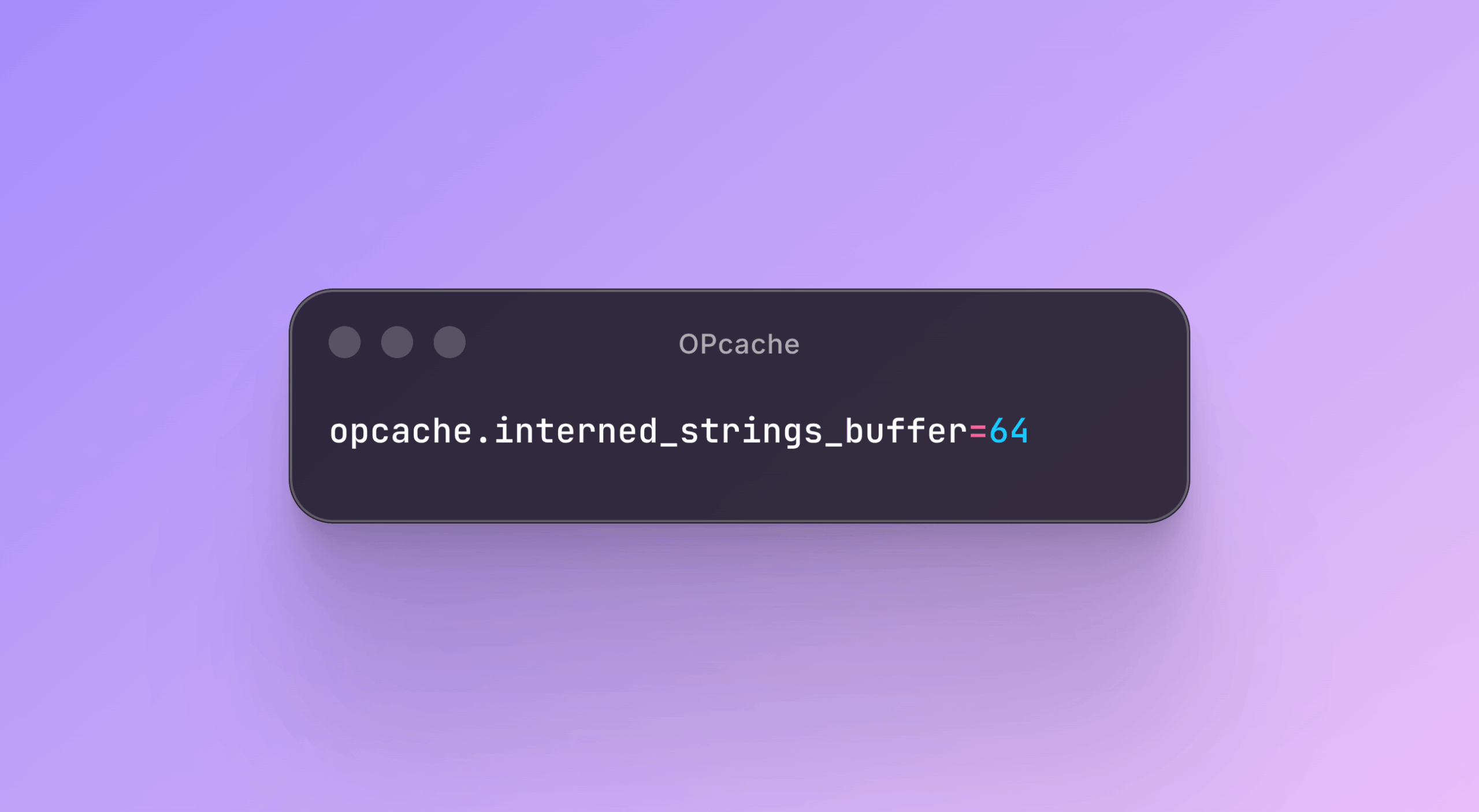
When the buffer is too small, PHP cannot share string data between FPM worker processes. Each worker has to store its own copy of every string in memory. If you have 12 workers running, that is 12 times the memory usage for strings alone. Your server starts looking like it needs more RAM when it actually just needs this one change in php.ini:
Snippet:
opcache.interned_strings_buffer=64Check how much you are currently using:
Snippet:
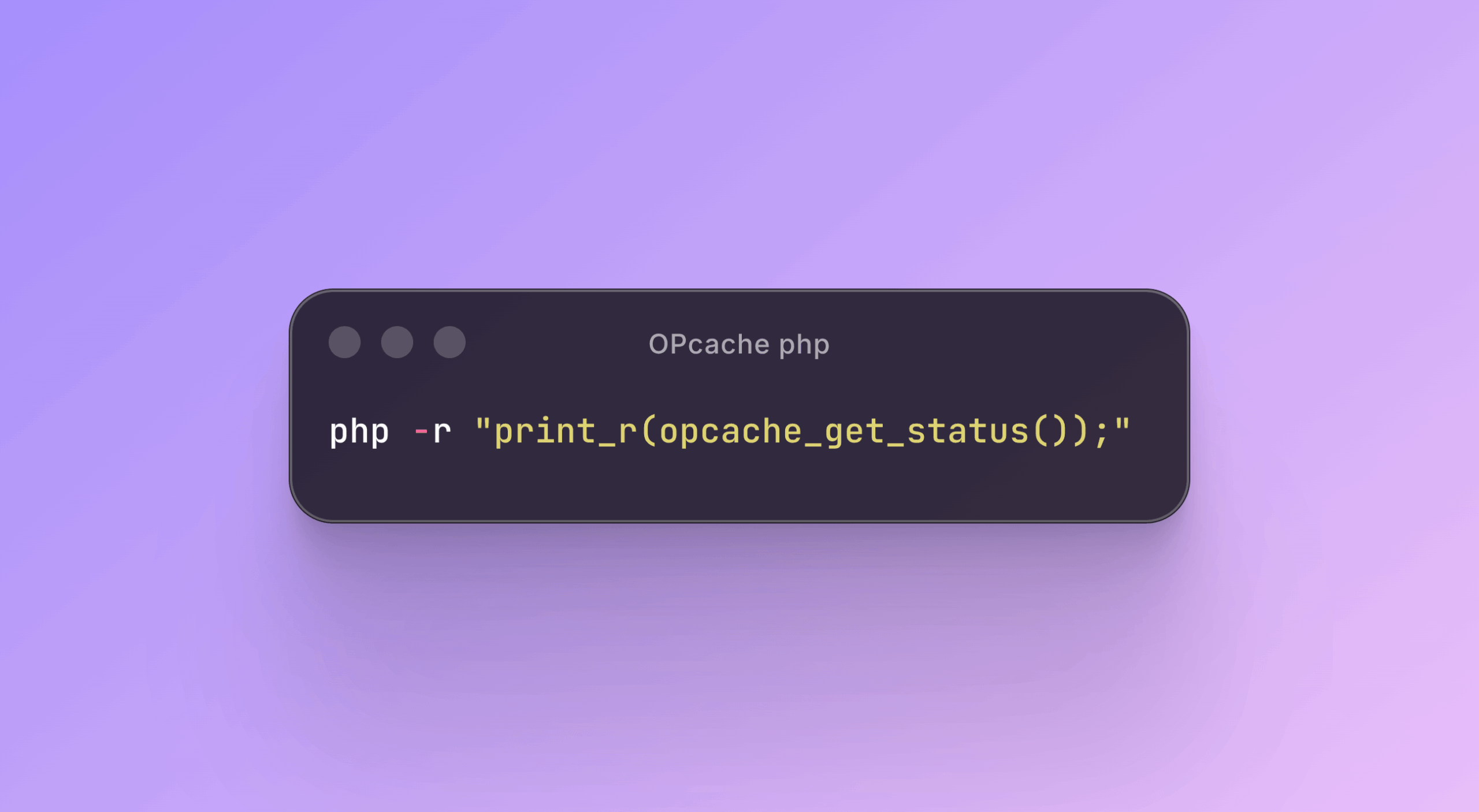
php -r "print_r(opcache_get_status());"Look at the interned_strings_usage section. If used_memory is close to buffer_size, you are wasting server RAM on duplicated strings across workers.
pm.max_children: The Calculation Most People Skip
Most people either leave pm.max_children at the default (which is 5) or bump it to something like 50 without thinking about it. Both are wrong.
The actual calculation you should do:
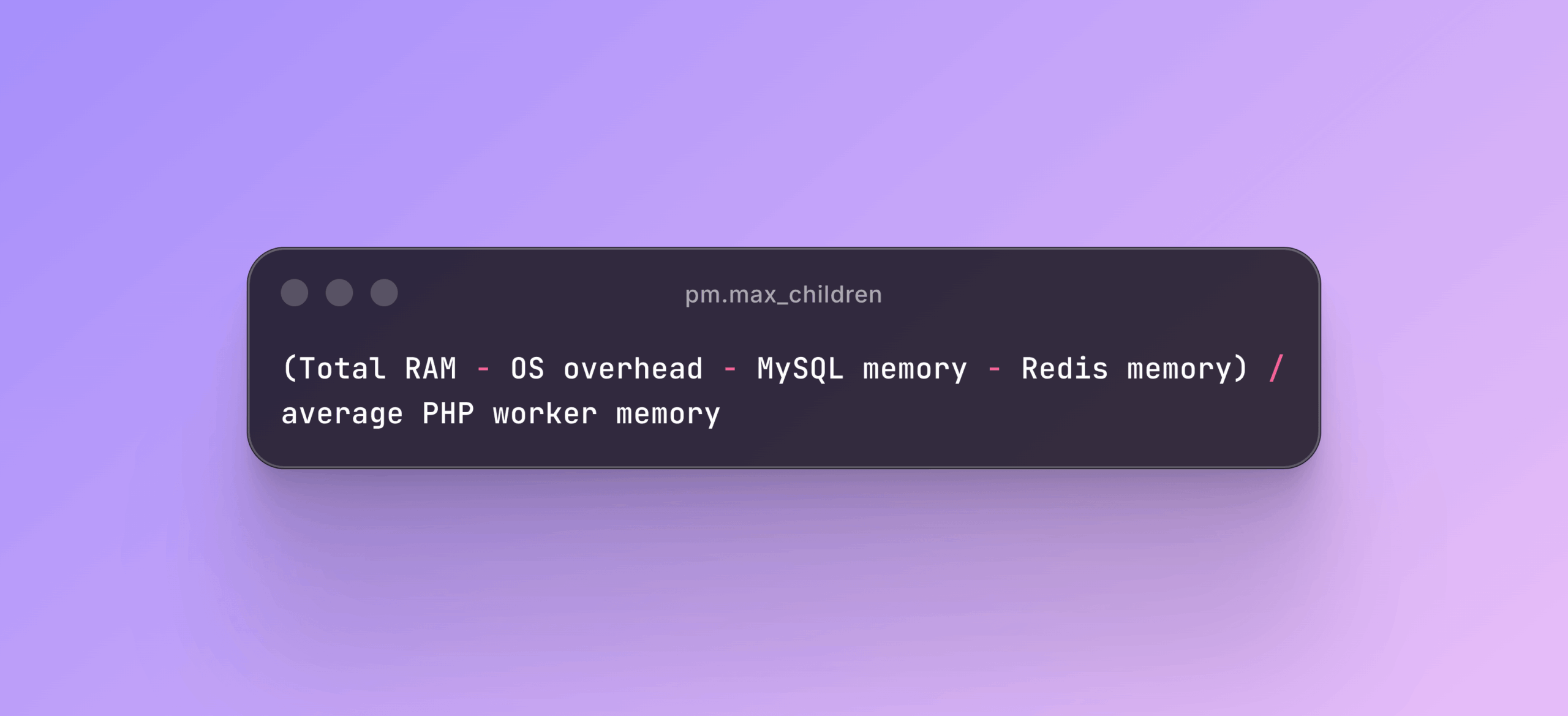
Snippet:
(Total RAM - OS overhead - MySQL - Redis) / average PHP worker memoryCheck your current worker size:
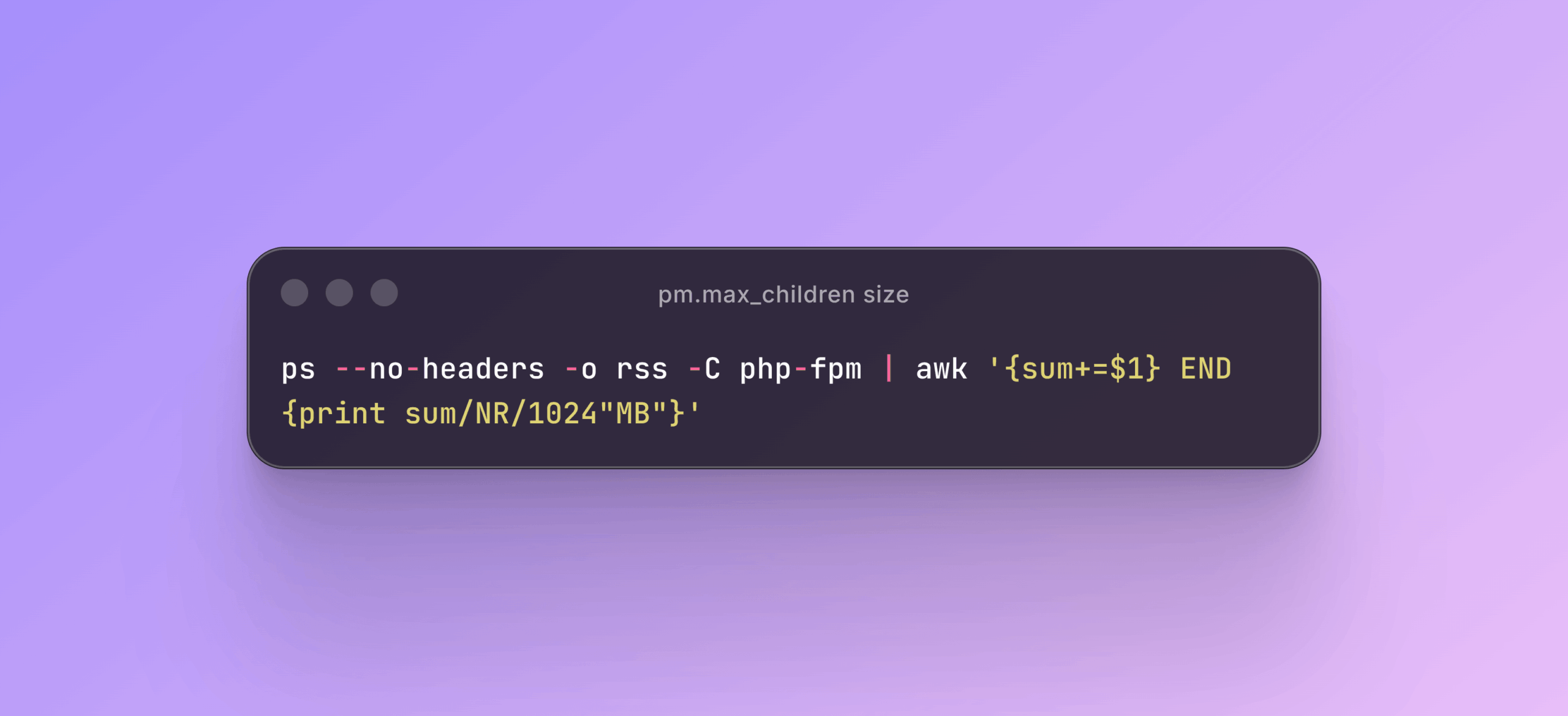
Snippet:
ps --no-headers -o rss -C php-fpm | awk '{sum+=$1} END {print sum/NR/1024"MB"}'A typical WooCommerce PHP worker uses between 40 and 80MB. On a 2GB VPS after accounting for the OS, MySQL, and Redis, you might have 800MB left for PHP. That gives you somewhere between 10 and 20 workers. Setting it to 50 causes out-of-memory kills during checkout spikes. Setting it to 5 puts 45 customers in a queue. Do the math. It takes about two minutes.
Shutdown Hooks Hold Your PHP Workers Hostage
Your page loads fast. TTFB looks fine. But your server feels overloaded with far less traffic than it should handle.
Check what is running inside PHP shutdown hooks. Plugins that send analytics pings, make API calls, or fire webhook notifications inside register_shutdown_function() keep the FPM worker busy after the response has already been sent to the user. The visitor sees a fast page, but the worker is not free to handle the next request yet.
If you have 10 workers and each one stays occupied for 500ms after the response due to shutdown hooks, your effective server capacity is cut in half. The PHP-FPM slow log will catch these too.
Stop Using pm = dynamic for WooCommerce
PHP-FPM has three process management modes: static, dynamic, and ondemand. For WooCommerce, avoid dynamic.
The problem with dynamic mode is that it tries to scale worker processes up as needed, but the scaling itself has latency. Forking new PHP processes takes real time. During a checkout surge, customers wait while PHP-FPM tries to catch up by spinning up new workers.
For high-traffic stores, use pm = static. Workers are always warm, there is no fork overhead, and memory usage is predictable.
For stores with spiky or unpredictable traffic, use pm = ondemand. Workers scale down to zero between bursts and spin up when needed. At least it is honest about the cold-start tradeoff.
Dynamic mode tries to handle both scenarios and does neither well.
Redis and Object Cache
update_option() Invalidates Your Entire Autoload Cache
WordPress stores all autoloaded options in a single object cache key called alloptions. This is a smart design, until a plugin calls update_option() on any autoloaded option. That single call invalidates the entire alloptions key. On the next request, WordPress fetches all autoloaded options fresh from MySQL again. If your autoloaded data is 2MB, that is a 2MB database query on the next page load.
The worst offenders are analytics plugins that store hit counters in wp_options, rate limiters that update timestamps, and anything that writes to an autoloaded option on every page request. Find them:
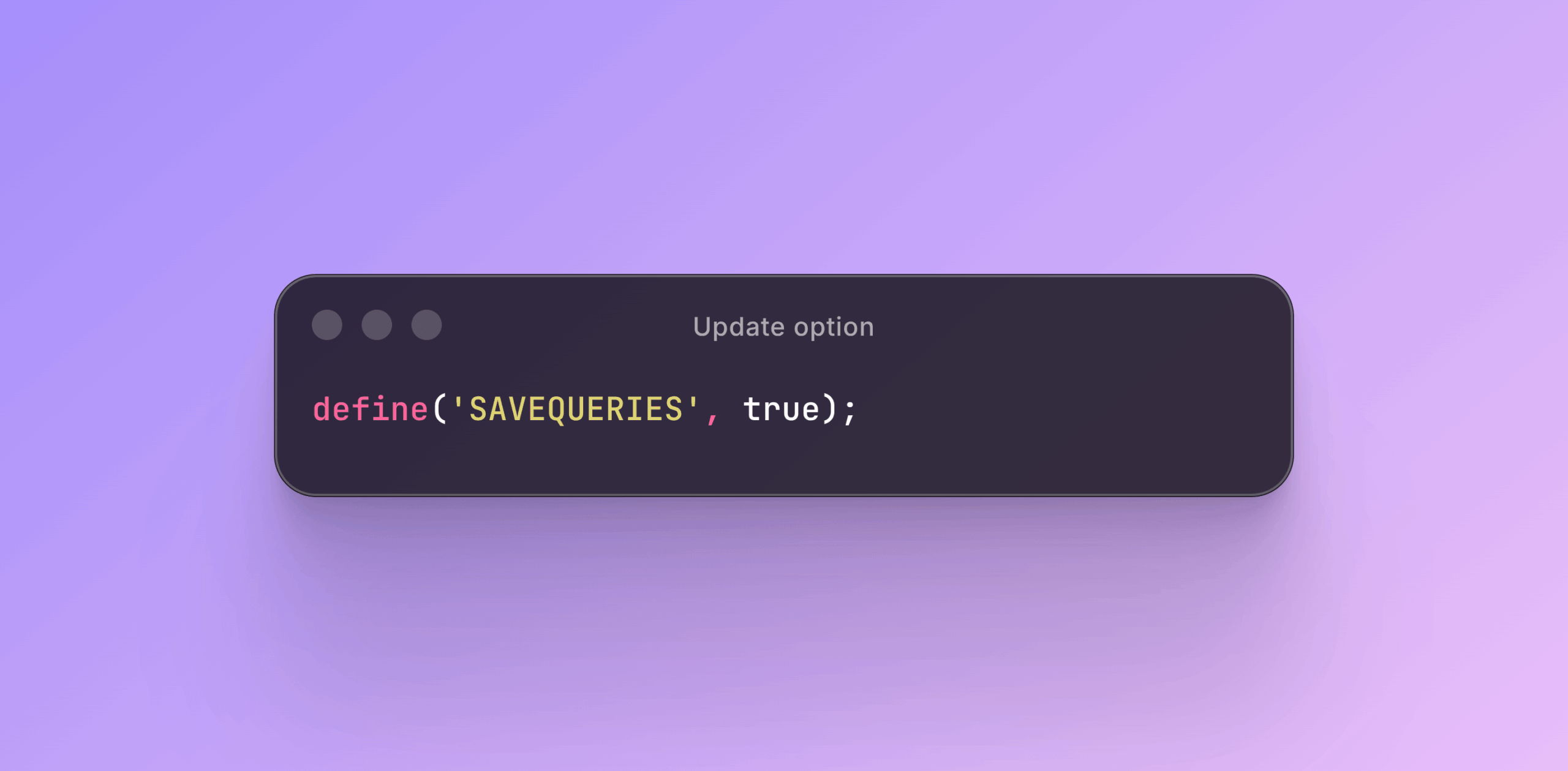
Snippet:
define('SAVEQUERIES', true);Then look for UPDATE.*wp_options in your query log. If something is updating options on every single request, that is your problem.
Redis Needs More Memory Than You Think
Quick reference for sizing Redis on a WooCommerce store:
- Average object cache entry: 1 to 10KB
- The wp_alloptions key alone: 500KB to 2MB
- Each WooCommerce session: 2 to 5KB
- 500 concurrent shoppers: about 2.5MB just for sessions
- Product cache for 5,000 products: approximately 50MB
Most people allocate 64MB for Redis and wonder why things randomly slow down. Redis hits the memory limit, starts evicting keys, and you get cache stampedes for every evicted key.
Set Redis maxmemory to at least twice your typical used_memory value. Check where you currently stand:

Snippet:
redis-cli INFO memory | grep used_memory_humanIf your used memory is within 80 percent of maxmemory, your Redis is running too close to the edge.
Nginx and Caching
Most complaints about Nginx caching not working come from misconfiguration, not from Nginx itself being broken. The cache is usually fine. The strategy around it is not.
fastcgi_cache Is Not Bypassing WooCommerce Carts Properly
If you run Nginx with fastcgi_cache, check your bypass rules carefully. WooCommerce sets woocommerce_items_in_cart and woocommerce_cart_hash cookies the moment a customer adds anything to their cart. Your bypass rule needs to check for those specific cookies, not just the WordPress login cookie.
Without this, Nginx serves cached pages with stale cart data. A customer adds three items, then sees one. They check out and get the wrong total.
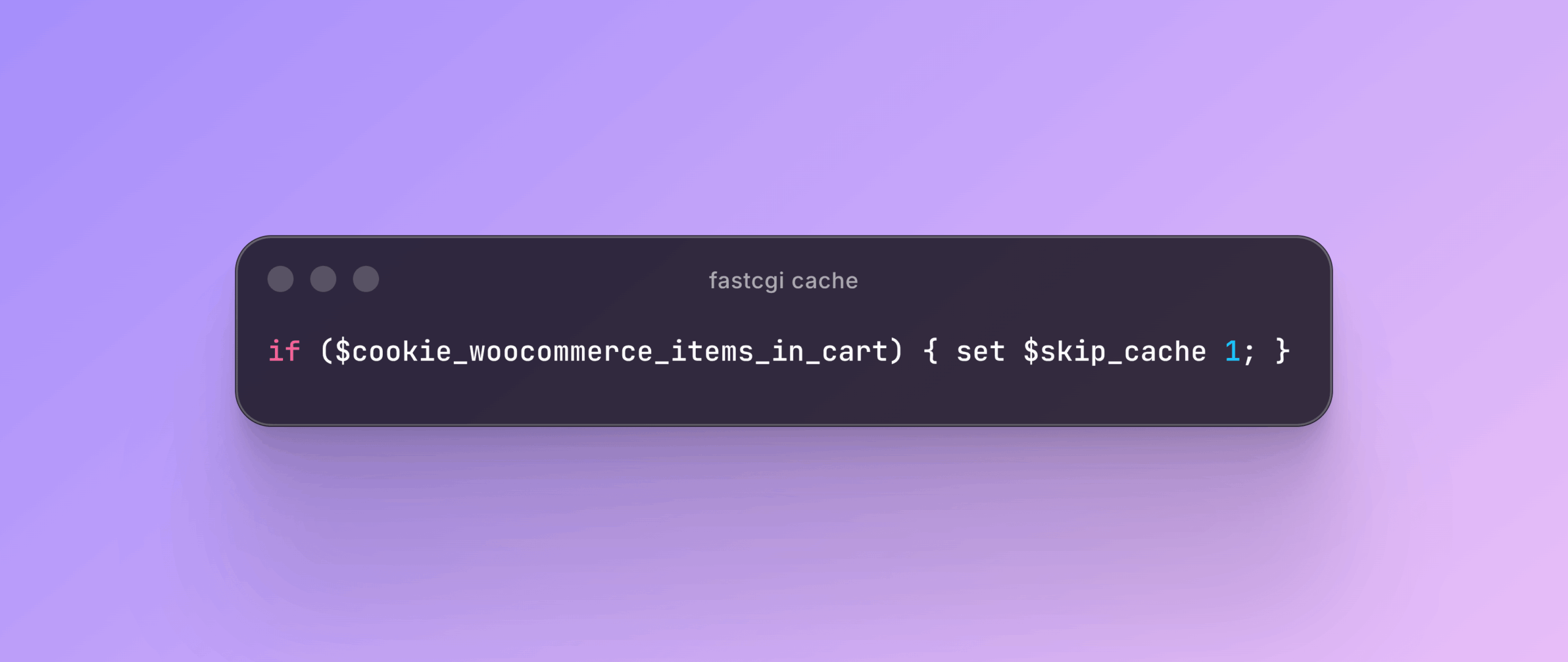
Snippet:
if ($cookie_woocommerce_items_in_cart) { set $skip_cache 1; }This exact bug shows up on a significant number of stores using Nginx caching. The caching is working as configured. It is just configured wrong.
Nginx Upstream Keepalive and Why HTTP/2 Is Not Enough Without It
Most Nginx configurations open a brand new connection to PHP-FPM for every single request. Even with Unix sockets, that is a connect, accept, and close cycle each time, adding 5 to 15ms of overhead per request.
Add this to your upstream block:
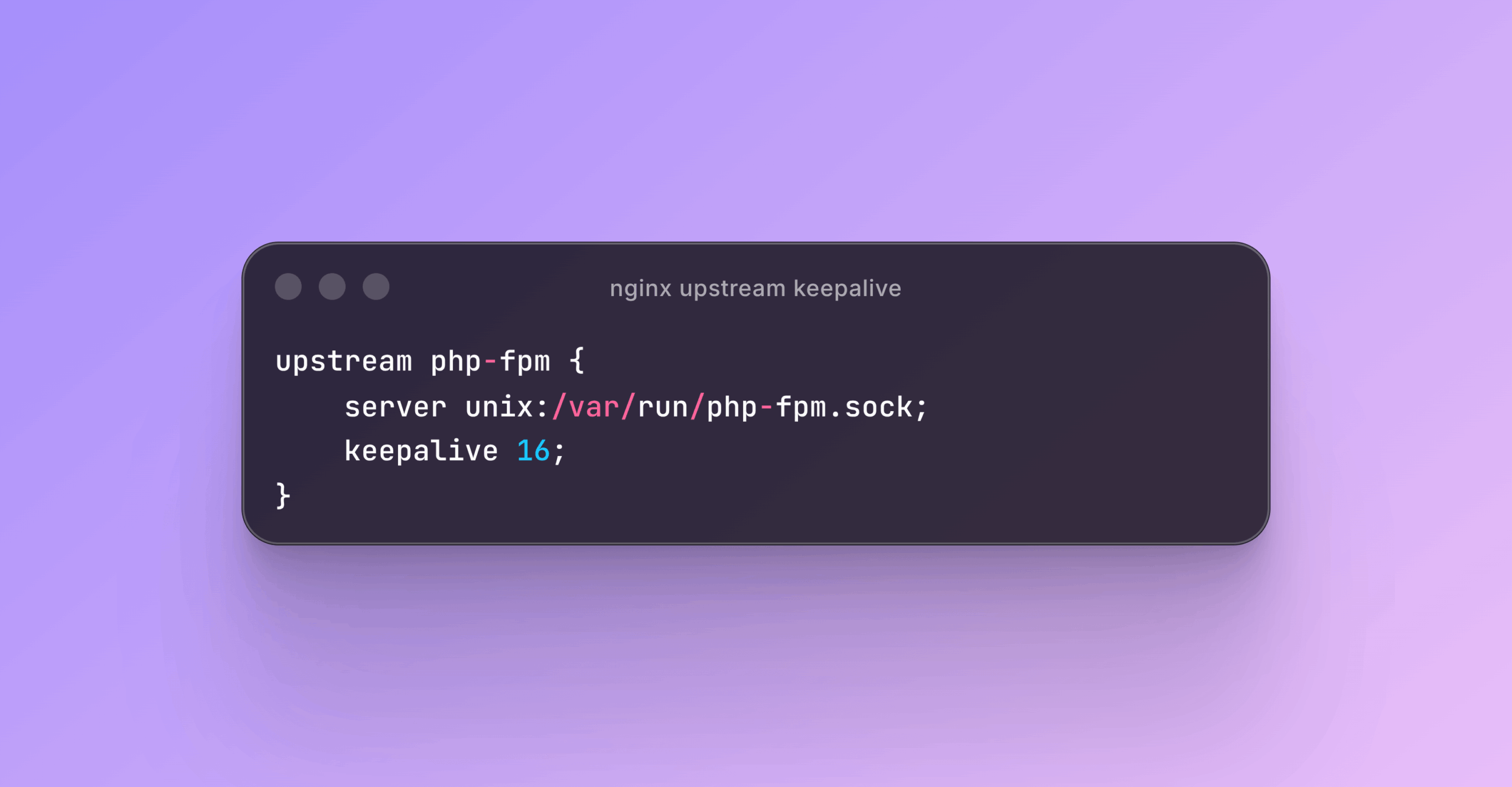
Snippet:
upstream php-fpm {
    server unix:/var/run/php-fpm.sock;
    keepalive 16;
}
And in your location block:
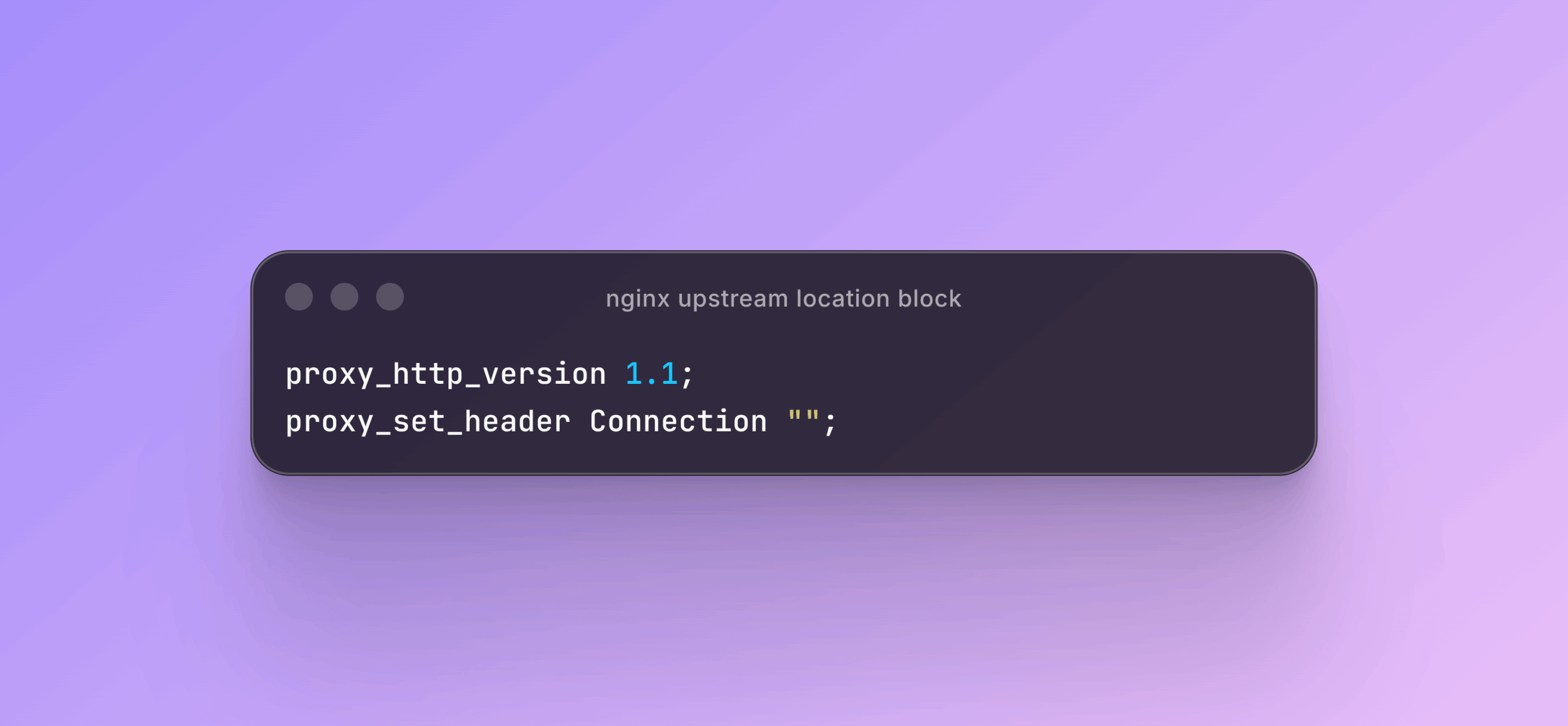
Snippet:
proxy_http_version 1.1;
proxy_set_header Connection "";
Now connections persist between requests. PHP-FPM workers skip the connection overhead entirely for subsequent requests.
This matters even more if you have enabled HTTP/2 for visitors. Your users get multiplexed connections and header compression at the browser level, but between Nginx and PHP-FPM you are still on HTTP/1.1 with a new connection for every single request. The frontend optimization means nothing if the backend is still doing unnecessary connection work for every request.
Cache PURGE Is Wiping Out Your Entire Store on Every Sale
If you use Nginx fastcgi_cache with the Nginx Helper plugin for cache purging, check your purge settings now.
The default behavior purges the entire cache whenever any post is updated. A customer buys a product. Stock changes. WooCommerce fires a post update. Nginx Helper purges every cached page on your entire site. The next 50 visitors all hit PHP-FPM directly on cold pages.
That is not caching. That is a bomb that goes off with every sale.
Configure it to purge only the modified product URL and the homepage. A stock change on one product should not clear the cache for 500 other product pages. I have audited stores where the cache hit ratio was under 20 percent because of this exact setting. They thought Nginx caching was not working at all.
stale-while-revalidate Prevents Cache Stampedes
When your Nginx cache expires on a popular product page, the first visitor after expiry waits for a fresh PHP response. And the second. And the third. They all hit PHP-FPM at the same time. That is a cache stampede, and it shows up as a spike in checkout timeouts.
Two lines in your Nginx config prevent this:
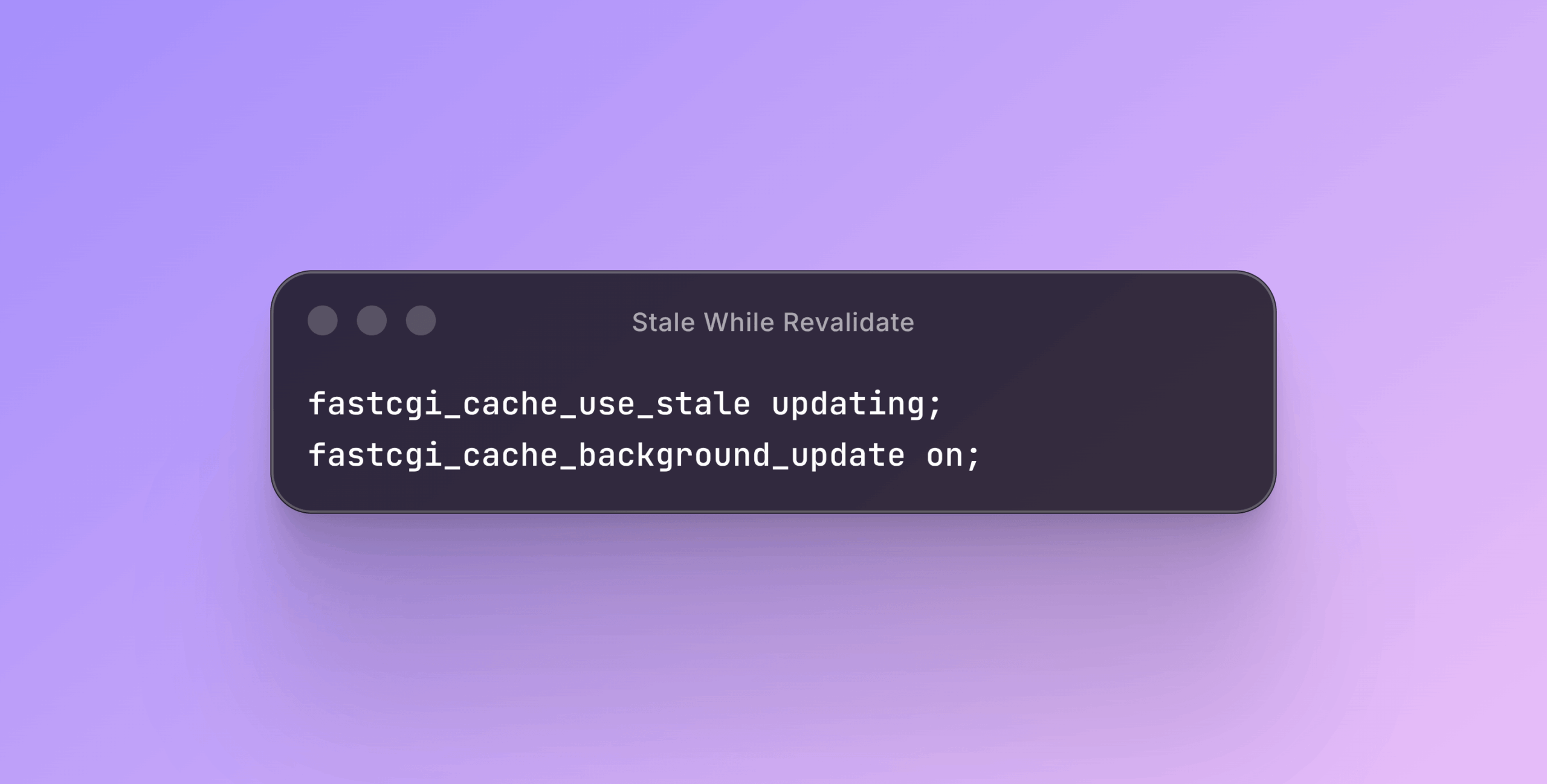
Snippet:
fastcgi_cache_use_stale updating;
fastcgi_cache_background_update on;
Now when a cached page expires, the first visitor still gets the slightly stale but fast cached response. Nginx fetches the fresh version in the background. No stampede, no cold-cache spike, no timeout errors during a flash sale.
open_file_cache Eliminates Thousands of Unnecessary System Calls
A typical WooCommerce product page loads somewhere between 15 and 30 CSS and JavaScript files. Each one triggers an open() system call in Nginx. Multiply that across hundreds of requests per second and you get thousands of redundant filesystem lookups.
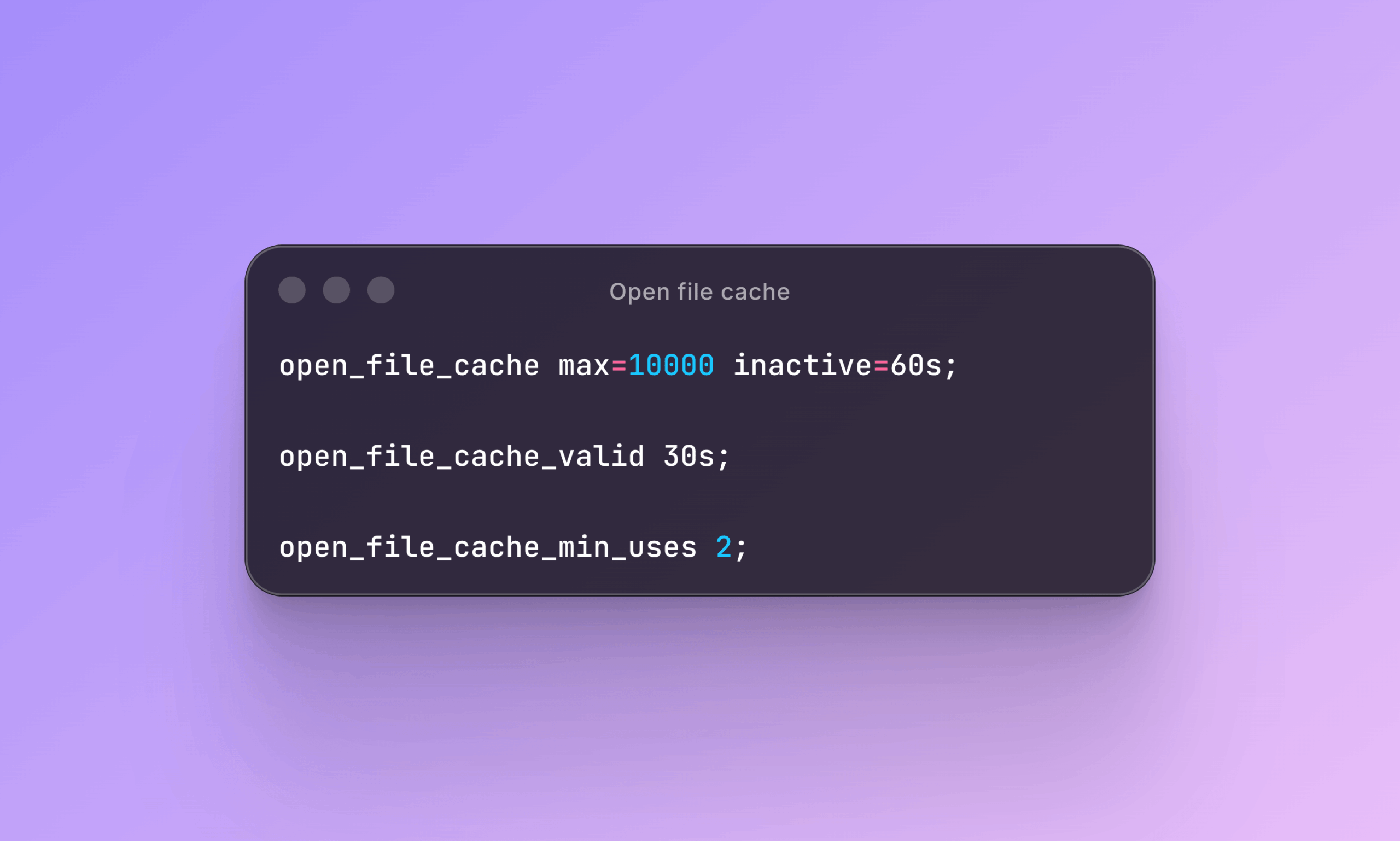
Snippet:
open_file_cache max=10000 inactive=60s;
open_file_cache_valid 30s;
open_file_cache_min_uses 2;
With this in place, Nginx caches file descriptors and metadata in memory. The second request for the same static file skips the filesystem entirely. On stores with a large number of product variation images, the effect is even more noticeable.
WordPress and Server
wp-cron Does a DNS Lookup of Your Own Domain on Every Page Load
By default, WordPress fires a loopback HTTP request back to itself on every page load. This is spawn_cron() doing a full SSL handshake and DNS resolution of your own domain, just to check whether a scheduled task needs to run. On shared hosting this adds 1 to 3 seconds of invisible overhead to every request, on every page, all day.
The fix:
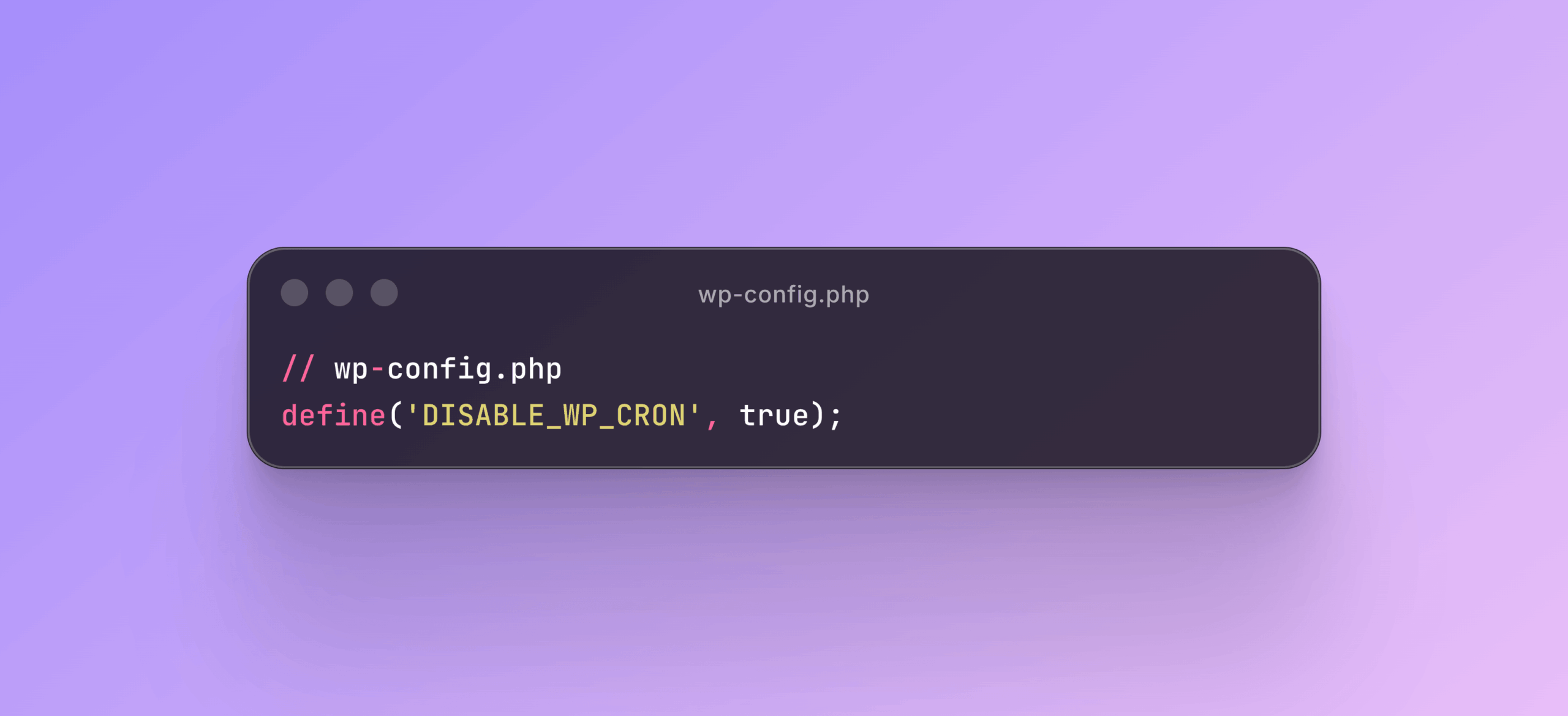
Snippet:
// wp-config.php
define('DISABLE_WP_CRON', true);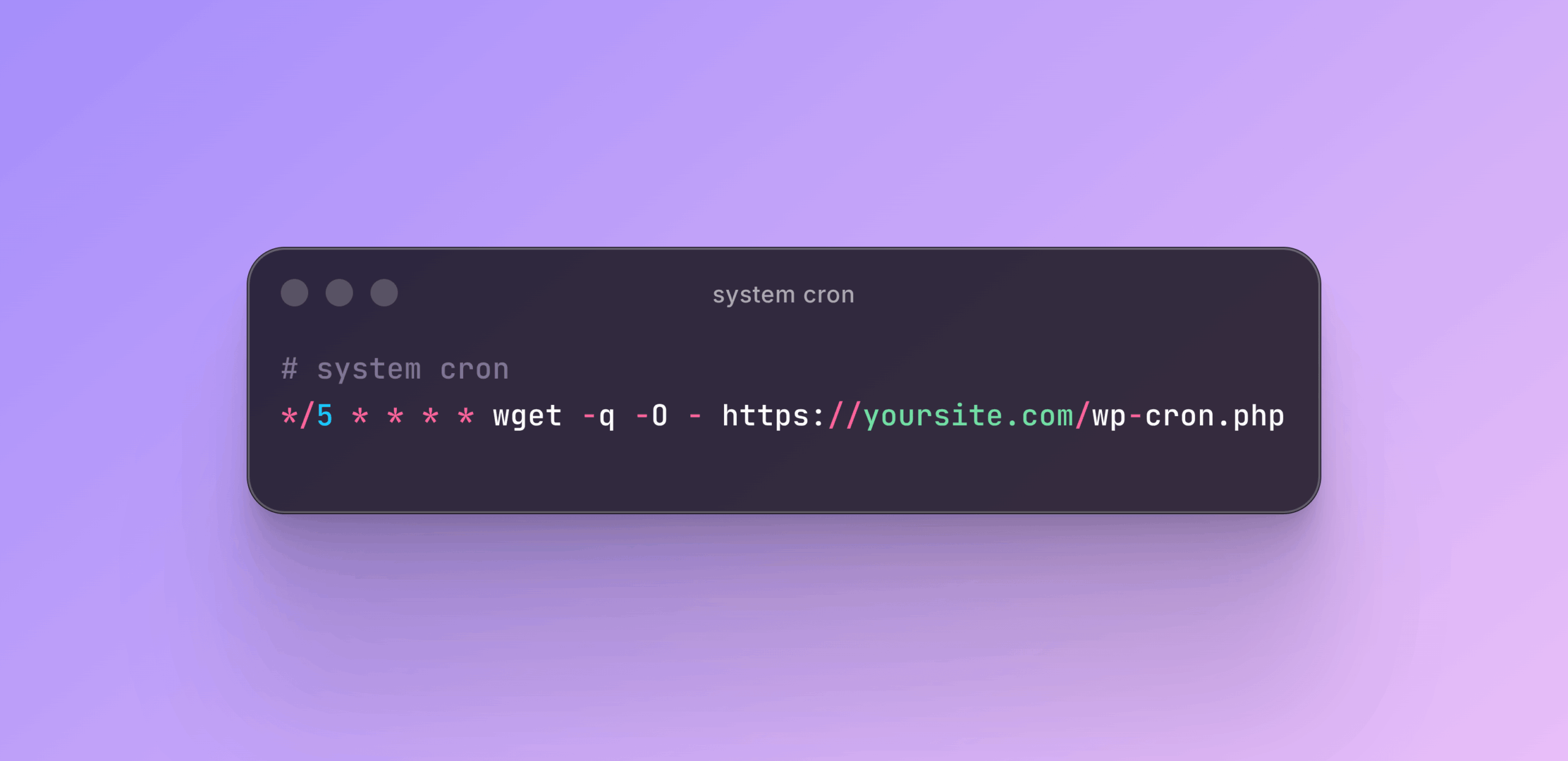
Snippet:
# system cron
*/5 * * * * wget -q -O - https://yoursite.com/wp-cron.php
Cron now runs every 5 minutes from a proper system scheduler instead of being triggered by visitor page loads.
One Bad pre_get_posts Filter Can Break Your Entire Admin
If your WordPress admin is slow, especially the products list and search, look at your pre_get_posts filters. A plugin that adds a meta_query inside a pre_get_posts hook without checking is_admin() or is_main_query() first will apply that query to every admin list table, every AJAX search, and every product lookup. On a store with 100,000 products, that means an unindexed JOIN against wp_postmeta on every keystroke in the admin search bar.
Snippet:
define('SAVEQUERIES', true);Enable SAVEQUERIES and check the queries running on any slow admin page. You will find the plugin responsible quickly. It is almost always something adding custom sorting or filtering without proper conditional checks.
WordPress Uses Loopback Requests in More Places Than Just Cron
WordPress makes loopback HTTP requests (your server making requests back to itself) in more places than most people know. The Site Health check does it. The block editor does it. Plugin update checks do it. WooCommerce background processing does it.
Each loopback request goes through the full network stack: DNS resolution, TCP connection, SSL handshake, and a full WordPress boot on the receiving end. If your server DNS is slow, you are behind a CDN with strict firewall rules, or your host blocks loopback connections, these requests silently fail or add seconds of overhead to normal operations.
Check Tools > Site Health and look for any loopback request warnings. They are not just informational notices. They tell you something is broken in how your server communicates with itself.
Hidden Option Writes Are Tanking Your Cache Hit Ratio
Every plugin that writes to wp_options during a page load has the potential to destroy your object cache hit ratio. One update_option() call in a code path that nobody has audited in years, running on every request across your full traffic volume, compounds into serious performance damage.
Enable SAVEQUERIES, look specifically for UPDATE and INSERT statements on wp_options, and trace each one back to the plugin that owns it. The plugins you find are almost always surprising ones that you would never suspect.
Combine SAVEQUERIES With Slow-Log to Find Everything
Tips 14 and 29 work together. The PHP-FPM slow log catches requests that take too long at the process level. SAVEQUERIES catches database operations that fire more often than they should. Using both at the same time gives you a complete picture of what your server is actually doing on each page load.
Run them together during a normal traffic window, not during a test. Real traffic exposes real problems. What you find will almost never be the expensive query you expected. It will be a quiet, small write that runs on every single request and has been running for months.
This post and tips are inspired from Marcin Dudek
Frequently Asked Question
What is the fastest way to improve WooCommerce performance without touching server config?
If you are on shared hosting, the most impactful things you can do are disable cart fragments if you do not use a mini-cart, regenerate product lookup tables, reduce the Action Scheduler retention period, and clean up your autoloaded options using a plugin like WP-Optimize or Advanced Database Cleaner.
Does HPOS actually improve WooCommerce performance?
Yes, but only if you disable sync mode after migrating. Running HPOS with sync enabled is worse than not using HPOS at all because it doubles every order write to the database.
How much memory should I give Redis for a WooCommerce store?
A good starting point is 256MB for a store with up to 1,000 concurrent sessions and a medium-sized product catalog. Check your actual used_memory with redis-cli INFO memory and set maxmemory to at least twice that number.
Why is my WooCommerce admin slow even though the frontend is fast?
The most common cause is a pre_get_posts filter running unindexed meta queries on every admin page. Enable SAVEQUERIES and check the query log on any slow admin screen.
Should I use pm = static or pm = dynamic for PHP-FPM with WooCommerce?
For consistent or high traffic, use pm = static. For spiky or unpredictable traffic, use pm = ondemand. Avoid pm = dynamic for WooCommerce because the worker scaling latency causes problems during checkout surges.
One Thing That Matters
Most WooCommerce performance problems are not about server specs. They are about things running that should not be running. Queries nobody asked for. Data that gets loaded and thrown away. Background processes that fire on every page load because someone forgot a conditional check three years ago.
The fix is almost never “get a bigger server.” It is “figure out what is happening that should not be.”
Start with the slow log. Run SAVEQUERIES. Check your autoloaded options. Fix the obvious things first. The results will surprise you.



Comments are moderated. Stay on topic: spam and link drops are removed.