
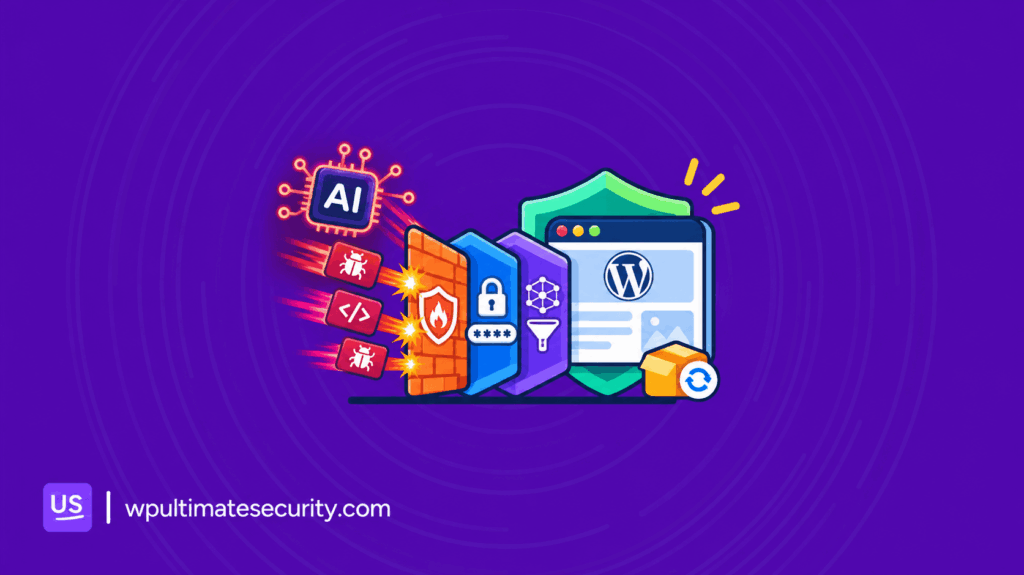
WordPress security in the age of AI requires more than fast updates. AI is changing how security researchers and attackers find software vulnerabilities. It can help analyze code, identify weaknesses, and develop exploit techniques faster than before. This creates a difficult situation for website owners.
This raises an important question, “What protects your website during the hours between vulnerability disclosure and installing an official update?”
In this guide, we will explain how AI is changing WordPress security, why updates alone are not enough, and how a layered security approach can help. We’ll also look at how Ultimate Security brings different protection methods together to address these risks.
Table of Contents
How AI Is Making WordPress Attacks Faster
AI did not create WordPress vulnerabilities. It changed how quickly people can discover and investigate them.
Security researchers can use AI tools to analyze source code, identify suspicious functions, and find possible weaknesses. Attackers can use similar capabilities to study vulnerable software and develop ways to exploit it.
The WordPress security team has also seen a major increase in vulnerability reports. According to its October 2026 update, the HackerOne program received around 20 to 30 reports per month for roughly a decade. That number increased to 450 in July and 773 in August 2026.
The WordPress team attributed much of this increase to AI-assisted security research. In response, it launched the Core Security Initiative in August 2026 to improve security releases, process reports faster, and use AI-assisted tools to find vulnerabilities in WordPress core.
AI is helping defenders too. The WordPress project is using AI-assisted vulnerability research and report triage to find and address weaknesses before attackers can exploit them.
Why Updating WordPress Fast Is Not Enough Anymore
Keeping WordPress, plugins, and themes updated is still one of the most important security habits. Updates fix known vulnerabilities and close weaknesses that attackers may target. However, updates have three limitations.
The security fix may not exist yet.
When researchers discover and report a vulnerability, the developer may need time to investigate it, prepare a fix, test the changes, and release an update. Patchstack’s 2026 report found that 46% of vulnerabilities did not receive a timely fix from their developers. This means website owners cannot always depend on an immediate update.
You may need time to test an update.
Updating everything immediately can create problems for websites that depend on several plugins, custom code, or complex integrations.
Many website owners test updates on a staging website before applying them to the live version. This is a sensible approach, but it creates a period when the live website may still run vulnerable software.
Updates cannot prevent every type of attack.
A WordPress update cannot stop someone from using a stolen password or an active login session. It also cannot automatically detect every malicious file or prevent an AI tool from misusing an account with excessive permissions. Updates are essential, but they are only one part of website security.
What Attackers Still Need to Compromise a WordPress Website
AI can make attacks faster, but it does not remove the need for an entry point. An attacker still needs a way to access your website, abuse a weakness, or take advantage of an existing security problem. Understanding these entry points makes it easier to choose the right protection.
| Attack path | What attackers may do | Protection that helps |
|---|---|---|
| Vulnerable WordPress core or plugin | Exploit known software weaknesses | Vulnerability scanning, virtual patches, and updates |
| Weak or stolen password | Guess credentials or use phishing | Two-factor authentication, passkeys, and brute-force protection |
| Stolen login session | Reuse an active authenticated session | Session controls and security key rotation |
| Weak website configuration | Abuse exposed settings or unnecessary access | Security hardening and API restrictions |
| Malicious code | Add backdoors or modify website files | File integrity checks and malware scanning |
| Connected AI tools | Abuse permissions granted to an AI agent | Role restrictions, blocked tools, IP rules, and activity logging |
Consider a website with strong login protection but an outdated plugin. Two-factor authentication makes it harder to break into an account, but it does not fix the vulnerable plugin. The opposite is also true. A patched website can still be compromised if an attacker obtains an administrator’s password.
This is why modern WordPress security needs multiple layers. Each protection should address a different risk instead of depending on one security feature to handle everything.
What Modern WordPress Security Needs to Handle
A modern WordPress security setup needs to do more than scan for threats or install updates. It should cover the different ways attackers can access and target your website. Here are the key areas it needs to handle:
- Block attacks before they reach WordPress: Use a Web Application Firewall (WAF) to filter malicious requests at the network edge.
- Protect login access: Limit login attempts, enable two-factor authentication, and block automated login attacks.
- Find known vulnerabilities: Scan WordPress core, plugins, and themes to identify outdated software and known security issues.
- Detect suspicious file changes: Monitor important files for unexpected modifications that could indicate malware or unauthorized access.
- Check for malware: Combine traditional detection methods with AI-assisted analysis to investigate suspicious files and potential threats.
- Control AI agent access: Monitor AI tool activity and restrict which tools, users, IP addresses, and time periods can access your website.
- Respond to threats quickly: Keep activity logs, send security alerts, and make it easier to investigate suspicious activity.
These layers work together. If one security measure misses a threat, another may still detect or block it.
Why Ultimate Security Takes a Different Approach to WordPress Security
A single security feature cannot protect a website against every possible attack. A firewall can block suspicious requests, but it cannot stop someone from using a stolen administrator password. Two-factor authentication protects logins, but it cannot identify malicious code hidden inside an outdated plugin.
Ultimate Security brings different protection methods together in one modular WordPress security system. Its approach combines login protection, Cloudflare WAF rules, vulnerability scanning, file integrity checks, malware detection, website hardening, and security monitoring.
The advantage is not simply having more features. It is having different security layers that address different risks while remaining manageable from one WordPress dashboard. There are four important parts of this approach.
Multiple Security Layers in One Place
Ultimate Security covers different entry points instead of depending on one protection method.
For example, Cloudflare WAF rules help filter suspicious traffic before it reaches your hosting server. Two-factor authentication adds another step to the login process. The vulnerability scanner checks your WordPress core, plugins, and themes for known weaknesses.
These features address different problems, but they work toward the same goal: reducing the opportunities attackers have to compromise your website.
Modular Architecture
Not every WordPress website needs the same security configuration. A small blog may need strong login protection and vulnerability scanning. A WooCommerce store may need additional controls for customer accounts and payment-related workflows. An agency managing multiple websites may need more detailed monitoring and access restrictions.
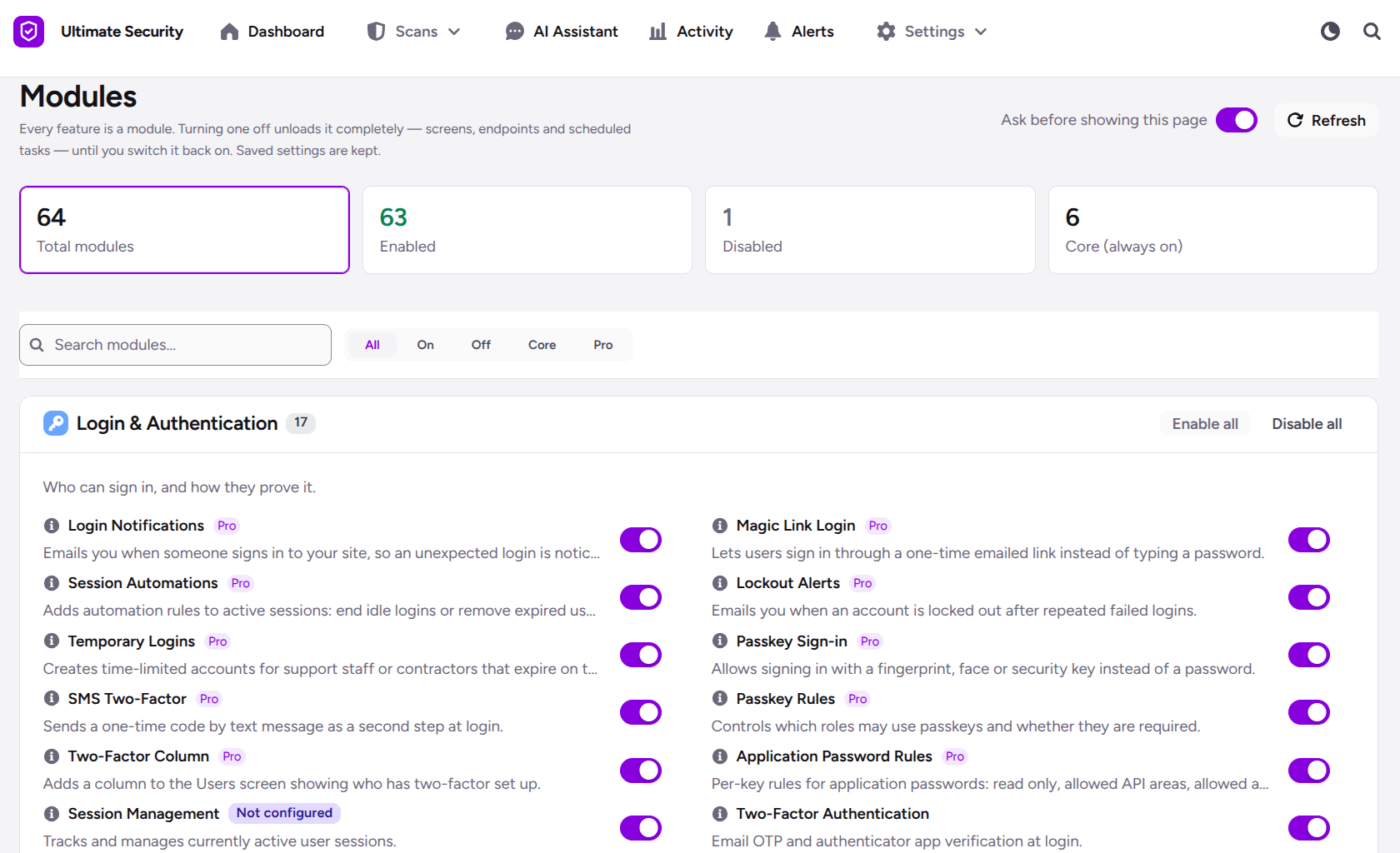
Ultimate Security uses modules to control which groups of features are loaded. This gives website owners more control over their security setup without requiring every feature to remain active.
Privacy and User Control
AI security tools may need to send website data to external providers for analysis. The plugin lets users connect their preferred supported AI provider using their own API key. The provider bills the user directly, and file contents are sent to the provider the user selects.
External connections still happen when users enable features that require services such as Cloudflare, vulnerability databases, or AI providers. This approach gives website owners more visibility into the services their security setup uses.
How WordPress Security in the Age of AI Covers Different Risks
Let’s look at how these ideas work through the actual features available in Ultimate Security. This lets you manage multiple layers of WordPress security from one place without relying on several separate plugins.
Edge Protection That Works Before an Update
With the plugin you can deploy five groups of Cloudflare WAF rules to your own Cloudflare account. These rules filter suspicious traffic at Cloudflare’s edge, before requests reach your hosting server.
The WAF module is available in the free plugin. Virtual Patches take this protection further by providing emergency rules for specific known vulnerabilities.
For example, it includes virtual patch rules for the WP2Shell vulnerabilities:
- CVE-2026-60137, core SQL injection.
- CVE-2026-63030, remote code execution through the REST batch endpoint.
- CVE-2026-109618 and CVE-2026-109619, the php2shell pair in PHP core.
The plugin also provides an option to challenge suspicious visitors before applying new blocking rules. When enabled, newly added block rules use a Cloudflare challenge for the first 24 hours before switching to blocking.
Virtual patches are a temporary security measure, not a replacement for official updates. Once the developer releases a fix, update your WordPress installation
Read the Virtual Patches documentation to learn how to configure them.
Login Protection That Makes Unauthorized Access Harder
Stolen passwords remain a major risk for WordPress websites. Attackers can use phishing, credential stuffing, and automated login attempts to gain access to user accounts. The free version of the plugin includes two-factor authentication using email one-time codes and authenticator apps. Other login protection features include:
- Brute-force login limits.
- Custom login URLs.
- Compromised-password checks.
- reCAPTCHA and Cloudflare Turnstile.
- Login and session security controls.
The plugin’s Pro version adds passkeys, magic links, trusted devices, backup codes, and SMS-based two-factor authentication through your own Twilio account.
Passkeys provide phishing-resistant authentication because they are tied to the website’s legitimate domain. A fake login page cannot simply collect the passkey as it could collect a password.
Together, these controls make it harder for attackers to turn a stolen password into website access.
Finding Vulnerabilities Before Attackers Exploit Them
An outdated plugin can create a security problem even when WordPress core is fully updated. The Vulnerability Scanner checks WordPress core, plugins, and themes against known vulnerability databases.
When the scanner finds a known vulnerability, website owners can review the results and decide what to update or replace.
The Security Fixes section helps prioritize problems, while the Update Manager provides additional control over core, plugin, and theme updates.
Pay special attention to abandoned plugins. If a developer no longer maintains a plugin, future vulnerabilities may not receive a security patch. Replacing unsupported software is often safer than continuing to use it.
Catching Suspicious Code With AI-Assisted Malware Scanning
Traditional signature-based scanners look for malware patterns that have already been identified. This works well for known threats, but it can be less effective when malicious code is modified, obfuscated, or designed to avoid familiar detection patterns.
You use your own API key, select the provider and model, and control the scanning schedule.
The scanner supports manual and scheduled scans. You can scan the entire website or select specific plugins and themes.
When it flags a suspicious file, you can review the result and use the quarantine workflow to isolate it. If a file is safe but incorrectly flagged, you can whitelist or restore it.
One important point: AI analysis does not guarantee that every malicious file will be detected. It provides another layer of investigation alongside traditional scanning methods. You should also review the data terms of your chosen AI provider because file contents are sent to that provider for analysis.
Read the AI Malware Scanner documentation for setup instructions.
Controlling the AI Tools That Connect to Your Website
AI agents can do more than answer questions. When connected to WordPress, they may be able to create posts, update content, manage settings, or perform other actions depending on their account permissions.
This creates another security consideration. If an AI agent uses an administrator account, it may have access to more website functions than it actually needs. AI Agent Access controls for tools connected through the MCP Adapter plugin.
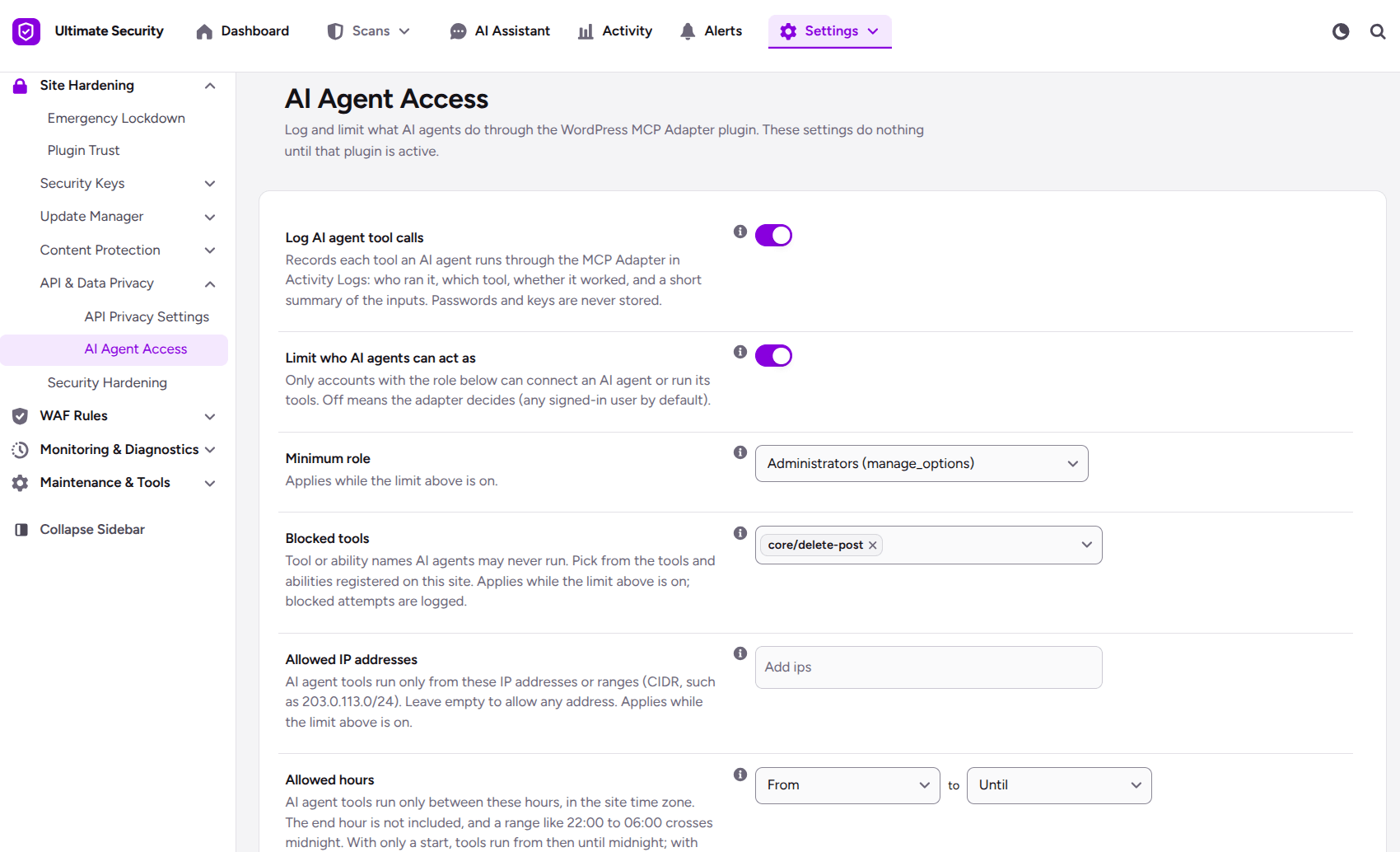
By default, the feature records AI agent tool calls in Activity Logs. You can enable additional restrictions to control what connected agents are allowed to do.
These controls include:
- The minimum user role an agent can use.
- Specific tools or actions that agents cannot run.
- Allowed IP addresses.
- Permitted working hours and days.
- The number of active sessions per user.
- Idle connection time limits.
For example, you may allow an AI agent to work through an Editor account while blocking actions such as deleting posts. You can also restrict connections to trusted IP addresses and specific working hours.
Blocked attempts are recorded as high-severity events, giving administrators a way to investigate unusual activity. This is useful as more WordPress websites connect AI assistants and automated tools to their existing workflows. See the AI Agent Access documentation for the available settings.
Protecting the Security Plugin Itself
An attacker who gains access to a website may try to disable its security controls before making further changes. This is why protecting the security plugin itself matters.
The plugin has Self Defense features that require additional verification before someone can deactivate the plugin. It also monitors its own files for changes and records tampering attempts.
The plugin includes an Emergency Access URL to help administrators recover access if they accidentally lock themselves out. These safeguards make it harder to disable protection without authorization.
Security Habits That Still Matter
Even with multiple security layers, some responsibilities remain with website owners. A security plugin cannot replace basic maintenance or guarantee complete protection. Here are three habits worth keeping.
Keep WordPress and plugins updated.
Virtual patches can help block known exploit attempts while you prepare an update, but they do not permanently fix vulnerable software. Install official security updates as soon as possible.
Keep backups and test them.
A recent backup can help restore your website after a serious incident. However, a backup is only useful if you can restore it successfully. Test your recovery process regularly.
Be careful with emails, links, and connected tools.
A convincing phishing message can still trick a website administrator into sharing login details. Review AI agent permissions, remove unused application passwords, and avoid granting unnecessary access to external tools.
These habits work alongside security plugins to reduce the chances of a successful attack.
How to Strengthen Your WordPress Security With Ultimate Security
You do not need to activate every security feature at once. Start with the protections that address the most common risks, then expand your setup as needed. Here is a practical order to follow.
Update WordPress core, plugins, and themes.
Start by checking your current versions and installing available updates. If you use WP-CLI, you can run:
wp core version
wp core update
wp plugin update --all
Review your themes and test important website functions after updating.
Install Ultimate Security and run the Security Wizard.
Download the free plugin from WordPress.org and activate it. Use the Security Wizard to choose a protection profile that fits your website. You can follow the Security Wizard guide for step-by-step instructions.
- Connect your Cloudflare account, preview the available rules, and deploy the groups you need. Enable Virtual Patches where applicable, and consider using the challenge-first option for newly added block rules. Follow the Cloudflare setup guide.
- Require 2FA for administrators and other important user roles. Choose email codes or an authenticator app based on your website’s needs.
- Check your WordPress core, plugins, and themes for known vulnerabilities. Review the results and address the most serious problems first.
- If you use AI tools through the MCP Adapter, review their account permissions. Enable the AI Agent Access restrictions and block actions the tools do not need.
- If your website needs more advanced protection, explore continuous file monitoring, AI malware scanning, full activity logs, incident detection, and other Pro features. You can enable additional modules as your security needs grow.
Frequently Asked Questions
Can AI hack a WordPress website?
AI can help attackers analyze code, find vulnerabilities, develop exploit techniques, and create convincing phishing messages. However, AI does not remove the need for an entry point. Attackers still need a weakness, stolen credentials, an exposed session, or another way to access the website.
How quickly are WordPress vulnerabilities exploited after disclosure?
Patchstack’s 2026 report found a weighted median of five hours to first observed exploitation for heavily targeted vulnerabilities in its 2025 dataset. About half of high-impact vulnerabilities were exploited within 24 hours. These figures apply to the report’s analyzed vulnerability groups, not every WordPress vulnerability.
Is updating WordPress enough to protect a website?
No. Updating is essential, but it cannot prevent every attack. A vulnerability may not have an official patch yet, and updates cannot stop stolen passwords, session misuse, or every form of malicious code. A combination of updates, login protection, vulnerability scanning, monitoring, and other security controls provides broader coverage.
What is virtual patching in WordPress security?
Virtual patching blocks known exploit attempts before they reach vulnerable software, without changing the vulnerable code itself. It can help protect a website while the owner waits for or tests an official update.
Does a Cloudflare WAF replace WordPress security updates?
No. A WAF filters requests based on configured rules and known attack patterns. It cannot fix vulnerable WordPress code or cover every possible exploit path. Use it as an additional protection layer and install official updates as soon as they become available.
Do I need a security plugin if my hosting provider already has a firewall?
A hosting firewall provides an important layer of protection, but it does not necessarily cover login security, file integrity, vulnerability scanning, or AI agent permissions. A WordPress security plugin can help address risks that network-level protection does not handle.
Is Ultimate Security free, and do its AI features require an API key?
Ultimate Security has a free version available on WordPress.org. It includes two-factor authentication, brute-force protection, CAPTCHA, Cloudflare WAF rules, vulnerability scanning, and brute force protection.
The Pro version adds features such as passkeys, magic links, continuous file monitoring, AI malware scanning, full activity logs, incident detection, and other advanced protections.
The AI Malware Scanner uses your own API key from a supported provider. You pay the provider directly for API usage.
Conclusion
WordPress security in the age of AI is the old discipline on a shorter clock. Updates, strong logins, scanning and monitoring still matter. What changed is how much has to be in place before the patch exists. If you take one step today, deploy the Cloudflare WAF rules and turn on two-factor authentication. Both are free.
No security plugin can guarantee complete protection. But a layered approach gives your WordPress website more ways to prevent, detect, and respond to security threats.
Comments are moderated. Stay on topic: spam and link drops are removed.