

Many WordPress site owners wonder if installing multiple security plugins will provide stronger protection for their website. While it sounds like a smart idea, the truth is that using more than one security plugin rarely improves your security and often creates new issues.
In this guide, we break it down simply. You’ll discover how WordPress security actually works across two different layers, what security plugins can and cannot protect, why multiple plugins often fight with each other, and what a clean, effective security setup really looks like. By the end, you’ll have a clear idea of what to keep and what to remove from your site.
Table of Contents
Why WordPress Website Security Is a Two-Layer Problem
Before talking about plugins at all, it helps to understand that WordPress security does not work in a single layer. It works in two, and they do not overlap.
Layer 1: Application level. This is everything inside WordPress itself: your login page, uploaded files, plugin and theme code, user permissions, and database queries. WordPress security plugins operate here. They monitor login attempts, scan files for malware, filter incoming requests after they reach WordPress, and log security events.
Layer 2: Server level. This sits entirely below WordPress. It includes your hosting firewall, DDoS mitigation, PHP configuration, SSH and FTP access controls, and the operating system your site runs on. It exists before a request reaches WordPress at all.
Most site owners only think about layer one. Both matter, and understanding the difference is what makes the rest of this post make sense.
Server-Level Protection: The Security Layer Plugins Cannot Replace
Your hosting environment handles everything below the WordPress application. A site running solid WordPress security plugins but sitting on a poorly configured server is still exposed to attacks that bypass WordPress entirely.
Security Layers Beyond WordPress Plugins
Some of the most important security protections happen outside WordPress. These controls work at the hosting, server, and network levels, helping stop attacks before they reach your website.
Hosting Firewall
Blocks malicious traffic at the network edge before requests ever reach your WordPress files. Unlike a plugin-based firewall, it continues working even if WordPress is offline.
DDoS Mitigation
Absorbs or deflects large-scale traffic floods aimed at overwhelming your server. A plugin running inside WordPress cannot stop an attack targeting the server itself.
PHP Configuration Hardening
Settings such as disable_functions and open_basedir restrict what attackers can execute if they exploit a vulnerability.
SSH & FTP Access Controls
Restricting file access to approved IP addresses protects critical server resources. This is managed through hosting and server settings, not WordPress plugins.
Account Isolation
On shared hosting, proper account isolation prevents a compromised neighboring website from spreading malware or gaining access to your files.
A WordPress security plugin is only one layer of defense. Hosting-level protections, server hardening, and network security measures fill gaps.
What to Ask Your Hosting Provider
If you are unsure about your server-level protection, these questions are worth sending to your host:
- Do you have a server-side firewall active on my account?
- Is mod_security or a comparable WAF running at the server level?
- Are customer accounts isolated from each other?
- What DDoS protection is in place?
- What PHP version is default, and how can I restrict dangerous functions?
A managed WordPress host typically handles most of this automatically. Shared hosting quality varies significantly, so it is worth verifying rather than assuming.
How the Two Layers Work Together
Neither layer replaces the other. The server layer blocks threats before they reach WordPress. The plugin layer catches what gets through and monitors what happens inside WordPress. Combined, they cover the full attack surface. One without the other leaves gaps.
Running multiple security plugins does not add a third layer. It just creates friction with each other.
Why Installing Multiple Security Plugins on WordPress Causes More Problems Than It Solves
With the two-layer model in place, the case against multiple security plugins becomes straightforward. Stacking them does not extend your coverage. It duplicates work inside a layer that one good plugin already handles and creates conflicts in the process.
Common Problems With Multiple Security Plugins
WordPress Security Plugin Conflicts Are Common and Predictable
When two plugins both try to control the same WordPress function, the login authentication hook, the firewall request filter, and the file scanner, they compete for execution order. The result ranges from inconsistent behavior to outright fatal errors.
A practical example: two plugins both hook into authentication to track login attempts. One blocks an IP after five failed tries. The other starts its own counter from zero. They do not share data. An attacker can keep cycling attempts because the counts never synchronize. You have two plugins running and less protection than one configured correctly.
This is not an edge case. WordPress security plugin conflicts are one of the most common sources of security misconfiguration on live sites.
Multiple Security Plugins Slow Down Your Server
Security plugins are resource-intensive by nature. Running two malware scanners means your server processes the same files twice on the same schedule. On shared or low-resource hosting, this causes noticeable slowdowns and scan timeouts.
Two scanners also do not give you twice the detection coverage. They both check the same files using their own signature databases. The overlap in what they catch is significant. The overlap in server load is exact. You pay the performance cost without gaining anything.
Alert Fatigue Replaces Actual Awareness
One plugin generates alerts. Multiple security plugins generate double the alerts, and most of them are duplicate notifications about the same event. When your inbox is full of redundant warnings, you start ignoring them. The alert that actually matters gets lost in the noise.
Security monitoring only works if you are reading the logs. Stacking plugins makes that harder.
They Can Flag Each Other as Threats
This happens more often than most people expect. Plugin A sees Plugin B scanning files and interprets it as suspicious behavior. Plugin A blocks Plugin B. Plugin B logs the block as a security event. Now both plugins are partially disabled while generating noise about each other, and your actual site protection has degraded.
One Plugin Where Everything Works as a Team
Securing a WordPress site with multiple separate plugins creates a familiar set of problems. Plugin bloat slows your admin area and adds unnecessary weight to every page load. Hook conflicts between overlapping plugins cause unpredictable behavior that is hard to diagnose.
Duplicate scanning and logging processes consume server resources twice over for the same result. And managing four different settings panels means security tasks get delayed or skipped entirely because the overhead is too high. None of this makes your site more secure. It just makes it more complicated.
The cleaner approach is one plugin that covers every layer of WordPress security in a single install. That is exactly what Ultimate Security is built to do. Every protection your WordPress site needs at the application layer lives inside a single plugin, designed to work together from the ground up.
How Ultimate Security Covers the Full Application Layer
Rather than running multiple security plugins and dealing with the conflicts between them, the smarter approach is one plugin that handles every function at the application layer without leaving gaps.
Ultimate Security is built around that model. Below is what each protection actually does and why it matters for your WordPress site.
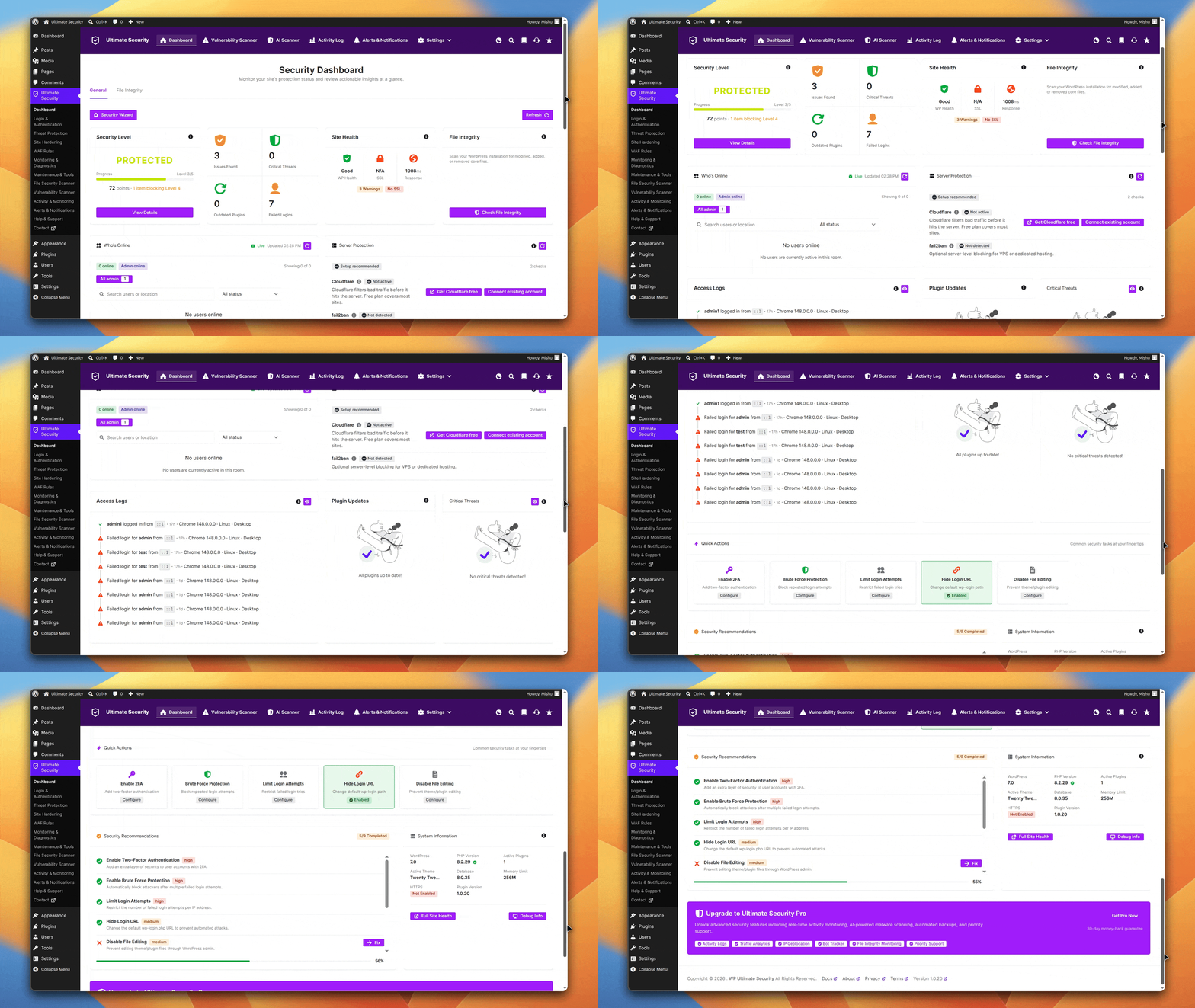
A Single Dashboard That Shows Your Entire Security Posture
One of the real problems with running multiple security plugins is that your security information gets scattered across three different screens. One plugin shows login alerts. Another shows scan results. You end up piecing together your site’s actual status from multiple places, and most of the time you are not looking at any of them.
Ultimate Security puts everything into one dashboard. The first thing you see is a security level indicator, your current protection status, your security score, and exactly what is blocking you from reaching a higher level. It breaks everything into clear priority tiers so you know what to fix first, not just what is broken.
Vulnerability Scan
Rather than just scanning for malware signatures, Ultimate Security runs vulnerability scans that check your installed plugins, themes, and WordPress core against a database of known security vulnerabilities. This matters because most WordPress compromises start with an outdated plugin that has a publicly disclosed flaw, not with a zero-day attack.
The scan checks whether your installed software versions have known CVEs (Common Vulnerabilities and Exposures) and flags anything that needs attention before an attacker finds it first. Scheduled scans run automatically so you do not have to remember to check manually.
Brute Force and Login Protection
The WordPress login page at /wp-login.php is one of the most targeted entry points on the web. Automated bots run credential-stuffing attacks constantly, cycling through username and password combinations at scale.
Ultimate Security limits the number of failed login attempts per IP address and then locks out that IP temporarily. You can configure the threshold and lockout duration. Repeated offenders can be blocked permanently. The plugin also supports CAPTCHA on the login page to stop automated scripts from submitting attempts at all.
Custom Login URL
By default, every WordPress site uses the same login path: /wp-login.php. Attackers and bots know this and target it directly. Changing the login URL to something non-standard is a simple measure that removes your login page from the path of automated scans entirely.
Ultimate Security lets you set a custom login URL of your choosing. Bots hitting the default path find nothing. Legitimate users know where to go. It does not replace authentication security, but it meaningfully reduces the volume of automated login attempts your site has to process.
Global Strong Password Enforcement
Weak passwords are still one of the most common ways WordPress accounts get compromised. If any user on your site, editor, author, or contributor, sets a short or simple password, that account becomes a potential entry point.
Ultimate Security enforces a site-wide password policy that applies to all user roles, not just administrators. You can require a minimum length, a mix of uppercase and lowercase letters, numbers, and special characters. When a user tries to set a password that does not meet the policy, they are blocked and prompted to choose a stronger one. This applies at registration and when any user updates their password.
Two-Factor Authentication (2FA)
Two-factor authentication adds a second verification step after a password is entered. Even if an attacker has valid credentials, they cannot complete the login without the second factor.
Ultimate Security supports 2FA for any user role. Admins can require it for all accounts with elevated permissions. This covers the scenario where a password is leaked in a data breach on another platform and the attacker tries those same credentials on your WordPress site.
Bot Spam Protection
Spam bots do not just target your login page. They hit comment forms, contact forms, registration pages, and anything else on your site that accepts user input. Beyond filling your database with junk, spam submissions can be used to inject links, test vulnerabilities in form handling, or scrape content.
Ultimate Security includes bot spam protection that identifies and blocks automated form submissions before they reach your database.
File Change Monitoring (Checksum)
WordPress core files are known quantities. Their content and structure are documented and consistent across versions. When a file in your core installation changes unexpectedly outside of a legitimate update. It is almost always a sign that something has been modified without your knowledge.
Ultimate Security monitors core WordPress files and alerts you when any modification occurs. The alert includes which file changed, when it changed, and what the change looks like. This gives you an early warning before a hidden backdoor or injected script can cause damage, rather than discovering the problem after the fact.
Real-Time Access Logs
Most WordPress site owners do not see what is happening on their site until something breaks. Real-time access logs change that.
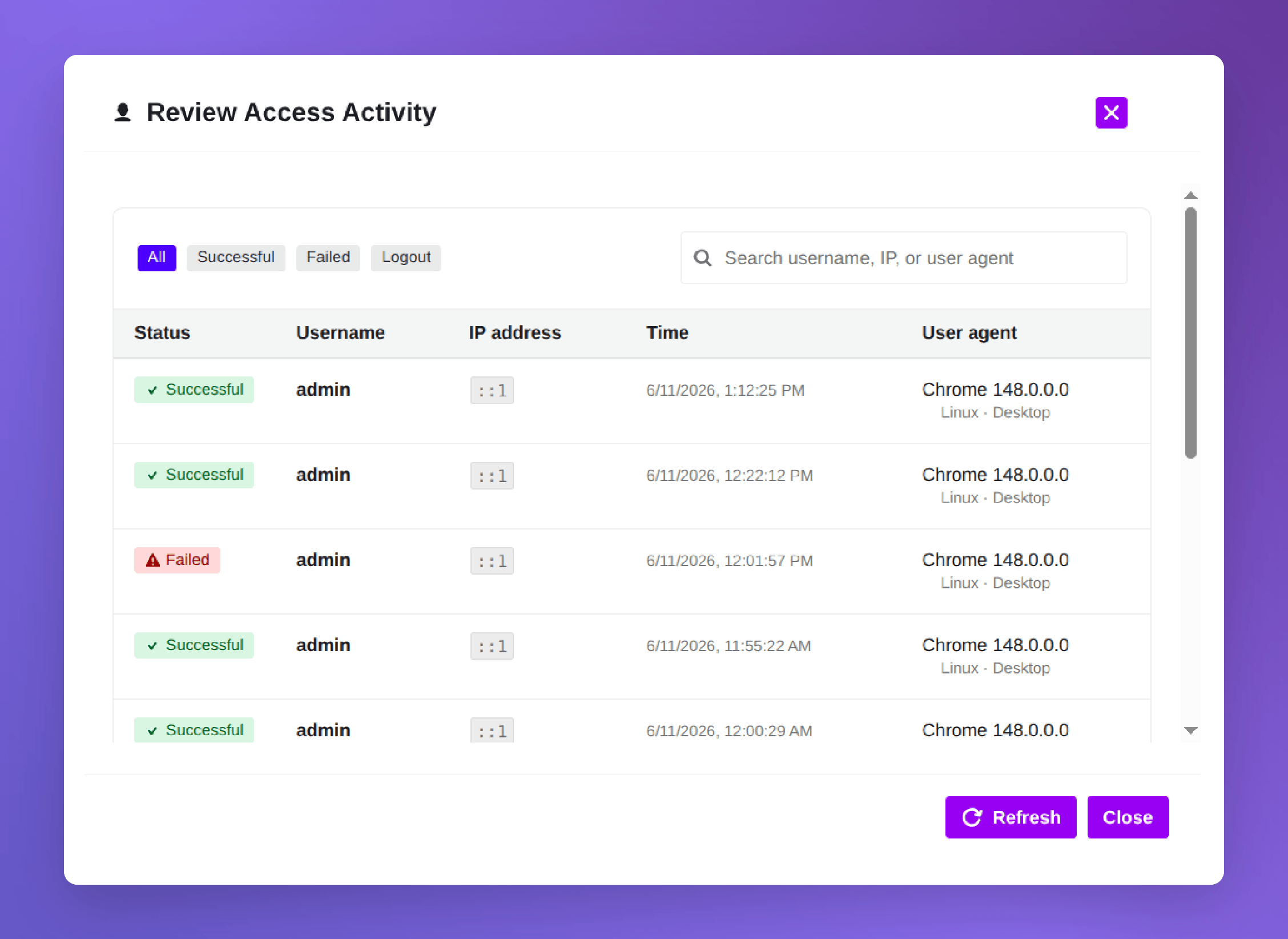
Ultimate Security logs every significant access event as it happens. Login attempts (successful and failed), each log entry includes a timestamp, the user or IP involved, and the action taken.
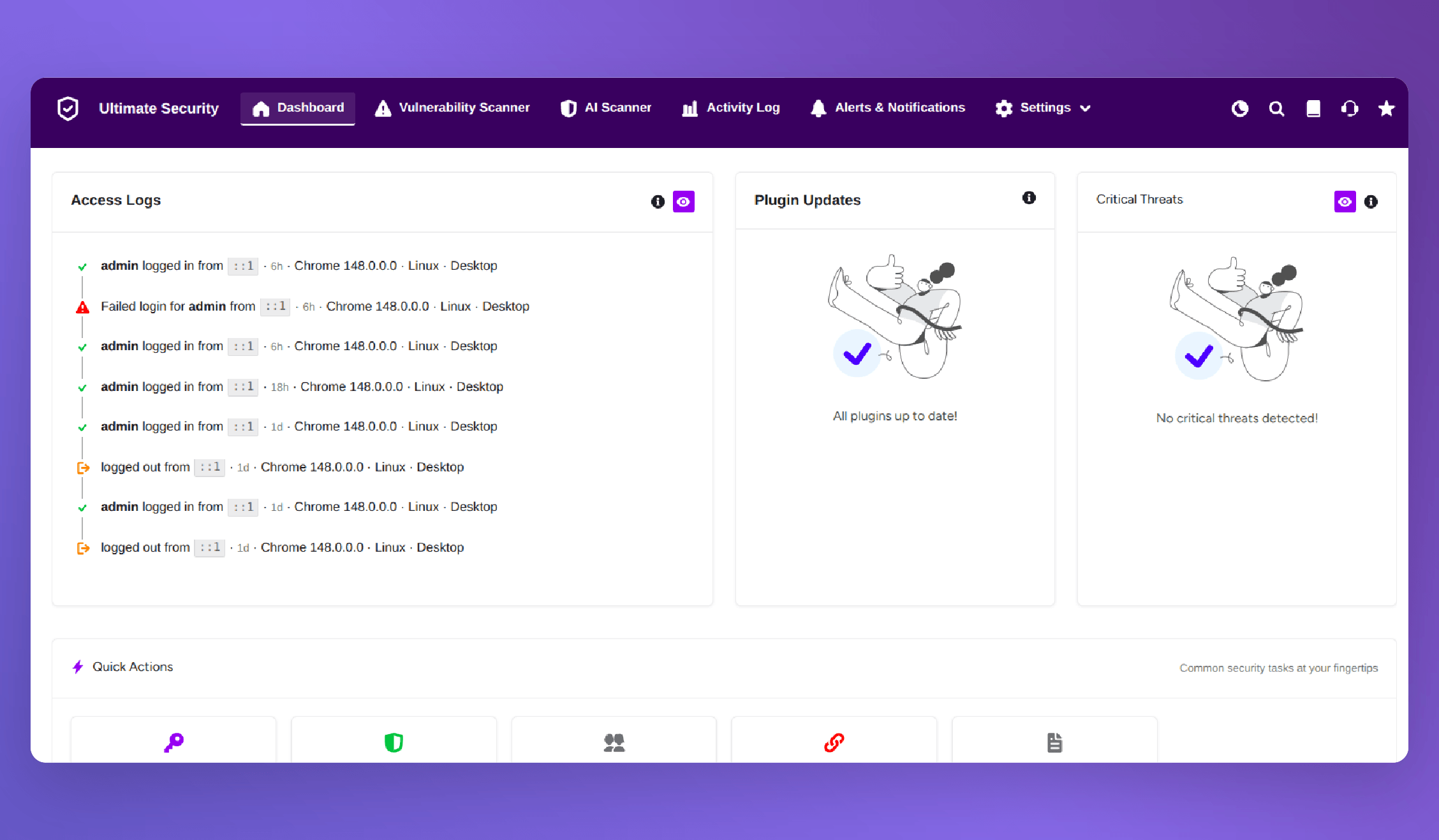
This matters for two reasons. First, it gives you visibility into attack patterns before they escalate. Second, if something does go wrong, the access log is your audit trail. You can trace exactly what happened, when, and from where.
With all of these functions handled by a single plugin, there is no functional gap that a second security plugin would fill. Adding another plugin on top of this stack would only create the hook conflicts and resource duplication described earlier in this post.
Frequently Asked Questions
Should you install multiple security plugins on WordPress?
No. Multiple security plugins typically conflict with each other, duplicate server load, and generate alert noise without improving coverage. One plugin that handles the full application layer is more reliable than two that overlap.
What causes WordPress security plugin conflicts?
The most common conflicts involve login protection hooks, firewall request filtering, and malware scanning processes. When two plugins hook into the same WordPress function, execution order issues cause inconsistent behavior or site-breaking errors.
Can WordPress security plugins replace server-level protection?
No. Plugins operate inside the WordPress application layer. Server-level protection handles network traffic, PHP configuration, SSH access, and DDoS mitigation before requests reach WordPress. Both layers are necessary for complete coverage.
What should a single WordPress security plugin include?
At minimum, a web application firewall, malware scanning, brute force and login protection, two-factor authentication, file change detection, and a security activity log. A plugin covering all of these handles the application layer without needing a second plugin alongside it.
Do multiple security plugins slow down a WordPress site?
Yes. Security scanning is resource-intensive. Running two plugins that both scan the same files doubles the server load without improving detection. On shared hosting, this often causes scan timeouts and noticeable performance degradation.
Is a backup plugin considered a security plugin?
Not exactly. Backup plugins handle data recovery, not threat prevention. Running a security plugin alongside a dedicated backup plugin is a good practice because their functions do not overlap and no conflicts occur.
Does server-level protection make a security plugin unnecessary?
No. Server-level security protects the infrastructure. A security plugin protects the WordPress application itself, file integrity, login security, malware inside your codebase, and user activity. You need both layers working together.
Conclusion
The natural process behind running multiple security plugins makes sense. You want your WordPress website security covered from every angle, so more plugins feel like more coverage. The problem is that all security plugins operate on the same layer. Stacking them does not extend your protection. It creates conflicts, performance overhead, and alert noise inside the one layer they share.
The complete security picture has two layers, not more plugins. A single comprehensive security plugin handles the application layer. Your hosting environment handles the server layer. A dedicated backup solution handles recovery. Each component does its job without getting in the way of the others.
If you are currently stacking security plugins, the most useful thing you can do right now is audit what you have. Find the overlap, remove the redundant plugin, and let one tool do the job properly.
Ultimate Security covers the full WordPress layer in a single install. Dashboard, vulnerability scanning, login protection, 2FA, file monitoring, real-time access logs, and many more module-based features. If you want a cleaner, lighter, and more reliable security setup for your WordPress site, that is the place to start.


Comments are moderated. Stay on topic: spam and link drops are removed.