

Most WordPress site owners set up Cloudflare once and never go back. They point their domain’s DNS at Cloudflare, flip on the orange cloud icon for caching, and call it done. That single setup step does help, but it only scratches the surface of what Cloudflare actually offers.
Cloudflare’s free plan includes a genuine set of security tools built for exactly the kind of traffic WordPress sites deal with every day: brute force login attempts, comment spam bots, vulnerability scanners probing for outdated plugins, and the occasional flood of junk requests aimed at knocking a site offline. Most of it costs nothing and takes a few minutes to turn on.
This guide walks through the Cloudflare features for WordPress security that matter most, what each one actually does, and how they fit together into a layered defense for your site.
Table of Contents
Why WordPress Sites Need More Than DNS And Caching
A huge number of websites use WordPress. That’s why so many automated bots and tools target it. They scan the internet in bulk, looking for weak spots: the login page at /wp-login.php, the xmlrpc.php file, exposed wp-config.php backups, and outdated plugins with known bugs. Every request, good or bad, has to go somewhere. If your server sees it first, it wastes time and memory on junk before real visitors even load the page. On shared or modest hosting, that can slow the site down or crash it during an attack. This is where Cloudflare features for WordPress security make a real difference. Bad requests get blocked or challenged early, so WordPress never has to deal with them at all.
The Free Cloudflare Features Worth Turning On
Cloudflare’s dashboard groups a lot of unrelated tools together, which is part of why most WordPress owners never go past the DNS tab. Not everything in there matters for security, and not everything needs to be turned on for every site. The list below focuses specifically on the features that affect how well your WordPress install holds up against bots, brute force attempts, and junk traffic, roughly in order of how much they matter.

A few of these (DNS, CDN, SSL) you are likely already using without realizing they are doing anything for security. The rest are sitting unused in the same dashboard, free, and usually a few clicks away from being active.
Web Application Firewall (WAF)
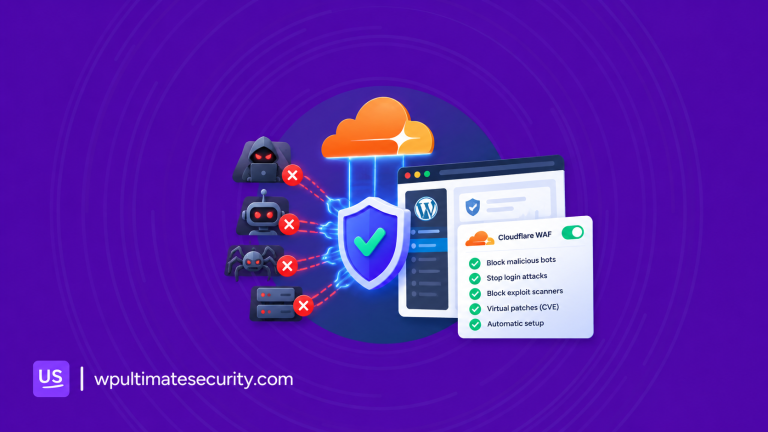
This is where things get genuinely useful for WordPress. A Web Application Firewall inspects incoming requests against a set of rules and decides whether to allow, block, or challenge them before the request reaches your site. Cloudflare’s WAF runs on every plan, including free, and it comes with a managed ruleset that covers a baseline of common attack patterns automatically.
For WordPress specifically, a WAF is useful for blocking things like:
- Direct requests to sensitive files such as wp-config.php, readme.html, or xmlrpc.php
- Known exploit scanning patterns (SQL injection attempts, path traversal, tools like Nikto or SQLMap)
- Traffic from data center IP ranges and hosting providers that real visitors rarely come from
- Traffic from TOR exit nodes
- Repeated requests to /wp-login.php from suspicious sources
More advanced setups combine several conditions together, for instance, challenging traffic that comes from a VPN or cloud hosting provider and is also targeting the login page, rather than blocking it outright. That kind of layered rule writing is exactly what Ultimate Security’s WAF setup walks through step by step, including how to connect your Cloudflare account and deploy a full set of preset rules without writing wirefilter expressions by hand. Our deep dive on WordPress login hardening with Cloudflare goes further.
The main benefit of handling this at the WAF level instead of inside a WordPress plugin is timing. A WAF rule blocks the request before WordPress even loads, which means your server never spends resources on it at all.
Cloudflare Turnstile
Turnstile is a free Cloudflare tool with no request limits. It runs quietly in the background. It checks behavioral signals, browser characteristics, and cryptographic device attestation on newer iOS and macOS devices to decide if a visitor is likely human. Most real visitors see nothing. Only suspicious traffic receives an interactive challenge.
For a WordPress site, Turnstile is most useful on the forms bots actually target:
- WordPress login page
- WordPress registration and password reset forms
- The comment form
- WooCommerce login, registration, and checkout, if you run a store
Ultimate Security’s Cloudflare Turnstile settings let you turn protection on for each of these individually rather than as an all-or-nothing switch, and the same login hardening guide covers how Turnstile fits alongside with a custom login URL and login attempt limits as part of a complete strategy.
DDoS Protection
Every Cloudflare plan, including free, comes with automatic DDoS mitigation running in the background. Instead of a flood of junk traffic hitting your server all at once, Cloudflare’s network absorbs and filters it before it ever gets close.

This runs without any setup on your part, but it’s worth knowing it’s there, since it’s the reason a sudden traffic spike aimed at taking your site down usually never reaches WordPress at all.
Bot Fight Mode
Bot Fight Mode is a free, one-click toggle that sits alongside the WAF. It looks at incoming traffic for patterns that match known bots and issues a computational challenge designed to slow them down and make automated scanning more expensive to run. It works across your entire domain without needing any custom rules, which makes it a reasonable default to leave on even if you never touch anything else on this list.

It is worth knowing that Bot Fight Mode on the free plan is a blunt instrument. It cannot be fine-tuned to exempt specific paths or endpoints, so if you run integrations that rely on automated requests (webhooks, certain plugin update checks, some API calls), it is worth testing carefully after you turn it on.
Managed Challenge And Rate Limiting
Beyond Turnstile’s form-level checks, Cloudflare can apply a Managed Challenge to entire categories of traffic, such as visitors coming from cloud hosting providers (AWS, Google Cloud, Azure) or from VPN services.

This matters because attackers frequently route brute force attempts through cloud servers or VPNs specifically to avoid simple IP-based blocks. A managed challenge forces that traffic to prove it is human before it reaches sensitive areas like the login page, without blocking legitimate visitors who happen to use a VPN for privacy reasons on pages that are not sensitive.
Zero Trust Access
Cloudflare Access, part of its Zero Trust product line, is Cloudflare’s Identity and Access Management (IAM) layer for your site. Instead of relying on WordPress’s own login form to decide who gets into /wp-admin/, you can require visitors to verify their identity (through email, an existing Google or Microsoft account, or another provider) before the request is even allowed through.

Anyone who fails that check never sees the WordPress login screen at all. It’s free for up to 50 users, which comfortably covers most WordPress teams, agencies, and small businesses. This is a useful extra layer for the admin area specifically, on top of anything Turnstile or login attempt limits are already doing on the login form itself.
Cloudflare Tunnel
Cloudflare Tunnel connects a server to Cloudflare’s network without ever exposing its public IP address. For a typical live WordPress site this isn’t necessary, since the site is meant to be public.

It’s more useful for staging environments, internal admin tools, or a development copy of a site that you want reachable only through Cloudflare, with no direct path to the server from the open internet. It’s free, with no bandwidth limits.
Universal SSL
Cloudflare issues a free SSL certificate for your domain automatically, and it renews on its own. This is what puts the padlock in the browser bar and keeps traffic between visitors and Cloudflare encrypted.

Most WordPress hosts offer free SSL too, but Cloudflare’s version works even if your origin server’s certificate has issues, since Cloudflare terminates the connection at the edge first.
DNS And CDN
Cloudflare’s DNS is fast and reliable, and it is usually the first thing anyone configures when they add a site. Once DNS is proxied through Cloudflare (the orange cloud), your site also picks up basic CDN caching, which stores copies of static assets like images, CSS, and JavaScript closer to visitors around the world. This is genuinely useful for performance, but it is not security on its own. It is the foundation the rest of these features sit on top of.
Redirect Rules
Redirect Rules (the modern replacement for the older Page Rules) let you handle URL redirects and simple traffic rules at the edge instead of inside WordPress.

Forcing HTTPS on every request, redirecting an old URL structure after a migration, or blocking access to a staging subdomain by country can all be handled here, which again means WordPress never has to process the request at all.
Email Routing
Email routing is a free feature that lets you create custom addresses on your domain, like [email protected], and forward them to an inbox you already use, such as Gmail.

It has nothing to do with securing your WordPress installation directly, but it is worth knowing about since it lives in the same dashboard and often gets overlooked the same way security features do.
Web Analytics
Cloudflare’s Web Analytics gives you basic traffic data (visits, page views, top countries, and performance metrics) without using cookies or tracking individual visitors.

It will not replace a full analytics suite if you rely on detailed behavioral data, but as a lightweight, privacy-friendly view of your traffic that will not affect page load times, it is a reasonable free addition for most WordPress sites.
Other Free Cloudflare Features Worth Knowing About
Everything above is focused on WordPress security specifically. Cloudflare’s platform goes well beyond that, though, and a few of these are worth knowing about even if they won’t change how protected your site is.
Pages, Workers, And R2
These three are developer tools rather than security features. Pages hosts static sites for free, useful if you ever need a landing page separate from your main WordPress install. Workers lets you run small pieces of code at the edge, free up to 100,000 requests a day, which some custom integrations rely on. R2 is free object storage (up to 10GB) with no fees for retrieving your own files back out, which can be handy for offloading backups or media outside of WordPress itself.
Durable Objects And Workflows
Durable Objects and Workflows are building blocks for running stateful, multi-step processes on Cloudflare’s network, things like coordinating a real-time feature or chaining together a series of automated steps that need to happen in order. They’re aimed at developers building custom applications rather than a typical WordPress site owner, but they’re part of what makes the rest of Cloudflare’s free tier possible, since features like Turnstile and the WAF run on this same underlying infrastructure.
Cloudflare’s Newer AI Agent Tooling
More recently, Cloudflare has expanded into tools for building and running AI agents on its platform, including an agent runtime for giving AI agents their own sandboxed compute environment, agent tracing for observing how deployed agents behave, and CI/CD tooling for building and deploying code entirely on Cloudflare. None of this is something a WordPress site needs, but it’s a sign of how much Cloudflare’s free and low-cost infrastructure covers beyond DNS and CDN, for anyone curious about what else lives in the same dashboard.
AI Gateway And Cloudflare OS
Cloudflare has also built tooling around routing and governing AI usage itself. AI Gateway sits between an application and the AI models it calls, giving teams a way to log, filter, and audit those requests, and to control which models different users or workflows can access. Cloudflare has used this internally, alongside Workers and Access, to build what it calls Cloudflare OS, an internal platform for running AI-powered workflows and agents with the same access controls already in place for its other systems. Again, this is aimed at organizations building their own internal AI tooling rather than anything a WordPress site owner would configure, but it’s part of the same free and low-cost platform this guide has been describing throughout.
How WAF And Turnstile Work Together
How WAF, Turnstile, And IAM Work Together
It helps to think of these as three different layers with three different jobs, rather than variations of the same protection.
The WAF operates on every request, before your site even loads. Its job is to filter out traffic that should never reach WordPress in the first place: known exploit patterns, requests for sensitive files, traffic from sources that have no legitimate reason to be there. This is a network-level decision made purely on the properties of the request itself.
IAM, through Cloudflare Access, operates on who is allowed to reach specific URLs at all, most importantly /wp-admin/. Instead of letting anyone attempt a login and relying on the login form to sort out real users from attackers, an identity check happens first. Someone who cannot verify who they are never reaches the WordPress login screen in the first place.
Turnstile operates specifically on forms, at the moment someone tries to submit one. Its job is to confirm that whoever is filling out the login form, the comment box, or the checkout page is an actual person rather than a script.
Used together, the WAF thins out the obvious junk at the edge, IAM restricts who can even reach sensitive areas like the admin panel, and Turnstile catches the more determined automated traffic at the point of interaction. Each layer covers a gap the other two were not designed to close.
Setting These Up From The Cloudflare Dashboard Or From WordPress
Every feature covered here can be configured directly inside the Cloudflare dashboard, and for a lot of site owners, that is a perfectly reasonable way to do it. The tradeoff is that WAF rules use Cloudflare’s own rule syntax, and keeping login hardening settings inside WordPress in sync with firewall rules living inside Cloudflare means checking two separate places whenever something changes.

For anyone who would rather manage this without leaving the WordPress admin area, Ultimate Security connects to your Cloudflare account through an API token and lets you configure WAF rules and Turnstile settings from inside your WordPress dashboard. It ships with a library of preset rules covering the exact scenarios described above (blocking sensitive file access, challenging cloud provider and VPN traffic, allowing known good bots through) so you are not writing Wirefilter expressions from scratch, and it keeps your login hardening settings and your
Frequently Asked Questions
Do I need a paid Cloudflare plan to use the WAF and Turnstile?
No. Both the WAF’s managed ruleset and Turnstile are available on Cloudflare’s free plan with no request limits on Turnstile. Paid plans unlock more custom rules, regular expression matching, and additional bot management features, but the core protection described in this guide works on the free tier.
Will adding Cloudflare’s security features slow down my WordPress site?
No. Because the WAF and bot challenges run at Cloudflare’s edge rather than inside WordPress, malicious and low-quality traffic gets filtered out before it ever reaches your server, which frees up resources for real visitors. Turnstile itself is designed to run invisibly for the vast majority of users, so it adds no noticeable delay to normal form submissions.
Is Cloudflare’s WAF a replacement for a WordPress security plugin?
No, they cover different layers. The WAF filters traffic at the network edge before it reaches your site, while a WordPress security plugin typically handles things happening inside WordPress itself, like login attempt limits, file integrity monitoring, malware scanning, and user account security. Most complete setups use both.
Can I use Cloudflare’s WAF and Turnstile alongside my hosting provider’s own security tools?
Yes. They operate at different points in the request path, so there’s no conflict. Many hosts run their own basic firewall at the server level, and Cloudflare’s WAF simply filters traffic before it gets that far, which reduces the load on whatever your host already has in place.
Is Cloudflare’s free plan enough for a small business WordPress site, or do I need to upgrade?
For most small to mid-sized WordPress sites, the free plan covers the core protection that matters: WAF managed rules, Turnstile, Bot Fight Mode, and basic DDoS mitigation. Paid plans mainly add more custom rule slots and advanced bot management, which larger or higher-traffic sites are more likely to need.
Turning One Setting On Is Enough To Start
Cloudflare features for WordPress security give you free tools. Each one handles a specific job and works without a paid plan. You can start small. Turn on Bot Fight Mode or add Turnstile to your login form. These steps take only a few minutes and close gaps that leave many sites open. After that, set up WAF rules and stronger login protection, either directly in Cloudflare or from your WordPress dashboard with a plugin like Ultimate Security. Together they turn Cloudflare into a daily defense layer that blocks bad traffic before it ever reaches your site.


Comments are moderated. Stay on topic: spam and link drops are removed.