

A question that comes up in mind for almost every WordPress site owner sooner or later. If Cloudflare is already sitting in front of your site, do you still need a security plugin too? It’s a fair thing to wonder. Cloudflare looks like it should be handling everything already, filtering traffic and blocking threats before they even reach your site. So when someone brings up running a security plugin and Cloudflare together, it can sound like paying for the same protection twice.
But it isn’t. These two tools solve completely different problems, and once you see where each one starts and where it stops, the answer becomes obvious. That’s exactly what this post is going to walk you through.
TLDR;
A WordPress site needs both a security plugin and Cloudflare. Cloudflare blocks a lot of bad traffic before it ever reaches your server. A security plugin watches what happens after someone reaches your site, things like login attempts, form submissions, and account activity. One doesn’t replace the other. They cover different ground.
Table of Contents
What Cloudflare Does?
Cloudflare is a checkpoint in front of your website. Every visitor, real or malicious, passes through it first. Cloudflare filters out malicious traffic, absorbs large-scale attacks aimed at knocking your site offline, and caches parts of your site so it loads faster.
It’s genuinely good at this. A flood of traffic trying to overwhelm your server gets stopped before it ever touches WordPress. That’s a real, meaningful layer of protection, and if you’re not using it yet, it’s worth setting up regardless of what else you do.
But Cloudflare has a blind spot by design. It doesn’t log into your WordPress dashboard. It doesn’t know your usernames, your plugins, or your form fields. Its job ends at the front door.
What Cloudflare Can’t See Inside WordPress
Cloudflare has no visibility into what happens once a visitor reaches WordPress itself. Specifically, it can’t:
- Tell you when someone is repeatedly guessing your login password
- Alert you when a new admin account gets created
- Warn you that one of your installed plugins has a known security hole
- Enforce strong passwords for your users
- Track who’s currently logged into your site
None of that is a knock on Cloudflare. It’s simply outside what a network-level tool is built to do.
What a WordPress Security Plugin Does
A WordPress security plugin lives inside your site. It watches your login page, your user accounts, your forms, and the plugins you’ve installed. Where Cloudflare checks who’s allowed through the gate, a security plugin checks what people do once they access the website’s front side and inside the website.
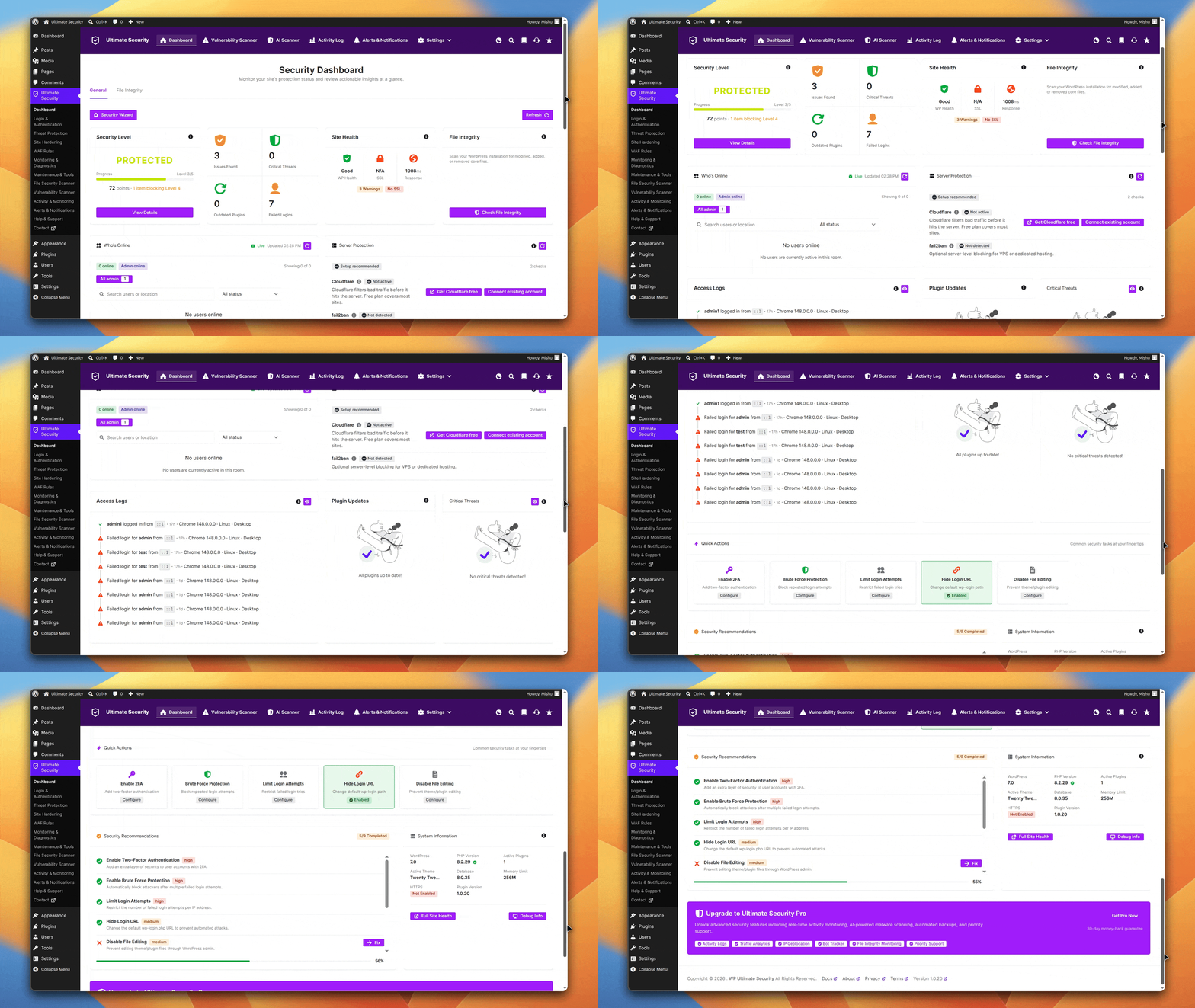
This is the part people underestimate. Most of the WordPress hacks we’ve seen reported in support forums didn’t come from a massive DDoS attack Cloudflare would have caught. They came from someone guessing a weak password or an old plugin with a known vulnerability nobody patched.
That distinction matters more than it sounds. A lot of site owners assume “getting hacked” means some dramatic attack breaking through a firewall. In reality, it’s usually quieter than that. Someone finds a login page at the default address, runs a list of common credentials against it, and eventually one works. Nothing about that scenario involves the kind of traffic Cloudflare is built to filter.
Why You Need Both Security Plugin and Cloudflare
Cloudflare watches every request trying to reach your website and blocks bad traffic before it even touches your server. The security plugin focuses on what happens inside your WordPress site. It stops bad actors who try to hammer your login page with wrong passwords, protects your forms, and adds extra security features like two-factor authentication. Together, one controls the traffic coming to your site, while the other protects the important areas once they’re inside WordPress.
Here’s a more concrete way to see it. Say your site gets 10,000 visits in an hour, and 9,000 of them are bots trying to scrape your content or overload your server. Cloudflare handles that flood without you noticing. Now say one of the remaining 1,000 real-looking visitors starts quietly trying fifty different password combinations on your login page. Cloudflare sees that as normal traffic, because technically, it is. A security plugin is the only thing standing between that visitor and your dashboard.
The Role Play of Having a Security Plugin to WordPress
This is where a security plugin earns its place. These are everyday protections happening inside WordPress. Each one closes a door that Cloudflare simply can’t see. You don’t have to choose between a fast site and a secure one. These checks are lightweight enough that visitors never notice them running.
- Two-factor authentication (2FA). Even if someone gets your password, they still need a second code to log in. This one change blocks a huge share of account takeovers, because guessing a password is a lot easier than also stealing a two-factor authentication code.
- Password policy. If you run a site with multiple users, this forces everyone, not just you, to use a strong password instead of “password123.” It’s easy to lock down your own account and forget that a client, a writer, or a guest contributor might not be nearly as careful.
- Custom login URL. Bots default to trying (yoursite.com/wp-admin) because that’s the standard address. Moving your login page to a custom URL takes you off their radar entirely. It won’t stop a targeted attacker, but it eliminates the constant background noise from automated bots.
- Login attempt limits. If someone tries your password fifty times in a row, this locks them out after a handful of failed tries. Simple, but it stops the single most common way small WordPress sites get broken into. Most beginners skip this because it sounds minor, but it’s arguably the highest-value setting on this entire list.
- Bot protection. Spam bots love contact forms and comment sections. This filters out fake submissions before they clutter your inbox or, worse, create backdoor entry points through form-based exploits.
- Session management. Lets you see every device currently logged into your site and kick out any session you don’t recognize without changing your password. Useful if you’ve ever logged in from a shared device or handed off admin access to a freelancer.
Cloudflare has no idea any of this is happening. It’s not supposed to. That’s the plugin’s job.
What a Security Plugin Can’t Do on Its Own
To be fair in the other direction, a security plugin has limits too. On its own, it can’t:
- Stop a large-scale traffic flood before it hits your server
- Give you the speed benefits of a global content delivery network
- Absorb a coordinated attack aimed at taking your entire site offline
That’s Cloudflare’s job, and no plugin, however good, replaces a network-level shield.
Getting a Security Plugin and Cloudflare Working Together
Here’s where most beginners get stuck. Even after deciding to use both, connecting Cloudflare’s protection rules through its own dashboard involves settings, zones, and firewall configuration that can be genuinely confusing if you’ve never touched it before.
Ultimate Security removes that friction. It comes with Cloudflare firewall rules already built in and verified against real traffic data from Cloudflare itself. You don’t write a single rule yourself. You enable the WAF feature inside Ultimate Security, select your website, and it deploys those rules to your Cloudflare account.
That’s genuinely one of the more practical shortcuts we’ve come across for non-technical site owners. Instead of learning Cloudflare’s rule syntax, you flip one switch and the protection is live.
In practice, the setup looks like this:
- Connect your Cloudflare account inside Ultimate Security.
- Select the website you want protected (this is your “zone,” which just means your domain as it exists in your Cloudflare account).
- Turn on the WAF feature.
- Ultimate Security deploys the WAF rules to that domain.
No rule-writing, no guessing which traffic patterns to block, no digging through Cloudflare’s dashboard trying to figure out what a setting does. You’re relying on rules that Cloudflare’s own systems have already flagged as effective, applied to your site with a couple of clicks.
Read more on Cloudflare WAF rules.
You Don’t Need Another Security Plugin
The WAF rules setting in Ultimate Security is only a small part of what the plugin does.
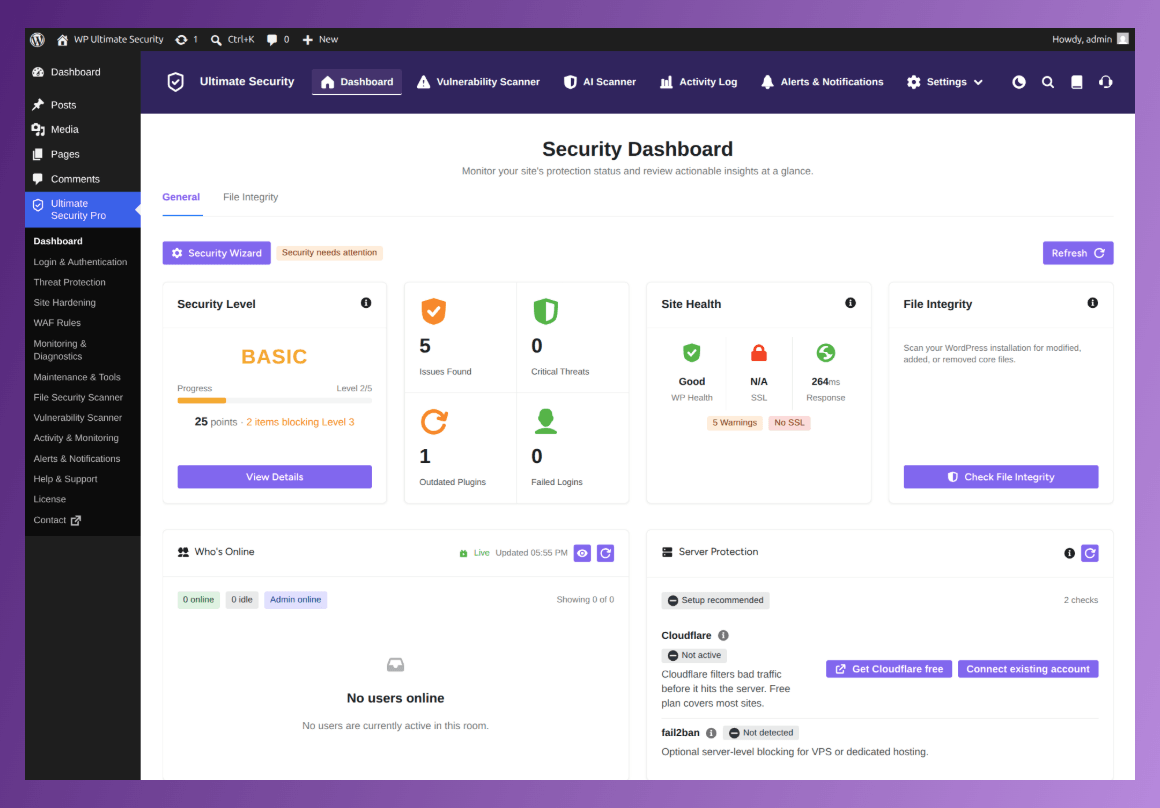
Everything covered earlier, login attempt limits, two-factor authentication, custom login URLs, password policy, form protection, and session management, is also built into the plugin. For any site owner, that’s the real value.
Security Plugin and Cloudflare: Quick Comparison
Here’s the side-by-side breakdown of who covers what. You’ll see why skipping either one leaves gaps the other was never built to fill.
| Protection | Cloudflare Alone | Plugin Alone | Both Together |
|---|---|---|---|
| Blocks large-scale traffic attacks | Yes | No | Yes |
| Speeds up site loading | Yes | No | Yes |
| Limits failed login attempts | No | Yes | Yes |
| Two-factor authentication | No | Yes | Yes |
| Detects vulnerable plugins | No | Yes | Yes |
| Form spam protection | Partial | Yes | Yes |
| Custom login URL | No | Yes | Yes |
One Mistake That Slows Everything Down
If you’re going to run a security plugin and Cloudflare together, don’t also stack three or four other “all in one” security plugins on top. This used to be common advice years ago, back when Cloudflare wasn’t as capable and site owners layered on every plugin they could find.
Now it just adds bloat. Multiple security plugins scanning the same files, checking the same login page, and running background processes will drag your site’s speed down for no extra protection. Pick one solid plugin that covers the application side well, pair it with Cloudflare for the network side, and leave it there.
Frequently Asked Questions
Do you need both a WordPress security plugin and Cloudflare?
Yes. Cloudflare blocks malicious traffic before it reaches your server, while a security plugin protects what happens inside your WordPress site, like logins, forms, and user accounts. They cover separate layers, so using only one leaves a gap.
Is Cloudflare’s free plan enough for WordPress security?
Cloudflare’s free plan covers basic traffic filtering and some DDoS protection, but it doesn’t monitor your WordPress logins, user accounts, or plugin vulnerabilities. For those, you still need a dedicated security plugin regardless of which Cloudflare plan you’re on.
Will a security plugin slow down my site if I already use Cloudflare?
A single, well-built security plugin adds minimal overhead. Slowdowns usually happen when site owners run multiple overlapping security plugins at once. Stick to one solid plugin alongside Cloudflare, and speed shouldn’t be an issue.
Can I use Ultimate Security without connecting it to Cloudflare?
Yes. All the inside-site protections, like login limits, two-factor authentication, and form protection, work on their own without Cloudflare. The Cloudflare connection is an extra layer you can turn on whenever you’re ready, not a requirement for the plugin to function.
How do I know if Cloudflare is already active on my site?
Check your domain’s DNS settings for an orange cloud icon next to your DNS records in your Cloudflare account, which means traffic is being routed through Cloudflare. If you’re not sure whether your site uses Cloudflare at all, ask your hosting provider or check with whoever originally set up your domain’s DNS.
Conclusion
If you’re weighing a security plugin and Cloudflare for your WordPress site, the honest answer is that you need both, not one instead of the other. Cloudflare stops trouble before it reaches you. A plugin like Ultimate Security handles everything that happens after, from login attempts to form spam to session tracking, and can even deploy Cloudflare’s own firewall rules for you without any manual setup. Set both up, keep the rest of your plugin list lean, and you’ve covered the two layers that actually matter.