

Your WordPress login page is one of the most common targets for hackers. Every day, automated bots try to guess and test stolen credentials and find weak login forms they can break into. If an attacker gains access to an administrator account, they can install malware, steal data, redirect visitors, or take control of your entire site.
The good news is that you do not need an expensive security setup to protect your login page. A few essential login security features for WordPress can stop most automated attacks before they succeed.
This article explains the login threats and shows exactly how to defend against them. It focuses on three essential features. CAPTCHA, Login Limit Attempts, and Login Lockout. These security practices work together in a layered strategy that stops brute-force attacks, credential stuffing, and bots for WordPress.
Table of Contents
Why Your WordPress Login Page is a Prime Target
WordPress powers over 43% of all websites on the internet. That massive scale is exactly what makes it attractive to attackers. When a hacker builds an automated attack script, they do not need to customize it for each site. Every default WordPress installation uses the same login URL (wp-admin). This means bots already know where your door is before they even find your site. They just show up and start testing it.
What Attackers Are Actually After
There are two main attack types that target WordPress login pages, and both of them are automated.
- Brute force attacks use scripts to guess username and password combinations repeatedly. These scripts can try thousands of combinations per minute until they find one that works.
- Credential stuffing is more calculated. Attackers take real usernames and passwords that were leaked in data breaches from other platforms and test them on WordPress sites. If one of your users signed up with the same email and password they used on a previously hacked service, the attacker gets in without needing to guess anything at all.
In both cases, the goal is the same: gain admin access. Once an attacker is inside your WordPress dashboard, they can install malware on your site, steal your user data, redirect your visitors to malicious pages, inject spam that destroys your search engine rankings, or lock you out entirely and demand payment to restore access.
How to Defend Against Each Threat
Build a layered defense that starts with strong basics and adds targeted controls like rate limiting, lockouts, and CAPTCHA. These features directly address the speed, persistence, and automation of attacks.
- To Stop Brute Force: Implement lockout policies and strict login limit attempts.
- To Stop Credential Stuffing: Lockouts do not work well here because bots test each username. Instead, implement bot detection (like reCAPTCHA or Cloudflare Turnstile) to block automated bot patterns.
WordPress Has No Login Protection by Default
WordPress has no limit on how many times someone can attempt to log in. There is no delay introduced between failed attempts. There is no automatic block placed on suspicious IP addresses. A bot can send ten thousand login attempts in a row, and WordPress will process every login request without pushing back at all.
This is not a flaw in the way WordPress was designed. It was built to be accessible and easy to use, and adding aggressive login restrictions by default could cause problems for legitimate users in different hosting environments. But the practical result is that every WordPress site you build starts with an open login page and no protection unless you add it yourself.
The Three Login Security Features For WordPress
These three features are not comparable to one another. Each one activates at a different point during an attack, and each one catches what the previous layer misses.
CAPTCHA: Filter Out Bots Before They Try Anything
On a WordPress login page, CAPTCHA sits in front of the username and password fields. Before anyone can even attempt to log in, they need to pass the CAPTCHA check first. If they fail, they never reach the login form at all.
This makes CAPTCHA the first layer of your defense. If it stops a bot here, the attack is over before a single username or password has been tested against your site.
How CAPTCHA Works on Your Login Page
There are several types of CAPTCHA used on WordPress login pages, and they work in different ways. The two most widely used and most effective options today are Google reCAPTCHA and Cloudflare Turnstile.
- Google reCAPTCHA v2 is the version most people recognize. It shows a simple “I am not a robot” checkbox. A real user clicks the box and passes.
- Google reCAPTCHA v3 is invisible. There is no checkbox and no challenge for the user to complete. Instead, it runs silently in the background and assigns every visitor a risk score based on how they are behaving on the page.
- Cloudflare Turnstile is a popular alternative to Google reCAPTCHA. It is also completely invisible to real users and works by running browser-level checks and cryptographic signals in the background to distinguish humans from bots, without requiring any interaction from the visitor.
What CAPTCHA Cannot Do Alone
CAPTCHA is a strong security tool, but it is not perfect on its own. Sophisticated bots that use AI to simulate human behavior can sometimes pass CAPTCHA challenges.
What Happens If You Skip CAPTCHA
Without CAPTCHA on your login page, every bot that finds your site can immediately start submitting login attempts. There is no filter, no check, and no challenge. The bot goes straight to testing usernames and passwords at full speed.
This puts significant pressure on your other defenses. Rate limiting and login lockouts still help, but they are now handling the full volume of automated bot attacks rather than just the overflow from what CAPTCHA missed. Skipping CAPTCHA makes every other layer work harder and makes a successful attack more likely.
Limit Login Attempts: Slow Down Attacks Before They Gain Momentum
Rate limiting controls how many login requests a single IP address is allowed to make within a set time. For example, if you configure a rate limit of 5 attempts, then any IP address that sends more than 5 login attempts will have its additional requests blocked or delayed. That waiting period is what breaks automated attacks. Bots are built to try thousands of combinations per minute. Rate limiting makes that impossible.
How Limit Login Attempts Solves Login Attacks
Rate limiting directly counters the effectiveness of the following:
- Brute-Force Attacks: By limiting the number of login attempts, it dramatically increases the time an attacker needs to guess credentials, often to an unfeasible extent.
- Credential Stuffing: If an attacker uses a list of compromised credentials from other breaches, rate limiting prevents them from rapidly testing all combinations on your site.
Risks of Not Implementing Login Limit Attempts
Without rate limiting, your WordPress site remains vulnerable to automated attacks. Attackers can flood your login page with an unlimited number of attempts, making it easier for them to eventually guess a valid username and password. This not only compromises security but can also lead to increased server load and degraded website performance.
Login Lockouts: Block Persistent Attackers
A login lockout temporarily blocks an IP address from accessing your login page after it exceeds a set number of failed login attempts within a given time period. This is the third and final layer in the defense sequence. CAPTCHA filters out bots at entry. Rate limiting slows down what gets past CAPTCHA. Login Lockout stops whatever survives both of the previous layers.
How Login Lockouts Stop Persistent Attacks
Think about the position an attacker is in after getting through CAPTCHA and surviving under the rate limit. They are moving slowly, one or two attempts at a time, waiting between requests to stay under the threshold. Eventually, they make enough wrong guesses to trigger the lockout, and their IP is blocked temporarily.
Why These Three Security Work Together (and Why One Alone Is Not Enough)
Each of these login security features for WordPress addresses a different angle of the same threat. Removing any one of them leaves a gap an attacker can exploit.
- CAPTCHA as the First Line: The attacker’s bot first encounters the CAPTCHA. If it cannot solve it, the login attempt is blocked immediately, preventing any further resource consumption or potential for a successful guess.
- Rate Limiting as the Speed Bump: If the attacker bypasses the CAPTCHA (or uses a human-assisted bot), rate limiting ensures they can only make a few login attempts per minute. This dramatically slows down their progress, making a successful brute-force attack highly improbable.
- Login Lockouts as the Temporary Ban: If the attacker continues to try and fails multiple times within the rate limit, the login lockout kicks in, temporarily blocking their IP address or user account from making any further attempts for a set period. This forces them to wait, abandon the attack, or switch IPs, further complicating their efforts.
Running these three protections as separate plugins creates its own risks. Multiple plugins handling login security can conflict with each other through overlapping hooks, causing false lockouts or broken login forms. This is covered in more detail in the guide on why multiple security plugins do not mean more protection for WordPress.
How to Set Login Securities Up: Step-by-Step for Beginners
Getting all three features running on your site takes about 10 minutes. Here is what the setup process looks like using Ultimate Security.
Install and activate the Ultimate Security Plugin
Go to your WordPress admin panel, navigate to Plugins > Add New, search for “wpultimatesecurity,” install it, and activate. The plugin is free and available directly from the WordPress.org plugin directory.
Run the Setup Wizard
Ultimate Security includes a guided setup wizard that walks you through the initial configuration. It handles optimal settings automatically, which means you do not need to know the right values for each setting. The wizard picks reasonable defaults and lets you confirm or adjust them.
Add CAPTCHA to your WordPress
Under Bot Protection, choose your preferred CAPTCHA type. If you are using Google reCAPTCHA, you will need to register for an API key at (google.com/recaptcha) The process takes a few minutes, and the keys are free. Paste the site key and secret key into the plugin settings. For Cloudflare Turnstile, the same process applies at (dash.cloudflare.com/turnstile)
Read the documentation on how to get CAPTCHA secret keys
Once connected, choose which forms to protect. At minimum, enable CAPTCHA on the login form. Adding it to the registration form and comment form is also worth doing.
Configure login attempt limits
Go to the Brute Force Protection settings. Set your attempt threshold to 3 to 5 failed attempts. This is the standard recommended range, and it gives enough room for accidental mistyping, but not enough for a bot to get anywhere.
Set your lockout duration
Inside the Brute Force Protection settings, find the lockout duration option. Set it to 20 to 30 minutes. This means that once an IP address hits your failed attempt threshold, it gets blocked from the login page for that entire window before it can try again.
Use Test Mode before going live
Ultimate Security includes a Test Mode that previews how your rules work without actually enforcing them for real visitors. This is useful for confirming your setup works as expected before turning everything on. Check the settings under Security Tools to enable it.
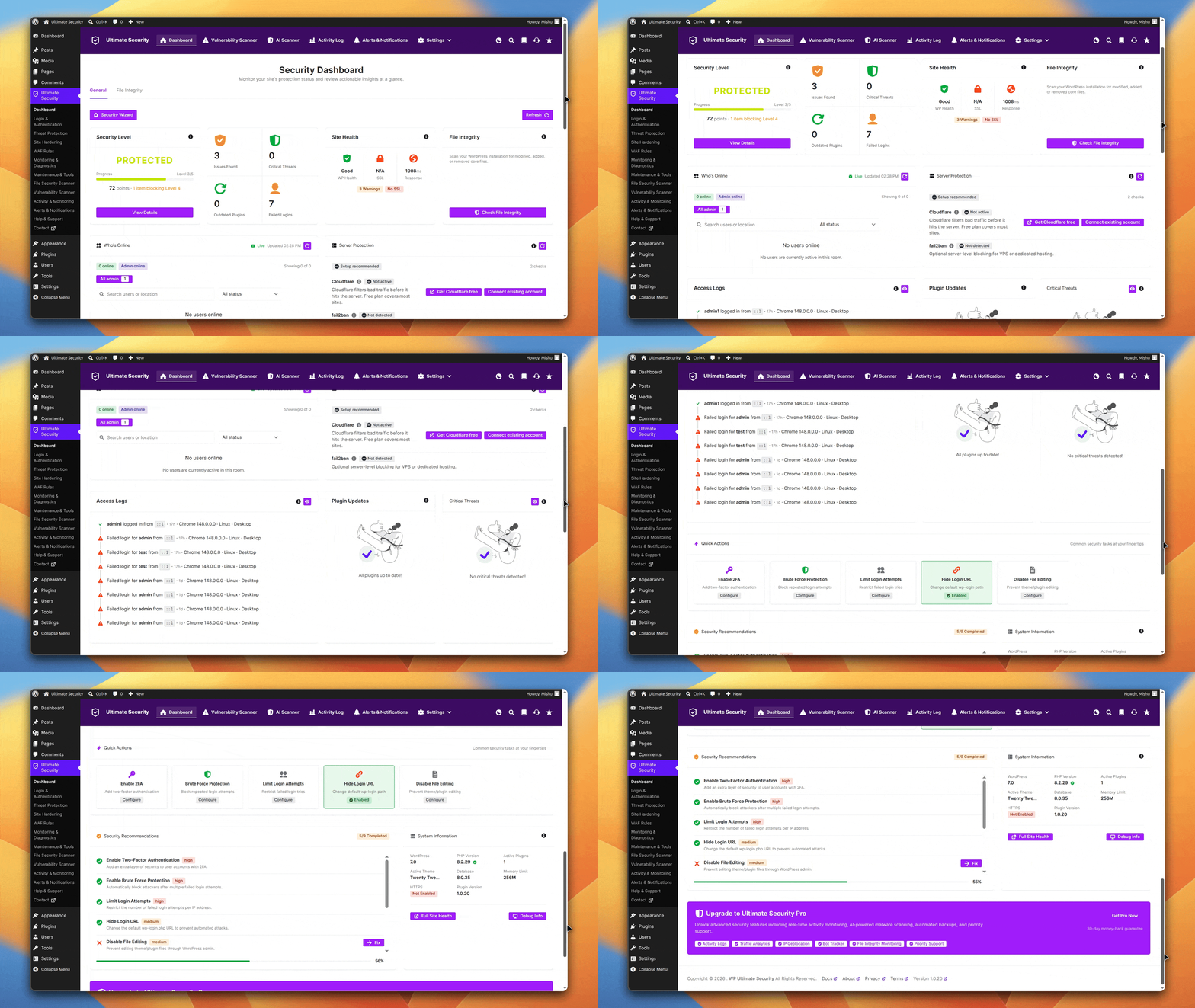
Review the Security Score dashboard
After setup, the Security Score dashboard gives you a snapshot of which protections are active and what (if anything) still needs attention. It is a good reference point for making sure nothing was skipped during setup.
Other Login Security Features For WordPress Worth Knowing
Rate limiting, lockouts, and CAPTCHA address automated attacks well. A few other measures fill in the remaining gaps.
Use a strong, unique password for your admin account. A strong password makes a brute force attack much harder even before any of the above features engage. Use a password manager to generate and store it. You should not be using anything you can memorize.
Change your default login URL. The /wp-login.php URL is public knowledge. Changing it to something custom means bots scanning for that path cannot find your login form in the first place. Ultimate Security includes a custom login URL feature under Login Protection.
Enable two-factor authentication. 2FA means that even if an attacker gets your password correct, they cannot log in without also accessing your email, authenticator app, or phone. It is the strongest single upgrade you can make to login security. Ultimate Security supports 2FA.
Keep everything updated. Outdated plugins are responsible for the majority of successful WordPress compromises. In 2025 alone, over 11,000 new vulnerabilities were found in the WordPress plugin ecosystem. Patches often exist before attacks happen.
The gap between when a patch is released and when site owners install it is where most damage occurs. The guide on WordPress security best practices covers the update process alongside the broader security habits worth building.
Audit your user accounts. Unused admin accounts are a liability. Check your user list periodically and remove any accounts that no longer need access. Assign the lowest permission level that lets each user do their job. A contributor account getting compromised is a much smaller problem than an administrator account getting compromised.
It also helps to get familiar with the critical WordPress security insights for 2026. The threat landscape has shifted enough over the past year that some older advice no longer applies.
If your site goes down after a security incident (or for any other reason), the troubleshooting process is covered step by step in the guide on diagnosing and fixing WordPress downtime.
Frequently Asked Questions
How many login attempts should I allow before a lockout triggers?
The standard range is 3 to 5 attempts. Fewer than 3 increases the chance of accidentally locking out real users who mistype their password. More than 5 gives bots too much room to work. Start at 5 and reduce to 3 if you are seeing heavy attack traffic.
What is the difference between rate limiting and login lockout?
Rate limiting controls the speed of login attempts from a given IP address, so the IP stays connected but cannot send requests faster than your set threshold. Login lockout cuts off access entirely after a certain number of failed attempts. Rate limiting slows the attacker down, and lockout stops them completely. You need both because they handle different parts of the problem.
Is CAPTCHA alone enough to protect my WordPress login?
No. CAPTCHA is an important first layer, but advanced bots and human-assisted attacks can sometimes get past it. Rate limiting and login lockouts are needed behind CAPTCHA to handle whatever gets through. All three features working together provide significantly stronger protection than any one of them alone.
Can attackers get around a login lockout by changing their IP address?
Yes, technically. Sophisticated attackers can rotate through different IP addresses to avoid lockouts. This is why the layered approach matters. If an attacker switches IPs, they still have to pass CAPTCHA again from the new IP and work through rate limiting before the lockout can fire again. Every rotation costs them time and resources. Combined with a strong password and two-factor authentication, even IP rotation does not give attackers a realistic path to success.
Do I need a paid plugin to get these features?
No. Several security plugins include all three features in their free versions. Ultimate Security is one example that covers CAPTCHA, Rate Limiting, and Login Lockouts at no cost, so you can set up a complete layered defense without spending anything.
Conclusion
Your WordPress login page is one of the most targeted URLs on the internet, and the attacks hitting it are automated, relentless, and running around the clock. The good news is that protecting against them does not require technical expertise or an expensive solution.
CAPTCHA filters out bots before they can attempt a single login. Rate limiting slows down anything that gets past the first check so that automated attacks become completely impractical. Login Lockouts block IP addresses that keep trying despite the first two layers. Each feature handles a different part of the problem, and together they cover the full sequence of an automated attack.
Ultimate Security includes rate limiting, lockout notifications, and CAPTCHA (Google reCAPTCHA v2/v3 and Cloudflare Turnstile) as part of its free core plugin. Also, they provide additional security features mentioned above. You can get it from WordPress.org and have all three features running on your site today.