
If a hacker gets into your WordPress admin panel, they can install malware, steal customer data, redirect your visitors to scam pages, or lock you out of your own site completely. Brute force attacks are how they often get in. A bot tries hundreds of username and password combinations on your login page until one works. WordPress allows unlimited login attempts by default. That means nothing stops a bot from trying ten thousand password combinations on your site.
In this guide, you will learn how to recognize a brute force attack, what damage it can cause, and proven steps to protect your WordPress site from it.
Table of Contents
What Is a Brute Force Attack?
A brute force attack is a hacking technique where attackers repeatedly attempt to log in using different username and password combinations. Instead of exploiting a software vulnerability, attackers rely on automation and persistence. Bots continuously test login credentials until they find valid ones.
WordPress login pages are a popular target because:
- WordPress powers roughly 43% of all websites, making it the most common platform to attack.
- The default login URL (/wp-login.php) is the same for every site, so bots know exactly where to aim.
- Many sites still use “admin” as a username, which takes away half the guessing work.
A credential stuffing attack is a related variant. Here, attackers use username and password pairs leaked from data breaches on other platforms. If someone reused a password from a breached account on your WordPress site, that combination will be tried.
Signs Your WordPress Site Is Under a Brute Force Attack
You may not notice a brute force attack unless you are actively monitoring your site. But there are some signals worth watching for.
- Unusual spikes in failed login attempts. If your security plugin or server logs show dozens or hundreds of failed logins from the same IP address (or a range of IPs) in a short window, that is the most direct sign.
- Server slowdowns or 502/503 errors. A high volume of rapid login requests creates real server load. If your site begins to slow down or begin throwing gateway errors and you haven’t published anything new or run a big campaign, brute force traffic is a likely culprit.
- Security alerts from your host. Many managed WordPress hosts detect unusual login activity and will email you about it. Take those alerts seriously.
- Unexpected password reset emails. If you receive reset emails you did not request, it may mean someone is probing your account.
None of these signals is definitive on its own, but if you see a few of them at once, check your logs.
The Consequences: Risks of a Successful Attack
The implications of a successful brute force attack extend far beyond simply losing access to your site. The consequences can be devastating, impacting your website’s functionality, your reputation, and potentially your business’s financial health.
A successful login attack can affect your website’s security, search visibility, reputation, and revenue long after the initial breach.
Multi-Layered Defense to Harden WordPress Against Brute Force
WordPress brute force protection is not a single switch you flip. It is a set of overlapping defenses that each remove a different angle of attack. The methods below are ordered by impact, starting with the most direct. You do not need all of them in place before you are protected, but the more you implement, the harder your site becomes to break into.
Use WordPress Two-Factor Authentication (2FA)
Login attempt limits make brute force attacks slower and harder. Two-factor authentication makes them practically irrelevant. Because even if an attacker guesses your correct password, they still cannot get in.
That is the core value of WordPress two-factor authentication. The attacker has one credential (your password). They still need the second one (a time-based code from your authenticator app or email), and they cannot fake it without physical access to your device.
Why Passwords Alone Are Not Enough
Passwords fail in two common ways that have nothing to do with brute force. First, they get leaked in data breaches from other websites, if you reused a password somewhere, it is probably already in an attacker’s list. Second, they get phished. Someone clicks a fake login link, types their password into a convincing-looking page, and it is gone. With 2FA in place, neither scenario leads to a successful login.
Authentication methods available in Ultimate Security:
Ultimate Security supports two primary 2FA methods, and they have different security profiles:
Authenticator apps: Apps like Google Authenticator, Authy, or Microsoft Authenticator generate a 6-digit code that refreshes every thirty seconds using the TOTP (Time-based One-Time Password) standard. The code is generated on your device and never transmitted until you type it in, which makes it resistant to interception. This is the more secure option. See the Authentication Apps documentation for setup details.
Email OTP: After entering your password, a one-time code is sent to your registered email address. It is easier to set up and does not require a smartphone, making it a practical option for less technical users. It is less secure than an authenticator app only because it depends on your email account itself being secure. See Email OTP documentation for configuration steps.
Managing 2FA across your team:
The 2FA overview dashboard shows which users have 2FA enabled and which do not, making it easy to identify gaps. You can enable 2FA by user role. By applying it to administrators and editors while leaving it optional for others. The plugin also tracks trusted devices, so users do not have to re-verify on every login from the same browser.
A setup wizard walks you through configuration level by level, which is helpful if you are enabling 2FA for a team that has never used it before.
Change the Default WordPress Login URL
Every WordPress site, out of the box, has its login page at “yourdomain.com/wp-login.php”. Every bot targeting WordPress knows this. Automated scanners routinely fire thousands of login attempts at that exact path across millions of sites without needing to know anything specific about the target.
Moving your login page to a custom URL removes your site from that category of automated noise. Bots checking /wp-login.php get a 404 error and move on. Your actual login form is sitting at a path they do not know to check.
What This Protects Against and What It Does Not
This is an unauthorized access reduction measure, not a security guarantee. It works well against low-effort, scatter-shot bots. It is less effective against a targeted attacker who has specifically identified your site and is willing to crawl it to find the login form.
The bigger practical benefit is server load. A site receiving constant brute force traffic on /wp-login.php can experience noticeable slowdowns. Moving the URL reduces that load significantly.
How Ultimate Security Changes the Login URL
The Custom Login URL feature in Ultimate Security lets you set any path you choose as your new login page. The old /wp-login.php URL gets redirected by default to a 404 error, though you can point it to any URL you prefer. You can also add a custom consent or welcome message to the new login form.
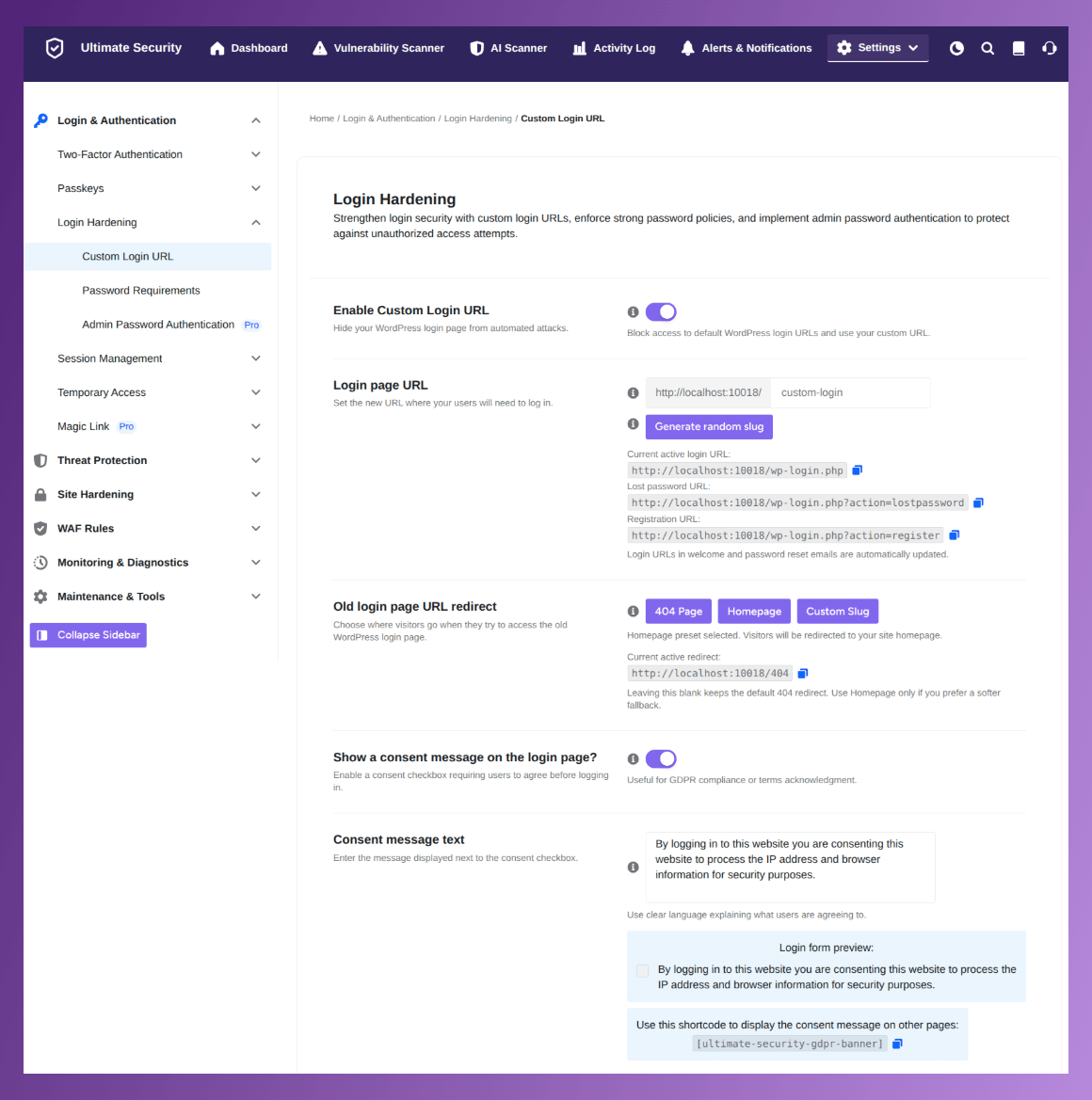
Before making the change, bookmark your new URL and test it in an incognito window before logging out. We recommend saving a plugin deactivation URL as a fallback in case you ever need to undo the change without being able to reach the login page.
Enforce Strong Password Requirements Across All User Accounts
Brute force attacks succeed most often against predictable passwords. They appear near the top of every attack wordlist. If any account on your site uses a password like this, a brute force attack does not need many attempts to find it.
The problem with relying on users to choose strong passwords voluntarily is that many will not. People pick passwords they can remember, reuse passwords from other accounts, and avoid special characters because they are hard to type on a phone. Enforcing password policies removes the guesswork.
What Strong WordPress Password Requirements Look Like
A reasonable policy for most sites requires at least 12 characters, a mix of uppercase and lowercase letters, at least one number, and at least one special character. High-security sites should push that minimum to 16 characters.
Ultimate Security’s Password Requirements settings give you granular control over all of this. There are three quick presets. (Basic, Strong, and Enterprise) that configure length and character requirements in one click. You can also set password history (so users cannot simply cycle back to an old password), an expiration period so passwords get rotated periodically, and a grace period that gives users a short window to update after expiration before they are locked out.
A few settings are worth enabling specifically for brute force resistance: the First Login Reset option, which forces new users to change their password immediately on first login; and the Password History setting, which prevents users from using a recently used password after being required to rotate.
For Sites Where You Create Accounts for Others
Enable the “First Login Reset” option so new users are forced to change their initial password immediately. You set a temporary password; they change it on their first visit. This ensures no account ever persists with an admin-assigned credential.
Password Managers for Your Own Account
Use a password manager like Bitwarden (free and open source), 1Password, or the built-in managers in Chrome or Firefox. Set a password of at least 16 characters for your WordPress admin account. You do not need to remember it, the manager does that for you.
Add CAPTCHA to Your WordPress Login Form
A bot firing login attempts does not behave like a human. It submits form data directly, at machine speed, without loading images, moving a mouse, or pausing between keystrokes. CAPTCHA exploits that difference. It presents a challenge that is easy for humans and hard for automated scripts.
Even if a bot has obtained valid credentials through a data breach, it still needs to submit them through the login form. A CAPTCHA it cannot pass means the form never gets submitted, regardless of what credentials the bot is carrying.
The Two CAPTCHA Options in Ultimate Security
Google reCAPTCHA: Ultimate Security supports both reCAPTCHA v2 (the “I am not a robot” checkbox) and v3 (background scoring without visible interaction). Version 3 is less intrusive; version 2 is more familiar to users who find visual confirmation reassuring. See Google reCAPTCHA documentation.
Cloudflare Turnstile: This is the better option for most sites. Turnstile runs in the background, analysing browser signals like mouse movement, keystrokes, and request patterns to determine if the visitor is human. Most real users never see a challenge at all. They just load the login page and log in normally. See Cloudflare Turnstile documentation for setup.
Beyond the login form, Ultimate Security’s bot protection extends to registration forms, comment forms, and WooCommerce checkout pages. If your site allows public registration, that is another attack surface bots commonly target. Covering all of these with CAPTCHA gives you comprehensive WordPress login protection.
The limitation to know: CAPTCHA-solving services exist, and sophisticated, well-funded attackers can use them to bypass CAPTCHA for a small cost per solution. CAPTCHA stops the vast majority of automated attacks, but it is not a complete solution on its own.
Enable Login Attempt Limits
This is the most direct and immediate countermeasure for WordPress brute force protection. By default, WordPress places no cap on how many times someone can attempt to log in. An automated bot can try thousands of username and password combinations in minutes.
Login attempt limits fix that. Once a visitor fails to log in a set number of times, the plugin locks out that IP address for a specified period. The attacker’s script keeps running, but every request gets turned away before it can try another password.
Configure Login Attempt
A starting point of 4 failed attempts before triggering a lockout is reasonable for most sites. The first lockout can be short (15 to 30 minutes), because legitimate users who simply forgot their password will wait it out. What matters more is escalation: if the same IP keeps triggering lockouts, the block duration should increase. This is what separates a real brute force attempt from an honest mistake.
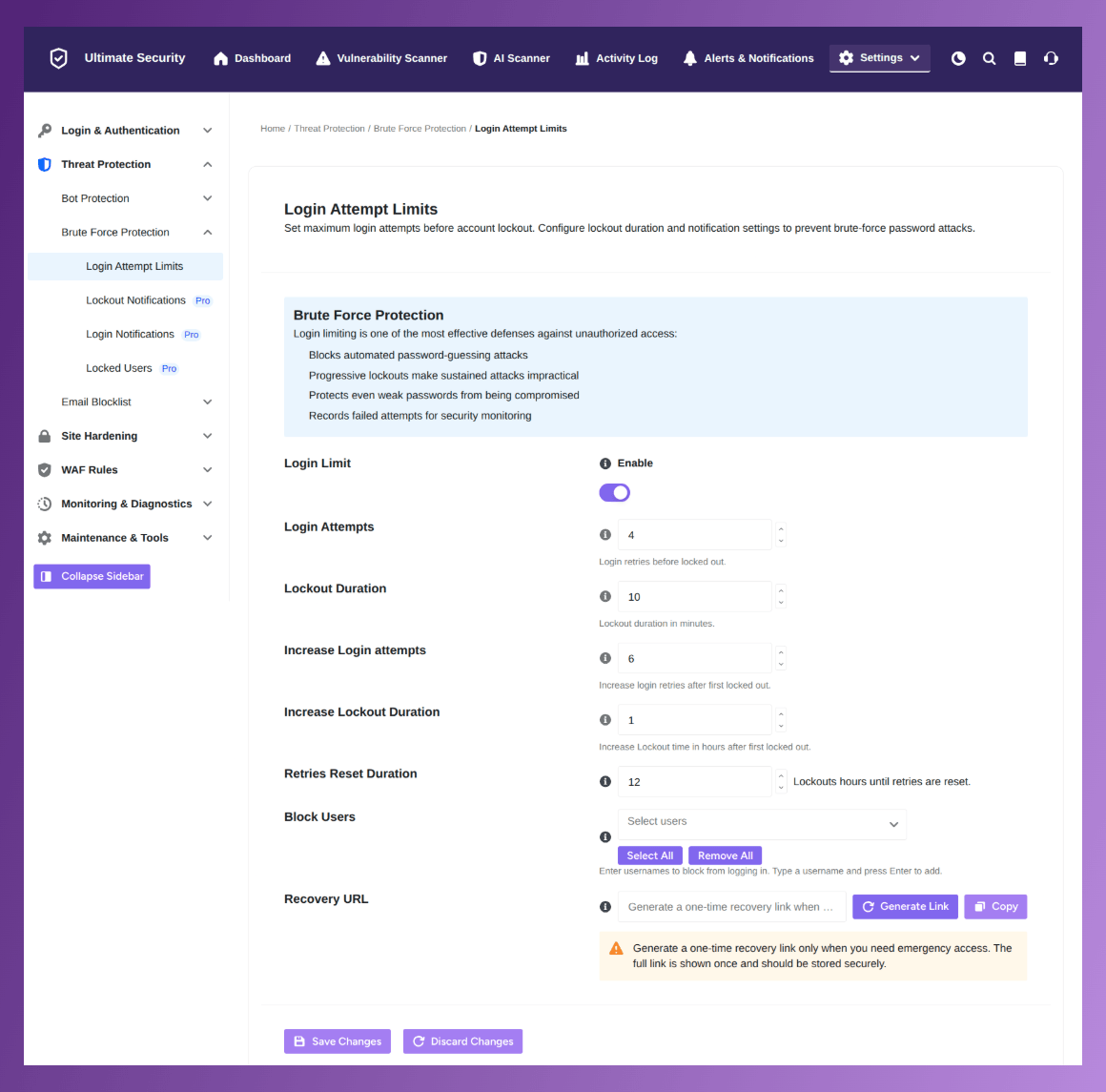
Ultimate Security handles this with progressive lockout logic. The Login Attempts settings let you configure the initial attempt threshold, first lockout duration, and how much longer subsequent lockouts last if the same IP keeps pushing. You also get a Retries Reset Duration, which clears the failed-attempt count for users who have been inactive for a while. So a real user coming back hours later does not get stuck because of old failed attempts.
One important note: login attempt limits work well against single-source attacks. They are less effective against distributed attacks where the bot cycles through hundreds of different IP addresses, each making only one or two attempts. That is why this method is most powerful when combined with CAPTCHA and a WAF.
Read More: Stop Brute Force by Limiting Login Attempts
Audit and Remove Unused User Accounts
Every WordPress user account is a potential entry point. The more accounts exist, the more usernames an attacker has to try, and the more chances there are that one of those accounts has a weak password.
This is especially true for accounts that were created for temporary purposes. A developer who built the site, a contractor who managed a campaign, or a test account you set up and forgot about. These accounts often persist with whatever password was assigned at creation, and nobody is watching them.
What to do:
Go to Users in your WordPress dashboard and review every account. Delete anything that is not actively used. For accounts that should stay, check two things: the role assigned and the password strength. Not everyone needs administrator access. A user who only writes blog posts should be an editor or author, not an Admin. Reducing privileges limits the damage if that account is ever compromised.
The “admin” username problem:
Never use “admin” as a username. It is the most tried username in every brute-force word list. Attackers skip guessing the username entirely and focus all their effort on the password.
If your site was set up with “admin” as the administrator username, create a new administrator account with a different name, log in as that new account, then delete the old “admin” account. Do this before doing anything else on this list.
Keep WordPress Core, Themes, and Plugins Updated
Brute force attacks aim at the login page. But attackers who fail there do not always give up. They look for another way in. Outdated plugins and themes often provide one.
Security vulnerabilities in WordPress software get discovered regularly. When a researcher finds one, a patch gets released. But there is a window between the public disclosure and when site owners actually apply the update, and during that window, attackers scan for sites running the vulnerable version.
Some vulnerabilities do not require a login at all. An unauthenticated attacker can exploit them to gain access, upload malicious files, or execute code remotely. At that point, your login hardening measures become irrelevant.
What to Update and How Often?
WordPress core should be set to apply minor updates automatically. Major version updates are worth testing in a staging environment first, but security-focused minor releases should go out as quickly as possible. For plugins and themes, check for updates at least weekly. The WordPress dashboard shows pending updates on the main admin screen. If you manage multiple sites, a plugin management tool can make this easier to track.
Security Hardening Alongside Updates
Beyond updates, Ultimate Security’s Security Hardening module handles additional WordPress hardening steps, like disabling unnecessary features that increase your site’s exposure. These are configuration-level changes that reduce attack surface without affecting normal site functionality.
WAF Protection: Your Website’s First Line of Defense
Before getting into specific login hardening tactics, it is worth understanding one broader tool. The Web Application Firewall, or WAF. A WAF sits between incoming traffic and your site. It inspects requests before they reach WordPress and blocks ones that match known attack patterns. For brute force attacks specifically, a WAF can recognize when the same IP address is hitting your login page repeatedly and block that IP before it even loads the login form.
The important point is that a WAF does not replace login-specific protections. It adds a layer before them. If a WAF blocks 90% of malicious traffic but a few requests slip through, your login limits and 2FA still catch those.
Ultimate Security includes WAF Rules functionality that can help with this. You can filter malicious traffic, block suspicious requests, and set rules to protect sensitive areas of your site, including the login page. The WAF Rules documentation walks through how it works in detail. As with any WAF, the rules need to be configured for your site, not just switched on.
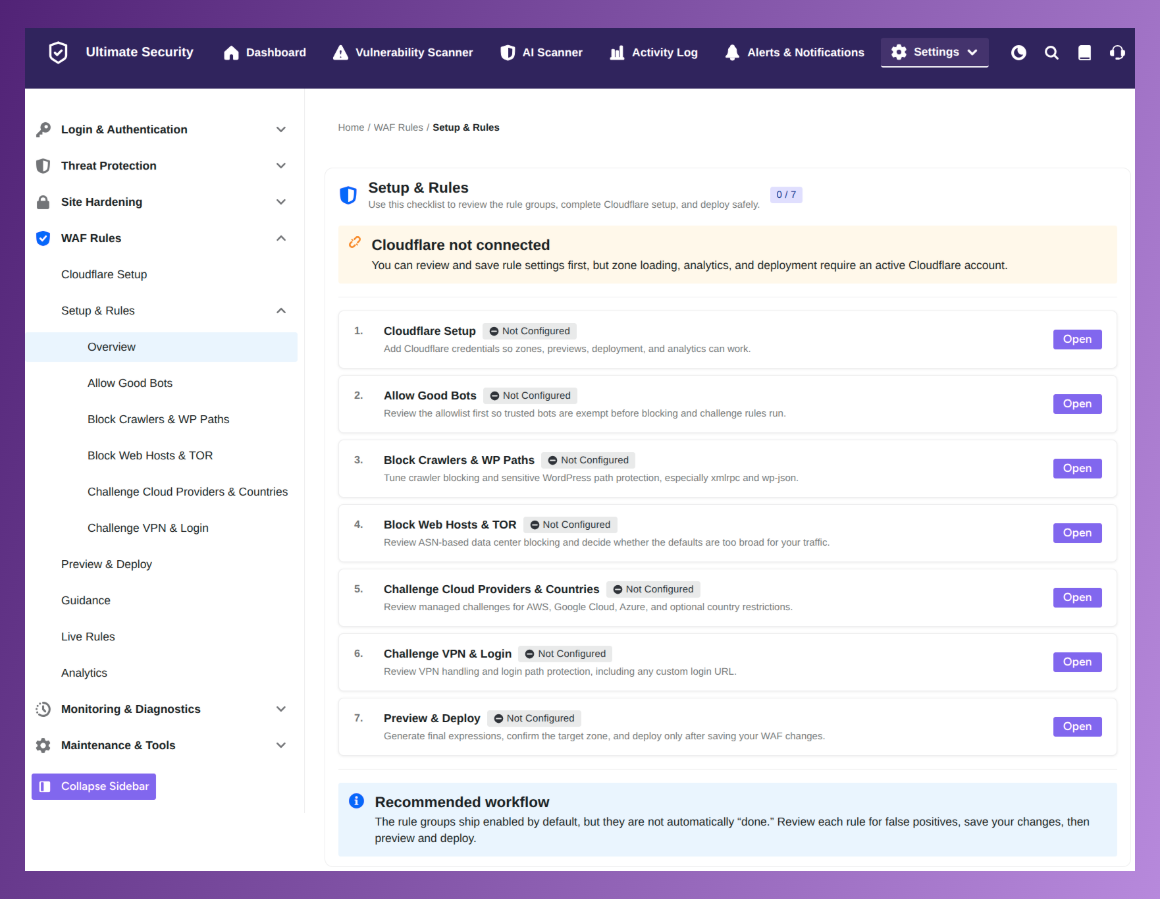
Layered security works because attackers who get past one layer still face the next one. A WAF handling traffic-level blocking paired with login attempt limits and 2FA is a substantially stronger setup than any single tool alone.
Use a Dedicated WordPress Security Plugin with Brute Force Protection
The methods above each address a specific attack vector. But managing login limits, 2FA, CAPTCHA, a custom login URL, and password policies as separate plugins is difficult to keep consistent. Multiple security plugins can conflict and overlap. Something gets misconfigured and you do not notice until something goes wrong.
A dedicated WordPress security plugin with built-in brute force protection brings these functions under one roof with a coherent dashboard. You can see your security posture in one place, configure protections without context-switching between multiple admin panels, and know that the settings are designed to work together.
Beyond brute force protection specifically, broader WordPress security best practices are easier to implement if the plugin also covers file integrity monitoring, vulnerability scanning, and security alerts.
How Ultimate Security Addresses WordPress Security
Ultimate Security is a free WordPress plugin built around these exact needs. It covers login protection, two-factor authentication (email OTP, authenticator apps), bot mitigation via Cloudflare Turnstile and Google reCAPTCHA, custom login URL, password policy enforcement, session management, WAF rules, malware scanning, and a security score dashboard that shows you where you stand at a glance.
The plugin uses a modular architecture, so you enable only what you need. If you run a simple blog, you might only want login limits, 2FA, and CAPTCHA. If you run a WooCommerce store, you can extend CAPTCHA to checkout forms and add session management to handle concurrent logins. The built-in setup wizard walks through configuration without requiring any technical knowledge.
One thing worth emphasizing: installing any security plugin and leaving it on default settings is not the same as being protected. The defaults are a starting point. Spend 20 minutes going through the settings after installation and adjusting them to match your site’s actual usage.
Frequently Asked Questions
Can WordPress stop brute force attacks by default?
No. WordPress allows unlimited login attempts and does not include 2FA or CAPTCHA. You need a security plugin or code-level changes to add these protections. The good news is that most of the necessary tools are easy to add without technical knowledge.
How many login attempts should I allow before triggering a lockout?
Three to five attempts is a common and reasonable setting. It is low enough to block automated attacks quickly but high enough to accommodate a legitimate user who mistyped their password. After a lockout, a 15 to 30 minute block is usually sufficient for the first offense. Plugins like Ultimate Security can escalate the block duration after repeated lockouts from the same IP.
Is 2FA really necessary if I already have a strong password?
Yes, for administrator accounts at minimum. Passwords can be leaked in data breaches that have nothing to do with your site. If you reused a password across accounts, 2FA is the only thing standing between an attacker and your admin panel once that password is compromised.
Does CAPTCHA stop all brute force attacks?
No. CAPTCHA stops automated scripts that cannot solve visual or behavioral challenges. Attackers who use CAPTCHA-solving services or human labor (which exists as a paid service) can still get through. CAPTCHA significantly reduces automated attack volume but should not be your only protection.
Can a security plugin fully prevent brute force attacks?
A good security plugin reduces the risk substantially, but no tool eliminates it entirely. What security plugins do is make successful attacks much harder and much more visible. Combining a security plugin with strong passwords, 2FA, and regular updates gives you the most complete protection available.
Can a WAF protect WordPress from brute force attacks?
Yes. A Web Application Firewall can identify and block IP addresses that are sending repeated login requests at high volume before those requests reach WordPress. However, WAF protection works best as one layer in a broader security setup that also includes login limits and 2FA.
Conclusion
Brute force attacks are a persistent headache for anyone running a WordPress site. Because login pages are public, they’re essentially open doors for automated bots constantly guessing usernames and passwords. It’s relentless, but you don’t need to be a coding expert to lock things down effectively. Tools like Ultimate Security are great because they bundle these defenses into one plugin, making it much more manageable.