
A WordPress site can go down for many reasons. A plugin update may have broken something. Your hosting server could be having problems. A theme conflict, database issue, expired SSL certificate, DNS problem, or even malware can take a site offline. The good news is that most WordPress downtime issues can be identified and fixed without rebuilding your site from scratch.
In this guide, you’ll learn how to figure out why your WordPress site is down, what each error message usually means, and the exact steps to get your website back online as quickly as possible.
Table of Contents
What a WordPress Site Down Outage Means
Simply put, when your WordPress site is “down,” it means it’s inaccessible to visitors. They might see an error message, a blank page, or a message indicating the site cannot be reached. This doesn’t necessarily mean your content or files are lost; they’re usually still on your server, just not currently displayable. The problem could stem from various issues, ranging from minor glitches to more significant problems with hosting, code, or security.
Is Your WordPress Site Really Down for Everyone?
Before you touch any file or contact anyone for help, do this one check. It takes a minute to do it.
Go to downforeveryoneorjustme.com or isitdownrightnow.com, type in your website address, and hit check. These tools look at your site from an external server, completely separate from your internet connection or device. If the tool says the site is up, you’re dealing with a local issue, not a website issue. Your visitors are probably fine. The problem is on your end, and here’s how to rule it out:
- Try to visit your site in a private or incognito browser window. Cached data and browser extensions can sometimes block a site from loading correctly. A fresh private window bypasses all of that.
- Switch to mobile data on your phone. Turn off Wi-Fi and load your site using your mobile connection instead. If it loads there but not on your home network, the issue is your local network or ISP, not your website. Try restarting your router.
- Clear your DNS cache. Your computer stores a memory of where websites are located. When that memory goes stale or incorrect, your site looks unreachable even when it’s online. On Windows, open Command Prompt and type ipconfig /flushdns. On a Mac, open Terminal and run sudo dscacheutil -flushcache; sudo killall -HUP mDNSResponder.
If none of those fix it and the external checker also says the site is down, your site genuinely is offline. Keep reading.
Understanding the Error Messages: Identifying the Type of Problem
The specific error message you or your visitors see can provide vital clues, acting as your first diagnostic tool. Don’t ignore these messages; they are guiding you to the root cause and saves you from wasting time looking in the wrong place.
What Error Are You Seeing?
Click an error message below to quickly identify the most likely cause.
A few of these are especially worth highlighting. The blank white screen, also called the White Screen of Death (WSOD), is one of the most common, and it looks scarier than it usually is. The database connection error sounds technical and alarming, but it often has a simple explanation. And anything involving a redirect to a strange domain needs immediate attention because it strongly suggests your site has been compromised.
Before you start troubleshooting, take a screenshot of the exact error message or write it down. If you end up needing to contact your host or a developer, that message will be the first thing they ask you for.
Check These Outside Causes First: Not Everything Is a WordPress Problem
Before you start deactivating plugins or editing any files, rule out the three most common infrastructure problems first. If any of these are the issue, there’s nothing inside WordPress you can do to fix it, and knowing that early saves a lot of wasted effort.
Your Hosting Server Might Be Down
Your WordPress site lives on a server. When that server has a problem, whether it’s a hardware failure, an emergency maintenance window, a network issue at the data center, or something else, your site goes offline with it. It doesn’t matter how well-configured your WordPress installation is; if the server is down, the site is down.
The first thing to do is check your hosting provider’s status page. Almost every major hosting company maintains one. Search for your host name’s status page and look for any reported incidents, active outages, or maintenance notices. Many hosts also post updates on their official social media accounts before the status page catches up, so that’s worth a quick look too.
If there’s a confirmed outage on their end, the only real action you can take is opening a support ticket to stay in the loop and then waiting. Do not start editing your WordPress files during an active server outage. Changes you make may not save properly, and you could create new problems on top of the existing one.
If the host’s status page shows everything is normal, the problem is somewhere else. Keep going.
Your Domain May Have Expired or Your DNS Changed
Your website’s files sit on server, but visitors use your domain to find it. If that address expires, changes unexpectedly, or stops pointing to the right place, no one can reach your site even though everything on the server is perfectly intact.
Log into the registrar where you purchased your domain and check the expiration date. If the domain lapsed even by a few days, that’s likely your problem. Renewing it should restore access, though it can take a few hours for the change to fully propagate.
You can also run a quick WHOIS lookup at lookup.icann.org by entering your domain name.
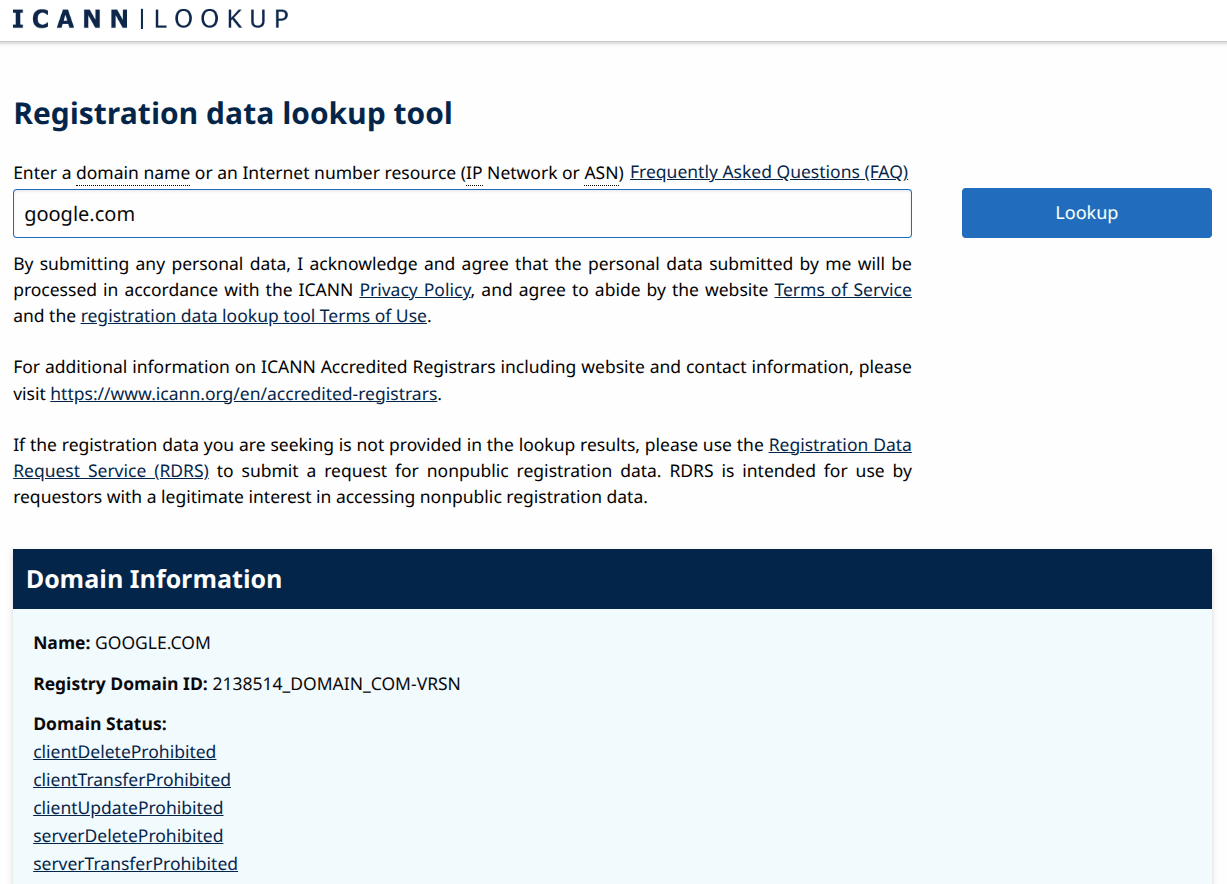
If the domain looks fine but you recently switched hosting providers or changed your DNS settings, that’s another common reason. DNS changes can take anywhere from a few minutes to 48 hours to fully propagate across the internet. During that window, some visitors might see your new site while others still hit the old one or see nothing at all. If you made DNS changes recently, give it time before assuming something is broken.
Your SSL Certificate May Have Expired (Will give a warning when visiting)
SSL is the technology behind the padlock icon and the “https://” at the start of your website address. When it’s working, visitors see your site normally. When it expires or breaks, browsers like Chrome and Firefox throw up a full-page security warning that most people will not click past.
From a visitor’s perspective, it looks exactly like your site is down. In practice, your site is technically online but inaccessible because the browser is blocking it.
Check your hosting control panel or CDN dashboard for SSL status. Most modern hosting providers auto-renew SSL certificates, usually through Let’s Encrypt, but auto-renewal can fail if your domain’s DNS settings changed, your hosting plan lapsed, or there was a configuration error. If you see that the certificate is expired or invalid, contact your host’s support team. Most can resolve this in under an hour.
An expired SSL doesn’t just create downtime. It actively signals to visitors that your site is unsafe. Some people will never return to a site that showed them a security warning, even after you fix it. Prioritize SSL fixes the same way you would a full outage.
Plugin Conflict, Theme Error, or a Stuck Update? Here’s How to Fix It
If your WordPress site is down and none of the outside causes from the previous section explain it, there’s a very good chance the problem lives inside WordPress itself. Plugin conflicts, broken theme files, and updates that didn’t finish cleanly are responsible for more WordPress outages than anything else.
A Plugin Broke Your Site
This is the most common reason a WordPress site goes down, and it almost always follows the same pattern: everything was working fine, you ran some updates, and then suddenly the site stopped loading.
A plugin update can introduce a bug. Two plugins that worked perfectly on their own might conflict when one of them updates and changes how it operates. Or a newly installed plugin might not be compatible with your current version of WordPress or PHP.
Here’s how to figure out if a plugin is the problem and fix it.
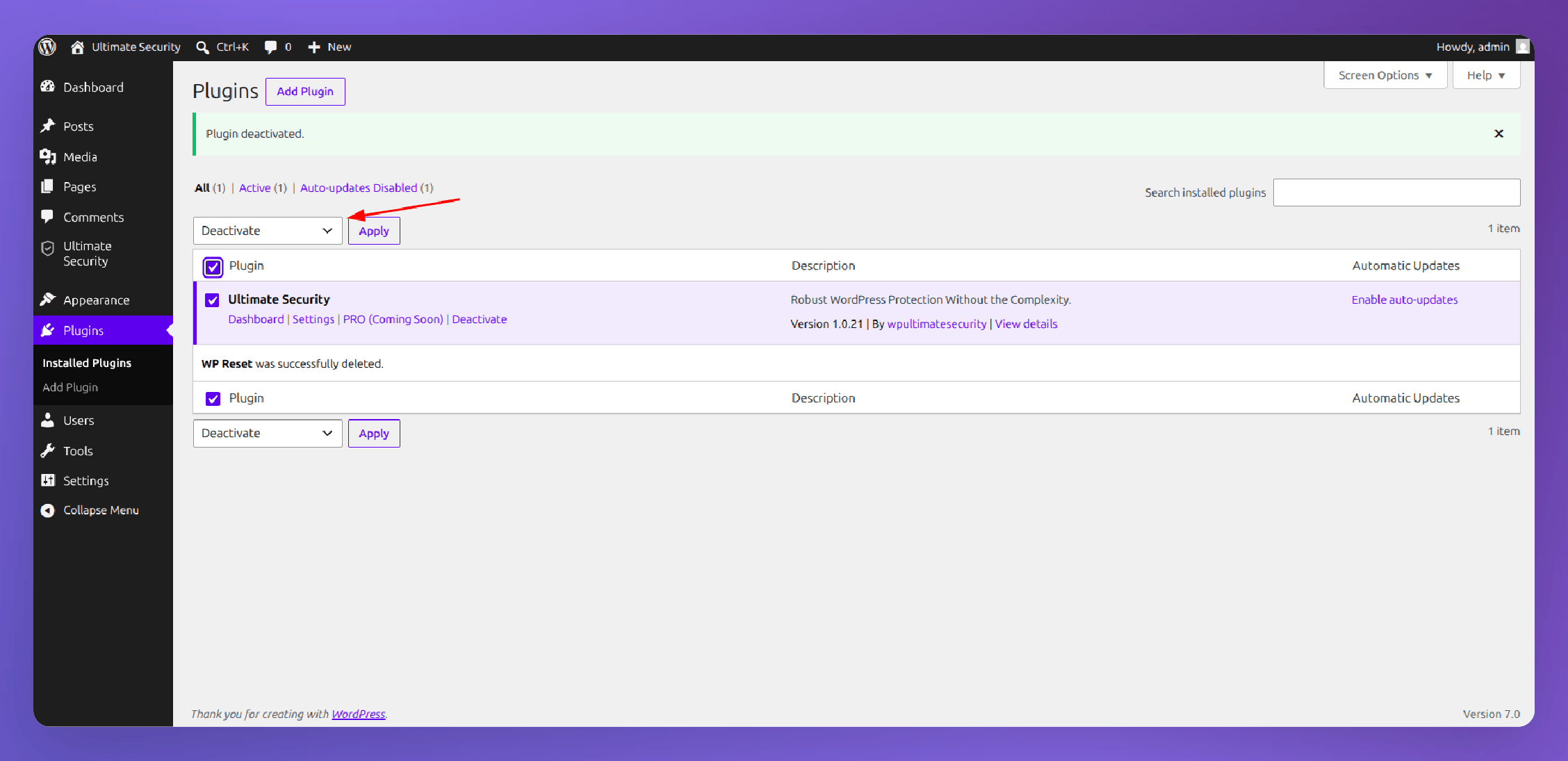
If you can still access your WordPress dashboard:
- Go to Plugins in the left menu and select all plugins using the checkbox at the top.
- In the Bulk Actions dropdown, choose Deactivate and click Apply. This turns off every plugin at once.
- Now check your site’s front end. If it loads, a plugin was the reason behind crashing your site down.
- Go back to your plugins list and reactivate them one by one, checking the site after each one. When the site breaks again, you’ve found the problem plugin.
If you can’t access admin dashboard at all:
You’ll need to use your hosting provider’s File Manager, which is available in cPanel or most hosting dashboards without needing any extra software.
- Log into your hosting control panel and open File Manager.
- Navigate to wp-content/plugins/.
- Rename the entire plugins folder to something like plugins_old. This is the equivalent of deactivating all plugins at once, because WordPress can no longer find them.
- Check your site. If it loads now, a plugin was the issue.
- Rename the folder back to plugins, then go into your dashboard and reactivate plugins one at a time to find the culprit.
You don’t need FTP software for this. Your hosting provider’s built-in File Manager does the exact same thing. Look for it in cPanel or your host’s dashboard under something like “Files” or “File Manager.”
Once you’ve found the problem plugin, leave it deactivated and check the plugin developer’s page for a patch or a newer version that fixes the issue.
Your Theme Is Causing the Problem
Themes can break a site just as easily as plugins. A theme update might introduce a bug, or a custom theme might have code that conflicts with a recent WordPress core update.
The fix is straightforward. Switch to a default WordPress theme, such as Twenty Twenty-Five or Twenty Twenty-Six. These are included with every WordPress installation and are always compatible with the current WordPress version.
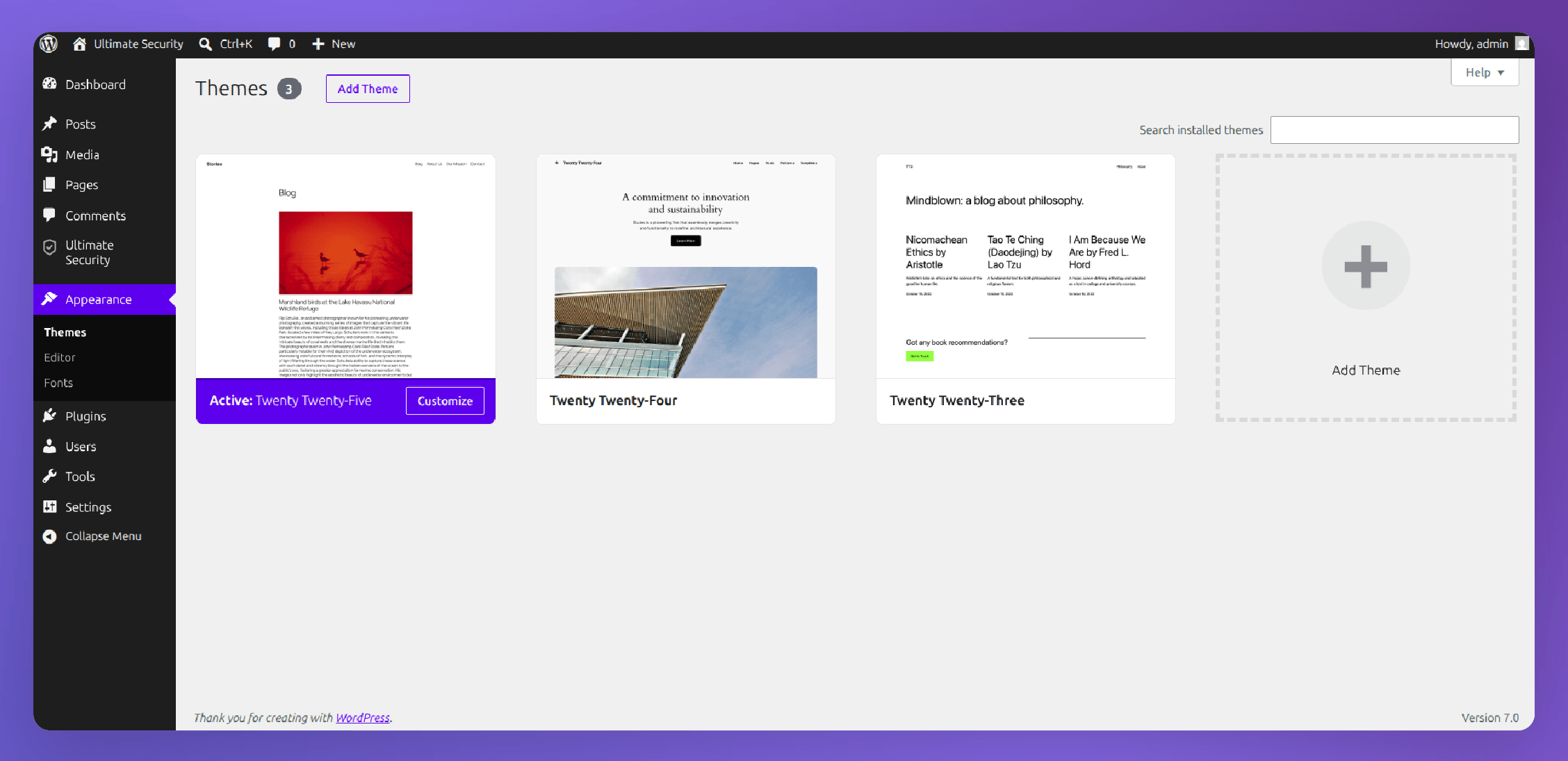
If you can access the dashboard: Go to Appearance > Themes, hover over a default theme, and click Activate.
If the dashboard is inaccessible: Open File Manager in your hosting control panel, navigate to wp-content/themes/, and rename your active theme’s folder to something like mytheme_old. WordPress will automatically fall back to a default theme it finds in the folder.
If the site loads after switching themes, your theme was the problem. At this point you have two options: wait for the theme developer to release a fix or restore your theme from a backup taken before the breakage happened.
An Update Got Stuck in Maintenance Mode
Here’s a scenario that confuses a lot of people. Your WordPress site is down, showing a message like “Briefly unavailable for scheduled maintenance. Check back in a minute.” And then a minute turns into an hour.

What happened is that WordPress created a temporary lock file during an update. It’s supposed to delete this file automatically when the update finishes. But if the update was interrupted midway through by a slow internet connection, a server timeout, or a browser that closed at the wrong moment, that lock file never gets deleted. Your site stays locked in maintenance mode indefinitely.
The fix takes about ten seconds:
- Open your hosting file manager and navigate to your WordPress root directory. This is the top-level folder where files like wp-config.php and wp-login.php live.
- Look for a file called .maintenance. It may be hidden, so make sure hidden files are set to visible in your file manager’s settings.
- Delete that file.
- Reload your site. It should be back immediately.
If the .maintenance file isn’t there but your WordPress site is still down, the update itself likely caused a conflict. Go back to the plugin troubleshooting steps above.
Your PHP Version Is Incompatible
WordPress and almost all its plugins are written in a programming language called PHP. Servers run different versions of PHP, and sometimes the version your server uses falls too far behind what WordPress or a recently updated plugin requires.
When that happens, you might see a blank white screen, a 500 error, or an error message mentioning something about “unexpected output” or “syntax errors.” It’s not obvious at first glance, but a PHP version mismatch is the root cause.
To check and fix this, log into your hosting control panel and look for a section called something like “PHP Version,” “PHP Manager,” or “Select PHP Version.” Newly released WordPress 7.0 recommends running PHP 8.3 or greater as of 2026.
One important caution: updating your PHP version can occasionally break other things if some of your plugins haven’t been updated in a while and don’t support newer PHP versions. If possible, test the PHP version change on a staging copy of your site before applying it to the live one.
Error Establishing a Database Connection: What This Means and How to Fix It
Of all the errors that can appear when a WordPress site is down, this one tends to cause the most alarm. It sounds serious. In reality, it’s one of the more straightforward problems to diagnose, and your host can often resolve it faster than you’d expect.
Here’s what’s actually happening.
WordPress stores everything that makes your site work in a database. Not just your blog posts and pages, but also your settings, navigation menus, user accounts, and plugin configurations, and all of it lives in a database. When WordPress can’t connect to the database, it can’t pull any of that information, so it shows you this error instead of your site. There are four common reasons this happens:
What’s Causing the Error?
Click a possible cause below to reveal the explanation.
How to troubleshoot it:
First, try loading yourdomain.com/wp-admin/ directly. If the admin panel also shows “Error establishing a database connection,” you’re dealing with a full database failure, not just a front-end rendering problem. That’s actually useful information because it narrows down the cause.
Second, contact your hosting provider before touching anything. Explain that you’re seeing this error and ask them to check whether the database server is running, whether your database is intact, and whether you’ve hit any storage limits. Most hosts can answer all three questions within minutes through live chat or a ticket.
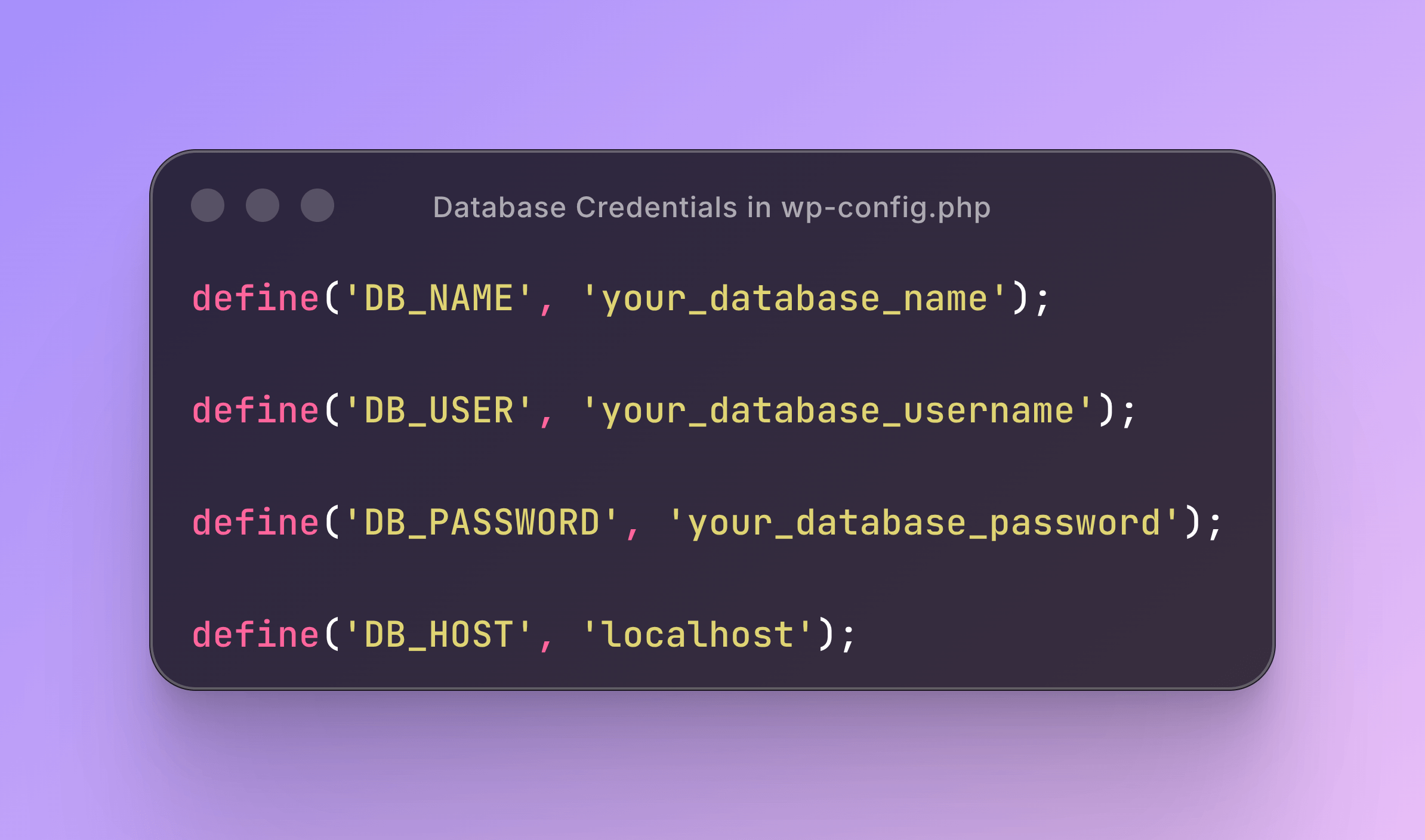
Third, if you’re comfortable navigating files, open wp-config.php in your hosting File Manager and look for these four lines:
Snippets
define('DB_NAME', 'your_database_name');

define('DB_USER', 'your_database_username');

define('DB_PASSWORD', 'your_database_password');

define('DB_HOST', 'localhost');
Compare those values against what you see in your hosting control panel under the Databases section. If they don’t match, that’s your problem. Update wp-config.php with the correct values and save the file.
Your Server Is Overloaded or Out of Resources Here’s What’s Happening
Sometimes when a WordPress site is down, the problem isn’t a broken plugin or a database error. It’s simply that the server ran out of something it needs to keep running. That might be memory, processing power, or disk space. Understanding which resource ran out tells you what to fix.
The PHP Memory Limit Was Exceeded
Every WordPress site is allocated a maximum amount of server memory that PHP scripts can use. When your plugins, theme, and WordPress core together need more memory than your server allows, the scripts crash and the site goes down. This is more common than people realize, especially on shared hosting plans with conservative memory limits, or on sites that have accumulated a large number of plugins over time. The typical fix is to increase the PHP memory limit. There are two ways to do this.
The easier way is through your hosting control panel. Many hosts allow you to adjust PHP settings directly from their dashboard, often under a section called “PHP Options” or “PHP Configuration.” Look for the “memory_limit” setting and increase it to at least 256MB.
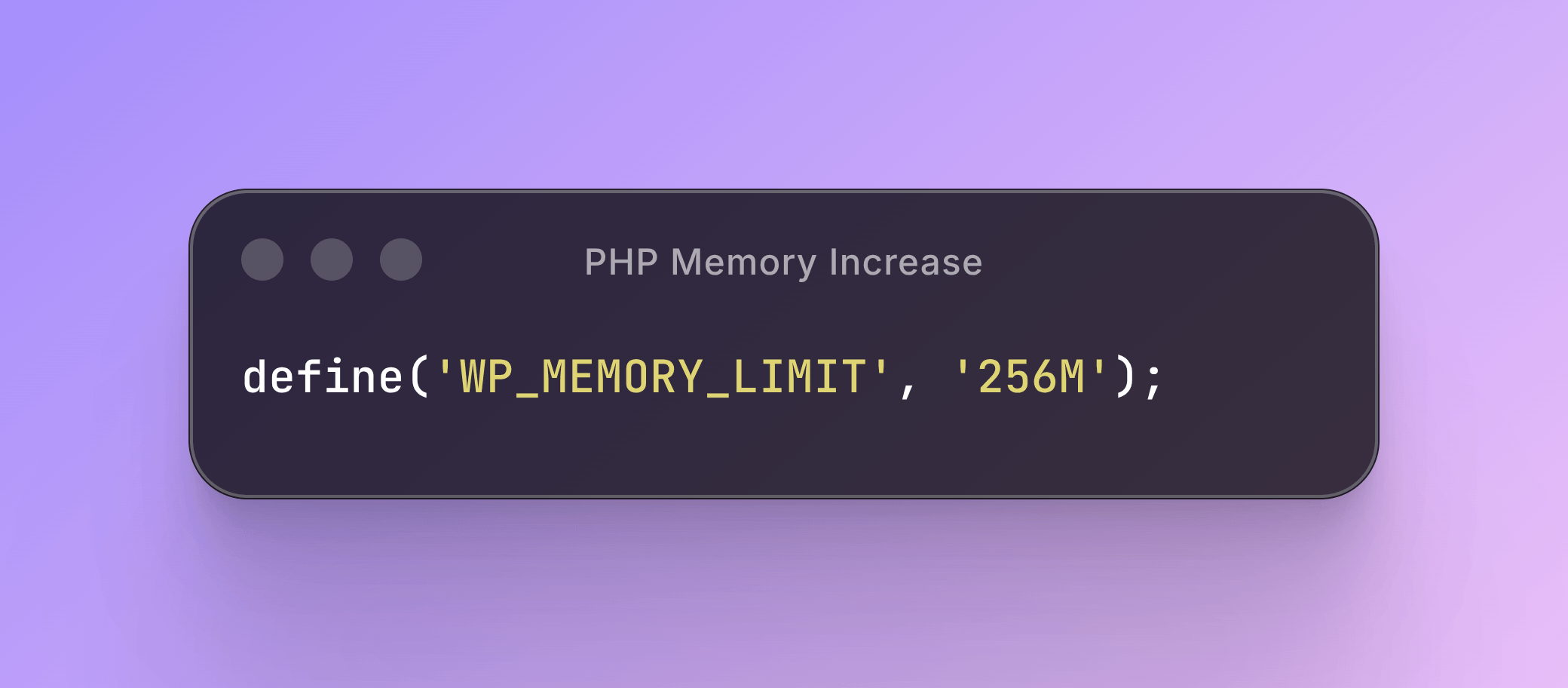
If you prefer to do it manually, open wp-config.php in your File Manager and add this line above the
/* That’s all, stop editing! */ comment:
Snippet
define('WP_MEMORY_LIMIT', '256M');Save the file and reload your site.
If the memory limit keeps getting hit even after you increase it, that’s a signal worth paying attention to. A well-built plugin shouldn’t need an unusually large amount of memory to function. If the problem keeps coming back, check which plugin was recently updated or installed and investigate whether it has a known memory issue. Sometimes the real fix is removing a poorly coded plugin rather than continuously expanding the memory ceiling.
A Traffic Spike Overwhelmed the Server
A sudden flood of visitors can take a WordPress site offline just as effectively as a technical error. When more requests come in than the server can handle simultaneously, it starts refusing connections and returning 503 errors.
This can happen for good reasons: a post went viral, a newsletter went out, or a product launch drove more traffic than expected. It can also happen for bad reasons, such as a bot crawling your site aggressively, a brute-force attack making thousands of login attempts per minute, or a competitor-driven DDoS attempt.
To check whether a traffic spike caused the outage, log into your hosting panel and look at your access logs or traffic analytics. You’re looking for a sharp spike in requests around the time your WordPress site went down.
If the spike was from real visitors, the short-term fix is to contact your host and ask about temporarily scaling up resources or enabling server-side caching. The longer-term fix is upgrading to a hosting plan that can handle higher concurrent traffic.
If the traffic looks abnormal thousands of requests from a single IP address or a concentrated geographic region with no logical explanation you may be dealing with automated bot traffic. That’s a different problem that requires a different solution.
A firewall that filters malicious traffic before it reaches your server changes this situation entirely. Ultimate Security plugin includes a Cloudflare firewall setup that helps block brute-force attacks and bot floods at the door, so your server isn’t wasting resources processing requests that were never legitimate in the first place. If your WordPress site is down regularly during traffic spikes, protecting the front door is worth doing before the next one hits.
Your Disk Space Is Full
This one catches people off guard because it doesn’t feel like a WordPress problem. But when your server’s disk storage is completely full, WordPress can’t write temporary files, log entries, or cached data, and eventually it stops responding entirely.
Log into your hosting control panel and find the disk usage indicator, usually visible on the main dashboard. If you’re at 90% or above, that’s a problem waiting to happen. If you’re at 100%, that’s likely what brought your site down.
Common causes of unexpected disk usage include old backup files sitting on the server (especially if you’ve been running automated backups without a retention limit), a large and unoptimized media library, server error logs that have grown to enormous sizes, and spam or bot-uploaded files in your WordPress uploads folder.
Start by checking your backup folder. If you have weeks or months of full-site backups stored directly on your server, clean out the older ones but keep at least the two most recent copies. Then look at your uploads folder and remove any files you no longer need on the site. If disk usage is still high after that, contact your host and ask them to help identify what’s consuming the space.
Is Your Site Hacked? Here’s How to Tell and What to Do Next
Not every WordPress downtime is a technical glitch. A meaningful portion of the time, when a WordPress site is down for no obvious reason, the cause turns out to be a security breach. It’s an uncomfortable truth, but it’s better to know it than to spend hours debugging a plugin conflict when the real problem is malware. The tricky part is that a hacked site doesn’t always look dramatically different from a site with a technical error. Both can show blank pages, connection errors, or a complete loss of access. The difference is in the details.
Signs Your Site Was Compromised, Not Just Broken
Look for these specific signals before assuming it’s a plugin or server problem:
Signs Your WordPress Site May Be Hacked
What to Do Right Now
Follow these steps below:
- Step 1: Don’t start randomly deleting files. This is the instinct, but it often makes things worse. You can accidentally remove files you’ll need for recovery, and you can destroy evidence that helps diagnose the extent of the breach.
- Step 2: Contact your host immediately. Tell them you suspect a compromise. They can check server-level logs, confirm whether malware was detected, and in some cases quarantine the infected files for you. Their security team has dealt with this many times before.
- Step 3: Change your passwords from a different device. Change your WordPress admin password, your hosting panel password, and your domain registrar password. Do this from a device that’s separate from the one you normally use to manage your site, in case your usual device has been affected.
- Step 4: Check whether Google has flagged your domain. Open a browser and search for site:yourdomain.com. If Google shows warnings next to your results or shows pages you don’t recognize, your site has been indexed with malicious content.
How a Hack Actually Causes Downtime
People sometimes wonder why a hack would take a site offline rather than just quietly stealing data. There are a few mechanisms.
Malware running on your server consumes processing resources and memory. Eventually, that consumption reaches a point where the server simply can’t handle normal requests anymore, and the site goes down under its own infected weight. Hosting providers also suspend accounts when they detect malware, not because they’re being punitive but because one compromised site on a shared server puts every other site on that server at risk. And in some cases, attackers intentionally deface or delete site files as part of the attack.
Scan Your Site After Getting Back In
Once you regain access, the priority is not to just restore things and move on. It’s to find and remove every trace of the attack before it happens again.
This is where having a dedicated security plugin makes a real difference. Ultimate Security includes a malware scanner that looks through your WordPress files and database for injected code, suspicious file modifications, unauthorized admin accounts, and backdoors that attackers leave behind to regain access later. Running a scan after a security incident tells you what was touched, what was added, and what still needs to be cleaned.
After the scan and cleanup: update every plugin and theme to the latest version, remove any user accounts you don’t recognize, change all passwords again, and set up ongoing monitoring so that the next time something suspicious happens, you find out within minutes rather than after a customer calls you.
Your Site Broke Right After an Update: Here’s the Recovery Playbook
If your WordPress site has crashed and the last thing you did was run updates, that’s not a coincidence. Updating broken sites is one of the most common scenarios in WordPress, and it happens to everyone at some point. You’re not doing anything wrong. WordPress is a complex system with a lot of moving parts, and occasionally those parts don’t sync up perfectly after a change.
Here’s the order of operations to get back up as quickly as possible.
Check Your Email First
When WordPress detects a critical error on your site, it sends an email to the administrator address on the account. That email contains a link to something called “recovery mode,” which is a special version of the WordPress dashboard that loads in a limited, safe state even when the front-end is broken.
Before you start editing files or contacting your host, check the inbox of the email address associated with your WordPress admin account. If the recovery mode email is there, click the link. You’ll be taken directly into wp-admin where you can deactivate the problem plugin or theme without needing file manager access.
This is the easiest path, and it works often.
If There’s No Email, Use the File Manager Route
If WordPress didn’t send a recovery email or if you can’t find it, you’ll need to work through your hosting file manager. The full steps for deactivating plugins and switching themes via File Manager are covered in Section 4 of this guide.
The key question to answer first is, “What exactly did you update? Check your update history in the WordPress dashboard (Dashboard > Updates shows recent activity) or think back to what you clicked before the problem started. If it was a specific plugin, that’s your primary suspect. If it was the WordPress core itself, the problem might be in the core files rather than a plugin.
How to Roll Back an Update
Sometimes deactivating a plugin isn’t enough. You need to revert it to the version that was working before.
For plugins, the most reliable way to do this without developer access is to download the previous version directly from the plugin’s page on wordpress.org/plugins. Go to the plugin’s page, scroll down to the “Advanced” section on the right sidebar, and you’ll find a dropdown to select older versions. Download the .zip file, then go to your WordPress dashboard, delete the broken plugin, and upload and install the older version manually using the “Upload Plugin” button.
For themes, rolling back is more involved and usually requires a backup. If you have a site backup from before the update, restoring just the theme folder through File Manager is faster than trying to find an older theme version manually.
Use a Backup If You Have One
If the update caused cascading problems that are hard to isolate, or if rolling back didn’t resolve it, restoring from a backup is the cleanest solution. A backup taken right before the update will return your site to its exact working state.
This is the moment when people who have backups feel relieved and people who don’t feel the real weight of not having them. If you’re in the second group right now, that’s understandable. Focus on the fix first, then set up proper backups before the next update cycle.
For next time: Many hosting providers offer a one-click staging environment. You can clone your live site to a staging copy, run all updates there first, confirm everything works, and then apply the same updates to the live site. It adds maybe ten minutes to your update routine and eliminates most of the risk entirely.
How to Make Sure Your WordPress Site Doesn’t Go Down Like This Again
Getting your site back online is the immediate goal. But once it’s running again, there’s a more important question: what would have made this easier, faster, or entirely preventable? These six habits don’t require technical expertise. They just require doing them once and keeping them in place.
Set Up Uptime Monitoring
You should never find out that your WordPress site is down from a customer or a user or by accident. Uptime monitoring tools check your website every few minutes from external servers around the world, and they send you an immediate alert by email the moment your site stops responding.
Many free plugins offer this at no cost with checks every five minutes. Many hosting providers also include basic uptime monitoring in their dashboards. Either way, set it up today. The five minutes it takes is worth more than any amount of emergency troubleshooting.
Keep Backups You Actually Trust
A backup you’ve never tested is not a backup. It’s a file that might help or might not.
The standard to aim for is a daily backup stored in a location completely separate from your hosting server. Google Drive, Dropbox, Amazon S3, or a dedicated offsite backup service all work. The reason “offsite” matters is that if your hosting server fails, is compromised, or gets suspended, any backups stored on that same server are inaccessible when you need them most.
Once a month, do a test restore on a staging environment to confirm the backup actually works. This one step will save you from a very bad day at some point in the future.
Update Smart, Not Fast
Auto-updating plugins and WordPress core sounds responsible, but it can cause its own problems. A major plugin update can break compatibility with your theme or another plugin, and if it happens automatically, your site could be down for hours before anyone notices.
A smarter approach: review available updates, check changelogs for anything major, and apply updates during a time when you’re available to check the site afterward. For significant updates, major version changes to WordPress core, or updates to your most critical plugins, test on a staging site first.
Also take a periodic look at your plugin list. Every plugin you have installed is a potential point of failure and a potential security vulnerability. If a plugin hasn’t been updated in over a year, or you’re not actively using it, remove it.
Add a Security Layer Before Something Gets In
There’s a direct connection between WordPress security and uptime that most site owners don’t think about until after an incident. Brute-force attacks, bot floods, and malware infections are all causes of downtime, not just security concerns. Protecting your site from these threats is the same as protecting its availability.
Ultimate Security runs in the background and handles this continuously. It blocks unauthorized login attempts before they consume server resources, monitors your files for unexpected changes, and runs regular scans for malware so that threats are caught early rather than after they’ve caused visible damage. Security and uptime aren’t two separate things to manage; they’re the same problem approached from different directions.
Choose Hosting That Matches Your Actual Needs
Shared hosting is a perfectly reasonable starting point for a new WordPress site. But shared hosting has resource limits, and when your site grows past those limits, you’ll start seeing 503 errors and unexplained downtime during busy periods.
If you regularly experience outages during traffic spikes, or if your host’s server is frequently the bottleneck, it’s worth exploring managed WordPress hosting or a VPS (Virtual Private Server) plan. Managed WordPress hosting in particular is worth considering because the servers are configured specifically for WordPress, performance is generally better, and support staff tend to have WordPress-specific knowledge.
Document Your Setup While You Remember It
This last one is boring, and almost no one does it, but it consistently reduces recovery time when something goes wrong.
Keep a simple, secure document with your hosting provider name and login URL, your domain registrar name and login, your database name and credentials, a list of active plugins with their version numbers, and your theme name and version. Store it somewhere secure and separate from your website, like a password manager or an encrypted note.
In an emergency, this document cuts the chaotic “where did I even buy the domain?” phase down to nothing. When every minute counts, knowing exactly where to go is worth more than almost anything else.
When Should You Stop Troubleshooting and Call a Professional?
Not every WordPress downtime situation is one you should try to solve alone, and knowing when to stop is just as important as knowing how to start.
Call in professional help when:
When It’s Time to Bring in an Expert
If one or more of these situations sounds familiar, professional help may save significant time and prevent additional damage.
Where to find help: your hosting provider’s support team is the first call for server-level or database issues. The WordPress.org support forums are free and staffed by knowledgeable volunteers for general WordPress questions. For urgent recovery or confirmed security incidents, a WordPress developer or dedicated WordPress security specialist is the fastest path back online.
It is completely okay to know your limits and decide what you’re comfortable handling yourself. A professional can often resolve in one hour what would take you a full day of stressful trial and error. Getting the site back up quickly is what matters.
Frequently Asked Questions
How long does it typically take to fix a WordPress site that’s down?
It depends on the cause. Plugin conflicts, a stuck maintenance mode file, or an expired domain can usually be resolved in under 30 minutes once you know what you’re looking for. Server outages depend entirely on your host’s response time, which is out of your control. A security breach, depending on how deep it goes, can take a few hours to a full day to clean up properly. The most important variable is how quickly you identify the correct cause, which is why the diagnostic table at the start of this guide matters.
Will my Google search rankings drop because my site was down?
A short outage, meaning a few hours or less, is unlikely to affect your rankings in any meaningful way. Google’s crawlers will encounter an error, note it, and try again later. Prolonged downtime measured in days is a different story and can cause crawling gaps that affect your visibility. The most serious scenario is a security-related one: if Google flags your domain as dangerous or deceptive because of malware, rankings can drop and browser warnings will appear, both of which require active steps to resolve through Google Search Console.
My WordPress site is down but I can still log into wp-admin. What does that mean?
It means the problem is isolated to your site’s front end rather than the core WordPress installation. That narrows it down considerably. Start by switching to a default theme to rule out a theme issue, then clear all caches through your caching plugin or hosting panel. If neither of those fixes it, deactivate your plugins one by one while checking the front end after each deactivation.
What is the White Screen of Death (WSOD) in WordPress?
The White Screen of Death is what happens when your WordPress site loads a completely blank white page with no error message at all. It occurs when PHP encounters a fatal error and can’t render anything but also can’t display the error itself. The most common causes are a plugin conflict, a theme error, or the PHP memory limit being exceeded. Deactivating all plugins via File Manager and increasing the memory limit in wp-config.php are the first two steps to diagnose it.
Can a hacked WordPress site cause it to go down completely?
Yes, and this happens more often than people expect. Malware running on your server consumes CPU and memory, eventually crashing the site under its own load. Hosting providers also proactively suspend accounts when malware is detected, which takes the site offline immediately. In some attacks, the site files or database are intentionally destroyed. If your WordPress site is down and you can’t find a technical explanation for it, running a security scan after you regain access is always worth doing.
How do I stop my WordPress site from going down in the future?
The combination that covers most downtime scenarios: daily offsite backups, uptime monitoring with instant alerts, a disciplined update process with staging tests before live deployment, a lean plugin list with no outdated or unused plugins, and a security plugin running in the background to block the threats that cause security-related downtime. None of these require significant technical skill to set up, and all of them pay for themselves the first time something goes wrong.
Is it safe to restore from a backup after a hack?
Only if the backup predates the hack. Restoring a backup that was taken after the compromise just puts the infection back. Before restoring, try to determine when the hack first occurred. Server logs and your host can help with this, and find the most recent clean backup from before that date. After restoring, immediately update all plugins, themes, and WordPress core, change all passwords, and scan the restored site to confirm it’s clean.
Getting Your Site Back Online Is the First Step; Keeping It There Is the Real Work
A down WordPress site is stressful, but it’s rarely fatal. When you look at who recovers fast and who struggles, the difference isn’t technical skill. If you’re back online, use the next hour to fix the gaps. Set up live uptime monitoring, route your backups offsite, and tighten your WordPress security. Don’t wait for the next crash to wish you had a safety net.
That’s exactly why we built WordPress Ultimate Security. It runs quietly in the background, blocking brute-force login attempts and resource-heavy bot traffic before they can overwhelm your server and take you offline. You configure it once in a few minutes, and it keeps watch so you don’t have to.