
If you have ever clicked on a website and left before it fully loaded, you already understand the problem. Slow websites frustrate people, and for WordPress sites specifically, speed issues are surprisingly common. The fact is WordPress itself is not the problem. The way it is set up usually is. If you want to make WordPress faster, most of the fixes are not complicated. They just require knowing where to look and what to change.
This guide covers every major area that affects WordPress performance, from your hosting environment to image handling, caching, database health, and even security. By the end, you will have a clear action plan to follow.
Table of Contents
What Is WordPress Page Speed and Why Does It Matter?
If you want to make WordPress faster, you first need to understand what speed actually means in this context. It is not just about a number on a test report. Website speed is how quickly your pages load, become visible, and respond to what a visitor does. Every second of delay has a cost.
Think about your own behavior online. If a page takes more than three seconds to load, most people close it and move on. Studies consistently show that nearly half of all web users expect a site to load within two seconds. Around 40% leave entirely if it takes longer than three seconds.
That behavior directly affects your business. A slow WordPress site means:
- Higher bounce rates, meaning visitors leave before engaging with your content
- Fewer pages viewed per session
- Lower conversion rates, whether that means purchases, sign-ups, or contact form submissions
- Weaker search engine rankings, since Google uses page load speed as a ranking factor
A fast WordPress site, on the other hand, keeps people on the page longer, encourages them to explore more, and builds trust with first-time visitors. Speed is not a technical vanity metric. It is a direct driver of user experience and revenue.
Core Web Vitals: Google’s Official WordPress Performance Benchmarks
Google uses a set of metrics called Core Web Vitals to measure real-world page experience. These are not abstract lab scores. They reflect how actual users experience loading, interactivity, and visual stability on your site. If you are serious about WordPress speed optimization, these three metrics need to be on your radar.
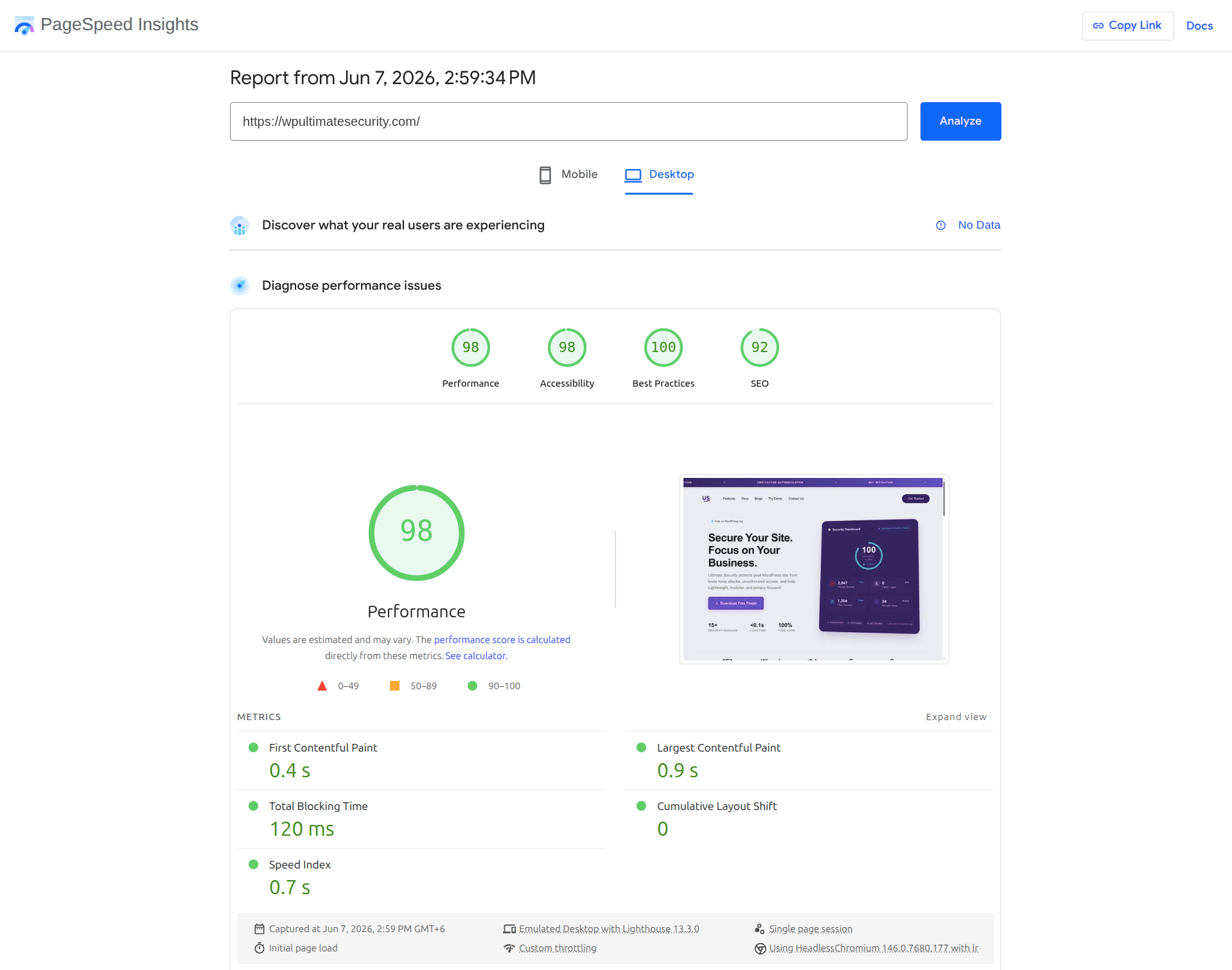
Largest Contentful Paint (LCP): How Fast Your Main Content Loads
LCP measures how long it takes for the largest visible element on your page to fully load. This is typically your hero image, a featured photo, or a large block of text at the top of the page.
Target: LCP within 2.5 seconds.
A poor LCP score means visitors are staring at a partially loaded screen before they see anything meaningful. To improve it:
- Optimize and compress your largest images
- Prioritize above-the-fold content loading
- Remove render-blocking resources that delay visible content
Interaction to Next Paint (INP): How Responsively Your Page Handles User Actions
While the old First Input Delay (FID) metric only tracked a visitor’s very first click, Google has updated its benchmarks to look at the bigger picture. The current standard is Interaction to Next Paint (INP).
INP doesn’t just measure the initial interaction; it tracks all clicks, taps, and keyboard inputs throughout a user’s entire visit. It calculates the time it takes for the browser to actually paint the next visual frame on the screen after a user interacts with an element. If someone clicks your mobile menu toggle and it freezes for a split second before opening, that laggy behavior triggers a poor INP score.
Target: An INP score of 200 milliseconds or less.
A high INP score makes your site feel clunky, heavy, and unresponsive, which drives up bounce rates. To keep your site feeling snappy and responsive:
- Break Up Long JavaScript Tasks: When JavaScript code runs for more than 50ms, it hogs the browser’s main thread, meaning the browser can’t process user clicks. Breaking heavy code into smaller chunks gives the browser breathing room to respond to inputs immediately.
- Minimize Third-Party Scripts: Unoptimized tracking scripts, chat widgets, and heavy ad networks love to lock up the main thread. Audit your scripts and defer or remove anything that isn’t absolutely critical.
- Keep Your Plugins Lightweight: Ensure your interactive plugins like form builders, popups, or setup wizards use clean, efficient rendering processes that don’t block visual updates.
Cumulative Layout Shift (CLS): How Stable Your Page Is Visually
CLS measures how many elements on your page shift unexpectedly while loading. If a button moves just as someone goes to click it, or text jumps down because an image loaded above it, that is a CLS problem. It is one of the most frustrating user experiences on the web.
Target: CLS score below 0.1.
To prevent layout shifts:
- Set explicit width and height attributes on all images and videos
- Reserve space for ads or embeds before they load
- Avoid injecting content above existing elements after the page has started rendering
| Metric | Good Score | Needs Improvement | Poor |
|---|---|---|---|
| LCP | Under 2.5s | 2.5s to 4s | Over 4s |
| INP | Under 200ms | 200ms to 500ms | Over 500ms |
| CLS | Under 0.1 | 0.1 to 0.25 | Over 0.25 |
All three Core Web Vitals are measured from real Chrome user data and feed directly into Google’s page experience ranking signals.
Recommended Tools for Performance Testing
To accurately measure your improvements and pinpoint areas needing attention, use the following performance testing tools:
| Tool Name | Key Features | Benefit |
|---|---|---|
| Google PageSpeed Insights | Mobile and desktop scores, Core Web Vitals, actionable recommendations. | Official Google metrics, focuses on user experience. |
| GTmetrix | Detailed performance reports, waterfall charts, Core Web Vitals. | In-depth analysis of loading sequence and bottlenecks. |
| Pingdom Website Speed Test | Analyzes speed from various global locations, identifies performance bottlenecks. | Good for understanding global load times. |
| WebPageTest | Advanced testing from multiple locations and browsers, video capture of load. | Highly customizable for deep diagnostic analysis. |
Start with a Baseline: Test Your Site Before Changing Anything
Before you touch a single setting, measure where your site actually stands. There is no point in guessing.
Tools like Google PageSpeed Insights, GTmetrix, and Pingdom will give you a detailed breakdown of what is slowing your site down. Pay attention to your Time to First Byte (TTFB), which tells you how quickly your server responds, and your First Contentful Paint (FCP), which reflects how fast users see something on screen.
You can also run a quick health check directly inside WordPress by going to Tools > Site Health. Look for any issues flagged under the “Performance” category.
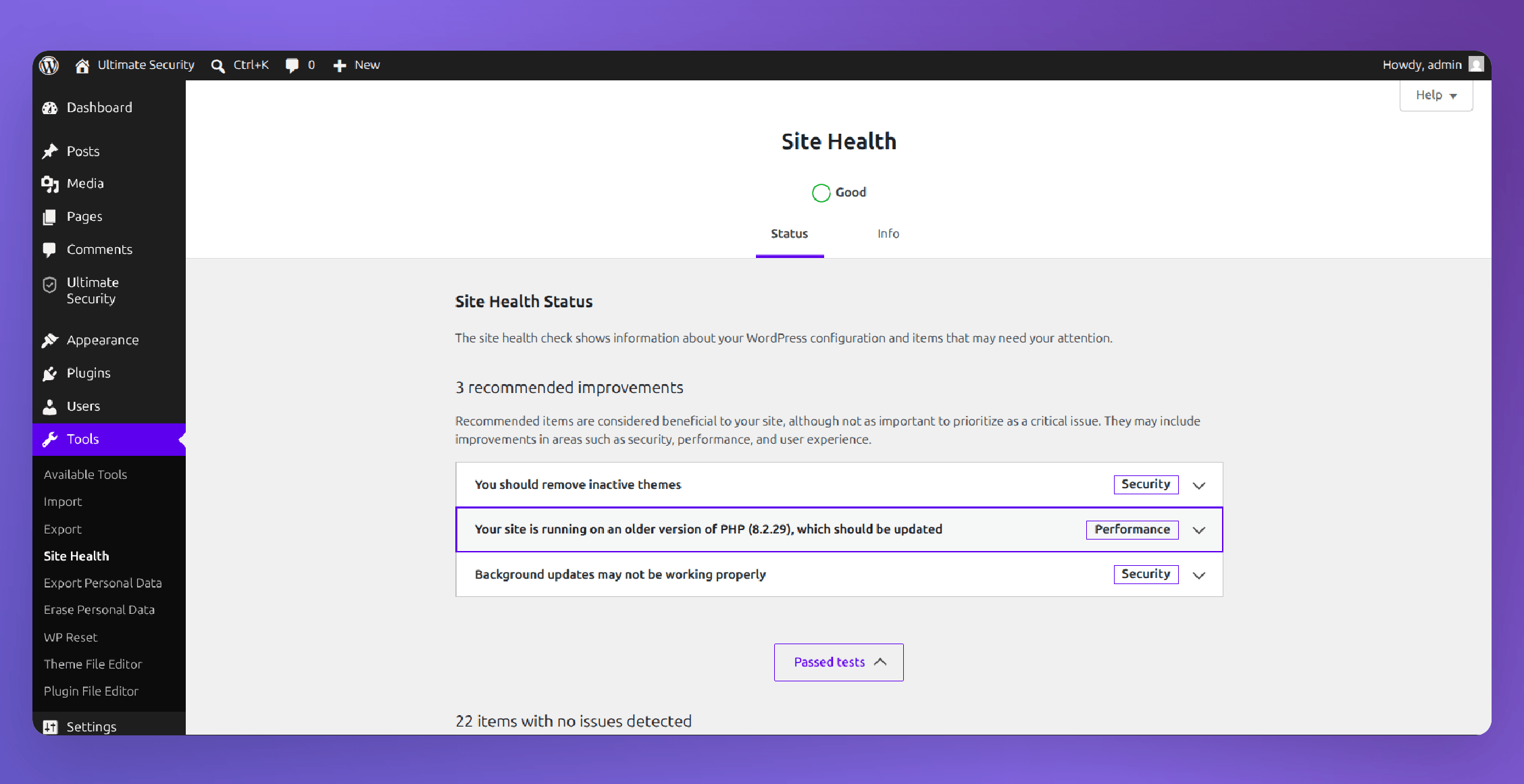
Run this test, note your scores, and use them as a reference point after you apply the strategies below.
Your Hosting Is the Foundation. Do Not Cheap Out on It.
No amount of optimization will fully overcome bad hosting. This is the most honest thing you can hear about WordPress speed.
When you are on shared hosting, your website competes for server resources with dozens or hundreds of other sites. If another site on the same server gets a spike in traffic, yours slows down too. You have no control over it. If your TTFB is consistently above 600ms, your hosting is likely the bottleneck.
What to look for when evaluating or upgrading your hosting
SSD Storage
SSD storage over traditional hard drives for significantly faster data access and reduced loading times.
Nearby Server Locations
Server locations close to where your audience is based help reduce latency and improve response times.
HTTP/2 & HTTP/3
Modern protocol support enables faster parallel loading of resources and more efficient data transfer.
Built-In Caching
Built-in caching at the server level helps reduce processing overhead and serves pages more quickly.
Your options beyond shared hosting include cloud hosting, VPS (Virtual Private Server), dedicated servers, and managed WordPress hosting. If you are not ready to switch hosts, at minimum upgrade your existing plan to get more dedicated resources.
Pick a Lightweight Theme and Stick to It
Your theme affects performance more than most people realize. A visually heavy theme with animations, sliders, and bundled page builders will add significant page weight even when you are not using any of those features. A good performance-oriented theme loads only what it needs. Look for themes with modular design, meaning features are optional and can be turned on or off individually.
When evaluating a theme, check:
- Whether it loads unnecessary scripts or styles by default
- Whether it follows WordPress coding standards
- How it performs on a fresh install with default content
Enable Caching So Your Server Works Less
Every time someone visits a WordPress page without caching, the server has to process database queries, run PHP, pull together the page, and send it. For one visitor, this takes a fraction of a second. Under real traffic, it adds up. Caching saves a static version of your pages and serves that to visitors instead of rebuilding the page every time. The result is significantly faster load times and reduced server load. There are a few types of caching worth enabling:
Essential Caching Methods for Faster WordPress Performance
Different layers of caching work together to reduce server load, improve response times, and deliver a smoother experience for visitors.
Page Caching
Serves pre-built HTML versions of your pages to visitors, reducing processing time and helping pages load significantly faster.
Browser Caching
Instructs the visitor’s browser to store static assets locally so returning visitors can load pages much more quickly.
Object Caching
Uses tools like Redis to keep database query results in memory, preventing the same queries from being executed repeatedly.
PHP OPcache
Stores compiled PHP bytecode in memory so the server does not need to re-parse and recompile scripts on every request.
Why Multiple Caching Layers Matter
No single caching method solves every performance bottleneck. Combining page caching, browser caching, object caching, and PHP OPcache creates a layered optimization strategy that reduces server workload and improves page delivery speed.
Many caching plugins handle most of this automatically. Note that object caching and database caching are best suited for VPS or dedicated server environments. On shared hosting, they can actually cause resource spikes without meaningful speed gains.
Compress Every Assets You Upload
Images are almost always the heaviest assets on a webpage. In many cases, a single unoptimized hero image can be larger than all other page resources combined, creating unnecessary delays in loading and rendering.
The three things that matter most with images are format, dimensions, and compression.
Format: WebP is the modern standard. It delivers much better compression than JPEG or PNG while maintaining visual quality. Most image optimization tools and plugins can convert your images to WebP automatically.
Dimensions: Upload images at the size they will actually be displayed. Uploading a 4000px wide image that displays at 800px wide is wasted file size.
Compression: Run every image through a compression tool before or after uploading. There are several optimization plugins available for WordPress that handle bulk compression and WebP conversion. The best way is to compress the image before uploading, so this way you don’t need an extra plugin.
Enable GZIP or Brotli Compression at the Server Level
When your server sends files to a visitor’s browser, those files can be compressed first to reduce their size. GZIP and Brotli compression do exactly this for text-based files like HTML, CSS, and JavaScript.
The impact is real. GZIP compression alone can reduce response sizes by around 70%.
If you are on cPanel hosting, you can enable this through Software > Optimize Website > Compress All Content. Most caching plugins also include a compression option. Once enabled, use an online tool to verify that compression is actually active on your site.
Minify Your CSS, JavaScript, and HTML
Your theme and plugins produce CSS, JavaScript, and HTML files that contain whitespace, comments, and formatting for readability. Browsers do not need any of that. Minification strips it all out, reducing file size without changing how the code works.
This is a straightforward win. Several plugins handle minification automatically. The main thing to watch for is testing after you enable it, because aggressive minification can occasionally break JavaScript functionality or cause styling issues.
A safe approach is to enable minification gradually, testing your key pages after each change.
Use a Content Delivery Network (CDN)
A CDN stores copies of your static files (images, CSS, JavaScript, fonts) on servers located around the world. When someone visits your site, those files are served from the server closest to them rather than from your single hosting server.
For visitors who are geographically far from your hosting server, a CDN can dramatically reduce load time. Even for visitors close by, CDNs reduce the load on your origin server.
Several reliable CDN providers integrate well with WordPress. Some managed WordPress hosts also include CDN access as part of their plans. Make sure your CDN is configured to cache static resources properly, and that dynamic content like cart pages or login pages is excluded from caching.
Do Not Overlook Website Security. It Directly Affects Performance.
This is a point that performance guides often skip over, and it is a mistake. When your WordPress site is under a bot attack or a brute force attempt, those automated requests hit your server just like real visitor traffic. Hundreds or thousands of malicious login attempts, spam comment submissions, or vulnerability scans all consume your server’s CPU and bandwidth. The result is slower load times for your legitimate visitors, and in serious cases, a complete slowdown or outage.
A compromised site faces an even worse situation. Malware often injects code that makes additional requests, redirects traffic, or runs processes in the background, all of which drag performance down further.
This is why security and performance are not separate concerns. They are connected.
One plugin that handles this well is Ultimate Security. It is specifically built to be lightweight, with a performance impact of under 0.1 seconds, so it protects your site without adding meaningful load time. This matters because some security plugins are themselves heavy and slow things down, which defeats part of the purpose.
Here is what Ultimate Security does that is relevant to both security and performance:
- Brute force protection blocks repeated failed login attempts and stops bots from hammering your login page. Fewer malicious requests means less wasted server processing.
- SSD storage over traditional hard drives for faster data access
- Two-factor authentication (2FA) ensures that even if login credentials are leaked, unauthorized access is blocked at the next step.
- Security hardening features like automatic security key rotation and auto-update enforcement reduce the attack surface of your site over time.
- Malware scanning lets you check your files regularly so that if something gets through, you catch it early before it starts affecting site performance or user experience.
The plugin is free on WordPress.org, modular so you enable only what you need, and beginner-friendly with a guided setup wizard. For a performance-focused WooCommerce or any WordPress site setup, using a security tool that is built to be lightweight is the right choice.
Read our documentation to explore more features.
Audit and Reduce Your Plugins
Every plugin installed on your WordPress site uses resources, even ones you are not actively using. Some plugins add JavaScript or CSS to every page on your site whether those scripts are needed or not.
Go through your plugin list with one question in mind: does this plugin provide value that justifies its resource cost?
Common things to clean up:
- Plugins that overlap in functionality (two SEO plugins, two security tools, two backup solutions)
- Plugins that were installed for a one-time task and never removed
- Plugins that have not been updated by their developers in over a year
When choosing plugins going forward, favor ones with a modular architecture so you can enable only the features you actually need, rather than loading the entire tool’s functionality on every page load.
Eliminate Render-Blocking JavaScript and CSS
When a browser loads your page, it reads the code from top to bottom. If it encounters a JavaScript or CSS file that has not loaded yet, it stops and waits. This delay is called render-blocking, and it directly increases how long users wait before they see content.
Common solutions:
- Defer or async load JavaScript so it does not block the initial page render
- Inline critical CSS directly in the HTML for above-the-fold content so it renders immediately
- Move non-critical JavaScript to the footer so it loads after the visible content
Several performance plugins handle this automatically with configurable options. As with minification, test your key pages after making changes here, since deferring the wrong scripts can break interactive elements.
Clean Up Your WordPress Database Regularly
WordPress stores everything in its database: posts, revisions, comments, plugin settings, transients, and more. Over time, a lot of unnecessary data accumulates. Post revisions alone can add up to hundreds of rows for active sites. Spam and trashed comments, expired transients, and orphaned metadata from deleted plugins all contribute to database bloat. A bloated database means slower queries, which means slower page loads.
You can limit how many revisions WordPress stores by adding this line to your wp-config.php file:
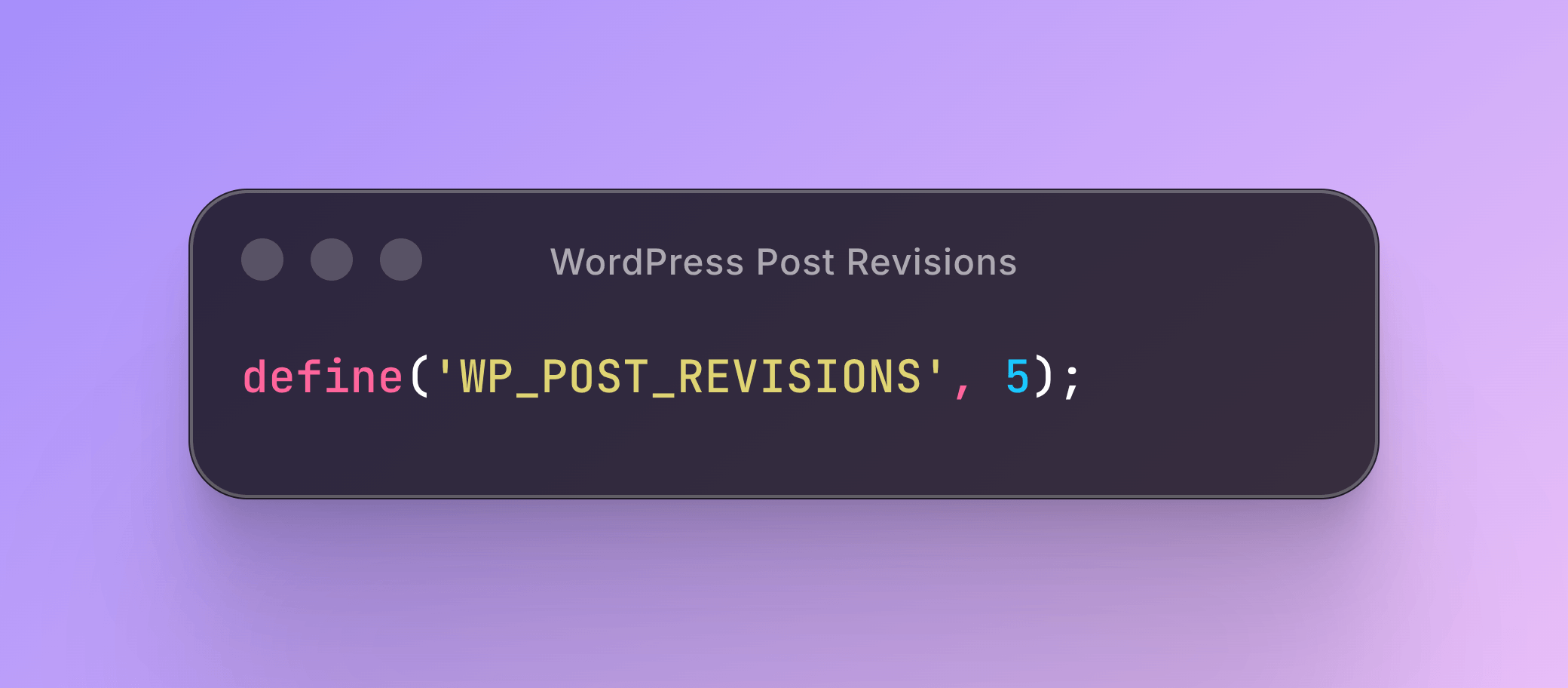
Snippet
define('WP_POST_REVISIONS', 5);Several database optimization plugins can handle the cleanup process safely. Always back up your database before running any cleanup tool. For ongoing maintenance, set up a scheduled cleanup so the database does not accumulate clutter again over time.
Keep Everything Updated
WordPress core, themes, and plugins all receive updates that often include performance improvements alongside bug fixes and security patches. Running outdated software is both a performance and security risk. Enable automatic updates for minor WordPress core releases. For major updates and plugin updates, use a staging environment to test before pushing to your live site.
Remove plugins and themes that are no longer maintained by their developers. Unmaintained software does not receive performance or compatibility updates and can create conflicts with newer versions of WordPress.
Monitor Performance Continuously
Running a speed test once is not enough. Every plugin you install, every theme update, every new piece of content can affect performance. Monitoring on a consistent basis helps you catch regressions before they become problems.
Use Google PageSpeed Insights and GTmetrix for periodic manual testing. If you want ongoing automated monitoring, tools like DebugBear run scheduled tests from multiple global locations and track your Core Web Vitals over time.
Pay attention to real-user data through the Chrome User Experience Report (CrUX), which reflects how actual visitors experience your site. This data also informs how Google evaluates your site for search.
After any significant change (new plugin, theme update, major content change), run a test and compare it to your baseline.
Expert Tips and Common Pitfalls to Avoid
Beyond the technical steps, adopting a strategic mindset is crucial for sustained WordPress speed optimization.
Expert Tips for Sustained Speed
- Less is More with Plugins: Each plugin introduces potential overhead. Prioritize essential, well-coded plugins.
- Always Back Up: Before making any significant changes to your site, perform a full backup. This safety net is invaluable.
- Test on Staging: Whenever possible, test all optimization changes on a staging environment before deploying them to your live site. This prevents breaking functionality for your users.
- Hosting is Paramount: Reiterate that even the best optimization plugins cannot fully compensate for fundamentally poor hosting. Invest wisely.
- Stay Updated: Regularly update your WordPress core, themes, and plugins. Updates often include performance enhancements and crucial security fixes.
- Monitor Core Web Vitals: Don’t just chase raw speed scores. Continuously monitor your Core Web Vitals to ensure real-world user experience is improving.
Website Performance Factors
Common Mistakes to Avoid
- Conflicting Plugins: Installing multiple caching or optimization plugins can lead to conflicts, unexpected behavior, and actually slow down your site. Stick to one comprehensive solution.
- Ignoring Mobile Optimization: Many optimizations impact desktop more than mobile. Always test and ensure your mobile experience is equally fast.
- Over-Optimizing: Aggressive optimization without thorough testing can sometimes lead to broken functionalities, layout shifts, or content not loading correctly.
- Neglecting Staging Environments: Pushing changes directly to a live site without testing is a recipe for disaster.
- Using Unoptimized Stock Images: Generic stock photos are often large and unoptimized. Always process them before uploading.
Frequently Asked Questions
What is the fastest way to make WordPress faster right now?
The highest-impact single change for most sites is enabling page caching. Install a caching plugin, enable page caching, and test your site before and after. The improvement is typically immediate and significant.
How many plugins is too many for WordPress?
There is no fixed number. A site with 30 well-coded plugins can be faster than a site with 8 bloated ones. The question is not how many you have, but how resource-efficient they are and whether all of them are actually needed.
Does WordPress security affect site speed?
Yes, directly. Bots and brute force attacks generate server requests that consume CPU and bandwidth. A good security plugin that blocks these threats will reduce wasted server load. The key is choosing one that is lightweight itself.
Does switching to a faster theme require rebuilding the site?
Not always. If your current theme is not heavily customized, switching can be straightforward. If your site relies on a page builder layout, it requires more careful planning. Using a staging environment first makes this process much safer.
What is TTFB and why does it matter?
TTFB stands for Time to First Byte. It measures how long your server takes to respond to a browser request. A high TTFB (above 600ms) usually points to a hosting problem, unoptimized server configuration, or lack of caching.
Conclusion
Making WordPress faster is easier than most people think. By implementing a few key changes like upgrading your hosting, optimizing images, enabling caching, reducing plugins, and strengthening security. You can significantly improve your site’s speed and user experience. These simple optimizations boost your Core Web Vitals and search rankings and also create a smoother, faster site that visitors love. The results are often immediate and well worth the effort.