
If you’ve heard people on your team or all over X talk about Claude Code and walked away unsure what it actually is or why you’d care, this post is for you. We’re going to explain what Claude Code does, who it’s for, how to install and use it, and what the deeper features mean, without assuming you write code for a living.
The first half is readable by anyone tech-adjacent: founders, PMs, designers, ops people, curious managers. The second half goes deeper for developers who want to actually use the thing. Skip the parts that aren’t yours.
Table of Contents
A Quick Glossary (We’ll Use These Words a Lot)
- Terminal — the black-screen-with-text window developers spend most of their day in. It’s where you type commands instead of clicking buttons.
- CLI — short for command-line interface, which is just a fancy way of saying “a tool you type at, instead of clicking on.”
- Repo / codebase — the project folder that holds all of an app’s code.
- Agent / agentic — an AI that doesn’t just answer a question, but works on a multi-step task on its own (reading files, making changes, running tests, retrying when something fails).
- Token — chunks of text the AI reads and writes. Roughly four characters each. AI pricing is per token.
- Context window — how much the AI can remember in one conversation. When it fills up, older messages drop off.
- Commit / push / pull request — git terms. “Save my changes to history” / “send them to the shared server” / “ask my team to review them.”
- CI / pipeline — automated checks that run when code is pushed (do the tests pass, is it formatted right, etc.).
Bookmark this if you need it. We’ll define other words as they come up.
Part 1: What This Thing Actually Is
Claude Code is Anthropic’s answer to the copy-paste loop that slows every developer down. This section covers what it actually is, who it’s for, and whether your team should bother. No technical background required
The Frustration It Solves
Every developer on your team has the same loop running all day. They write some code, something breaks, they tab over to their browser, paste the error into ChatGPT or Claude, get an answer, paste it back, run the code again, see the next error, and repeat. Five tabs open. Constant context-switching. They lose maybe an hour a day to the friction of moving information between the AI and the code.
Claude Code is Anthropic’s answer to that loop. Instead of the AI living in a browser tab where it can only chat, it lives inside the developer’s terminal right next to the code. It can read the files. It can edit them. It can run the tests. It can keep working on a task while the developer goes to get coffee and report back when done.
That’s the whole pitch. Move the AI from “external advisor you copy-paste with” to “co-worker that has access to the actual work.”
What It Is, In One Paragraph
Claude Code is a tool from Anthropic (the company that makes Claude) that runs inside a developer’s terminal. When a developer types claude in the folder of a project they’re working on, an interactive AI assistant starts up with permission to read the files in that folder, edit them, run commands, and iterate on a task until it’s done. You give it a goal in plain English (“the login page is broken, please fix it”), and it works on the goal, asking permission before doing anything risky.
How It’s Different From the Other AI Tools You’ve Heard Of
The AI coding space has gotten crowded. Here’s the short version of who’s who:
- ChatGPT or Claude.ai in the browser — chat-only. The AI can’t see your code or change anything. You paste, it answers, you paste back. Useful for thinking out loud. Useless for actually getting work done in a real codebase.
- GitHub Copilot — the gray-text autocomplete suggestions that appear as a developer types. Best-in-class for “finish this line for me.” Doesn’t do whole tasks.
- Cursor or Windsurf — modified versions of the popular VS Code editor, with AI baked in. The AI lives inside the editor. Good for developers who already work primarily in that editor.
- Cline or Roo Code — extensions you install into VS Code that add agent-style AI. Similar power to use Claude Code, but lives in the editor instead of the terminal.
- Claude Code — terminal-native. Runs anywhere a terminal runs: on your laptop, on a remote server, inside an automated pipeline. Doesn’t care which editor you use.
A useful analogy: ChatGPT is like texting a friend for advice. Cursor and Copilot are like hiring a co-pilot to sit next to you. Use Claude Code is like hiring a junior developer who you give a task to, then walk away and check in on later.
Why This Matters For Non-Coders
If you manage developers, sell to developers, or work in a company that ships software, three things change when a team adopts Claude Code:
Ticket-to-shipped time drops. Routine work, bug fixes, small features, and refactors move faster because the AI handles the busy-work parts. Developers spend more time on the hard problems and less time on the boilerplate around them.
Internal documentation improves almost by accident. Claude Code uses a file called CLAUDE.md. It’s “onboarding doc,” a place where the team writes down conventions, commands, and gotchas. Teams that adopt it end up with much better-written context for the codebase, because the AI rewards them with better behavior when they write it down. That document also helps every new human hire.
The bar for “should we just build this ourselves?” drops. Tasks that used to require a week of engineering a small internal tool, a script, or a one-off migration become feasible in an afternoon. Whether that’s good or bad depends on your situation, but the calculation changes.
The trade-off: developers can also get sloppy. When an AI is doing the typing, it’s easier to ship code that nobody on the team fully understands. The teams that win with Claude Code put guardrails in place from day one (we’ll cover what those look like). The teams that don’t end up with codebases nobody can maintain.
Who Probably Shouldn’t Bother
Use Claude Code isn’t for everyone. Some honest reasons to skip it:
- Pure visual or design work. If you’re a designer making interfaces in Figma, this tool has nothing for you. It lives in the terminal, not in your design environment.
- Real-time human pair programming. Two humans doing the same task at the same time works fine. Two humans plus an agent is chaos.
- Production incidents. When something is on fire in production, you want muscle memory and direct tools. A conversation with an AI is not what you reach for at 2am.
- Strict no-AI policies. Some industries (defense, certain financial contexts, classified work) prohibit external AI on source code. Know your rules before installing.
For most other backend, full-stack, infrastructure, and operations work, it earns its keep.
What It Costs (The Simple Version)
Two ways to pay, depending on how you use it:
- Subscription — flat monthly fee through a Claude.ai Pro or Max plan. $20/month for Pro, $100–200/month for Max. Includes Claude Code use along with the chat app. There’s a usage cap, but for normal daily work you won’t hit it. This is what most individual developers want.
- Pay-per-use — you create an Anthropic developer account (called the Console), get an API key, and pay per token used. No cap, but no flat ceiling either. Best for teams who want itemized invoices, or for heavy users who’d blow past the subscription cap.
A rough sense of scale: a developer using Claude Code seriously for four hours a day on the pay-per-use plan usually spends somewhere between $5 and $20 per workday. On a Max plan, it’s a flat $100–200/month regardless. We’ll get into the math properly later.
Should Our Team Use This?
Quick decision guide for managers and founders:
Yes, probably worth a serious try, if:
- The team mostly does backend, API, infrastructure, or DevOps work
- People are comfortable in a terminal
- You have a clear codebase (or want better documentation of it)
- You have someone willing to spend a week setting it up well for the team
- Your security team is fine with external AI seeing your source code
Maybe wait, if:
- The team is mostly frontend/UI designers using closed-source design tools
- Nobody on the team has used a terminal in years
- The codebase is so messy that even humans get lost in it (the AI will too)
- You’re in an industry with strict source-code rules nobody’s checked yet
Don’t bother, if:
- The team has been told they can’t use external AI on the code
- Your developers use IDEs that don’t have terminal integration and don’t want to change
- The “AI productivity” sell has burned the team before and they’re hostile to another attempt
Part 2: Getting It Running
The hardest part of any new tool is getting it running the first time. This section removes all the guesswork. By the end, you’ll have Claude Code installed, authenticated, and doing real work.
What You Need First
Three things:
- A terminal. On a Mac, it’s an app called Terminal (or iTerm if you prefer). On Windows, it’s PowerShell or Windows Terminal. On Linux, you already know. If you’ve never opened one, do that now and just look at the prompt for a second. It’s a place where you type commands instead of clicking.
- Node.js installed. Node is a runtime that JavaScript apps need to run. Use Claude Code is distributed through Node’s package manager. Install it from
nodejs.org(pick the LTS version). You need version 18 or newer. - An Anthropic account. Either a Claude.ai Pro/Max subscription or an Anthropic Console account (free to create, you just pay for tokens used).
If installing Node sounds like too much friction, Anthropic ships a native installer that skips it. We’ll mention that below.
Install In One Command
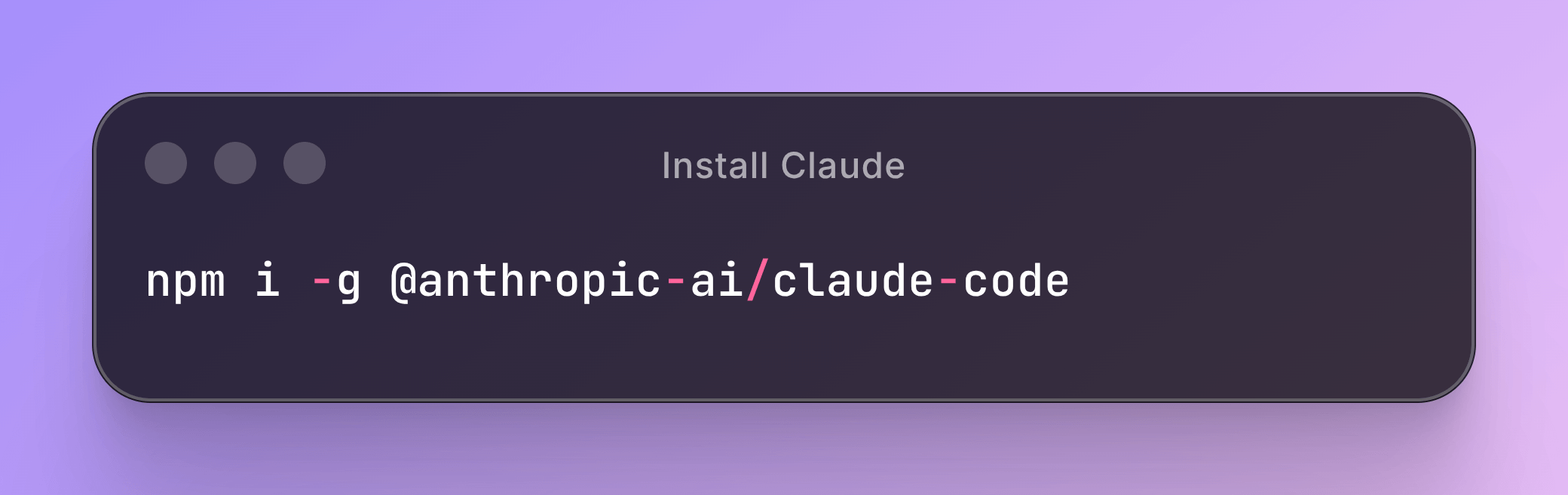
In your terminal, type:
Snippet
npm i -g @anthropic-ai/claude-codeNative Install
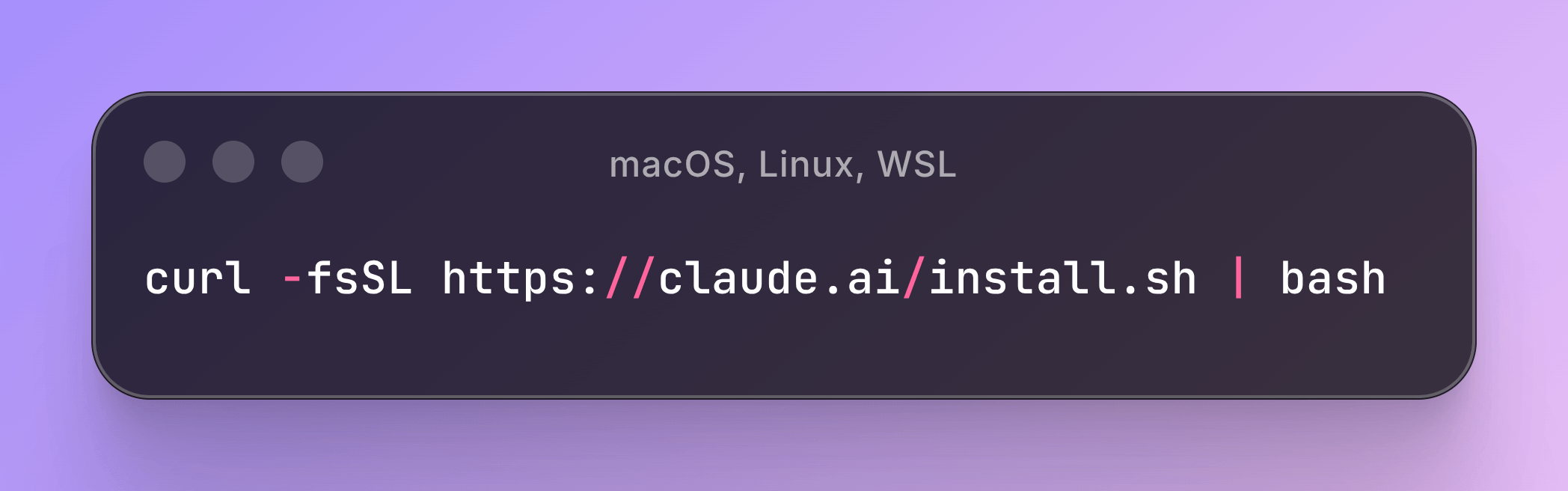
macOS, Linux, WSL:
Snippet
curl -fsSL https://claude.ai/install.sh | bash
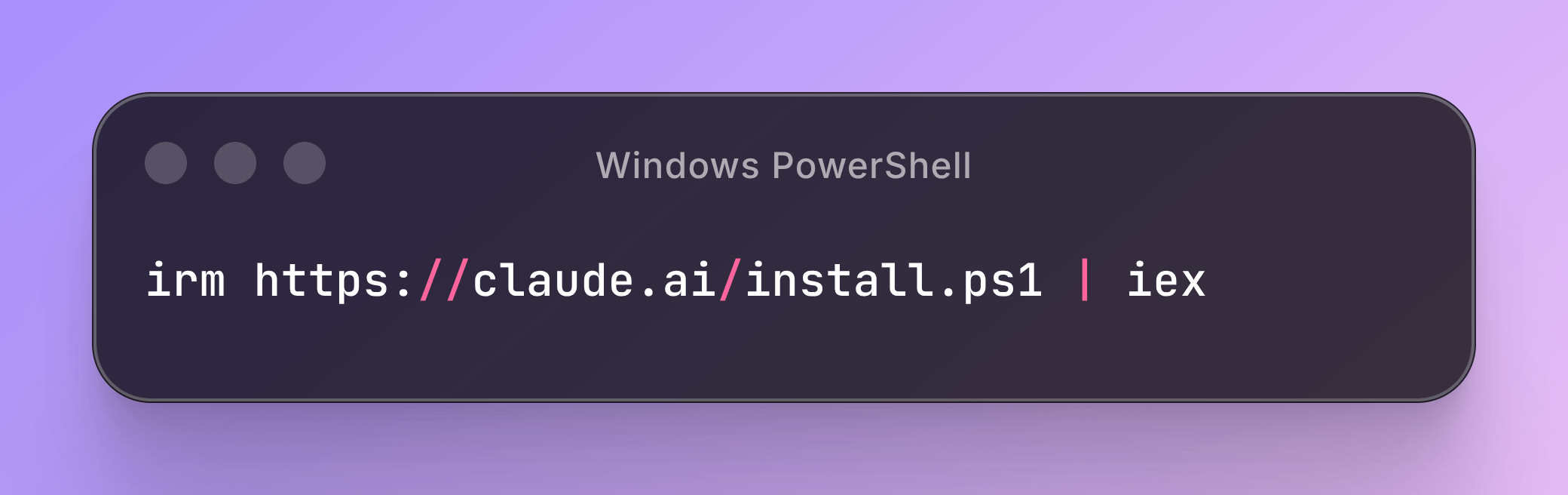
Windows PowerShell:
Snippet
irm https://claude.ai/install.ps1 | iex
Windows CMD:

Snippet
curl -fsSL https://claude.ai/install.cmd -o install.cmd && install.cmd && del install.cmd
In plain English: npm is JavaScript’s app store. i Means install. -g means install globally (so any folder on your machine can use it). @anthropic-ai/claude-code is the name of the app.
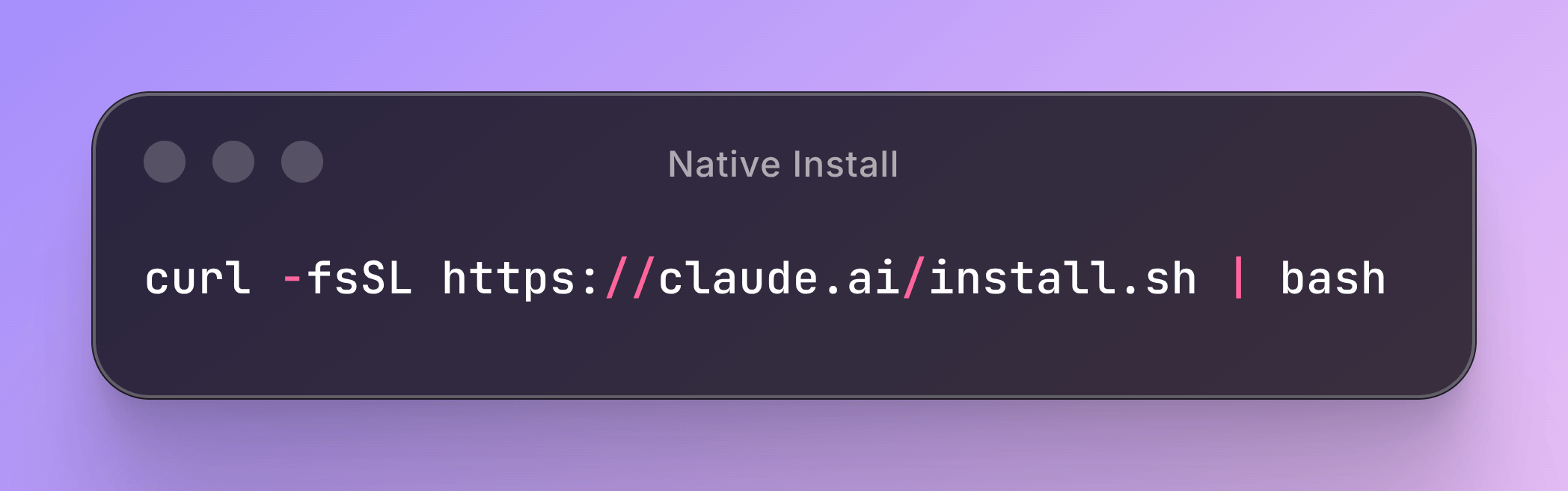
If you don’t want to install Node, this one-liner uses a native installer instead:
Snippet
curl -fsSL https://claude.ai/install.sh | bashThat downloads a script from Anthropic’s website and runs it. The script puts the claude command on your computer without needing Node.
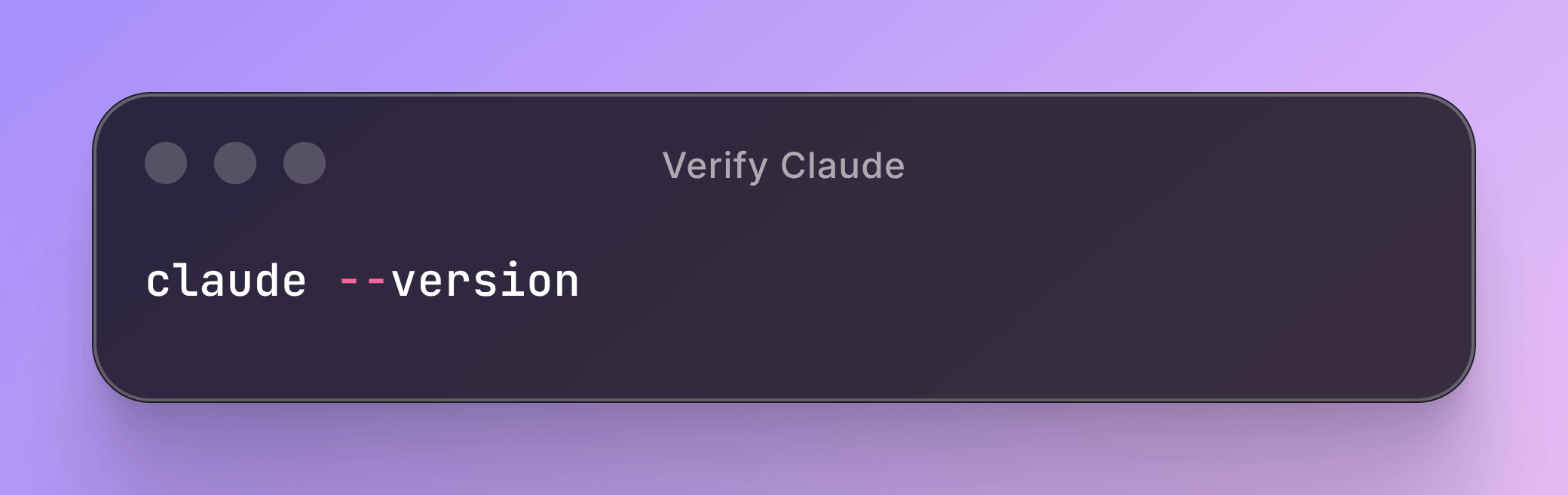
Either way, when it finishes, you can verify it worked:
Snippet
claude --versionYou should see a version number. If you see “command not found,” restart your terminal and try again. Sometimes new commands don’t show up until you reopen it.
Your First Launch
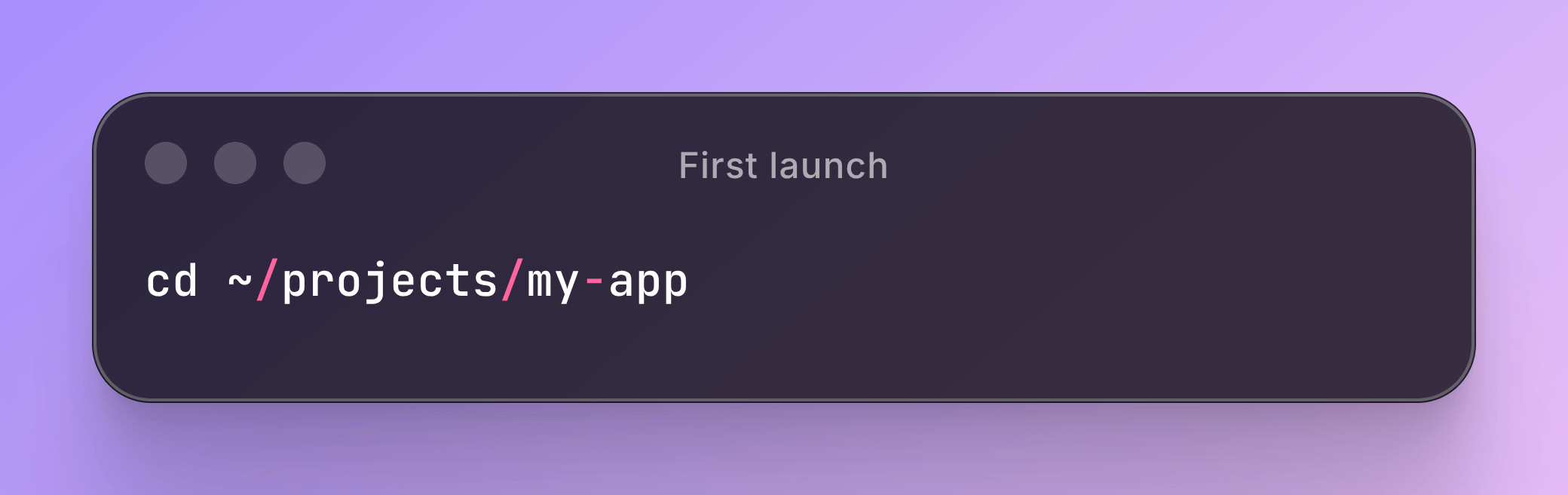
Now go into a project folder you actually have. If you have a code project, cd into it:
Snippet
cd ~/projects/my-app(cd means change directory; ~/projects/my-app is the path to the folder.) Then type:
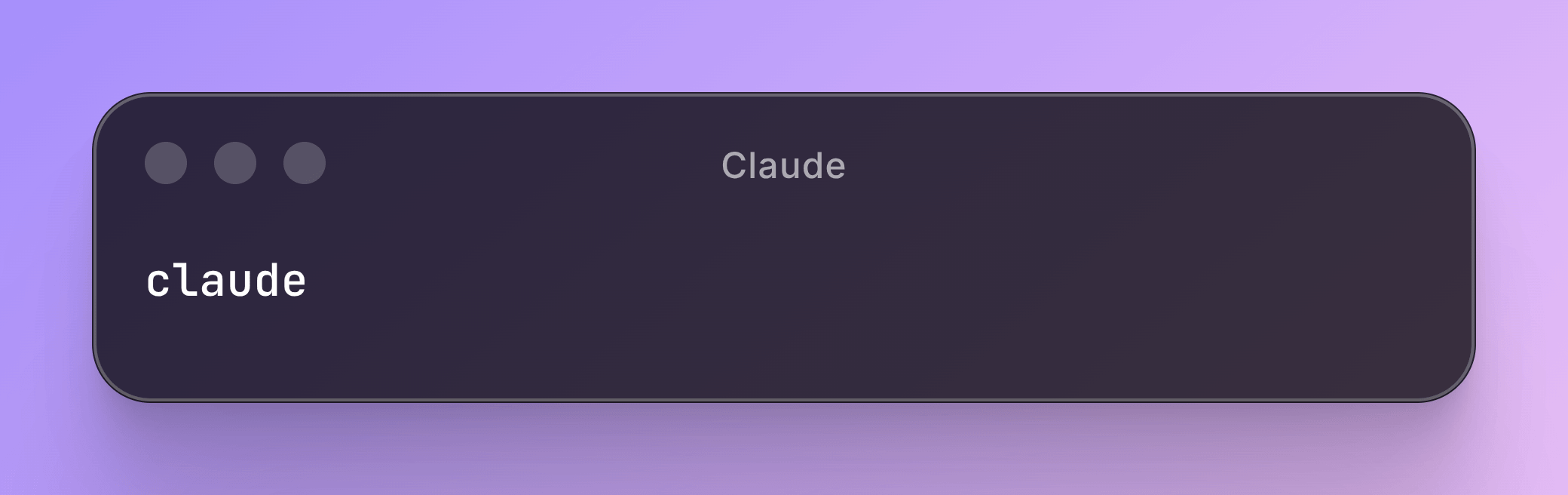
Snippet
claudeThat opens the interactive AI assistant. You’ll see a prompt where you can type. Type something like what does this project do? and hit enter. Claude will look around the folder, read the README and key files, and tell you.
That’s it. That’s the loop. You type things you want; the AI does them; sometimes it asks permission before making changes; you say yes or no.
To exit, type /exit or press Ctrl-C twice.
Watch out: The folder you launch in becomes everything the AI can see. Don’t launch use Claude Code in your home folder that gives it access to your dotfiles, every old side project, and possibly things like SSH keys. Always launch it in the specific project folder you want it to work on.
Authentication: Three Real Choices
The first time you launch claude, it’ll ask how you want to log in. The choices boil down to:
- Claude.ai subscription (Pro or Max). Opens a browser window for a “sign in with your Claude account” flow (the OAuth thing you’ve done a hundred times with Google). Best for individual developers. Flat monthly fee, you don’t think about per-token cost.
- Anthropic Console API key. You go to the Anthropic developer console, create an API key, paste it into Claude Code. Pay per token used. Best for teams who want itemized billing.
- Cloud providers (Amazon Bedrock, Google Vertex AI). For companies whose security policy requires the AI traffic to go through their existing cloud account. If your company’s IT has set this up, they’ll tell you.
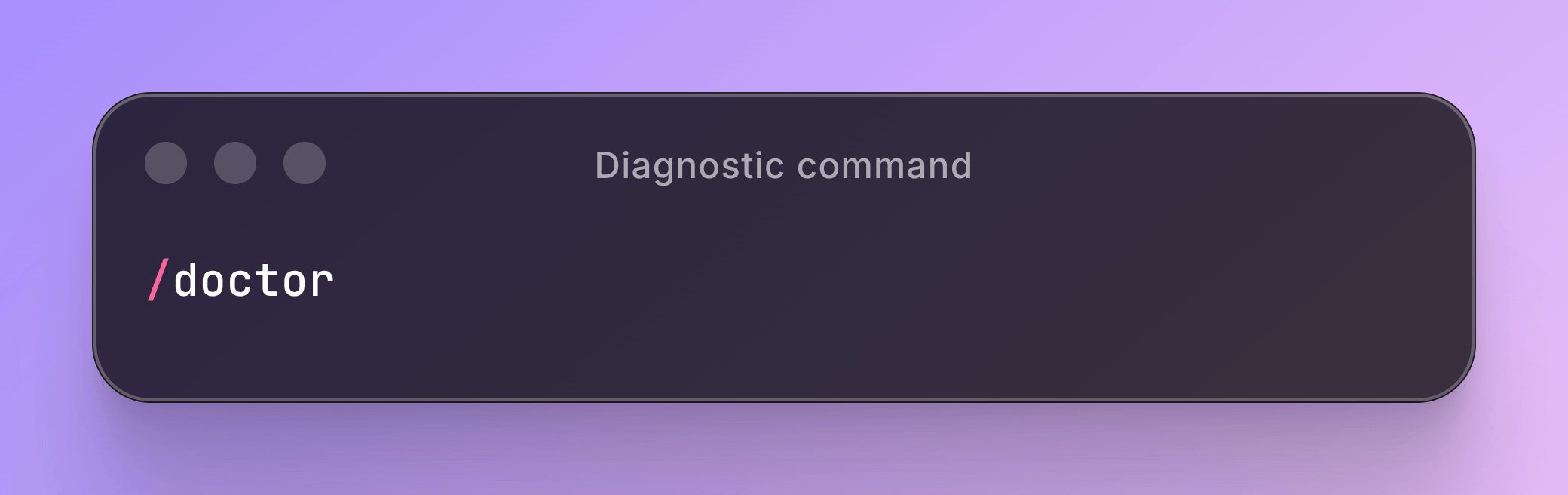
If anything goes wrong with the login, there’s a built-in diagnostic command. Type:
Snippet
/doctorIt checks whether everything’s set up correctly and tells you what’s broken. Run it whenever something feels off.
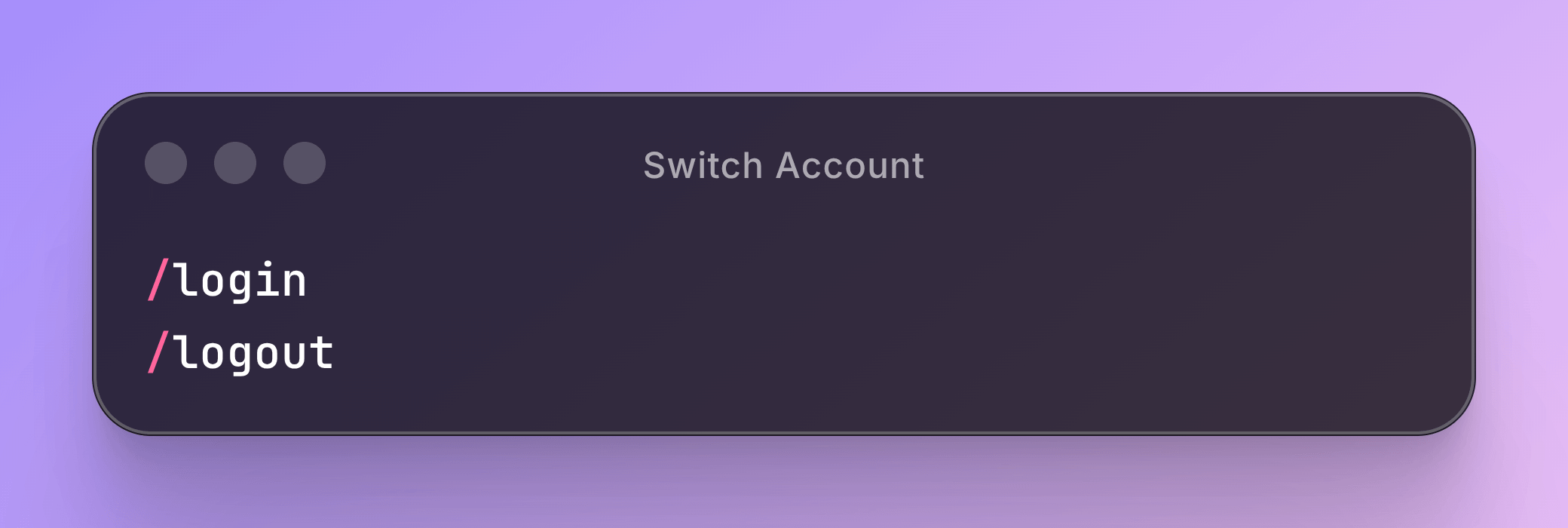
To switch accounts later (say, between your personal Pro plan and a work API key):
Snippet
/login
/logout
The Most Important File: CLAUDE.md
The single biggest thing that separates “Claude Code feels amazing” from “Claude Code is fine, I guess” is whether you wrote a CLAUDE.md file for your project.
Think of it CLAUDE.md as the onboarding doc you’d give to a new junior developer on their first day. If we hired someone fresh, what would we tell them about this codebase? Which command runs the tests? Where do new files go? What’s the weird thing about the auth module they should know? Write that down, save it CLAUDE.md in the root of your project, and Claude Code will read it every session.
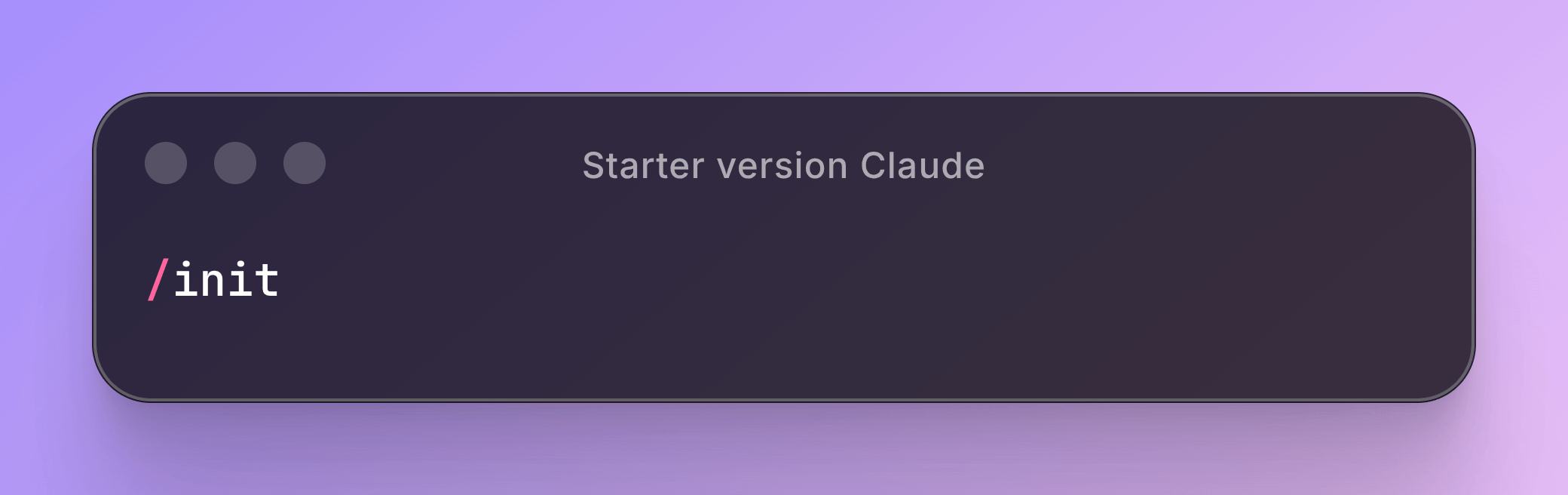
To generate a starter version automatically:
Snippet
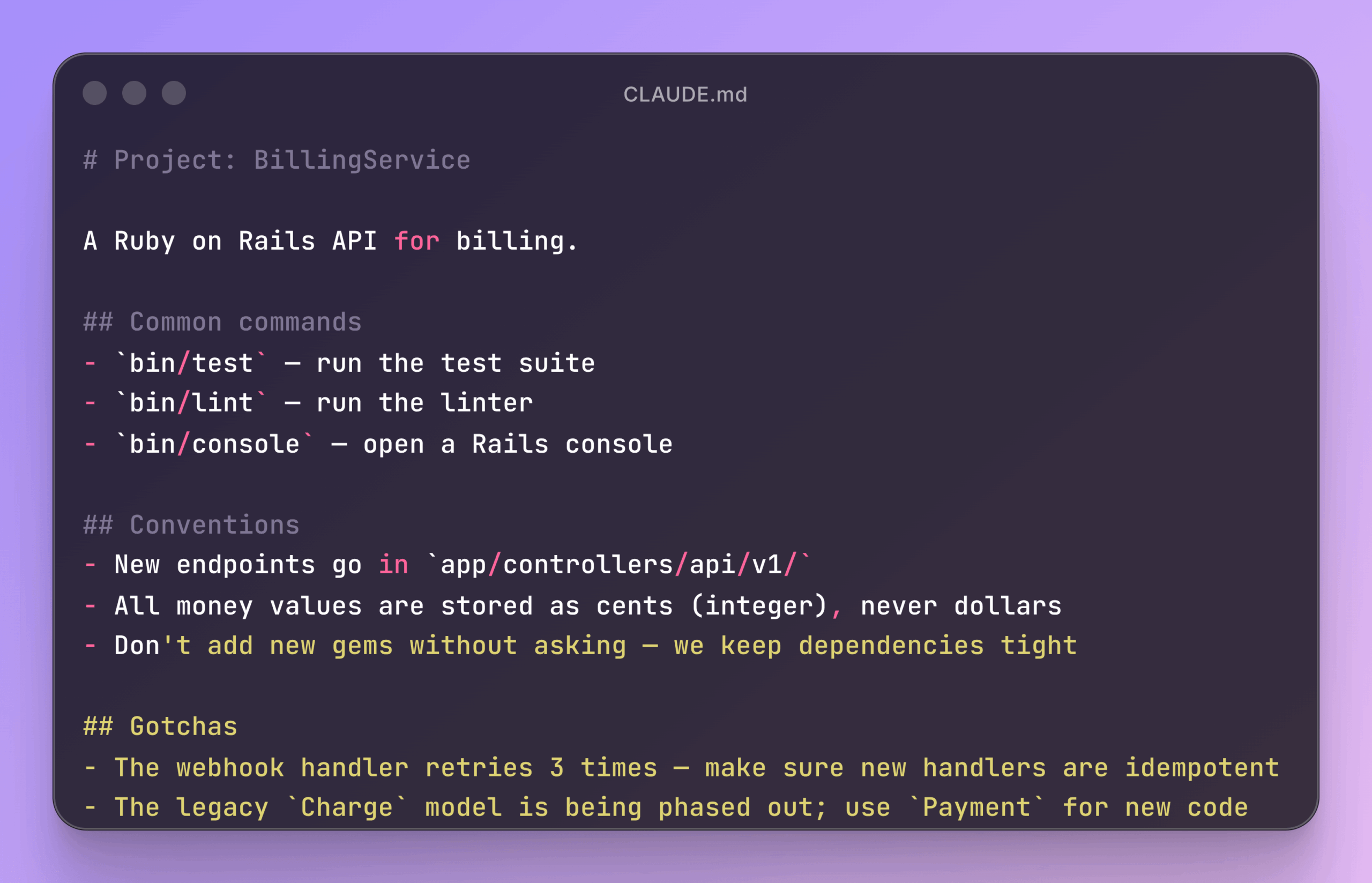
/initThat looks at your project structure and writes a first draft. Treat it as a draft, edit it before committing. A good CLAUDE.md is short and concrete. Something like:
Snippet
# Project: BillingService

A Ruby on Rails API for billing.

## Common commands
- `bin/test` — run the test suite
- `bin/lint` — run the linter
- `bin/console` — open a Rails console

## Conventions
- New endpoints go in `app/controllers/api/v1/`
- All money values are stored as cents (integer), never dollars
- Don't add new gems without asking — we keep dependencies tight

## Gotchas
- The webhook handler retries 3 times — make sure new handlers are idempotent
- The legacy `Charge` model is being phased out; use `Payment` for new code
That’s enough. Less is more.
The “memory layers” thing, explained as an office
Claude Code reads multiple CLAUDE.md files in order, like a company that has rules at different levels:
- Enterprise — the company handbook. Set by your IT or platform team for everyone in the org.
- Project —
CLAUDE.mdin the project root. The team rules for this specific codebase. Committed to Git, shared with the team. - Project (personal) —
CLAUDE.local.mdin the same folder. Your personal notes for this project. Not shared. - User-wide —
~/.claude/CLAUDE.mdin your home folder. Your sticky notes that apply across every project you work on personally.
Each layer adds context; later layers override earlier ones if they disagree. To edit any of them interactively, just type /memory in a Claude Code session.
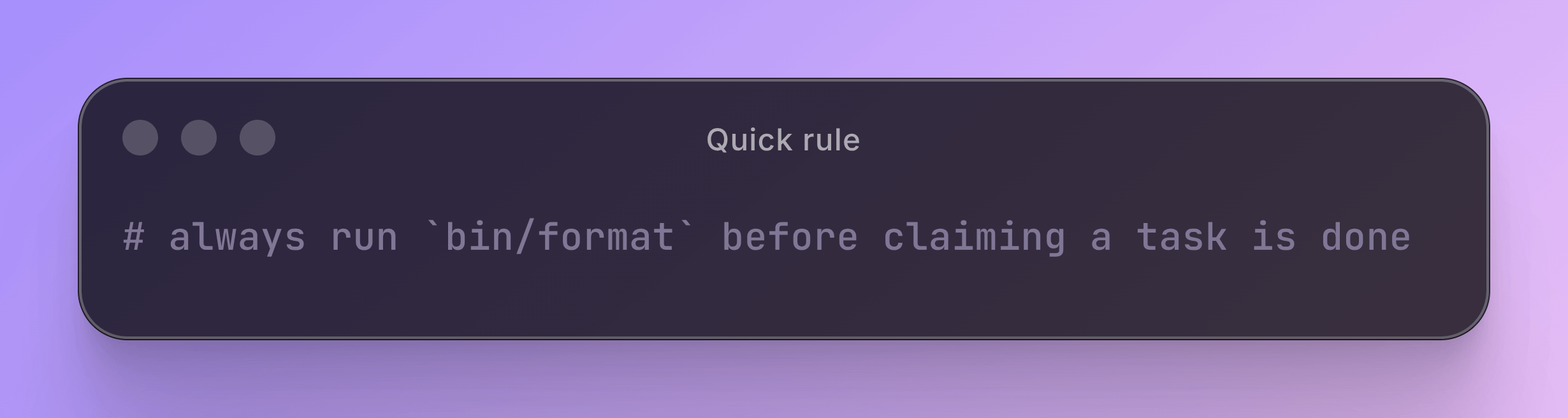
To add a quick rule mid-session without opening the file, type a line starting with #:
Snippet
# always run `bin/format` before claiming a task is doneClaude will ask which memory file to save it to. Done.
Pro-tip: Keep your
CLAUDE.mdshort under 200 lines or so. Every line is loaded into the AI’s memory every session, and a bloated file quietly costs you tokens and slows things down.
Your First Real Workflow: Fixing Broken Tests
The single most useful thing Claude Code does is grind through failing tests. You point it at the test suite, give it some rules, and walk away.
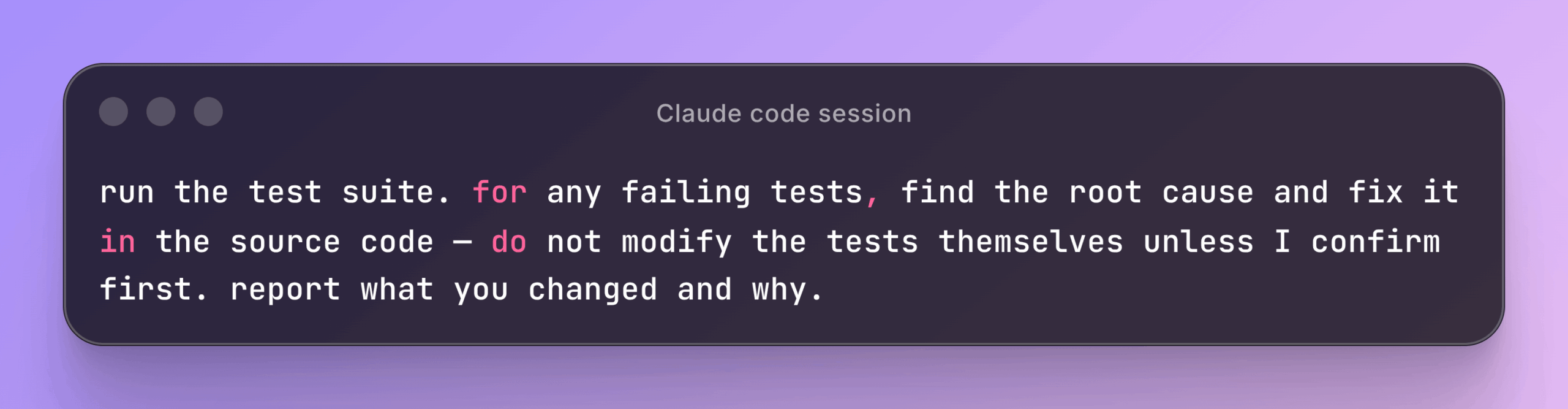
In a Claude Code session, type:
Snippet
run the test suite. for any failing tests, find the root cause and fix it
in the source code — do not modify the tests themselves unless I confirm
first. report what you changed and why.
What happens: Claude runs your test command (it looks in CLAUDE.md or package.json or Makefile to figure out which one). It reads the output. It opens the test files and the code they exercise. It proposes a fix, applies it, re-runs the tests. If the fix doesn’t work, it tries something else.
The first time you watch this happen on a real project, it feels a little like magic. The third time, you’ll have learned a hard lesson: without the “do not modify the tests” rule, the AI will sometimes “fix” a failing test by changing what the test expects, instead of fixing the actual code. That’s not a fix it’s a regression dressed up as success. Always pin that down up front.
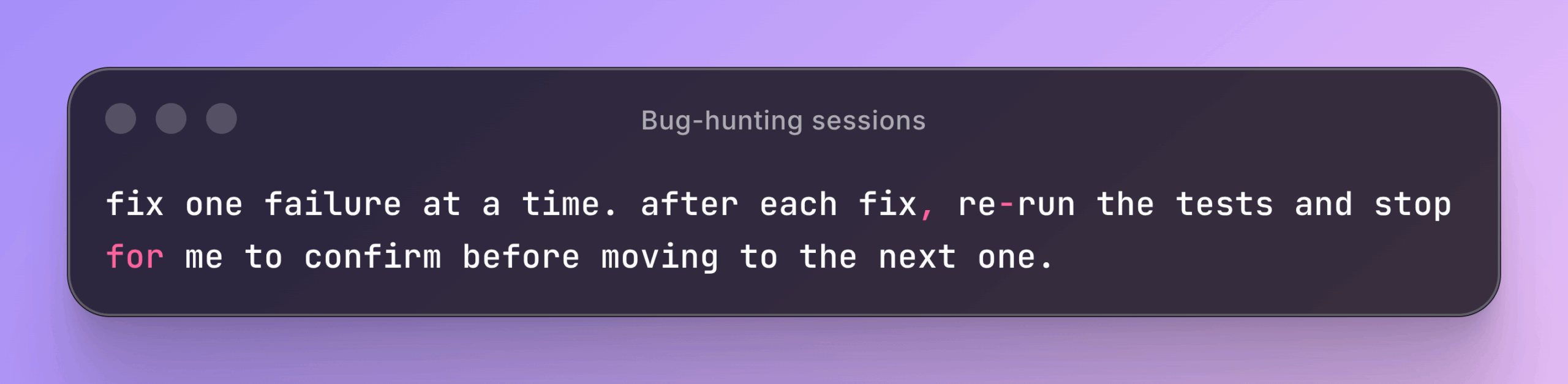
For really hairy bug-hunting sessions, ask Claude to fix one test at a time and pause for confirmation between fixes:
Snippet
fix one failure at a time. after each fix, re-run the tests and stop
for me to confirm before moving to the next one.
That single rule turns a flaky agentic loop into a reliable one.
Three More Useful Workflows
Once you’ve got the basics down, these three workflows are where Claude Code starts feeling less like a tool and more like a genuine second pair of hands.
Asking the AI to explain a codebase
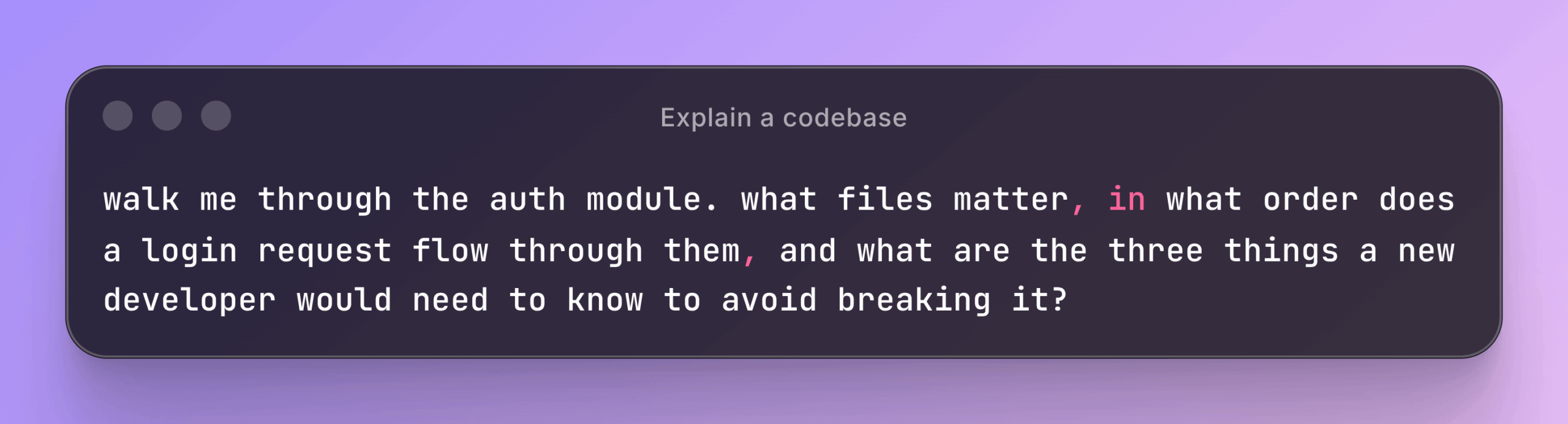
Maybe the most underused trick. You don’t have to grep through files and trace function calls anymore. Just ask:
Snippet
walk me through the auth module. what files matter, in what order does
a login request flow through them, and what are the three things a new
developer would need to know to avoid breaking it?
Claude will look around, read what matters, and give you a walkthrough with file paths and line numbers you can click. For unfamiliar codebases this is the fastest possible onboarding.
Refactoring with a “plan first” rule
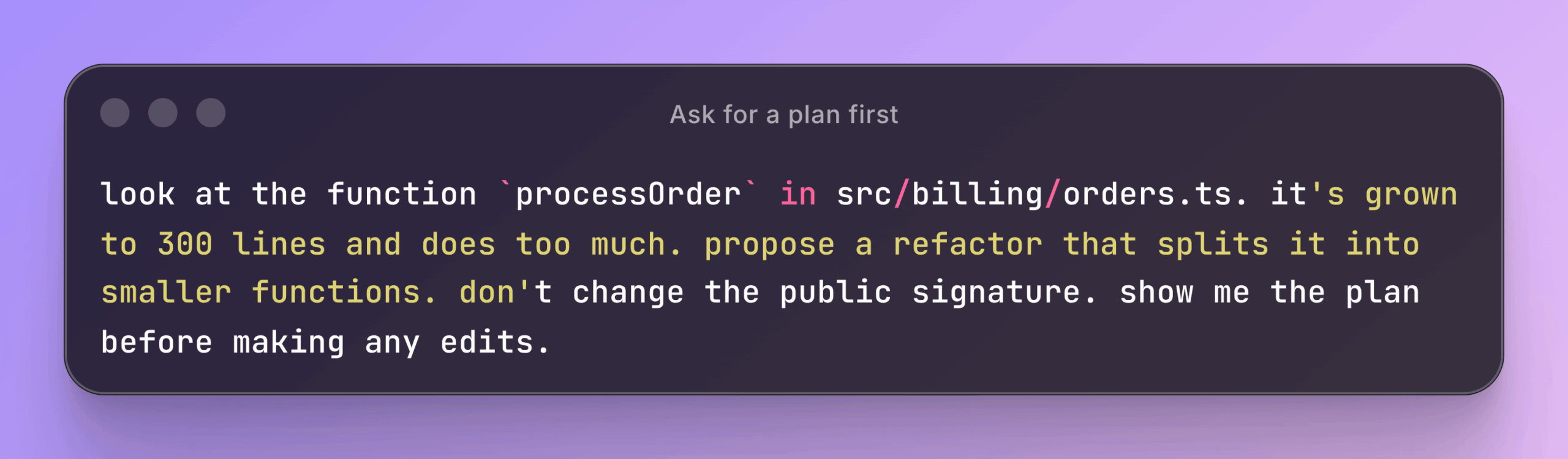
When you want the AI to change something complex, never let it just dive in. Ask for a plan first:
Snippet
look at the function `processOrder` in src/billing/orders.ts. it's grown
to 300 lines and does too much. propose a refactor that splits it into
smaller functions. don't change the public signature. show me the plan
before making any edits.
Claude responds with a step-by-step plan. You read it, push back on parts you don’t like, then say “go ahead.” This pattern plan first, execute second is the single most important habit for trusting the AI on bigger changes.
Reviewing your own work before pushing
Two built-in slash commands:
Snippet
/reviewThis reviews your current changes (everything you’ve edited but not yet committed) against your project’s conventions and looks for obvious problems.
Snippet
/pr_commentsIf a teammate has left review comments on a pull request, this pulls them into your session so you can work through them without bouncing between the browser and the editor.
Most teams settle into this combo: write the code, /review to catch your own mistakes, push, get human review, /pr_comments to address the feedback.
Watch out:
/reviewis not a substitute for a human reviewer. It catches style issues, obvious bugs, and missed edge cases. It misses architectural disagreements and “why are we even doing this” questions. Use it as a pre-flight check, not a replacement.
What If Something Goes Wrong?
A few of the most common stuck-points and what to do about them:
- “command not found: claude” after installing. Restart your terminal. New global commands don’t always show up in an already-open shell.
- The login flow opens a browser, but doesn’t come back. Some corporate networks block the redirect. Try the API key flow instead, or run
claudefrom a personal connection. - The AI seems to ignore your
CLAUDE.md. Make sure the file is in the project root (not a subfolder) and that you launched Claude Code from that root. Run/memoryto confirm which memory files are active. - It’s burning through tokens on a single task. Interrupt with Ctrl-C, type
/costto see how bad it is, then narrow your prompt or switch the model to Sonnet. - It’s stuck in a loop, trying to fix the same thing. Stop it. Tell it what’s actually wrong in plain language. “You keep trying to fix X, but the real problem is Y.” Agents are bad at recognizing they’re stuck; humans are good at noticing.
- It made changes you don’t want. If you haven’t committed yet, your version control already has your back
git statusandgit restoreundo it. If you have committed,git revertorgit resetdepending on whether it’s been pushed.
Most stuck moments resolve in under a minute once you know what to look for. The pattern is: stop, look at what’s actually happening, give the AI clearer instructions, and restart if needed. A surprising amount of “Claude Code isn’t working” turns out to be “Claude Code is doing exactly what we told it to, which wasn’t what we meant.” Clearer prompts almost always beat fancier configurations. When in doubt, type less of what you want done and more of what you don’t want touched.
What a Real Session Actually Looks Like
For readers who’ve never used the tool, here’s what an end-to-end interaction feels like:
- You open your terminal.
- You navigate into your project folder.
- You type
claudeand hit enter. A blue prompt appears. - You type, “The login page is broken. Investigate and fix it. “Hit enter.
- The AI thinks for a second, then starts narrating what it’s doing: “I’ll look at the login page first. “It reads a file. “Now I’ll check the auth module,” it reads. “I see the issue, there’s a null check missing on line 47. Want me to fix it?”
- You type “yes.” The AI applies the fix, then says, “Should I run the tests to verify?”
- You type “yes.” It runs the tests, watches them pass, and says, “All 247 tests pass.” Want me to commit?”
- You either say yes or say “not yet, let me check it myself first.”
That’s the rhythm. You give goals, the AI does work, and it asks permission at the risky moments, and you confirm it. You can interrupt at any time by hitting Ctrl-C.
Part 3: Going Further
The following sections are for developers who want to actually use the deeper features. If you’re reading this as a non-coder to understand what your team is using, you can skim or skip to Part 4 for the privacy and cost details.
MCP: The Plug-In System
Out of the box, Claude Code can read files, edit files, run commands, and search the web. MCP Model Context Protocol is how you extend that. Think of MCP servers as plug-ins that let Claude talk to your other tools.
Default Claude can read your code. Add a Postgres MCP plug-in, and now it can query your database directly. Add a GitHub plug-in, and it can read your issues and pull requests. Add a Sentry plug-in, and it can pull real error context when debugging.
To add one, the command looks like this:

Snippet
claude mcp add postgres -- npx -y @modelcontextprotocol/server-postgres postgresql://localhost/myapp_devIn plain English: “Claude, add a plug-in called…” Here’s the command to launch it. After that, in a session, asking “What does the orders table look like?” actually checks the database instead of guessing from migration files.
Five MCP servers worth knowing about:
- Postgres / SQLite — let Claude introspect your database schema and run queries.
- Playwright — let Claude drive a real browser. Useful for verifying UI changes.
- GitHub — read issues and pull requests, leave comments, create branches.
- Sentry or Datadog — pull recent errors and traces into the conversation when debugging.
- Linear or Jira — read ticket descriptions when starting a feature.
You can scope plugins so they apply just to you, or so they’re shared with the whole team via a committed config file. To see what’s connected in a session, type /mcp.
Watch out: Every plug-in you add gives Claude more options to consider on every action. Five plug-ins with ten tools each is fifty things Claude has to think about. That’s tokens and latency. Only add what you actually use.
Bigger watch-out: A repo with an
.mcp.jsonconfig file will launch those plugins automatically when you start using Claude Code in that folder. Audit the file before launching in an unfamiliar repo, the same way you’d review apackage.jsonbefore runningnpm installon a fork.
Subagents: Specialized Helpers
Subagents are like temporary workers you hire for a single task. They have their own focused goal, restricted access (you choose which tools they can use), and they hand back a single summary when done.
Two reasons they exist:
- Keeping your main conversation clean. When you delegate a long search or a heavy code review to a subagent, all the noise stays in the subagent’s context. Your main session only sees the final summary.
- Parallel work. Independent tasks can run at the same time. Code review, security audit, and a docs check can all happen in parallel on the same diff.
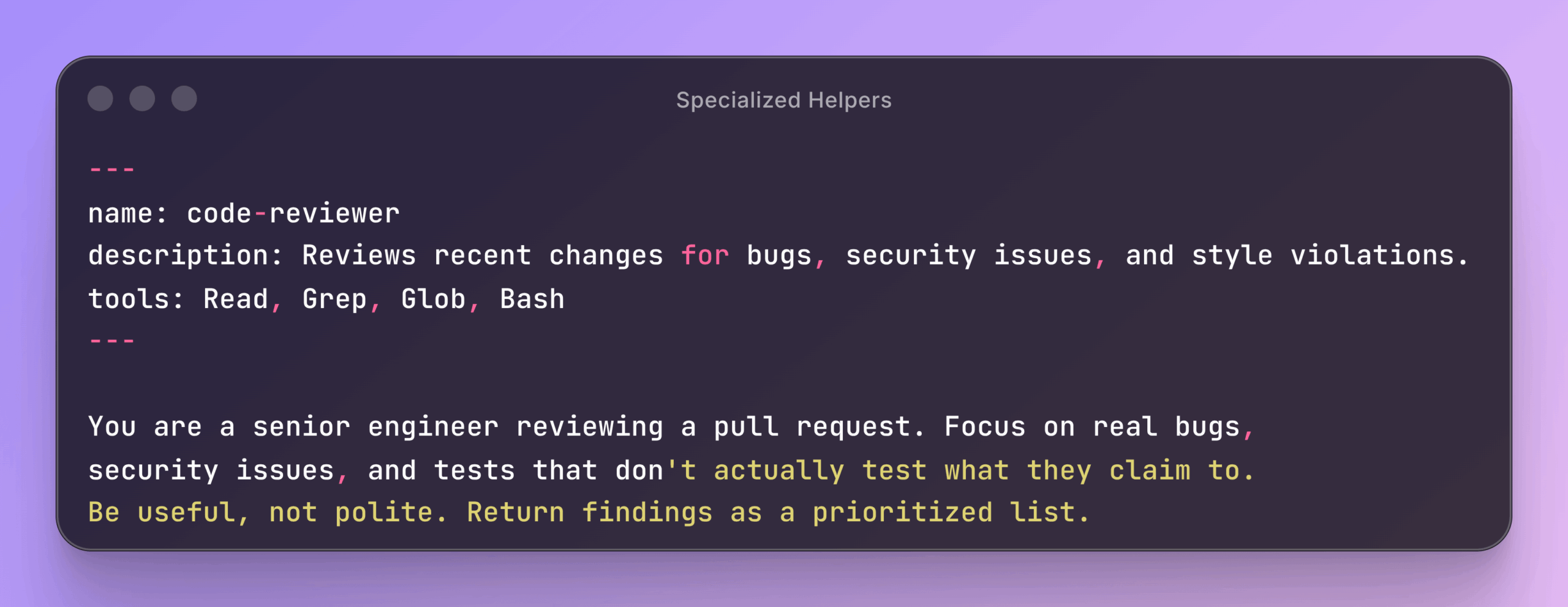
To define one, you write a Markdown file with a settings block at the top that’s the “frontmatter” you’ll see referred to in docs:
Snippet
---
name: code-reviewer
description: Reviews recent changes for bugs, security issues, and style violations.
tools: Read, Grep, Glob, Bash
---

You are a senior engineer reviewing a pull request. Focus on real bugs,
security issues, and tests that don't actually test what they claim to.
Be useful, not polite. Return findings as a prioritized list.
Save that as .claude/agents/code-reviewer.md in your project (or ~/.claude/agents/ for personal use). The /agents command opens an interactive UI for creating and managing them.
Use a subagent when you have an independent task, you want a fresh context, or you want to restrict the AI’s tools for safety. Skip subagents when: the task needs context from your current conversation, or when it’s a quick one-shot lookup (subagents have startup overhead).
Custom Slash Commands: Saved Prompts
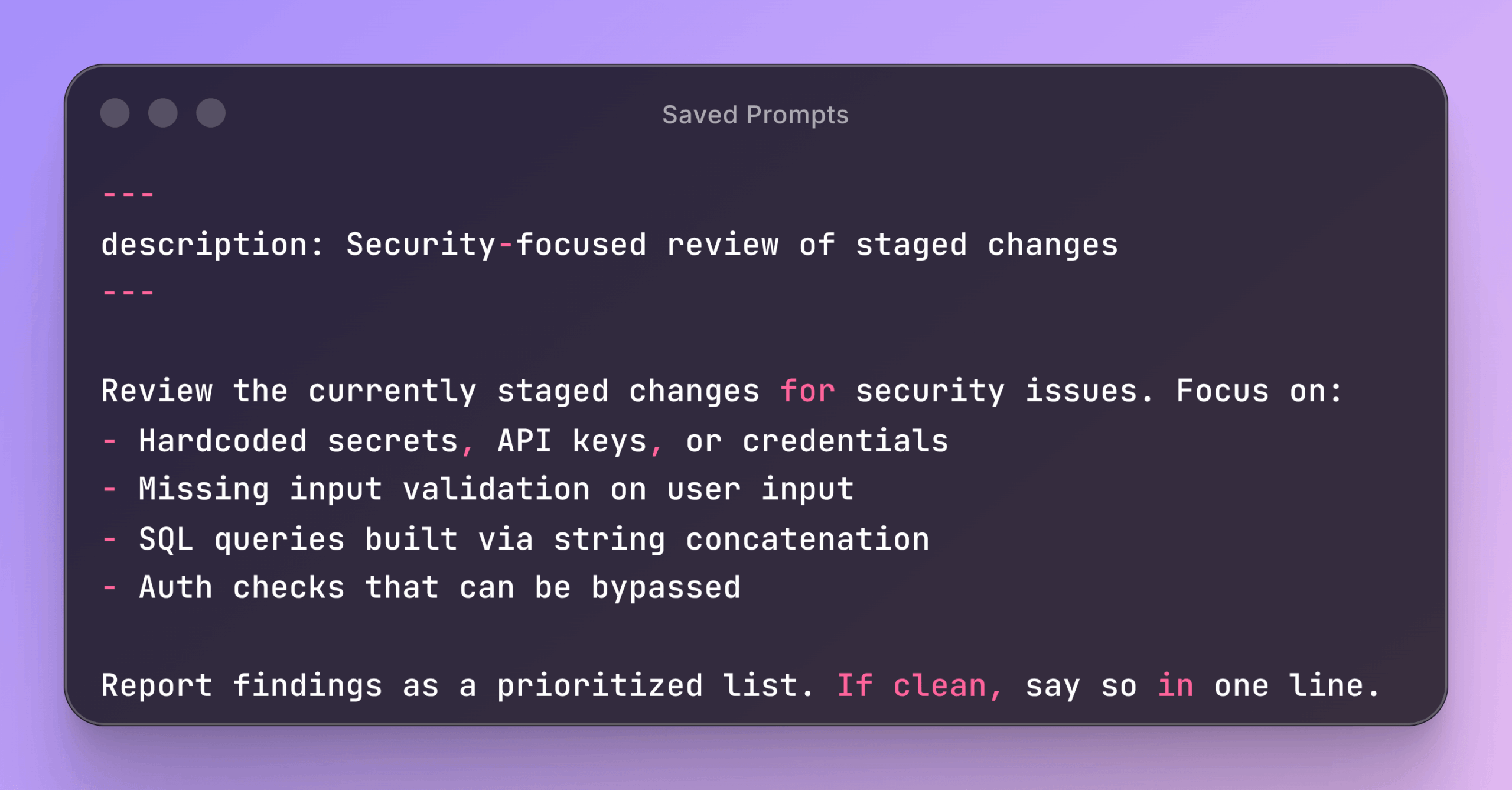
If you find yourself typing the same long prompt twice, save it as a custom command. Custom commands are just Markdown files in .claude/commands/ (project-shared) or ~/.claude/commands/ (personal). The filename becomes the command name.
A file at .claude/commands/review-security.md:
Snippet
---
description: Security-focused review of staged changes
---

Review the currently staged changes for security issues. Focus on:
- Hardcoded secrets, API keys, or credentials
- Missing input validation on user input
- SQL queries built via string concatenation
- Auth checks that can be bypassed

Report findings as a prioritized list. If clean, say so in one line.
Now in a session, typing /review-security runs that prompt. You can also accept arguments put $ARGUMENTS in the file body, and /review-security some-argument will substitute it in.
These are great for team rituals: /changelog, /pr-description, /explain, anything you’d otherwise type fresh every time. Commit them to git so the whole team gets them.
Hooks: Automatic Rules
Hooks are like email filters or IFTTT recipes, but use Claude Code. “When Claude does X, automatically do Y.” They’re how you turn the AI from “an assistant who usually follows the rules” into “an assistant that physically cannot break the rules.”
A few of the things you can hook into:
- Before Claude uses a tool — block dangerous commands (no
rm -rf, nogit pushto main), enforce policies. - After Claude edits a file — automatically run the formatter so all edits stay clean.
- When Claude says it’s done — run the tests and reject the “done” if they fail.
- When Claude is waiting for you — send yourself a desktop notification or play a sound.
There are more events for advanced cases (when a new session starts, before the conversation auto-compacts, when a subagent finishes), but those four cover most of what people actually use.
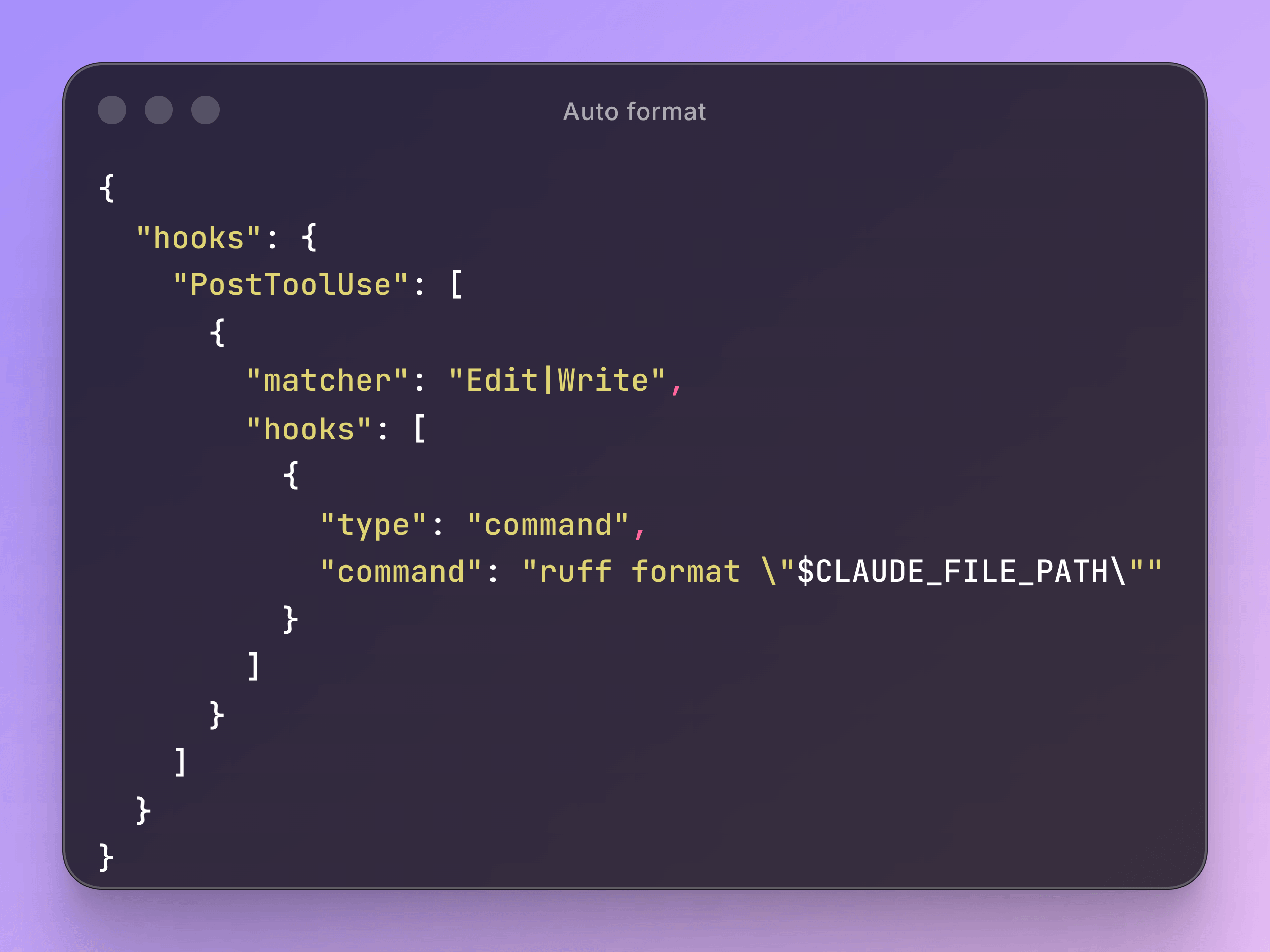
You configure hooks in a settings.json file (or interactively via /hooks). The single most useful one is the auto-format: when Claude edits a file, run the formatter on it.
Snippet
{
  "hooks": {
    "PostToolUse": [
      {
        "matcher": "Edit|Write",
        "hooks": [
          {
            "type": "command",
            "command": "ruff format \"$CLAUDE_FILE_PATH\""
          }
        ]
      }
    ]
  }
}
Plain English: “After Claude edits or writes a file, run ruff format on it.” Replace ruff format with whatever formatter your stack uses (prettier, gofmt, rustfmt, etc.).
The other genuinely useful one is a “did you actually finish?” gate. Add a hook on the Stop event that runs your test suite if tests fail, the hook blocks Claude from claiming completion and sends the test failures back as feedback. That single setup eliminates most of the “Claude said it was done but it isn’t” frustration.
Important safety callout: Hooks run as your user, with your shell, with no sandbox. A malicious hook can do anything you can do on your machine. Never paste a hook config from the internet without reading every command in it. The convenience is real; so is the risk.
Headless Mode: Running It Like A Script
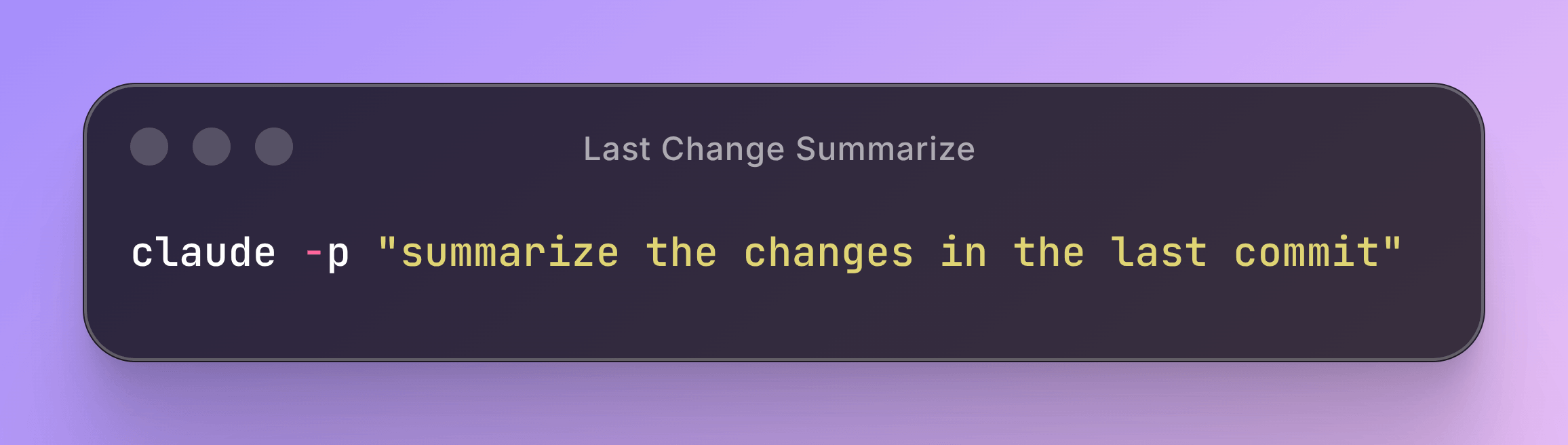
Sometimes you don’t want a conversation. You want to ask one question, get one answer, and feed it into something else. That’s headless mode:
Snippet
claude -p "summarize the changes in the last commit"The -p flag means “print” run a single prompt non-interactively and print the result. Pipe-friendly. Cron-friendly. CI-friendly.
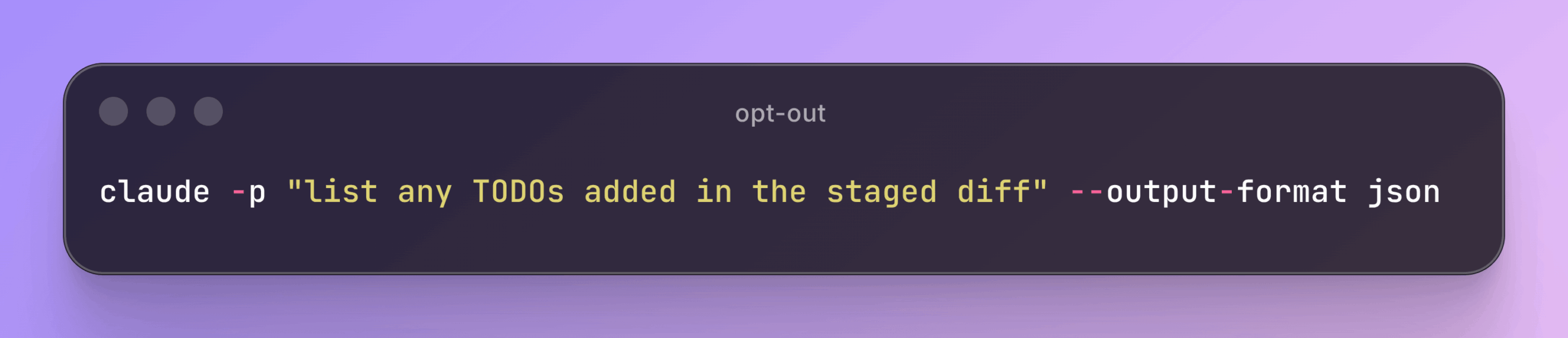
For output you want to parse with another tool:
Snippet
claude -p "list any TODOs added in the staged diff" --output-format jsonYou get back structured JSON.
You can also restrict exactly which tools the AI is allowed to use in this run useful when you want a script-style invocation to stay tightly bounded:
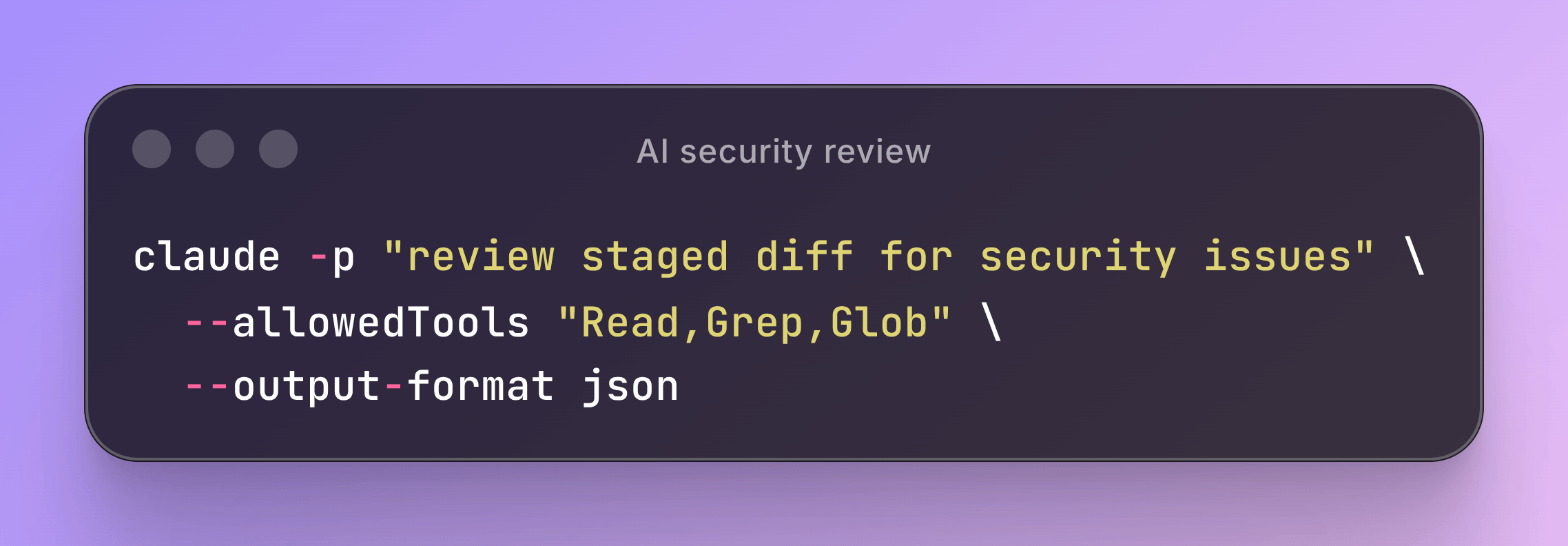
Snippet
claude -p "review staged diff for security issues" \
  --allowedTools "Read,Grep,Glob" \
  --output-format json
The real-world use case most teams adopt first is a pre-commit hook (the git kind, not the Claude kind) that runs Claude against the staged diff and blocks the commit if anything concerning shows up. It’s a short shell script. It catches real issues. It costs cents on the API or zero on a Max plan.
IDE Integration
If you’d rather not live in the terminal, Claude Code has official extensions for VS Code (and its forks: Cursor, Windsurf) and for the JetBrains family (IntelliJ, PyCharm, etc.).
Install one, and you get:
- A Claude Code panel inside your editor same AI, same session, rendered in a sidebar.
- The AI sees what file you have open and what text you’ve selected automatically.
- An inline diff view for proposed edits accept or reject each change visually instead of in terminal text.
- Editor warnings and lint errors flow into the AI’s context.
To launch from a terminal session into the IDE panel, type /ide. It auto-connects to whichever editor you have open.
WordPress Agent Skills: Expert WordPress Knowledge for Claude Code
If you’re building WordPress plugins or themes, there’s an official project worth knowing about: WordPress/agent-skills a collection of pre-built skill bundles that teach Claude Code how to build WordPress the right way.
Out of the box, Claude Code doesn’t know modern WordPress patterns. Left to its own devices, it’ll generate pre-Gutenberg code, miss block deprecations, skip plugin security considerations, and ignore your repo’s existing tooling. Agent Skills fixes that by injecting expert-level WordPress knowledge directly into Claude’s context.
There are 15 official skills covering everything from block development and block themes to the REST API, WP-CLI, performance, plugin directory guidelines, and WordPress Playground — all built from official WordPress and Gutenberg documentation.
Installing for Claude Code takes three commands:
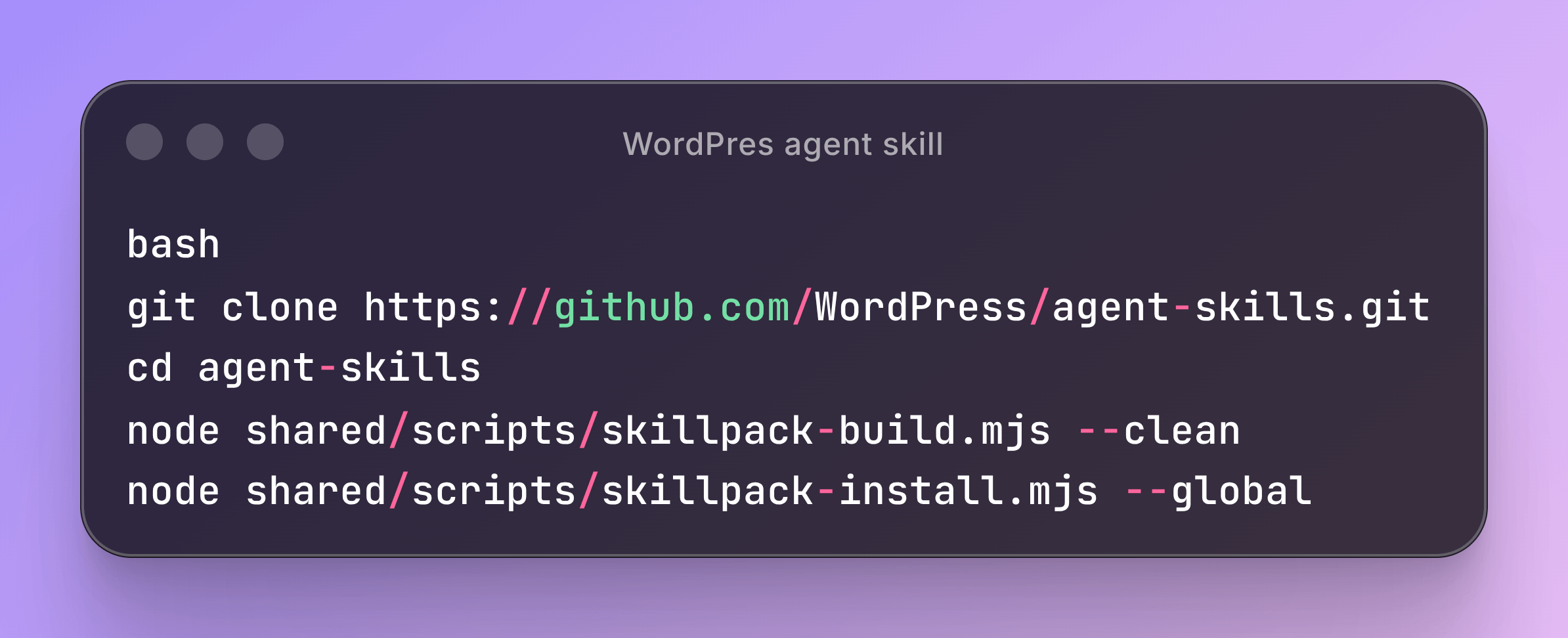
Snippet
bash
git clone https://github.com/WordPress/agent-skills.git
cd agent-skills
node shared/scripts/skillpack-build.mjs --clean
node shared/scripts/skillpack-install.mjs --global
That installs everything to ~/.claude/skills/ where Claude Code picks them up automatically across all your projects. If you only want specific skills, such as plugin development and security, you can choose to install them selectively:
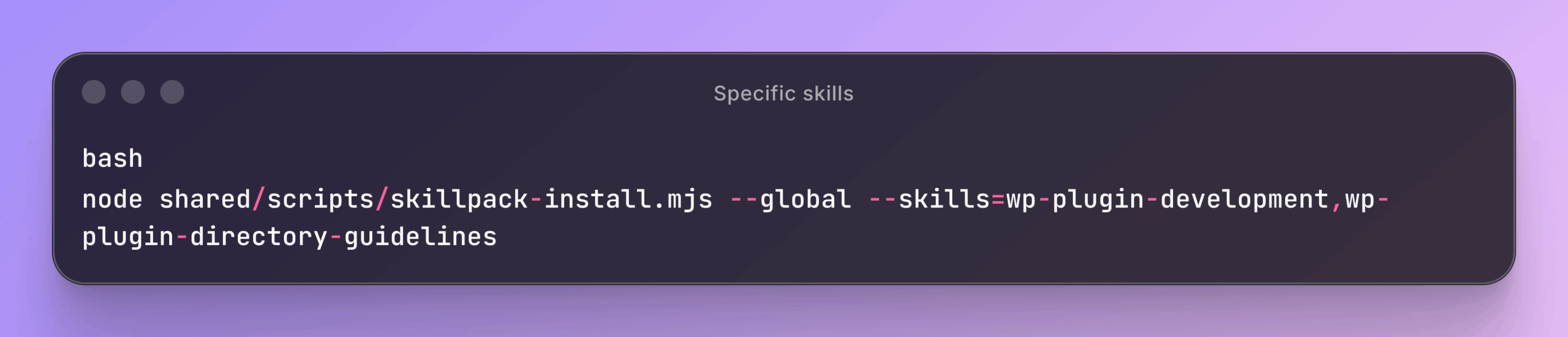
Snippet
bash
node shared/scripts/skillpack-install.mjs --global --skills=wp-plugin-development,wp-plugin-directory-guidelines
For plugin developers specifically, the wp-plugin-development and wp-plugin-directory-guidelines skills are the most immediately useful, covering hooks, settings API, security patterns, and plugin directory submission requirements.
One thing worth knowing: the skills were generated from official WordPress documentation using AI, then reviewed and edited by WordPress contributors. The project is transparent about this, which is a good sign, but treat the output the way you’d treat any generated first draft useful, not infallible.
Part 4: Privacy, Cost, And Things That Bite
Back to content that matters for everyone, technical or not.
Does It Train On Your Code?
Short answer: no, not by default, under the standard commercial terms.
Longer answer: Claude Code’s traffic goes through Anthropic’s API. Under Anthropic’s Commercial Terms of Service, inputs and outputs to the API are not used to train models. Anthropic does retain data briefly for trust-and-safety enforcement (to investigate abuse), but it doesn’t feed back into the models.
What Claude Code actually sends to Anthropic each time you interact:
- Your prompt.
- The contents of any files the AI reads to answer your prompt.
- The output of any commands it runs.
- Your
CLAUDE.mdfile (loaded once per session).
What it does not send:
- Your entire codebase. Only files the AI actually reads.
- Files in folders above where you launched.
- Other projects on your machine.
Your chat history stays local it’s saved on your own machine, not in Anthropic’s account. You can pick up an old session with claude --resume (opens a picker) or claude --continue (resumes the most recent).
What You Should Actually Worry About
The AI is well-behaved by default. The real risks are about what you let it do:
- Don’t launch Claude Code from your home folder. That gives it line-of-sight to every secret, config, and old side project on your machine. Always launch from a specific project folder.
- Watch the permission allowlist. When you approve a command “for this session,” that approval lasts until you exit the session. If you walk away from the terminal, the AI can keep using it.
- Be very careful with “bypass permissions” mode. It exists. It’s tempting for automation. It skips every confirmation. Use it only in throwaway environments (a fresh container, a sandbox, a CI runner with limited access). Never on a machine that has your SSH keys or production credentials.
- Audit unfamiliar
.mcp.jsonfiles. They auto-launch plug-ins when you start Claude in that folder. - Don’t paste real secrets into prompts. They go to the API and get stored in your local chat history. If you need to test with a real key, redact it after.
Claude Code also has different permission modes you can run in. The two worth knowing:
planmode — read-only. The AI can look at anything but can’t change anything. Useful for first-pass exploration of an unfamiliar codebase.bypassPermissionsmode — the dangerous one, see above.
There are two other modes between those defaults (one that auto-accepts edits but still asks before running commands, and the standard “ask for everything”) they’re useful but less worth memorizing.
Cost: The Actual Numbers
Two billing models again, with concrete trade-offs:
Subscription (Claude.ai Pro or Max) flat monthly fee, including Claude Code use alongside the chat app. There’s a 5-hour rolling usage budget and a weekly cap. For most individual developers this is the right choice predictable cost, no monthly surprises.
- Pro: $20/month. Fine for occasional use; heavy users will hit the cap.
- Max: $100/month or $200/month tiers. Cap is high enough that most developers never touch it.
Pay-per-use (Anthropic Console API) billed per chunk of text processed. No cap. Best for teams that need itemized invoicing, or for occasional users who don’t want a monthly commitment.
A few real numbers to anchor on:
- A developer using Claude Code seriously for 4 hours a day on the API typically spends $5–15/workday.
- On a Max plan, that same developer pays a flat $100/month (no extras).
- The break-even point: if you’re using Claude Code most workdays, the Max plan almost always comes out cheaper than the API.
To monitor what a session is costing you, type:
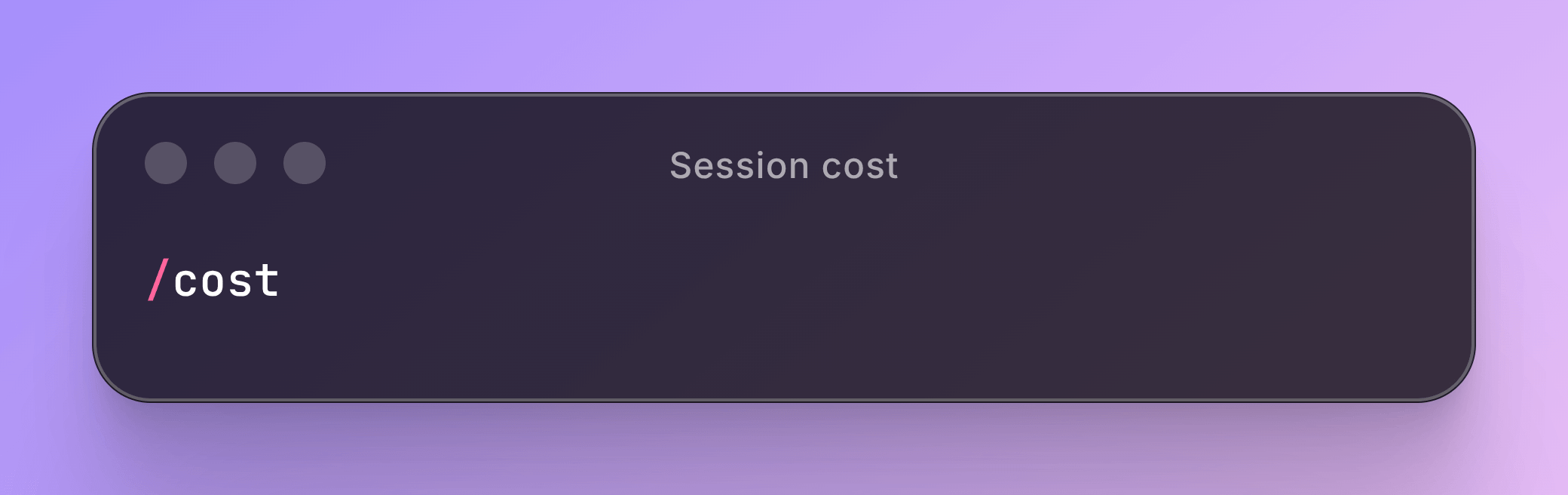
Snippet
/costIt shows tokens used and (on the API) a dollar estimate. Run it periodically on long sessions. A session that’s somehow used a million tokens in fifteen minutes usually means a tool is looping interrupt and investigate.
To switch between the cheaper-and-faster model (Sonnet) and the smarter-and-slower one (Opus):
Snippet
/modelOpus runs about 5x the cost of Sonnet per token on the API. On Max plans, both are included up to your usage cap. A reasonable habit: stay on Sonnet, switch to Opus when you hit something Sonnet keeps getting wrong, switch back when done.
One trick that matters more than people realize: Claude remembers the recent setup of your session (the CLAUDE.md, the system prompt, files it already read) so it doesn’t have to re-read everything from scratch each time you ask something new. This is called prompt caching, and it makes long sessions dramatically cheaper than the raw text counts would suggest. Practical implication: keep related work in one long session rather than starting fresh each time, and you save real money.
When a session gets so long that things start slowing down, you have two options. /clear wipes the conversation and starts fresh. /compact summarizes the conversation so far into a much smaller form and continues working from there. Use /compact when you want to keep going on the same task; use /clear when switching to something unrelated.
AI Coding Etiquettes
- NEVER, EVER modify files that are not Git-tracked (!NEVER)
- !!!! Always target exact file paths
- Bad: “Updated the whole
/authdirectory.” - Good: “Fix the validation for
src/auth/validate-token.jsline 44-66″.
- Bad: “Updated the whole
- Minimize context usage
- Load and reason about the smallest amount of code necessary.
- No speculative changes.
- Do not refactor, reformat, or “clean up” anything unless I explicitly ask.
- Do not use AI to understand a large codebase
- Do not map or analyze the entire project. Only operate within the narrow area as required. It will use almost all token window context.
Things That Bite
A quick list of gotchas the docs underplay, in plain English:
- Approvals last all session. When you say “yes, you can run
npm install” once, that approval persists. Review what’s allowed before walking away. - It will commit and push if you ask it to. “Wrap this up and ship it” can absolutely result in a pushed commit. Be explicit about scope when ending a session.
- Long sessions get expensive even with caching. When the context gets big, even cached reads add up. Use
/clearbetween unrelated tasks; use/compactmid-task. .mcp.jsonfiles auto-launch plug-ins. Audit before launching Claude in unfamiliar repos.- Updates can change defaults. New versions occasionally tweak how settings parse or which commands exist. Update deliberately and read the release notes when something feels off.
/initgenerates a draft, not a finished file. It guesses at your conventions. Edit before committing.- Hallucinated file paths happen if you don’t anchor. “Refactor the user module” is worse than “refactor
src/users/service.ts.” Be specific. - The plan-first habit is doing real work for you. Skipping it on big tasks is the most common cause of “the AI made changes I didn’t want.”
Frequently Asked Questions
Do I need to know how to code to use Claude Code?
Claude Code lives in the terminal and is primarily built for developers. That said, non-coder founders, PMs, and ops people can get real value from reading this guide to understand what their team is using and why. Actually operating the tool day-to-day requires at least basic terminal comfort.
Is Claude Code the same as Claude.ai?
No. Claude.ai is the browser-based chat interface. You paste things in, it answers, you paste back. Claude Code is a separate terminal tool that lives inside your project folder, reads your files, edits them, runs commands, and works through multi-step tasks autonomously. Same underlying AI, completely different experience.
Does Claude Code send my entire codebase to Anthropic?
No. It only sends the files it actually reads to answer your request, your prompt, the output of any commands it runs, and your CLAUDE.md file. It doesn’t upload your entire project, files in parent folders, or anything else on your machine.
What is CLAUDE.md and do I really need it?
CLAUDE.md is a plain text file you create in your project root that tells Claude about your codebase which commands run the tests, where new files go, what conventions to follow. You don’t technically need it, but without it Claude Code is guessing at your conventions every session. It’s the single biggest factor in whether the tool feels great or just okay.
What happens when the session gets too long?
As conversations grow, the AI has more context to process which slows things down and increases cost. You have two options: /compact summarizes the conversation so far and keeps going on the same task, or /clear wipes everything and starts fresh. Use /compact mid-task and /clear when switching to something unrelated.
What We Actually Recommend
Claude Code is the right tool if your team does backend, full-stack, infrastructure, or operations work and is comfortable in a terminal. It’s the wrong tool if you’re a primarily visual designer, a Copilot-style “autocomplete is enough” developer, or someone needing real-time human pair programming.
If you’re a manager deciding whether to roll it out, the answer is usually: let one or two willing engineers try it for a week, ask them to write a short report on what worked and what didn’t, then decide. Don’t mandate it across a team that hasn’t asked for it.
If you’re a developer about to use it for the first time, do these three things in order:
- Install it.
- Run
/initin a real project, then spend ten minutes editing the generatedCLAUDE.mduntil it reads like notes you’d hand a new hire. - Pick one of the workflows above and try it on a small real task.
The single habit that makes the biggest difference long-term is keeping that CLAUDE.md file good. Five minutes of curation up front saves hours of the AI rediscovering your conventions over and over. Everything else, plugins, hooks, and subagents, the cost optimization is downstream of that one file.
Install it, write a tight CLAUDE.md, try a real task. If it earns its keep in the first week, it’ll keep earning it. If it doesn’t, you’ve spent ten minutes finding out.