
WordPress site owners enable 2FA for admins and call it done. But if you use the Ultimate Member plugin, every person who registers on your site gets a real account and the member has no extra protection beyond a password. That is the gap Ultimate Security fills. It is fully compatible with Ultimate Member and lets you enable 2FA for Ultimate Members in just a few steps. This guide covers exactly what to do from the site owner’s setup to the member’s first login with 2FA active.
Table of Contents
What Is Ultimate Security?
Ultimate Security is a WordPress security plugin built to protect every layer of your site. One of its core features is role-based two-factor authentication, which lets site owners enforce 2FA for any or all WordPress user roles.
Importantly, Ultimate Security is fully compatible with the Ultimate Member plugin. This means you can use it to enable 2FA for Ultimate Members without any complex configuration or custom code.
How to Enable 2FA for Ultimate Members on Their Account
This section is for the admin side. Once the site owner completes the steps, they can enable 2FA for ultimate members.
Go to the WordPress admin dasboard
Enter your admin email address and the strong password as usual and log in.

After logging in go to Ultimate Member → User Roles → Add New
Name the title to Member and check mark the “Can access wp-admin?” This way they can access the backend and hit the Create role button. The member role is now created and set to give this role a new name, email, username and a password from the WordPress Users
To Start with the process we have to,
Navigate to the WordPress main menu:
Users → All Users → Add User
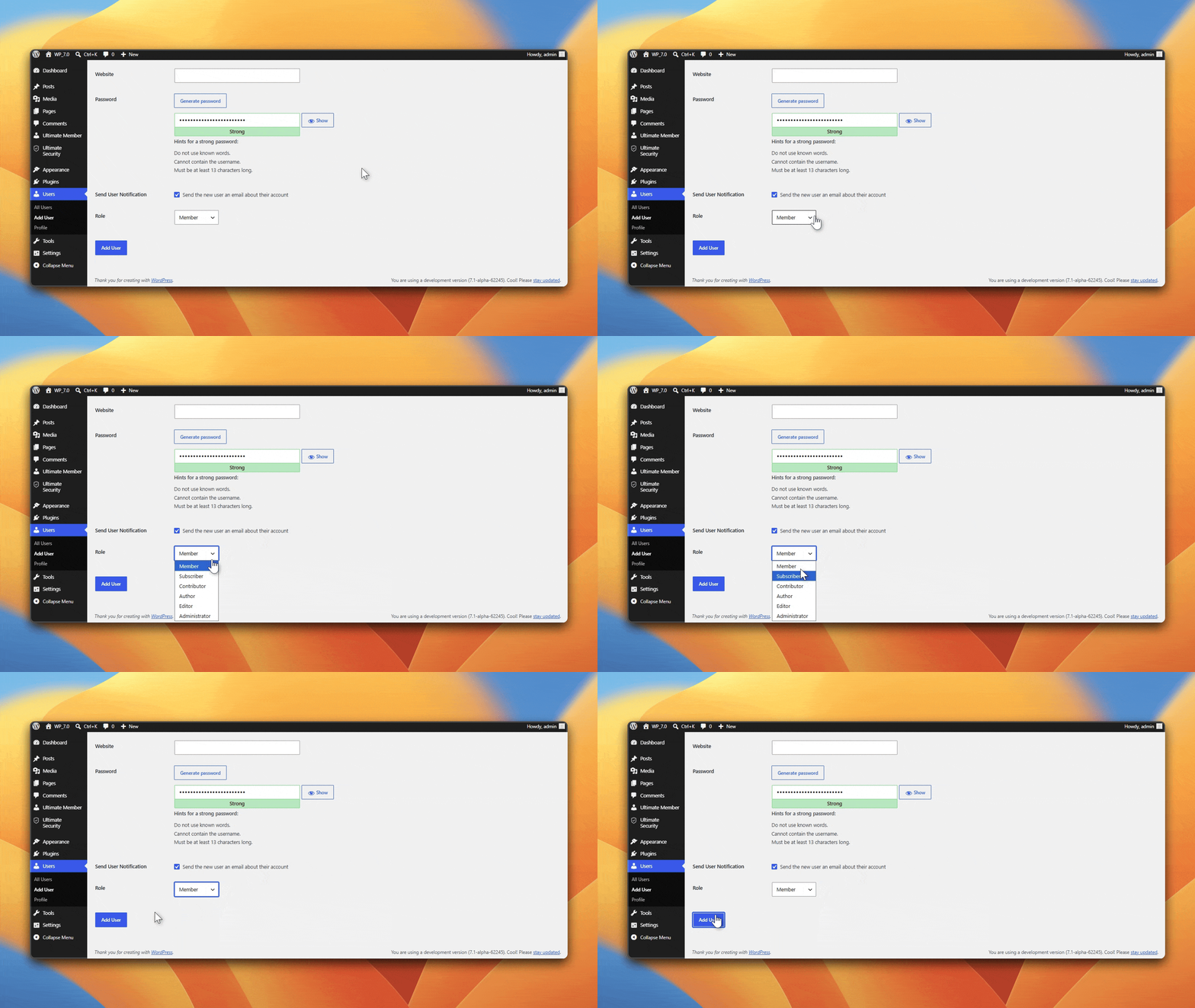
Type all the required fields to create the Member account
Select the Role to “Member” and Add the user. Now the user is added.
In the next section we are going to show you how to enable 2FA for Ultimate members by using Ultiamte security.
Site Owner Setup to Ultimate Security
In this section, you will configure Ultimate Security to enable 2FA for the users role, and so that Ultimate Member’s users’ can access their 2FA settings.
Install and Activate Ultimate Security
If you have not already installed the plugin, go to your WordPress dashboard and navigate to
Plugins → Add New. Search for “wpultimatesecurity.” If you dont know how to do it, read installiation guide for both manual download process and direct install process.
Once active, you will see the Ultimate Security option appear in your dashboard menu.
Enable 2FA and Select the Member Role
Now you will turn on 2FA and tell the plugin which user roles it should apply to.
- Go to Ultimate Security in your WordPress dashboard
- Open the Two-Factor Authentication (2FA) settings
- Click “Authenticator Apps”
- Toggle Authenticator Applications
- Under the switch User Roles section, locate Member in the role list
- Save your settings and keep the other setting the same.
From this point, Ultimate Security knows that Member accounts on your site need to complete 2FA verification at login. However, Members still need a way to set up their authenticator which requires one more step ahead.
Find the Ultimate Security Section
As we already created the Member’s profile and their credential, its time to login in from the backend.
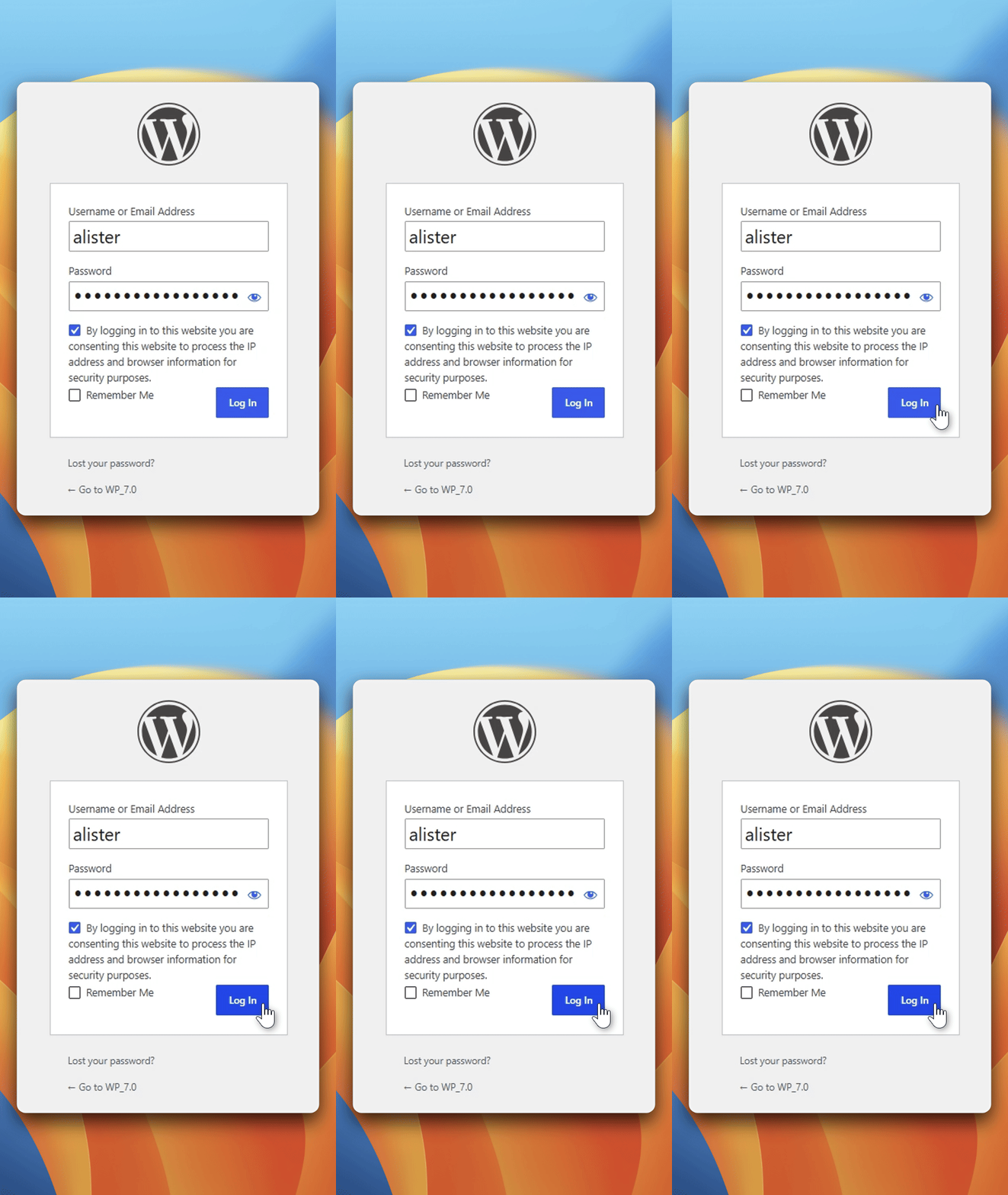
The member need to visit the wp-admin login page or if you have change admin login page in to a custom page then go to the new login page and enter the credential.
The member will see a dashboard as soon as the login.
On the profile option and scroll down to the bottom of the page. A section labelled Ultimate Security.
This is where they will manage your two-factor authentication settings.
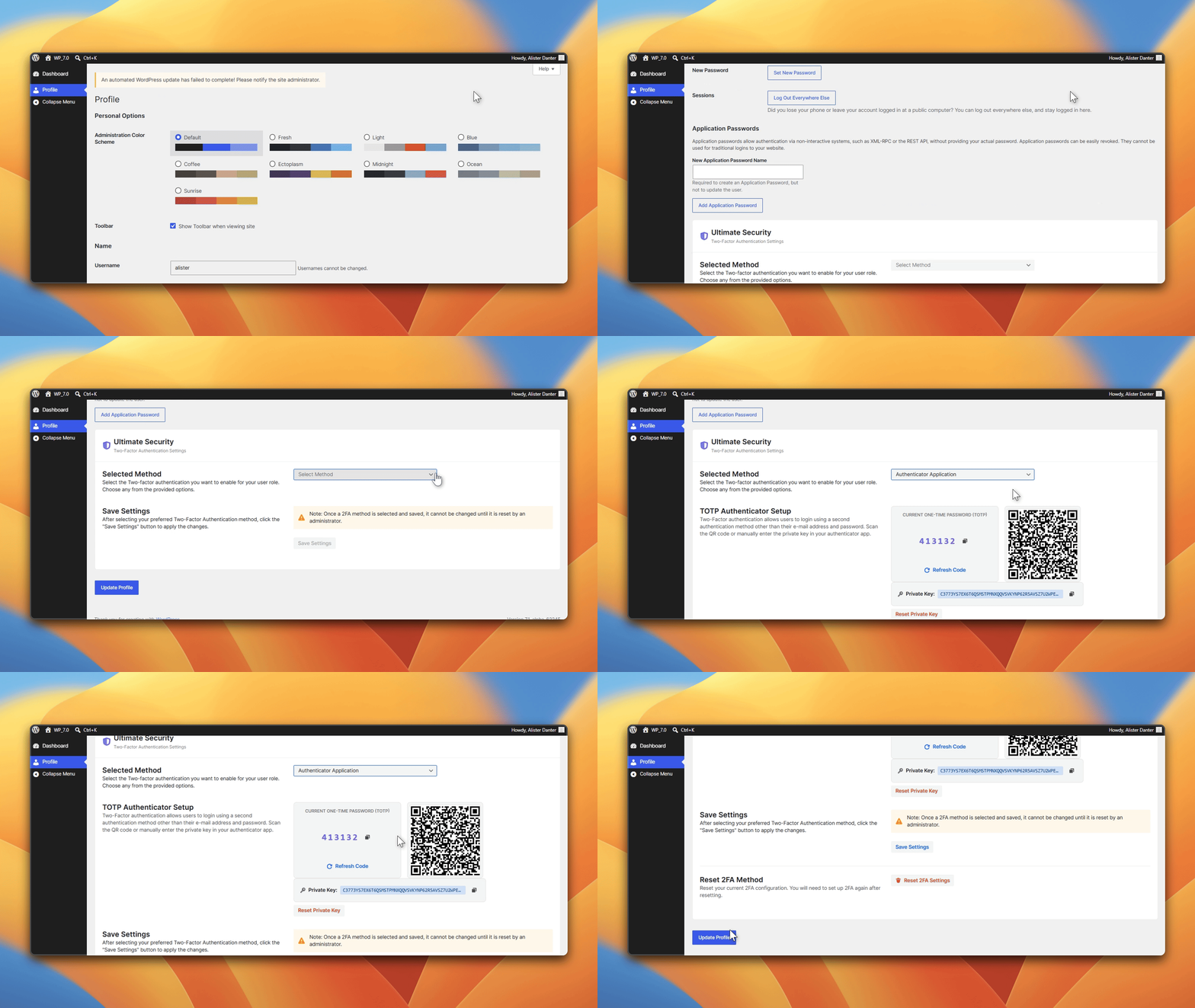
Scan the QR Code and Activate 2FA
There are two free method available in Ultimate Security plugin for 2FA. Both option will appear when you enable them. For now select the authenticator app method as it is enabled already:
- Open your authenticator app on your phone
- Tap Add Account or the + icon
- Choose Scan a QR code
2FA is now active on your account.
What Happens at Your Next Login
Once the setup is complete, the login process for Ultimate Member website login changes. Here is exactly what happens every time they try to log in.
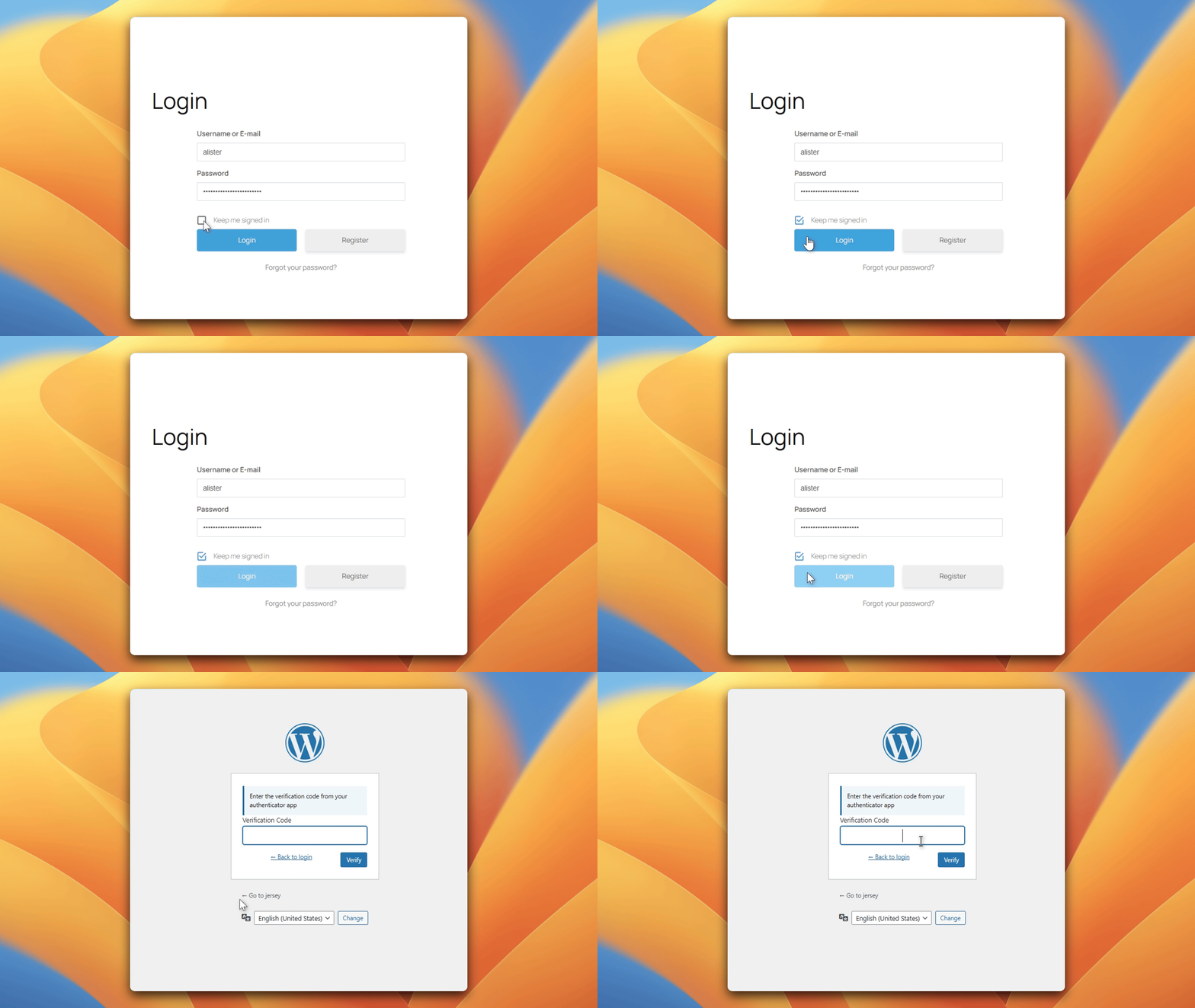
Enter Their Username and Password
The member goes to your site’s login page and enters their credentials as usual. Nothing looks different at this stage.
The 2FA Verification Screen Appears
After clicking Log In, instead of going straight to their account, they are stopped at a second screen. This screen asks them to enter a verification code.
That’s how you enable 2FA for Ultimate Members.
Best Practices for Site Owners After Setup
Once you have enabled 2FA for Ultimate Members, here are a few things worth doing to keep the experience smooth for your users.
i) Communicate the change before enforcing it. Send an email to your registered members explaining that 2FA is now required (or will be required from a specific date). Give them clear instructions and link them to this guide. Unexpected security changes cause confusion and support requests.
ii) Keep email OTP available as a fallback. Not all members are comfortable with authenticator apps. Keeping email OTP as a backup method ensures that less technical users are not locked out.
If you don’t know how to enable 2FA for Ultimate Members (email setup), read our email setup process.
iii) Know how to reset 2FA for a subscriber. If a subscriber loses access to their authenticator app (e.g. lost phone), they will need you to reset their 2FA from the admin side. Familiarise yourself with this process in Ultimate Security’s settings so you can help users quickly.
Frequently Asked Questions
Can WordPress subscribers use 2FA?
es. By default, most WordPress security plugins only apply 2FA to admin-level roles. Ultimate Security extends two-factor authentication to every user role, making it one of the few plugins that fully covers all your registered members.
Does Ultimate Security work with the Ultimate Member plugin?
es. Ultimate Security is compatible with Ultimate Member. Site owners can use Ultimate Security to enforce 2FA for subscribers who register through Ultimate Member’s front-end registration forms.
Why do every members need wp-admin access to set up 2FA?
Members need access to their WordPress profile in order to configure their 2FA settings, as that is where the Ultimate Security 2FA setup is located. Enabling “Can access wp-admin?” through Ultimate Member gives them access only to their own profile not to any admin features, other users, or site settings.
What if a member loses their phone or authenticator app?
The site administrator can reset or disable 2FA for that user from within Ultimate Security’s admin settings. The member can then log in without 2FA and set it up again on their new device.
What authenticator apps work with Ultimate Security?
Ultimate Security works with all standard TOTP-based authenticator apps, including Google Authenticator, Authy, Microsoft Authenticator
Conclusion
Protecting admin accounts is the first step in WordPress security but it is not the last. If your site has registered members using Ultimate Member, their accounts are just as much a part of your platform as the backend. They hold real personal data. They interact with your community. And they deserve real protection. Enable 2FA for Ultimate Members using Ultimate Security takes few steps to setup. The result is that every member account on your site is protected with a second layer of verification making it harder for unauthorized access to happen, even if a password gets compromised.