
WordPress site owners secure their own account and consider the security job is done. But every editor, author, and contributor on your site has a login too, and you have no control over what they do with their password outside your site. One reused password is all it takes. This guide shows you how to secure WordPress login for every user.
TL;DR: A password alone is not enough to keep your WordPress site safe. If someone gets your password through a data breach, a phishing email, or just a lucky guess, they can walk in. Two-factor authentication (2FA) adds a second step to every login, so even a stolen password is useless. This guide shows you how to secure WordPress login for every user on your site using two methods: an authenticator app and email OTP. Takes less than ten minutes to set up.
Table of Contents
WordPress Password Can Be Stolen Without Knowing
The most effective way to secure WordPress login for every user is not a stronger password. It is a second layer of defense. Most site owners only think about the first one. If someone gets your email address and password from an old data breach, maybe from a shopping site you signed up for years ago. They try it on your WordPress login page. If it works, they are in. This is called credential stuffing. Bots running lists of leaked passwords against your login page automatically, testing thousands of combinations without any human effort.
A second verification step called two-factor authentication(2FA) for every user closes that gap. Even if someone has the correct password, they are stopped at the second step of defense. This is one of the most important WordPress security improvements any site owner can make.
What Is Two-Factor Authentication?
Two-factor authentication (2FA) adds another layer of protection on top of your password. Instead of relying on just one security (password), it asks for something else before letting anyone log in. 2FA means your login requires two things
- Something you know (your password)
- Something you have (your phone, authenticator app, or a one-time code in your email)
With 2FA, logging in means combining two of these. So even if someone figures out your password, they still can’t get in without the second factor.
Two Ways to Add 2FA to Your WordPress Login
Not every user on your site needs the same level of login protection. Admins should have stronger security every time they log in, while regular users need something quick and easy. Offering different 2FA options helps you give each user the right balance of security and convenience. Right below, we will discuss the two most popular options.
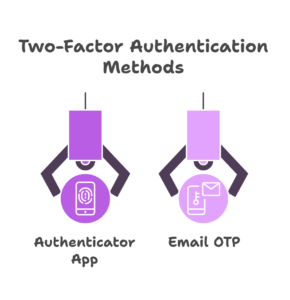
Method 1 is Authenticator App: A time-based code is generated on the user’s phone every 30 seconds. It works completely offline. It does not rely on email delivery.
Method 2 is Email OTP: A one-time code is sent to the user’s registered email address when they log in. No app is required. Easier for users who are not comfortable installing new apps. Requires your WordPress site to have a reliable SMTP email service configured.
You can run both methods on the same site and assign them to different user roles. The sections below walk through how to enable each one.
How to Enable Authenticator App 2FA for Your Users
The authenticator app method works for any user who has a smartphone. It is a strong choice for anyone with access to your WordPress dashboard. Here is how to turn it on and configure it correctly.
Download an Authenticator App First
Before changing anything in your WordPress settings, your users need an app on their phone. These are the two recommended options:
- Google Authenticator — Available on iOS and Android. (Free)
- Microsoft Authenticator — Available on iOS and Android. (Free)
Any of these will work. Ask your users to install one before you enable the feature.
Enable the Feature and Select User Roles
In your WordPress dashboard, go to Ultimate Security → Login & Authentication → Authentication Apps.
- Toggle the Authenticator Applications switch to ON
- Under Enable for Roles, select which user roles must use this method
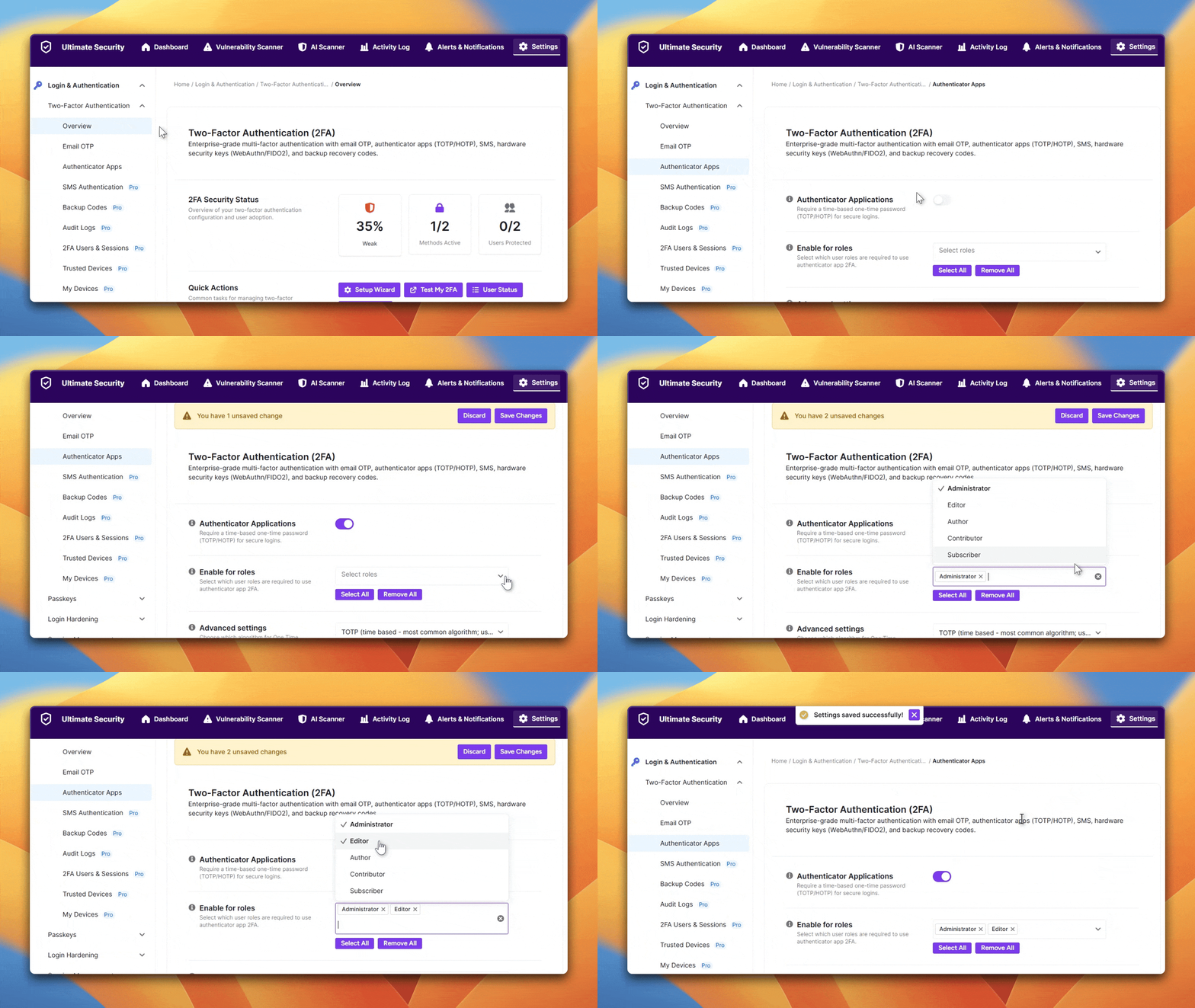
Start with Administrators and Editors at a minimum. You can decide on Contributors and Subscribers based on what level of access they have on your site.
Note that, if you have not installed the Ultimate Security Plugin on your website to secure WordPress login entirely, visit our Installation documentation to get started for free.
Choose Your OTP Algorithm
Under Advanced Settings, you will see two options:
- TOTP (Time-Based) — Generates a new code every 30 seconds based on the current time. This is the industry standard used by Google Authenticator and Microsoft Authenticator. Use this for almost every WordPress site.
- HOTP (Event-Based) — Generates a code based on a login counter rather than time. The code only changes when a new authentication event occurs.
For almost every WordPress site, TOTP is the correct choice. It is what users expect and what every major app supports by default.
Decide on the XML-RPC Setting
XML-RPC is a feature that allows external tools such as mobile apps or third-party services to connect to your WordPress site remotely. You can find more about how it works in the official WordPress documentation.
You will see two options here:
- Do not require 2FA over XML-RPC — External apps connect using just a username and password. Simpler, but the XML-RPC endpoint is not 2FA-protected.
- Require 2FA over XML-RPC — Any external connection must also pass the 2FA check.
If you do not use any external apps to manage your site, enable the requirement. If you use the WordPress mobile app or a third-party management tool, check whether it supports 2FA over XML-RPC before turning this on.
Encrypt Keys in the Database
This option encrypts your 2FA secret keys inside your database. Even if someone gains access to your database, they cannot read or steal the keys. Turn it on. It is permanently safe to leave it enabled. Once activated, it cannot be turned off, but there is no situation where you would need to. Enable this before your users start scanning QR codes so all keys are encrypted from the start.
How Your Users Complete Their Own Setup
Once you save the settings, each user connects their authenticator app from their own profile. Here is what they need to do:
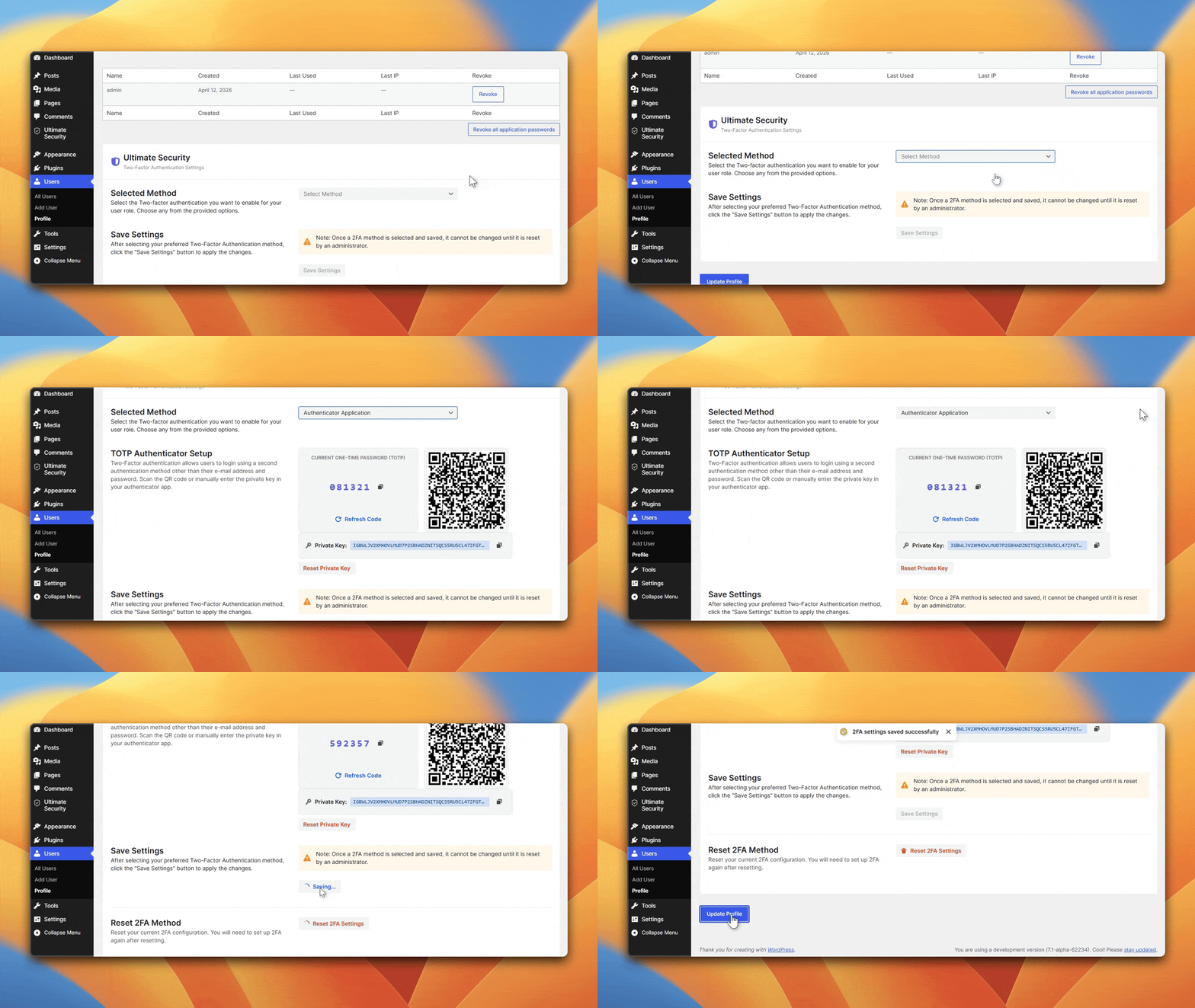
- Go to WordPress Dashboard → Users → Profile
- Scroll down to the Ultimate Security section
- Select Authentication App as their 2FA method
- Open their authenticator app and scan the QR code shown on screen
- Enter the 6-digit code from the app to confirm the connection
- Save their profile
From that point, every login for that user requires the app code as a second step.
How to Enable Email OTP 2FA for Your Users
Email OTP is the simpler option. It works well for users who do not prefer to install an app. The trade-off is that it depends on your site’s ability to send emails reliably.
We have a full step-by-step walkthrough on setting up email two-factor authentication in WordPress if you want the detailed version. Below is the quick setup.
Configure SMTP Before You Start
Email OTP only works if your WordPress site can reliably send emails. By default, WordPress handles email delivery inconsistently, which may cause code to arrive late or land in spam. Before enabling this feature, connect your site to an SMTP email service. This is a critical prerequisite. Without SMTP, users will not receive their OTP codes and will not be able to log in.
Enable Email OTP and Assign Roles
Go to Ultimate Security → Login & Authentication → Email OTP.
- Toggle Enable Email Verification to ON
- Under Enable for Roles, select which user groups must verify via email
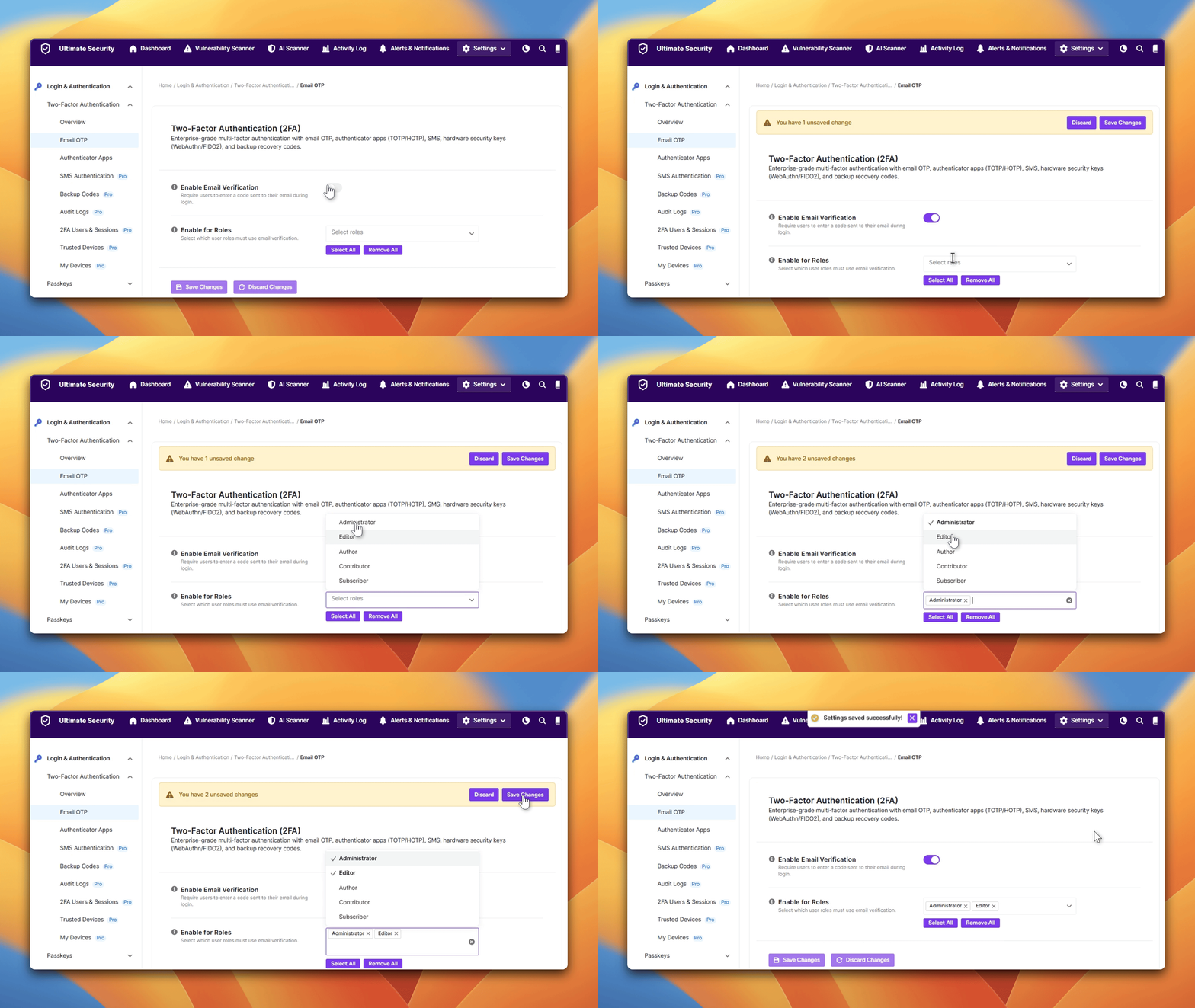
A practical approach for most sites: enable it for roles that have access to your content or settings, and consider leaving it optional for subscribers who only consume content and do not manage anything on the site.
How Your Users Complete Setup
Each user activates email OTP from their own profile:
- Go to WordPress Dashboard → Users → Profile
- Scroll to the Ultimate Security section
- Select Email as the 2FA method
- Click Send OTP. A code goes to their registered email address
- Enter the code in the verification box
- Click Save Settings, then Update Profile
How 2FA Works to Secure WordPress Login
It makes more sense when you see it during a real login. Here is the exact sequence of events from the moment a user tries to log in:
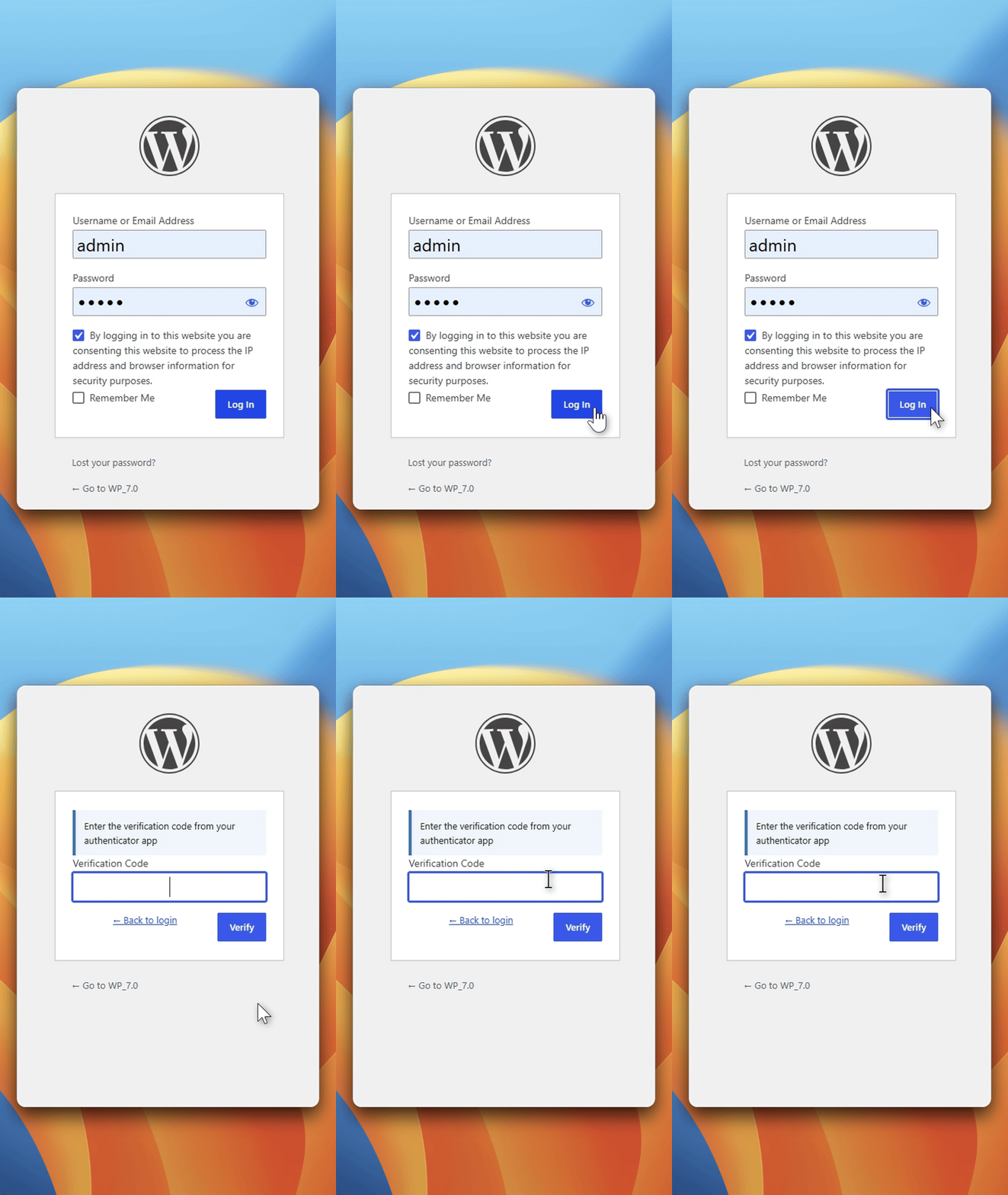
Step 1: The user enters their username and password. This is the normal WordPress login step.
Step 2: WordPress checks the credentials. If the username and password are correct, WordPress does not grant access yet. Instead, it triggers the second verification step.
Step 3: The user is asked for a verification code. A second screen appears asking for a code. Depending on which method you have set up, the user either opens their authenticator app to get a 30-second code, or checks their email inbox for a one-time code that was just sent.
Authenticator App vs Email OTP. What Is the Difference?
Both methods add a meaningful second layer of defense to secure WordPress login security. They work differently and suit different users. Here is a side-by-side comparison to help you decide which method fits each user role on your site.
| Feature | Authenticator App | Email OTP |
| How the code is delivered | Generated on the user’s phone | Sent to the user’s email |
| Works offline | Yes | Requires email delivery |
| Requires an app | Yes | No |
| Depends on email service | No | Yes, SMTP must be configured |
| Code validity window | 30 seconds | 5 minutes |
| Vulnerable if email is compromised | No | Yes |
| Setup complexity | Slightly more steps (QR scan) | Very simple |
| Works without internet | Yes | No |
Both methods are a significant improvement over a password-only login. The right choice depends on your users. their technical comfort level, and what kind of access they have on your site.
Don’t Make This Mistake: Protect All Roles, Not Just the Admin
Most WordPress security guides focus on protecting the admin account. That is sensible advice. But it is only half the job. Think about what an editor can do on your WordPress site. They can publish posts, edit existing content, upload files, and add links. A compromised editor account can be used to inject malicious links into your posts, redirect your readers, or quietly plant content that damages your site’s reputation and SEO ranking. This is exactly why role-based 2FA control matters. You do not have to apply the same rules to everyone. But you should make a deliberate decision about every role.
Bots also target your login page before 2FA even comes into play. If you have not looked at bot protection yet, Turnstile vs reCAPTCHA for WordPress covers how to block automated login attempts at the door.
What Happens If a User Loses Access to Their App or Email?
This is the question most WordPress security guides skip. If a user loses their phone or cannot access their email, they cannot complete the 2FA step and will be locked out of your site.
How to handle it:
- Backup codes: The plugin supports backup codes. Users should generate and save these when they first set up 2FA. Each backup code works as a one-time alternative when the main method is unavailable. Losing a device does not mean losing access permanently.
- Admin reset: As the site admin, you can reset a user’s 2FA method directly from their profile in the WordPress dashboard. Go to Users → find the user → Profile → scroll to the Ultimate Security section → use the reset option.
Make sure your users know about backup codes before they need them, not after. This is especially important if you are enforcing 2FA for all roles at once.
Frequently Asked Questions
Does enabling 2FA slow down my users’ login experience?
Enabling two-factor authentication adds one extra step to the secure WordPress login process. In practice, most users enter their verification code in under 10 seconds. The majority of people are already familiar with this step from banking apps and Google accounts, so the adjustment is minimal. The added time is negligible compared to the protection it provides.
Can I use both methods on the same site at the same time?
Yes. You can require the authenticator app for administrators and editors while assigning email OTP to subscribers or other lower-privilege roles. Both methods run independently and can be active simultaneously for different user roles on the same WordPress site.
Is email OTP safe enough for admin accounts?
Email OTP adds a meaningful layer of protection, but it carries one important limitation: if someone has already compromised the admin’s email account, the OTP code is also within reach. For administrators and anyone with direct dashboard access, the authenticator app method is the stronger choice because it operates entirely independently of email.
Do I still need 2FA if I already enforce strong passwords?
Yes, and here is why: strong passwords protect against guessing attacks, but they cannot protect against data breaches at other websites. If any platform where your user registered with the same password gets breached, that password is now in the hands of attackers, through no fault of yours or your user’s. 2FA means that even a correctly entered password is not enough to get in. The two measures protect against different threats and work best together. Read more about why strong passwords are only part of the solution.
Can I turn off 2FA for a specific user without disabling it for everyone?
Yes. Two-factor authentication on WordPress can be managed per user. As the site admin, you can go to that user’s profile in the WordPress dashboard and reset or remove their 2FA method without affecting any other user on the site. The settings for each account are independent
Secure Your WordPress Login Before You Need To
The only bad time to set up two-factor authentication is after your site has already been compromised. As we have seen, a password alone is no longer enough to secure WordPress login against threats like credential stuffing and data breaches. By following this guide, you can add a powerful second layer of defense in less than ten minutes. Whether you choose the offline reliability of an authenticator app or the simple convenience of email OTP, the important thing is to protect every role on your site, from administrators to subscribers.
Don’t wait for a security alert to take action. Start protecting your hard work and your users today by enabling 2FA on your dashboard.