

We all want to use AI to automate our daily tasks and get them done efficiently. For those of us who manage WordPress websites, we spend our day juggling posts, deleting spam, and chasing plugin updates. It’s a constant cycle of logging in and clicking through the same screens just to keep things running smoothly. Instead of doing something new, we’re stuck repeating the same manual tasks every day, but OpenClaw completely changes that.
This guide will show you exactly how to connect OpenClaw to WordPress site. By the end, you will be able to manage your WordPress site by prompting OpenClaw.
Table of Contents
What Is OpenClaw?
OpenClaw is a self-hosted AI agent that runs on your own computer. You can install it on a Mac Mini or a VPS (Virtual Private Server). Unlike a chatbot that forgets everything after each conversation, OpenClaw remembers past conversations and can keep working on tasks while you do other things. The project had to change its name twice before becoming OpenClaw. It first started as Clawdbot, then was renamed Moltbot, and later, the creator changed it to OpenClaw.
OpenClaw is an open-source personal AI agent with 355k GitHub stars (and counting), created by founder Peter Steinberger.
In February 2026, the creator Peter Steinberger announced he was joining OpenAI to lead their personal agents team. OpenClaw itself moved to an independent open-source foundation. The project uses the MIT license, so you’re free to use, change, and build on it for commercial purposes at no cost.
How to Connect OpenClaw to a WordPress Site
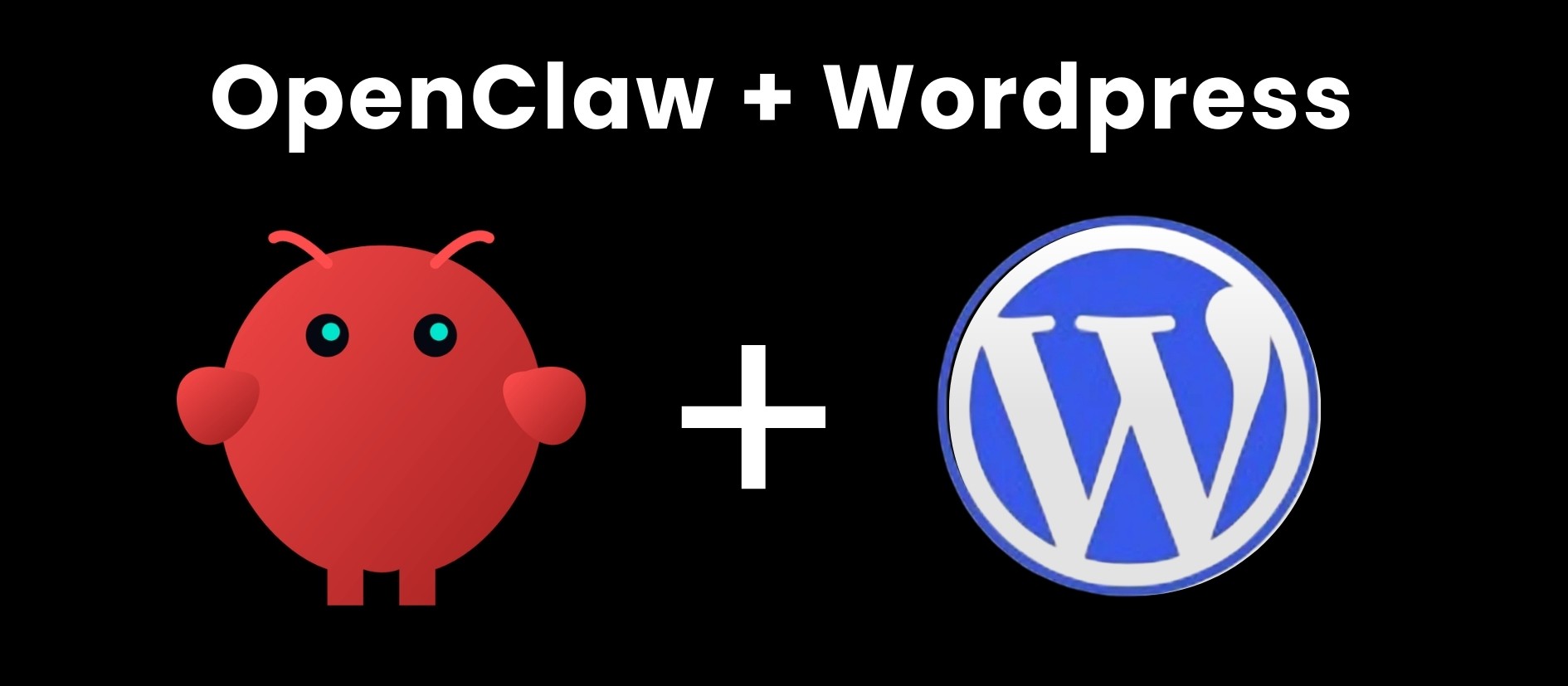
This step-by-step guide explains how to connect OpenClaw to a WordPress site so you can manage your website using simple text commands.
Step 1: Set up OpenClaw on Your VPS
Before anything else, you’ll need a running OpenClaw instance that will connect to your WordPress site.
Choose a VPS Provider with One-Click Installation
Many VPS providers offer OpenClaw as a one-click installation template. When selecting your VPS plan:
- Choose any VPS plan that meets the minimum requirements
- During checkout or setup, look for the OpenClaw template or application image in their marketplace
- Complete your account details and payment
Initial Configuration
After selecting the OpenClaw template:
- The setup page will ask for your prefererred communication channel- select it.
- You’ll receive a Gateway token. Save this somewhere safe. You’ll need it every time you log into your OpenClaw dashboard
- Click Deploy or Install
Installation Process
- The installation may take a few minutes
- Once complete, you’ll be taken to your VPS control panel dashboard
- Look for an Open or Access button next to your OpenClaw instance
Accessing Your Dashboard
- Click the Open button to access your OpenClaw Gateway dashboard
- Enter the Gateway token you saved earlier to log in
- You’re now ready to connect OpenClaw to your WordPress site
Step 2: Give OpenClaw WordPress Knowledge
OpenClaw does not come with WordPress knowledge. So when you connect Openclaw to WordPress, you need to give it that knowledge. That is called an agent skill in OpenClaw.
Here is how to install it:
Go to the chat window inside your OpenClaw dashboard and type this message exactly:
Install the WordPress AI agent skills from https://github.com/WordPress/agent-skills
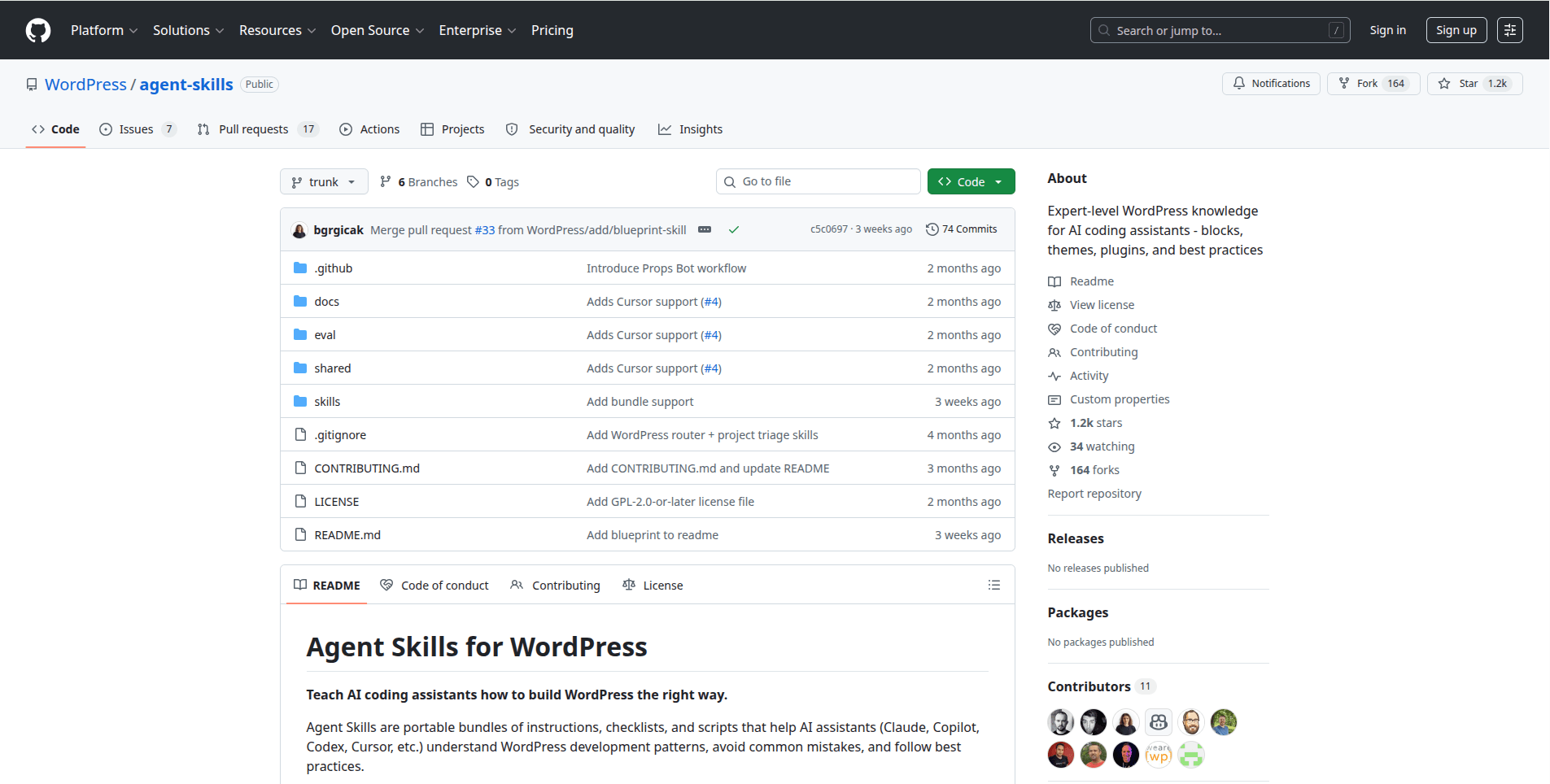
Hit send and let OpenClaw do its thing. It will go and get the skill, install it, and confirm when it is ready. You will see it working through each step right there in the chat. After this, OpenClaw fully understands WordPress and is ready to work with your site.
Step 3: Create Application Password for OpenClaw on WordPress
Before you connect OpenClaw to WordPress, you need to create an application password for it inside WordPress. This is not your admin WordPress password, it is a separate password just for OpenClaw.
Here is how to create it:
- Log in to your WordPress dashboard as normal
- Click Users in the left menu, then click Profile
- Find your username near the top of the page. Copy it and save it somewhere, you will need it soon
- Scroll down until you see a section called Application Passwords
- In the name field, type “OpenClaw.” This just helps you remember what the password is for
- Click Add New Application Password
- WordPress will generate a password and show it to you on screen.
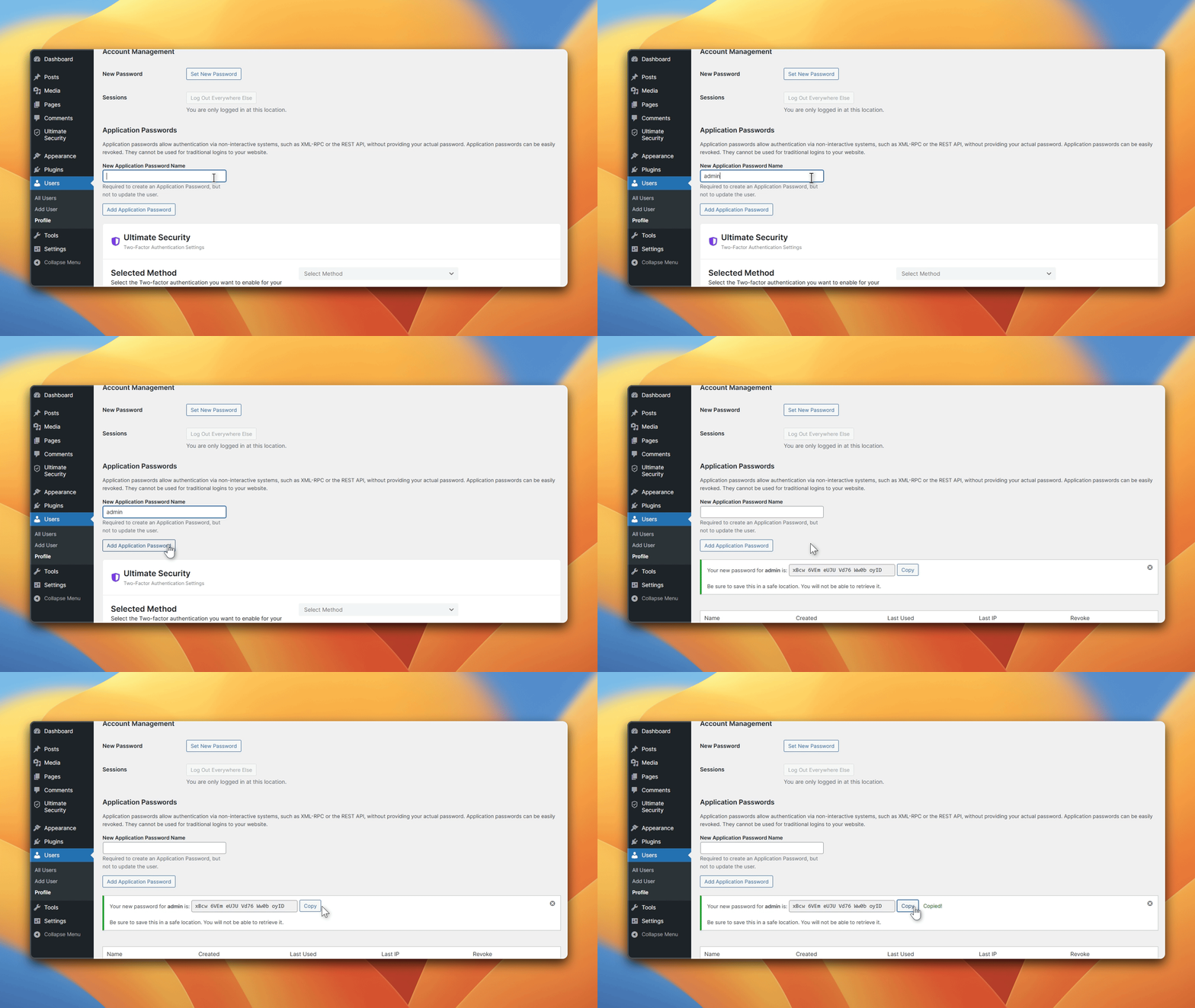
Important: that password only appears once. If you close the page without copying it, you will need to generate a new one.
Once you have your username and this new password saved, you are ready for the last step.
Step 4: Connect OpenClaw to WordPress Site
This is the final step. By the end of this, OpenClaw and your WordPress site will be fully connected and working together. Go back to your OpenClaw dashboard and open the chat window.
Tell OpenClaw your website address
Type this in the chat, replacing the example with your real website address:
Connect to my WordPress site yourwebsite . com
OpenClaw will respond and ask how you want to set up the connection. Reply with this:
Let’s authenticate using Application Passwords
This tells OpenClaw to use the secure password method. The one that keeps your main WordPress login completely private.
Enter your details when asked
OpenClaw will ask for two things:
- Your WordPress username
- The application password you created in Step 3
Type them in when prompted. OpenClaw will use these to establish the connection quietly in the background.
Check that it worked
Once connected, OpenClaw will send a confirmation message in the chat. To make sure everything is working properly, try this simple test:
Write a short test post on my WordPress site titled “Hello from OpenClaw”
If that post shows up on your site, you are all set. Everything is working perfectly.
Things You Can Do With OpenClaw
Now that everything is connected, here is where it gets fun. You can manage your entire WordPress site just by typing messages. Here are some things you can try today:
Publish a new blog post
Write a blog post about five morning habits that boost productivity. Keep the tone friendly and easy to read.
OpenClaw will write it, format it, and publish it directly to your site.
Update an old post
Find my post called “Turnstile vs reCAPTCHA for WordPress:” and update the title to ” Cloudflare Turnstile vs Google reCAPTCHA”
Clean up spam comments
Check my WordPress site for pending comments. Approve the ones that look genuine and mark anything spammy as spam.
Add a new team member
Add a new user called “XYZ” with the email “xyz@example .com” and give him the Editor role.
Update your plugins
Check my site for plugins that need updating and update all of them except the contact form plugin.
The more you use it, the more ways you will find to save time.
What to Do If Something Goes Wrong
Most people get through the setup without any issues. But if something does not go as expected, here are the most common fixes:
- OpenClaw cannot find your site. This is almost always a typo in the website address. Try the connect command again and double check the spelling. Also, make sure your site is actually live by opening it in your browser.
- The password is not being accepted. WordPress generates Application Passwords with spaces in them. Make sure you copied the entire password, including those spaces. If it still does not work, go back to WordPress and generate a new one.
- The WordPress skill is not installing. Check your internet connection first. If everything looks fine, just type the install command again. It usually works on the second attempt.
- Nothing happens after you send a command. Give it up to 60 seconds, and some tasks take a moment to process. If still nothing, try rephrasing your command slightly and send it again.
Frequently Asked Questions
Is it safe to connect OpenClaw to my WordPress site?
Yes. You never share your main WordPress password with OpenClaw. The application password you create is separate and only gives OpenClaw access to what it needs. Your main login stays protected.
Does it work with any WordPress site?
It works with any WordPress site running version 5.6 or higher. If your site is relatively recent, you are almost certainly good to go. You can check your version by going to your WordPress dashboard and clicking Updates in the left menu
Can OpenClaw accidentally break my site?
OpenClaw only does what you specifically ask it to do. It does not make changes on its own. For anything important, you can ask it to show you a preview before it saves or publishes anything.
Does it work with WooCommerce?
Yes, many WooCommerce tasks are possible since WooCommerce runs on WordPress. Basic store management works well. More complex tasks may vary depending on your setup.
Is OpenClaw free?
OpenClaw itself is free and open source. The only cost is renting a server to keep it running, which is usually a small monthly fee.
Can I connect more than one WordPress site?
Yes. Once OpenClaw is running, you can connect multiple WordPress sites to it. Just repeat the connection steps for each site and manage them all from the same chat window.
Conclusion
Managing a WordPress site does not have to mean spending your day clicking through the same admin screens. With OpenClaw connected, you have an AI assistant that actually handles the repetitive work for you. The connection of Openclaw to WordPress takes just a few minutes, and once it is done, you will wonder how you ever managed your site without it. Start with simple tasks like publishing a test post, then gradually let OpenClaw take on more of your daily workflow. The more you use it, the more time you get back for the work that actually matters.