
How do you actually know if your WordPress site has a vulnerability sitting in it right now? Not after something breaks. Right now, while everything still looks fine. Plenty of site owners never ask that question until something already looks off. A slow site. An unknown file. A login attempt they didn’t make. By then they’re not checking for a vulnerability anymore, they’re cleaning up after one.
A vulnerability doesn’t announce itself. It doesn’t show up as a red banner on your dashboard on its own. You either scan WordPress for vulnerabilities on purpose, on a schedule, or you find out about them the hard way. By the end of this guide you will know how to scan your WordPress site for vulnerability and keep your site safe.
TLDR;
Every WordPress site needs a way to check its plugins, themes, and core files against known vulnerabilities.. Ultimate Security’s “Vulnerability Scanner” checks all three areas automatically against known vulnerability databases, flags abandoned plugins, and tells you exactly what needs attention before it becomes a bigger problem.
Table of Contents
What Is WordPress Security Vulnerability
A vulnerability is a flaw in your site’s code, whether it lives in a plugin, a theme, or WordPress core itself, that could let someone bypass normal security and do something they shouldn’t. Security researchers find these constantly. They get logged in public databases the moment they’re disclosed, along with which versions of which plugins are affected.
That disclosure is a double-edged thing. It’s what lets developers patch the flaw. It’s also what tells attackers exactly where to look on any site that hasn’t updated yet. Once a vulnerability is public, the countdown starts, and it’s usually shorter than people expect.
What a Vulnerability Scan Won’t Catch
A vulnerability scan is a precautionary check. It’s not the same thing as a malware scan, and it has real limits worth knowing before you rely on it. It can’t:
- Tell you if malware is already sitting on your site from a past attack
- Flag a vulnerability that hasn’t been reported to the WPScan or Patchstack database yet
- Fix issues on its own. It only flags problems. You still need to update, replace, or remove the affected items.
- Catch a vulnerability in custom code you or a developer wrote outside of a known plugin or theme
None of that is a flaw in the scanner. It’s simply outside what a vulnerability check is built to do.
What Vulnerability Scanner Checks Inside Your Site
This is where a vulnerability scanner earns its place instead of becoming one more tool you forget about. Ultimate Security’s Vulnerability Scanner runs these checks.
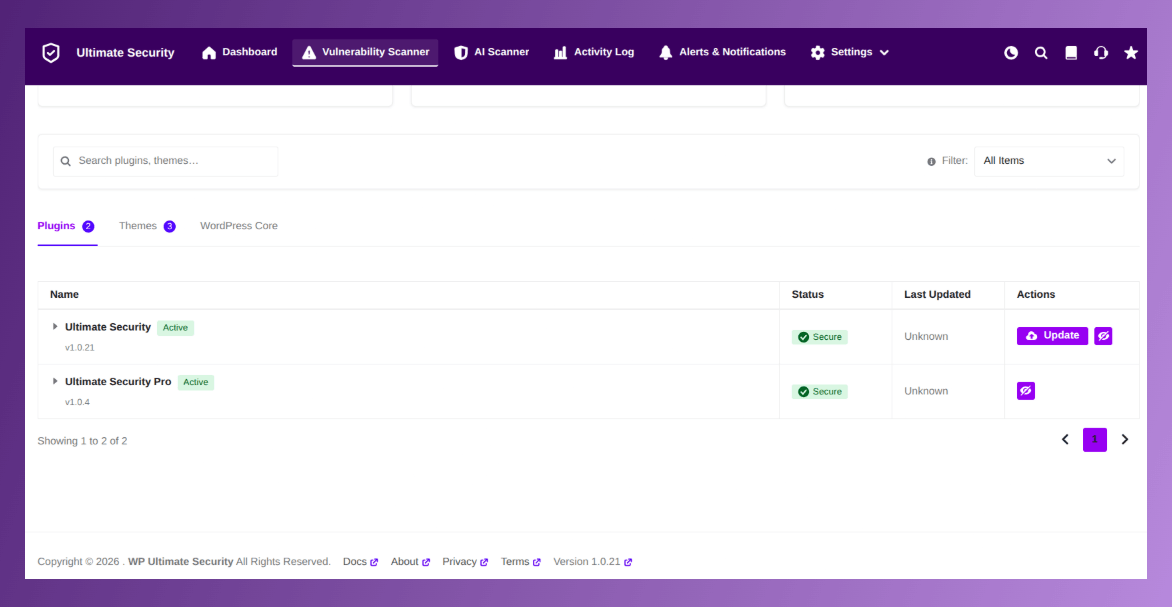
- Plugin vulnerability tracking. Every installed plugin gets checked against known disclosed flaws, not just whether an update exists.
- Theme vulnerability tracking. Themes get the same treatment, since a vulnerable theme is just as exploitable as a vulnerable plugin.
- WordPress core checks. Core itself gets verified, since even the platform underneath everything else isn’t immune to disclosed flaws.
- Abandoned plugin and theme detection. If something hasn’t been updated within a threshold you set, it gets flagged as abandoned, which usually means it’ll never receive a security patch again.
- Severity-based alerts. You choose which severity levels, critical, high, medium, or low, actually trigger an email so you’re not drowning in notifications for minor issues.
- Scan history logging. Every scan gets recorded with its date, what was found, and which source flagged it, so you can see patterns over time instead of just a single snapshot.
The data behind all of this comes from WPScan, WPVulnerability, and Patchstack, three established vulnerability databases that security researchers actually use to track disclosed WordPress flaws.
What a Vulnerability Scanner Can’t Do on Its Own
To be fair in the other direction, the scanner has limits too. It can’t:
- Patch the vulnerability for you. You still have to update, replace, or take action to the flagged item
- Detect malware that’s already been planted on your site through an older, unpatched flaw
- Someone still has to open the dashboard and act on what it finds
It’s simply what a vulnerability scanner is built for and what it isn’t.
How Ultimate Security’s Vulnerability Scanner Works
Ultimate Security’s Vulnerability Scanner checks three things every time. It runs your plugins, themes, and WordPress core itself.
Where the Data Comes From
A scanner is only as good as the source it’s checking against. This one pulls from WPScan, WPVulnerability, and Patchstack, three established vulnerability databases that security researchers actually use to track disclosed WordPress flaws. Using both instead of just one gives broader coverage, since each source catches disclosures the other sometimes misses.
Reading the Dashboard
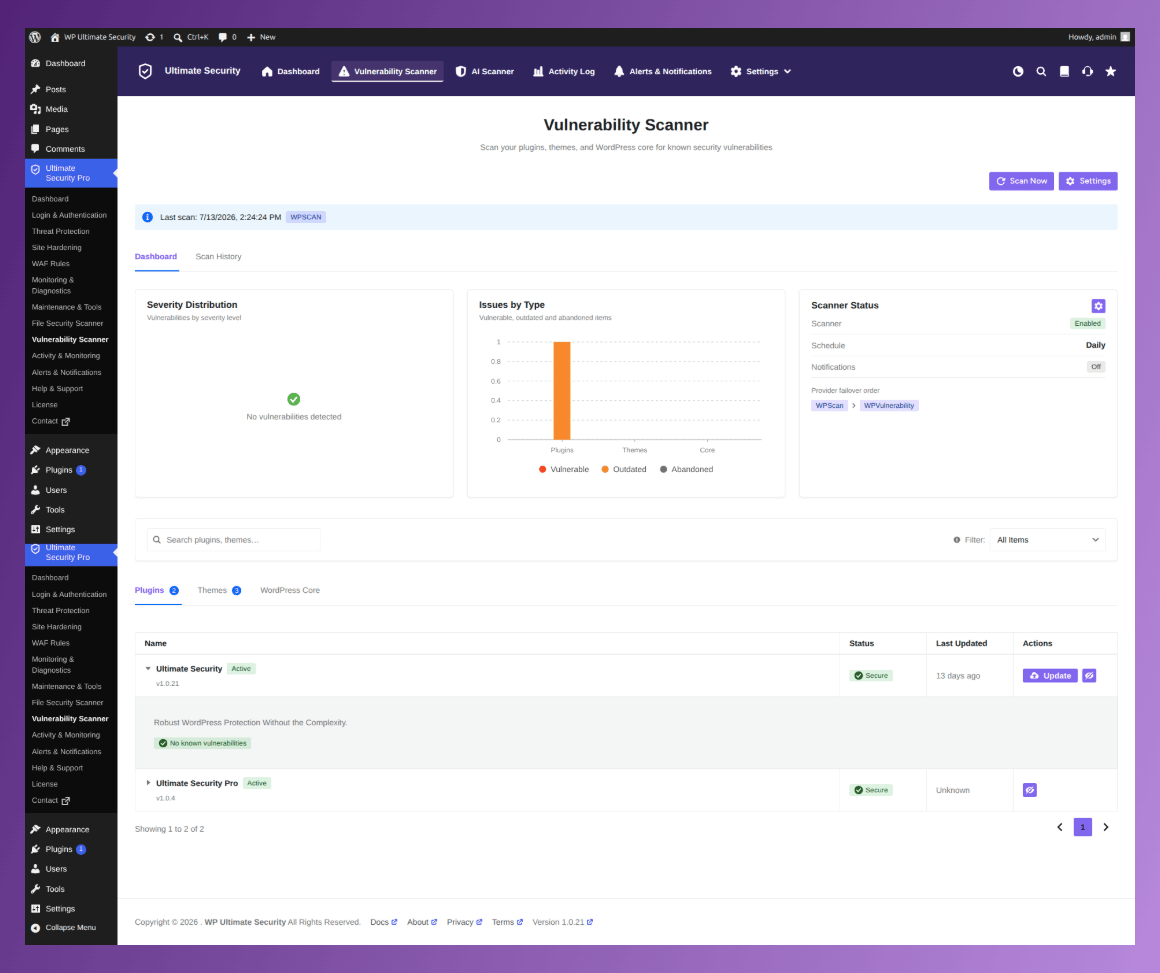
The moment you open it, you’ll see how many vulnerabilities were found, which ones are critical or high severity, what has an update available, and which plugins or themes look abandoned by their developers. A search bar lets you jump straight to a specific plugin, and a filter dropdown narrows the view to just Vulnerable, Outdated, or Abandoned items when you don’t want to see everything at once.
You also control how often it runs and who gets notified. Scan frequency, the abandoned plugin threshold, and notification severity levels all live in the scanner’s settings, so you can tune it to match how much attention your site actually needs.
How to Scan WordPress for Vulnerabilities Step by Step
Setting up your site to scan WordPress for vulnerabilities takes just a few minutes the first time, mostly adding your API keys and choosing how often you want the scanner to run. Once that’s done, you won’t need to touch it again, the scanner keeps checking on its own schedule. Here’s the process in order.
- Enable the Scanner first. Go to Vulnerability Scanner Settings and toggle Enable Scanner ON.
- Get your API keys. Head to WPScan and Patchstack and grab an API key. These power the live vulnerability lookups.
- Open the Vulnerability Scanner settings. Paste your API key into the fields provided.
- Set your scan frequency. The default is daily, which is a solid choice for most sites. Adjust it if you’d rather scan less often.
- Set your abandoned threshold. This tells the scanner how many days of inactivity should flag a plugin or theme as abandoned, since unmaintained code carries its own risk.
- Turn on notifications. Toggle email alerts on, add the address that should receive them, and choose which severity levels matter to you. Click Continue to save.
- Run your first scan. Go to the main Vulnerability Scanner dashboard and click the Scan Now button.
- Review the results. Switch between the Plugins, Themes, and WordPress Core tabs. Use the filter dropdown if you just want to see Vulnerable or Abandoned items first.
- Check your Scan History. This tab logs every scan you’ve run, including the date, how many vulnerabilities were found, what was scanned, and which API powered that check. It’s useful for spotting patterns, like whether the same plugin keeps showing up.
Read in details on how to scan WordPress vulnerability scanners.
Once your keys are in and the frequency is set, most of this runs quietly in the background. You’re just checking in on results.
Configuring Vulnerability Settings & Abandoned Threshold
One of the main things about Ultimate Security’s Vulnerability Scanner is how it scans WordPress for vulnerabilities and checks your site. This is done in the Vulnerability Scanner Settings.
Enable Vulnerability Scanner
- Toggle at the top of the settings page.
- Make sure this is turned ON for the scanner to run.
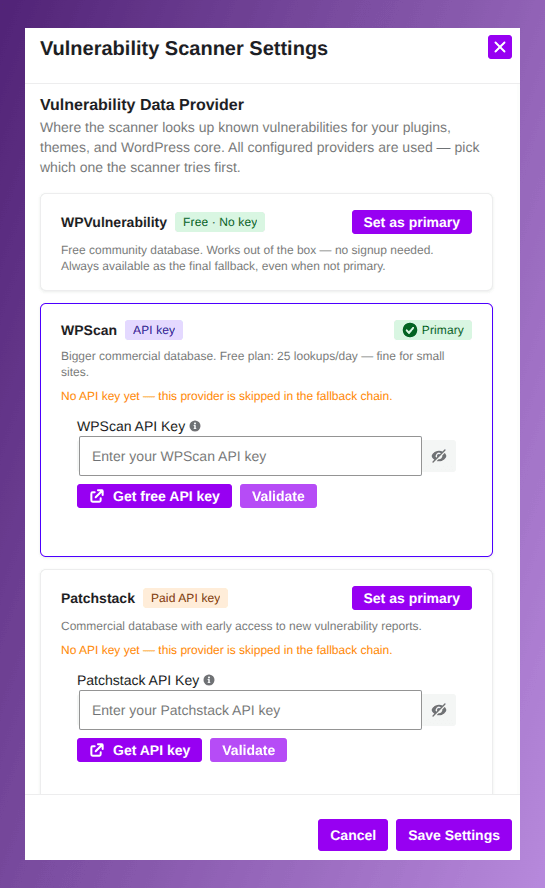
Vulnerability Data Providers
- Choose which databases the scanner uses to check for known vulnerabilities.
- WPVulnerability: Free, no API key required.
- WPSCAN: Free tier (25 requests/day). Requires API key.
- Patchstack: Paid plan. Requires API key.
The scanner identifies known vulnerabilities in your WordPress core, themes, and plugins by utilizing all your configured providers. It uses the provider you set as Primary. If that primary provider fails during a scan (for example, WPScan exceeds its daily API limit, or Patchstack has an issue), it automatically switches to WPVulnerability to complete the scan
Abandoned Plugin & Theme Threshold
Many security issues come from plugins and themes that are no longer maintained. The Abandoned Threshold setting lets you decide how long a plugin or theme can go without an update before it gets flagged as abandoned.
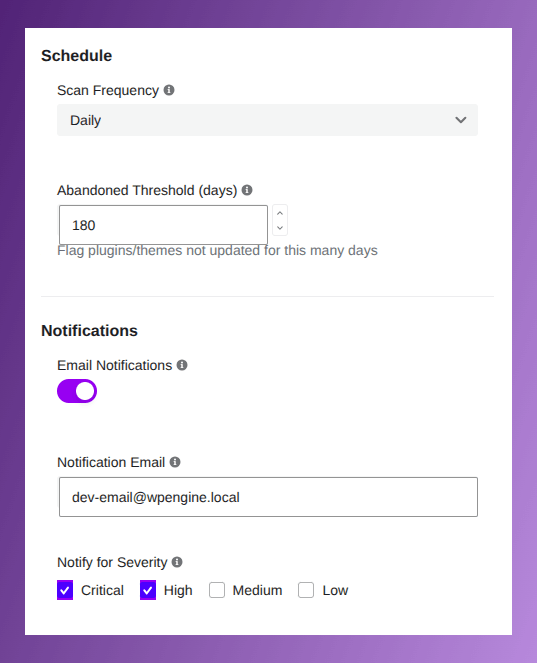
- If a plugin or theme has not received any update for the number of days you set, the scanner will mark it as Abandoned.
- Abandoned plugins rarely receive security patches, making them prime targets for attackers even if no known vulnerability exists yet.
Vulnerability Scan, Notification & Severity Settings
In the same settings panel, you can control which vulnerabilities actually get your attention:
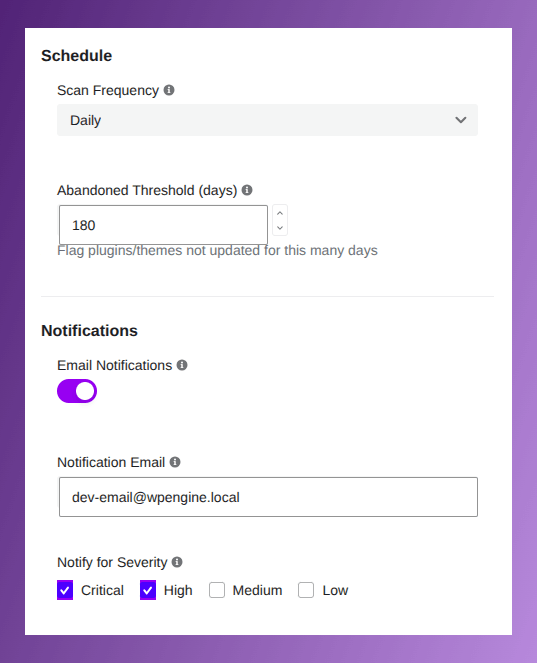
Scan Frequency (Schedule)
Choose how you want to run schedule
- Choose how often the scanner runs automatically.
- You can also choose less frequent scans if preferred.
Notifications
- Enable Email Notifications
- Enter the email address that should receive alerts.
Severity Levels
Choose which alerts you want to receive via email:
- Critical
- High
- Medium
- Low
Additional, you’ll also see helpful account status for WPSCAN from the vulnerability scanner settings.
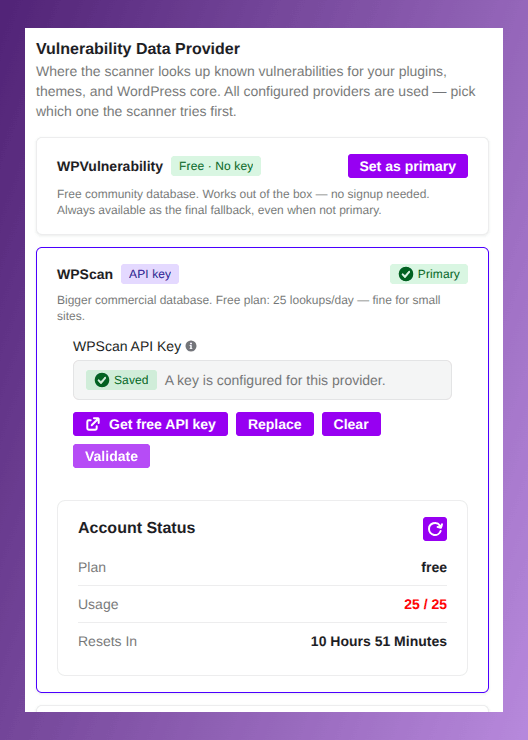
In such cases, the scanner automatically falls back to WPVulnerability
What to Do After a Vulnerability Got Detected
An update is sitting there waiting, you click it, and the vulnerability is gone. That’s genuinely how the majority of these get resolved. If you’re worried an update might break something, run it on a staging copy first, but don’t let that worry turn into three weeks of doing nothing. Abandoned plugins are a different story. No update means no fix is coming, ever, so the plugin just sits there vulnerable indefinitely. We’d treat an abandoned flag as a countdown, not a warning. Start looking for a replacement the same week you see it, not after the next scan confirms it’s still there.
Sometimes you’ll hit a critical vulnerability with no patch available yet. This is the one case where we’d deactivate first and ask questions later. Back up the site before touching anything, then turn the plugin off until the developer ships a fix. A missing feature for a few days beats leaving a known hole open on a live site.
Understanding Scan History
The Scan History tab gives you a complete record of every vulnerability scan performed on your site. This is useful for tracking security trends over time and proving due diligence.
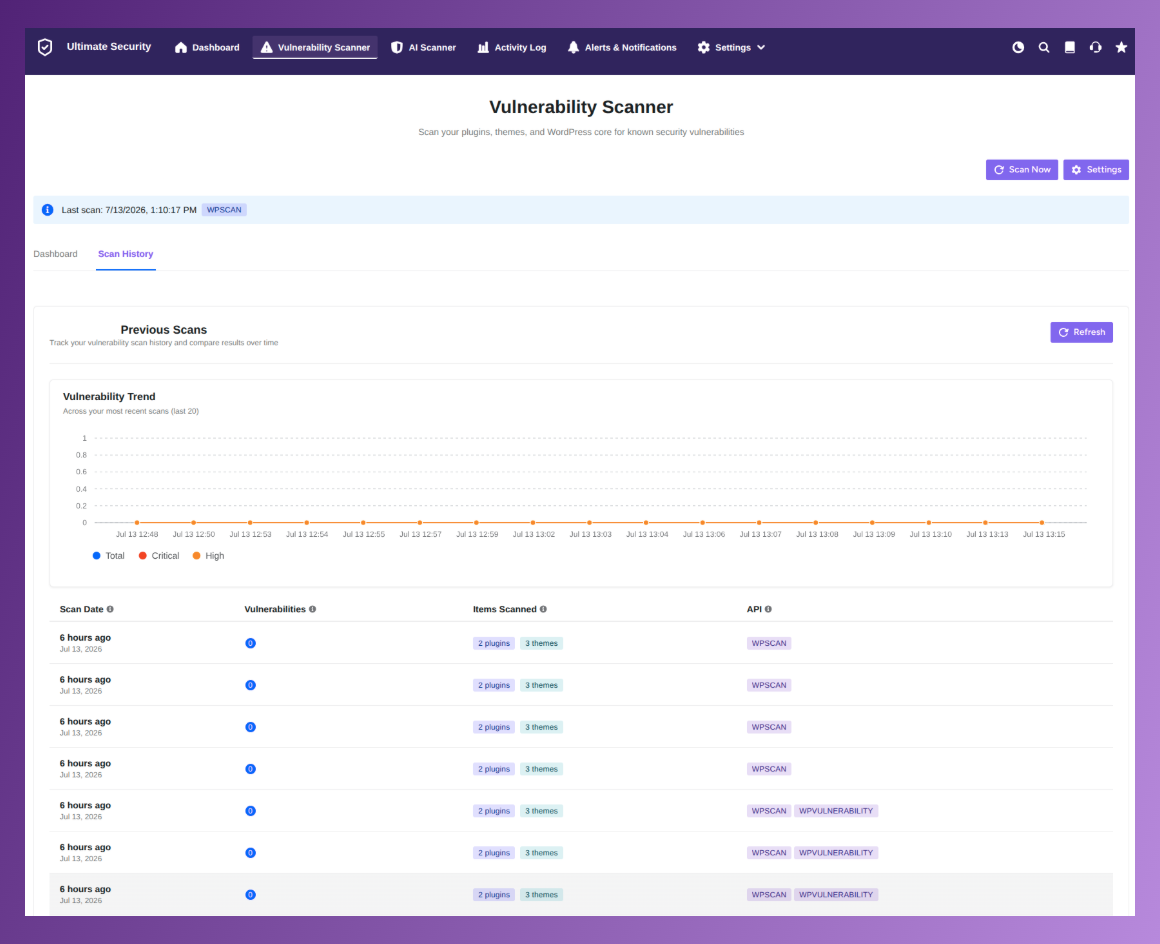
What you’ll see in Scan History:
- Vulnerability Trend Graph: Visual overview of total, critical, and high vulnerabilities across recent scans.
- API: Which provider(s) were used (e.g., WPSCAN + WPVulnerability or PatchStack + ).
- Scan Date: When each scan was performed.
- Vulnerabilities: Number of issues found (with color coding for Critical / High / etc.).
- Items Scanned: Breakdown of plugins and themes checked.
- API: Which providers were used (e.g., WPSCAN + WPVulnerability or PatchStack + WPVulnerability).
How to Fix a Vulnerability (Vulnerable Fix)
When the scanner flags a vulnerability, taking quick action is critical. Here’s what to do:
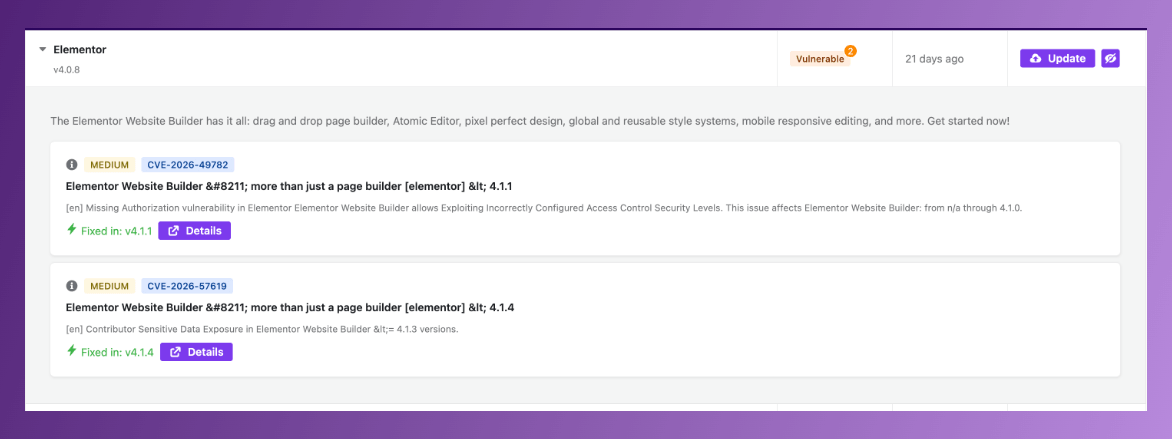
For Plugins or Themes with Available Updates:
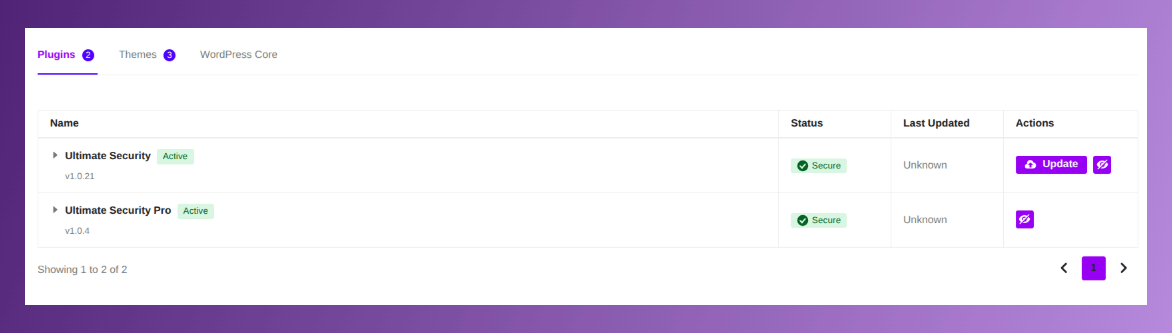
Take action when a vulnerability is spotted right from the history tab or dedicated plugin or theme tab in the vulnerability scanner.
- Click the Update button next to the vulnerable item.
- In the detailed view, you’ll see:
- The exact CVE number
- Severity level (Medium, High, Critical)
- Description of the vulnerability
- The version in which it was Fixed
For Abandoned Plugins/Themes:
- No official update will come.
- Best practice: Replace it with a maintained alternative as soon as possible.
- Deactivate and delete the abandoned item.
Preventing Vulnerabilities Before They Happen
Scanning tells you what’s wrong right now. These habits are what keep that list short to begin with, so you’re not opening the dashboard every week bracing for bad news.
Keep Everything Updated, Not Just WordPress Core
Most people are pretty good about updating WordPress core the moment that notification shows up. Plugins and themes get treated as optional, and that’s backwards. Core rarely has the vulnerability, it’s almost always something in your plugin folder that hasn’t been touched in months.
If you’re managing a handful of sites and updating everything manually feels like a chore, that’s usually where people start skipping it. Turn on auto-updates for anything that isn’t a highly customized theme, and you’ve closed most of the gap without having to think about it again.
Lock Down Logins and Limit Who Has Admin Access
Maximum site compromise occurs with a weak password or an old admin account nobody bothered to remove. If your password is your site name plus a number, that’s not really a password, it’s just a formality.
Turn on two-factor authentication for every admin. Add login attempt limits, so repeated wrong tries lock the person out, and add a CAPTCHA to your login page to stop bots from trying at all. Together, these stop the most common way small sites get broken into, someone quietly guessing passwords over and over until one works. This guide to login security features that stop brute force attacks shows how to set all of this up.
After that, check who actually has admin access on your site. It happens a lot, someone joins to write a few posts, gets full admin rights so they can get started fast, and never gets moved down once the work is done. If someone only writes posts, give them the Editor role instead of Administrator. It takes five minutes to check your Users list, and it closes one of the easiest ways into your site.
Remove What You’re Not Using
An inactive plugin is still a plugin. It’s still sitting in your files with all its code intact, and deactivating it doesn’t patch anything, it just stops it from running. If you deactivated something six months ago because you didn’t like it or replaced it with something better and never actually deleted it, go delete it now.
We’ve seen sites carrying eight or nine deactivated plugins nobody remembers installing. Every one of those is still a potential entry point sitting in storage, doing nothing for you and everything for whoever finds the vulnerability first.
Stay Away From Nulled or Pirated Plugins
This one’s tempting, especially when you’re trying to keep costs down on a client site or a personal project. But a cracked version of a plugin isn’t just missing a license check, it’s often been modified specifically to include a backdoor before it ever gets uploaded to whatever shady site you downloaded it from.
Keep Regular Backups Running
This one doesn’t prevent a vulnerability from existing. What it does is decide whether a mistake turns into a disaster or just an annoying afternoon. If something does slip through, a recent backup is the difference between restoring your site in ten minutes and rebuilding it from scratch. Set backups to run automatically, and actually check every so often that they’re completing successfully. A backup system that silently failed three months ago isn’t a backup system, it’s a false sense of security.
Frequently Asked Questions
Does scanning my WordPress site for vulnerabilities slow it down?
No. The scan checks plugin, theme, and core version data against external databases rather than crawling your entire codebase in real time, so the performance impact is minimal.
Can I fix a vulnerability myself, or do I need a developer?
Most of the time, updating the flagged plugin or theme to its latest version resolves it. You’ll only need a developer for more complex cases, like a heavily customized plugin you can’t simply update without breaking something.
Is the Vulnerability Scanner a free feature in Ultimate Security?
Yes. The Vulnerability Scanner is included free with Ultimate Security. You only need API keys from WPScan, WPVulnerability, and Patchstack to get it running, so there’s no cost to scanning your plugins, themes, and core for known vulnerabilities.
Can I run a manual scan outside of the scheduled frequency?
Yes. The Scan Now button runs a scan immediately, regardless of your set schedule. This is useful right after installing something new or if you just want a fresh check without waiting for the next automatic run.
Is it normal for a scan to find zero vulnerabilities every time?
Yes, and that’s a good sign, not a reason to stop scanning. It just means nothing disclosed so far applies to what you’re running. That can change the moment a new flaw gets reported.
Should I scan a staging site before pushing changes live?
It’s a good habit, especially after adding a new plugin or theme. Catching a vulnerability on staging means it never reaches your live visitors in the first place.
Conclusion
If you’re wondering whether you actually need to scan WordPress for vulnerabilities on a regular basis, the honest answer is yes, and a one-time check doesn’t count. Vulnerabilities get disclosed faster than most people can manually track, and the gap between disclosure and exploitation is often measured in days. Set up the scanner, keep notifications on, and let it run on its own schedule instead of yours.
Ultimate Security’s Vulnerability Scanner handles this part in the background, checking your plugins, themes, and core against real vulnerability databases so you’re not the one who has to remember.