
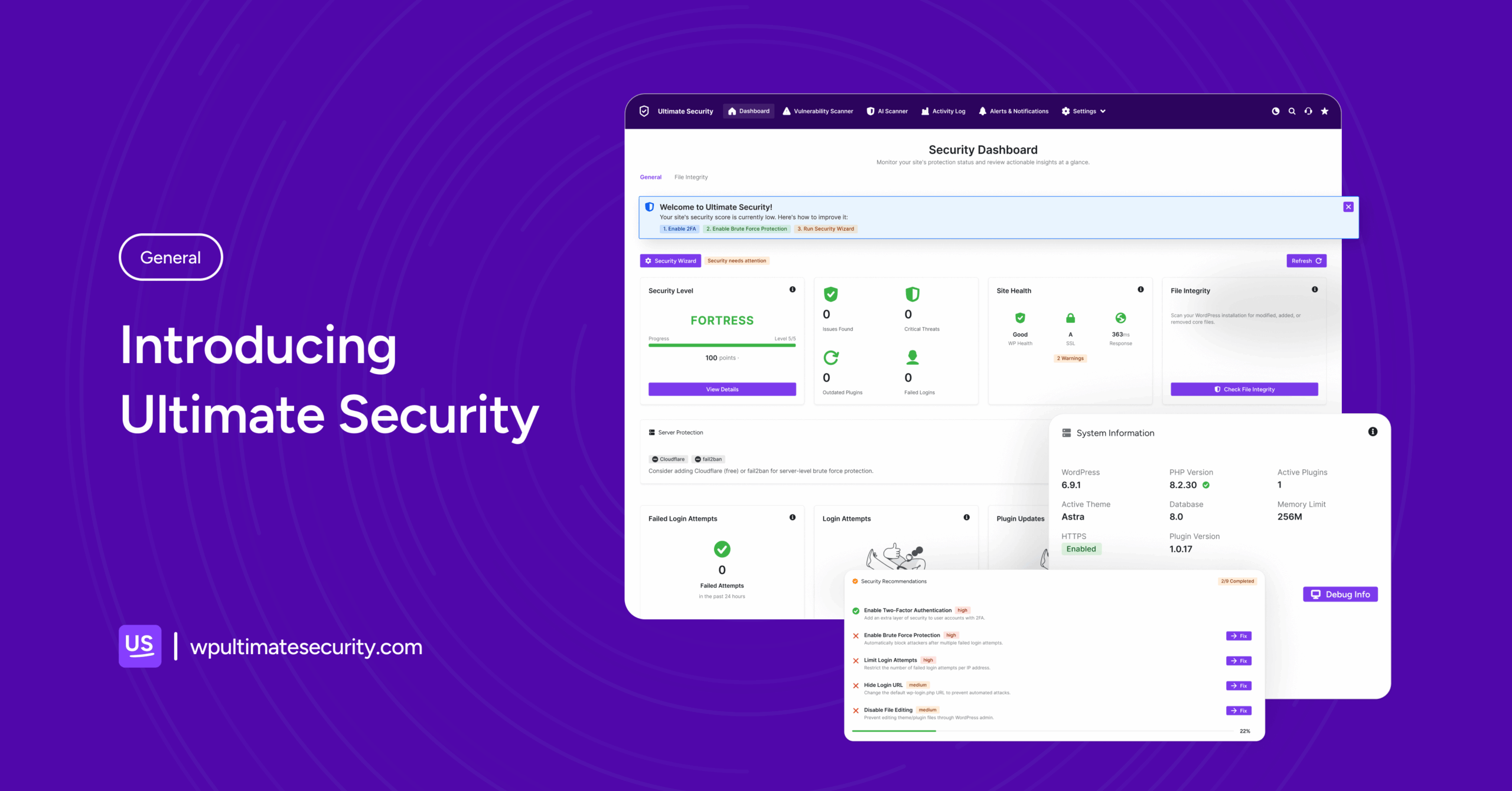
We are proud to introduce to you today “Ultimate Security”, a lightweight & robust plugin for anyone concerned about their WordPress site’s security. Our goal with “Ultimate Security” is not to provide overhead bloat security that brings WordPress to it’s knees but rather provide security that should be handled by WordPress itself alongside the server security features where it is hosted. The plugin focuses on practical security features as well as plugin,theme, WordPress related vulnerabilities scanner.
So the idea is simple, you focus on your work “Ultimate Security” quietly watches over your WordPress site and protects it.
Table of Contents
Why Your WordPress Site Needs Better Security Right Now
WordPress runs almost half the websites. This popularity draws hackers’ attention. Bots also scan for weak spots constantly. They try thousands of passwords on login pages. They flood contact forms with fake signups. Even hunt outdated plugins full of holes.
Most attacks aren’t clever moves. They’re automated scripts that are running 24/7. They hit every site they can find. Weak passwords let them in fast. Old plugins leave doors open, and “No 2FA” means one stolen password ends everything. We’ve seen small business owners lose weeks fixing malware because they skipped basic steps. It causes traffic drops and trust. It has consequences for revenue.
Ultimate Security promises to guard WordPress. It runs continuously, scanning sites around the clock. If it finds something simple like a weak password or an exposed entry point, they keep pushing notifications. This is where real-time protection comes in. Security is about watching every single action happening on your site. It is about closing the doors that people usually forget to lock. The goal of this plugin is to handle those everyday risks quietly.
Stronger login protection helps stop password guessing attempts. Bot defense reduces spam traffic. Site hardening tools close small gaps that attackers often try first. You set it up from settings and let it run in the background.
How Ultimate Security Protects Your WordPress Site
Strong Login & Authentication Protection
Most attacks start at the login page. Bots try passwords repeatedly. Some people still use weak passwords. Others reuse the same password across sites. Ultimate Security helps reduce these risks.
- You can turn on two-factor authentication for administrator accounts. A verification code will be sent through email or an authentication app, before login is allowed.
- Custom login URLs are also available if you want a little more control over who finds your login page. This does not hide your website. It simply makes the login entry point less predictable for automated scanners.
- Password rules can be configured to encourage stronger security habits. Minimum length requirements, mixed characters, and prevention of password reuse help protect user accounts.
Threat Protection Against Bots, Spam, and Attacks
Bots are one of the most common security problems for WordPress sites. They submit spam forms, attempt brute force logins, and send automated requests looking for weak points. This layer helps control that activity.
- You can enable reCAPTCHA or Cloudflare Turnstile verification on forms to help distinguish real visitors from automated scripts.
- Brute force protection limits repeated login attempts. You can set how many failed logins are allowed before a temporary lockout happens.
- IP addresses, emails, or user agents that behave suspiciously can be added to blacklist filters.
The plugin keeps simple activity logs so you can see what has been blocked without needing to study complicated security reports.
Site Hardening and Privacy Tools

Site hardening adds another layer of defense around your WordPress installation.
- You can protect content and images by limiting copying, right-click actions, or direct hotlinking when needed.
- Update management tools help you stay safer by allowing scheduled or controlled updates for plugins, themes, and core components.
- Privacy controls allow you to remove or hide some technical details from headers, APIs, and version information that attackers sometimes use to fingerprint a site.
You decide which features are necessary for your website. All these parts work together so your site stays protected while you focus on your work.
Getting Started Is Easy
We made our plugin’s dashboard simple for anyone. Go to your WordPress dashboard.
Plugins > Add New. Search “wpultimatesecurity.” Click Install Now, then Activate.
Once it’s running, look for the Ultimate Security menu on the left. Click it. The dashboard pops up first. Clean layout, shows your overall security status right away. Green means good. Yellow or red for quick fixes.
Our comprehensive documentation walks you through every bit.
Test in a staging site if you’re nervous. But honestly, most folks just turn on the basics and see attacks drop fast.
Final Thoughts
Protecting your WordPress site shouldn’t feel like a second job, and with Ultimate Security, it doesn’t have to. Whether you start with simple two-factor authentication or dive into full site hardening, the important thing is just to start. Don’t wait for a ‘wake-up call’ to take your security seriously.