
A strong password makes a big difference in protecting your WordPress site. By enforcing a hard password policy for all user accounts and the admin, you make it much harder for hackers to break in and take control. But, unfortunately, WordPress site owners don’t always force strong password for WordPress users and themselves.
This is because they have trouble remembering strong passwords or they’re not aware of how easy it is to crack a weak password. In this guide, we will discuss different password rules you should enforce to ensure users create strong passwords. We will also show you how you can use set strong password rules for all users using a simple WordPress plugin.
TL;DR:
Weak passwords are one of the most common WordPress security risks. WordPress only suggests strong passwords by default, so users can bypass them. Using the Ultimate Security plugin, you can force strong password for WordPress users in a step by step guide. Apply those rules to secure every user account.
Table of Contents
Why Should You Force Strong Password for WordPress Users?
As a WordPress site owner, you should force strong password for WordPress users if you have multiple people logging in, like team members, clients, or registered customers.
The Benefits of Forcing Strong Passwords
The majority of WordPress sites get hacked because some users pick easy passwords like “password123” or anything common. Hackers use automated tools that guess thousands of common passwords every minute.
- If one user has a weak password, hackers can enter your site, change posts, or even delete things.
- Many users reuse the same password everywhere. Forcing strong passwords helps protect their other accounts, too.
- When people know your site takes security seriously, they feel safer signing up, logging in, or sharing their details.
So, there are many benefits of forcing strong passwords. But the real question is, how do you actually do it? The easiest and smartest way is to use a free plugin. You don’t need any technical things to do this. Just install one plugin and turn on the setting. It takes less than 5 minutes. In the next section, we will explain the step by step process for doing it.
How to Apply Force Strong Password for WordPress Users (Step by Step Guide)
In this section, you’ll learn how to force strong password for WordPress users using a free plugin, so every user is required to follow a secure password policy.
Install WordPress Ultimate Security Plugin
To enforce a proper WordPress password policy, you’ll need a free plugin that can apply rules across all users.
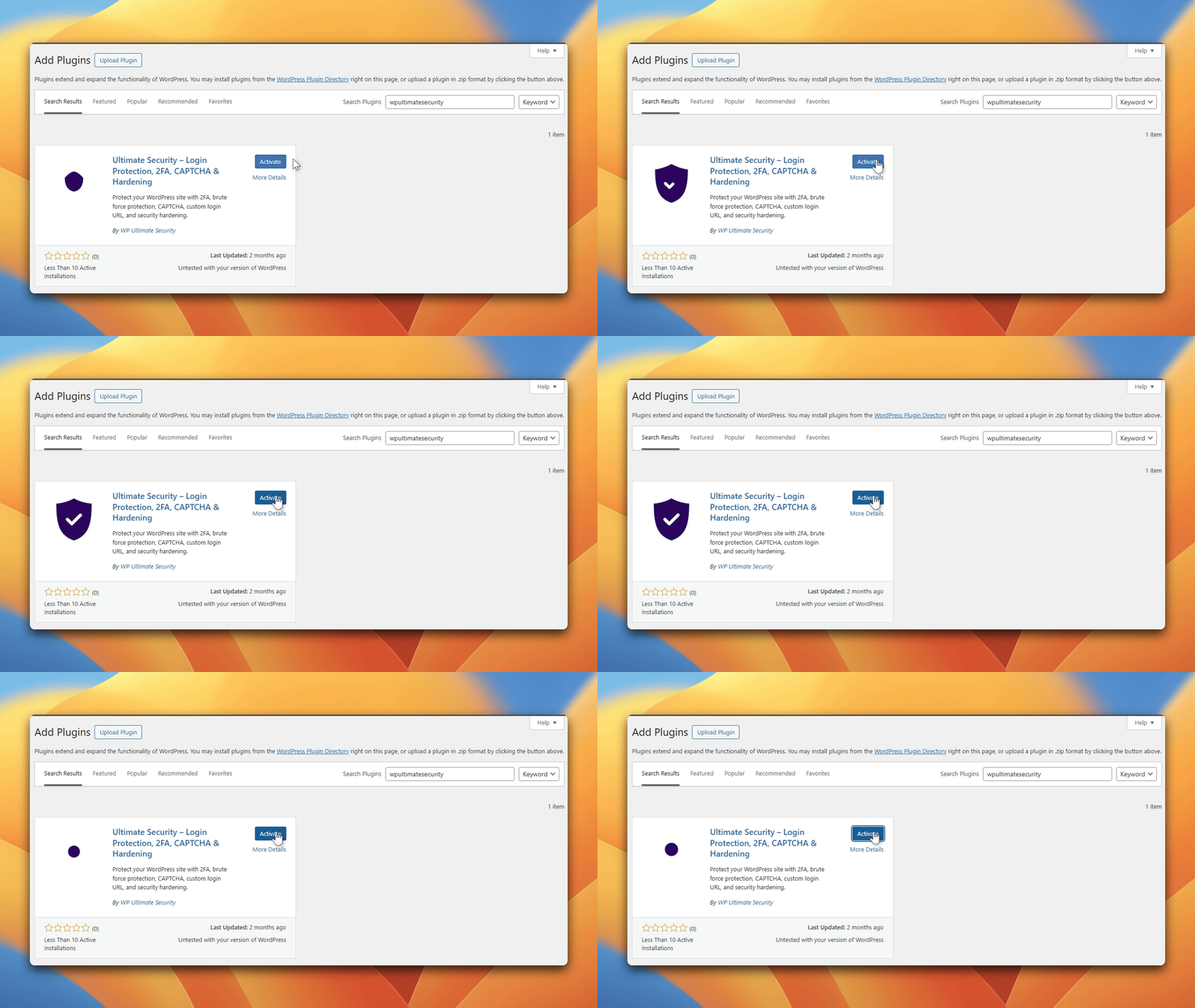
- Go to Plugins > Add New.
- In the search box at the top right, type wpultimatesecurity.
- Find the plugin named “WP Ultimate Security – Firewall, Login Security, 2FA Protection & More” by wpultimatesecurity.
- Click the Install Now button.
- Once the installation is finished, click Activate.
For the detailed installation guide here.
Once activated, you’ll get access to password security settings in WordPress.
Navigate to Password Requirements Settings
- Go to the Ultimate Security plugin dashboard from the left menu of your WordPress menu.
- Navigate to Login & Authentication → Login Hardening → Password Requirements
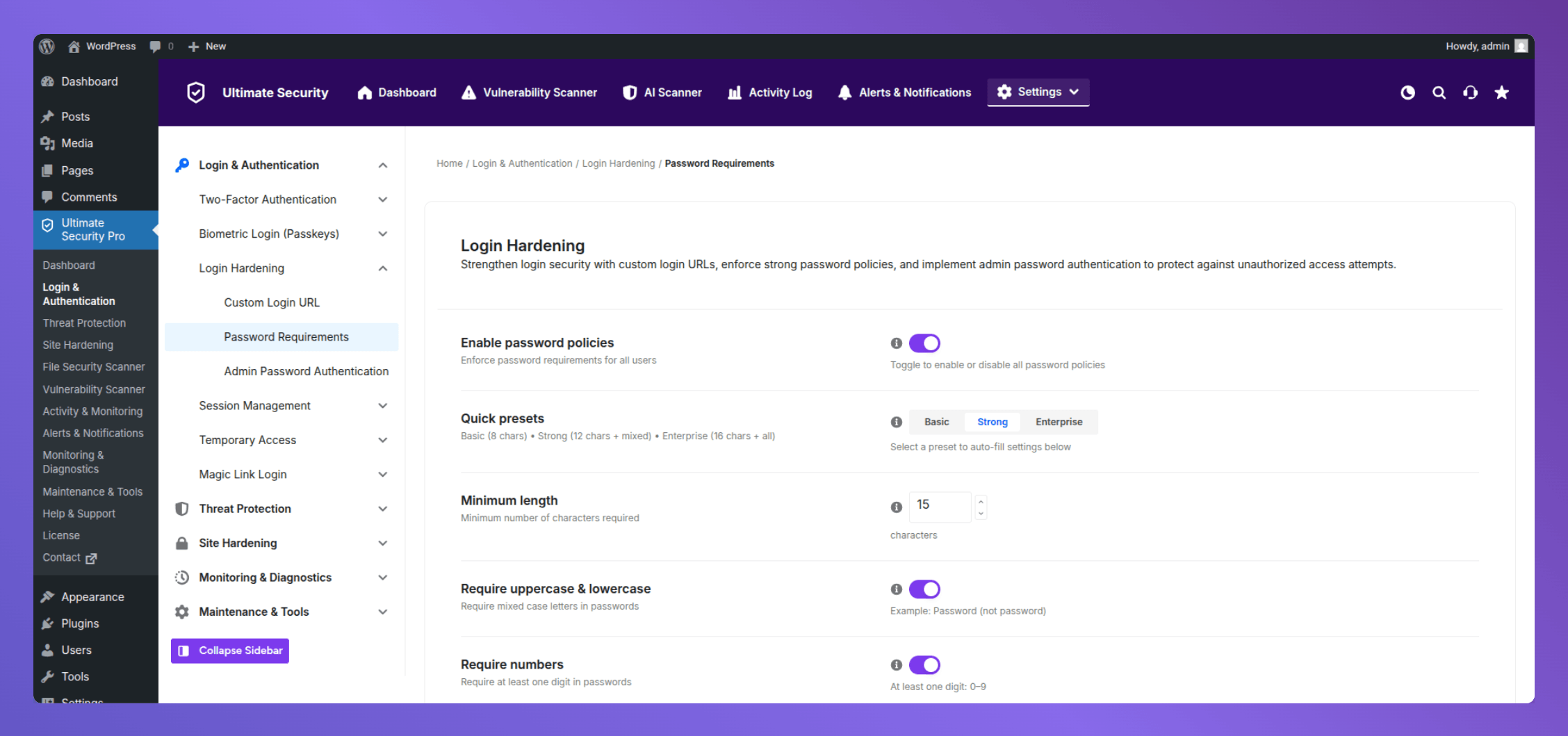
This is where you define how strong user passwords must be across your entire site.
Enable Strong Password Rules in WordPress
To start enforcing rules:
- Turn ON the option to enable password policies
Select any quick preset
- Basic ((8 characters)
- Strong (12 characters+ mixed)
- Enterprise (16 characters+ all)
for password rules. It applies default rules based on your selection type. This ensures your WordPress login security is no longer dependent on user behavior.
Apply Your WordPress Password Policy
This is the most important step if you don’t want to select any preset rules. A well-defined WordPress password policy ensures consistent protection across all user accounts.
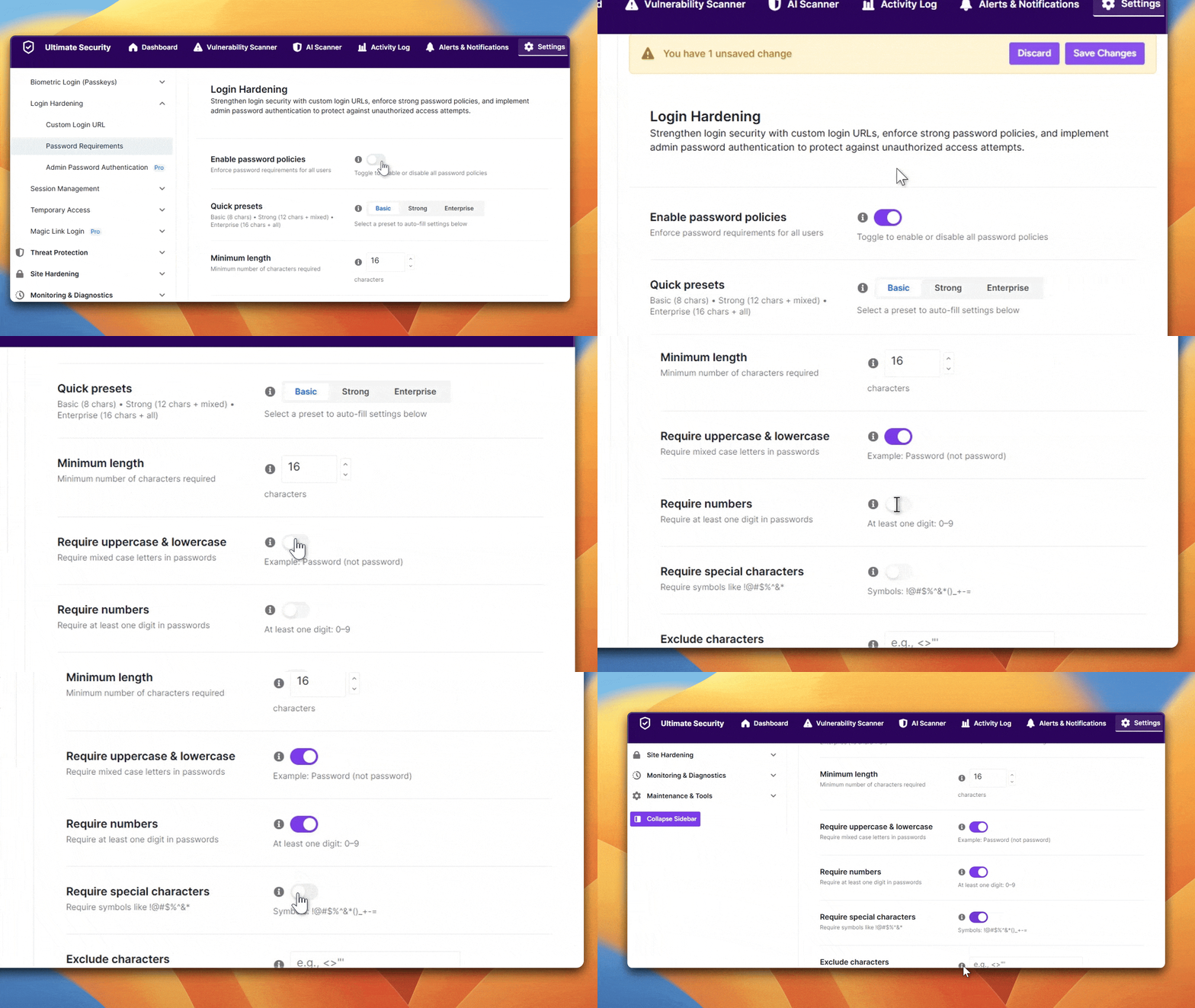
Set Minimum Password Length
- Define a minimum length (recommended: 10–12 characters)
- Longer passwords are harder to crack using brute force attacks
Require Strong Character Combinations
Enable requirements such as:
- Uppercase letters (A–Z)
- Lowercase letters (a–z)
- Numbers (0–9)
- Special characters (!, @, #, etc.)
This option implements password complexity and strengthens overall password security for all WordPress users.
Exclude Specific Characters
While you’re forcing users to include special characters, some symbols can cause technical problems. For example, characters like ( " or ' ) can break form inputs or database queries in certain setups. Some users might find it hard to type on certain keyboards. You can type any characters into this box that you want to ban from passwords. For example, adding ("') would prevent users from using those two symbols even while meeting the special character requirement.
Set Password History
The “Password History” setting stops users from reusing old passwords.
- Default is
1(can’t reuse the last password) - Set to
3–5for stronger protection - Higher numbers = more old passwords blocked
Set an Expiration Period
Forces users to create a new password after a set time.
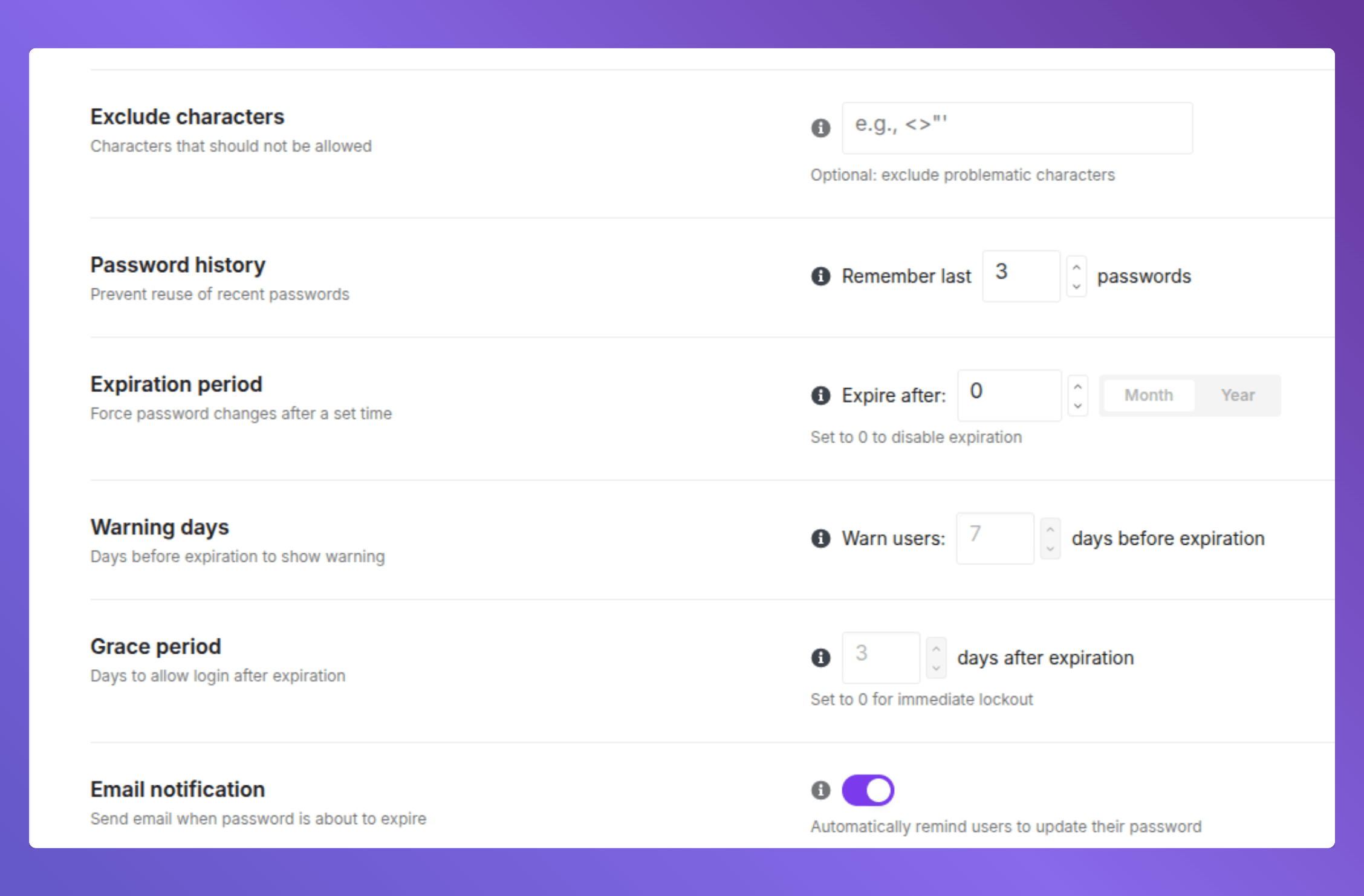
- Set to
0means passwords never expire - Enter a number + choose months or years (e.g.,
6months) - Recommended: 6–12 months for general sites, 3 months for admins
Configure Warning Days
Notifies users before their password expires.
- Works only if Expiration Period is set
- It sends alerts for the deadline
- Recommended: 7–14 days’ advance notice
Set a Grace Period
Gives users extra days to log in after their password has already expired.
- Users can still log in but are immediately forced to reset
- After grace period ends, they’re fully locked out
- If possible, keep it short between 3 to 7 days
Enable Email Notification
This setting automatically emails users about password expiry and required changes. This setting is far more noticeable. But know that your WordPress site must have SMTP configured for email notifications.
Enable First Login Reset
This setting enables new users to change their password on their very first login.
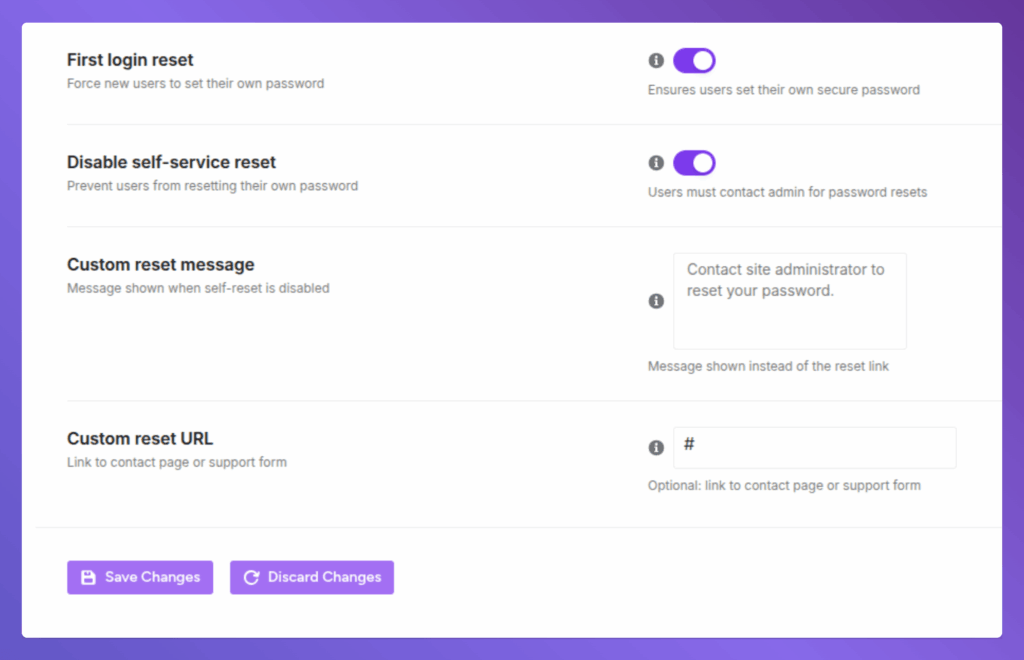
- It closes the gap where the admin knows the user’s password
- Applies to all newly created accounts
Disable Self-Service Password Reset
This setting is for those who don’t want to flood their email inbox with bad bots to try continuous password resets. It removes the default “Lost your password?” link from the login page.
- Prevents attackers from exploiting the reset flow
- Only recommended for high-security or admin-only sites
- You’ll need to handle reset requests manually if enabled
Write a Custom Reset Message
When self-service reset is disabled, users see this message instead of the reset link.
- Default says: “Contact site administrator to reset your password”
- Customize it with your email address or support instructions
- Keep it clear so users know exactly what to do next
Add a Custom Reset URL
Add your support page or contact form here so users have a direct path to request help. Leave blank if you don’t have a dedicated page. The custom message above will still do the job.
Test Your Password Policy
After setup, it’s important to verify everything works correctly.
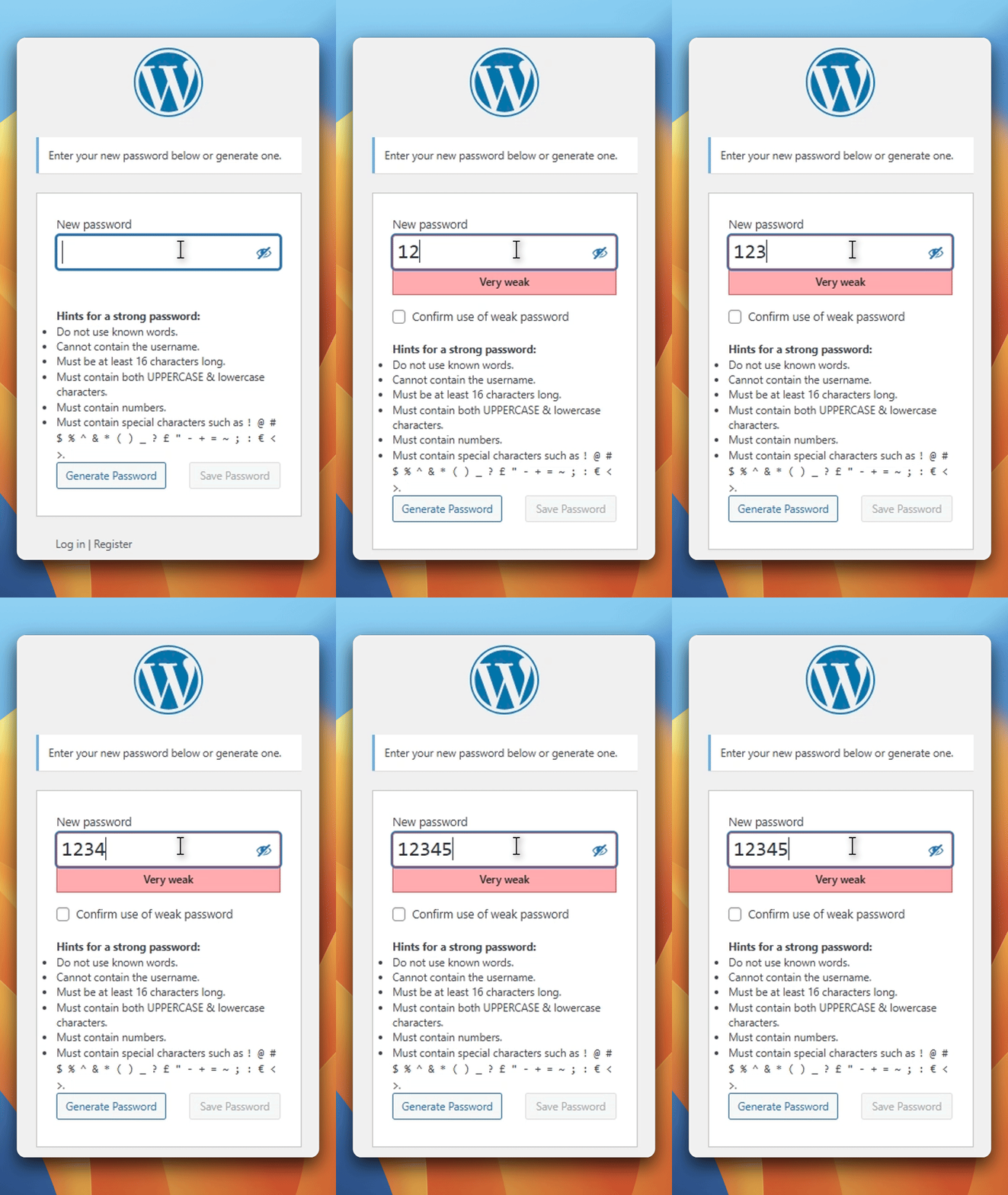
Do the following:
- Go to your site’s admin login page
- Click “Register”
- Create a new user and try to set a weak password
Testing ensures your WordPress strong password plugin setup is functioning as expected. By following these steps, you can force strong passwords for WordPress users.
Why Use Ultimate Security to Enforce Password Rules
Password security rules in WordPress often require complex rules. But using a centralized solution simplifies this process. With the Ultimate Security plugin, you can force strong passwords for all WordPress users while managing other critical security layers from a single dashboard. Instead of relying only on a basic WordPress strong password plugin, you get a broader system that connects password enforcement with overall WordPress login security. This includes features like two-factor authentication, bot protection, and login attempt controls, all working together to reduce unauthorized access.
Beyond Password Security in WordPress
Even after you set strong password rules, you need to maintain a secure environment that requires a layered approach. Password policies are most effective when combined with additional extra security settings. Two-factor authentication adds another layer of protection. Even if an attacker compromises a password, they cannot access the account without the second verification step.
Similarly, limiting login attempts and enabling CAPTCHA to block bad bots can further reduce automated attacks. These measures work alongside password enforcement to protect against brute force attempts. Also, creates multiple blockages that make it significantly harder to gain unauthorized access to your WordPress site
Frequently Asked Questions
Does WordPress enforce strong passwords by default?
No, WordPress only suggests strong passwords through a strength meter. Users can still bypass warnings, which is why enforcing a WordPress password policy is necessary for proper security.
What is a strong password policy in WordPress?
A strong WordPress password policy includes rules like minimum length, required character types, prevention of common passwords, and restrictions on password reuse. It ensures all users follow consistent security standards.
Why is password security important in WordPress?
Poor password security in WordPress can lead to unauthorized access, data breaches, and site takeovers. Enforcing strong passwords reduces the risk of brute force and credential-based attacks.
Should I use additional security measures besides strong passwords?
Yes. While enforcing strong passwords is essential, combining it with two-factor authentication, bot protection, and login attempt limits provides a more complete WordPress login security strategy.
What is the recommended password length for WordPress security?
For strong password security in WordPress, a minimum length of 10–12 characters is generally recommended. Longer passwords with a mix of letters, numbers, and symbols provide better protection against brute force and credential-based attacks.
Final Thoughts
Strong password enforcement is essential for WordPress security. Weak passwords are a leading cause of breaches, and a single vulnerable account can compromise an entire site. By mandating strong passwords across all accounts, you eliminate the reliance on user awareness and establish a consistent security baseline, and by combining with other security protection, it becomes part of a complete WordPress login security strategy.