
Every WordPress site on the internet shares one thing. The same default login address, and every hacker knows this. They scan thousands of sites every day, land on that login page, and start guessing passwords. Most site owners don’t think to change WordPress login URL until something goes wrong. This guide will help you how to change the login URL using a WordPress plugin.
Table of Contents
What is the WordPress login URL?
WordPress login URL is the web address you use to access your website’s admin dashboard. When you type it in, you see the login form with the username and password fields. By default, every standard WordPress site comes with built-in login links:
yourwebsite.com/wp-admin/yourwebsite.com/wp-login.php
Both lead to the same login page.
How to change WordPress login URL
There are two ways to do this. You can use a plugin, or you can do it manually by editing your site’s files. Using a plugin is the best way to change the login URL because changing the core file requires a technical process. However, the core files are sensitive. One wrong step could break your entire site. Therefore, we suggest using the “Ultimate Security” plugin.
Change WordPress Login URL Using Ultimate Security Plugin
At first, you need to install the Ultimate Security plugin from the WordPress dashboard.
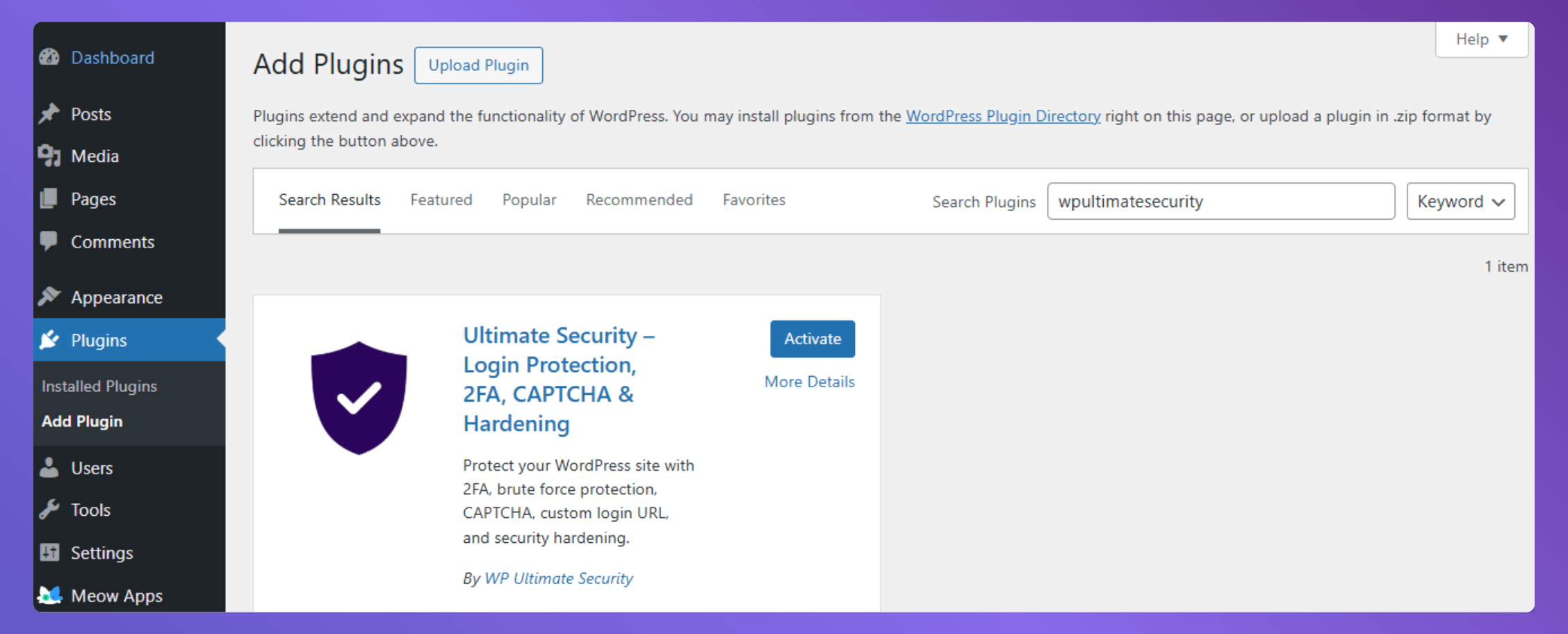
- Log in to your WordPress admin dashboard.
- Go to Plugins > Add New.
- In the search box at the top right, type wpultimatesecurity.
- Find the plugin named “WP Ultimate Security – Firewall, Login Security, 2FA Protection & More” by wpultimatesecurity.
- Click the Install Now button.
- Once the installation is finished, click Activate.
The plugin is now installed and ready to change WordPress login URL. Now, find the “Ultimate Security” on the left-side menu. For manual download, read the manual installation guide.
Set New Custom Login URL for WordPress
The custom login URL feature is one of the easiest ways to reduce automated attacks. It takes 30 seconds to set up and instantly makes your WordPress site less visible to the bad bots that are constantly scanning the internet for targets.
Let’s hide your login page and head to the Ultimate Security plugin settings.
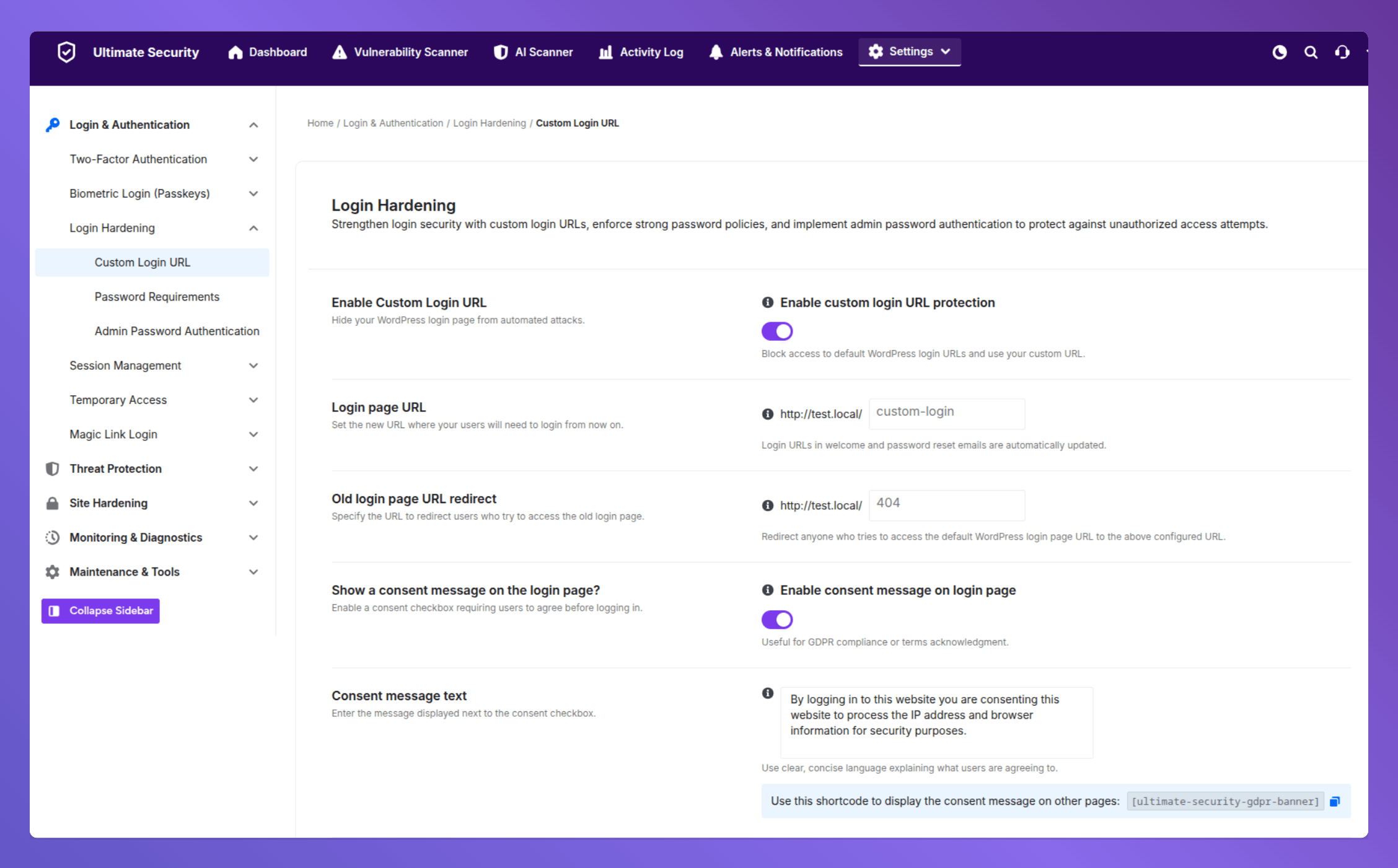
In the Ultimate Security plugin navigate to: Login & Authentication → Login Hardening → Custom Login URL
Activate the toggle switch to enable the option. The next is a text input field where you have to type the last part of your new URL.
Set a new prefix based on your preference. Example: yoursite. com/connect
How to redirect The Old Login URL
This controls what anyone sees when they visit the old /wp-login.php or /wp-admin address. The default is a 404 error. But if you’d rather send them to a specific page, like your homepage, you can set a custom redirect URL instead.
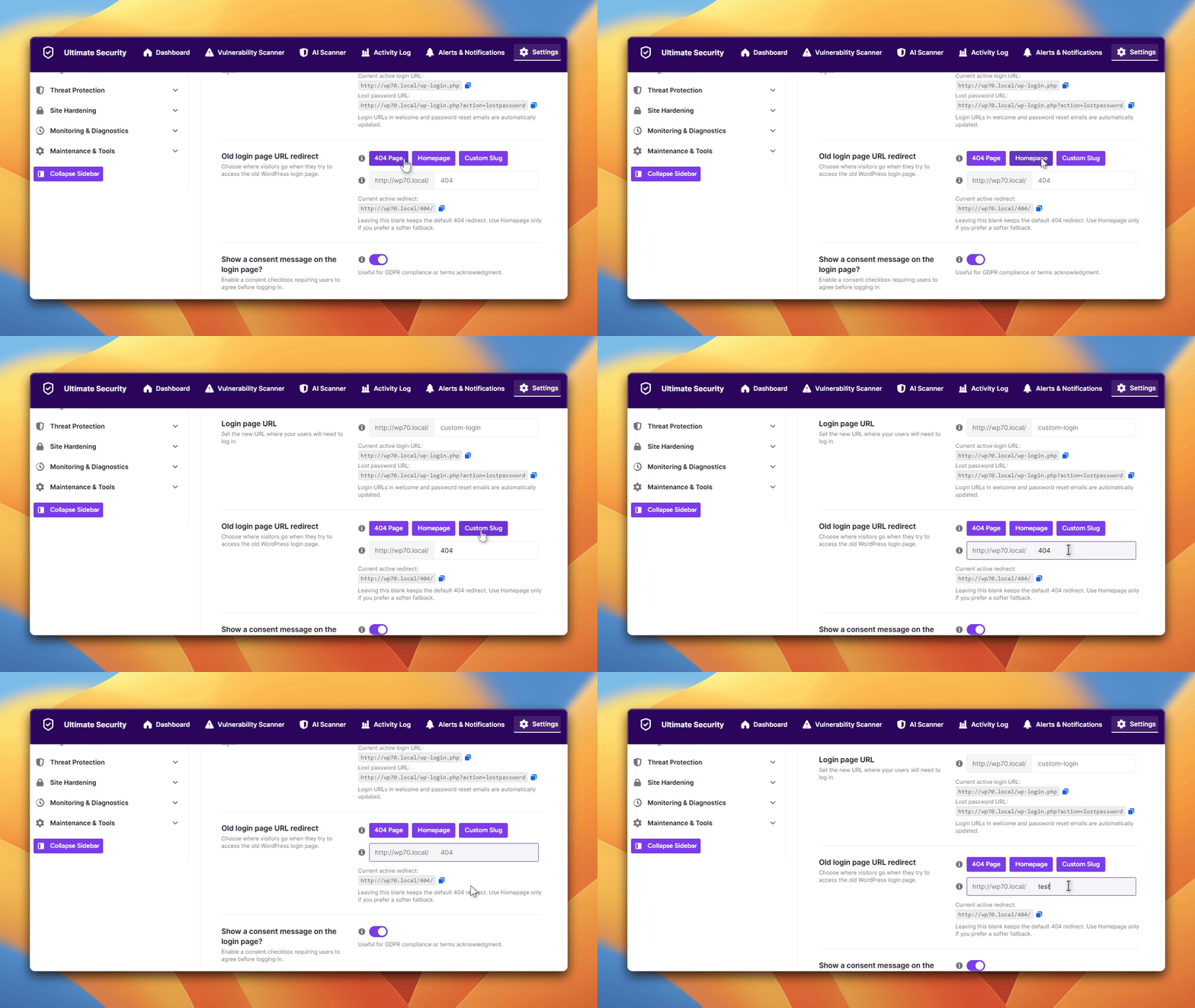
Tip: Leave it as 404 unless you have a specific reason to redirect elsewhere.
Turn on a consent message
This is an optional feature. When the toggle is on, a short message appears on your login form. A default message is already written for you, but you can replace it with anything you want. It’s useful if multiple people log into your site. You can use it as a reminder about password rules, an authorized-users-only notice, or just a welcome message for your team.
Save your changes
Scroll to the bottom of the section and click the save button. Your new login URL is live, and the old address is redirected immediately. Anyone who visits the old address, including bots, gets a 404 error and nothing else. Your real login page is now hidden.
Plus,
- Write down or bookmark your new login URL right now.
- Open an incognito window and test your new URL before logging out of your current session.
Next Step to Protect Your Login Page
To change WordPress login URL is a smart move. That alone stops a ton of unwanted traffic. Now, let’s pair the new login page with another layer of security to harden it. Add a check right on your login page, like CAPTCHA or Cloudflare Turnstile. These tools quietly verify that the person trying to log in is actually a human, not a bot. So even if someone finds your new login URL, they still have to pass that check. Want to set it up? The next guide walks you through it using Ultimate Security: Block Bad Bots to Protect WordPress.
WordPress Ultimate Security handles all of this in one place. Change WordPress login URL, login attempt limits, CAPTCHA, and two-factor authentication. You don’t need five separate plugins to get solid WordPress login page protection. It’s all under Login & Authentication in the plugin settings.
Frequently asked questions
Will I lose access to my site if I change the login URL?
Only if you forget the new URL before logging out. That’s why you need to bookmark the new address and test it in an incognito window first. The plugin also gives you a deactivation URL from Settings → Maintenance & Tools → Advanced. If things go wrong, this is your way back in.
Does changing the login URL affect my site’s SEO?
No. Search engines don’t index your login page. Changing the URL has zero effect on your rankings.
What happens to the old wp-login.php URL?
It stops working. By default, anyone who visits the old address gets a 404 “Page Not Found” error. You can also redirect it to a custom URL if you prefer.
Can bots still find my login page if I change the URL?
Automated bots look for the default WordPress login page. If your page isn’t there, they can’t find it. A custom login URL stops this kind of mass automated scanning. It doesn’t stop a targeted human attacker who actively searches for your new URL. That’s why combining it with an extra security layer matters.
Do I need any coding skills to set this up?
None. You type your new URL slug into a text box and click save. Ultimate Security plugin handles everything in the background. Redirects, blocking the old URL, all of it.
Conclusion
WordPress login URL is public by default. Every bot and attacker already knows where to find it. This is not scary, rather it’s just how WordPress works. The good news is that fixing it only takes two minutes. You change the URL using the “Ultimate Security Plugin,” the old address redirects, and most automated attacks stop. It’s one of the simplest security hacks you can set up for your WordPress site, and it costs you free with the plugin.