

Anyone on the internet can find the default WordPress login page. Hackers run automated tools on the page that test thousands of password combinations. If your password ever gets leaked in a breach or someone simply guesses it right, then your site is wide open. WordPress two-factor authentication adds a second layer of security to your login page. Even if someone gets your password somehow, they can’t get in without the second verification step. With email OTP, the second step is simple.
Table of Contents
What is Two-Factor Authentication
Two-factor authentication (2FA) is a second step that confirms it’s really you logging in. Normally, you log into WordPress with just a username and password. That’s one step. With 2FA turned on, after you enter your password, the site asks for one more thing. A short code sent to your email. Only after you enter that code can you get in.
That’s all 2FA is. One extra step that makes it significantly harder for anyone else to access your site, even if they already know your password.
Where to Find the 2FA Settings in Ultimate Security Plugin
Once you have installed and activated the Ultimate Security plugin on your WordPress site. But if you haven’t yet installed the plugin, meet Ultimate Security Plugin.
Go to Ultimate Security → Login Authentication. This is where all your two-factor authentication settings appear.
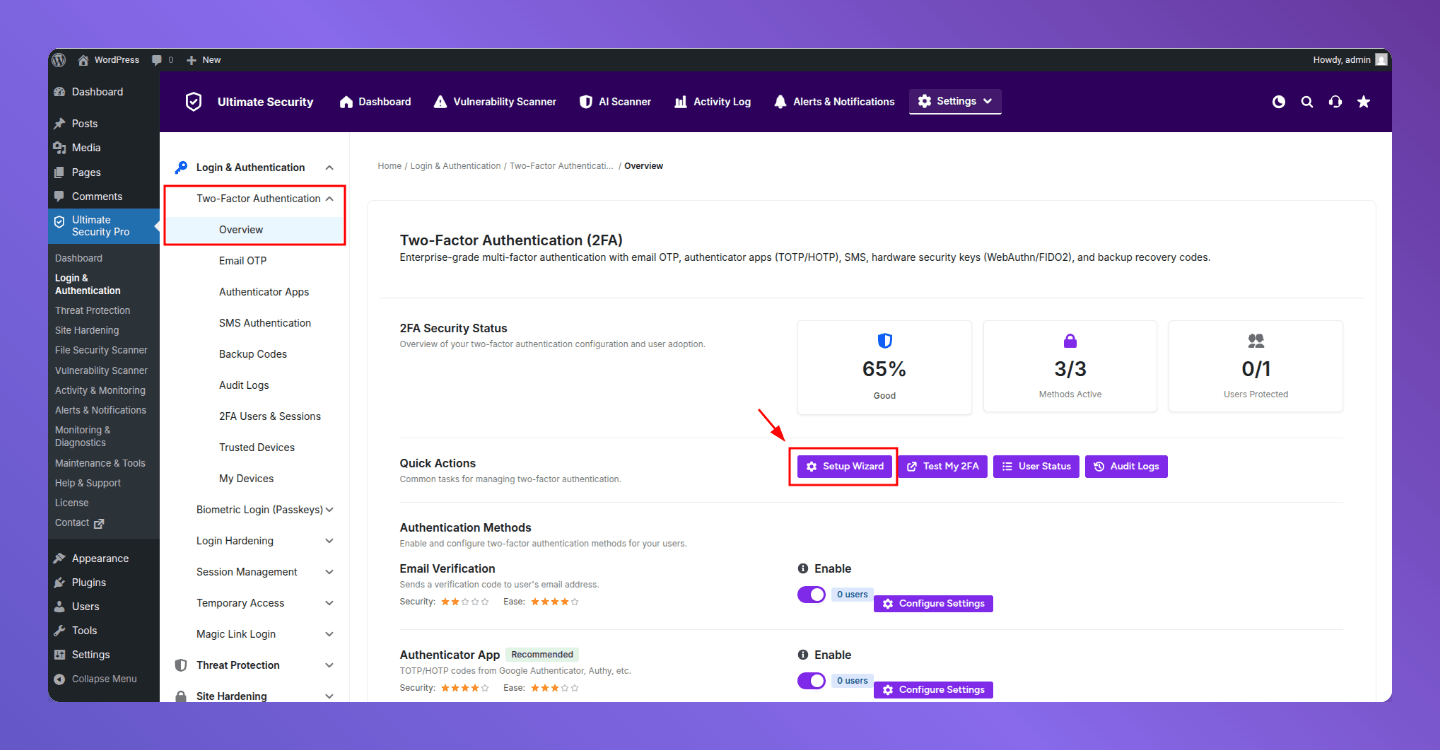
Look for the Setup Wizard option on this page. It walks you through the configuration in a few simple steps. For beginners, this guide is a good place to start before diving into the individual settings.
Look at the images to follow the steps;
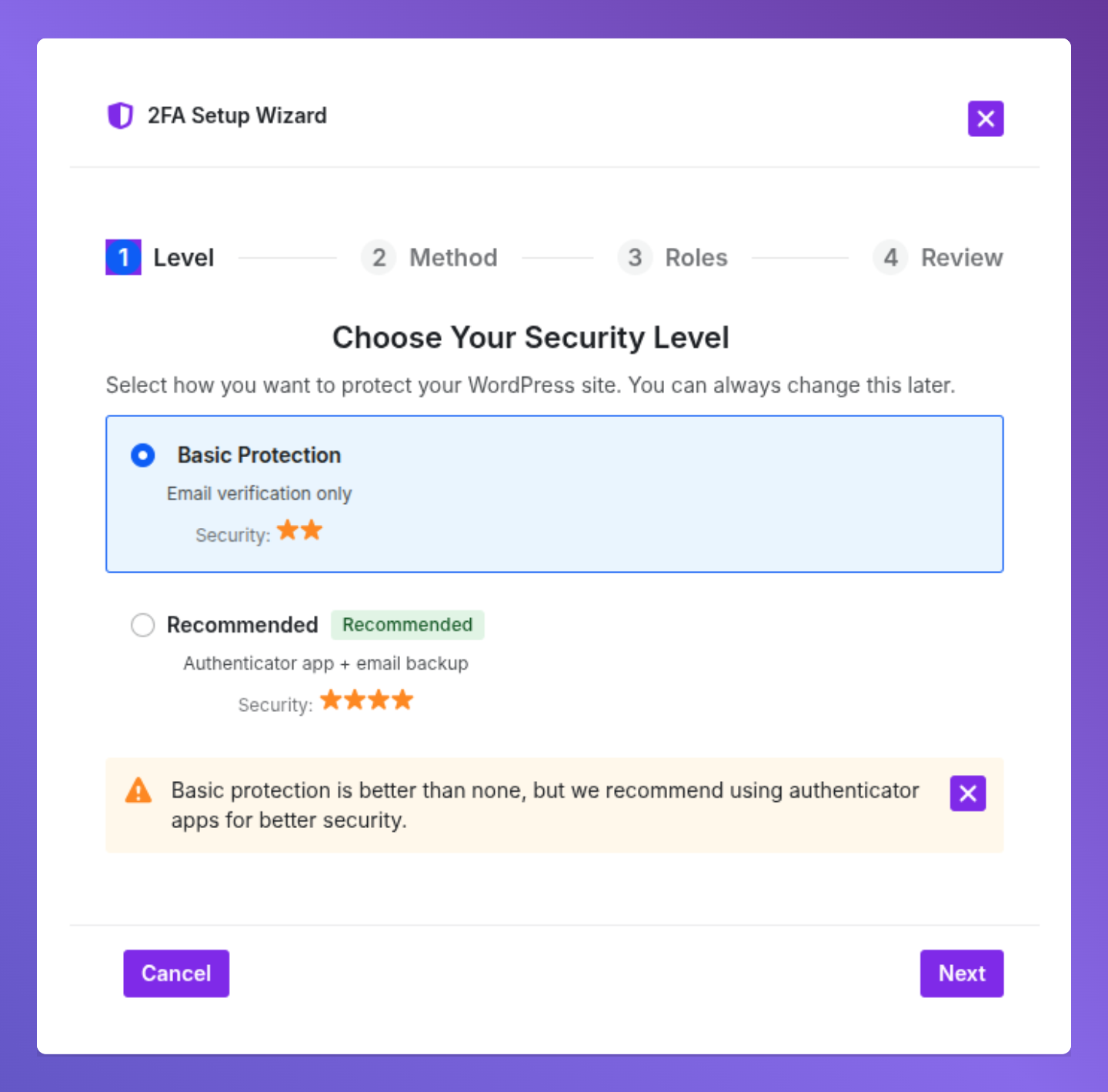
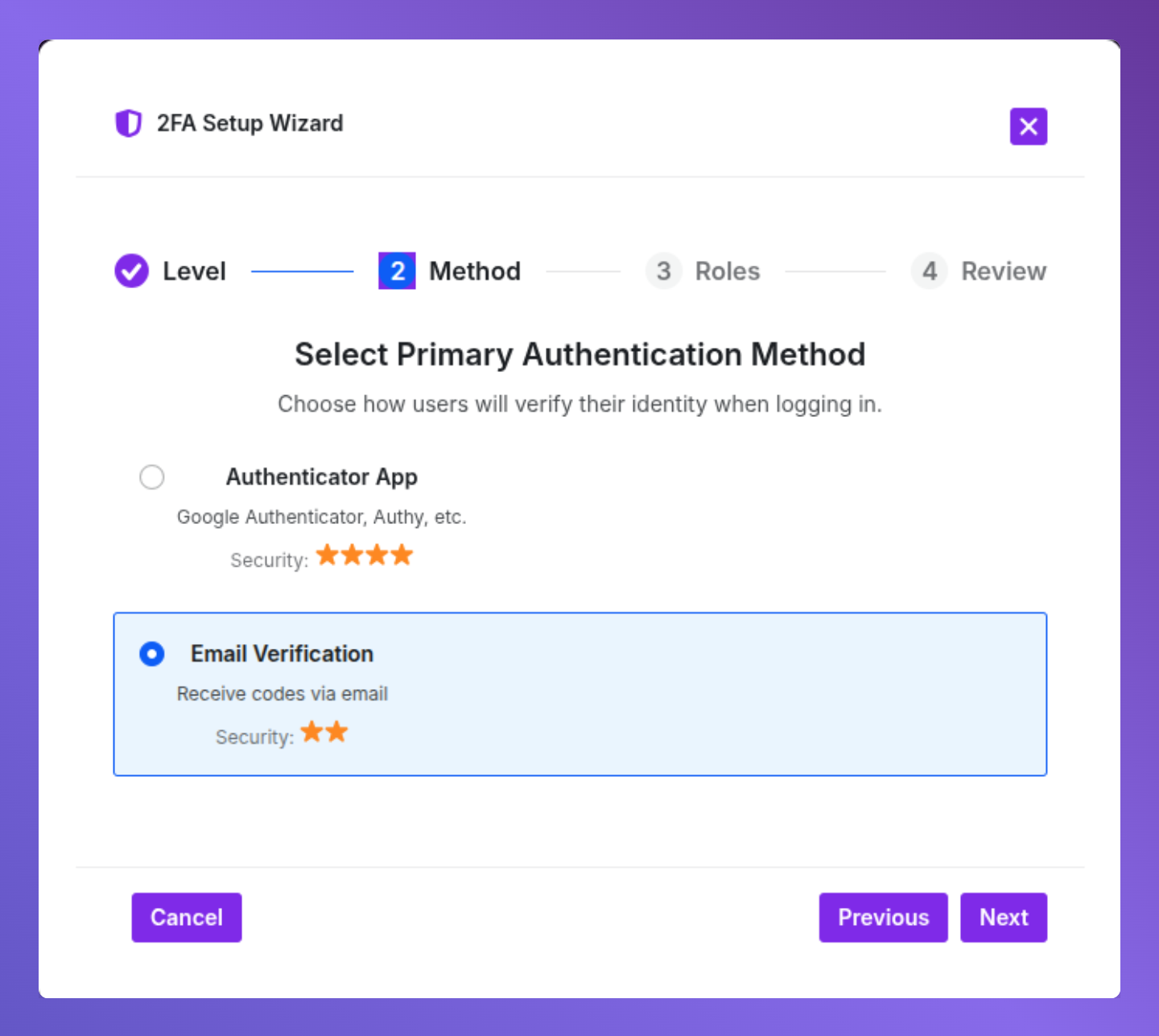
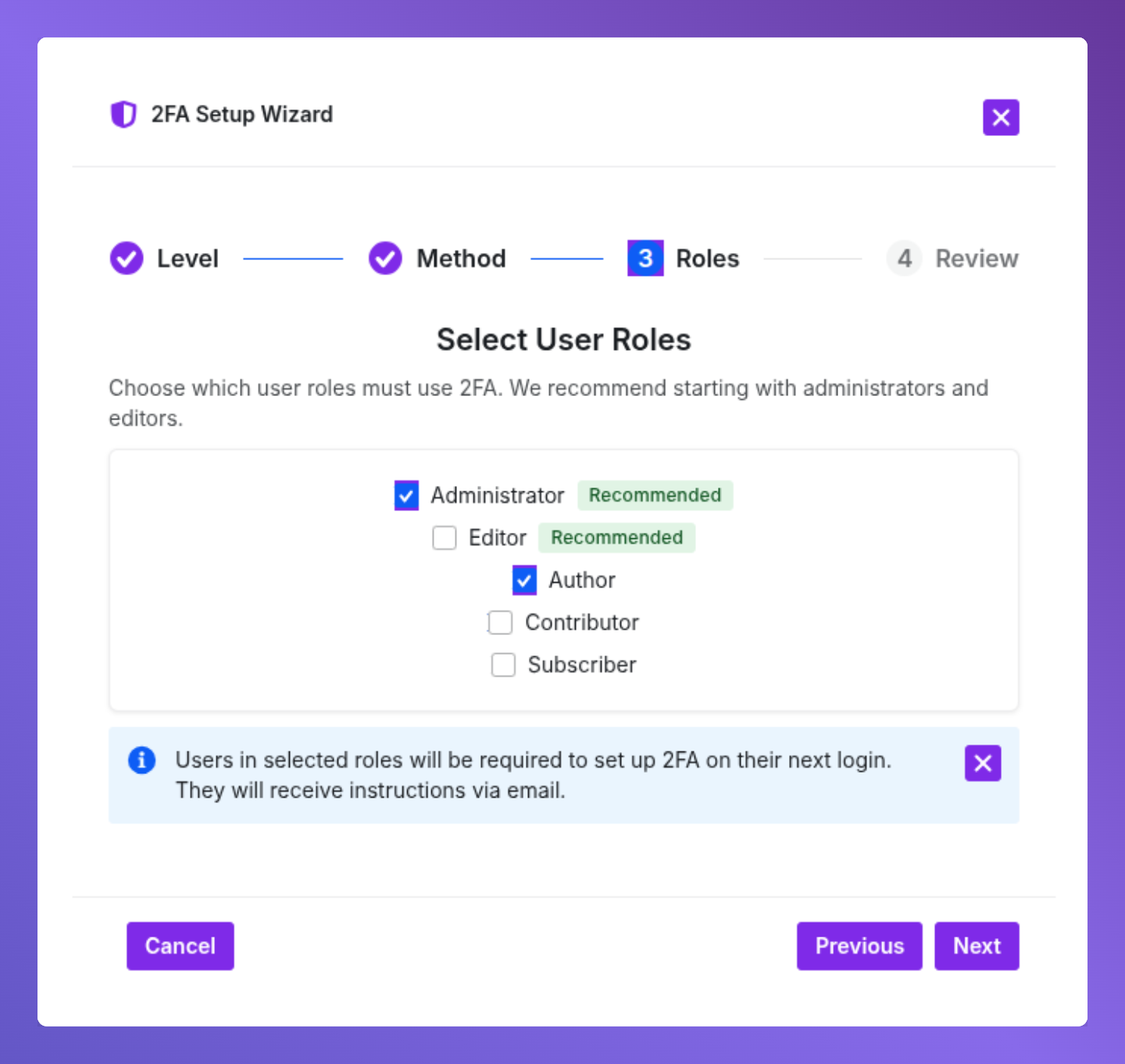
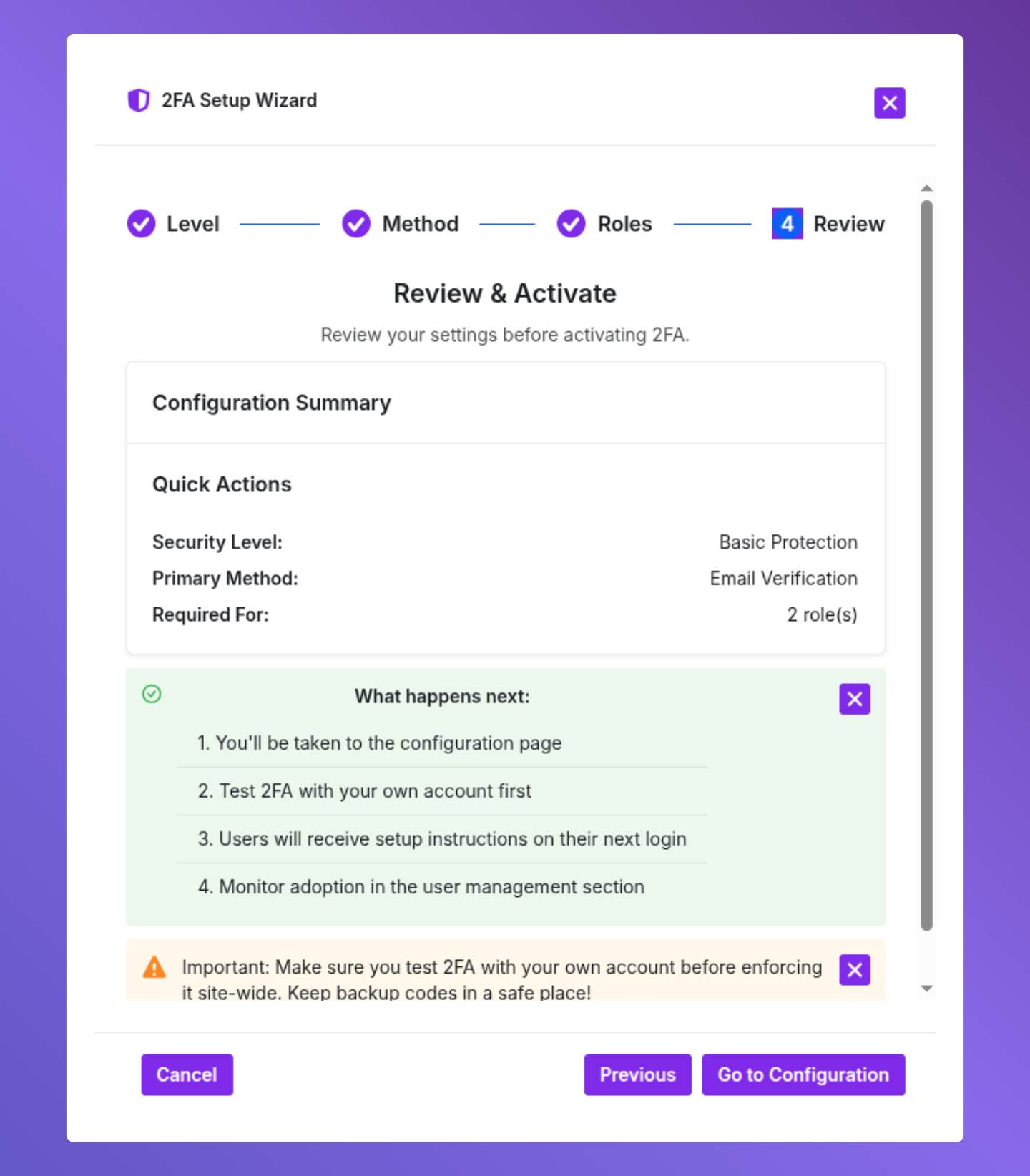
After following the steps, the “Go to Configuration” button will take you straight to the Email OTP page. You can finalize the process then.
How to Enable Email OTP on Your WordPress Site
Now turn on the email OTP method. In Ultimate Security, select Login & Authentication, then click on Email OTP. The first thing you’ll see is the “Enable Email Verification” toggle. Right below that, you’ll find the “Enable for Roles” setting.
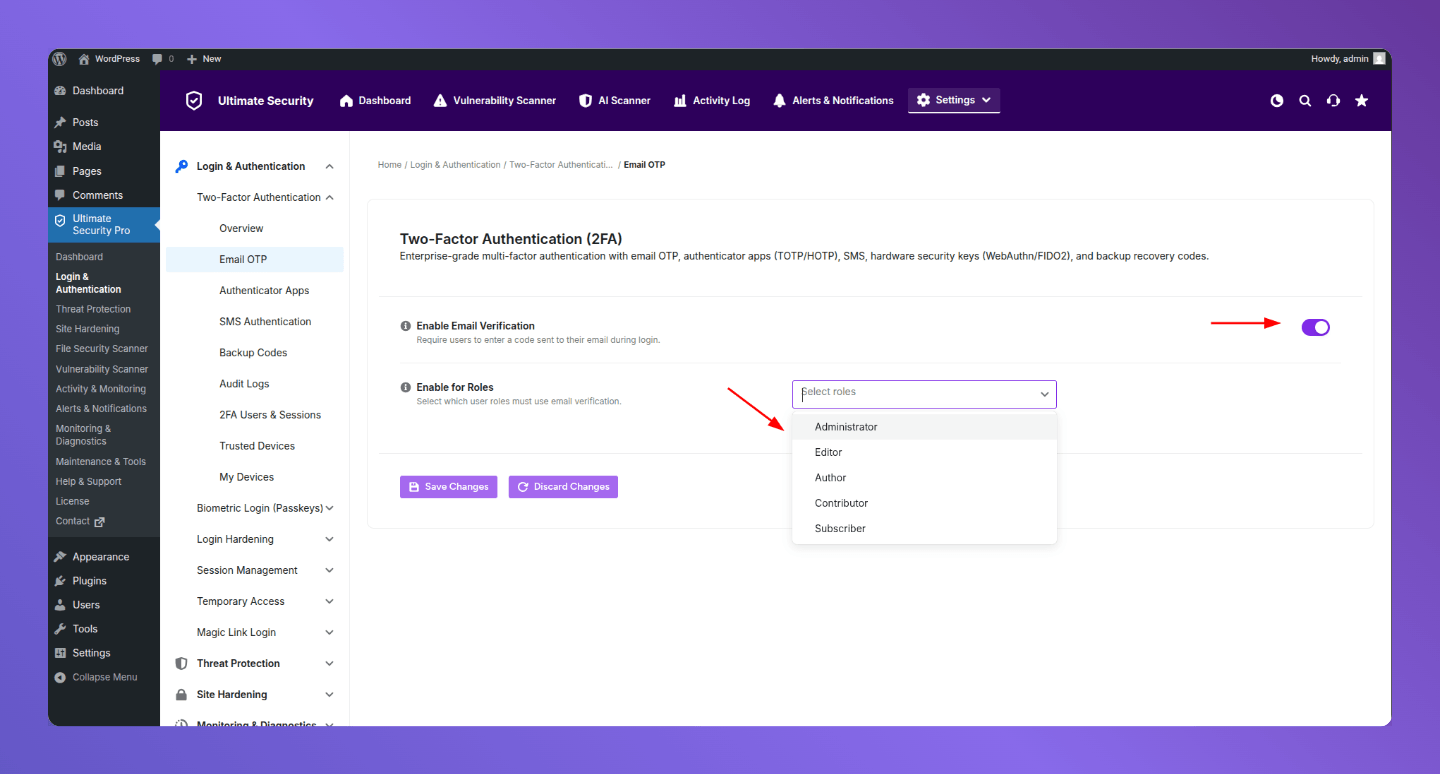
This is where you decide which users on your site are required to use email OTP when they log in. For example, you can require it for administrators and editors and leave it optional for subscribers. Determine the roles that have access to sensitive areas of your site and ensure their protection. When you are done selecting roles, click Save Changes.
Email OTP only works if your site can actually send emails. Meaning, WordPress on its own is not reliable at delivering emails. If you haven’t already, you need to connect your site to an SMTP service. Without it, the OTP email may never reach the user.
How Users Set Up Email OTP from Their Profile
Once you’ve enabled Email OTP from the admin side, each user needs to complete their own setup from their WordPress profile. To do this:
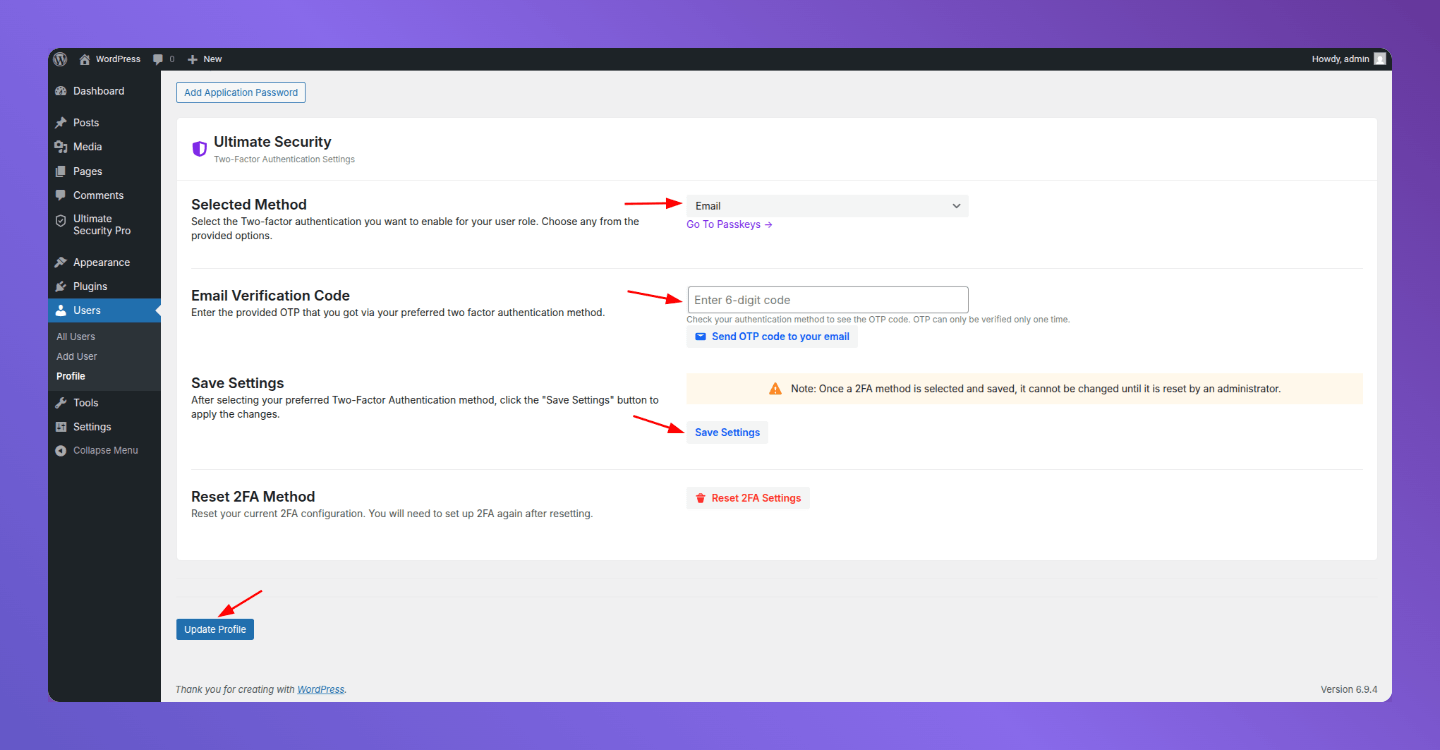
- Go to WordPress Dashboard → Users → Profile
- Scroll down until you see the Ultimate Security section
- Select Email as the 2FA method
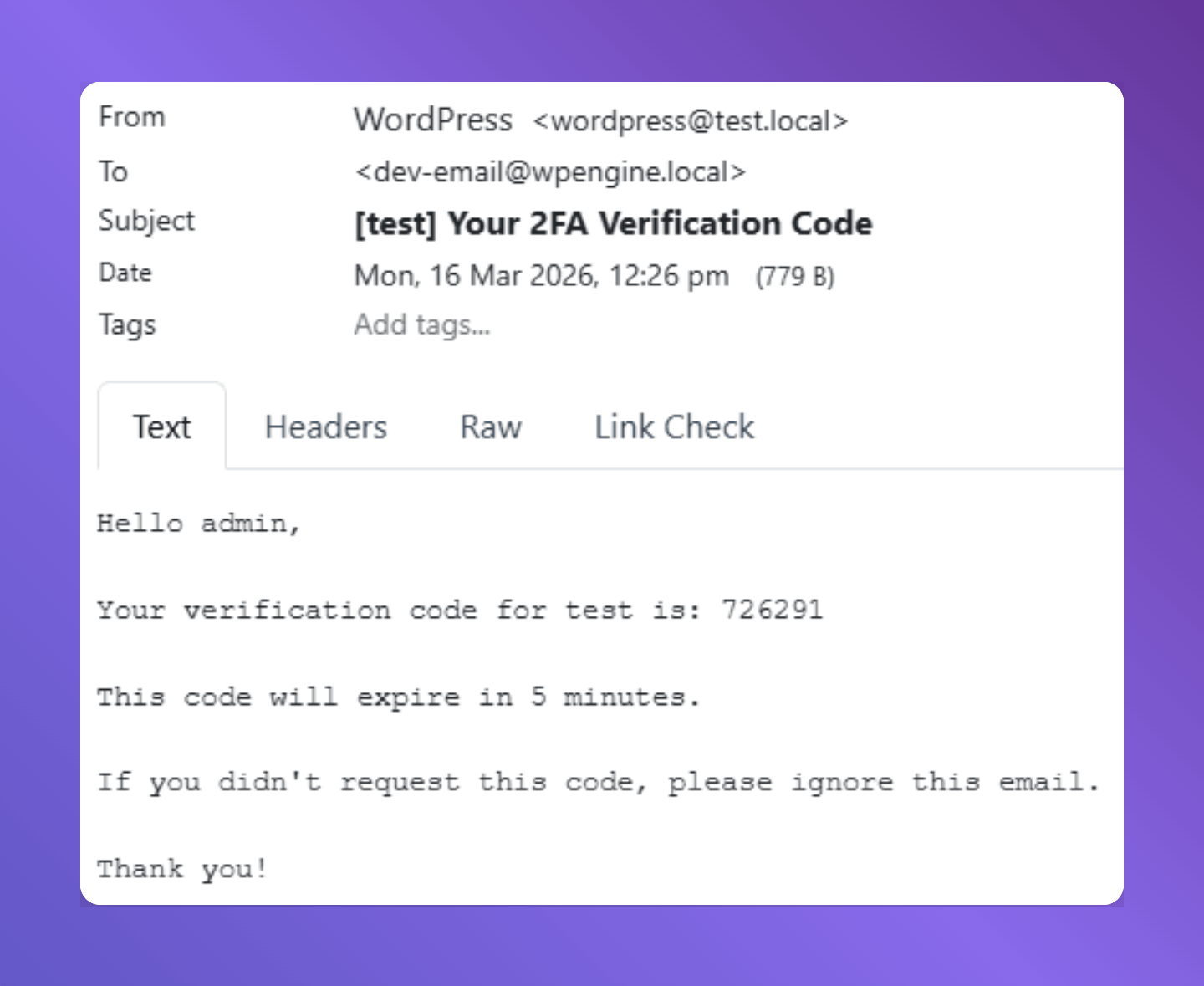
After the email method is selected, you need to verify your email with an OTP. For this,
- Press the “Send OTP” button and get that OTP in your email
- Submit the OTP in the box
- Save Settings to apply, then press the Update Profile button
That’s it. From the next login, the user will receive an OTP in their email before they can access the dashboard. Keep in mind that the OPT expires within five minutes.
How to Check if Your Email OTP is Working
After completing the setup, it is always a good idea to test it before your users start logging in. This way you catch any issues early instead of dealing with a frustrated user who can’t get into their account.
Here is how to test it:
- Log out of your WordPress site
- Go to the login page and enter your username and password
- After submitting, check if the OTP verification screen appears. This confirms 2FA is active and running
- Open your email inbox and look for the OTP code
- Enter the code in the verification field and hit Verify
- If you land on the dashboard successfully, everything is working correctly
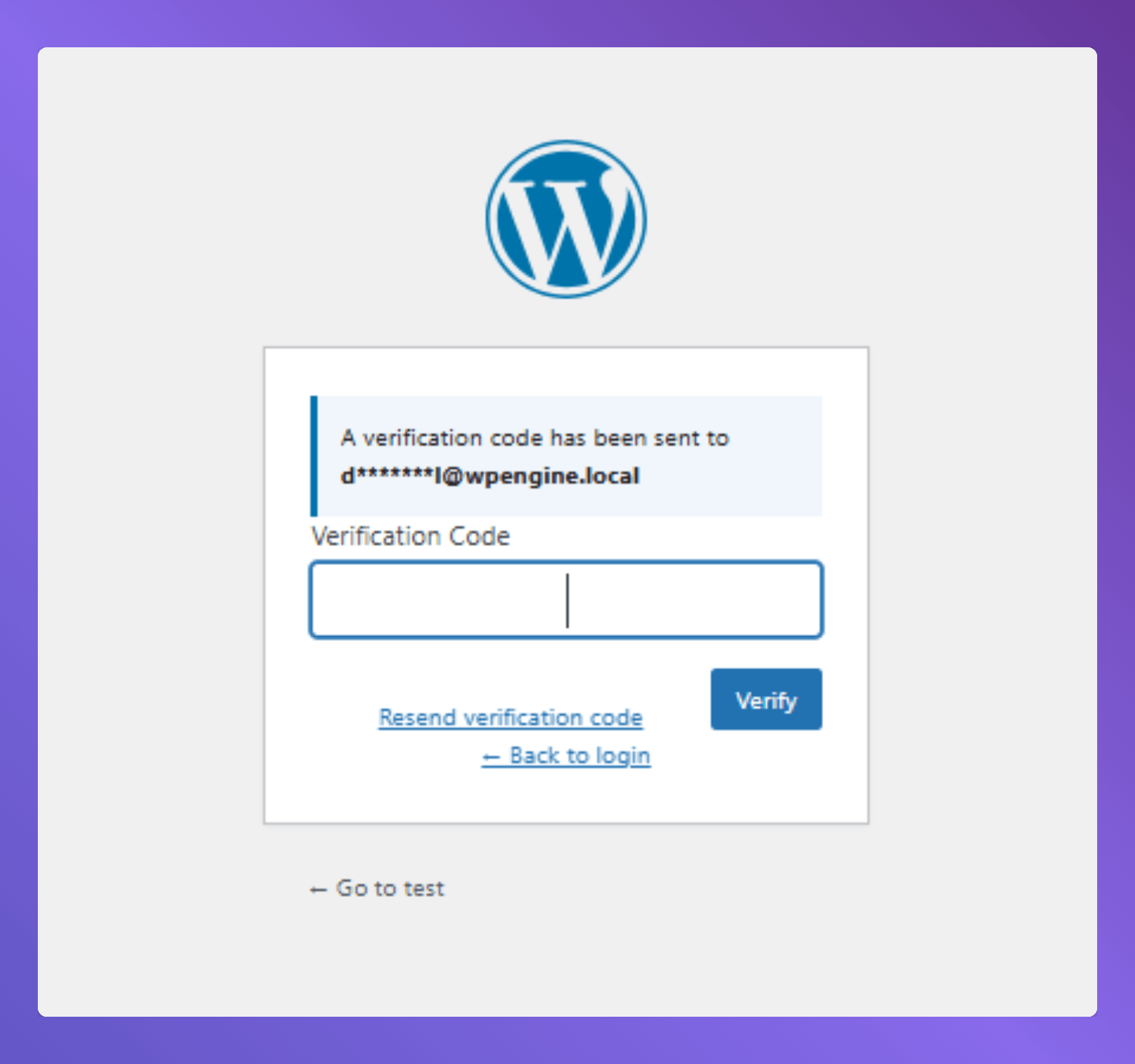
If the OTP email doesn’t show up, here are the most common reasons:
- SMTP is not configured: This is the number one reason OTP emails fail to deliver. Make sure your SMTP plugin is set up and working correctly
- Email went to spam: Check your junk folder. If it’s there, mark it as safe so future codes always land in your inbox
- Code expired: If you waited too long before submitting, the code expires after 5 minutes. Request a new one and try again
Once the test login goes through without any issues, your email OTP setup is live and fully working. Your WordPress login now has that extra layer of protection in place.
Read our comprehensive beginner user guide to explore more about two-factor authentication.
Conclusion
The Ultimate Security plugin makes the two-factor authentication process easy, even if you’ve never touched a security plugin before. You enabled Email OTP and assigned it to the right user roles. That’s a meaningful upgrade to your site’s security, and it took less time than five minutes. A single stolen password used to be all it took to hand someone full access to your WordPress site. With email OTP in place, that’s no longer enough. Every login now requires a second confirmation that only the real user can access.